Quick Start

# Introduction
This document is the Quick Start Guide for Kingdee Apusic Load Balancer (ALB) V2.0.6 Standard Edition. It introduces the ALB product and helps users get started quickly.
# Intended Audience
This document is intended for IT business owners, R&D managers, software project managers, software architects, and operations engineers.
# Related Documents
For more information about ALB V2.0.6, refer to the ALB V2.0.6 documentation set:
| No. | Document | Description |
|---|---|---|
| 1 | ALB V2.0.6 Release Notes | Introduces the version updates of the ALB product. |
| 2 | ALB V2.0.6 Quick Start Guide | Briefly describes how to get started with ALB. |
| 3 | ALB V2.0.6 Installation Guide | Describes how to install ALB on various operating systems, start and stop the ALB service, and register the product. |
| 4 | ALB V2.0.6 Proxy Function Manual | Describes the usage, configuration, and management of ALB features, as well as supporting tools. |
| 5 | ALB V2.0.6 Console User Manual | Describes the usage and operation of the ALB Console. |
| 6 | ALB V2.0.6 Developer Manual | Describes the ALB external APIs, the alb-cli command-line tool, and AI Agent integration. |
| 7 | ALB V2.0.6 Migration Guide | Describes how to migrate and upgrade from earlier ALB versions to V2.0.6. |
| 8 | ALB V2.0.6 Operations Manual | Describes ALB monitoring, operations, and security hardening. |
| 9 | ALB V2.0.6 Performance Optimization Guide | Describes ALB performance tuning. |
# Technical Support
ALB provides comprehensive technical support. You can obtain support through the following channels:
Website: www.apusic.com
Phone: 400-855-5800
Email: support@apusic.com
Kingdee Cloud Community: https://vip.kingdee.com/?productId=73&productLineId=14&lang=zh-CN
When requesting technical support, please provide the following information:
Your name
Your company information and contact details
The operating system and its version
The product version number
Details of the exception or error, such as logs and screenshots
# Version Update History
This document is updated as needed. The latest version includes a history of changes.
| Date | Document Version | Applicable Product | Update Description |
|---|---|---|---|
| 2024-12 | V2.0.2 | ALB V2.0.2 Agile Edition | Updated ALB high availability and license authentication usage documentation |
| 2025-08 | V2.0.5 | ALB V2.0.5 Standard Edition | New user manual; added Console usage instructions |
| 2026-06 | V2.0.6 | ALB V2.0.6 Standard Edition | Brand-new Console upgrade |
# Quick Start
Before using the product, switch to the ALB installation directory. In this example, the directory is /opt/ALB-V2.0.6-SE-20260421-amd64 (the actual directory name depends on the extracted installation package). Place the ALB Standard Edition license files (license.lic, license.xml, or the unified license configuration file acls.properties) you obtained into the installation directory.
Note: If the license file is missing or invalid, ALB will fail to start and report a license error. Please make sure the license file has been placed correctly.
# First Startup
The first time ALB Standard Edition starts the Console, it generates initial random passwords for multiple management users. Please change them promptly after logging in to the Console.
./bin/start-alb-and-console.sh
ALB is Starting(正在启动ALB)...
alb: [emerg] : KBC auth: license just for test
      ___                     _        Apusic Load Balancer Standard Edition
     /   |  ____  __  _______(_)____   Edition: Standard Edition
    / /| | / __ \ / / / / ___/ / ___/   License start: 2026-03-16 00:00:00
   / ___ |/ /_/ / /_/ (__  ) / /__     License end: 2026-06-30 23:59:59
  /_/  |_/ .___/\__,_/____/_/\___/     IP granted: 255.255.255.255
        /_/                            Licensee: Apusic Cloud Computing Co., Ltd.

  version: v2.0.6

ALB console is starting (正在启动ALB控制台)...

========================================
ALB Console default user initial passwords
========================================
  admin-system: &H3vYJGS65tm@IZk
  admin-security: n9dzFv2U1i&d65C*
  admin-audit: 0J@Ra^ot3VVrtClx
  admin-alb: ^K4gJ05^htPUVbtK
  user-alb: Q27&E^HfVGU*Q1Io

Security notice: change the password immediately after the first login
========================================

ALB and its console are running now!(ALB和ALB控制台启动成功)
2
3
4
5
6
7
8
9
10
11
12
13
14
15
16
17
18
19
20
21
22
23
24
25
26
27
The initialized Console users and passwords are shown in the Console initialization information. Log in to the Console and change them.
If you missed the initial passwords, you can view them in the file console/data/users/.init_passwords
cat console/data/users/.init_passwords
# ALB Console default user initial passwords
# This file is auto-generated; do not modify manually
# Generated at: 2026-06-22 17:46:23

admin-system: &H3vYJGS65tm@IZk
admin-security: n9dzFv2U1i&d65C*
admin-audit: 0J@Ra^ot3VVrtClx
admin-alb: ^K4gJ05^htPUVbtK
user-alb: Q27&E^HfVGU*Q1Io

# Security notice: change the password and delete this file after the first login
2
3
4
5
6
7
8
9
10
11
12
# Logging in to the Console
- Login URL:
http://<node IP>:8887(for system admin and regular users);http://<node IP>:8887/admin(for security admin and audit admin) - Username: admin-alb
- Password: log in with the initial password printed at the first startup. If you didn't record it, check the file
console/data/users/.init_passwords
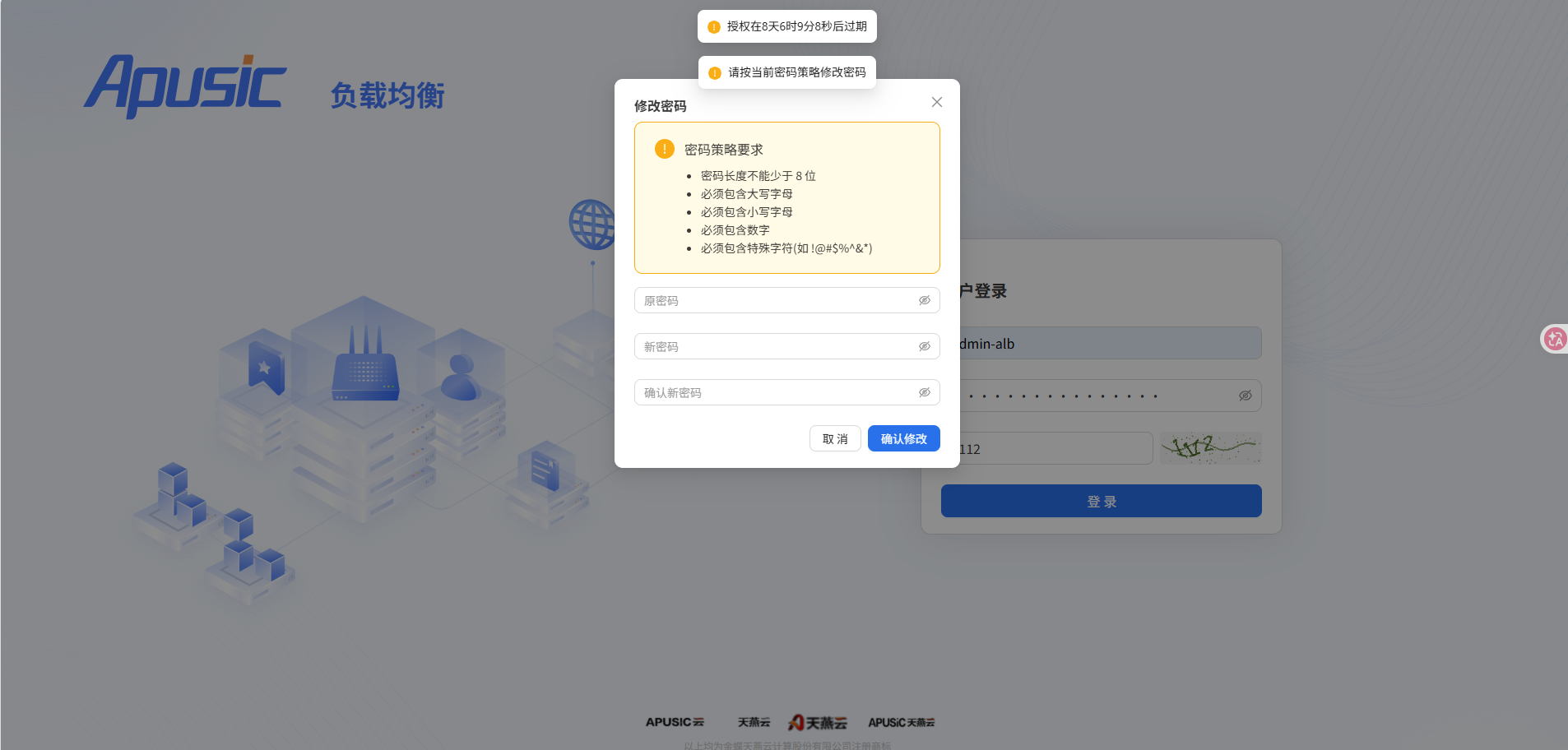
After logging in for the first time, you must change the password:
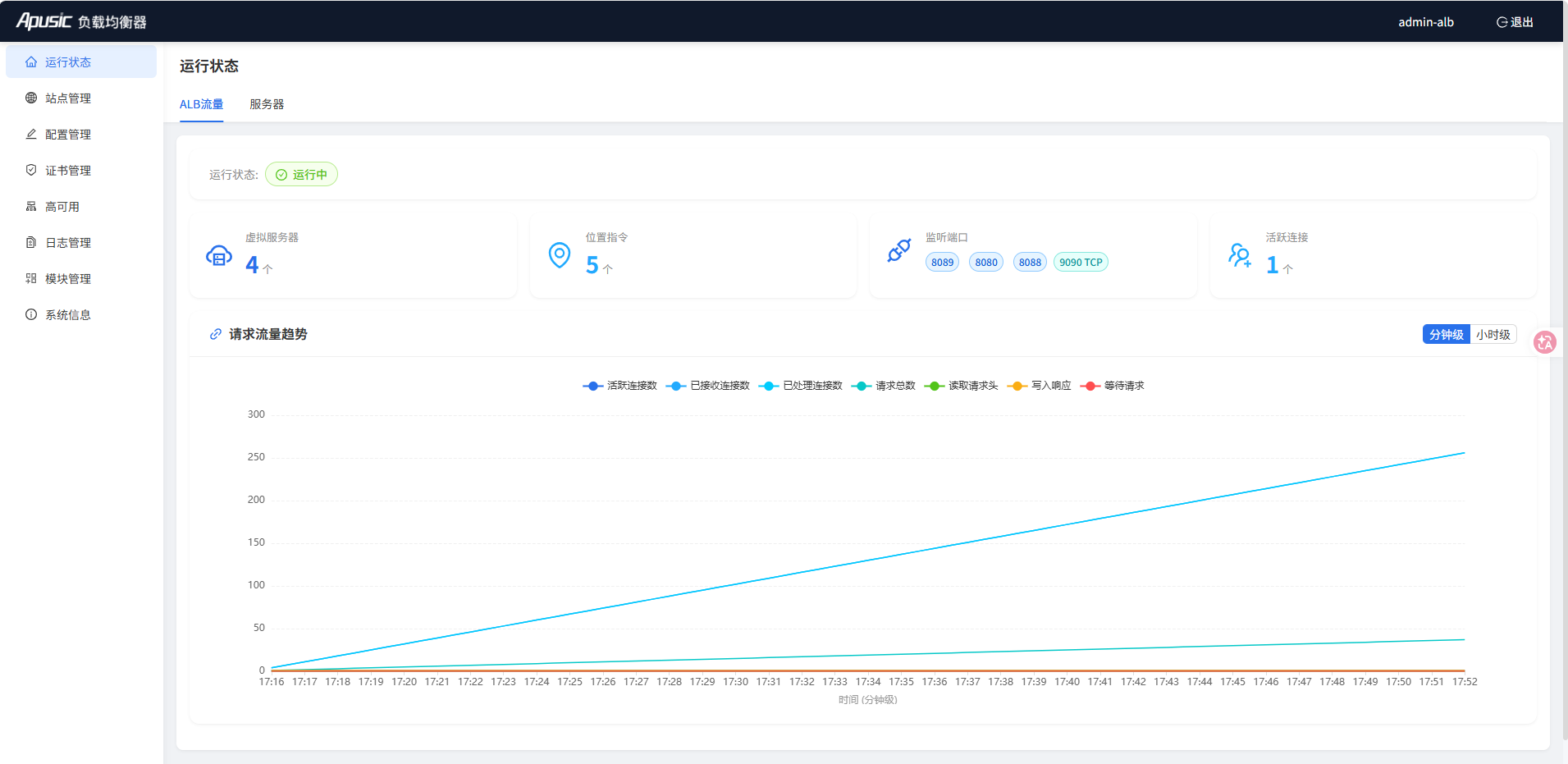
After logging in, you enter the home page
# Configuring Reverse Proxy
Steps:
- Prepare the IP address and service port of the target server that will be reverse proxied.
- Create a site in the Console's Site Management, configure the listen port and reverse proxy to the target server.
- Verify the reverse proxy.
Example: There is an HTTP service at
192.168.1.100:8080that needs to be published through ALB. The service is reachable on the ALB node. You can configure ALB's reverse proxy to proxy the HTTP service.
Target proxy service:
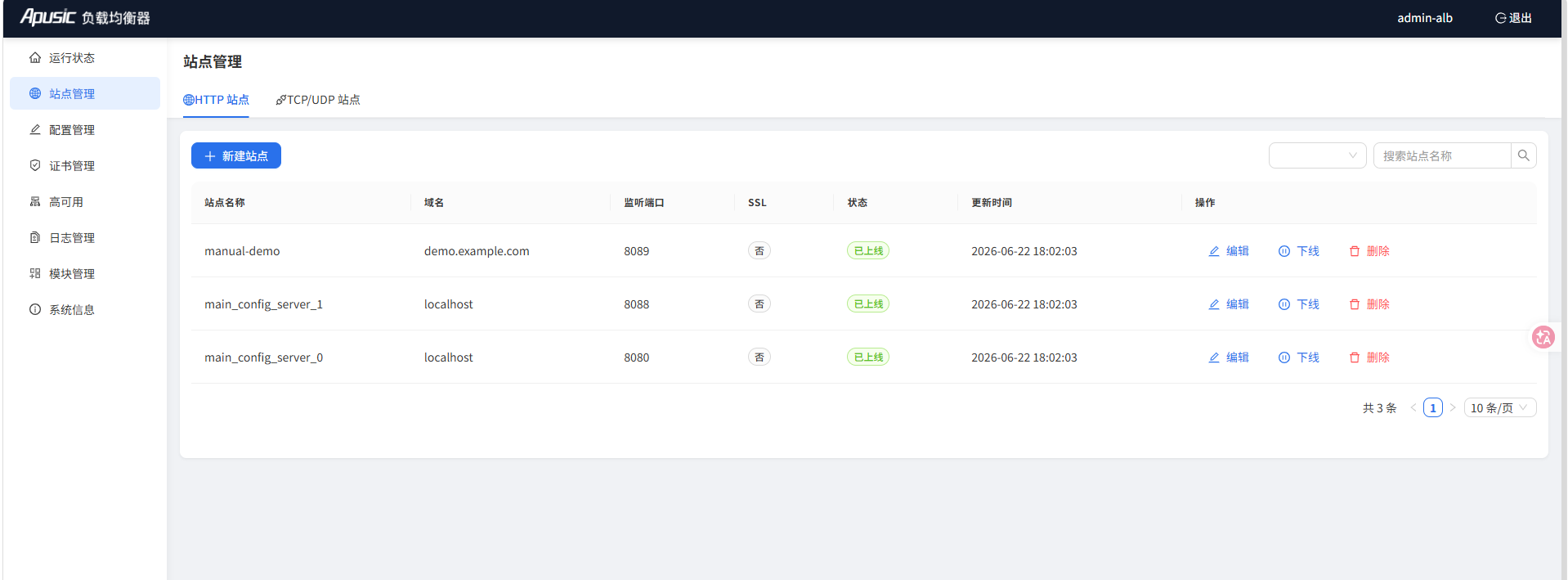
192.168.1.100:8080Create a site in the Console's Site Management, configure the listen port and reverse proxy to the target server.
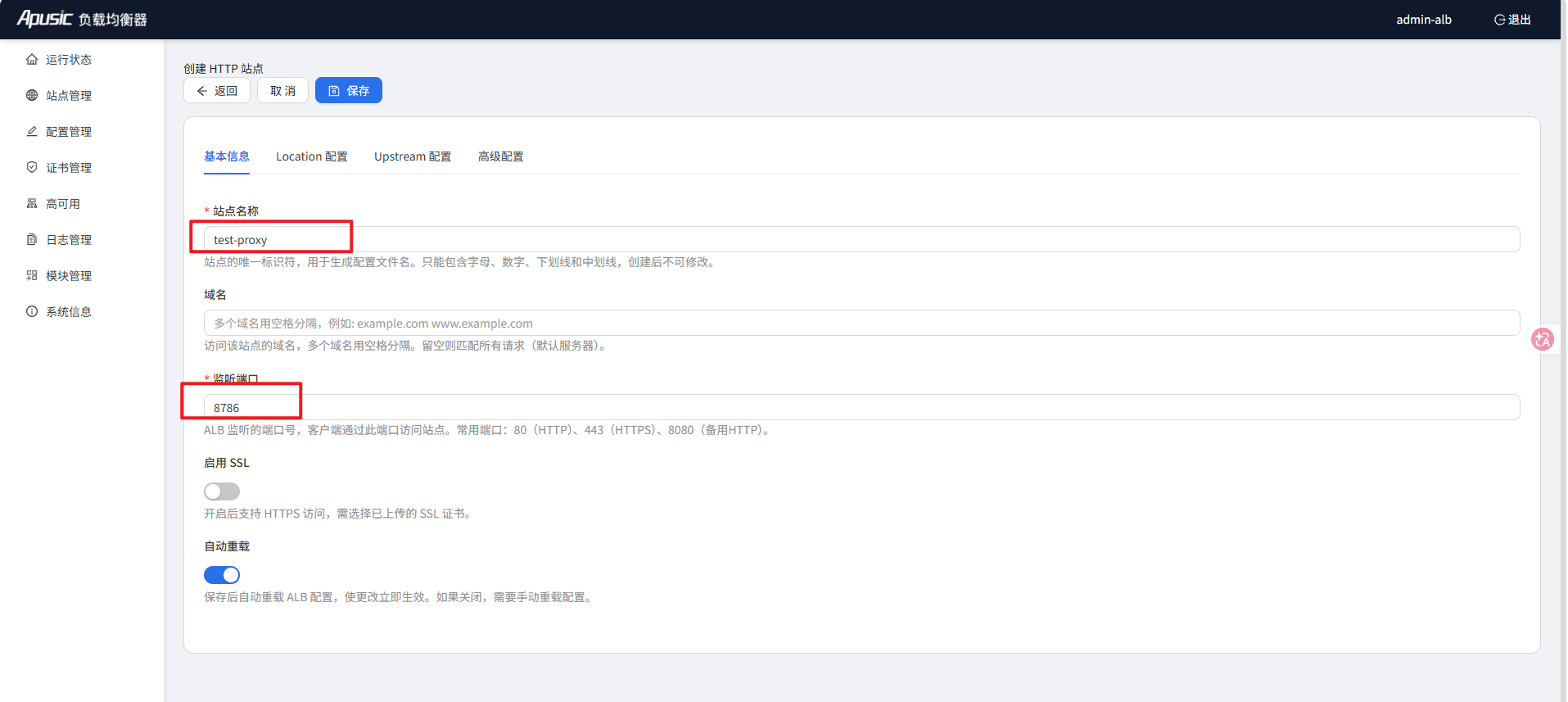
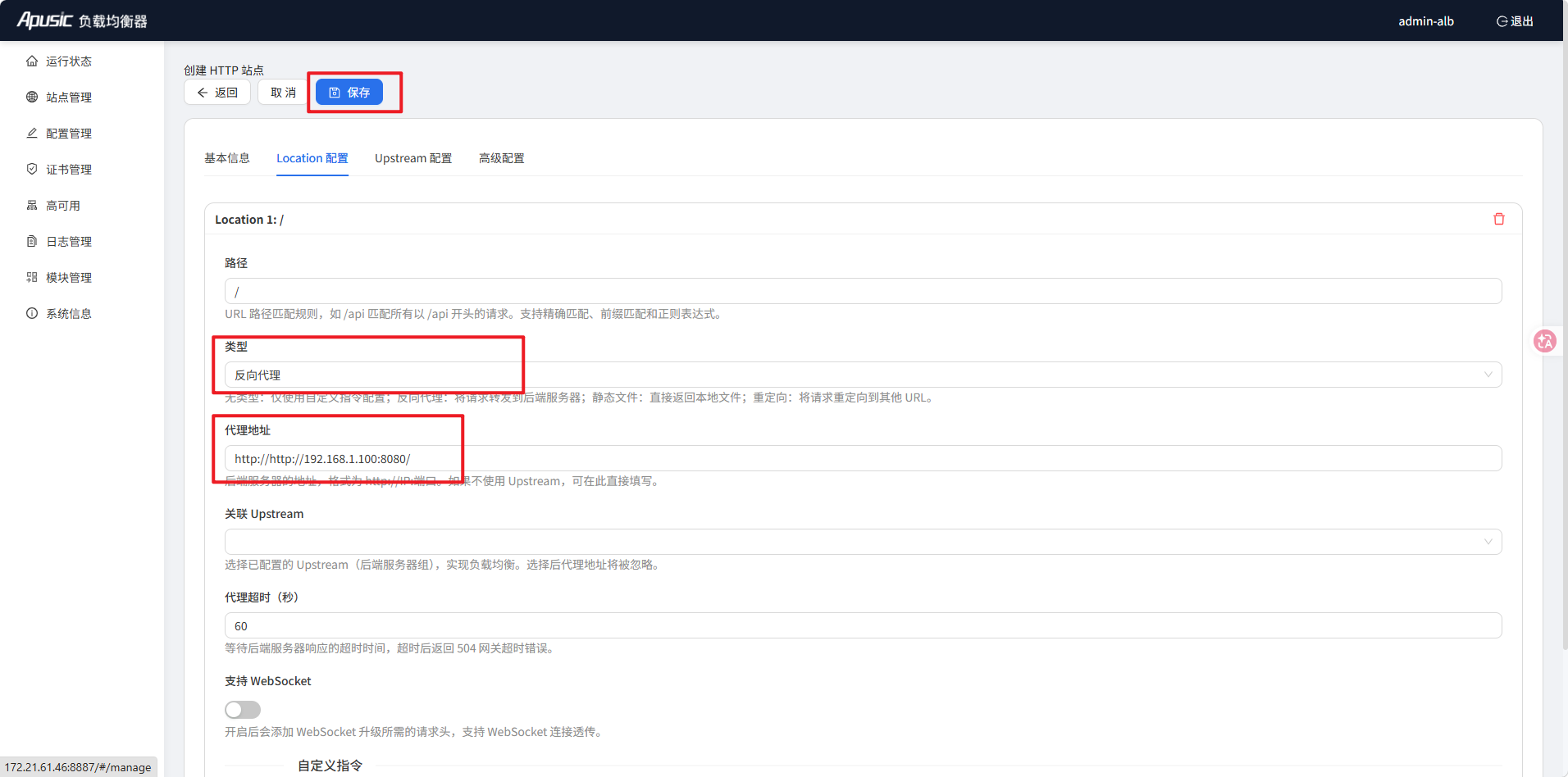
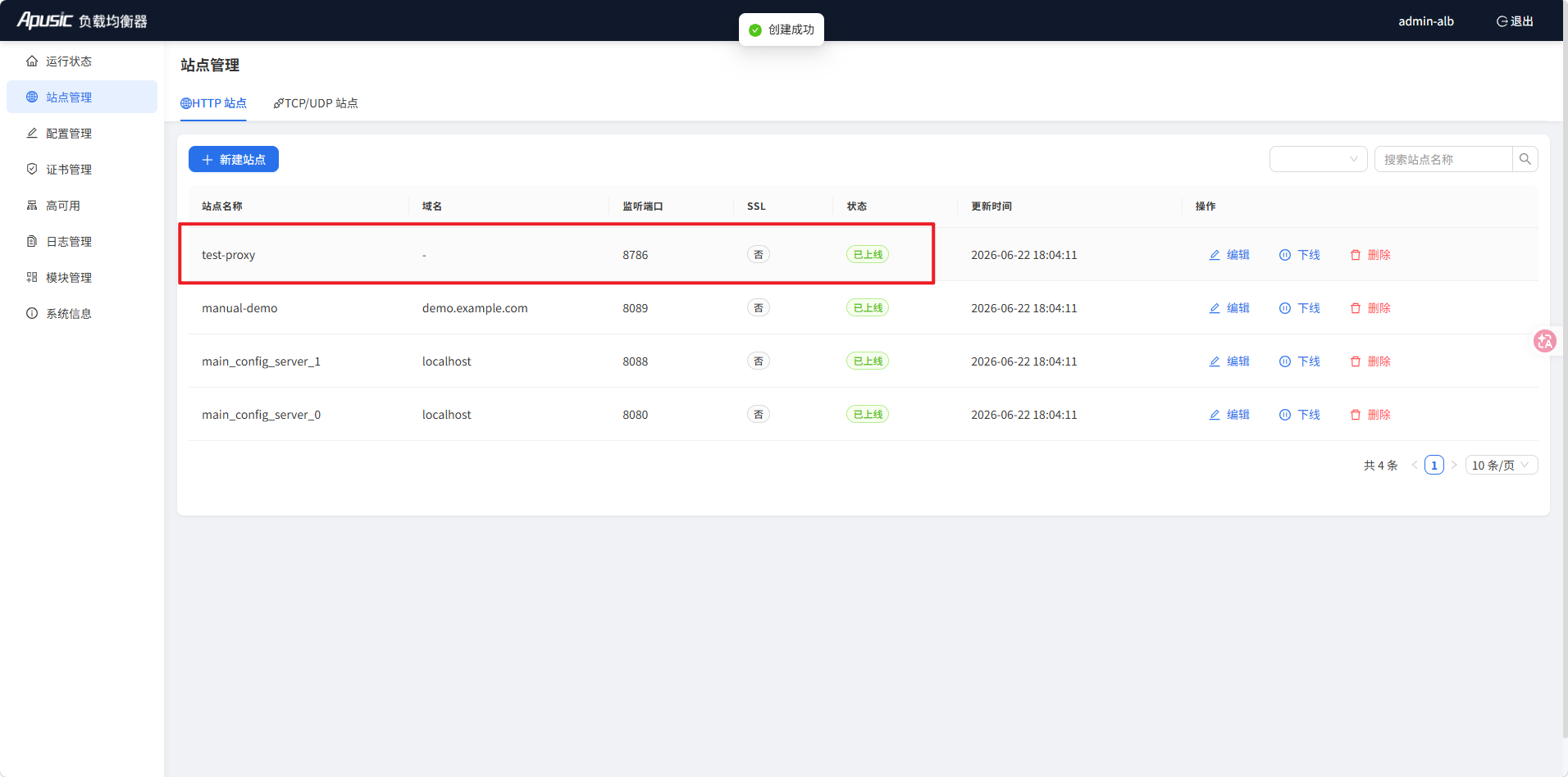
Verify the reverse proxy.
curl http://[ALB-IP]:8080
# Configuring Static Asset Proxy
Steps:
- Prepare the static asset directory and zip it
- Create an HTTP site in the ALB Console
- Fill in the HTTP site name and port, then switch to the Locations tab
- Click Add Location
- Select Static Files, then click Upload Static Bundle
- Click Save
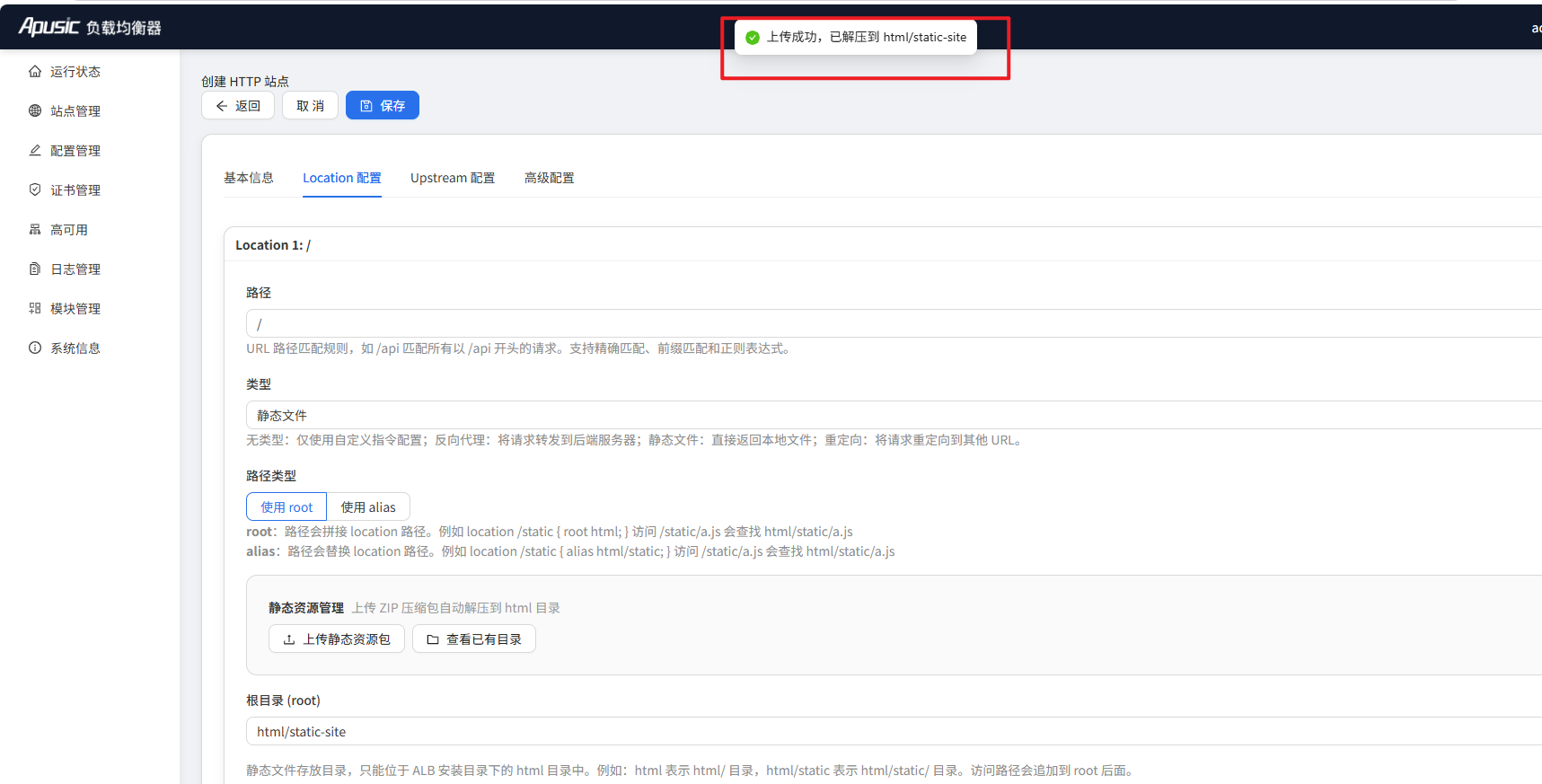
- Verify the static assets.
curl http://[ALB-IP]:8080/index.html
# Configuring Static/Dynamic Separation
Goal: the default path serves static assets; API paths are reverse proxied to the backend.
Steps:
- Prepare the static asset directory and zip it
- Create an HTTP site in the ALB Console
- Fill in the HTTP site name and port, then switch to the Locations tab
- Click Add Location
- Select Static Files, then click Upload Static Bundle
- Click Add Location
- Choose Reverse Proxy as the type, set the path to
/api/, and set the proxy address to the backend service address
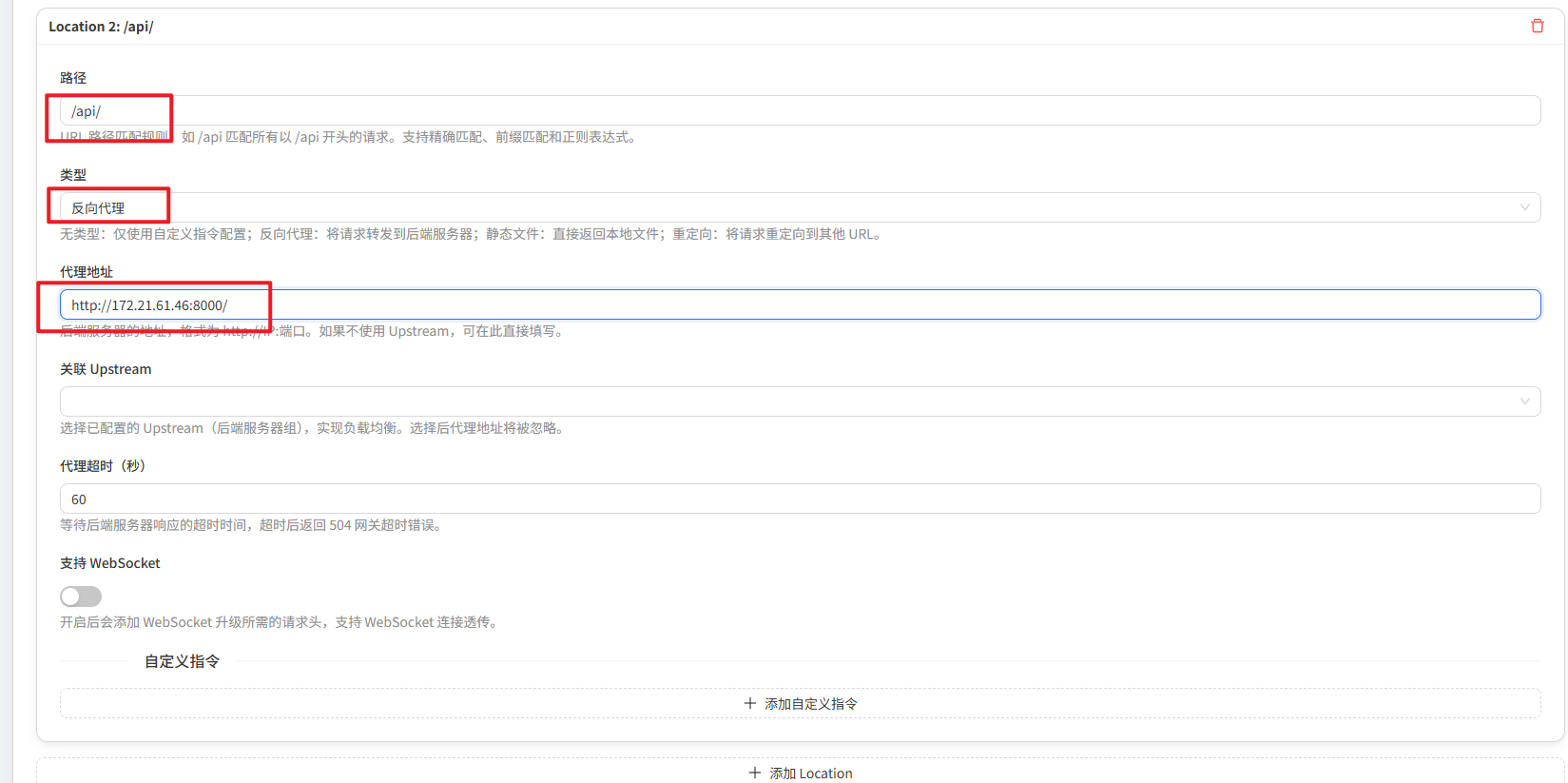
- Click Save
# Fetch the static asset index.html
curl http://[ALB-IP]:8080/index.html
# Call the API
curl http://[ALB-IP]:8080/api/user/list
2
3
4
# Product Startup and Configuration
# Start, Stop, Hot Reload, Uninstall, Validate Config, and Get Authorization Code
- Start ALB and the management Console
cd /opt/ALB-V2.0.6-SE-amd64            # Enter the installation directory
./bin/start-alb-and-console.sh                   # Start ALB and the management Console
2
- Start ALB only (not the Console)
cd /opt/ALB-V2.0.6-SE-amd64            # Enter the installation directory
./bin/start-alb.sh                   # Start ALB
2
- Stop ALB and the management Console
cd /opt/ALB-V2.0.6-SE-amd64            # Enter the installation directory
./bin/stop-alb-and-console.sh                    # Stop ALB and the management Console
2
- Stop ALB only
cd /opt/ALB-V2.0.6-SE-amd64            # Enter the installation directory
./bin/stop-alb.sh                    # Stop ALB
2
- Hot reload
cd /opt/ALB-V2.0.6-SE-amd64            # Enter the installation directory
./bin/reload-alb.sh                  # Hot reload the ALB configuration
2
Uninstall
- Unpackaged installation
- Delete the installation directory directly
- rpm:
- x86:
rpm -e ALB-SE-2.0.6-1.el7.x86_64 - arm64:
rpm -e ALB-SE-2.0.6-1.el7.aarch64
- x86:
- Unpackaged installation
Validate the configuration file
You can use the -t option to check whether the configuration file has errors.
Successful validation prints: syntax is ok and test is successful.
cd /opt/ALB-V2.0.6-SE-amd64            # Enter the installation directory
./sbin/alb -t                          # Validate conf/alb.conf for syntax errors
2
To validate a specific configuration file, use the -c option:
cd /opt/ALB-V2.0.6-SE-amd64            # Enter the installation directory
./sbin/alb -t -c conf/alb.conf         # Validate conf/alb.conf for syntax errors

# Output
alb:the configuration file /opt/ALB-V2.0.6-SE-amd64/conf/alb.conf syntax is ok
alb:configuration file /opt/ALB-V2.0.6-SE-amd64/conf/alb.conf test is successful
2
3
4
5
6
- Get the authorization code
cd /opt/ALB-V2.0.6-SE-amd64            # Enter the installation directory
./bin/alb-authcode                 # Get the authorization code of the current node
# Note: if multiple codes appear, use any one when applying for the license

./bin/alb-authcode -ac eth0              # Get the authorization code for the specified NIC
./bin/alb-authcode -ac 192.168.1.150     # Get the authorization code for the specified IP
2
3
4
5
6
- Configure systemd autostart (optional)
The ALB installation package provides a systemd service file under utils/systemd/. You can register it as a system service and enable autostart at boot:
cd /opt/ALB-V2.0.6-SE-amd64            # Enter the installation directory
cp utils/systemd/alb.service /etc/systemd/system/alb.service
systemctl daemon-reload
systemctl enable alb
systemctl start alb
2
3
4
5
# Product Configuration
The ALB core is compatible with Nginx configuration. The main configuration file is:
<installation path>/conf/alb.conf
A simple alb.conf example:
user nobody;
worker_processes auto;

events {
    worker_connections 1024;
}

http {
    server {
        listen 8080;
        server_name localhost;

        location / {
            proxy_pass http://192.168.1.100:8080;
        }
    }
}
2
3
4
5
6
7
8
9
10
11
12
13
14
15
16
17
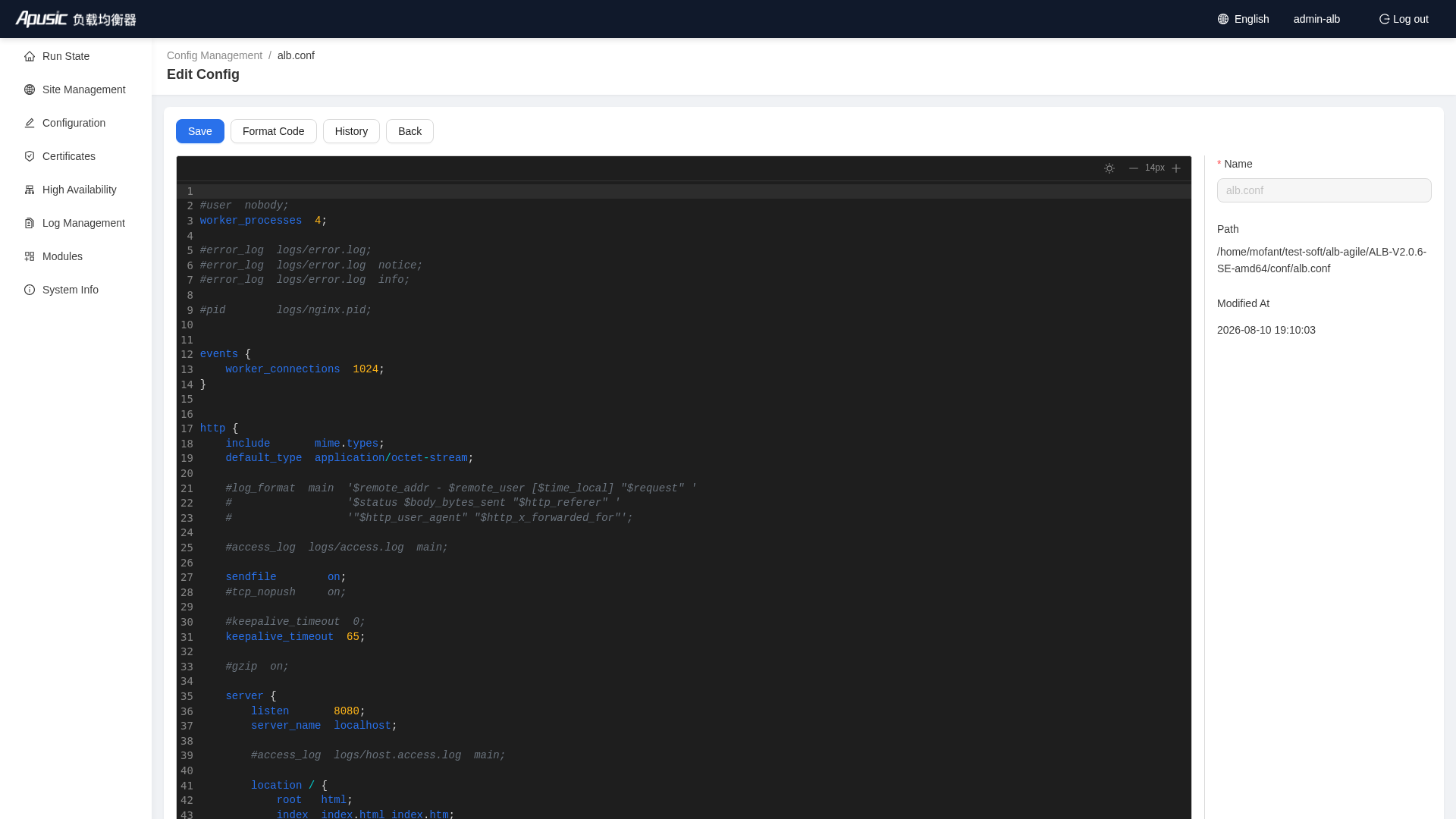
You can use Nginx-style configuration to configure ALB, and edit the configuration files directly under Configuration in the Console.