
Installation Guide

# Introduction
This document is the Installation Guide for Kingdee Apusic Load Balancer (ALB) V2.0.6 Standard Edition. It describes how to install, deploy, and license ALB on various operating systems, and how to start and stop the ALB service.
# Intended Audience
This document is intended for IT business owners, R&D managers, software project managers, software architects, and operations engineers.
# Related Documents
For more information about ALB V2.0.6, refer to the ALB V2.0.6 documentation set:
| No. | Document | Description |
|---|---|---|
| 1 | ALB V2.0.6 Release Notes | Introduces the version updates of the ALB product. |
| 2 | ALB V2.0.6 Quick Start Guide | Briefly describes how to get started with ALB. |
| 3 | ALB V2.0.6 Installation Guide | Describes how to install ALB on various operating systems, start and stop the ALB service, and register the product. |
| 4 | ALB V2.0.6 Proxy Function Manual | Describes the usage, configuration, and management of ALB features, as well as supporting tools. |
| 5 | ALB V2.0.6 Console User Manual | Describes the usage and operation of the ALB Console. |
| 6 | ALB V2.0.6 Developer Manual | Describes the ALB external APIs, the alb-cli command-line tool, and AI Agent integration. |
| 7 | ALB V2.0.6 Migration Guide | Describes how to migrate and upgrade from earlier ALB versions to V2.0.6. |
| 8 | ALB V2.0.6 Operations Manual | Describes ALB monitoring, operations, and security hardening. |
| 9 | ALB V2.0.6 Performance Optimization Guide | Describes ALB performance tuning. |
# Technical Support
ALB provides comprehensive technical support. You can obtain support through the following channels:
Website: www.apusic.com
Phone: 400-855-5800
Email: support@apusic.com
Kingdee Cloud Community: https://vip.kingdee.com/?productId=73&productLineId=14&lang=zh-CN
When requesting technical support, please provide the following information:
Your name
Your company information and contact details
The operating system and its version
The product version number
Details of the exception or error, such as logs and screenshots
# Product Installation
# Installation Package
The ALB Standard Edition installation package is named as follows:
ALB-<version>-SE-<build date>-<CPU arch>.tar.gz or ALB-<version>-SE-<build date>-<CPU arch>-ebpf.tar.gz
Only Linux arm64 and amd64 architectures are supported at present:
- Linux arm64:
ALB-V2.0.6-SE-<build date>-arm64.tar.gz - Linux amd64 (x86_64):
ALB-V2.0.6-SE-<build date>-amd64.tar.gz - Linux arm64 with
ebpf:ALB-V2.0.6-SE-<build date>-arm64-ebpf.tar.gz - Linux amd64 (x86_64) with
ebpf:ALB-V2.0.6-SE-<build date>-amd64-ebpf.tar.gz
Note: the build date is the specific build date of the ALB package; multiple build dates may exist for the same version. Always use the latest package when obtaining the installation package. The build date is omitted from the package names in this manual.
Note: for ebpf packages, the Linux kernel version must be 4.19 or later.
# Installation Media
- tar.gz:
ALB-<version>-SE-<build date>-<CPU arch>.tar.gz— extract to any directory on the target machine. - Docker image:
ALB-<version>-SE-Docker-<build date>-<CPU arch>-docker.tar.gzorALB-<version>-SE-Docker-<build date>-<CPU arch>-<base OS>.tar.gz(base OS such as kylin, ubuntu; see the actual package). - RPM:
ALB-<version>-SE-<build date>-<CPU arch>.rpm— install withrpm -ivh <package name>. The installation path is/opt/ALB-V2.0.6-SE-amd64(replace the version number based on the actual package).
# Single-Node Deployment
Obtain the software package ALB installation media: ALB-V2.0.6-SE-amd64.tar.gz or ALB-V2.0.6-SE-arm64.tar.gz
Copy the package to the target host
Extract to the target installation path (example:
/opt):tar -zxvf ALB-V2.0.6-SE-amd64.tar.gz -C /opt/Place the obtained license file into the installation directory; refer to the "ALB License and Service Configuration" chapter.
Refer to the Quick Start Guide for ALB usage.
Note: use the root account or sudo if you do not have sufficient permissions.
# Cluster Deployment
After installing both primary and standby nodes following the single-node steps, refer to the "Building a High Availability Cluster" chapter for further configuration.
# Docker Deployment
ALB Standard Edition provides Docker installation packages for both amd64 and arm64. You can deploy ALB directly from the ALB Docker package.
# Package Description
- ALB tar package names:
ALB-V2.0.6-SE-docker-amd64.tar.gzorALB-V2.0.6-SE-Docker-20260421-amd64-kylin.tar.gzALB-V2.0.6-SE-docker-arm64.tar.gzorALB-V2.0.6-SE-Docker-20260421-arm64-kylin.tar.gz
Note: the build date may differ; choose based on the actual package.
- Package directory structure
tree -L 1 ALB-V2.0.6-SE-Docker-20260421-amd64-kylin
ALB-V2.0.6-SE-Docker-20260421-amd64-kylin            # directory after extracting the docker package
|-- ALB-V2.0.6-SE-Docker-20260421-amd64-kylin.tar.gz # docker image file
|-- alb                                              # mount directory for ALB startup config, license, logs, etc.
|   |-- alb.conf                                     # ALB configuration file
|   |-- license.xml                                  # license file
-- alb-standard-dockercompose.yaml                   # docker compose configuration file
2
3
4
5
6
7
# Installation Steps
The example uses ALB-V2.0.6-SE-Docker-20260421-amd64-kylin.tar.gz.
- Extract and load the image
- Extract:
tar -zxvf ALB-V2.0.6-SE-Docker-20260421-amd64-kylin.tar.gz - Enter the extracted folder:
cd ALB-V2.0.6-SE-Docker-20260421-amd64-kylin - Load the image:
docker load < ALB-V2.0.6-SE-Docker-20260421-amd64-kylin.tar.gz
- Replace the license file
The ALB license file needs to be mounted into the container's installation directory. In this example it is alb/license.xml; replace the license file before starting the container.
License file notes
license.lic: legacy local license filelicense.xml: local license file, supporting both legacy and KBC licenses (for KBC, copy the KBC license content intolicense.xml)acls.properties: unified license configuration file; mount to the container path:/opt/ALB-V2.0.6-SE/acls.properties
- Start and stop the image
- Start:
docker compose -f alb-standard-dockercompose.yaml up -d - Stop:
docker compose -f alb-standard-dockercompose.yaml down
alb-standard-docker-compose.yamldescription
version: '3'
services:
  alb:
    image: harbor.apusic.com/apusic/alb:V2.0.6-se.20260421-kylin-amd64   # ALB image
    ports:
      - 8080:8080          # ALB HTTP listen port
      - 8887:8887          # ALB Console port
    volumes:
      - ./alb/alb.conf:/opt/ALB-V2.0.6-SE/conf/alb.conf      # ALB config file
      - ./alb/license.xml:/opt/ALB-V2.0.6-SE/license.xml     # ALB license file
      - ./alb/logs:/opt/ALB-V2.0.6-SE/logs                   # ALB access and error log directory
    command: bash /opt/ALB-V2.0.6-SE/bin/start-alb-and-console.sh
2
3
4
5
6
7
8
9
10
11
12
# K8s Deployment
ALB Standard Edition can be deployed via Kubernetes. The following are the detailed steps.
# Prerequisites
Environment
kubectlis installed and configured with cluster access.- If you use a private registry (such as Harbor), ensure the cluster has permission to pull images.
Prepare the image
- Upload the Docker image to the registry (using AMD64 as an example):
# Extract the package
tar -zxvf ALB-V2.0.6-SE-Docker-20260421-amd64-kylin.tar.gz
# Switch into the extracted folder
cd ALB-V2.0.6-SE-Docker-20260421-amd64-kylin
# Load the ALB image
docker load < ALB-V2.0.6-SE-Docker-20260421-amd64-kylin.tar.gz
# Re-tag the image; replace with your registry address
docker tag [image ID] harbor.apusic.com/apusic/alb:V2.0.6-se.20260421-kylin-amd64
# Push the image to the registry
docker push harbor.apusic.com/apusic/alb:V2.0.6-se.20260421-kylin-amd64
1
2
3
4
5
6
7
8
9
10
# Config Files and License
- Create a ConfigMap
Mount the
alb.confconfiguration file into the container:
kubectl create configmap alb-config --from-file=./alb/alb.conf
- Create a Secret
Store the
license.xmllicense file as a Secret (Secrets are recommended for sensitive data):
kubectl create secret generic alb-license --from-file=./alb/license.xml
# Deploy the ALB Service
- Create a Deployment
Write the
alb-deployment.yaml:
apiVersion: apps/v1
kind: Deployment
metadata:
  name: alb
spec:
  replicas: 1
  selector:
    matchLabels:
      app: alb
  template:
    metadata:
      labels:
        app: alb
    spec:
      containers:
      - name: alb
        image: harbor.apusic.com/apusic/alb:V2.0.6-se.20260421-kylin-amd64 # Replace with your registry address
        command: ["bash", "/opt/ALB-V2.0.6-SE/bin/start-alb-and-console.sh"]
        ports:
        - containerPort: 8080
        - containerPort: 8887
        volumeMounts:
        - name: alb-config
          mountPath: "/opt/ALB-V2.0.6-SE/conf/alb.conf"
          subPath: "alb.conf"
        - name: alb-license
          mountPath: "/opt/ALB-V2.0.6-SE/license.xml"
          subPath: "license.xml"
        - name: alb-logs
          mountPath: "/opt/ALB-V2.0.6-SE/logs"
      volumes:
      - name: alb-config
        configMap:
          name: alb-config
      - name: alb-license
        secret:
          secretName: alb-license
      - name: alb-logs
        hostPath:
          path: "/var/alb/logs"
          type: DirectoryOrCreate
2
3
4
5
6
7
8
9
10
11
12
13
14
15
16
17
18
19
20
21
22
23
24
25
26
27
28
29
30
31
32
33
34
35
36
37
38
39
40
41
Parameter notes
- image: replace with your actual registry address.
- hostPath: change to a PVC (such as cloud storage) if needed.
- Create a Service
apiVersion: v1
kind: Service
metadata:
  name: alb-service
spec:
  type: NodePort
  selector:
    app: alb
  ports:
  - name: http
    port: 8080
    targetPort: 8080
    nodePort: 30080
  - name: console
    port: 8887
    targetPort: 8887
    nodePort: 30887
2
3
4
5
6
7
8
9
10
11
12
13
14
15
16
17
Parameter notes
nodePortdefaults to the 30000-32767 range; if omitted, the system assigns one.- In a cloud environment, change
typetoLoadBalancerfor an external IP.
- Apply the configuration
kubectl apply -f alb-deployment.yaml
kubectl apply -f alb-service.yaml
2
# Verification
- Check the Pod status
kubectl get pods -l app=alb
- Access the service
- HTTP service:
http://<node IP>:30080 - Console:
http://<node IP>:30887
# Stop and Cleanup
- Delete the deployment
kubectl delete -f alb-deployment.yaml -f alb-service.yaml
- Clean up the configuration
kubectl delete configmap alb-config
kubectl delete secret alb-license
2
# Building a High Availability Cluster
ALB supports both Native AHA and keepalived for HA. In an HA cluster, when a node fails, traffic is automatically switched to the standby node. Native AHA can be configured through the Console or by command line.
This section describes the command-line installation and configuration; for the Console approach, refer to the "Configuring HA in the Console" section below.
# Prerequisites
- Two servers: one primary (Master) and one standby (Backup).
- ALB is deployed on both servers (installation steps omitted).
- Within the LAN of the two servers, reserve an unused IP address as the Virtual IP (VIP).
- Ensure normal network communication between the two servers.
- Ensure the firewall on both servers allows keepalived and ALB traffic.
The example below uses two servers (192.168.2.10 and 192.168.2.11) with VIP 192.168.2.30.
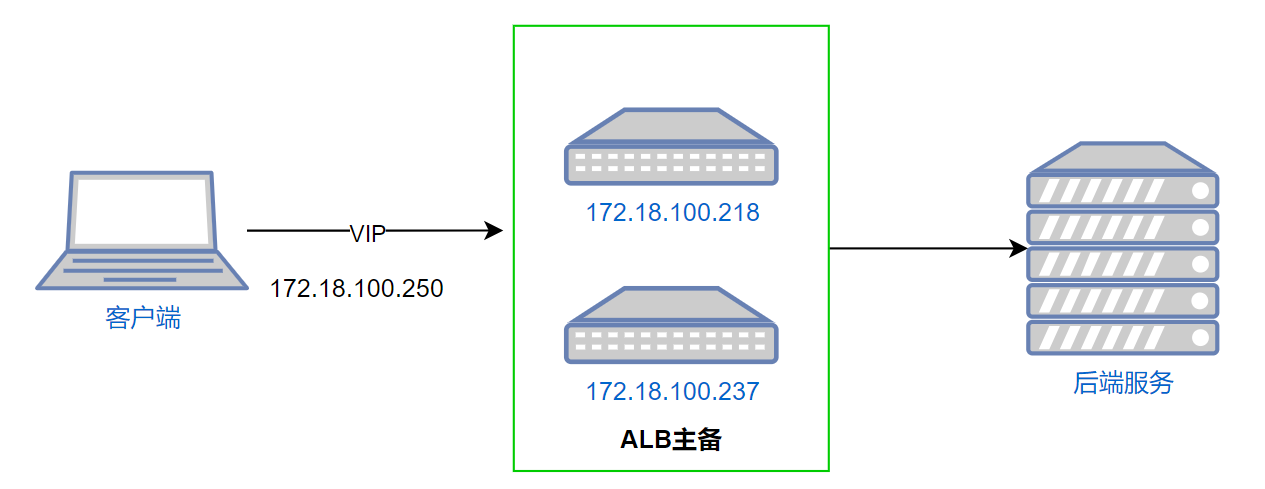
By deploying two ALB instances and configuring a VIP, clients access ALB through the VIP. When the primary node fails, the VIP automatically switches to the standby node.
# Configuring HA in the Console
- Log in to the ALB Console and go to the HA configuration page.
- Click "High Availability"
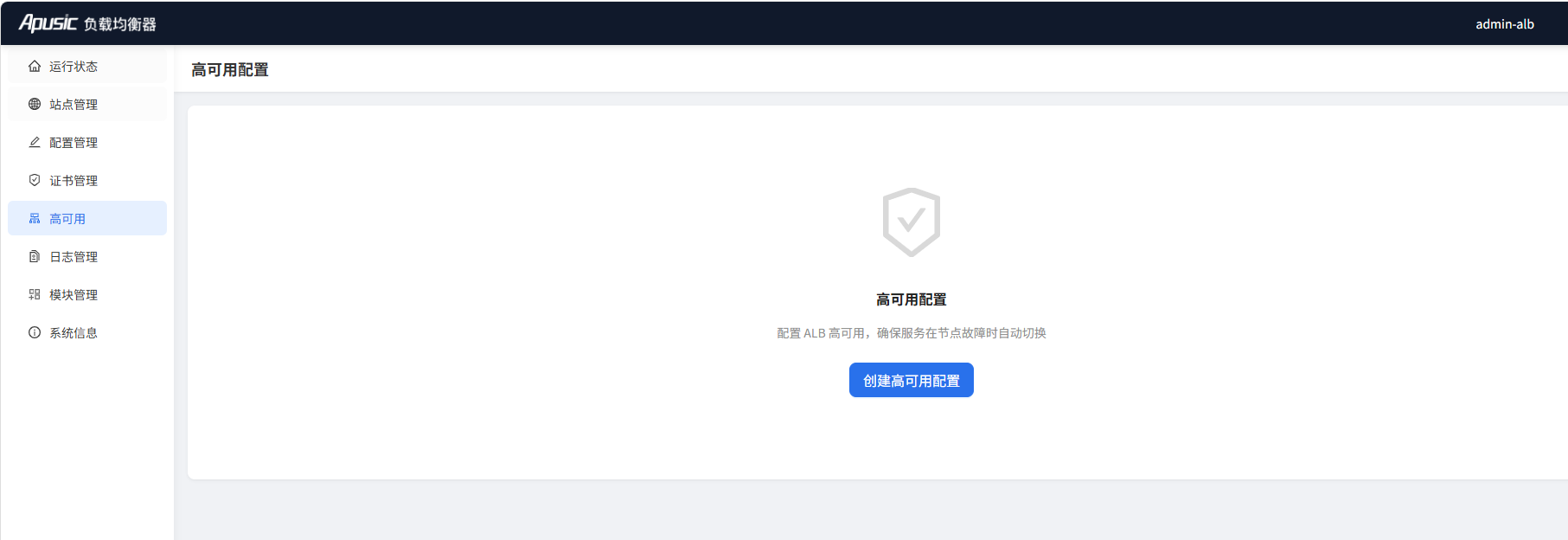
- Click "Create HA"
- Fill in the VIP address and click Next
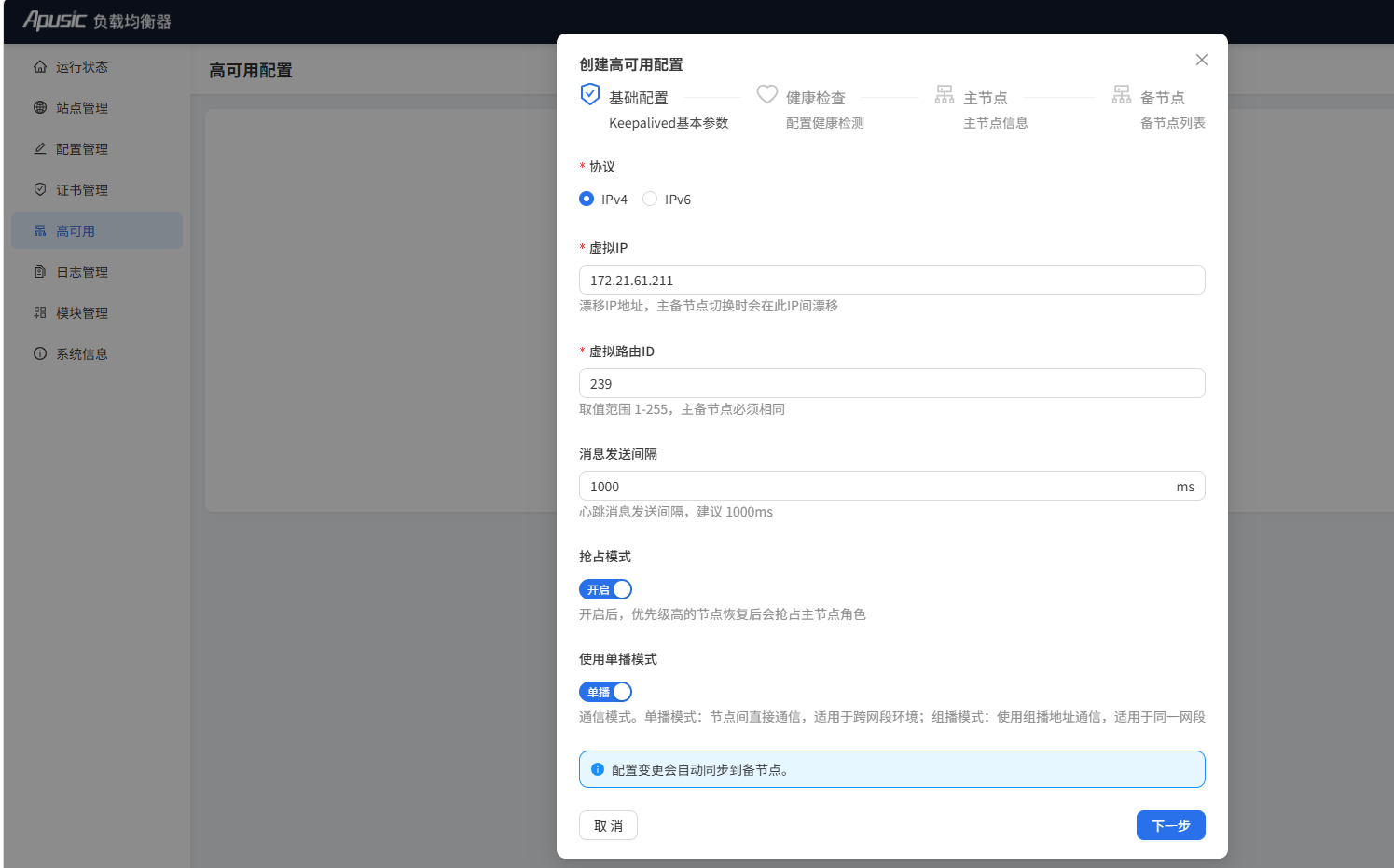
- Fill in the health check configuration (defaults are fine) and click Next
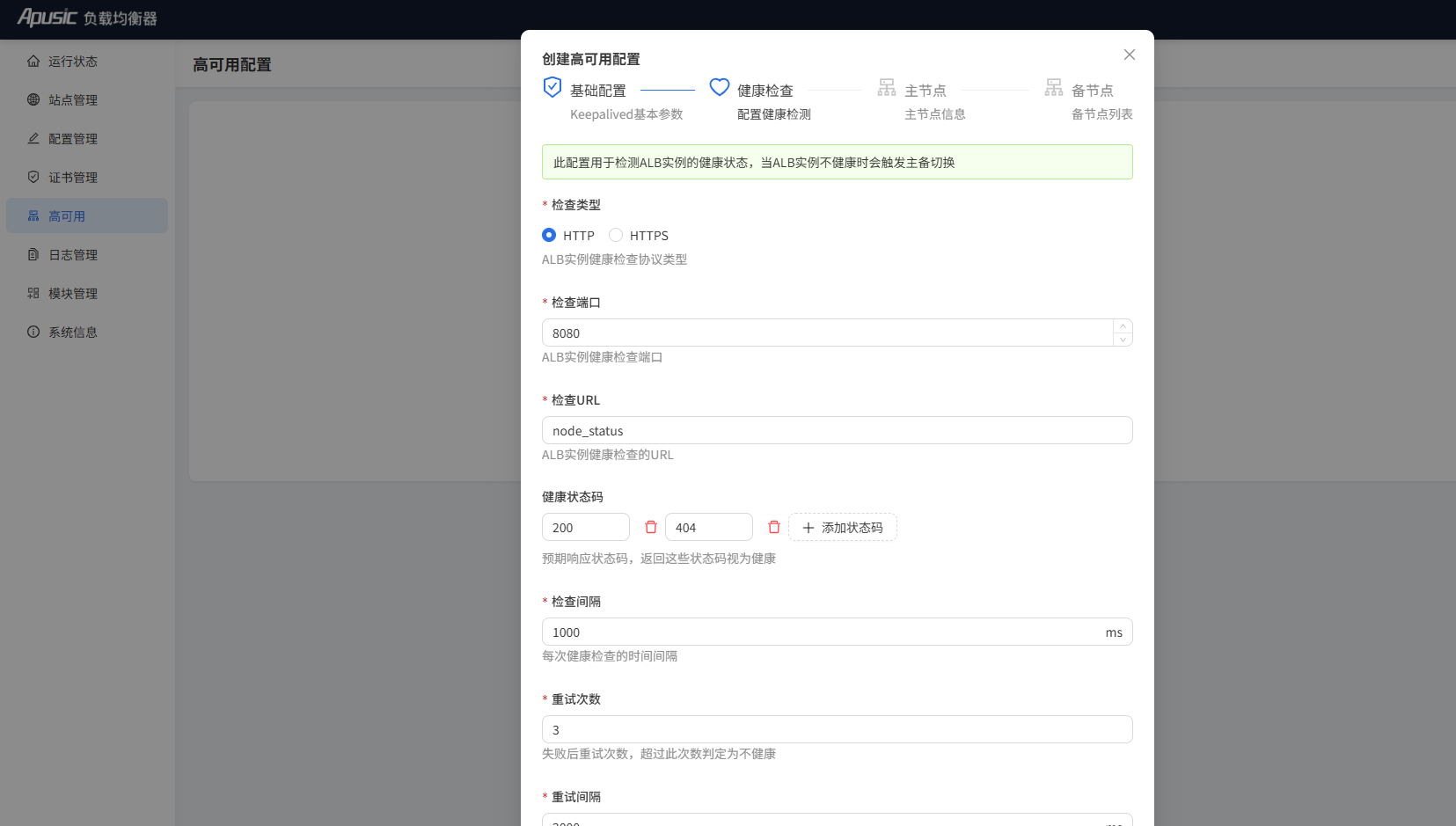
- Select the primary node IP and NIC, then click Next
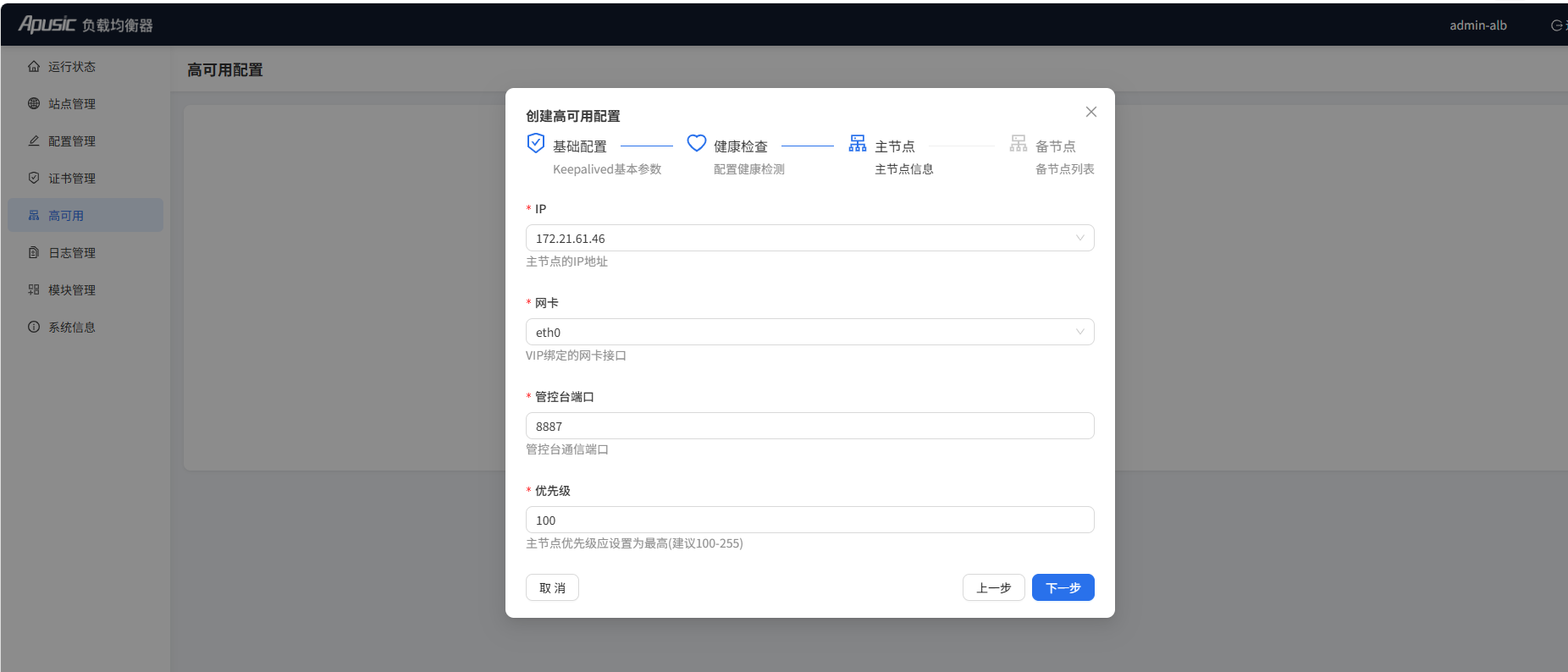
- Click "Add Standby Node", enter the standby node's IP, port and AuthKey, click Test Connection and confirm, then click Create
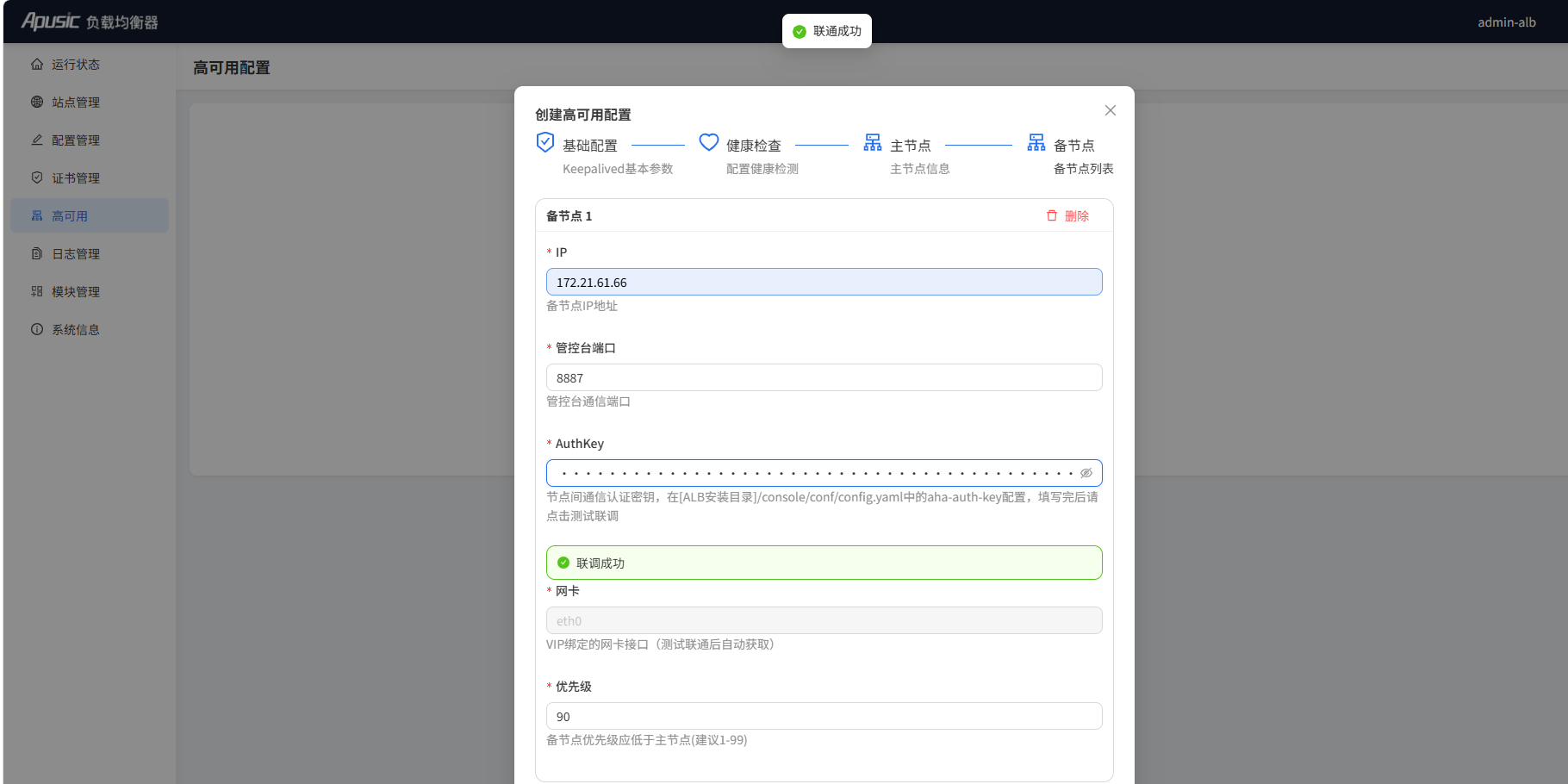
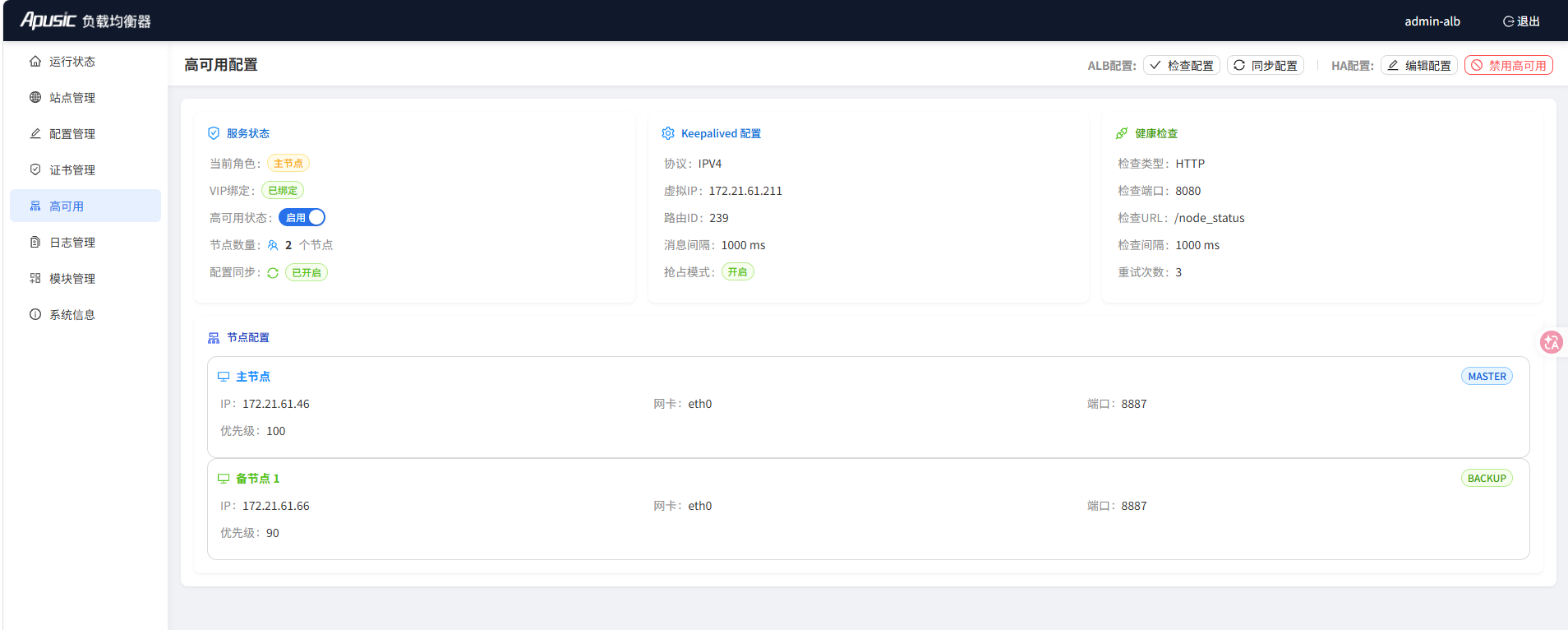
- Creation succeeded
# Manually Configuring ALB HA Services
ALB ships with built-in HA components that allow one-click deployment and startup. When configuring HA through the Console, the built-in components are used by default.
# Check the Physical NIC Name
- On both primary and standby nodes, run the following command to check the physical NIC name for the current IP:
ip addr show
- Record the physical NIC name, e.g.
eth0.
# Configure aha
Primary node
- Set
roletomaster - Modify the VIP
- Modify the NIC name
Standby node
- Set
roletobackup - Modify the VIP
- Modify the NIC name
# Primary Node
- Switch to the
utils/ahadirectory and editconfig.yamlas in the example below
keepalived:
  # Virtual router ID
  vroute_id: 239

  # NIC to bind the virtual IP
  interface: eth0

  # Virtual IP address
  vip: 192.168.2.30

  # Protocol type; ipv4 or ipv6
  protocol: ipv4

  # Preempt mode
  # If Preempt Mode is enabled, a higher-priority router joining the VRRP group can replace
  # the current active router and become the new active router.
  # If Preempt Mode is disabled, a higher-priority router joining the group will not replace
  # the current active router.
  preempt: true

  # Message send interval (milliseconds)
  msg-send-interval: 800

  # Priority, 0-255
  priority: 100

  # Role; master or backup
  role: master

checker:

  # Service status check interval (milliseconds)
  check-interval: 1000

  # Number of retries
  retry-count: 3

  # Retry interval (milliseconds)
  retry-interval: 2000

  # Health check type; url or shell. url means HTTP/HTTPS, shell means a shell command
  health-type: url

  # Health check URL used to verify the target service
  health-url: http://localhost:8080/node_status

  # Custom health-check HTTP status codes
  health-codes:
    - 200
    - 404

  # Shell health check command; return 0 means healthy, otherwise unhealthy
  health-cmd:

  # Whether to restart the target service on node failure (default false)
  restart-on-failure: false
  # Restart command
  restart-cmd:

aha:
  # Log file path
  log-file: aha.log

  # Log level; debug, info, warn, error
  log-level: info
2
3
4
5
6
7
8
9
10
11
12
13
14
15
16
17
18
19
20
21
22
23
24
25
26
27
28
29
30
31
32
33
34
35
36
37
38
39
40
41
42
43
44
45
46
47
48
49
50
51
52
53
54
55
56
57
58
59
60
61
62
63
64
65
# Standby Node
keepalived:
  # Virtual router ID
  vroute_id: 239

  # NIC to bind the virtual IP
  interface: eth0

  # Virtual IP address
  vip: 192.168.2.30

  # Protocol type; ipv4 or ipv6
  protocol: ipv4

  # Preempt mode
  # If Preempt Mode is enabled, a higher-priority router joining the VRRP group can replace
  # the current active router and become the new active router.
  # If Preempt Mode is disabled, a higher-priority router joining the group will not replace
  # the current active router.
  preempt: true

  # Message send interval (milliseconds)
  msg-send-interval: 800

  # Priority, 0-255 (standby priority must be lower than primary)
  priority: 90

  # Role; master or backup
  role: backup

checker:

  # Service status check interval (milliseconds)
  check-interval: 1000

  # Number of retries
  retry-count: 3

  # Retry interval (milliseconds)
  retry-interval: 2000

  # Health check type; url or shell. url means HTTP/HTTPS, shell means a shell command
  health-type: url

  # Health check URL used to verify the target service
  health-url: http://localhost:8080/node_status

  # Custom health-check HTTP status codes
  health-codes:
    - 200
    - 404

  # Shell health check command; return 0 means healthy, otherwise unhealthy
  health-cmd:

  # Whether to restart the target service on node failure (default false)
  restart-on-failure: false
  # Restart command
  restart-cmd:

aha:
  # Log file path
  log-file: aha.log

  # Log level; debug, info, warn, error
  log-level: info
2
3
4
5
6
7
8
9
10
11
12
13
14
15
16
17
18
19
20
21
22
23
24
25
26
27
28
29
30
31
32
33
34
35
36
37
38
39
40
41
42
43
44
45
46
47
48
49
50
51
52
53
54
55
56
57
58
59
60
61
62
63
64
65
# Register and Start the System Service
Run the following on both primary and standby nodes:
- Switch to the
utils/aha/sys-servicedirectory under the installation directory - Switch to the root user, or use sudo
- Run
./setup-aha-service.shto automatically register the system service - Start:
systemctl start aha.service
# Verifying VIP Drift
- Access ALB normally using the VIP
192.168.2.30. - Stop ALB on the primary node and continue accessing ALB through the VIP to verify availability.
# Other Configuration Notes
- Custom health check URL: modify
health-url: http://localhost:8080/node_statusin the config file. - Custom HTTP status codes: modify
health-codes: 200, 404. - Configure the
aha.loglog file path: modifylog-file: aha.log. - Use a custom shell command or script for health checks; return 0 means healthy, otherwise ALB marks it unhealthy. Example:
# Use a shell command for health checks
health-type: shell
# The shell command; healthy when the alb process is present
health-cmd: ps aux | grep alb | grep -v grep
2
3
4
# Using keepalived for HA
# Install keepalived
# kylin, openEuler, CentOS
yum install -y keepalived

# UOS, Ubuntu
apt-get install -y keepalived
2
3
4
5
# Check the Physical NIC Name
- On both primary and standby nodes, run the following command to check the physical NIC name:
ip addr show
- Record the physical NIC name, e.g.
eth0.
# Configure keepalived
- Edit the primary node's
keepalived.conf:
vi /etc/keepalived/keepalived.conf
Add the following to the primary node's keepalived.conf:
Notes:
- Replace
interface eth0with the primary node's physical NIC name. - Replace
192.168.2.30with your chosen virtual IP.
! Configuration File for keepalived

global_defs {
   router_id alb
}

vrrp_script chk_http_port {
   script "/etc/keepalived/checkalb.sh"
   interval 2 # (interval for executing the check script)
   weight 2
}

vrrp_instance VI_1 {
    state MASTER
    interface eth0
    virtual_router_id 51
    # virtual_router_id must be identical on primary and standby
    priority 100
    # Use different priorities; primary larger, standby smaller
    advert_int 1
    authentication {
        auth_type PASS
        auth_pass 1111  # Example value; replace with a strong password in production
    }
    virtual_ipaddress {
        # Modify this virtual IP as needed
        192.168.2.30
    }
    track_script {
        chk_http_port
    }
}
2
3
4
5
6
7
8
9
10
11
12
13
14
15
16
17
18
19
20
21
22
23
24
25
26
27
28
29
30
31
32
- Edit the standby node's
keepalived.conf:
vi /etc/keepalived/keepalived.conf
Add the following to the standby node's keepalived.conf:
Notes:
- Replace
interface eth0with the standby node's physical NIC name. - Replace
192.168.2.30with your chosen virtual IP.
! Configuration File for keepalived
global_defs {
    router_id alb
}
vrrp_script chk_http_port {
    script "/etc/keepalived/checkalb.sh"
    interval 2 # (interval for executing the check script)
    weight 2
}
vrrp_instance VI_1 {
    state BACKUP
    # state MASTER
    # Change MASTER to BACKUP on the standby node
    interface eth0
    virtual_router_id 51
    # virtual_router_id must be identical on primary and standby
    priority 90
    # Use different priorities; primary larger, standby smaller
    advert_int 1
    authentication {
        auth_type PASS
        auth_pass 1111  # Example value; replace with a strong password in production
    }
    virtual_ipaddress {
        192.168.2.30 # Modify this virtual IP as needed
    }
    track_script {
        chk_http_port
    }
}
2
3
4
5
6
7
8
9
10
11
12
13
14
15
16
17
18
19
20
21
22
23
24
25
26
27
28
29
30
- Create the check script
checkalb.shon both nodes:
vi /etc/keepalived/checkalb.sh
Add the following to checkalb.sh:
#!/bin/bash
# Check whether the ALB main process is alive (adjust the PID file path to your actual installation)
alb_pid=$(cat /opt/ALB-V2.0.6-SE-amd64/logs/alb.pid 2>/dev/null)
alb_count=0
if [ -n "$alb_pid" ]; then
    alb_count=$(ps -p "$alb_pid" --no-headers | wc -l)
fi
# 1. If ALB is not alive, stop keepalived
if [ $alb_count -eq 0 ];then
    sleep 3
    # 2. Wait 3 seconds and check ALB again
    alb_pid=$(cat /opt/ALB-V2.0.6-SE-amd64/logs/alb.pid 2>/dev/null)
    alb_count=0
    if [ -n "$alb_pid" ]; then
        alb_count=$(ps -p "$alb_pid" --no-headers | wc -l)
    fi
    # 3. If ALB is still down, stop keepalived to let the address drift, then exit
    if [ $alb_count -eq 0 ];then
        echo "alb is down"
        systemctl stop keepalived
        exit 1
    fi
fi
2
3
4
5
6
7
8
9
10
11
12
13
14
15
16
17
18
19
20
21
22
23
After creating the script, add executable permission:
chmod +x /etc/keepalived/checkalb.sh
# Start keepalived on Both Nodes
systemctl start keepalived.service
# Verify the VIP is on the Primary Node
Check the virtual IP on the primary node (replace eth0 with the primary NIC name and 192.168.2.30 with the actual VIP):
ip addr show eth0 | grep '192.168.2.30'
# Stop the Primary ALB and Verify VIP Drift to the Standby Node
# Switch to the ALB installation directory
./bin/stop-alb.sh
2
Check the virtual IP on the standby node (replace eth0 with the standby NIC name):
ip addr show eth0 |grep inet|grep -v inet6|awk '{print $2}'
If the VIP drifts to the standby node, the keepalived configuration is successful.
# ALB License and Service Configuration
# License Description
ALB Standard Edition supports local licenses (license.lic or license.xml) and unified licenses (acls.properties). The license file must be placed in the product installation directory.
license.lic: legacy local license file (old format).license.xml: local license file (supports both legacy and KBC licenses; for KBC, copy the KBC license content intolicense.xml).acls.properties: unified license configuration file; place it in the ALB installation directory.
# Local License
- Obtain the machine fingerprint
# Obtain the local machine fingerprint
./bin/alb-authcode

# Specify a NIC
./bin/alb-authcode -ac eth0

# Specify an IP address
./bin/alb-authcode -ac 192.168.1.100
2
3
4
5
6
7
8
Note: the
-acoption is only available in ALB Standard Edition builds dated 2025-06 or later.
- After obtaining the fingerprint, contact Kingdee Apusic to obtain the license file, or log in to the Kingdee Apusic license portal to download it.
- Rename the obtained file to
license.licorlicense.xmland place it in the ALB installation directory. For unified licensing, placeacls.propertiesin the ALB installation directory.
# Unified License
- The unified licensing center must contain a valid ALB Standard Edition license. (Log in to the licensing center to check; if no valid license exists, refer to the licensing center manual to import one.)
- Configure the product to connect to the licensing center:
acls.propertiesfile: place the file in the ALB installation directory.apusic_acls_enable=true # enable unified license apusic_acls_authUrls=192.168.4.10:6869 # example unified license center address; replace with your actual one apusic_acls_ns=public # namespace apusic_acls_tenant=public # tenant name1
2
3
4- Environment variables
export apusic_acls_enable=true                 # enable unified license
export apusic_acls_authUrls=192.168.5.10:6869  # example unified license center address; replace with your actual one
export apusic_acls_ns=postpaid                  # namespace
export apusic_acls_tenant=user_env              # tenant name
1
2
3
4
Note: if both methods are configured, environment variables take precedence over acls.properties. If both local and unified licensing are configured, the unified one is used. If license validation fails, no further license validation is performed.
# Default Ports
Default ports:
- 8080: HTTP service port
- 8887: ALB Console port
To change the default HTTP listen port, edit the listen 8080 line in <ALB installation directory>/conf/alb.conf.
To change the Console port, edit the addr field under system in <ALB installation directory>/console/conf/config.yaml.
# Autostart and System Services
ALB does not enable autostart by default. To enable it, switch to the installation directory and run:
cd /opt/ALB-V2.0.6-SE-amd64           # enter the installation directory (adjust to your actual path)
./utils/systemd/enable_startup.sh     # set up the autostart item (root privilege usually required)
systemctl start alb                   # start ALB
2
3
# Remove the Systemd Autostart Item
cd /opt/ALB-V2.0.6-SE-amd64           # enter the installation directory
./utils/systemd/remove_startup.sh     # remove the autostart item
2
# Listen on Port 80 as a Non-Root User
ALB supports binding to port 80 as a non-root user by adjusting program capabilities.
- Switch to the root user and the ALB installation directory.
- Grant the capability:
setcap cap_net_bind_service=+eip ./sbin/alb - Switch back to the regular user.