
Console User Manual

# Introduction
This document is the Console User Manual for Kingdee Apusic Load Balancer (ALB) V2.0.6 Standard Edition. It introduces the features and usage of the ALB Console to help users get started quickly.
# Intended Audience
This document is intended for IT business owners, R&D managers, software project managers, software architects, and operations engineers.
# Related Documents
For more information about ALB V2.0.6, refer to the ALB V2.0.6 documentation set:
| No. | Document | Description |
|---|---|---|
| 1 | ALB V2.0.6 Release Notes | Introduces the updates in this ALB release. |
| 2 | ALB V2.0.6 Quick Start Guide | Briefly introduces how to get started with ALB. |
| 3 | ALB V2.0.6 Installation Guide | Describes how to install ALB on various operating systems, start and stop the ALB service, and register the product. |
| 4 | ALB V2.0.6 Proxy Function Manual | Describes ALB features, configuration, management, and the usage of supporting tools. |
| 5 | ALB V2.0.6 Console User Manual | Describes the features and operations of the ALB Console. |
| 6 | ALB V2.0.6 Developer Manual | Describes the ALB external APIs, the alb-cli command-line tool, and AI Agent integration. |
| 7 | ALB V2.0.6 Migration Guide | Describes how to migrate earlier ALB versions to V2.0.6. |
| 8 | ALB V2.0.6 Operations Manual | Describes ALB monitoring, operations, and security hardening. |
| 9 | ALB V2.0.6 Performance Optimization Guide | Describes ALB performance tuning. |
# Technical Support
ALB provides comprehensive technical support. You can obtain support through the following channels:
Website: www.apusic.com
Phone: 400-855-5800
Email: support@apusic.com
Kingdee Cloud Community: https://vip.kingdee.com/?productId=73&productLineId=14&lang=zh-CN
When requesting technical support, please provide the following information:
Your name
Your company information and contact details
The operating system and its version
The product version number
Details of the exception or error, such as logs and screenshots
# Contents
- Before You Start
- Login and Roles
- UI Overview
- Run State
- Site Management
- Configuration
- Certificates
- High Availability
- Log Management
- Modules
- System Info
- Three-Admin Management
- Common Operations
- FAQ and Troubleshooting
# Before You Start
The examples in this manual are based on the following two-node deployment:
- Primary node IP:
172.21.61.46 - Standby node IP:
172.21.61.66
Make sure that:
- ALB V2.0.6 is installed and running on both nodes
- The nodes can communicate with each other, and the firewall allows the required ports
- The Console service is accessible
In a real deployment, replace the example IP addresses with the addresses of your own environment.
# Login and Roles
# Access URL
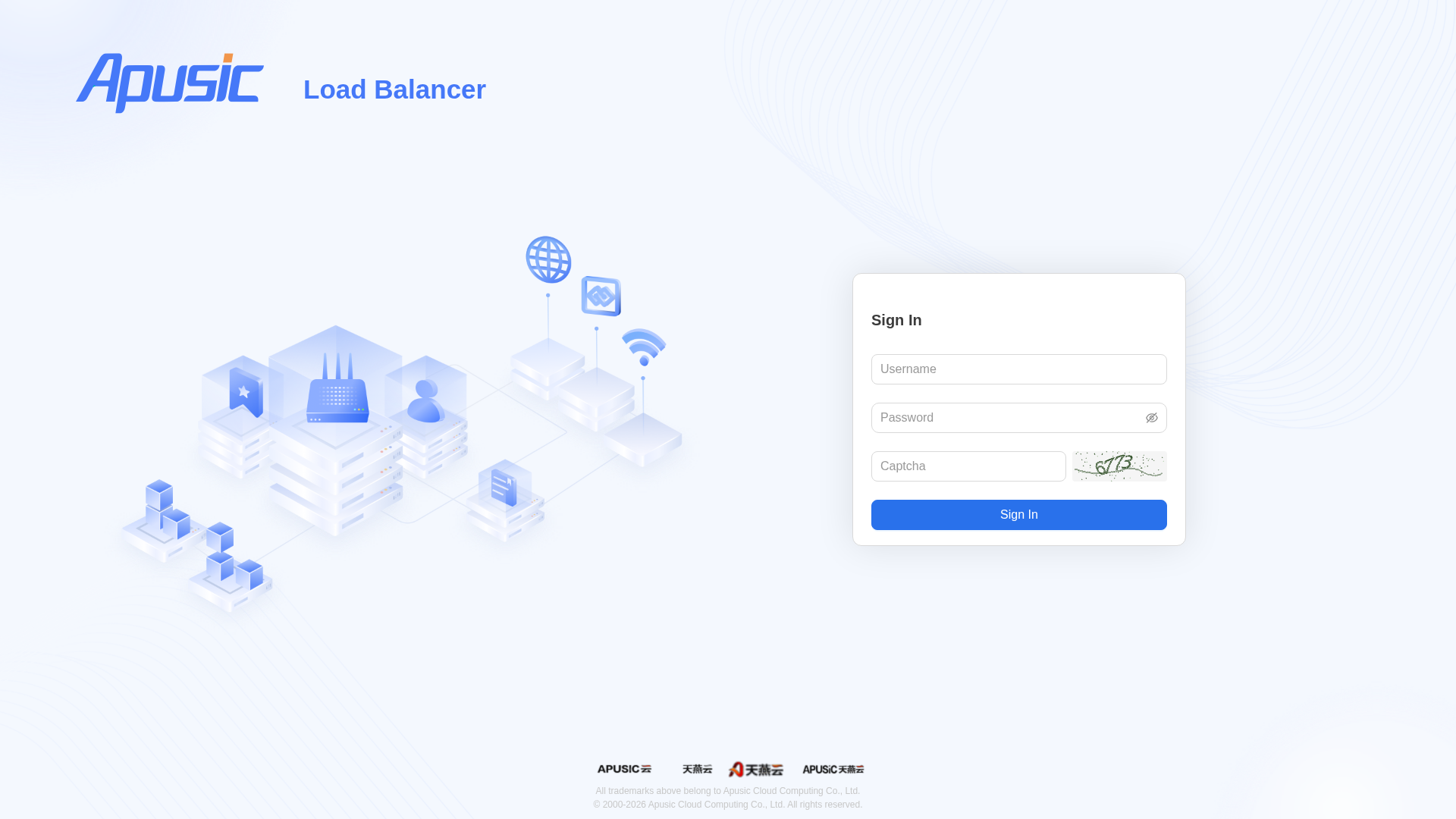
Open the ALB Console address in a browser, for example:
http://<ALB node IP>:8887/#/login
# Default Accounts and Roles
Five built-in accounts are created during system initialization. After the first deployment, the initial random passwords are written to [ALB installation directory]/console/data/users/.init_passwords on the server. Log in to the ALB server to view this file and obtain the initial password of each account, and change the passwords promptly.
| Account | Role | Responsibilities |
|---|---|---|
admin-system | System Admin | Creates, enables/disables, and deletes user accounts; cannot assign roles or perform any ALB business configuration |
admin-security | Security Admin | Views the user list; resets passwords, unlocks accounts, and assigns ALB roles; configures the security policy. Cannot create or delete accounts |
admin-audit | Audit Admin | Views operation audit logs, read-only |
admin-alb | ALB Admin | Has full ALB business configuration permissions (sites, configuration, certificates, HA, logs, modules) |
user-alb | ALB User | Can view all ALB business data, with no operation permissions |
Three-admin separation principle: the System Admin, Security Admin, and Audit Admin roles are mutually exclusive; a single account cannot hold two or more of these roles at the same time. ALB Admin / ALB User are business roles, assigned separately by the Security Admin, and do not conflict with the three-admin roles.
# Login Flow Example
Take logging in as the ALB Admin admin-alb as an example:
- Open the Console login page
- Enter the username
admin-alband the password (after the first deployment, the initial random password is written toconsole/data/users/.init_passwordson the server; log in to the server to obtain it) - Enter the 4-digit captcha on the right (click the image to refresh it)
- Click "Sign In"
# Forced Password Change on First Login
When you log in with a default account for the first time, the system forces a "Change Password" window to pop up. The new password must meet the current password policy, which requires by default:
- At least 8 characters
- Uppercase letters
- Lowercase letters
- Digits
- Special characters (such as
!@#$%^&*)
Note: If you click "Cancel" in the Change Password window, the system logs you out automatically. You must complete the password change before entering the Console.
# UI Overview
After logging in, the ALB Admin enters the main Console, which consists of three parts:
- Top navigation bar: shows the language switcher, the current username, the Change Password entry, and the Log Out button
- Left menu bar: entries to the functional modules
- Right content area: the specific feature pages
Different roles see different menus after login; the following uses the ALB Admin view as an example. The System Admin, Security Admin, and Audit Admin can only see the menus within their own scope of responsibility (such as User Management, Security Policy, and Operation Audit).
Menus visible to the ALB Admin:
- Run State
- Site Management
- Configuration
- Certificates
- High Availability
- Log Management
- Modules
- System Info
The Console interface supports Simplified Chinese, Traditional Chinese, and English. Click the language button (globe icon) in the top-right corner to switch languages; see Switch Language for details.
If the current node is an HA standby node, a yellow banner is displayed at the top: "This node is the standby node. Please perform configuration operations on the primary node."
# Run State
Entry: "Run State" in the left menu
Run State monitors the ALB process and server resources in real time, and contains two tabs.
# ALB Traffic
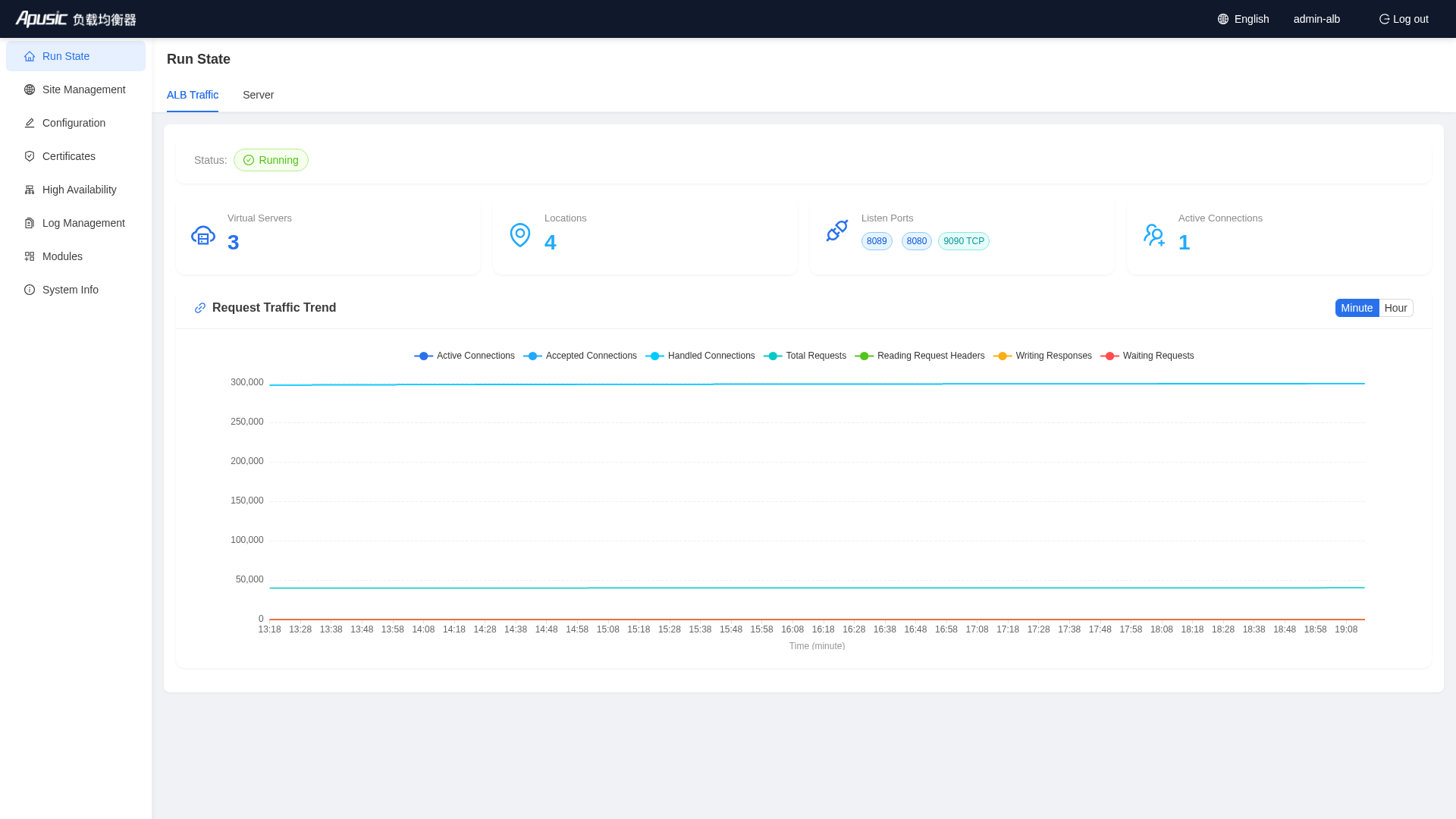
The page shows:
- Status: Running / Stopped / Fault
- Statistics cards: number of virtual servers, number of location directives, listen ports, and active connections
- Request Traffic Trend chart: supports switching between "Minute" and "Hour" granularity
Main operations:
- If ALB is not running, click "Start" to start it
- You can enable traffic collection; the system automatically generates
conf.d/stub_status.confand listens on a local port (8090 by default)
Note: Traffic collection adds a listen port; make sure the firewall allows this port. If the ALB main configuration already includes the default
/statuspath (as in the default configuration of the installation package), the Console can read the data directly without enabling collection separately.
# Server
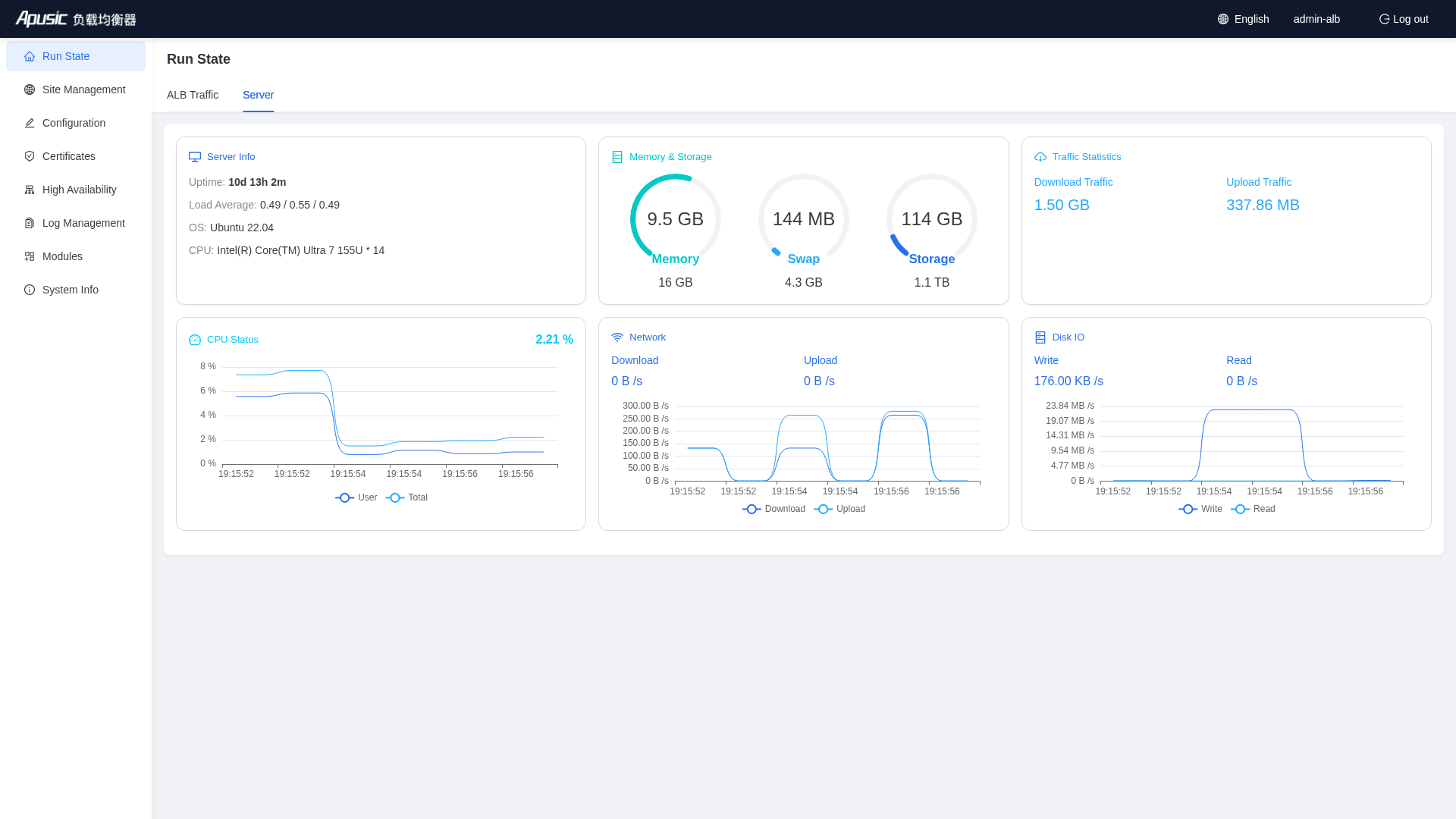
The page shows:
- Server uptime, load, operating system, and CPU model
- Memory and disk usage
- Total download/upload traffic
- Real-time curves of CPU, network I/O, and disk I/O (pushed over WebSocket)
# Site Management
Entry: "Site Management" in the left menu
Site Management maintains the virtual servers of ALB, divided into HTTP sites and TCP/UDP (Stream) sites.
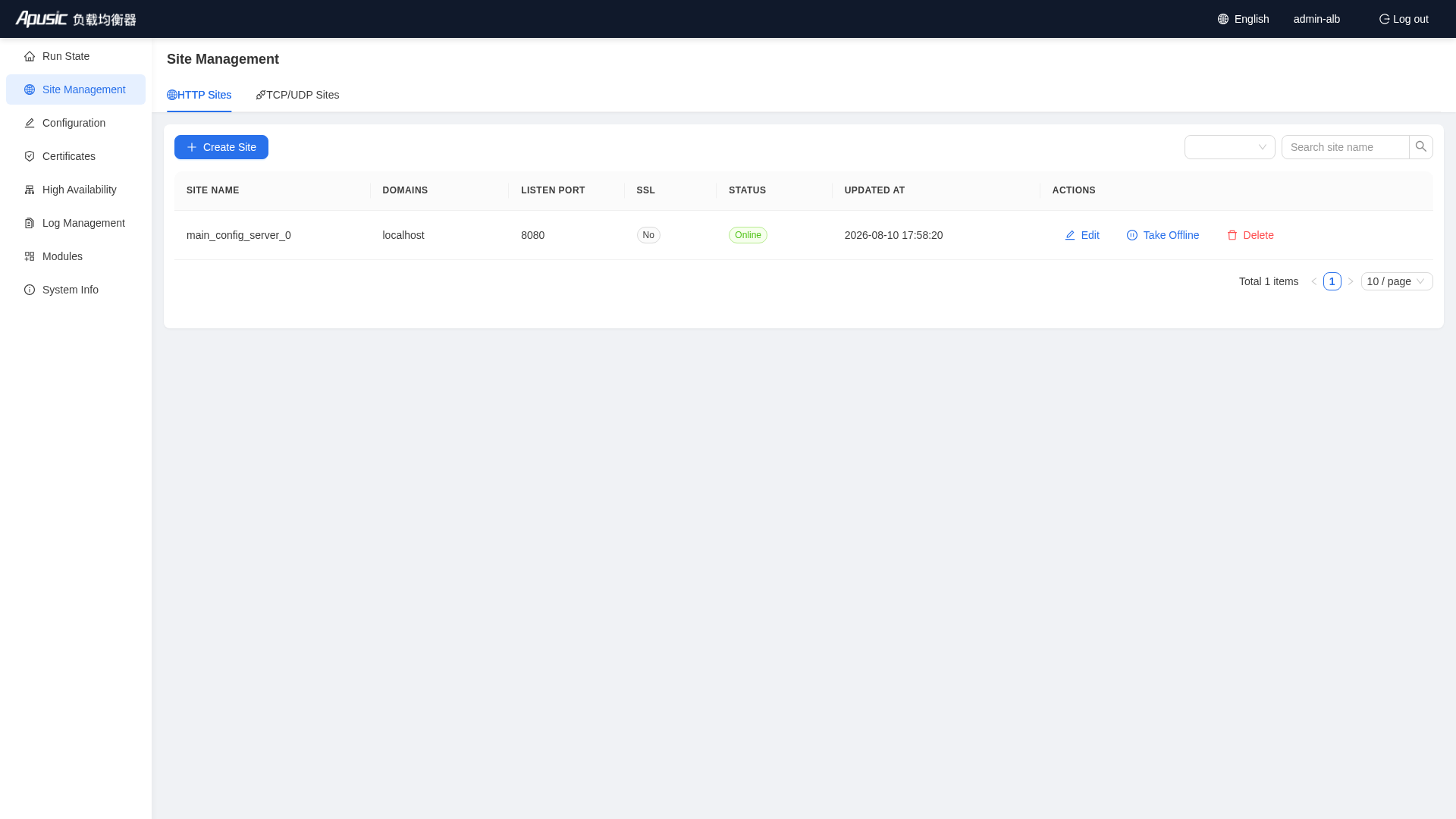
# HTTP Site List
Table columns:
- Site Name, Domains, Listen Port, SSL enabled, Status, Updated At
Operations:
- Create Site
- Edit a site
- Bring a site online / take it offline
- Delete a site
After a site is created, the HTTP site list shows the new site:
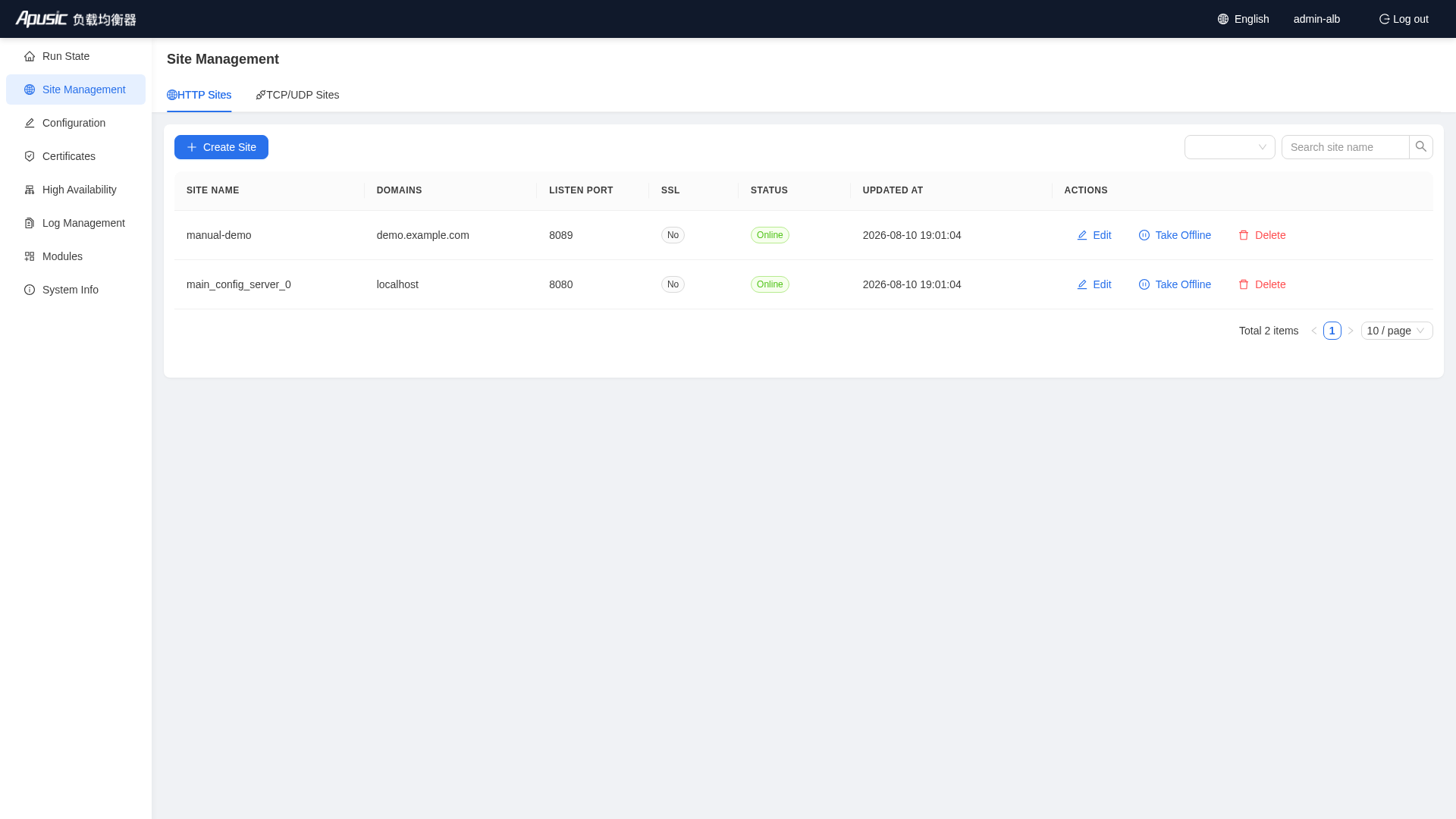
If the main configuration does not load site configurations via
include conf.d/*.conf, a yellow warning is displayed on the page, reminding you to check the nginx main configuration.
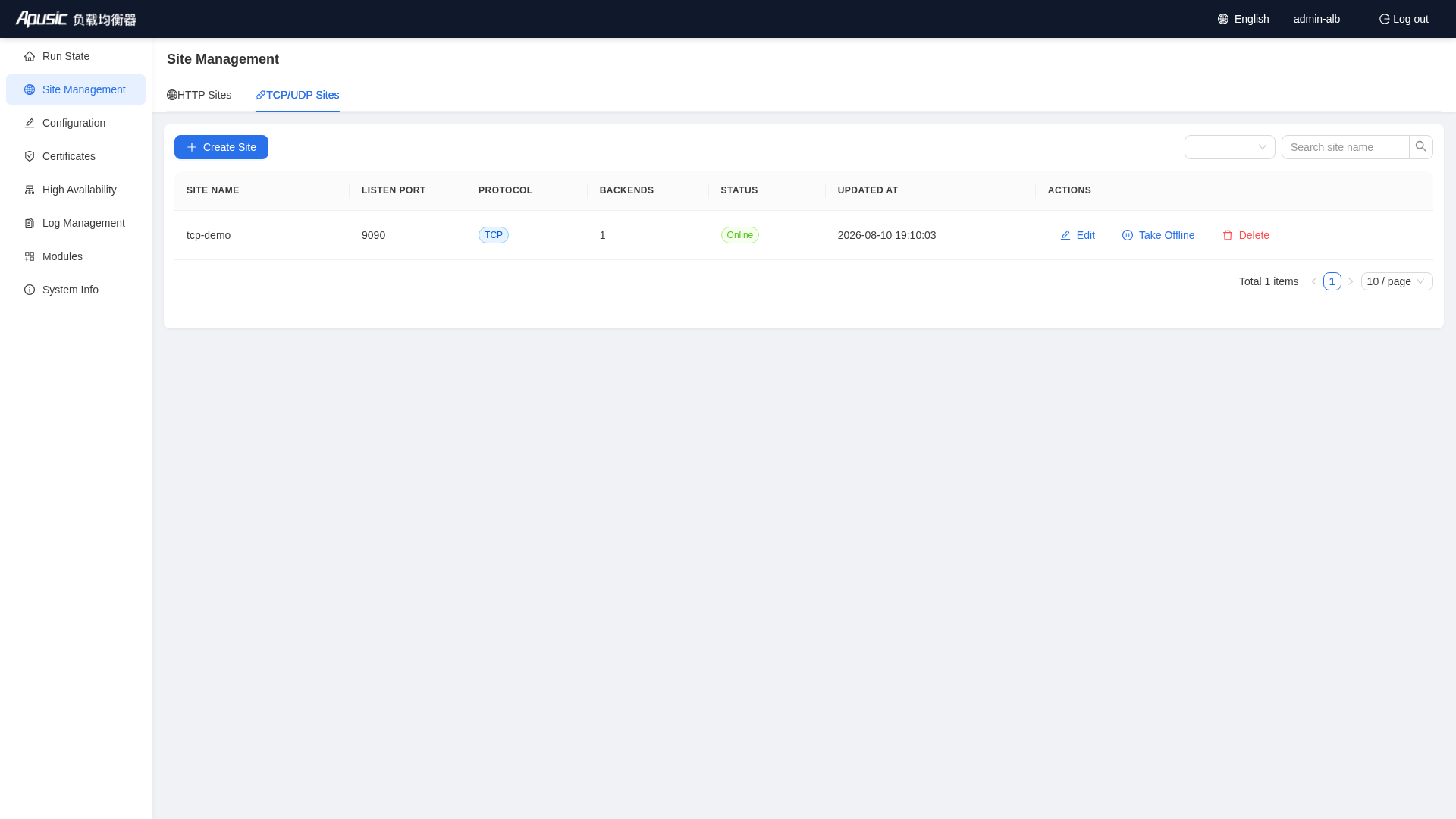
# TCP/UDP Site List
Table columns:
- Site Name, Listen Port, Protocol (TCP/UDP), Backends, Status, Updated At
The operations are similar to those for HTTP sites. After a site is created, the TCP/UDP site list shows the new site:
# Creating an HTTP Site (Complete Example)
Entry: click "Create Site" on the Site Management page
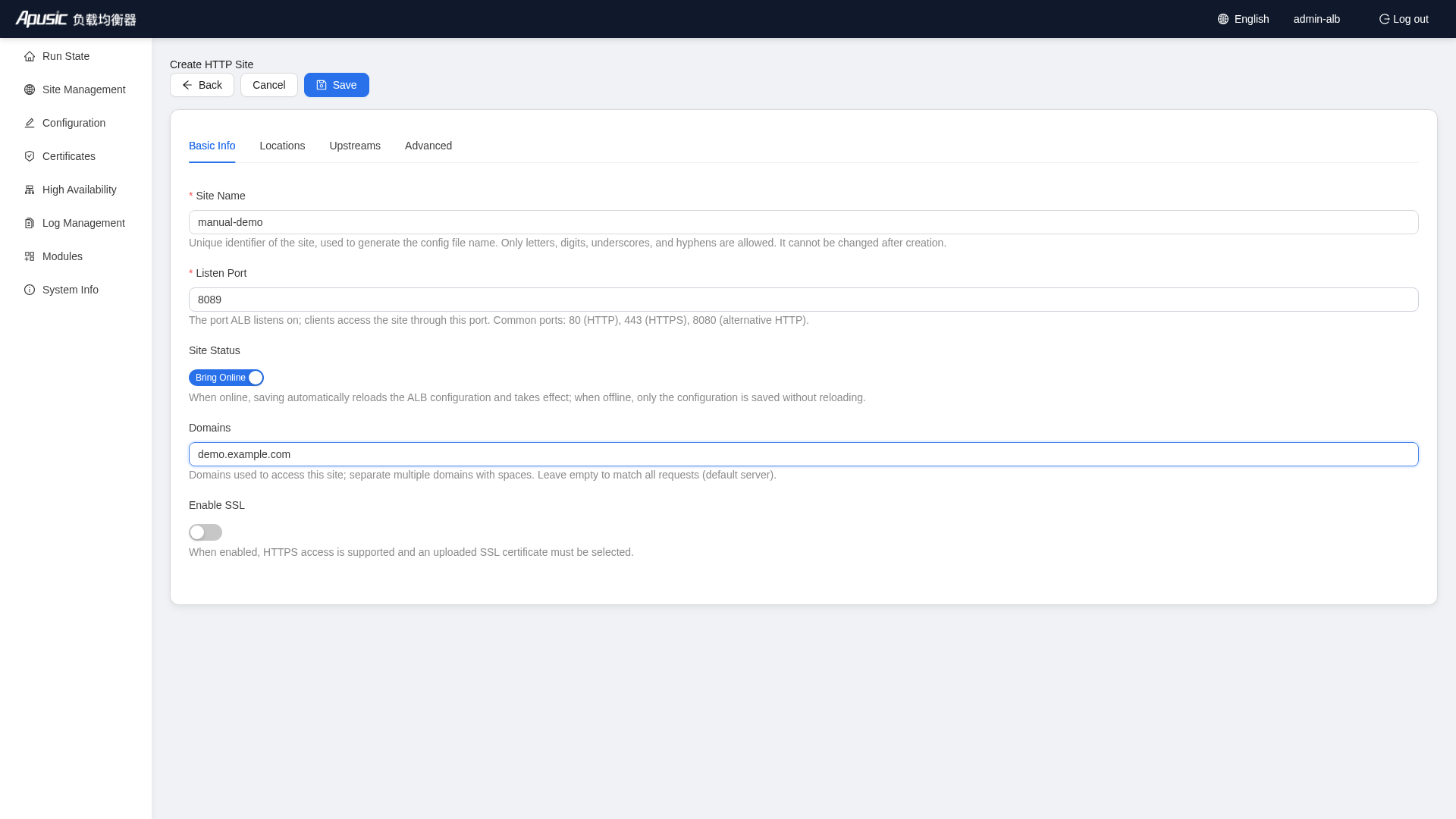
# Basic Info
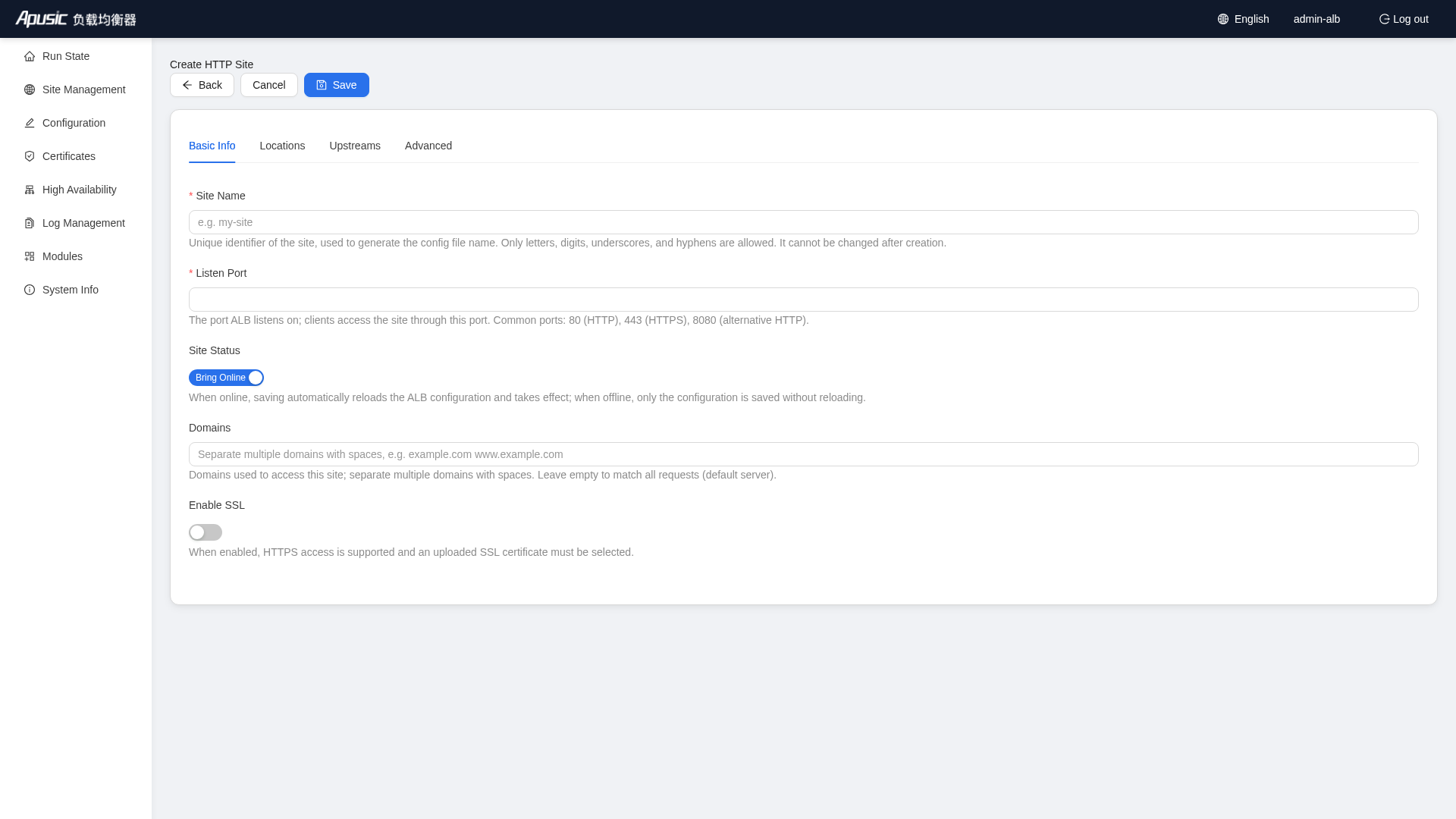
Example values:
| Field | Example | Description |
|---|---|---|
| Site Name | manual-demo | Unique identifier; used to generate the config file name. Only letters, digits, underscores, and hyphens are allowed |
| Listen Port | 8089 | The port clients access; avoid conflicts with existing ports |
| Site Status | Online | Saving automatically reloads the ALB configuration; if offline, the configuration does not take effect |
| Domains | demo.example.com | Separate multiple domains with spaces; leave empty for the default server |
| Enable SSL | Off | If enabled, an imported certificate must be selected |
# Locations
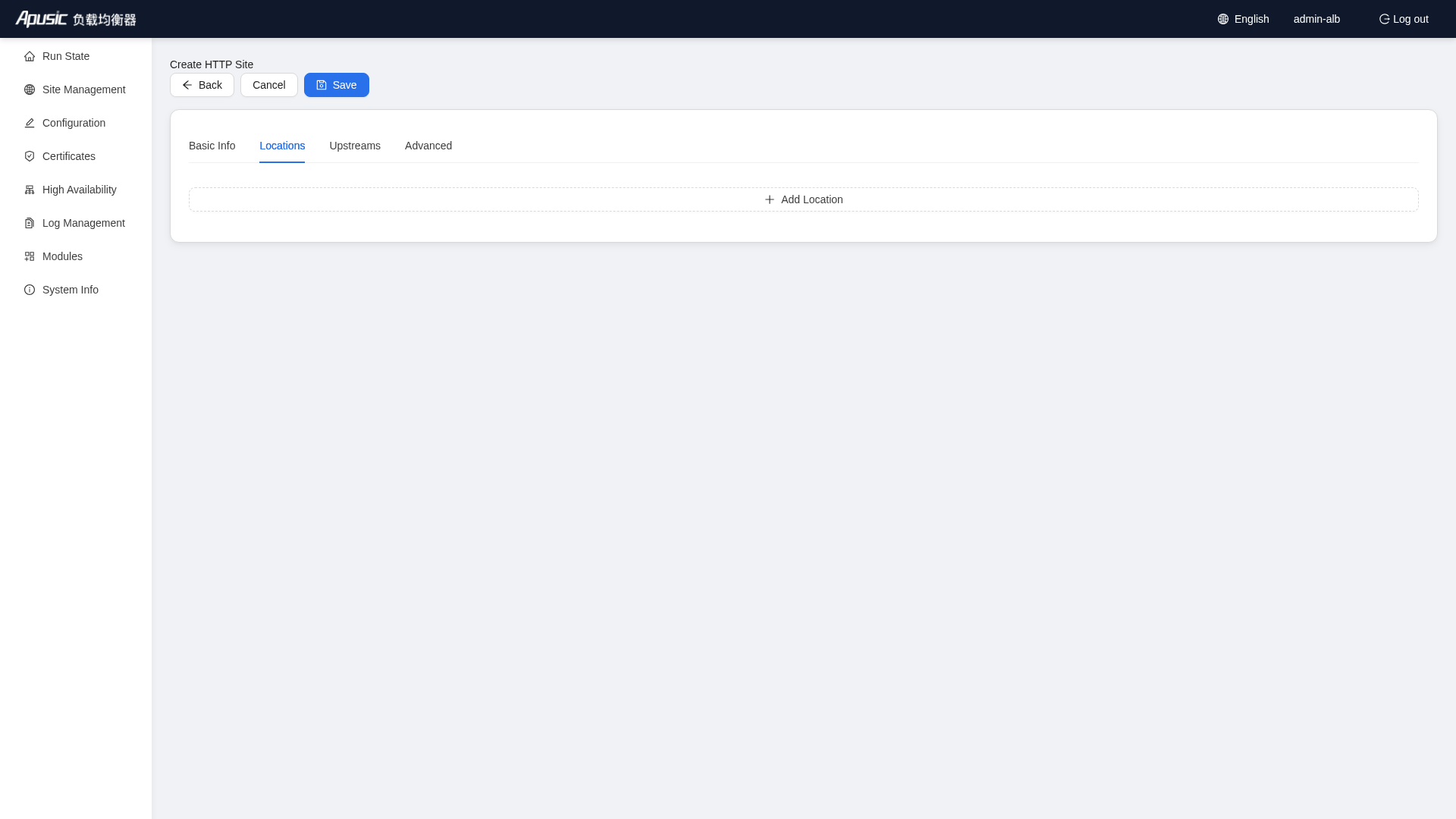
The Locations tab allows you to configure:
- Match path (such as
/or/api) - Proxy address
proxy_pass - Root directory, index files, try_files
- Return status code, rewrite rules
Example:
Path: /
Proxy Pass: http://backend_demo
2
# Upstreams
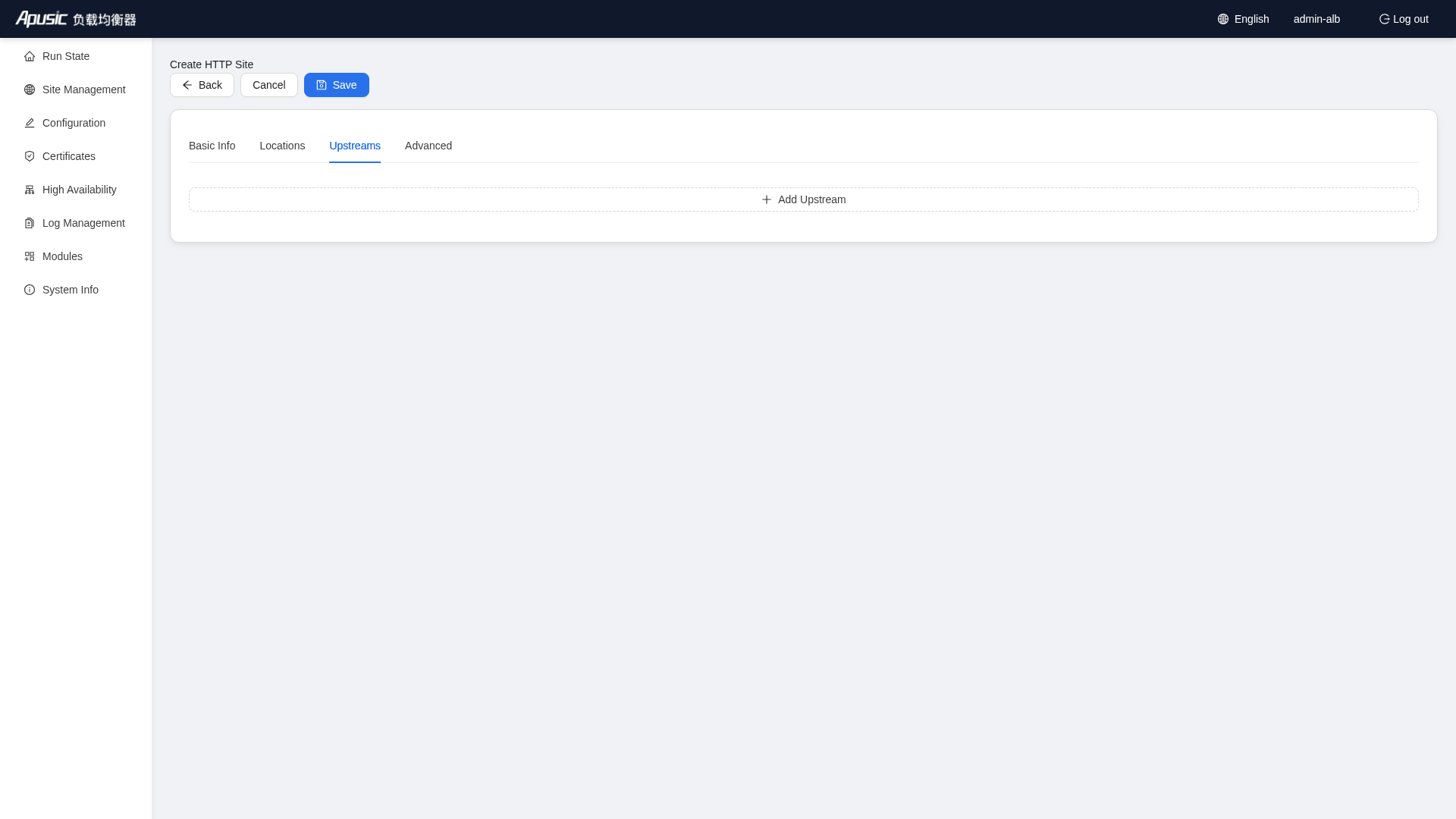
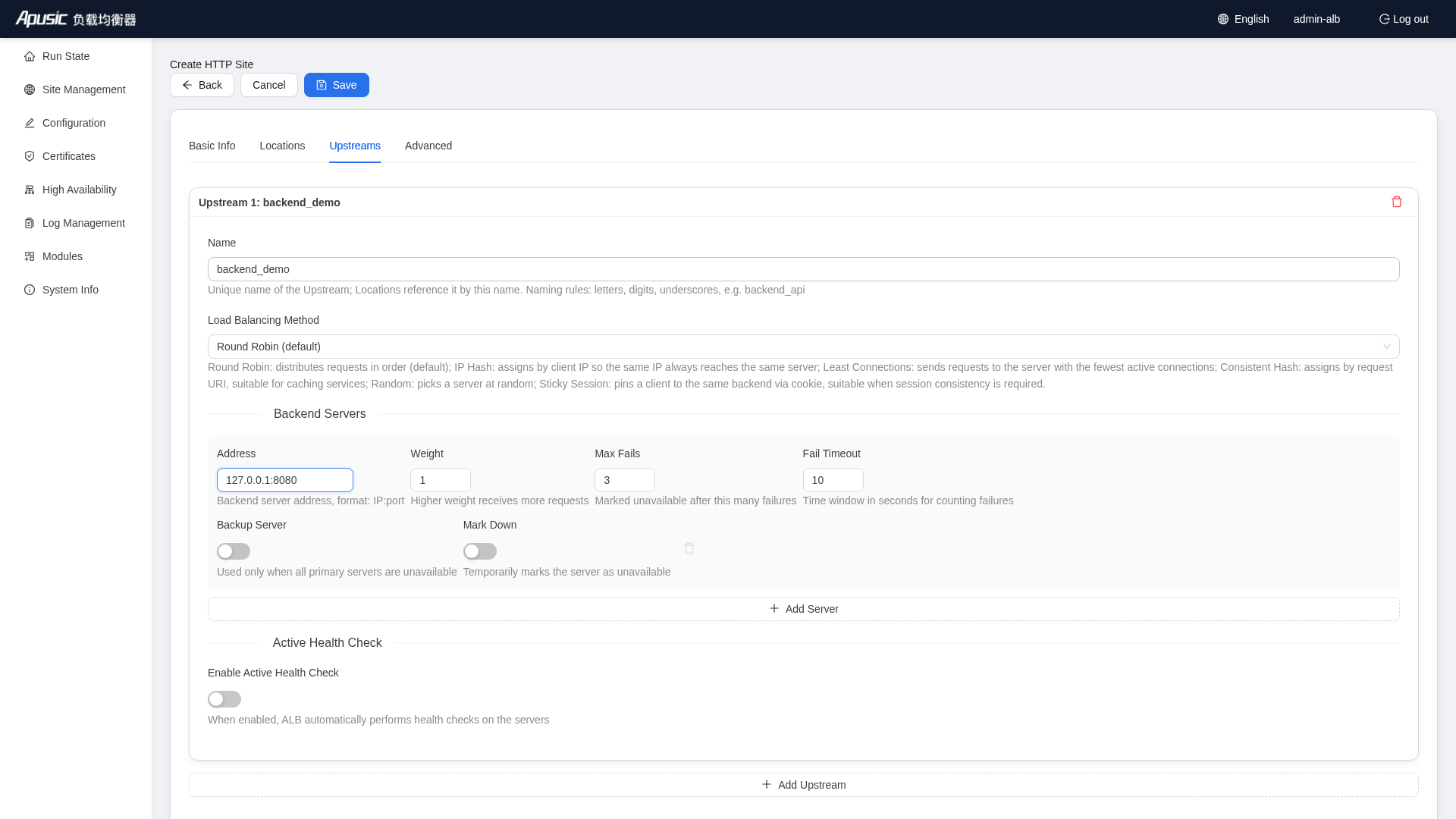
Click "Add Upstream" and fill in the backend server group information:
| Field | Example | Description |
|---|---|---|
| Upstream Name | backend_demo | Locations reference the group by this name |
| Load Balancing Method | Round Robin (default) | Options: IP Hash, Least Connections, Consistent Hash, Random; IP Hash provides session persistence |
| Address | 127.0.0.1:8080 | Format: IP:port |
| Weight | 1 | Higher weight receives more requests |
| Max Fails | 3 | The server is marked unavailable after this many failures |
| Fail Timeout | 10 seconds | The time window for counting failures |
# Advanced
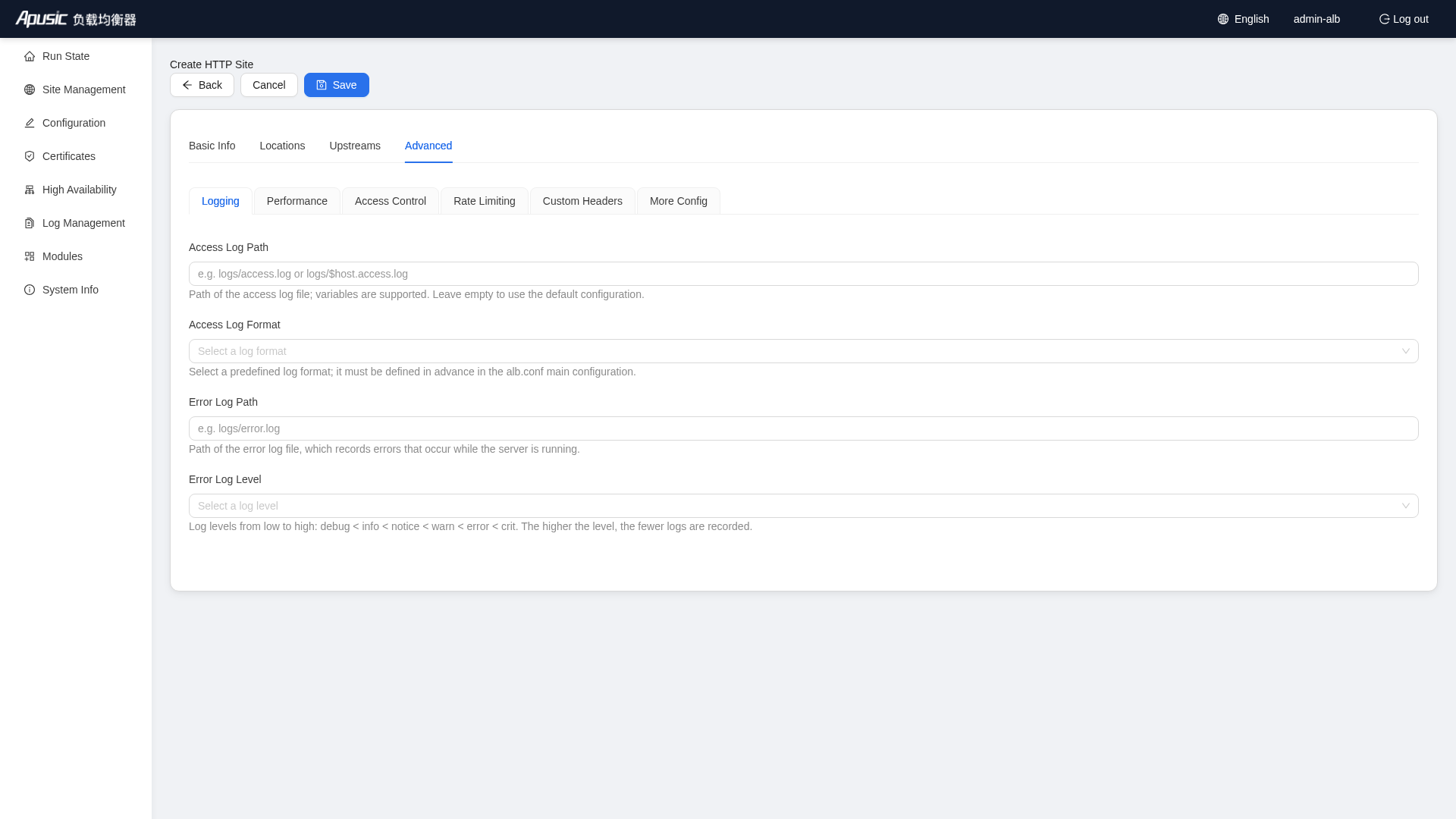
The Advanced configuration consists of card-style tabs, including:
- Logging: access/error log paths, format, and level
- Performance: Gzip, proxy cache, static file cache, and client body size limit
- Access Control: IP whitelist / blacklist
- Rate Limiting: request rate, burst buffer, and connection limit
- Custom Headers: response headers / proxy request headers
- More Config: 25+ common ALB directives and raw server/location configuration
# Save and Verify
After you click the "Save" button at the top left, the system shows a confirmation: "Save changes? The configuration will be reloaded automatically after saving". After you click "OK", the system:
- Validates the required form fields
- Generates the ALB config file and saves it to
conf.d/ - Automatically reloads if auto-reload is enabled
- Returns a save result message and goes back to the site list
After the site is saved successfully, you can see the new site in the HTTP site list:
FAQ: Save failures are usually caused by an occupied listen port, empty required fields, or an invalid backend address format.
# Creating a TCP/UDP Site (Complete Example)
Entry: switch to the "TCP/UDP Sites" tab on the Site Management page and click "Create Site"
# Basic Info
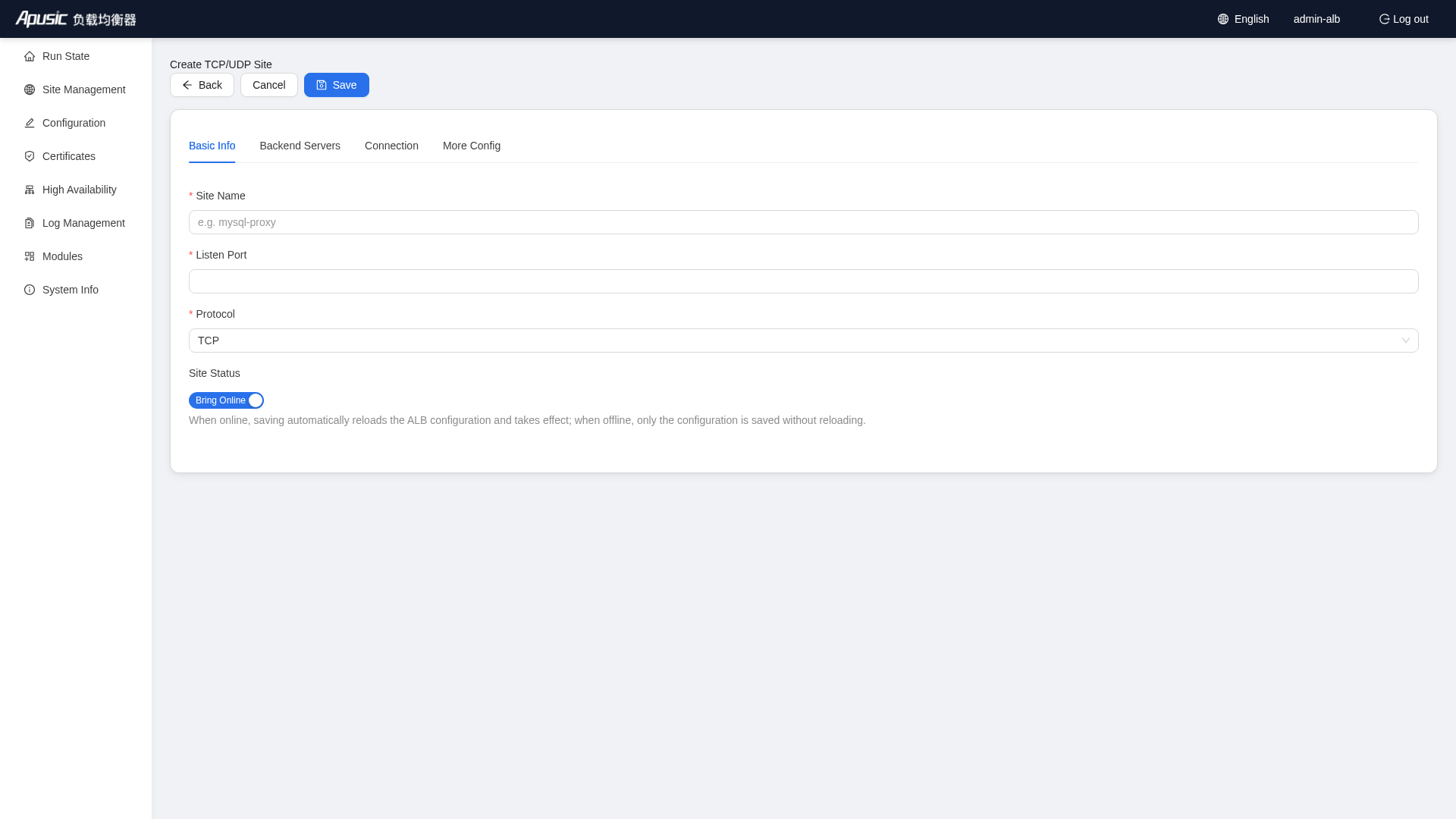
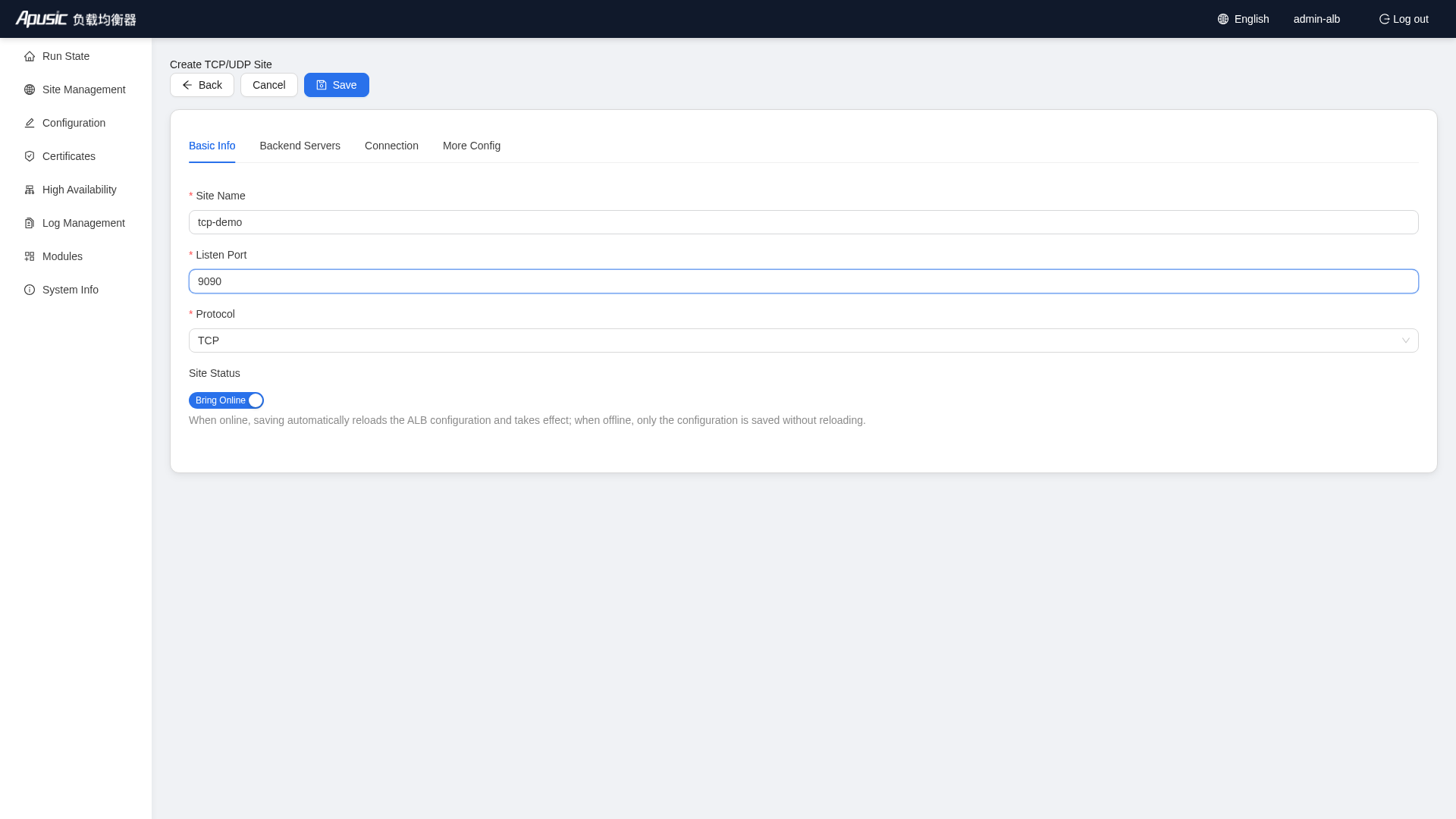
Example values:
| Field | Example | Description |
|---|---|---|
| Site Name | tcp-demo | Unique identifier |
| Listen Port | 9090 | Layer-4 proxy listen port |
| Protocol | TCP | TCP / UDP available |
| Site Status | Online | Automatically reloaded and brought online after saving |
# Backend Servers
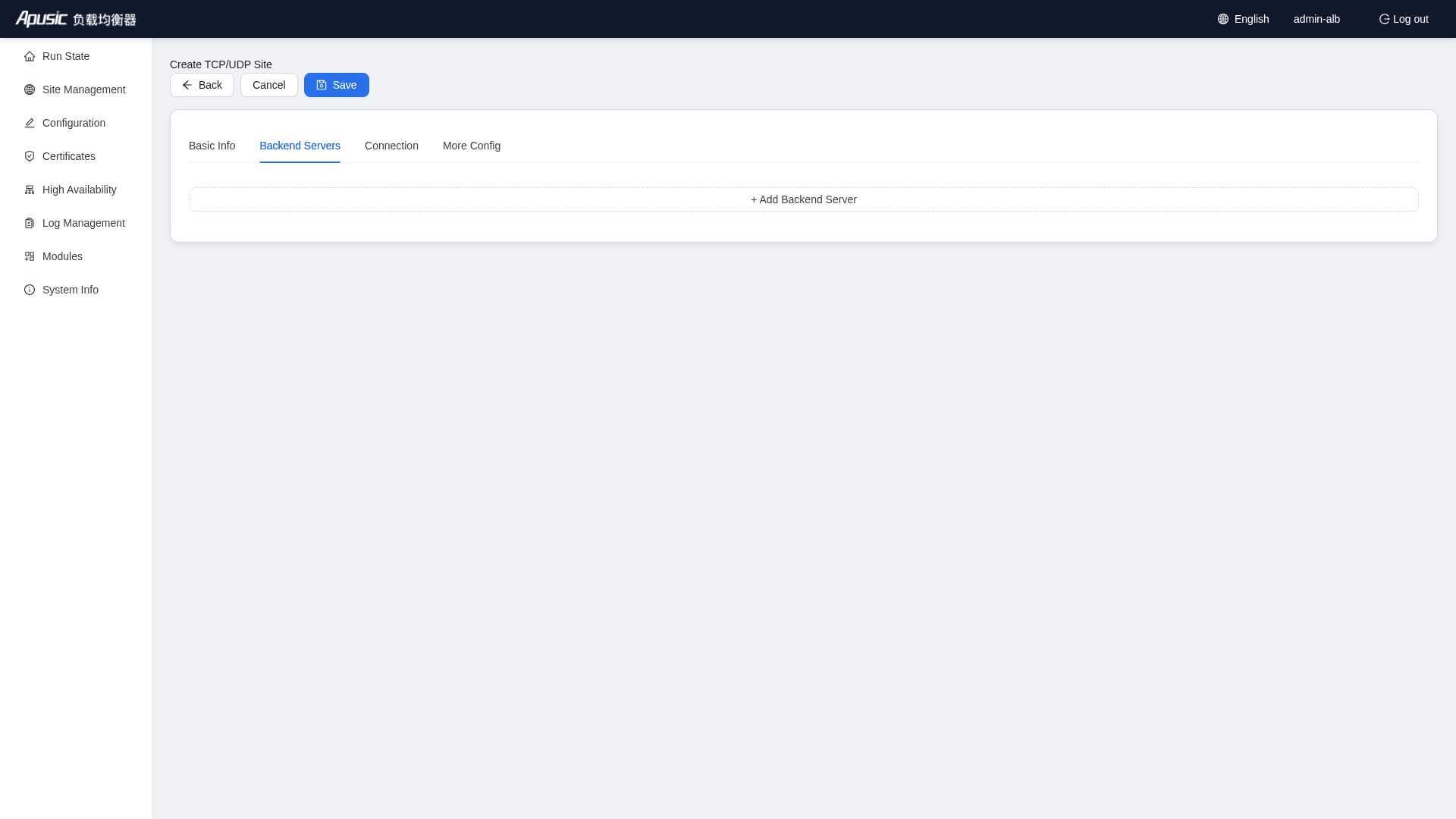
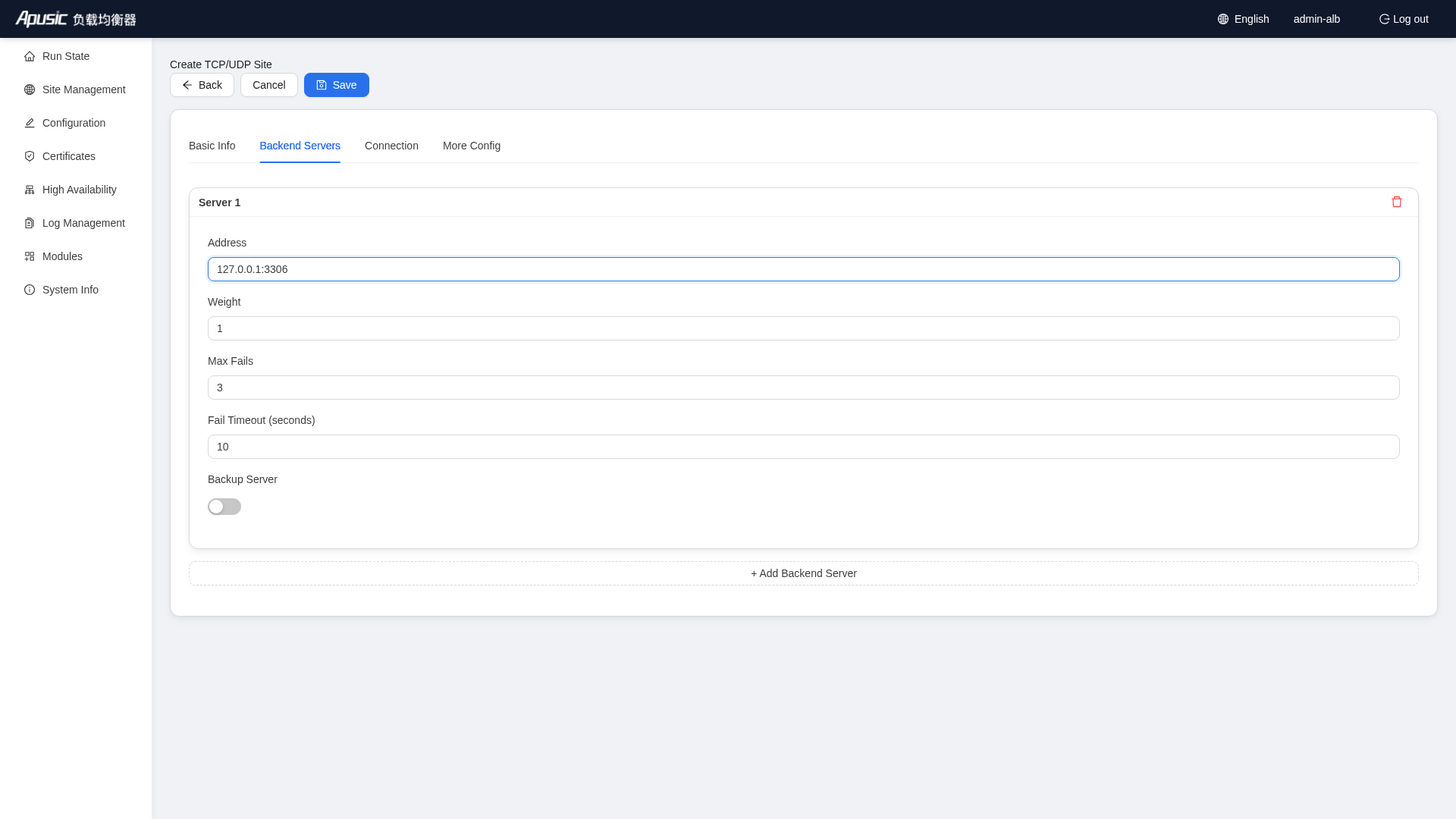
Click "+ Add Backend Server" and fill in:
| Field | Example | Description |
|---|---|---|
| Address | 127.0.0.1:3306 | The real backend service address |
| Weight | 1 | Request distribution weight |
| Max Fails | 3 | Health determination threshold |
| Fail Timeout | 10 seconds | Failure statistics window |
# Connection
You can configure:
- Connect timeout
- Data transfer timeout
- Buffer size
- Health check parameters
# More Config
Raw directives at the stream server level can be written directly.
# Save and Verify
After filling in the form, click "Save" at the top left and click "OK" in the confirmation dialog. After the site is saved successfully, you can see the new tcp-demo site in the TCP/UDP site list (as shown in the TCP/UDP site list screenshot above).
# Enable, Disable, and Delete
- Bring Online / Take Offline: toggle with the status switch in the list. After a site is taken offline, ALB no longer listens on its port, but the configuration is retained.
- Delete: deletion cannot be undone; make sure the site is no longer in use.
# Configuration
Entry: "Configuration" in the left menu
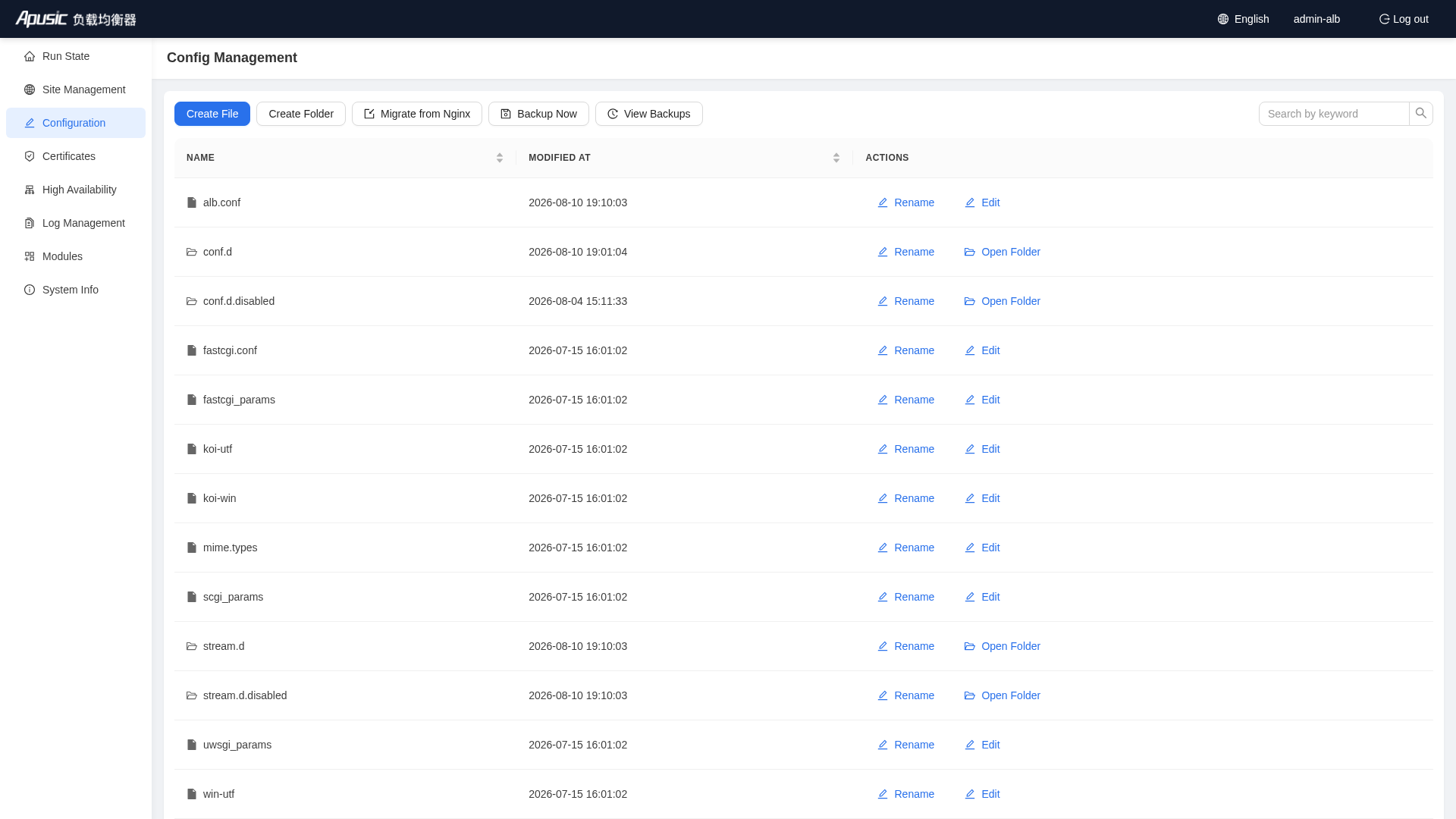
Configuration is used to browse, edit, back up, and import ALB configuration files.
# Browsing Files
- Files and folders in the current directory are listed in a table
- Click to enter a subdirectory
- Files and folders can be renamed
# Creating Files and Folders
- Click "Create File" to open the configuration editor
- Click "Create Folder" to create a folder in the current directory
# Config File Editor
Entry: click "Edit" on a file, or click "Create File"
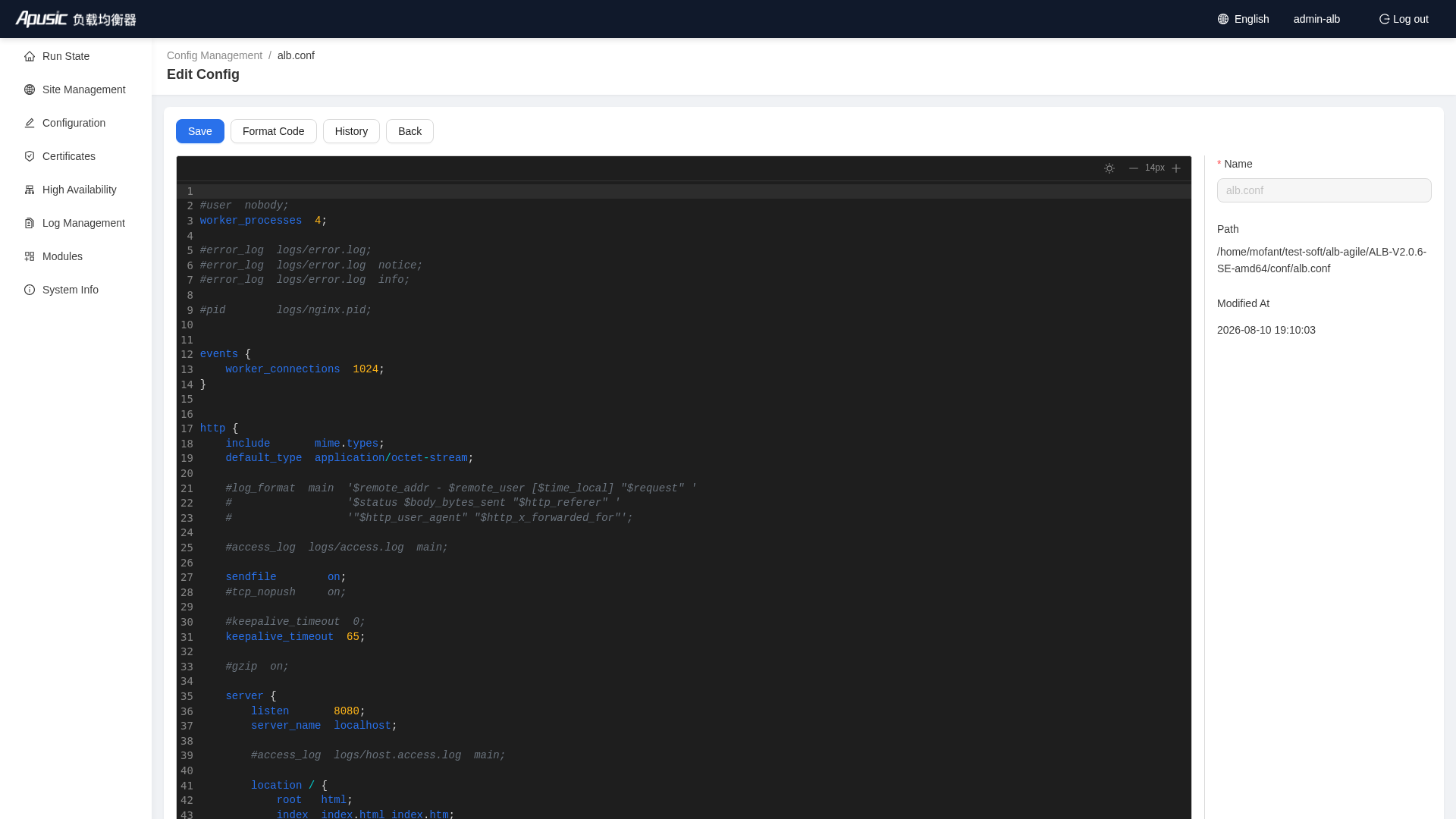
The editor provides:
- A CodeMirror code editing area with syntax highlighting
- A file information panel (name, path, modification time)
- Save: saves the current file content; in HA mode, the sync result is shown
- Format: automatically formats the ALB configuration
- History: views and restores previous versions
- Back: returns to the file management page
If the current node is an HA standby node, editing is disabled and you are prompted to perform the operation on the primary node.
# Backup and Rollback (Complete Example)
# Backup Now
- Click "Backup Now" on the Config Management page
- Fill in a note (optional) in the pop-up dialog
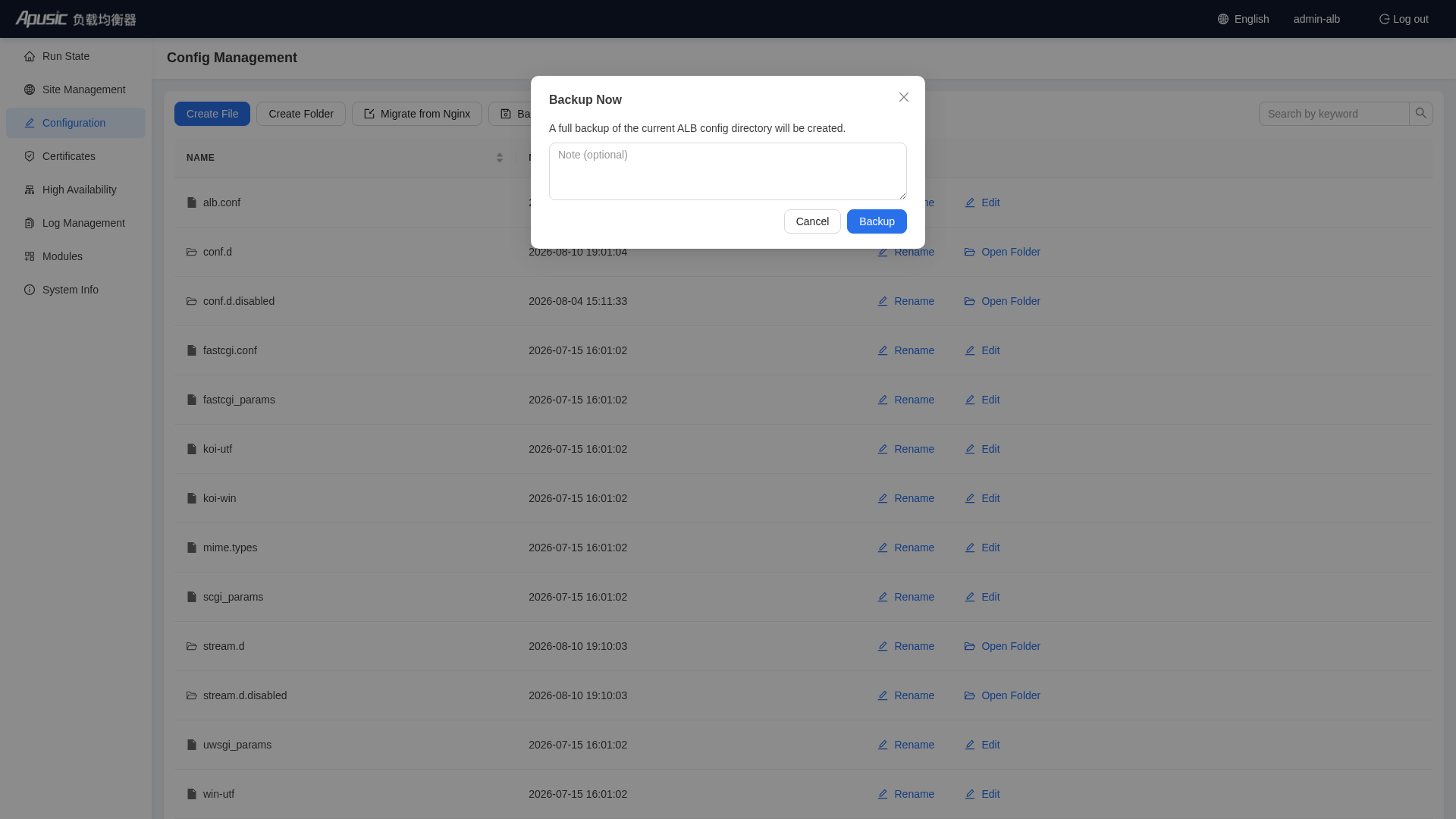
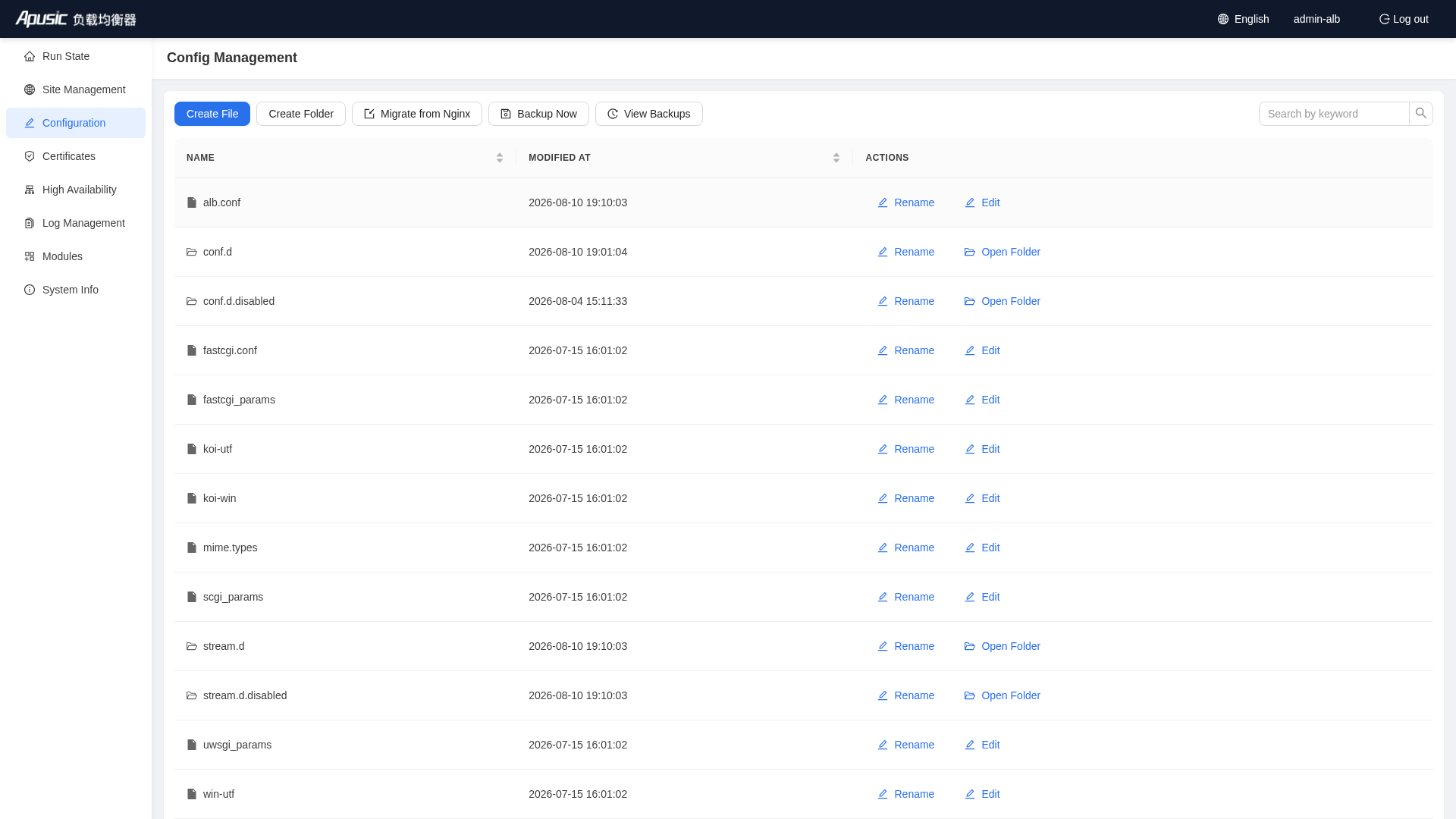
- Click "Backup"; the system creates a full snapshot of the current ALB config directory
# Viewing Backup History
Click "View Backups"; a backup history drawer slides out from the right:
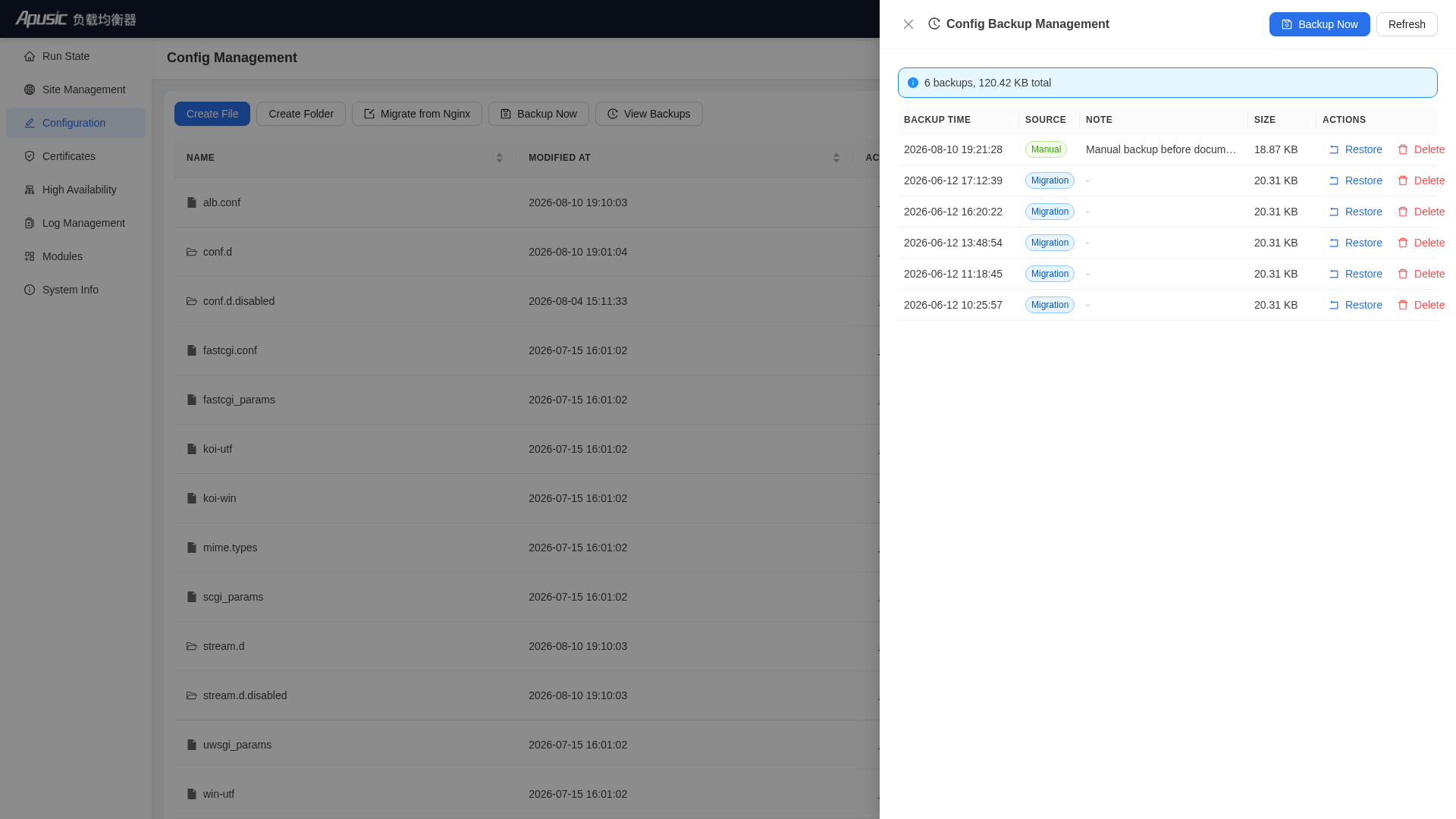
In the backup history you can:
- View backup times and notes
- Restore a historical version
- Delete backups you no longer need
Note: A restore overwrites the current configuration. It is recommended to run "Backup Now" once more before restoring, so the current state is preserved. Backup files are stored in the
[ALB installation directory]/backup/directory. The system keeps the latest 30 backups by default and automatically cleans up the oldest ones beyond that. A restore does not interrupt the ALB service, but it triggers a configuration reload.
# Migrate from Nginx
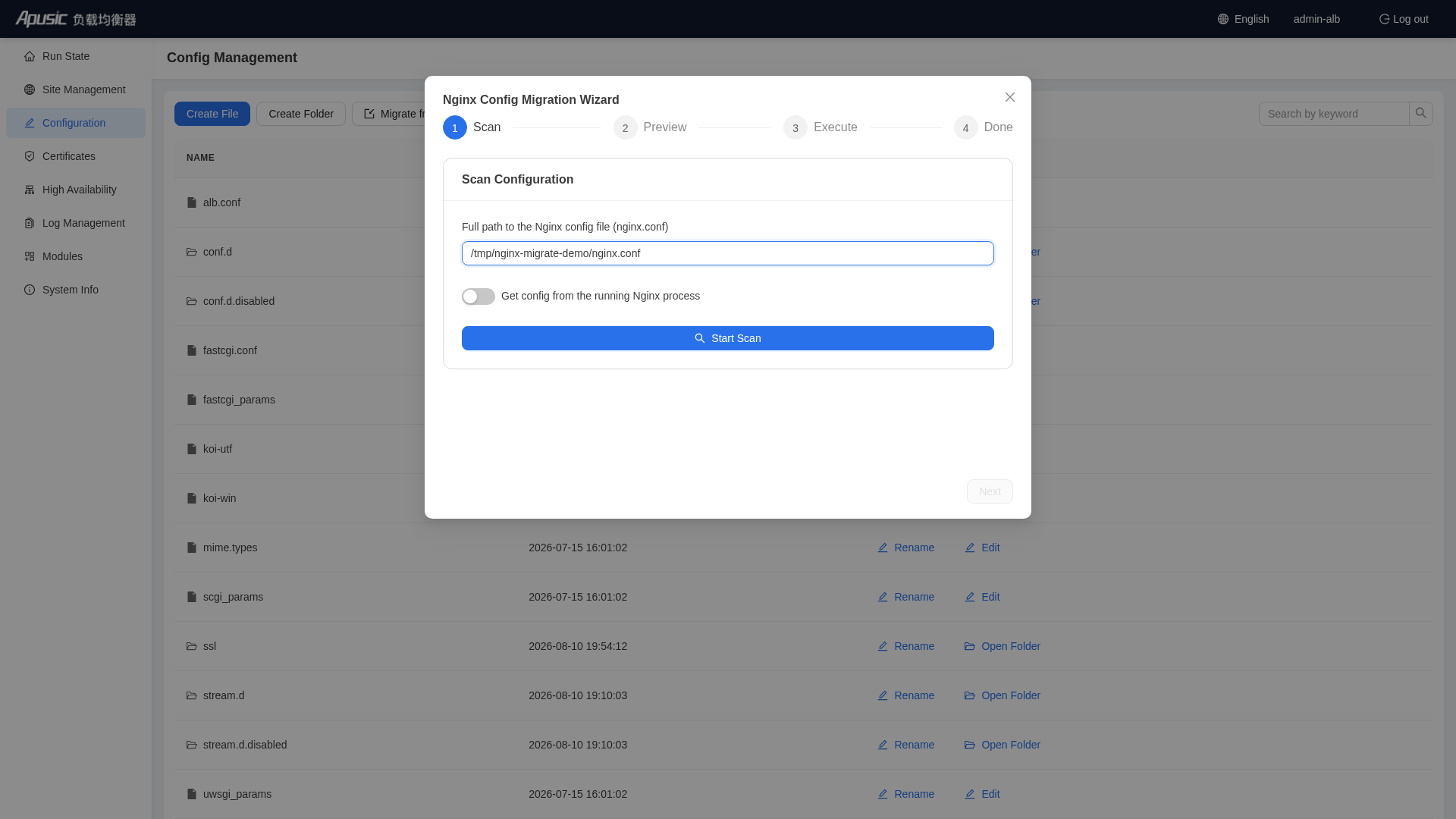
Click "Migrate from Nginx" to launch the migration wizard, which imports an existing nginx configuration file as ALB sites and configuration.
Enter the path of the Nginx configuration file in the dialog and click Scan
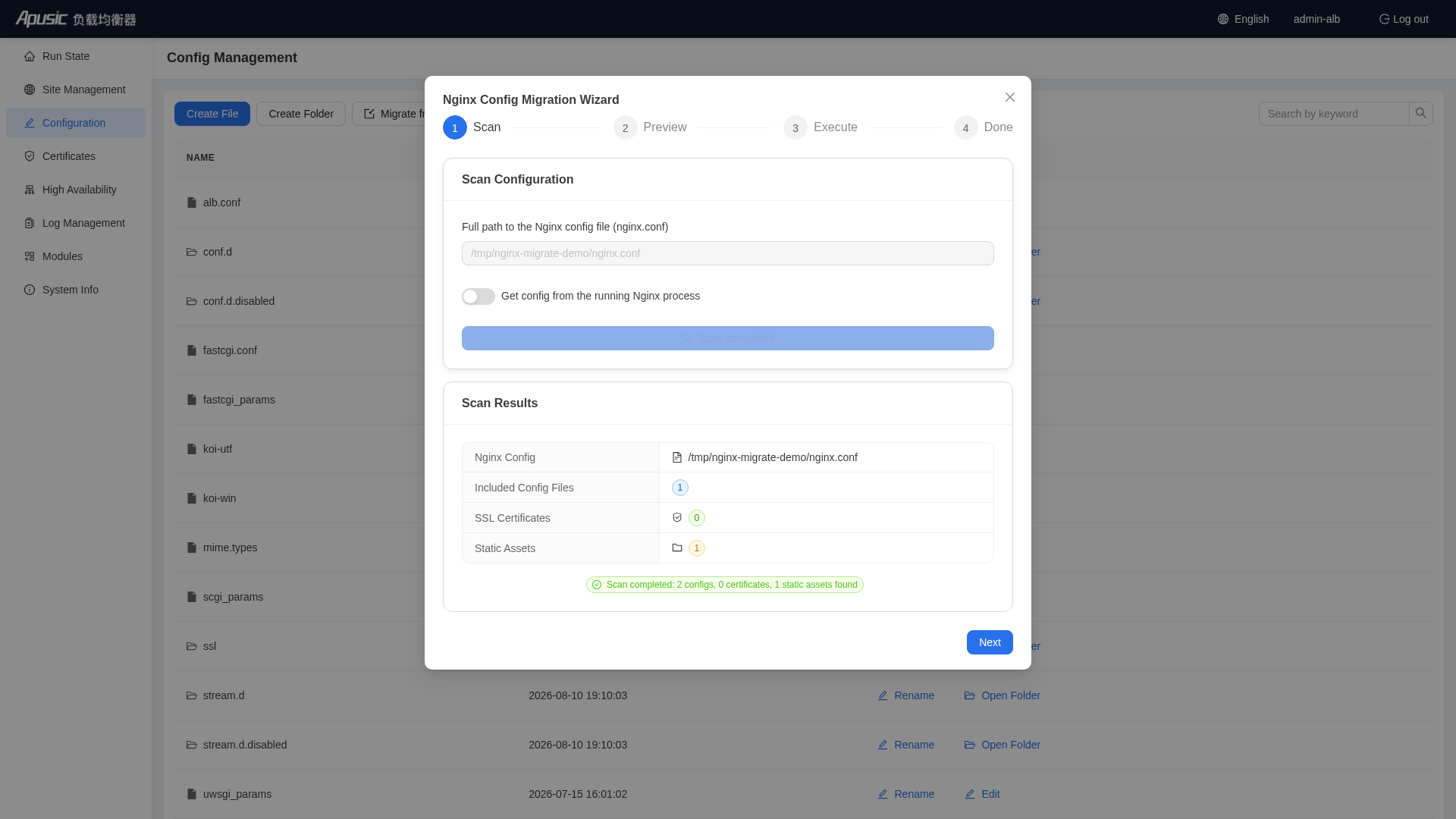
After the scan succeeds, you can view the scan results and proceed with the migration
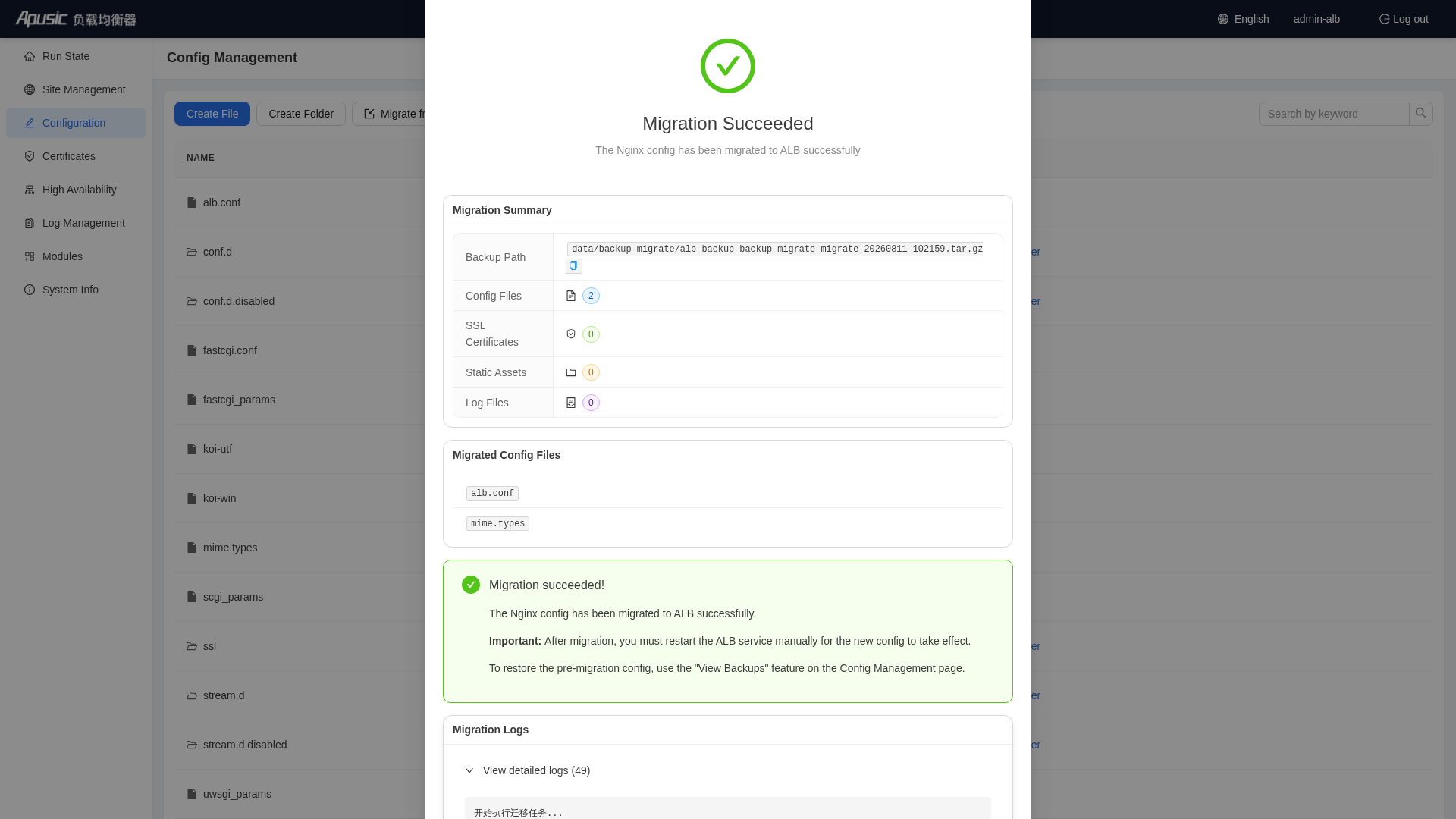
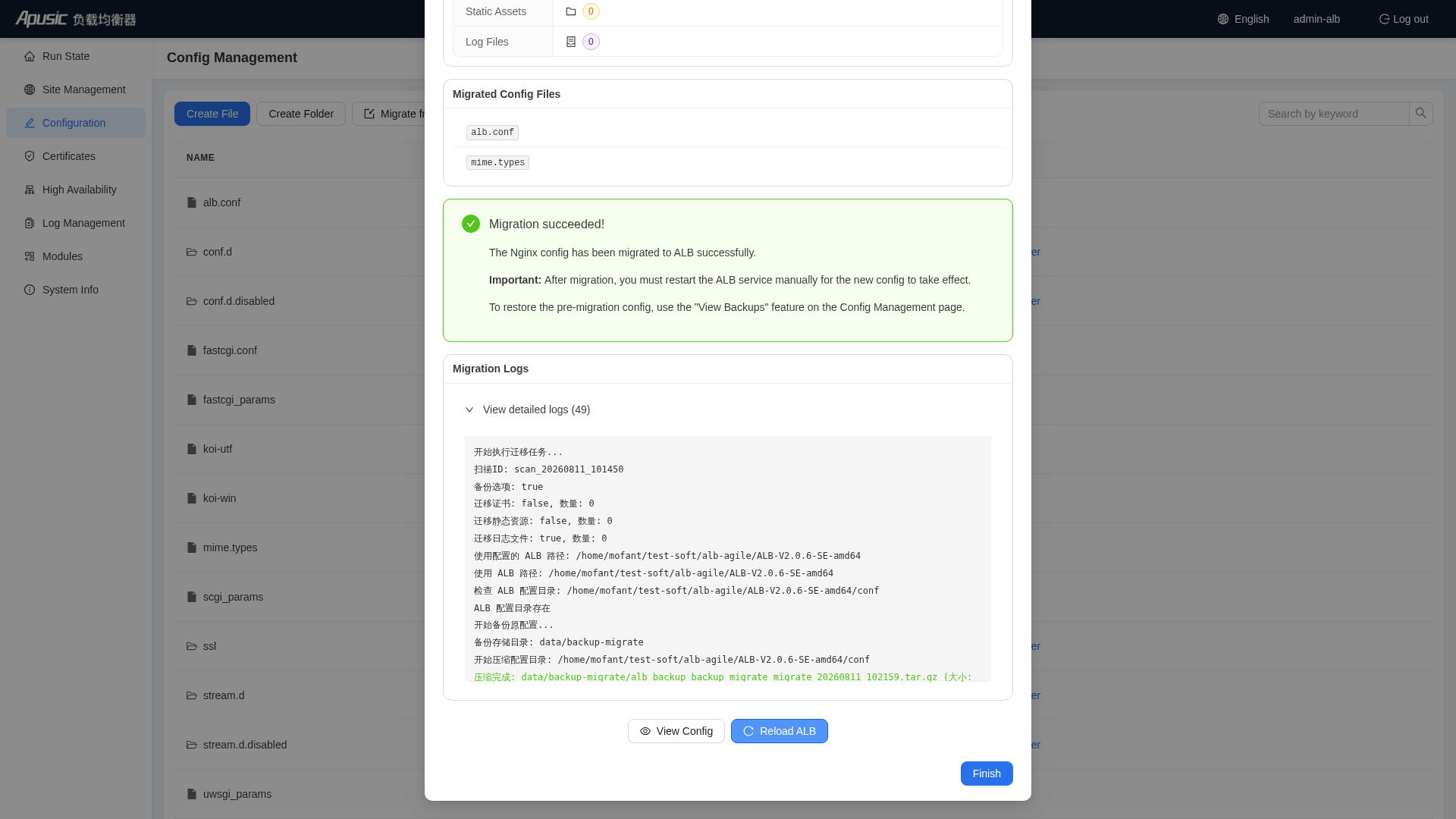
After the migration completes, you can view the migration result. Note: enabling "Overwrite Original Config" clears the existing configuration; by default, the Nginx configuration is appended rather than overwritten.
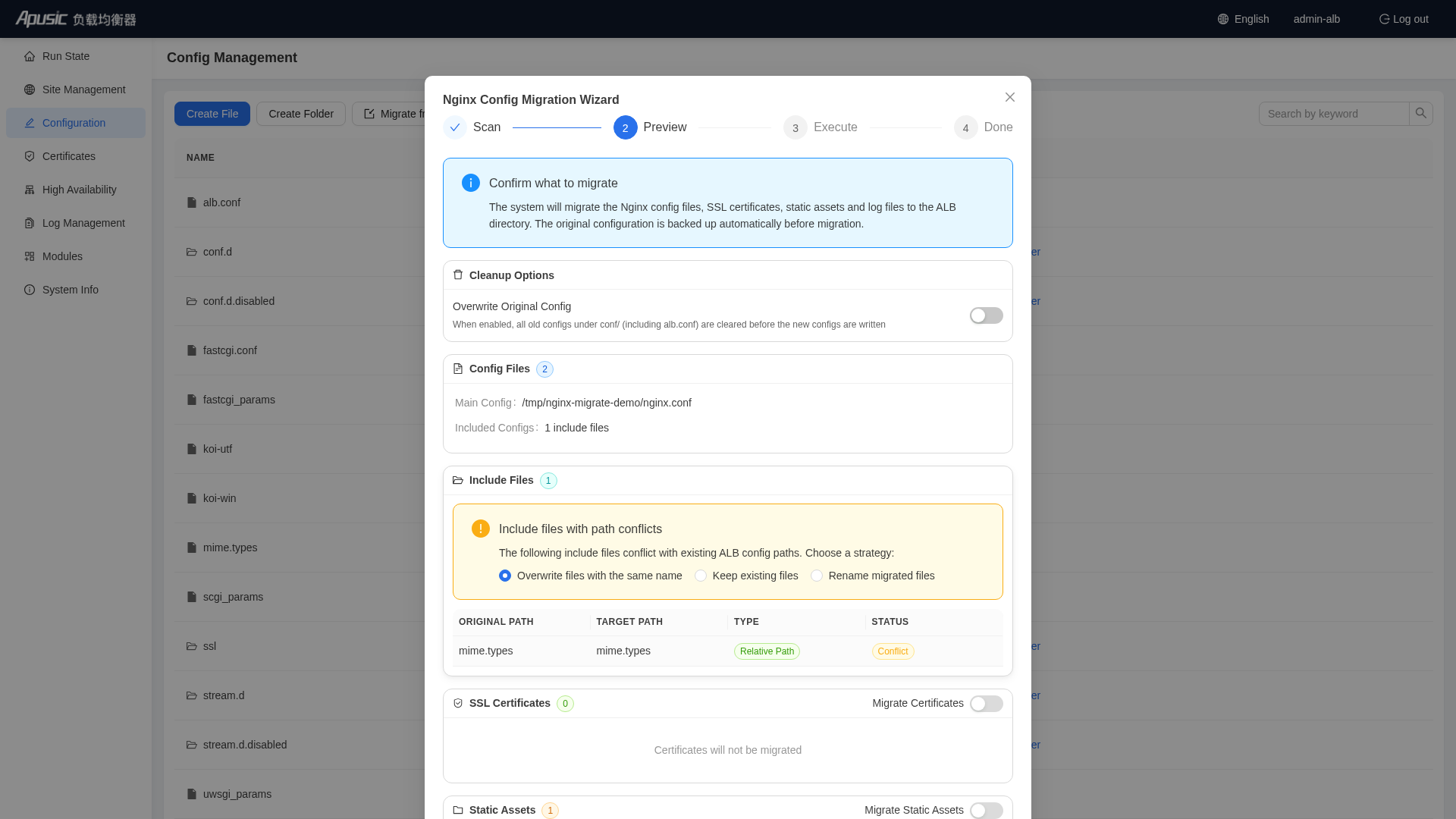
Migration result
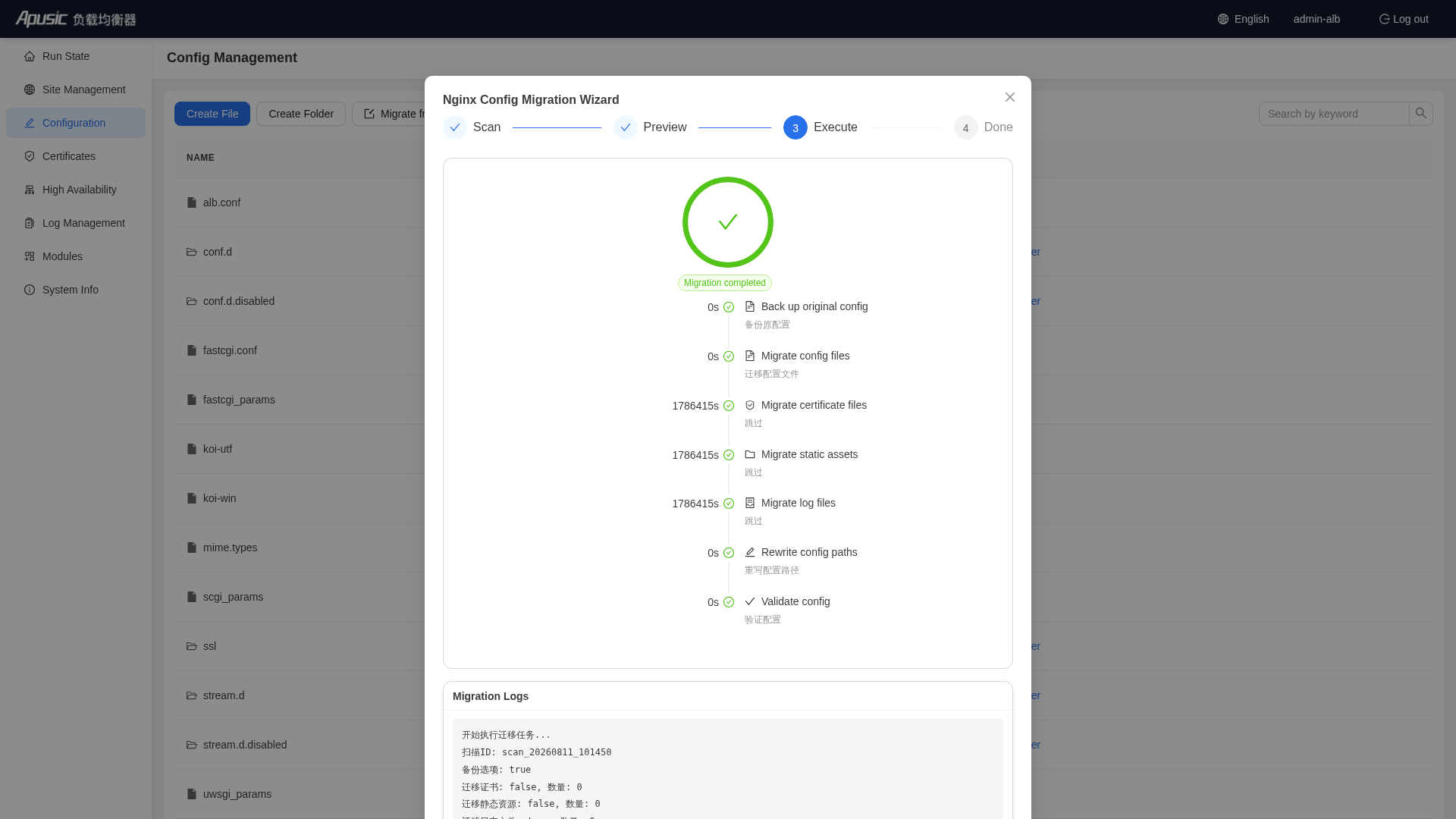
View the final result
After the migration completes, reload ALB
# Certificates
Entry: "Certificates" in the left menu
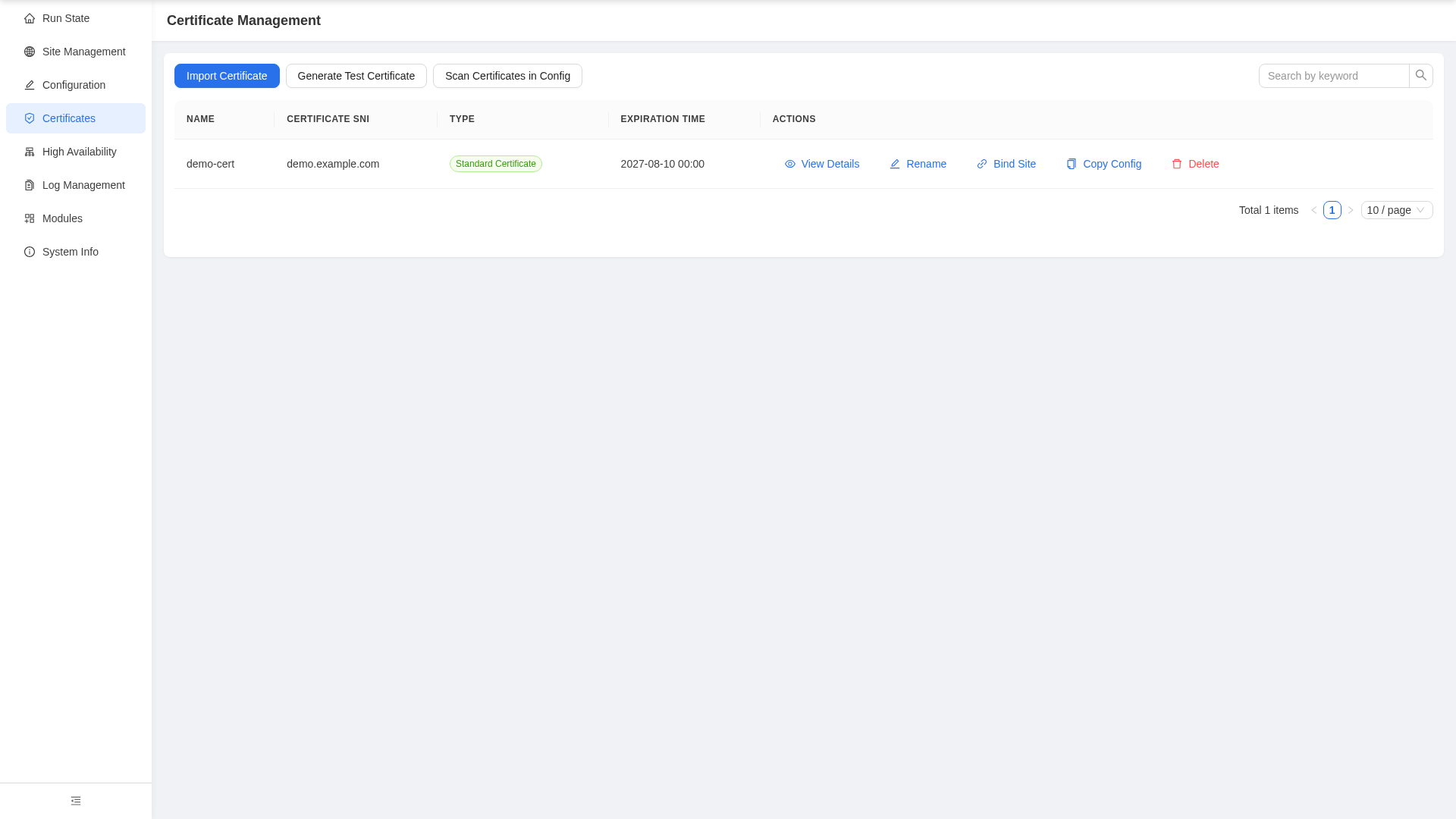
Certificates maintains the SSL/TLS certificates required by HTTPS sites.
# Certificate List
Table columns:
- Certificate Name, SNI, Type (Standard Certificate / GM Certificate), Expiration Time
# Importing a Standard Certificate (RSA/ECC)
Entry: click "Import Certificate"
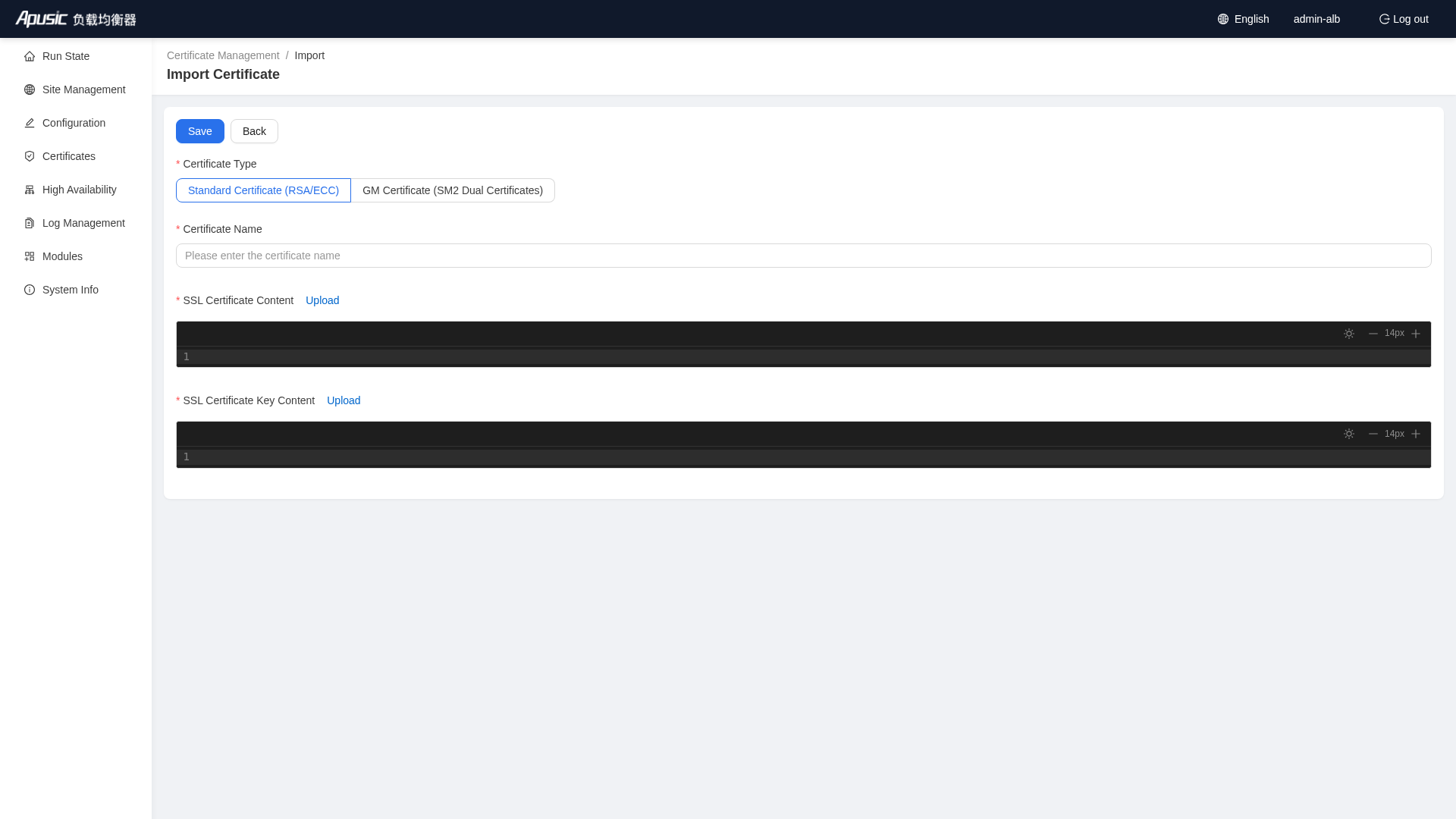
Example values:
| Field | Description |
|---|---|
| Certificate Type | Standard Certificate (RSA/ECC) |
| Certificate Name | Custom name, such as demo-cert |
| SSL Certificate Content | Paste the certificate PEM content, or click "Upload" to choose a .crt/.pem file |
| SSL Certificate Key Content | Paste the private key PEM content, or click "Upload" to choose a .key file |
# Importing a GM Certificate (SM2 Dual Certificates)
Click the "GM Certificate (SM2 Dual Certificates)" radio button to switch the form:
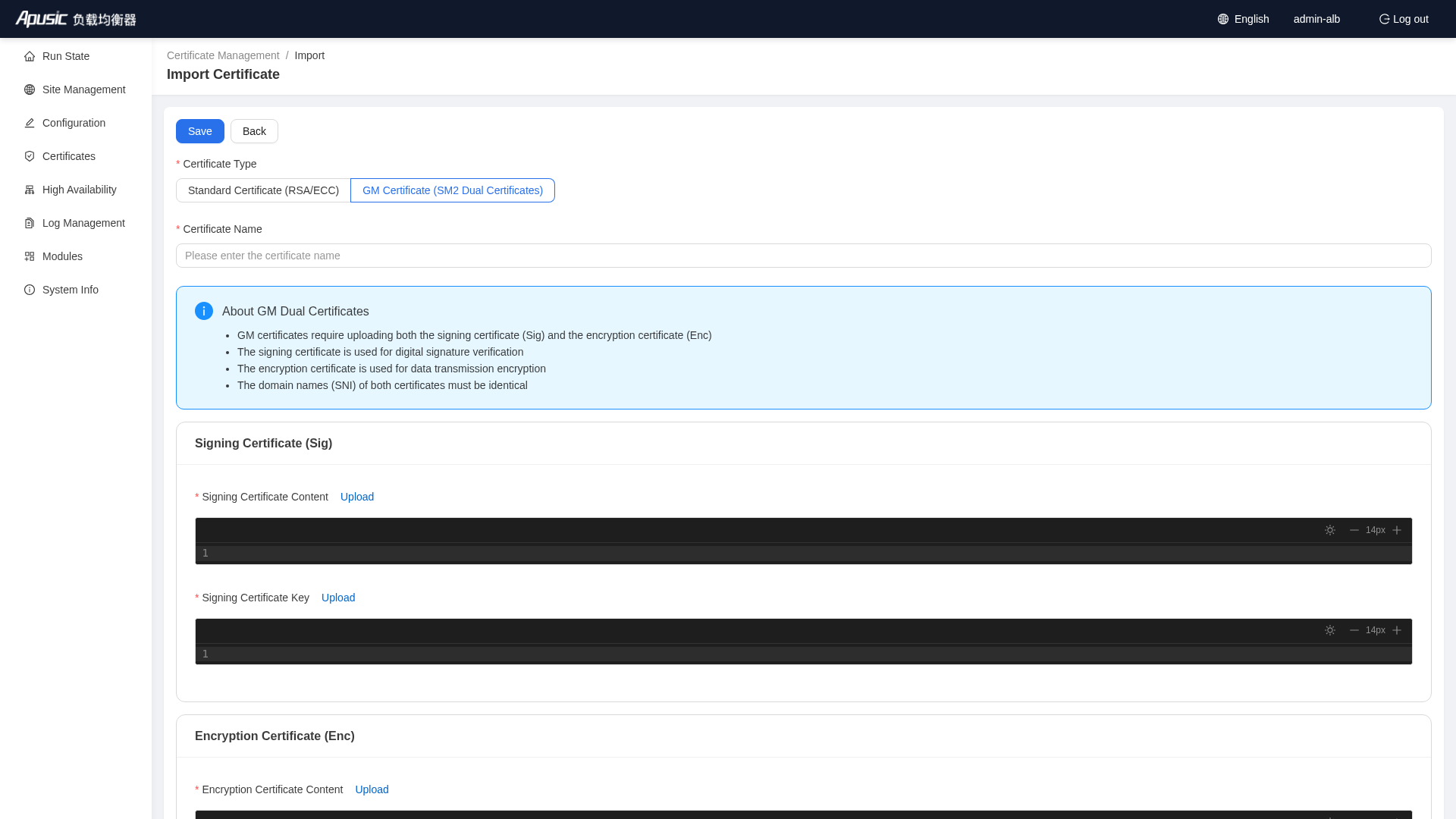
A GM certificate requires uploading separately:
- Signing certificate + signing key
- Encryption certificate + encryption key
# Scan Certificates in Config
Scan Certificates in Config is an advanced feature that scans existing configuration files for certificates and generates certificate objects for unified management.
Click "Scan Certificates in Config"
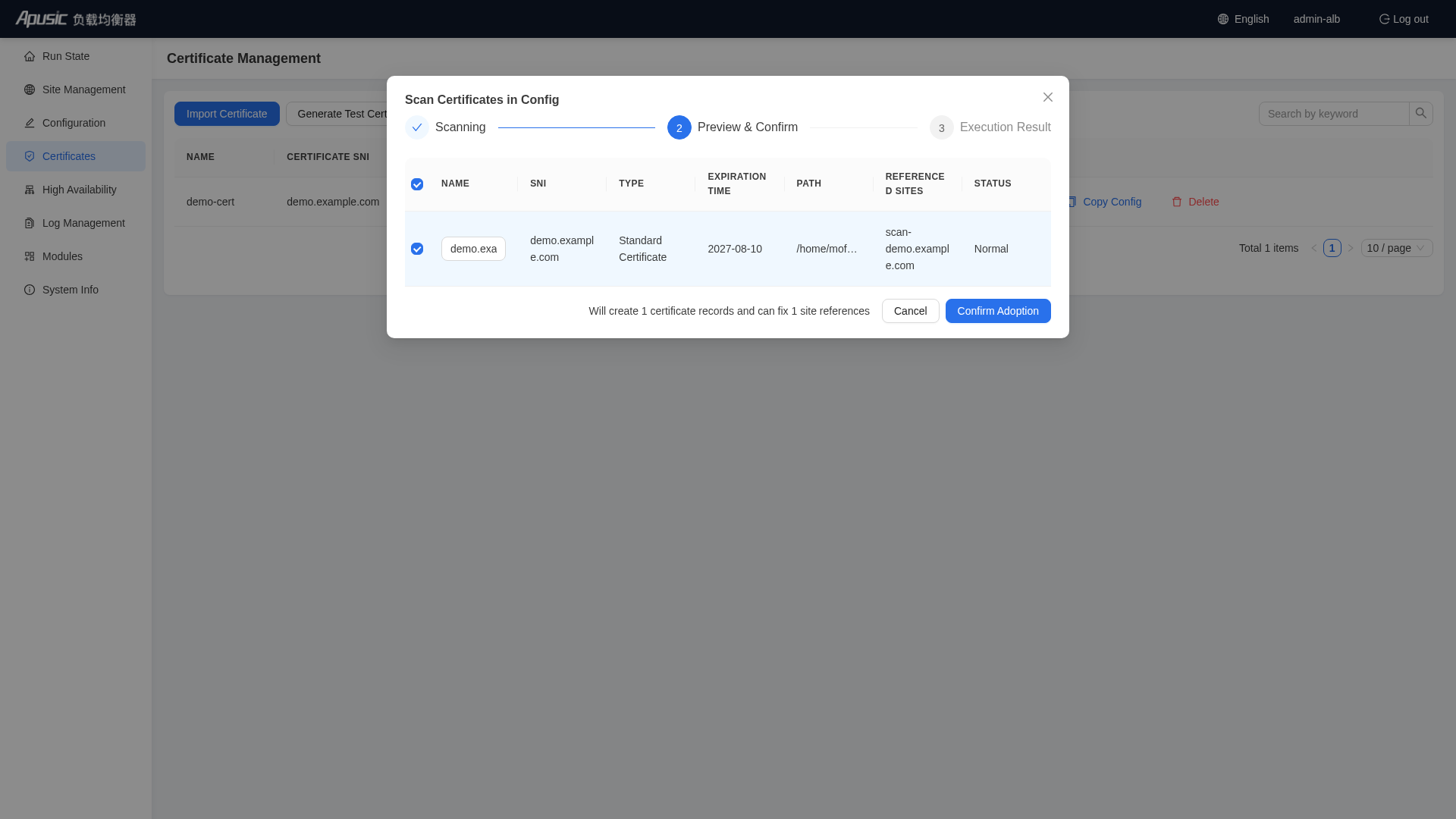
After the scan succeeds, you can view the scan results and proceed with the migration
# Other Operations
Generate Test Certificate: quickly generates a self-signed certificate, for testing only
View Details: views the certificate chain, validity period, issuer, and other information
Rename: changes the certificate name
Bind to Site: binds the certificate to an existing HTTP site; after binding, reload ALB for the configuration to take effect
Copy ALB Config Snippet: copies the
ssl_certificateand related configuration to the clipboardDelete: deletes certificates that are no longer in use
Note: 30 days before a certificate expires, the system displays a yellow warning on the certificate list page; please update it in time. GM certificates (SM2) require the GM module built into ALB; make sure the current version has GM support enabled.
# High Availability
Entry: "High Availability" in the left menu
The High Availability (HA) module builds an ALB two-node hot-standby cluster, ensuring that the standby node takes over the service when the primary node fails. ALB supports two HA modes:
- Native AHA: the high-availability component built into ALB, suitable for quick deployment; it can be enabled with one-click configuration in the Console. This mode is used by default.
- Keepalived: an open-source high-availability solution based on the VRRP protocol, suitable for environments with existing Keepalived operations experience; it requires manual installation and configuration.
The following uses the primary node 172.21.61.46 and the standby node 172.21.61.66 as an example to describe the configuration steps in Native AHA mode through the Console. To use Keepalived mode, refer to the "Using Keepalived for High Availability" chapter of the Installation Guide for manual configuration.
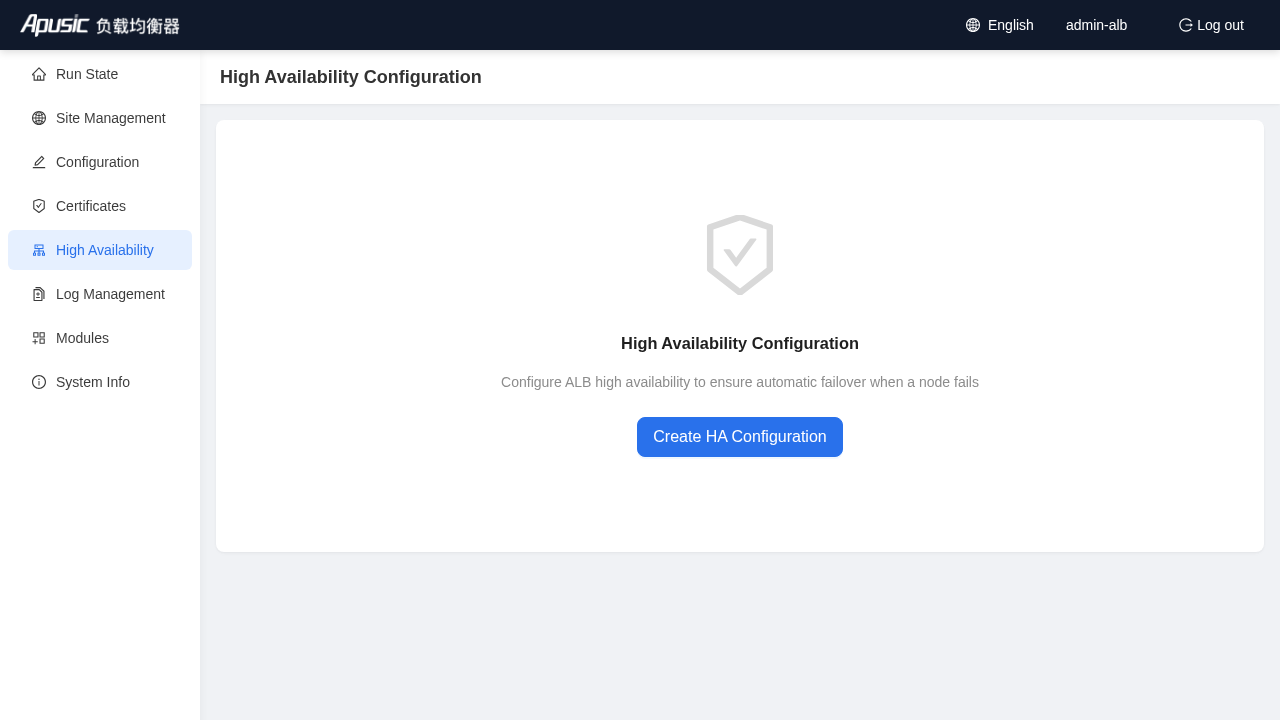
When you enter the page for the first time and HA is not configured, the page shows an empty state with a "Create HA Configuration" button:
# Creating an HA Configuration (Complete Example)
Click "Create HA Configuration" to enter the step-by-step wizard.
# Basic Configuration
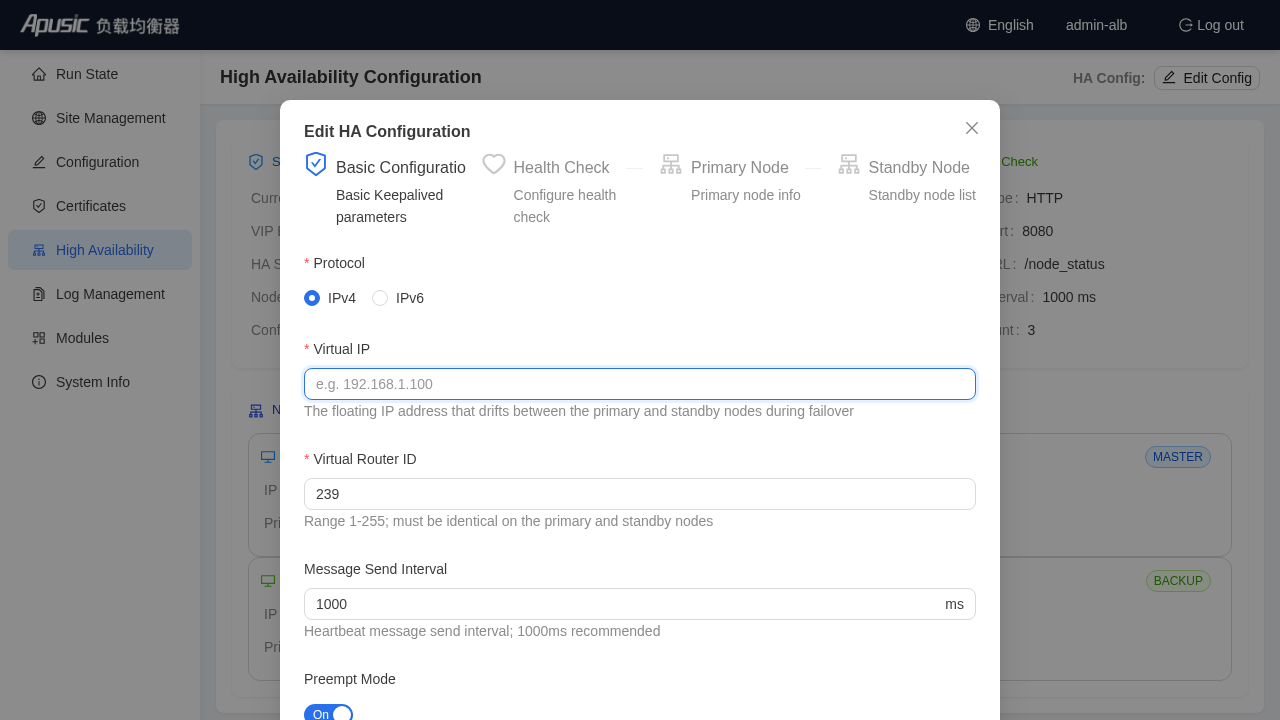
Fill in the basic Keepalived parameters as shown in the example:
| Field | Example | Description |
|---|---|---|
| Protocol | IPv4 | Select IPv4 / IPv6 according to the network environment |
| Virtual IP | 172.21.61.150 | The floating IP that drifts between the primary and standby nodes during failover |
| Virtual Router ID | 239 | Range 1-255; must be identical on the primary and standby nodes |
| Message Send Interval | 1000 ms | Heartbeat message send interval |
| Preempt Mode | On | A recovered node with higher priority preempts the primary role |
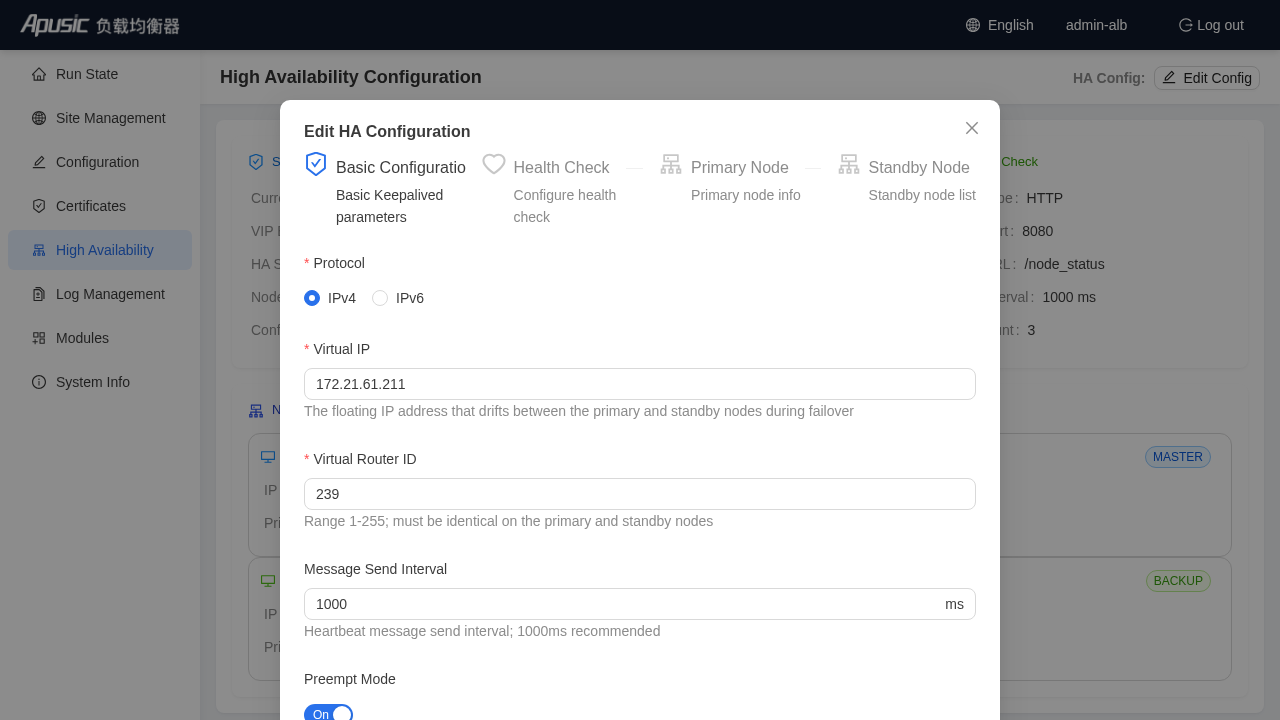
Note: The Virtual IP must be an unoccupied IP in the current subnet and reachable by the network interfaces of both nodes; the Virtual Router ID must not conflict with other Keepalived clusters in the same subnet.
# Health Check
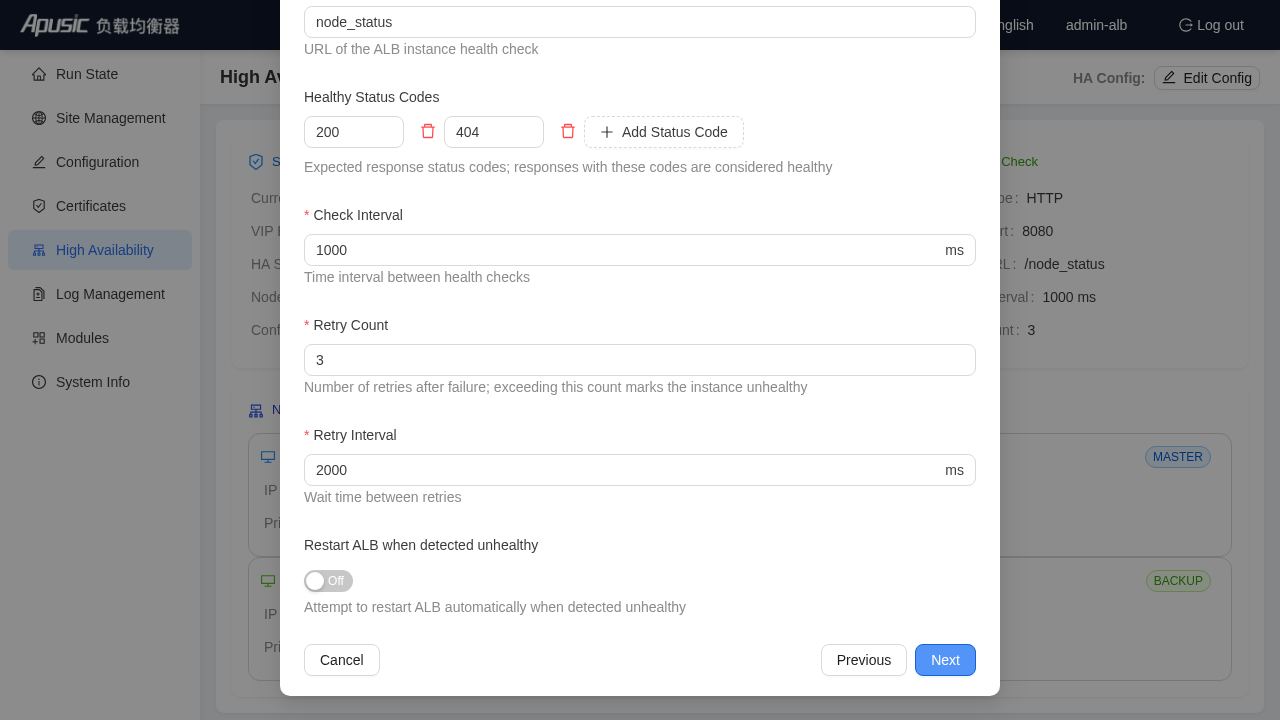
Configure the ALB instance health check parameters:
| Field | Example | Description |
|---|---|---|
| Check Type | HTTP | HTTPS is also available |
| Check Port | 8080 | The ALB health check port |
| Check URL | /node_status | The health check URL |
| Healthy Status Codes | 200 | Expected response status codes; a response with this code is considered healthy; configure according to the status code actually returned by your health check interface |
| Check Interval | 1000 ms | Interval between checks |
| Retry Count | 3 | Number of retries after failure; exceeding this count marks the instance unhealthy |
| Retry Interval | 2000 ms | Wait time between retries |
In the screenshot, "Restart ALB when detected unhealthy" is off; when enabled, the system attempts to restart ALB automatically when the health check fails.
# Primary Node Info
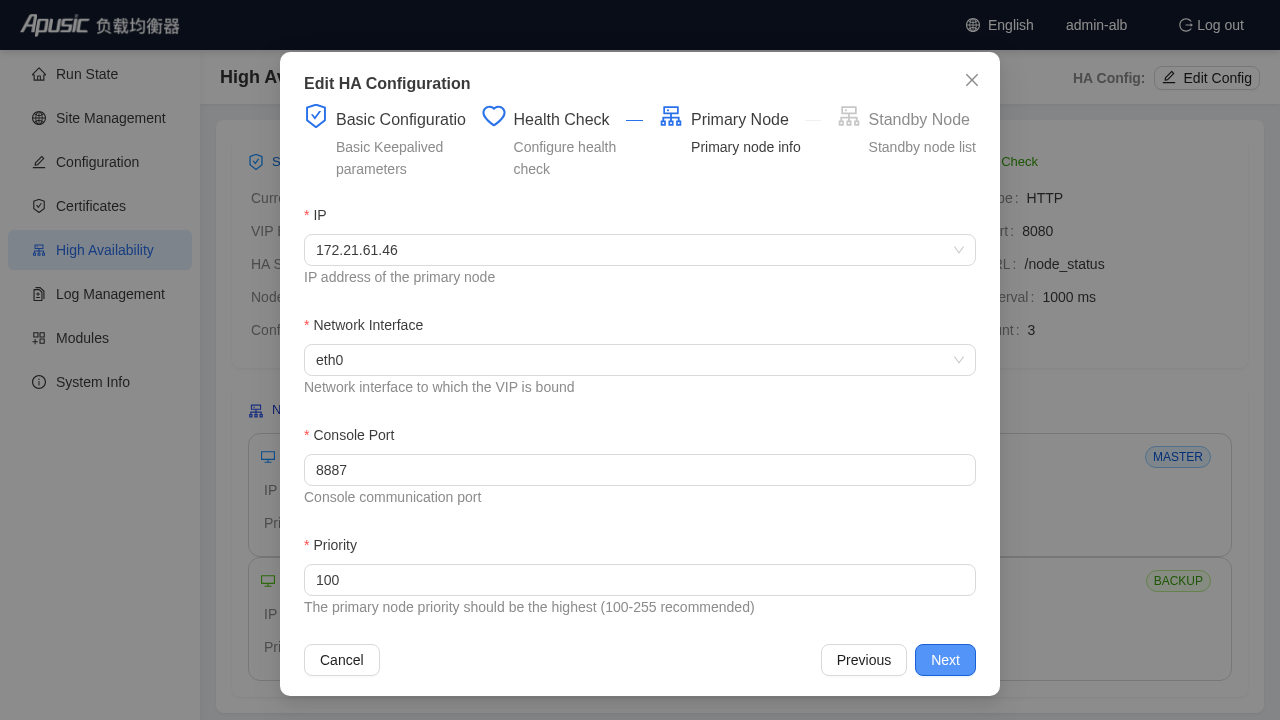
Select the primary node IP, network interface, console port, and priority:
| Field | Example | Description |
|---|---|---|
| IP | 172.21.61.46 | Primary node IP |
| Network Interface | eth0 | The interface to which the VIP is bound |
| Console Port | 8887 | Inter-node communication port |
| Priority | 100 | The primary node priority should be the highest (100-255) |
# Standby Node Info
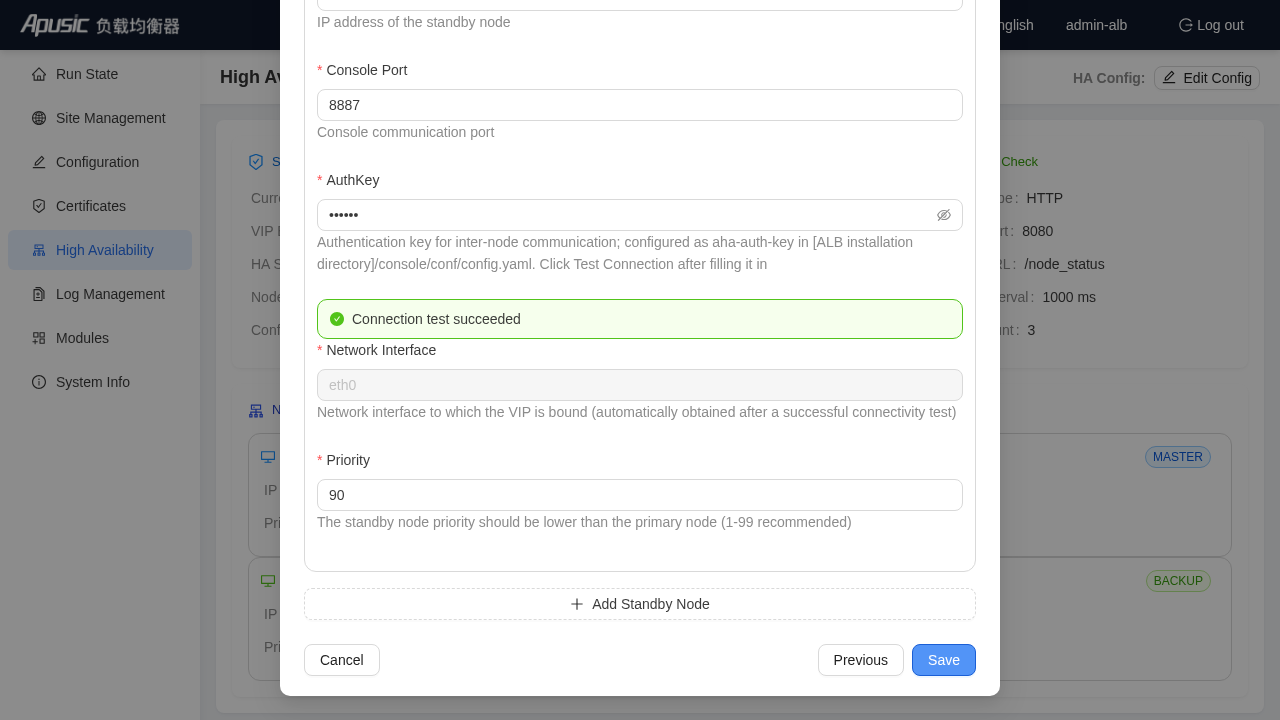
Add the standby node 172.21.61.66 and configure its IP, network interface, console port, and priority:
| Field | Example | Description |
|---|---|---|
| IP | 172.21.61.66 | Standby node IP |
| Network Interface | eth0 | The interface to which the VIP is bound |
| Console Port | 8887 | Inter-node communication port |
| Priority | 90 | The standby node priority should be lower than the primary node |
Click "Create"; the system saves the configuration and automatically syncs it to the standby node.
# HA Status Page
After the configuration is created successfully, the page shows the high availability status details:
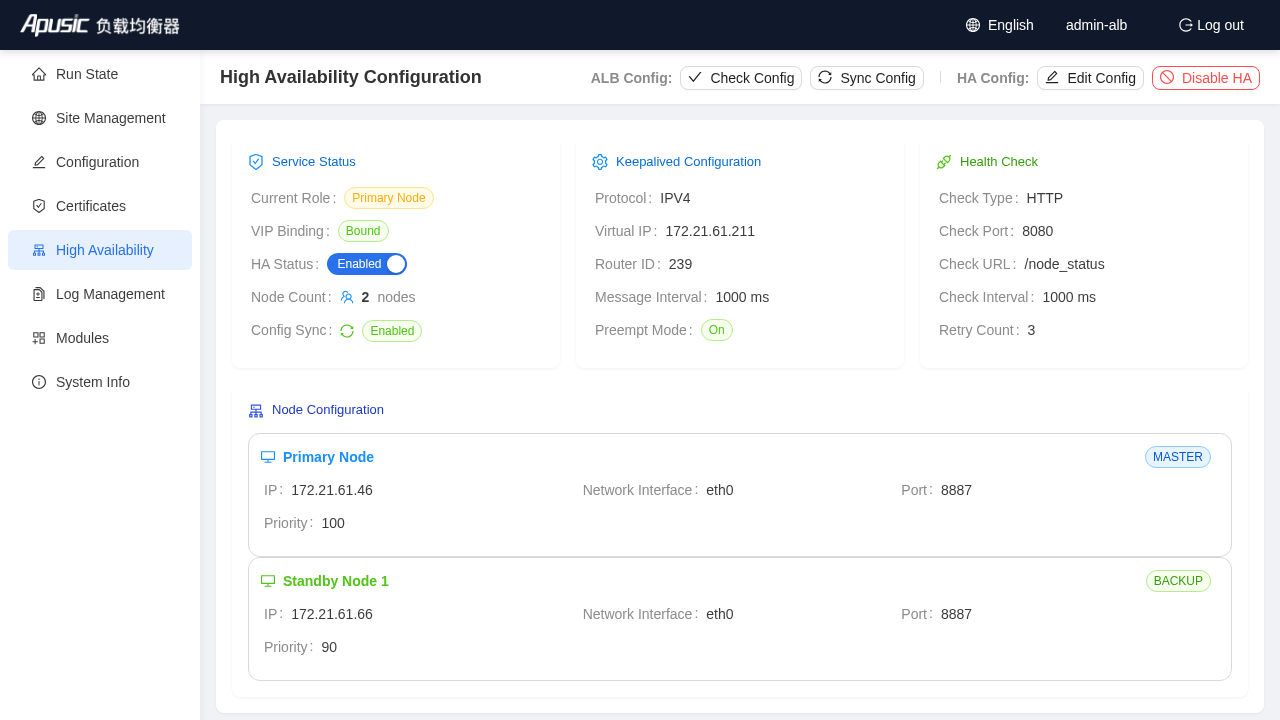
The page is divided into four areas:
Service Status
- Current Role: Primary Node / Standby Node
- VIP Binding: Bound / Unbound
- HA Status: Enabled / Disabled
- Node Count
- Config Sync: Enabled / Disabled
Keepalived Configuration
- Protocol, Virtual IP, Router ID
- Message Interval, Preempt Mode
Health Check
- Check Type, Port, URL
- Check Interval, Retry Count
Node Configuration
- Primary node information (MASTER)
- Standby node information (BACKUP)
Operation buttons at the top:
| Button | Description |
|---|---|
| Check Config | Validates whether the current ALB configuration is correct |
| Sync Config | Syncs the primary node's ALB configuration to the standby node |
| Edit Config | Modifies the HA configuration (only available on the primary node) |
| Disable HA | Stops the HA service and keeps the configuration |
# Editing the HA Configuration
Click "Edit Config" to reopen the wizard and modify HA parameters:
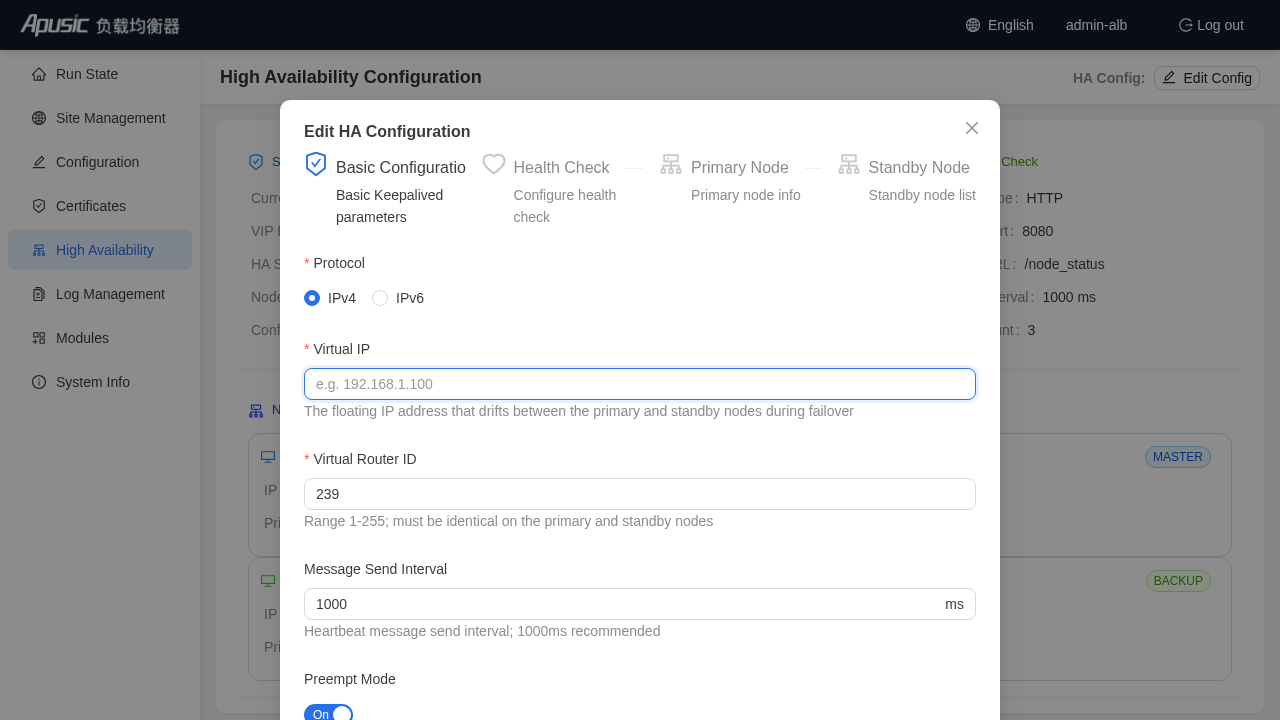
Note: The HA configuration can only be edited on the primary node; the standby node can only view the HA status.
# Disabling and Enabling HA
After you click "Disable HA", the system stops the Keepalived service and unbinds the VIP, but the HA configuration is retained:
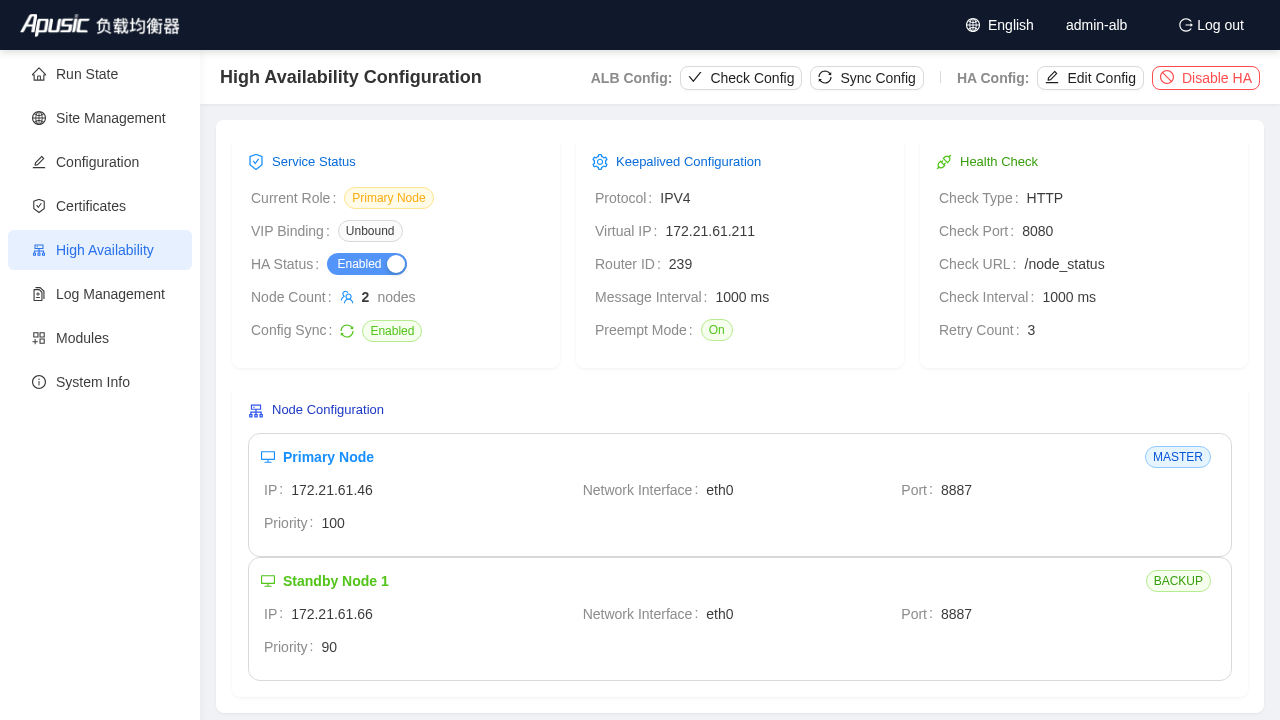
To re-enable it, click the "Enable HA" switch on the page.
# Config Sync and Consistency Check
After completing site, certificate, or configuration changes on the primary node, it is recommended to:
- Check Config: click the "Check Config" button at the top to validate whether the ALB configuration is correct
- Sync Config: click the "Sync Config" button at the top to sync the primary node's configuration to the standby node
Note:
- Configuration changes are automatically synced to standby nodes.
- The standby node can only view the HA status and cannot modify the HA configuration.
- If the current node is a standby node, editing operations such as site and configuration editing are also disabled, and a banner is displayed at the top: "This node is the standby node. Please perform configuration operations on the primary node."
# Log Management
Entry: "Log Management" in the left menu
Log Management is used to view ALB logs, download log files, and configure automatic rotation.
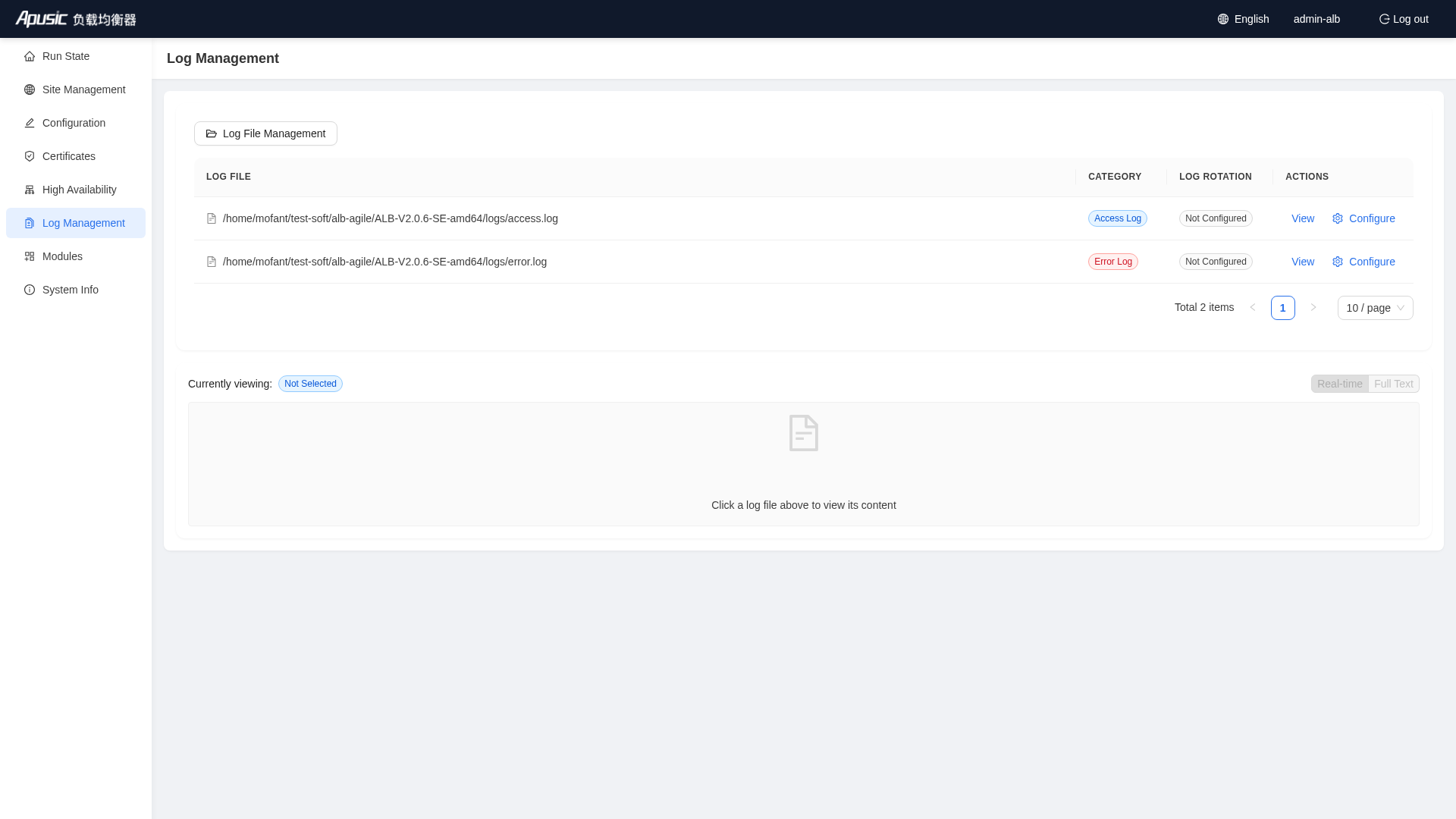
# Log List
- Lists access logs (blue tag) and error logs (red tag)
- Shows log name, type, and rotation status
# Viewing Logs in Real Time
Click the "View" button of a log entry to open the log content page:
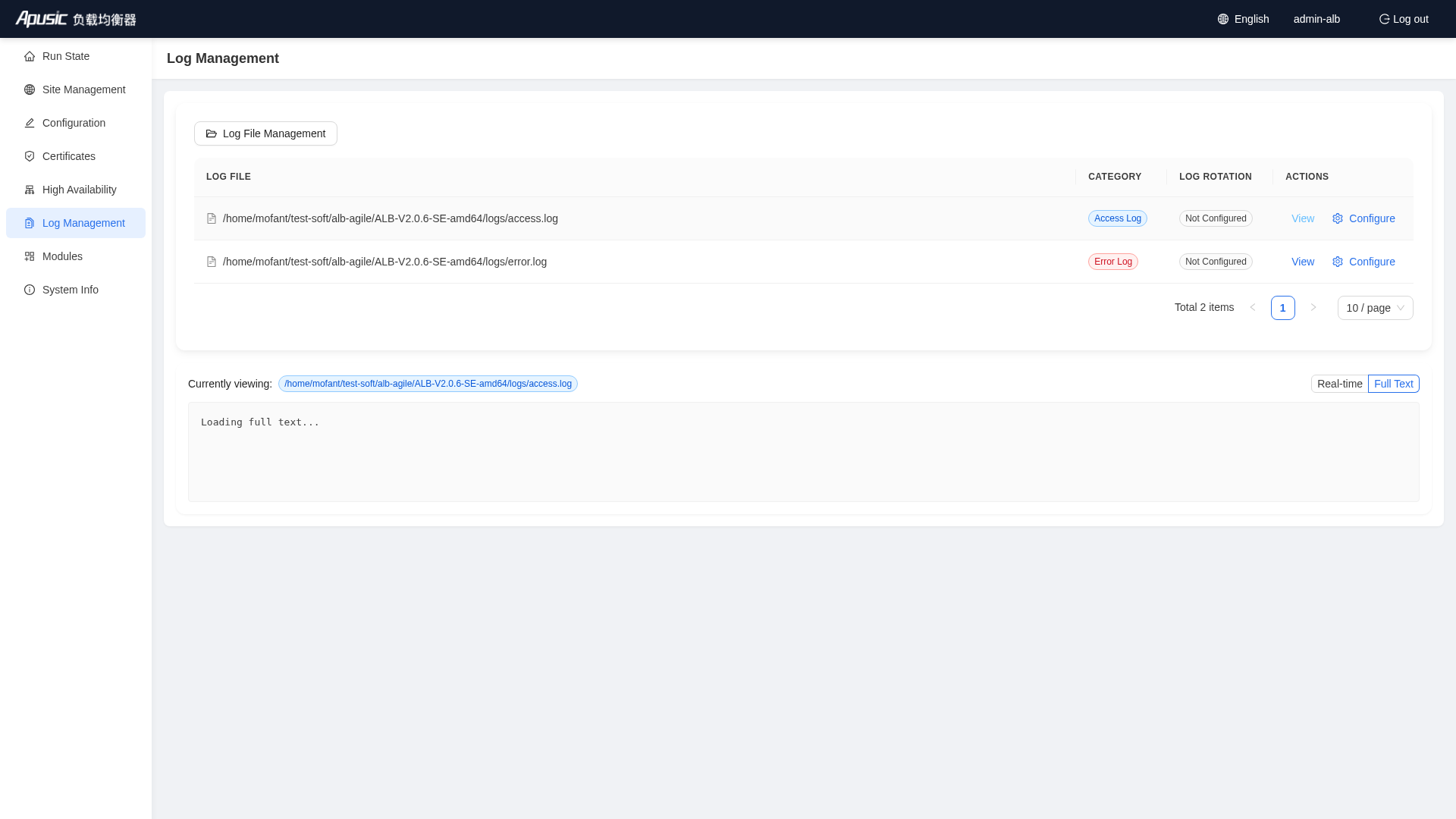
- Real-time mode: newly appended logs are pushed in real time over WebSocket
- Full Text mode: loads the complete log content
# Log File Management
Click "Log File Management" to open the log file management page, where you can browse historical log files by directory and download them.
# Log Rotation Config
Click the "Configure" button in the log list:
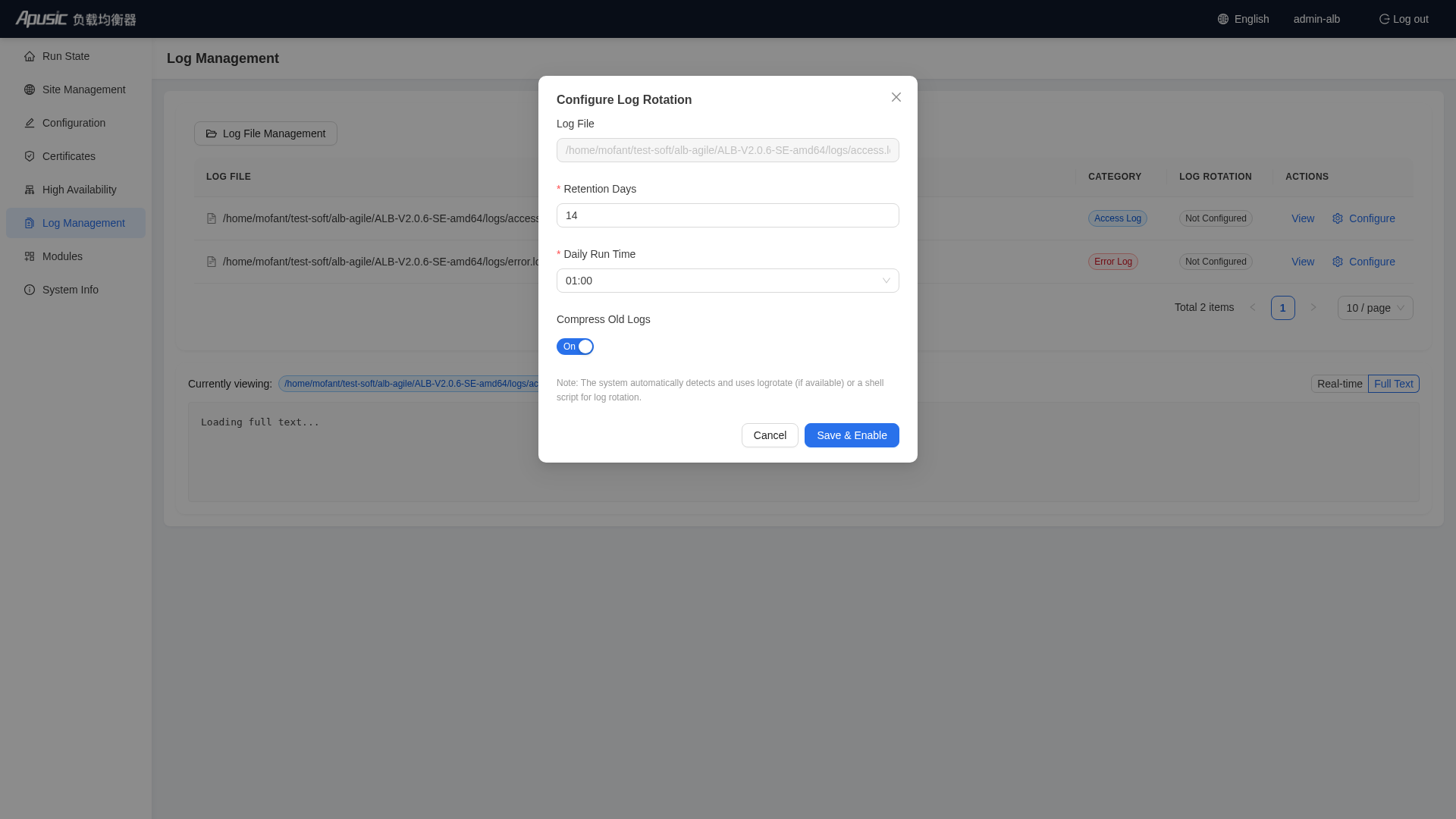
You can configure:
| Field | Example | Description |
|---|---|---|
| Task Name | access-log-rotate | Custom name |
| Log File Path | /tmp/ALB-V2.0.6-SE-amd64/logs/access.log | The log file to rotate |
| Rotation Mode | Shell / logrotate | Rotation execution method |
| Retention Days | 30 | Number of days to keep historical logs |
| Daily Run Time | 02:00 | Daily execution time |
| Compress Old Logs | On | Whether to compress historical logs |
| Description | Optional | Task description |
Operations: add, edit, enable/disable, trigger manually, delete.
# Modules
Entry: "Modules" in the left menu
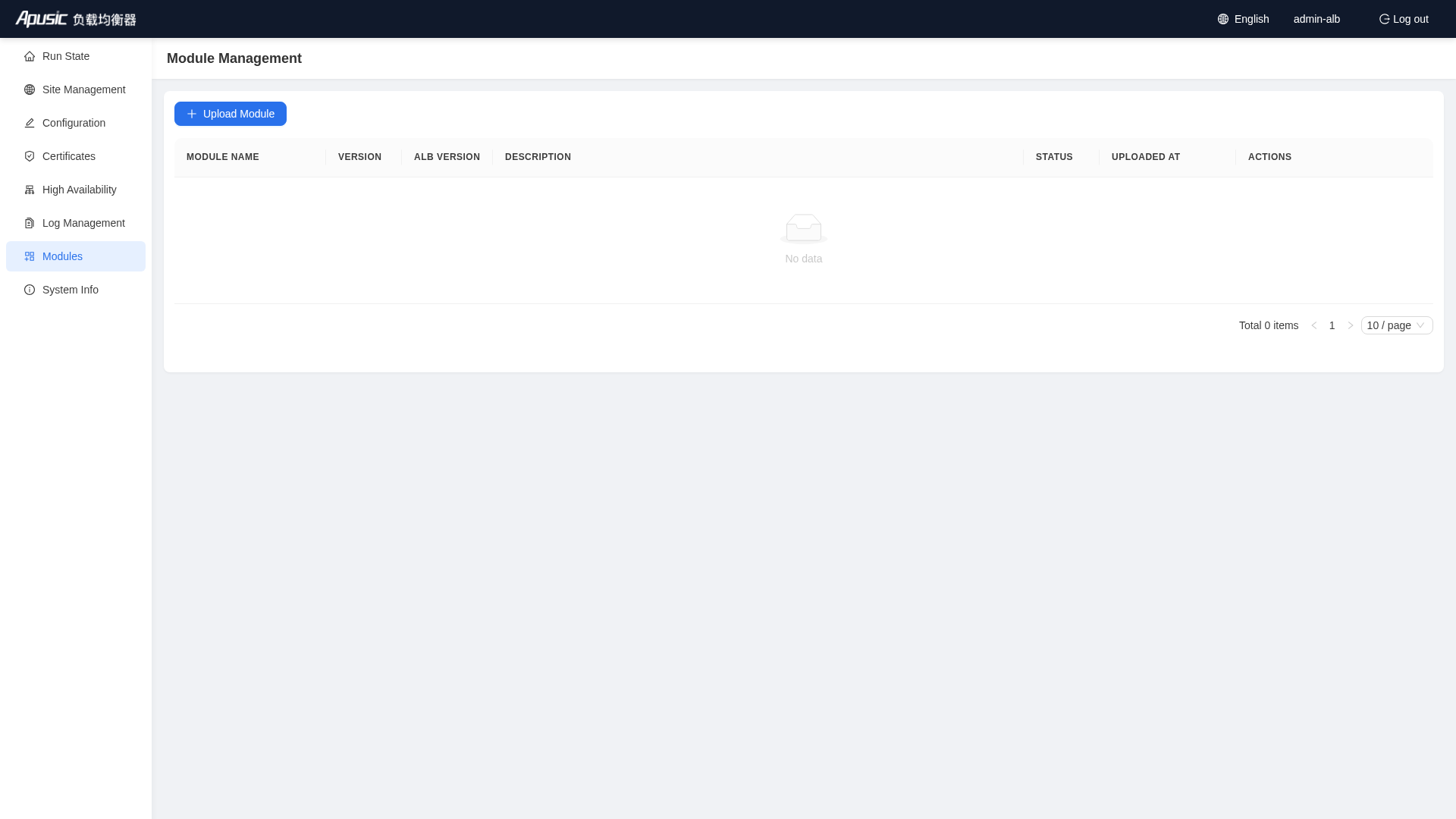
Modules is used to upload, enable, disable, and delete ALB dynamic modules.
# Uploading a Module
Click "Upload Module":
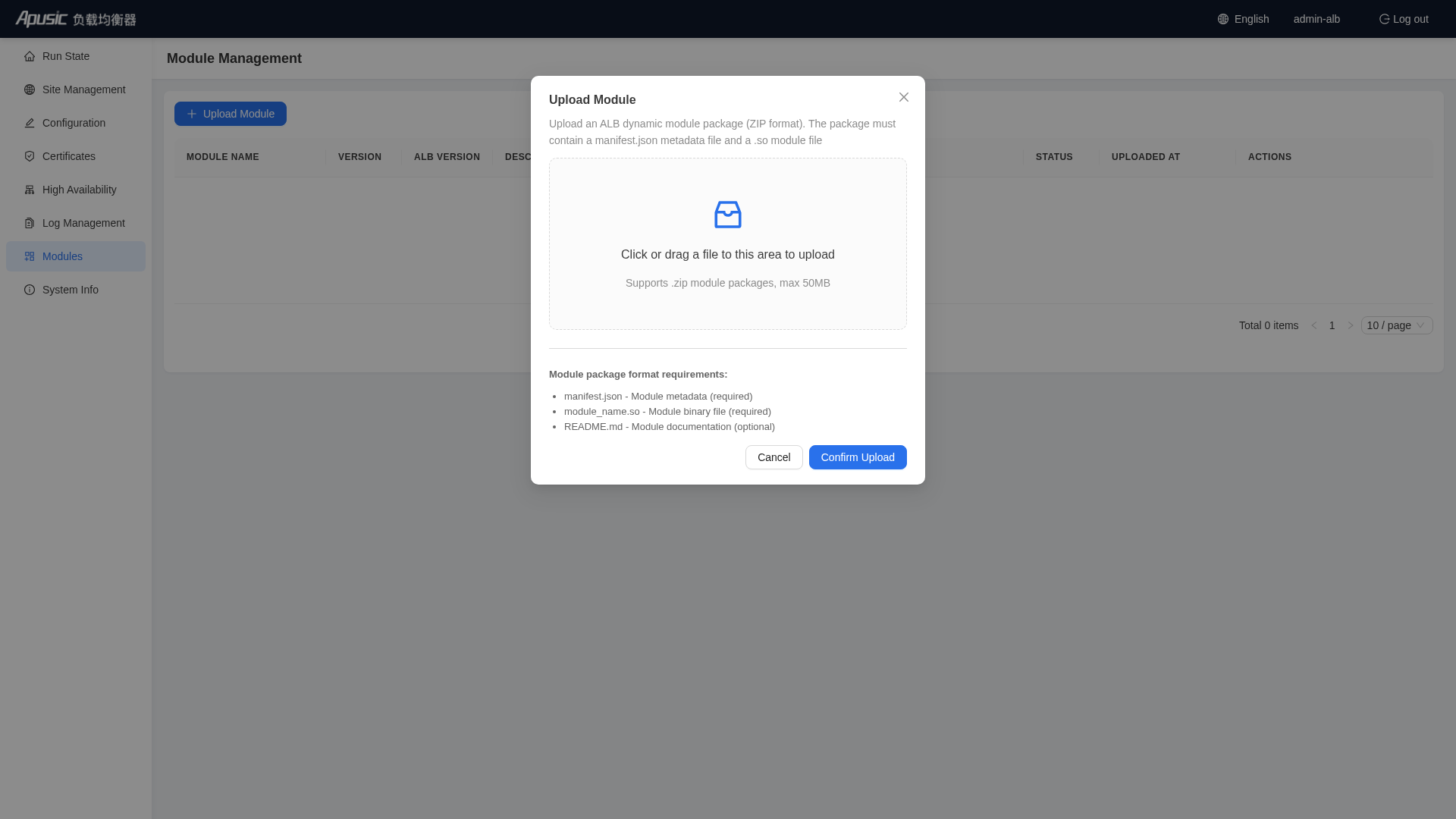
- ZIP format supported, up to 50MB
- The ZIP package must contain a
manifest.jsondescribing the module metadata - Drag a file to the upload area, or click to choose a file
# Module Operations
- Enable / Disable: controls whether the module is loaded; a change takes effect only after ALB is reloaded
- Delete: only disabled modules can be deleted
- Details: views the module version, applicable ALB version, directive list, and other information
Note: The module ZIP package must contain a
manifest.jsondescribing the module metadata, in the following format:{ "name": "Module name", "version": "1.0.0", "alb_version": ">=2.0.6", "description": "Module function description" }1
2
3
4
5
6The system automatically validates the
manifest.jsonformat and ALB version compatibility during upload. If ALB fails to reload after a module is enabled, check whether the module version is compatible with the current ALB version, or viewlogs/error.logfor detailed error information.
# System Info
Entry: "System Info" in the left menu
System Info shows the versions, license, running status, and hardware resources of ALB and the Console.
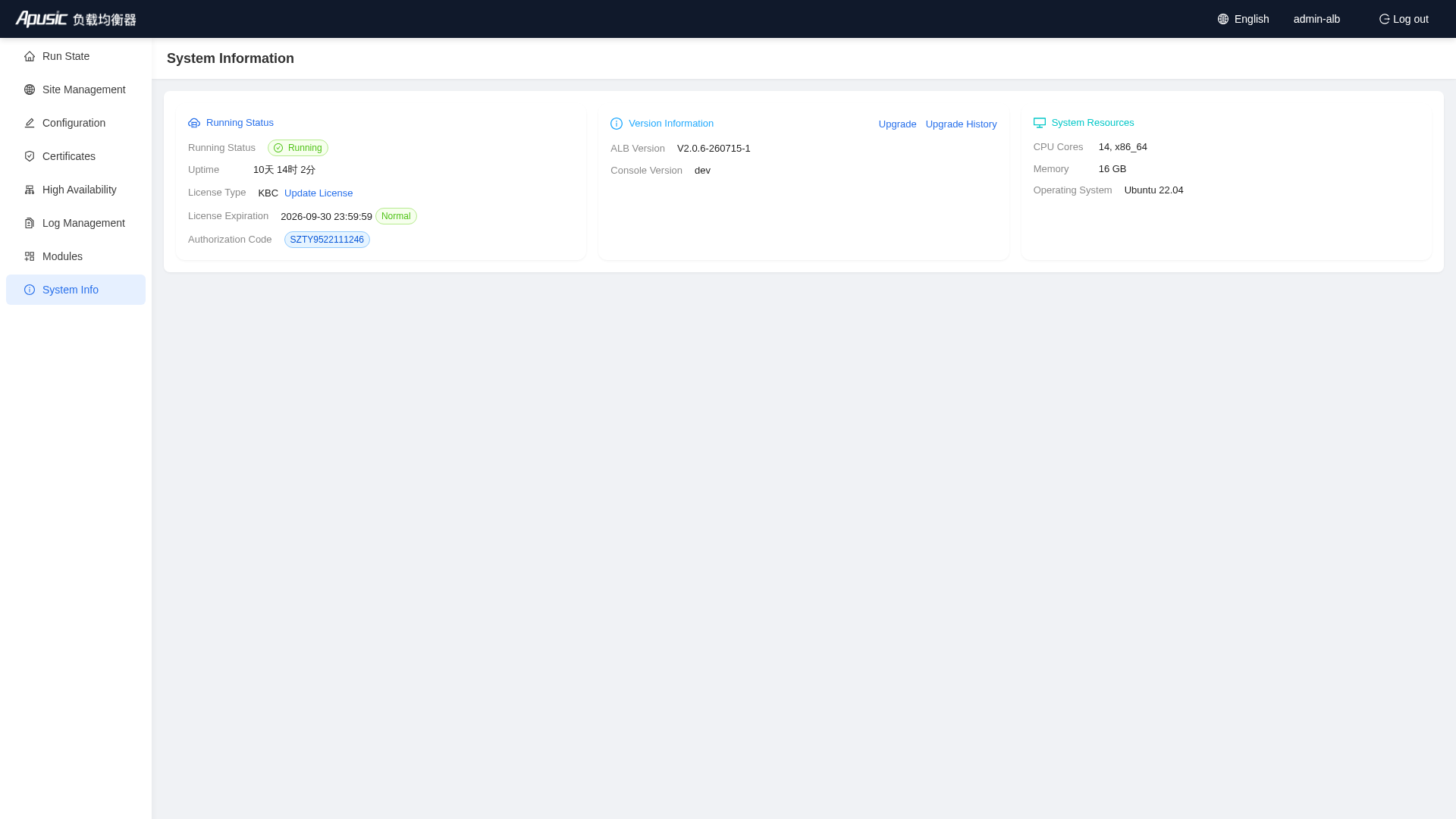
The page contains three cards:
Running Status
- ALB status tag
- Uptime
- License type and license expiration time
- Authorization Code
Version Information
- ALB Version
- Console Version
- Upgrade button
- Upgrade History / rollback entry
System Resources
- CPU Cores
- Memory size
- Operating system information
# Updating the License
Click "Update License" to upload a .xml or .lic license file.
# Upgrade and Rollback
- Upgrade ALB: upload an upgrade package (
.tar.gzformat supported) to upgrade the version - Upgrade History / Rollback: view historical upgrade records and roll back to a previous version when necessary
Note: When the license is about to expire, a license expiration countdown is displayed at the top after login; please update the license in time. After the license expires, ALB stops processing new connections, but you can still log in to the Console to update the license. It is recommended to run "Backup Now" before upgrading to preserve the current configuration; if the upgrade fails, you can select the previous version on the "Upgrade History" page to roll back. A rollback automatically reloads the ALB service.
# Three-Admin Management
The three administrators (System Admin, Security Admin, Audit Admin) enter the management backend through the separate admin login entrance.
# User Management (System Admin)
Entry: the default page after admin-system logs in
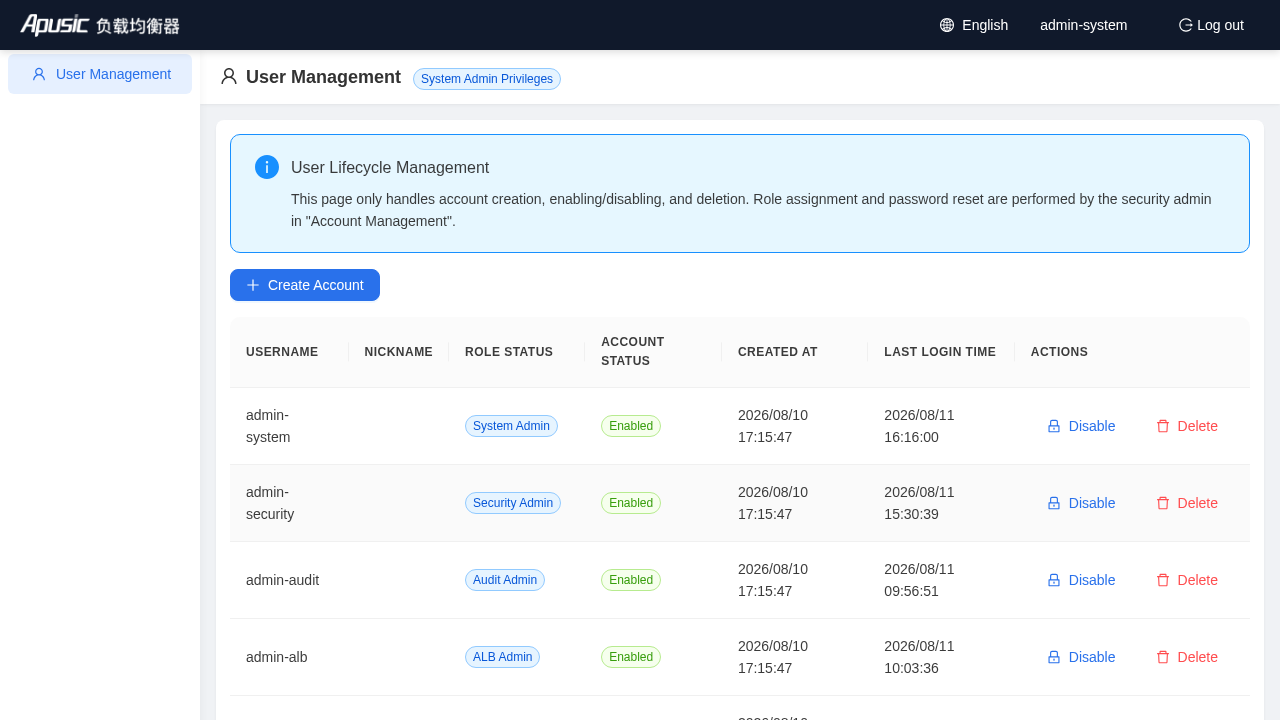
Responsibilities:
- Create new users (username, nickname, initial password)
- Enable / disable users
- Delete users
The System Admin is only responsible for the account lifecycle; it cannot assign roles or perform any ALB business configuration.
# Creating a User (Example)
Click "Create Account":
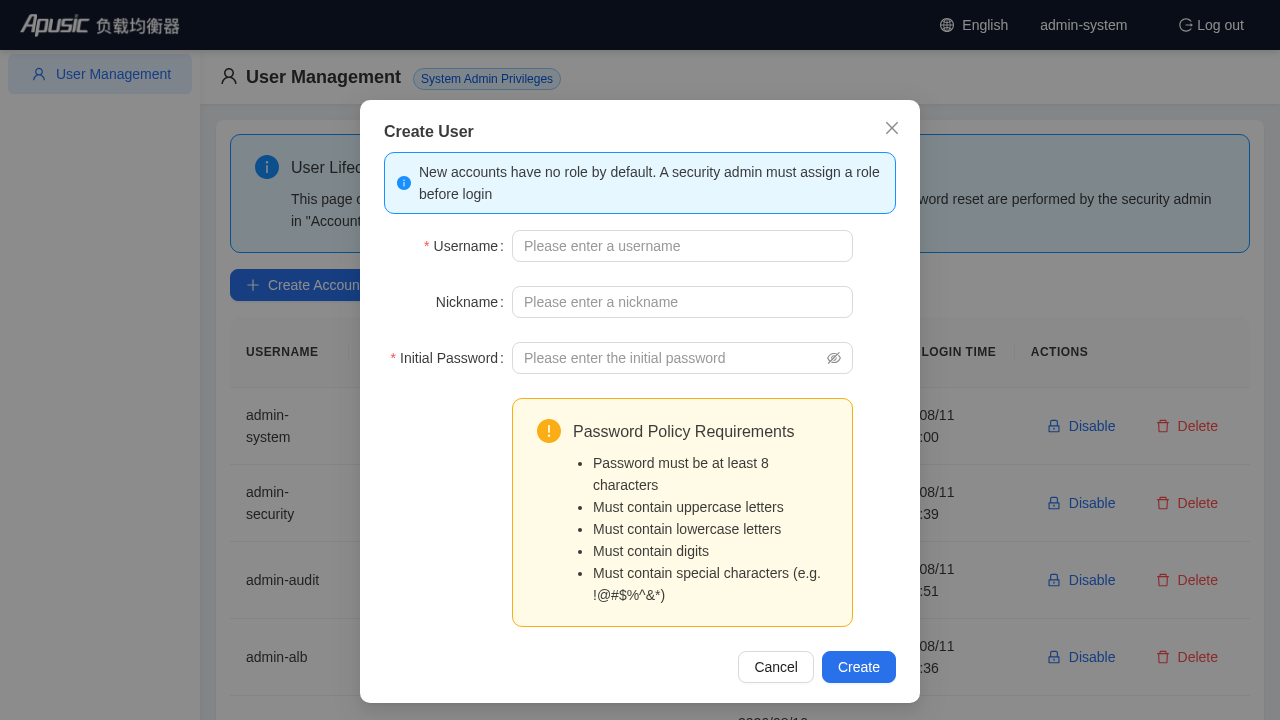
Example values:
| Field | Example | Description |
|---|---|---|
| Username | zhangsan | The login account |
| Nickname | Zhang San | The display name |
| Initial Password | NewPass123! | Must meet the password policy |
A new account has no role by default; a Security Admin must assign a role before the account can log in.
# Account Management (Security Admin)
Entry: the default page after admin-security logs in
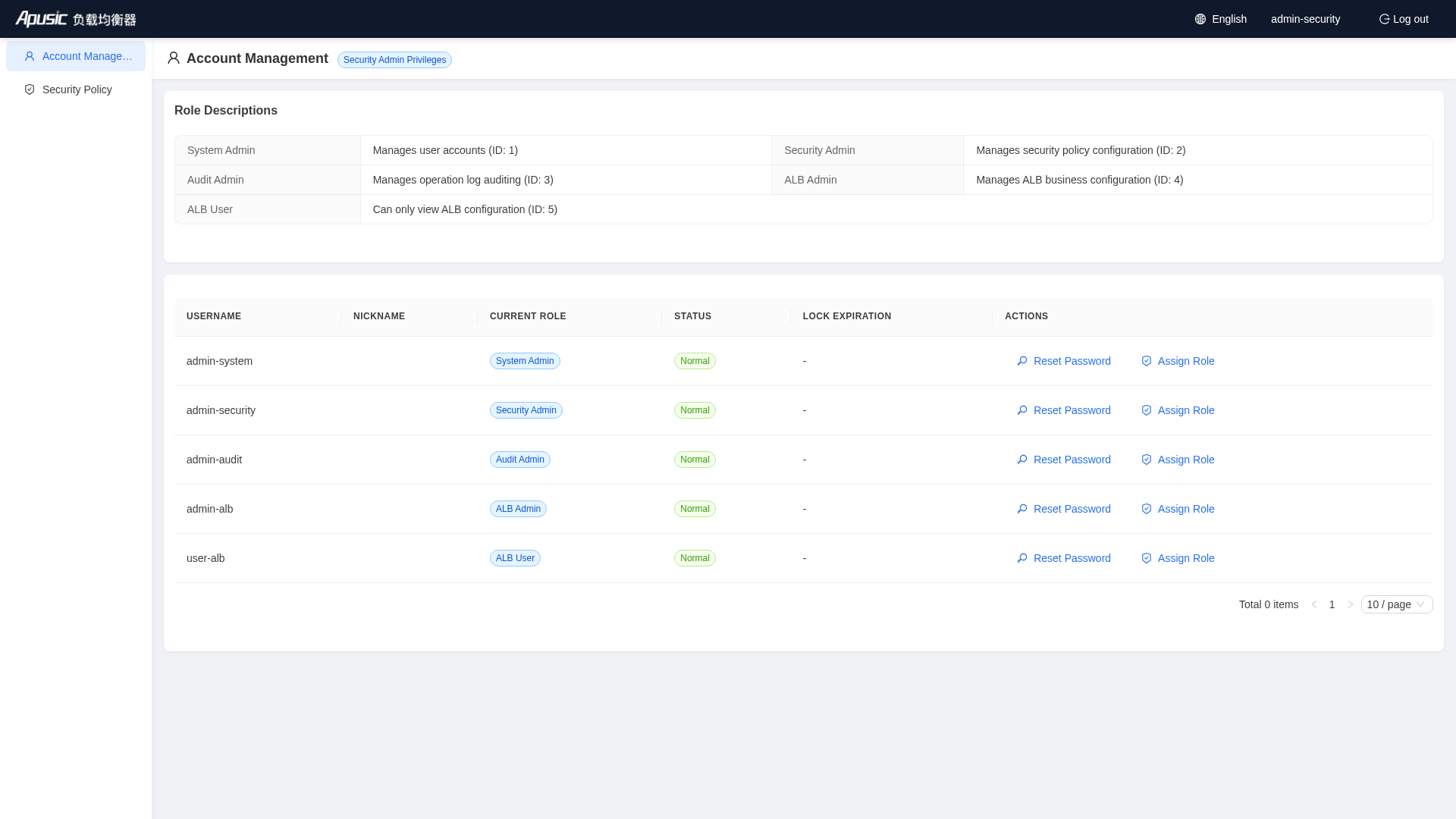
Responsibilities:
- View the user list
- Reset user passwords (must meet the password policy)
- Unlock locked accounts
- Assign ALB roles (ALB Admin / ALB User)
The Security Admin cannot create or delete accounts.
# Resetting a Password
Click "Reset Password" in a user row:
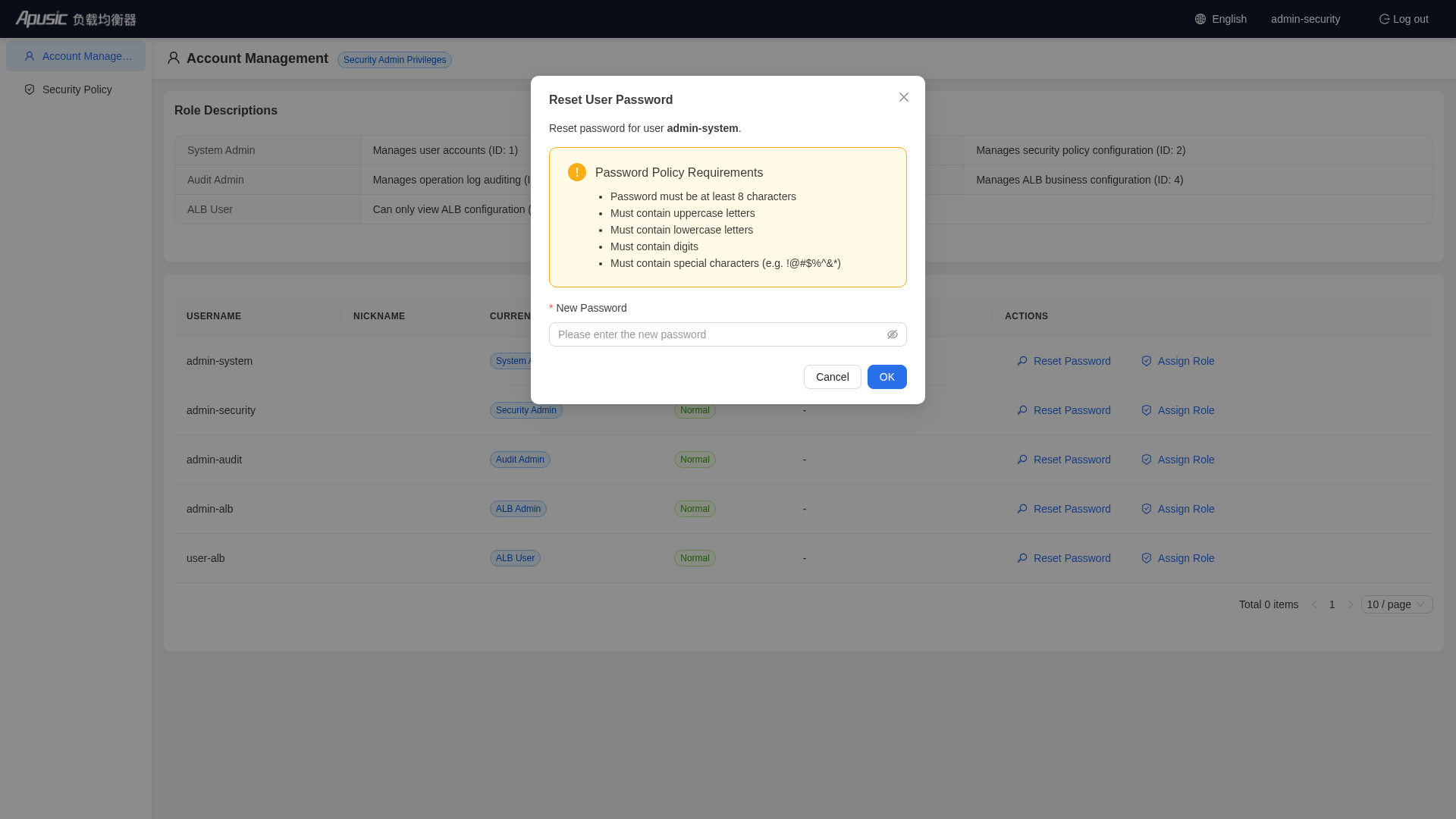
Enter a new password that meets the policy and click "OK".
# Assigning a Role
Click "Assign Role" in a user row:
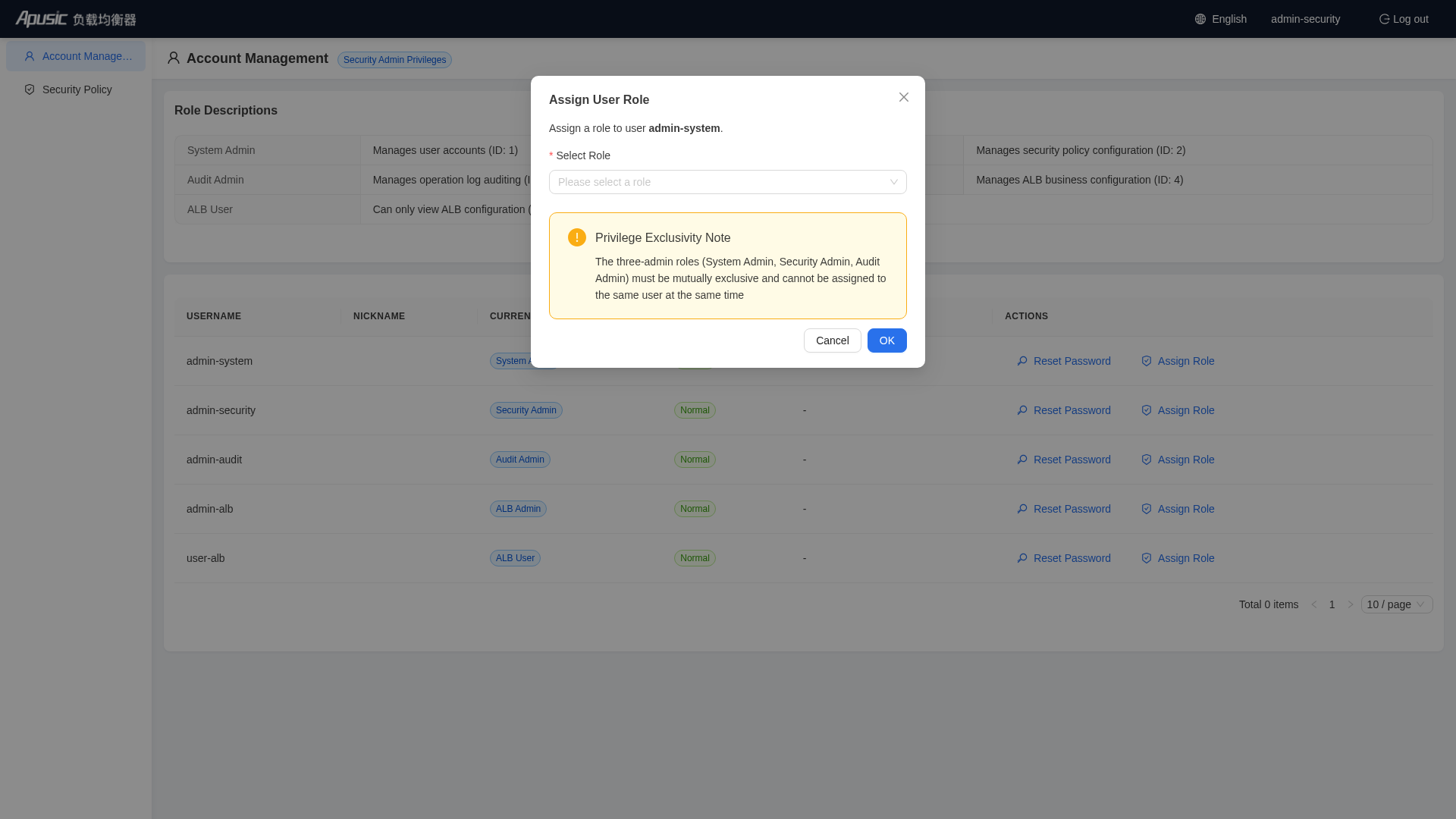
You can assign the following roles to regular users:
- ALB Admin (role ID 4)
- ALB User (role ID 5)
The three-admin roles (System/Security/Audit) cannot be assigned here and are mutually exclusive.
# Security Policy (Security Admin)
Entry: after admin-security logs in, select "Security Policy" in the left menu
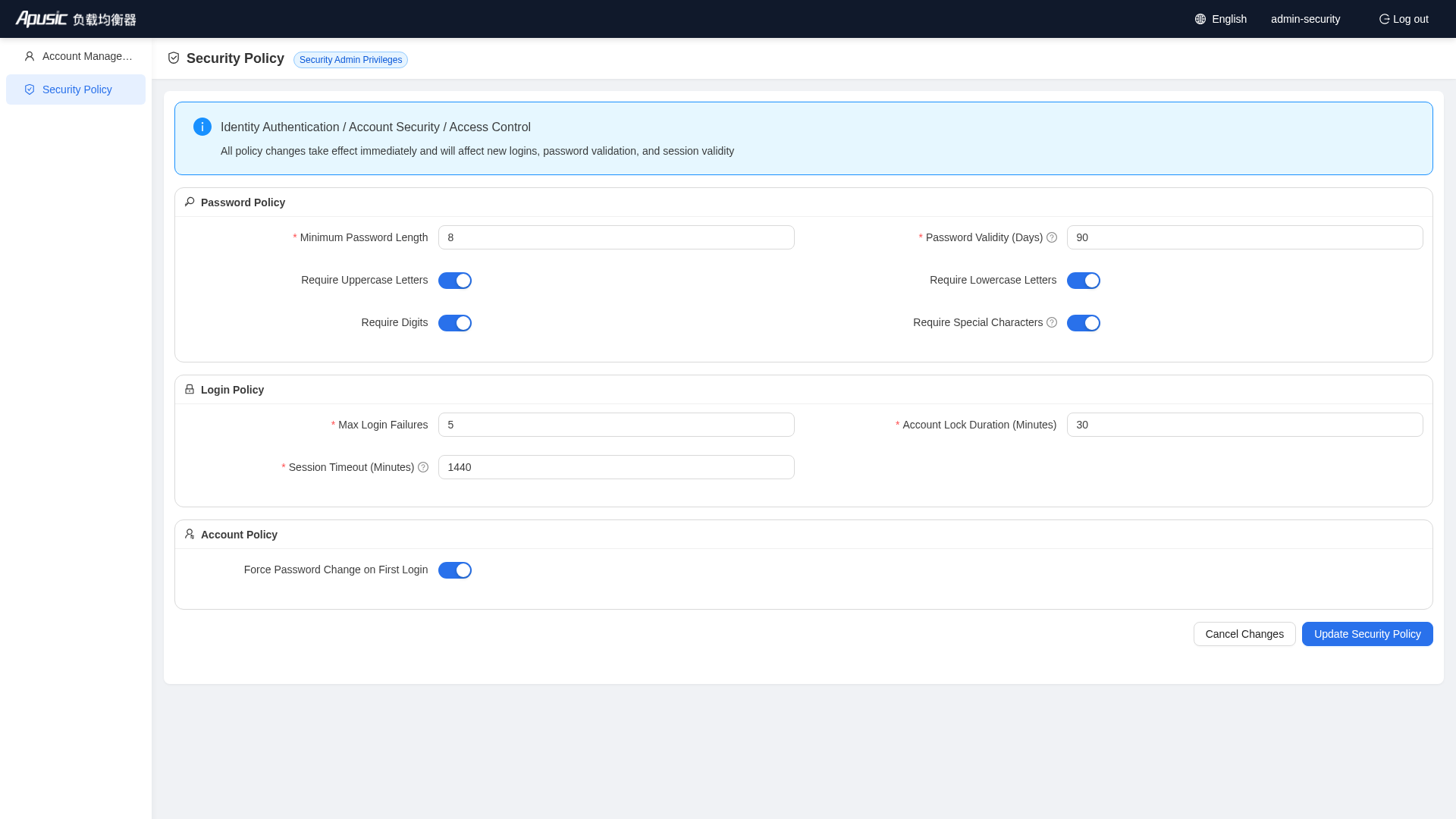
You can configure:
- Password Policy: minimum length, validity period, and whether uppercase/lowercase letters, digits, and special characters are required
- Login Policy: max login failures, account lock duration, and session timeout
- Account Policy: whether to force a password change on first login
Click "Update Security Policy" after making changes for them to take effect.
# Operation Audit (Audit Admin)
Entry: the default page after admin-audit logs in
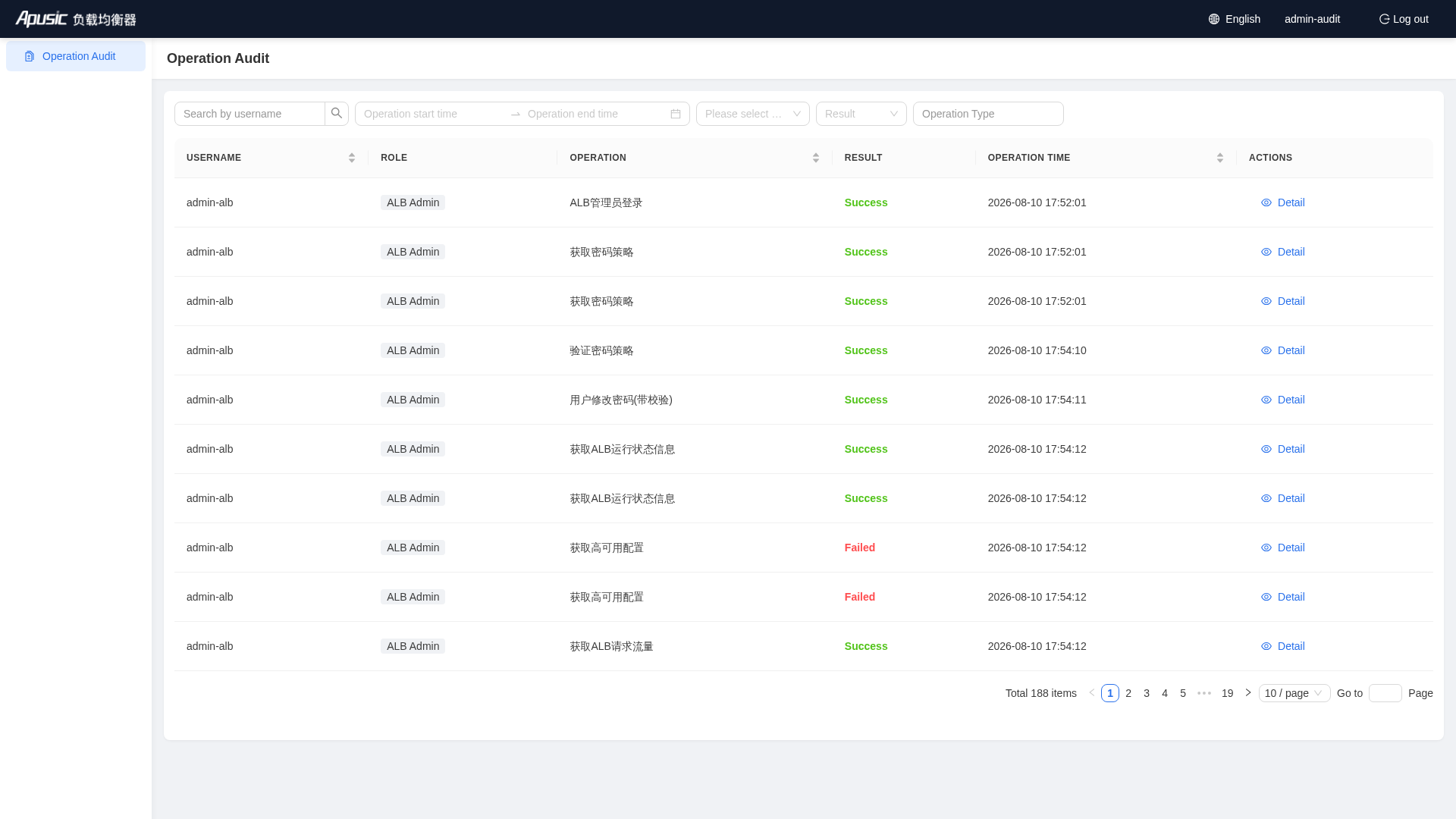
Responsibilities:
- View operation logs of all users
- Filter by username, time range, role, operation result, and operation type
- View the detail of a single log entry
The Audit Admin has read-only permissions and cannot make any configuration changes.
# Common Operations
# Change Password
Click the username button at the top to open the "Change Password" window:
- Enter the current password
- Enter a new password that meets the password policy
- Confirm the new password
- Click "Confirm"
After the password is changed successfully, you need to log in again with the new password.
# Switch Language
Click the language button (globe icon) at the top right of the header to open the language menu:
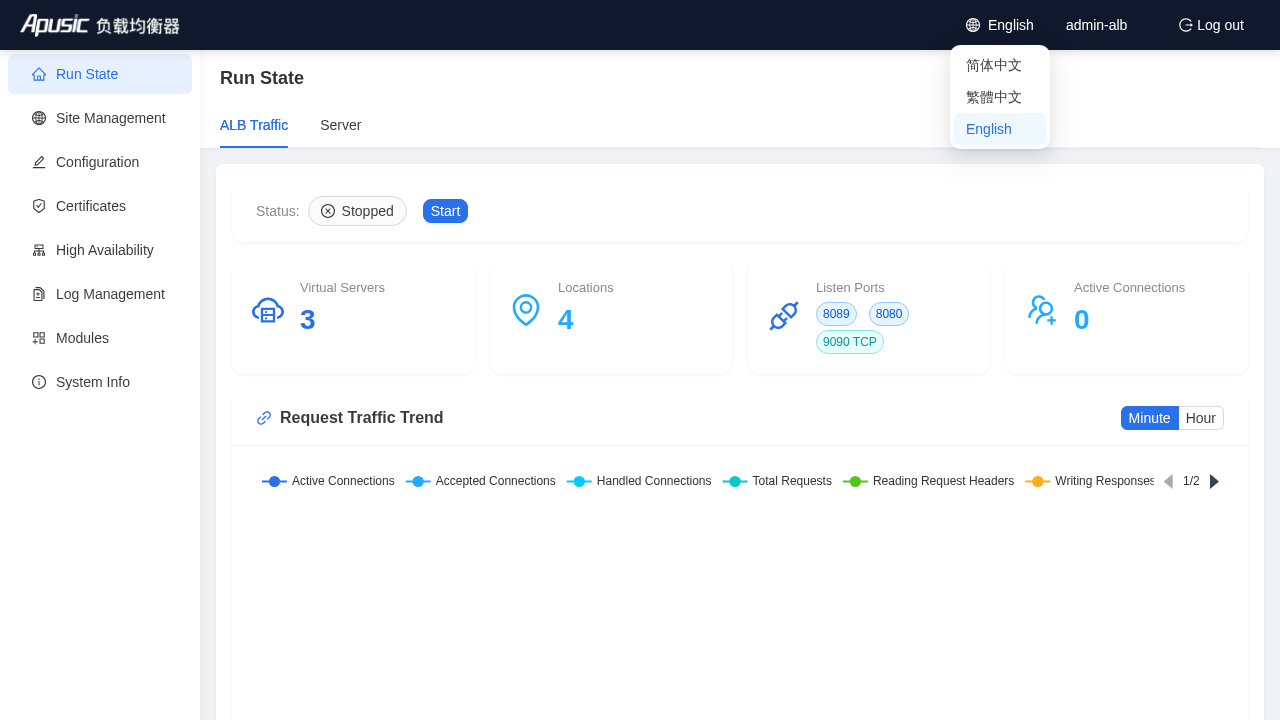
- Three languages are supported: 简体中文 (Simplified Chinese), 繁體中文 (Traditional Chinese), and English
- The current language is highlighted in the menu
- The language preference is saved per user: the next login (including from a different browser) keeps the selected language
The login page is displayed in the system default language; after login, the interface automatically switches to your saved language preference.
# Log Out
Click the "Log out" button at the top and confirm to return to the login page.
# FAQ and Troubleshooting
# Console access fails: Illegal Host Request
Symptom: accessing the Console returns an
Illegal Host Requesterror:{"code":7,"data":null,"msg":"非法Host请求"}Cause: this is caused by the Console security policy. By default, only the host's own IP addresses and localhost are allowed. This error occurs in scenarios such as Nginx reverse proxying or Docker container networks.
Solution: modify the
systemsection of the Console configuration[ALB installation directory]/console/conf/config.yaml: setenable-host-checktofalse, or add allowed hosts to theallowed-hostswhitelist.system: # Whether to enable Host request header whitelist validation (to prevent illegal Host attacks) # Set to false to disable validation (for Nginx reverse proxy, Docker container network, and similar scenarios) enable-host-check: false # Additional allowed Host whitelist (domain names, Nginx proxy addresses, intranet IPs, etc.) # The system automatically adds the local IPs and localhost; this configuration supplements custom Hosts # allowed-hosts: # - alb-console.example.com # - alb-console.example.com:8887 # - 10.0.0.51
2
3
4
5
6
7
8
9
10Restart the Console service after modifying the configuration.
# Enabling traffic monitoring in the Console
If the page prompts that traffic monitoring is not enabled after you log in to the Console, follow these steps:
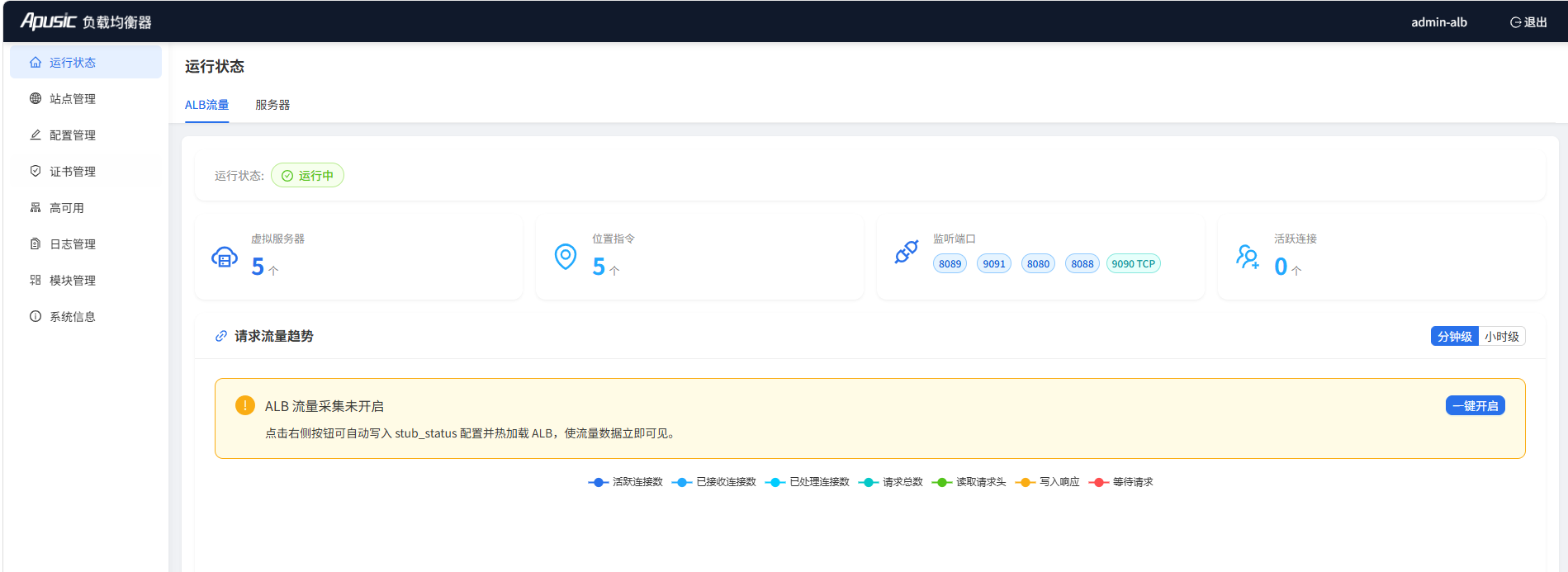
Method 1: one-click enable (recommended)
- Click "Enable Now" and select a port; the system automatically configures
stub_statusand listens on the specified port.
Method 2: manual configuration
If one-click enable does not take effect, you can manually add stub_status to an http server block of the ALB configuration file:
server {
    location /node_status {
        stub_status on;
        access_log off;
        allow 127.0.0.1;
    }
}
2
3
4
5
6
7
- Add the location configuration above to any http server block
- Save the configuration file
- Reload ALB:
./bin/reload-alb.sh
- Refresh the Console page
Note: The ALB installation package enables
stub_statusfor the/statuspath in the main configuration by default, so the Console can usually read the data directly. If the prompt still appears, check whether the main configuration containsinclude conf.d/*.conf.
# Login failure
- Check whether the username, password, and captcha are correct
- Check whether the account is locked (consecutive failures exceed the policy limit)
- Check whether the password has expired
# Site configuration not taking effect
- Make sure the site is online
- Make sure the ALB main configuration includes
include conf.d/*.conf - If SSL is configured, make sure the certificate has not expired and is correctly bound
# Cannot edit configuration on a standby node
- An HA standby node only provides viewing capability; log in to the primary node to modify the configuration
# License expiring soon
- A license expiration countdown is displayed at the top after login
- Click "Update License" on the "System Info" page to upload a new license file
# Page shows "reload: true" or automatically jumps back to login
- This means the current login has expired or the JWT token has become invalid
- Please log in again
# HA failover fails
- Check whether the Virtual IP is occupied
- Check whether the primary and standby nodes can communicate with each other (heartbeat port, console port)
- Check whether keepalived is correctly installed and running
# Forgot the admin-alb password
- If the Security Admin account is available, log in as
admin-securityand reset theadmin-albpassword in "Account Management" - If none of the three-admin accounts are available, contact the System Admin to reset the account, or reset it with the server-side command-line tool (refer to the Operations Manual)
# Console port 8887 blocked by the firewall
- Check whether the server firewall allows port 8887:
firewall-cmd --list-portsoriptables -L -n - Temporarily allow it:
firewall-cmd --add-port=8887/tcp --permanent && firewall-cmd --reload - Check whether the security group / cloud firewall rules allow inbound traffic on port 8887
# ALB process fails to start
- Check whether the port is occupied:
ss -lnt | grep :8080(or the configured listen port) - Check whether the configuration syntax is correct:
./sbin/alb -t - View the error log:
tail -f logs/error.log - Common causes: listen port conflicts, wrong SSL certificate paths, configuration directive syntax errors
# Certificate import fails
- Make sure the certificate is in PEM format and contains the complete certificate chain
- Make sure the private key matches the certificate: the outputs of
openssl x509 -noout -modulus -in cert.pem | openssl md5andopenssl rsa -noout -modulus -in key.pem | openssl md5should be identical - For GM certificates, make sure ALB has the GM module support enabled
- Check whether the certificate has expired:
openssl x509 -in cert.pem -noout -dates