
Console User Manual

# Preface
This document is the user manual for the Kingdee Apusic Distributed Message Queue for RocketMQ (Apusic Distributed Message Queue for RocketMQ,简称:ADMQ for RocketMQ) console product. It provides a detailed introduction to the functional usage, configuration methods, and management operations of the ADMQ for RocketMQ Web console.
# Intended Audience
This document is intended for IT information business leaders, R&D managers, software project managers, software architects, and operations engineers.
# Related Documents
For more information about ADMQ for RocketMQ products, please refer to the following ADMQ for RocketMQ product manual documentation set:
| No. | Manual Document | Description |
|---|---|---|
| 1 | Kingdee Apusic Distributed Message Queue for RocketMQ Quick Start Guide | Briefly introduces how to quickly get started with ADMQ for RocketMQ. |
| 2 | Kingdee Apusic Distributed Message Queue for RocketMQ Installation Guide | Details how to install ADMQ for RocketMQ on various operating systems, as well as starting and stopping ADMQ for RocketMQ services. |
| 3 | Kingdee Apusic Distributed Message Queue for RocketMQ Message Engine User Manual | Details the usage, configuration, management, and supporting tools related to the ADMQ for RocketMQ message engine. |
| 4 | Kingdee Apusic Distributed Message Queue for RocketMQ Console User Manual | Details the usage and operation instructions for the ADMQ for RocketMQ console features. |
| 5 | Kingdee Apusic Distributed Message Queue for RocketMQ Developer Guide | Details the instructions for developing ADMQ for RocketMQ client applications based on various development languages. |
| 6 | Kingdee Apusic Distributed Message Queue for RocketMQ Migration Guide | Details the instructions for migrating from RocketMQ to ADMQ for RocketMQ. |
| 7 | Kingdee Apusic Distributed Message Queue for RocketMQ Operations Guide | Details the monitoring, operations, security hardening, and other operational instructions for ADMQ for RocketMQ. |
| 8 | Kingdee Apusic Distributed Message Queue for RocketMQ Performance Optimization Guide | Details the performance tuning instructions for ADMQ for RocketMQ. |
# Technical Support
ADMQ for RocketMQ provides comprehensive technical support services. You can obtain technical support through the following methods:
- Website: www.apusic.com
- Phone: 400-855-5800
- Email: support@apusic.com
- Kingdee Cloud Community: https://vip.kingdee.com/?productId=73&productLineId=14&lang=zh-CN
When contacting technical support, please provide the following information:
- Your name.
- Company information and contact details.
- Operating system and its version.
- Product version number.
- Detailed information such as logs and screenshots of any exceptions or errors.
# Management Interface Access
# Login Address
Enter http://{console_ip}:12305 in the browser address bar to access the ADMQ console login page. {console_ip} is the IP address or domain name of the host where the console service is deployed.
# Login Process
- Open a browser and navigate to the above address.
- Enter the username and password on the login page.
- Click the Login button. After successful verification, you will enter the system management home page.
- If the password is incorrect beyond the allowed number of attempts, the account may be temporarily locked. Please contact the administrator for assistance.
# Default Account and Password Change
The system comes with a default administrator account admq. After the first login, it is recommended to change the password by following these steps:
- Click the user avatar in the upper right corner and select Personal Settings or Change Password.
- Enter the old password and new password, then confirm the new password.
- Click Save to complete the password change.
It is recommended that the password be at least 8 characters long, contain a mix of uppercase and lowercase letters, numbers, and special characters, and be changed regularly.
# Roles and Permissions
ADMQ console supports role-based access control. Common roles include:
- System Administrator: Has full permissions, including cluster connection, user management, License management, etc.
- Operations Staff: Can manage clusters, Topics, subscription groups, message queries, monitoring dashboards, and other daily operational resources.
- Read-Only User: Can only view resources and monitoring data, cannot perform create, modify, delete, or other change operations.
# Cluster Management
# Viewing Cluster List
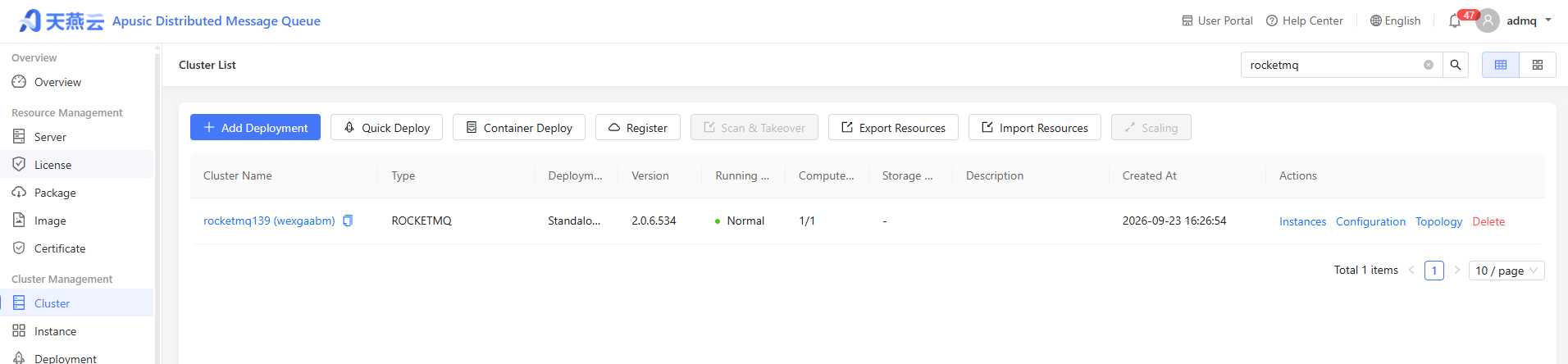
- Log in to the console and click Cluster Management in the left menu.
- The cluster list displays all created RocketMQ clusters.
- The list shows: cluster name, status, number of Brokers, version, creation time, etc.
# Creating a Cluster
- Click the New button.
- Select middleware type: ADMQ RocketMQ.
- Select cluster mode:
- Single Node Mode: Suitable for development and testing environments.
- Cluster Mode: Suitable for production environments, supports multi-node high-availability deployment.
- Select node servers.
- Configure the NameServer address.
- Click Initialize Cluster.
- Wait for the cluster initialization to complete, and the status changes to Running.
Before creating a cluster, ensure that the NameServer and Broker services on the target nodes are properly started and the network is reachable.
# Deleting a Cluster
- In the cluster list, select the cluster to delete.
- Click the Delete button.
- Confirm the deletion operation (data cannot be recovered after deletion).
# Namespace Management
# Overview
A namespace is a resource management concept in ADMQ RocketMQ. Different business scenarios of users can generally be isolated through namespaces, and specific configurations can be set for different business scenarios, such as message retention time. Topics, subscriptions, and role permissions are isolated between different namespaces.
This document guides you in creating multiple namespaces when using ADMQ RocketMQ, so that ADMQ RocketMQ can be applied to different scenarios under the same cluster.
Topic and Group names within the same namespace must be unique.
# Creating a Namespace
Log in to the ADMQ console, click Enter Business Functions for the target cluster to enter the business management page.
Select the Namespace tab at the top of the page, and click New to enter the namespace creation page.
In the new namespace dialog, configure the namespace properties.
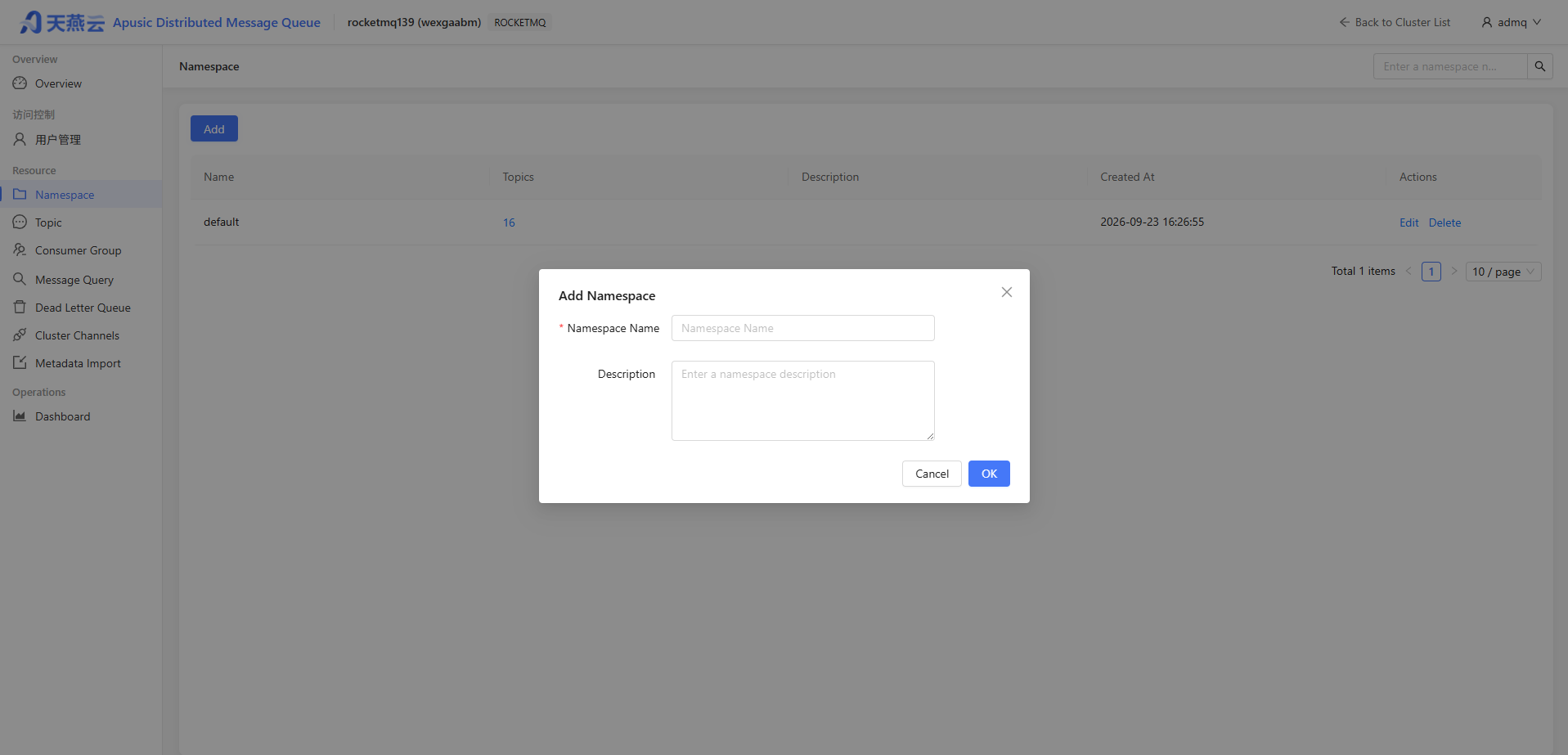
Namespace Name: Set the name of the namespace (cannot be modified after creation), 3-32 characters, can only contain letters, numbers, "_" and "-".
Namespace Description: Remarks for the namespace.
Click Save to complete the creation of the namespace in the current cluster.
Next step: You can then create Topics in this namespace for message production and consumption.
# Modifying a Namespace
If you need to make modifications, follow these steps:
- On the Namespace list page, click Edit in the action column to enter the edit page.
- Modify the description and click Save to complete the modification.
# Deleting a Namespace
If you want to delete a created namespace, follow these steps:
- On the Namespace list page, click Delete in the action column.
- In the deletion confirmation dialog, click Confirm to delete the namespace.
A namespace cannot be deleted if it contains Topics.
# Topic Management
# Overview
Topic is a core concept in ADMQ RocketMQ. Topics are typically used to centrally classify and manage various types of messages produced by the system.
In practical application scenarios, a Topic often represents a business aggregation. Developers decide how to design different Topics based on their own system design and data architecture design.
# Creating a Topic
Log in to the ADMQ console, click Enter Business Functions for the target cluster to enter the cluster basic information page.
Click the Topic tab, select a namespace, then click New to enter the Topic creation page.
In the new Topic dialog, fill in the following information.
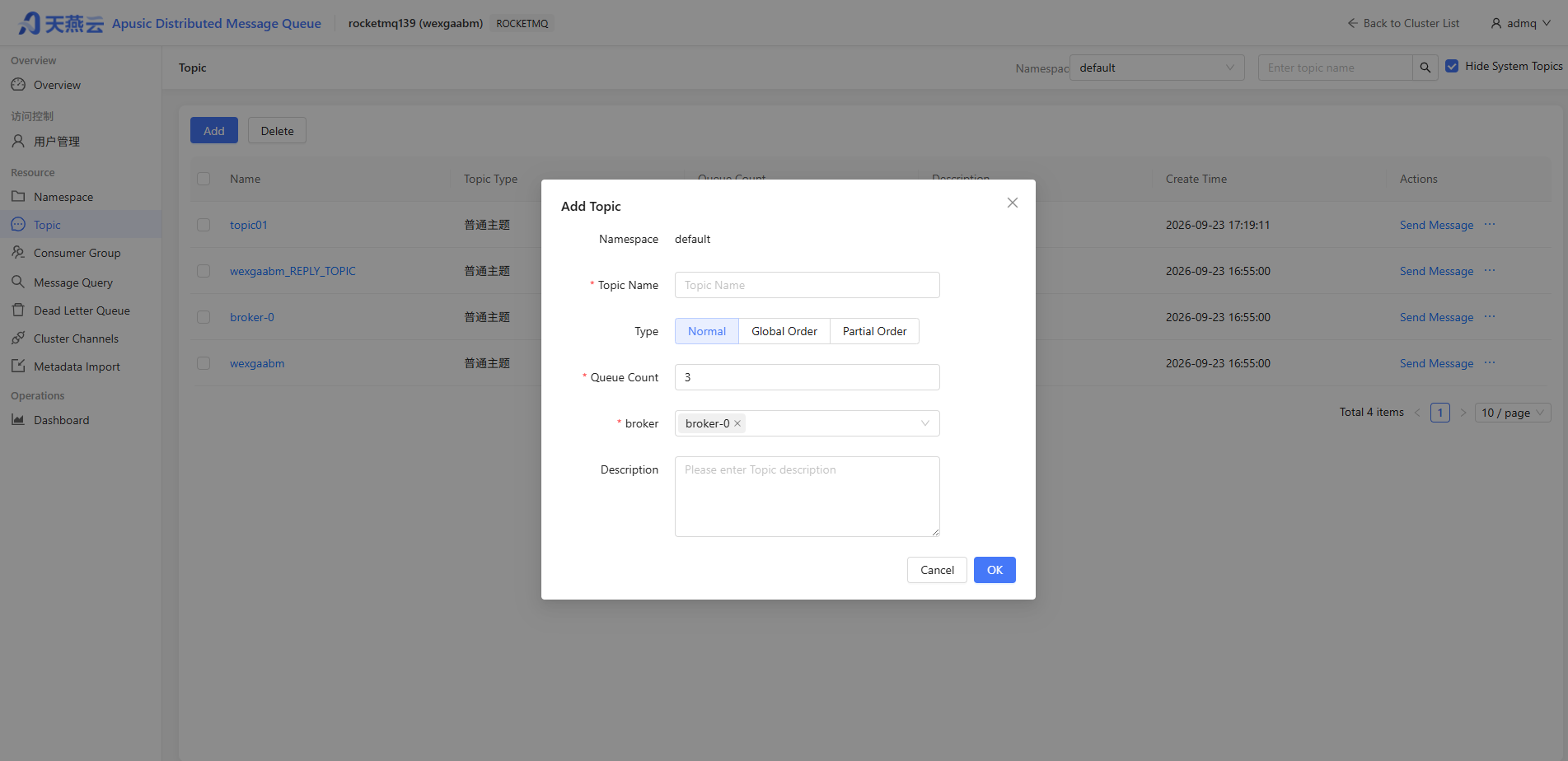
Topic Name: Enter the Topic name (cannot be modified after creation), 3-64 characters, can only contain letters, numbers, "-", and "_".
Type: Select the message type, including: Normal, Global Order, Partition Order.
Queue Count: Select the number of queues. Multiple queue partitions can improve the production and consumption performance of a single Topic, but cannot guarantee ordering.
Broker: Select the broker node for creating the Topic.
Description: Enter a description for the Topic.
Click Confirm. The created Topic will appear in the Topic list.
# Viewing Topic Details
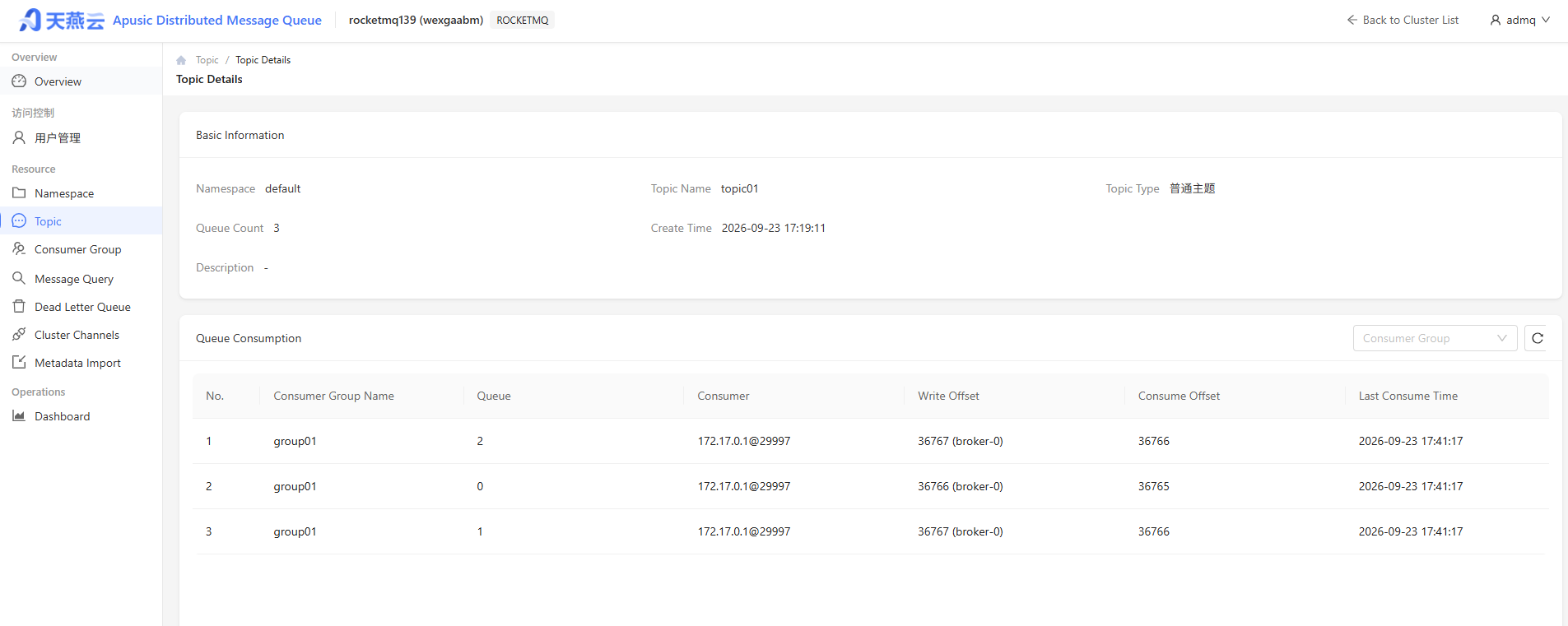
In the Topic list, click the name of the target Topic to enter the topic details page, where you can view basic topic information and queue consumption status.
# Searching Topics
You can search by Topic name in the search box at the top right of the Topic list page. ADMQ RocketMQ will perform a fuzzy match and display the search results.
# Editing a Topic
- In the Topic list, find the Topic to edit and click Edit in the action column.
- In the pop-up dialog, you can edit the Topic description.
- Click Submit to complete the Topic edit.
# Deleting a Topic
Deleting a Topic will also clear the accumulated unconsumed messages under that Topic. Please proceed with caution.
- In the Topic list, find the Topic to delete and click Delete in the action column.
- In the confirmation dialog, click Submit to complete the deletion.
# Subscription Group Management
# Overview
A subscription Group is used to identify a category of Consumers that typically consume the same type of messages and have consistent message subscription logic.
This task guides you in creating, deleting, and querying Groups on the console when using ADMQ RocketMQ.
# Creating a Subscription Group
Log in to the ADMQ console, click Enter Business Functions for the target cluster to enter the cluster business management page.
Click the Consumer Group menu, select a namespace, then click New to enter the subscription group creation page.
Fill in the subscription group information.
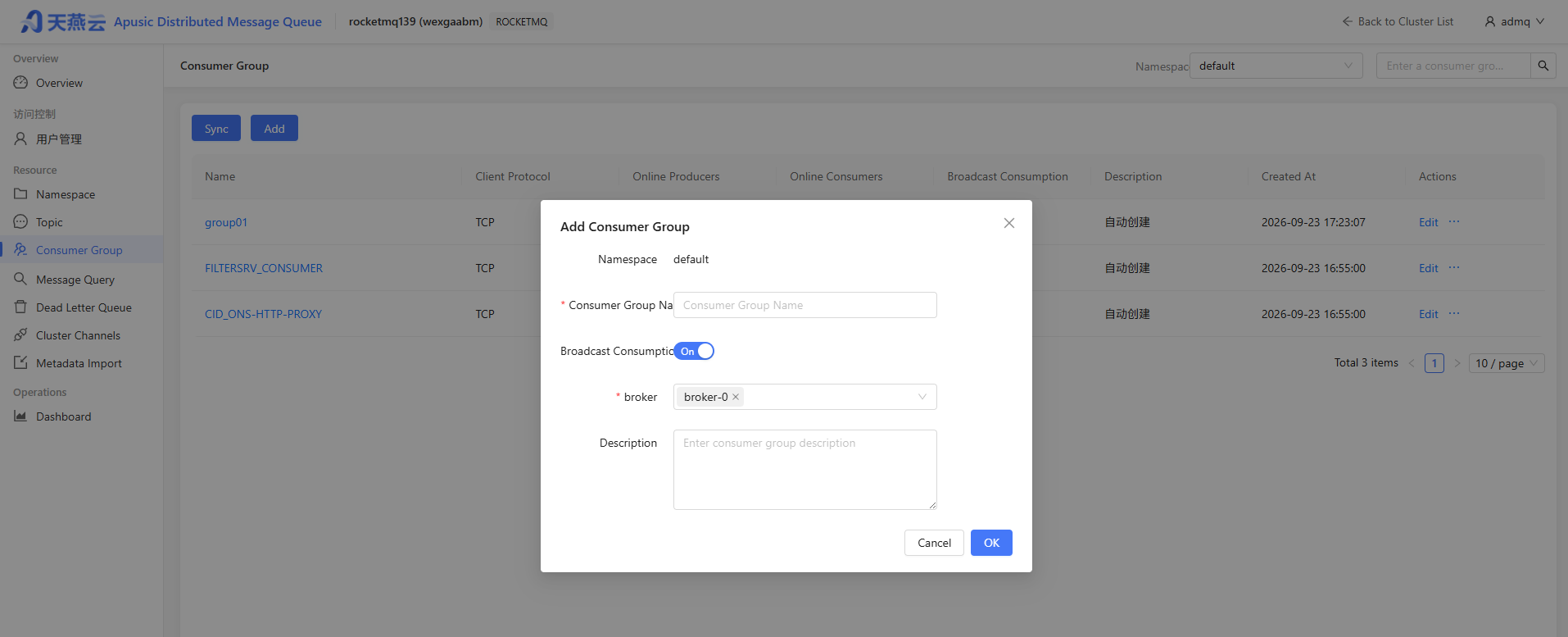
Subscription Group Name: Enter the subscription group name (cannot be modified after creation), 3-64 characters, can only contain letters, numbers, "-", and "_".
Broker: The broker node where the subscription group is created.
Description: Enter a description for the subscription group.
Advanced Settings:
- Enable Consumption: When disabled, all consumption under the subscription group will be paused. Re-enable to resume consumption.
- Enable Broadcast Mode: When disabled, all consumers declared as broadcast mode under the subscription group will be paused. Re-enable to resume consumption.
Click Submit to complete the subscription group creation.
# Viewing Consumer Details
Click the Subscription Group tab to display the subscription group list, showing the client protocol (currently only TCP protocol is supported), number of online producers, number of online consumers, and broadcast consumption.

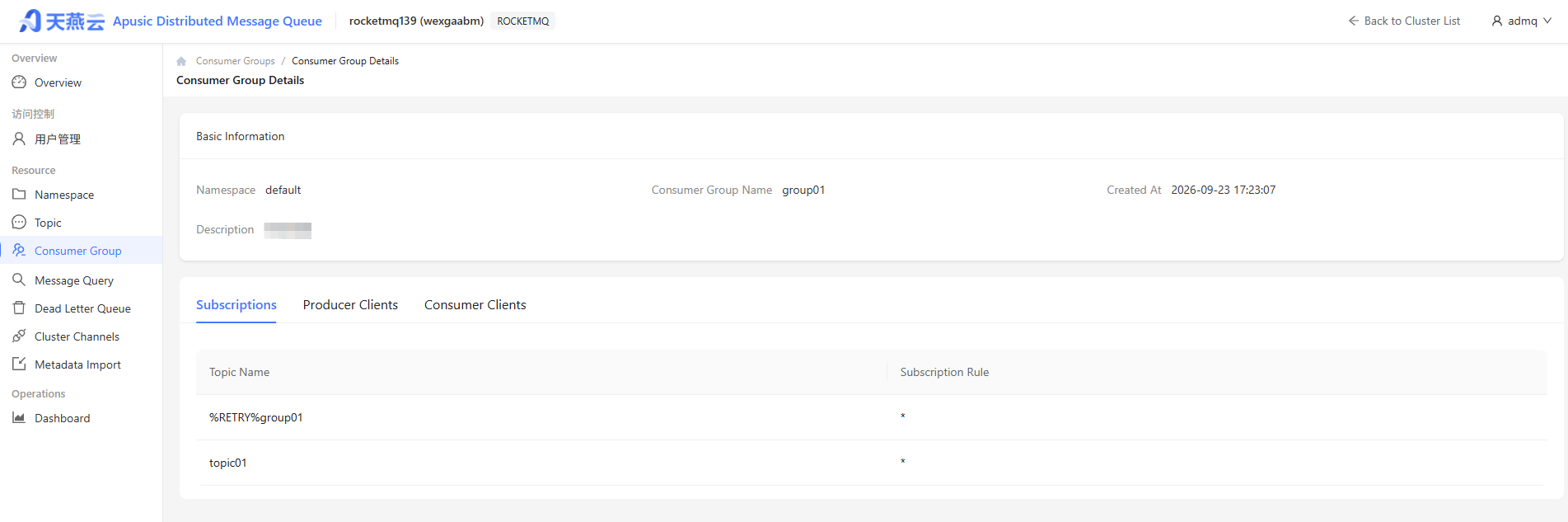
Click the name of the subscription group to enter the subscription group details page, where you can view the basic information of the subscription group and the connected client information.
- Subscription Relationship: The subscription relationship between the subscription group and topics.
- Producer Clients: Displays producer client information.
- Consumer Clients: Displays consumer client information.
# Resetting Consumer Offset
- In the subscription group list, click Reset Consumption Offset in the action column of the target subscription group.
- In the pop-up window, you can choose Start from latest offset or Start from a specified timestamp to set the Topic's consumption offset (i.e., where the consumers under this subscription start consuming messages).
- Click Submit to complete the setting.
# Synchronizing Subscription Groups
In the subscription group list, click Sync at the top left to synchronize automatically created subscription groups and those created via commands (if not manually synchronized, a scheduled task runs approximately every 5 minutes).
# Editing a Subscription Group
- In the subscription group list, click Edit in the action column of the target subscription group.
- In the pop-up window, edit the subscription group information and whether broadcast consumption is enabled.
- Click Submit to complete the modification.
# Deleting a Subscription Group
After deleting a Group, consumers identified by that Group will immediately stop receiving messages. All configurations under the Group will be cleared and cannot be recovered. Please proceed with caution.
- In the Group list, find the subscription group to delete and click Delete in the action column.
- In the confirmation dialog, click Submit to complete the deletion.
# Message Query
# Querying Messages
# Entering the Query Page
Log in to the ADMQ RocketMQ console and click Message Query in the left navigation bar.
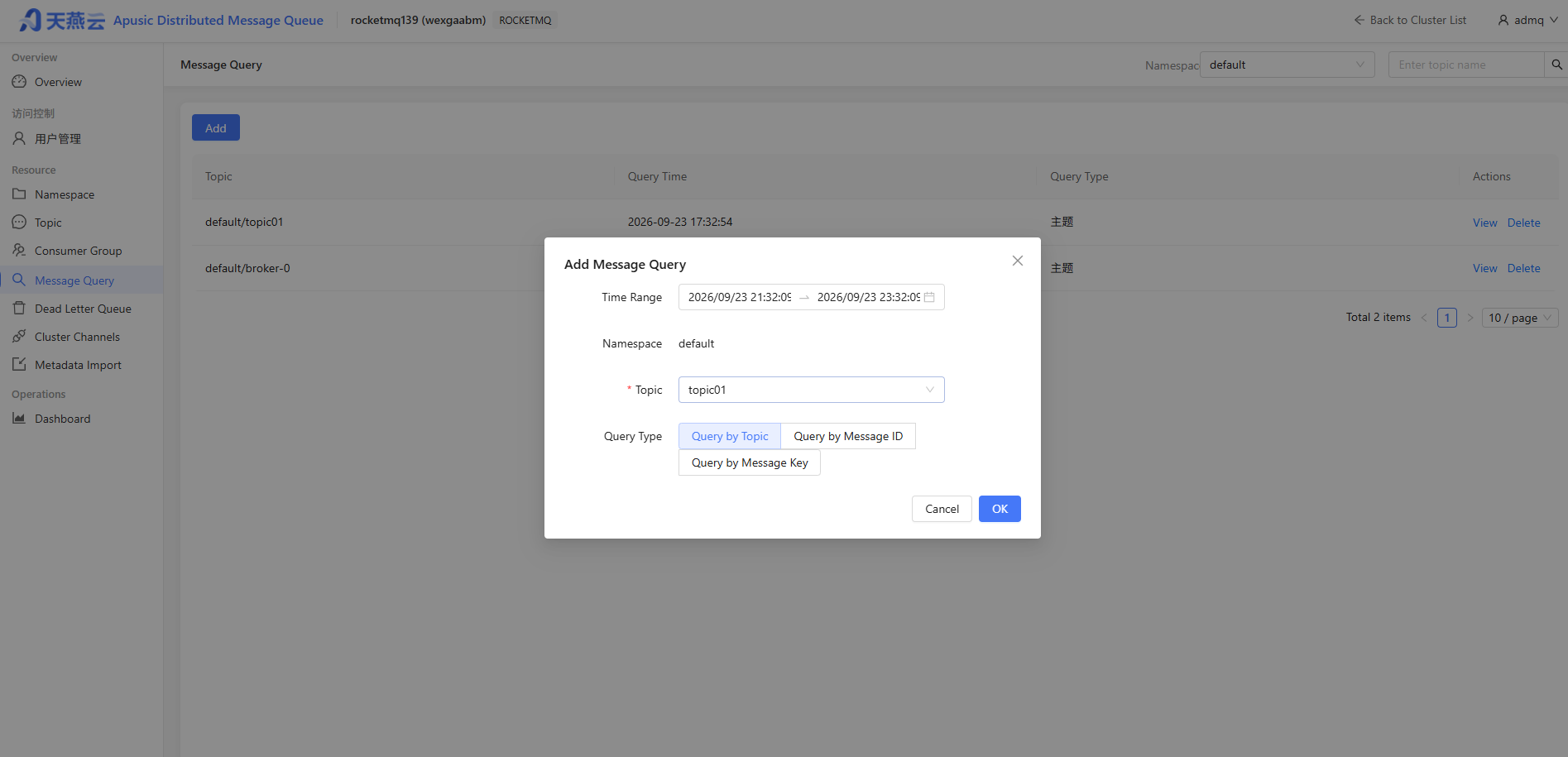
On the message query page, select a namespace and enter query conditions as prompted.
- Time Range: Select the time range for the query. The default is 2 hours, but you can also customize the time range.
- Namespace: Select the namespace where the Topic to be queried is located.
- Topic: Select the Topic to query.
- Query Method: The message query function supports three query methods.
# Query by Topic
Select Query by Topic to directly display the relevant message information for that Topic. Suitable for viewing all messages of a Topic within a specific time period.
# Query by Message ID
Select Query by Message ID. This is an exact query, fast and precise. Suitable for scenarios where the message ID has been recorded.
# Query by Message Key
Select Query by Message Key. This is a fuzzy query. Suitable for scenarios where you have not recorded the message ID but have set a message Key.
# Dead Letter Queue
# Overview
A dead letter queue is a special message queue used to centrally handle messages that cannot be consumed normally. When a message still cannot be consumed normally after a certain number of retries, ADMQ RocketMQ determines that the message cannot be consumed under the current circumstances and delivers it to the dead letter queue.
In actual scenarios, messages may not be consumable due to prolonged service downtime or network disconnection. In such cases, messages are not discarded immediately. The dead letter queue persistently stores such messages for a longer period. Users can create consumers to subscribe to the dead letter queue and process these previously unprocessable messages after finding a corresponding solution.
# Feature Description
- Once a message is delivered to the dead letter queue, it will no longer be consumed normally by consumers. Message queries can query messages from the last 3 days at most. Please try to process dead letter messages within 3 days of their generation, otherwise the messages may be deleted.
- A dead letter queue contains all dead letter messages generated by all Topics in a corresponding Group. If no dead letter messages are generated in a Group, no dead letter queue will be created for it, and no dead letter messages can be queried.
# Querying and Processing Dead Letter Messages
Log in to the ADMQ RocketMQ console and click Dead Letter Queue in the left navigation bar.
On the message query page, enter query conditions as prompted.
- Time Range: Select the time range for the query. Supports last 30 minutes, last 1 hour, last 6 hours, last 24 hours, last 3 days, and custom time range.
- Namespace: Select the namespace where the dead letter messages to be queried are located.
- Message ID: Optional.
- Without Message ID: Fuzzy query. Batch query all dead letter messages generated by a Group ID within a certain time period.
- With Message ID: Exact query. Precisely locate any message by Group ID and Message ID.
Click Query. The list below will display all queried results in a paginated format.
Find the message whose content or parameters you wish to view, and click View Details in the action column to view the message's basic information, content (message body), and parameters.
Click Resend in the action column to resend the dead letter message.
# Cluster Channels
# Cross-Cluster Data Replication and Synchronization
Build cross-region and cross-cluster message replication channels through RocketMQ Connect. It not only supports data synchronization between heterogeneous data sources but also supports data replication between RocketMQ clusters.
# Adding a Channel
Log in to the ADMQ RocketMQ console, find the corresponding cluster, and edit to add the corresponding data replication address (RocketMQ Connect IP and port).
Click Cluster Channels in the left navigation bar to view the current cluster list.
Select a receiving channel or sending channel, then click New to open the new channel window.
After filling in the corresponding configuration, click Save to create the channel.
# Metadata Import
# Overview
Customers using ADMQ for RocketMQ often face the challenge of migrating existing workloads, such as migrating from a self-built RocketMQ or a hosted version of RocketMQ on another platform to ADMQ for RocketMQ.
# Exporting Metadata File
Export the corresponding metadata file via command. Navigate to the corresponding directory to export the metadata file, and export Topics, subscription groups, etc. as needed:
./bin/mqadmin exportMetadata -n {nameserver address and port} -c {RocketMQ cluster name} -f {path to export the metadata file}
# Creating an Import Task
Log in to the ADMQ RocketMQ console and navigate to the Metadata Import page.
Click New Task to create a corresponding import task and import the corresponding data file.
Click Submit Import to create the corresponding metadata import task.
# Viewing Task Status
After the task is created successfully, go to the task list to view the task progress. If there is a large amount of data, the task may take some time to load.
# Monitoring Dashboard
# Monitoring Overview
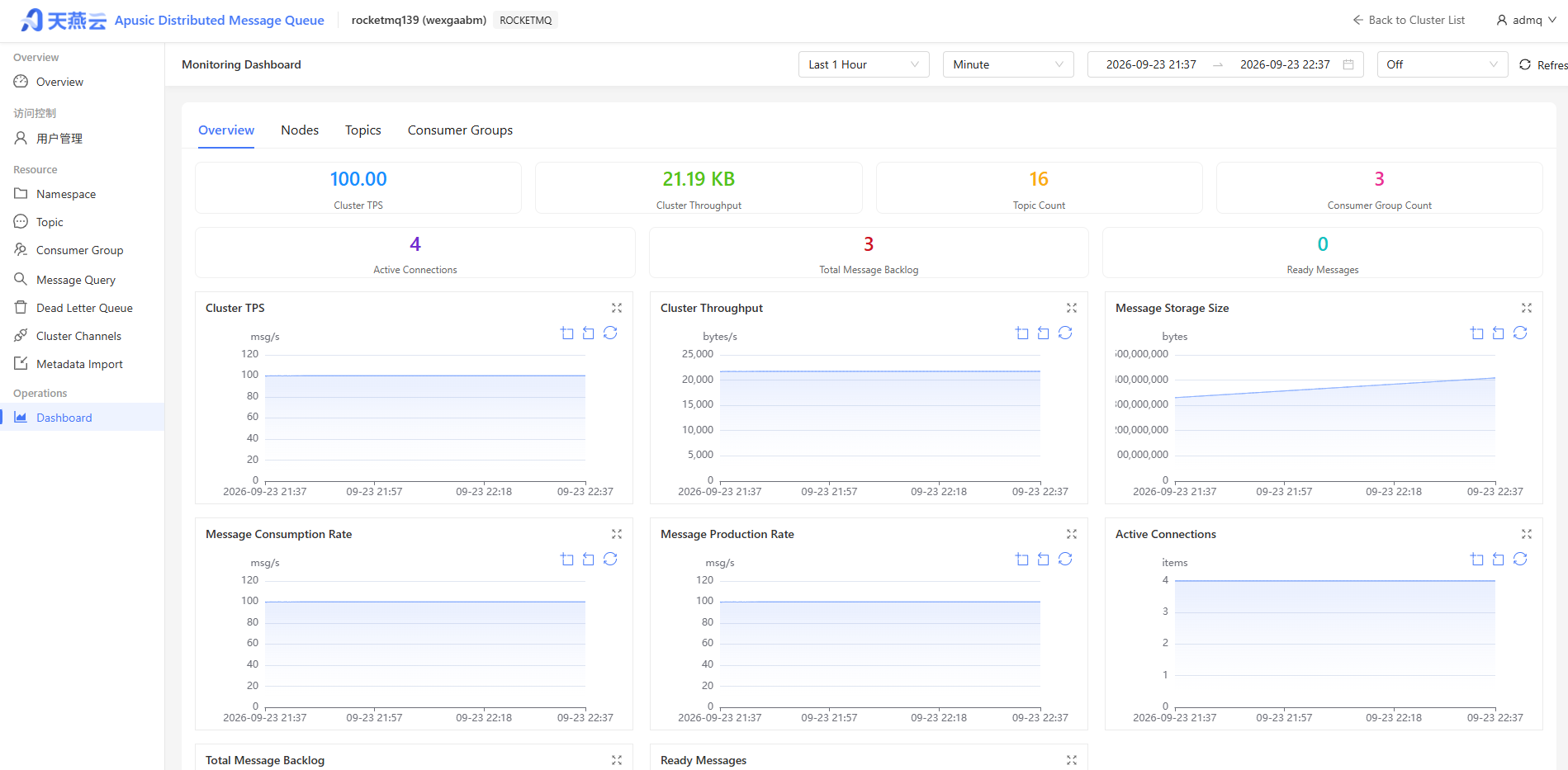
The monitoring dashboard of the ADMQ RocketMQ console collects runtime metrics from Brokers and NameServers, providing monitoring views in four dimensions: cluster, node, topic, and consumer. It helps users understand key operational status such as message send/receive rates, throughput, disk usage, and consumer lag.
# Time Range Selection
The top of the page provides a time range selector, supporting quick options (last 1 hour, last 6 hours, last 1 day, etc.) and custom time ranges.
# Overview
View key monitoring data at the cluster dimension, including:
| Monitoring Metric | Description |
|---|---|
| Cluster TPS | Total inbound and outbound TPS of the cluster. |
| Cluster Throughput | Cluster throughput (bytes). |
| Message Storage Size | Cluster message storage size. |
| Message Consumption Rate | Number of messages received per second. |
| Message Sending Rate | Number of messages sent per second. |
| Active Connections | Number of currently active connections in the cluster. |
| Total Message Accumulation | Total number of unconsumed messages. |
| Ready Messages | Total number of messages ready but not yet delivered in the cluster. |
# Node Dashboard
View key monitoring data at the Broker dimension, including:
| Monitoring Metric | Description |
|---|---|
| Broker TPS | Total inbound and outbound TPS of the Broker. |
| Broker Throughput | Broker throughput (bytes). |
| CPU Usage | Broker node CPU usage. |
| Message Storage Size | Broker node message storage size. |
| Disk Usage | Broker node disk usage. |
| Message Consumption Rate | Number of messages received per second. |
| Message Production Rate | Number of messages sent per second. |
| Message Retention Time | Message retention time. |
| Request Processor Water Level | Processor usage status. |
| Storage Distribution Lag | Broker message distribution delay. |
# Topic Monitoring
View monitoring data at the Topic dimension:
| Monitoring Metric | Description |
|---|---|
| Message Production Rate | Number of messages produced per second for the Topic. |
| Byte Inbound Rate | Number of bytes flowing into the Topic per second. |
| Average Message Size | Average message size for the Topic. |
| Message Consumption Rate | Number of messages consumed per second for the Topic. |
| Byte Outbound Rate | Number of bytes flowing out of the Topic per second. |
| Total Messages | Total number of messages in the Topic. |
| Inflight Messages | Number of inflight messages in the Topic. |
# Consumer Monitoring
View monitoring data at the consumer dimension:
| Monitoring Metric | Description |
|---|---|
| Message Production Rate | Number of messages produced per second. |
| Message Consumption Rate | Number of messages consumed per second. |
| Message Accumulation Count | Number of accumulated unconsumed messages in the subscription group. |
| Consumption Lag | Difference between the consumption offset and the maximum offset. |
| Inflight Messages | Number of messages in transit. |
| Queue Lag | Queue lag. |
| Ready Messages | Number of messages ready but not yet acted upon in the subscription group. |
# Frequently Asked Questions
# Unable to Log in to the Console
- Please verify that the browser address is
http://{console_ip}:12305and that{console_ip}is the actual deployment address of the console. - Check network connectivity and ensure port 12305 is allowed through the firewall.
- Verify the username and password are correct. The default administrator account is
admq. - If the account is locked, contact the system administrator to unlock it.
# Cluster Creation Fails or Status is Abnormal
- Ensure that the NameServer and Broker services on the target nodes have been properly started.
- Check network connectivity between the console and the target nodes, especially the NameServer port.
- Verify that the cluster mode selection matches the number of nodes. It is recommended to select cluster mode for production environments.
- Check the logs or status prompts on the cluster details page and troubleshoot based on the error information.
# Topic Not Visible in the List
- Ensure that the correct namespace has been selected. Topics belong to a specific namespace.
- Check whether you have view permissions for that namespace.
- Try refreshing the page or logging in again.
- If the Topic was created via the command line, you may need to wait for synchronization or trigger synchronization manually.
# Message Not Found in Query
- Ensure that the query time range covers the time when the message was produced.
- Verify that the correct namespace and Topic have been selected.
- If querying by message ID, check that the message ID is complete and accurate.
- If querying by message Key, confirm that a Key was set when the message was sent.
- Messages are cleaned up after the message retention time expires and cannot be queried.
# Consumer Accumulation or High Consumption Lag
- Check the message accumulation count and consumption lag for the subscription group under Monitoring Dashboard -> Consumer Monitoring.
- Check if consumer instances are online and the network is stable.
- Increase the number of consumer instances or adjust the number of consumption threads to improve consumption capacity.
- Investigate whether the consumer has business logic blocking, exception retries, etc.
- If necessary, reset the consumer offset to skip messages that have been confirmed as unprocessable, but proceed with caution.
# Appendix
# Glossary
| Term | Description |
|---|---|
| Cluster | RocketMQ cluster, consisting of NameServer and Broker. |
| NameServer | Service registration and discovery center. |
| Broker | Message storage and forwarding service node. |
| Topic | Message topic, the classification identifier of messages. |
| MessageQueue | Message queue, the shard of a Topic. |
| Producer | Producer, responsible for sending messages. |
| Consumer | Consumer, responsible for receiving messages. |
| ConsumerGroup | Consumer group, a collection of consumers. |
| Tag | Message tag, used for message filtering. |
| Offset | Consumption offset, indicating consumption progress. |
| Raft | A distributed consensus algorithm (Raft). |
| License | License, the product authorization credential. |
| TPS | Transactions Per Second. |
| DLQ | Dead Letter Queue, used to store messages that cannot be consumed normally. |
# Configuration Quick Reference
| Configuration Item | Default Value/Example | Description |
|---|---|---|
| Console Port | 12305 | Browser access port. |
| Default Admin Account | admq | It is recommended to change the password immediately after the first login. |
| NameServer Address | 127.0.0.1:9876 | NameServer address to fill in when creating a cluster. |
| Default Message Retention Time | 72 hours | Messages exceeding the retention time will be cleaned up. |
| Dead Letter Message Retention Time | 3 days | It is recommended to process dead letter messages promptly. |
| Single Message Query Time Range | Last 2 hours | Supports custom extension. |