
Console User Manual

# Preface
This document is the user manual for the Apusic In-Memory Data Cache (AMDC) V2.0.6 console product, detailing the features, configuration methods, and management operations of the AMDC Web console.
This document is based on the current
amdc-consolecode and the actual deployment environment (http://172.17.47.213:3001/), using the AMDC administrator role for screenshots and feature verification; the original screenshots and text are retained, with only path descriptions that do not match the actual menus adjusted. Other roles (system administrator, security administrator, audit administrator, tenant administrator) may have different menu scopes; please refer to the actual logged-in role. If any images differ from the current interface, see the "List of Images to Be Confirmed" at the end of this document.
# Target Audience
This document is intended for AMDC product operations engineers, IT system operations engineers, development engineers, and other personnel.
# Related Documentation
For more information about AMDC V2.0.6, please refer to the following AMDC V2.0.6 product manual documentation set:
| No. | Document | Description |
|---|---|---|
| 1 | Apusic In-Memory Data Cache V2.0.6 Quick Start Guide | A brief introduction on how to quickly get started with AMDC. |
| 2 | Apusic In-Memory Data Cache V2.0.6 Installation Guide | Detailed introduction on how to install AMDC on various operating systems, AMDC service start/stop operations, and the product registration process. |
| 3 | Apusic In-Memory Data Cache V2.0.6 Cache Core User Manual | Detailed introduction on how to use, configure, and manage AMDC features and supporting tools. |
| 4 | Apusic In-Memory Data Cache V2.0.6 Console User Manual | Detailed instructions on using and operating AMDC console features. |
| 5 | Apusic In-Memory Data Cache V2.0.6 Development Guide | Detailed instructions for developing AMDC client applications using various programming languages. |
| 6 | Apusic In-Memory Data Cache V2.0.6 Migration Guide | Detailed instructions for migrating AMDC from historical versions to V2.0.6, as well as migrating from Redis to AMDC. |
| 7 | Apusic In-Memory Data Cache V2.0.6 Operations Guide | Detailed instructions for AMDC monitoring, operations, security hardening, and other operational procedures. |
| 8 | Apusic In-Memory Data Cache V2.0.6 Performance Tuning Guide | Detailed instructions for AMDC performance tuning. |
# Technical Support
AMDC products provide comprehensive technical support services. You can obtain technical support through the following channels:
Website: www.apusic.com
Phone: 400-855-5800
Email: support@apusic.com
Kingdee Cloud Community: https://vip.kingdee.com/?productId=73&productLineId=14&lang=zh-CN
When requesting technical support, please provide the following information:
Your name
Company information and contact details
Operating system and version
Product version number
Detailed information including logs, screenshots, etc. of any exceptions or errors
# Introduction
Apusic In-Memory Data Cache Software (Apusic In-Memory Data Cache, abbreviated as AMDC) is a distributed cache software that is fully applicable to a wide range of scenarios, with high throughput and data security. It provides secure and reliable cache support capabilities for large-scale, high-concurrency, and highly available critical applications; and is compatible with the Redis protocol and persistent data files, enabling simple, fast, and smooth replacement of Redis.
# Feature List
# Console
| Feature | Description |
|---|---|
| Multi-tenant management | Uses a multi-tenant model to isolate data for different businesses or management groups. |
| Permission control | Provides feature usage permission control to improve console security. |
| Multi-cluster management | Supports centralized management of multiple clusters, node start/stop, node elastic scaling, configuration, and other features. |
| Monitoring and alerting | Provides cache monitoring, detects cache status, and sends alert notifications when the cache core is abnormal. |
| Data analysis | Provides cache data analysis features such as big keys, hot keys, and slowlog. |
| Automatic deployment | Implements automatic deployment of the AMDC data cache engine; the system completes the whole process automatically, faster and simpler. |
| Visual scaling | Provides visual scale-out/node removal operations without tedious command operations. |
| Deployment tasks | Visualizes the deployment/scaling process; progress and status can be viewed in the task list. |
| Encrypted transmission (TLS) | Supports standard TLS / GM TLS certificate management and encrypted deployment, meeting transmission encryption requirements in compliance scenarios. |
| Apusiclet host agent | When SSH direct connection to a target host is prohibited, the host can be registered and managed through the Apusiclet agent (HTTP). |
| Connection management | Built-in client connection visualization on the service details page, supporting filtering, sorting, auto refresh, and disconnection. |
| Data management | Built-in data viewing (Insight) on the service details page, supporting key browsing, detail viewing, command execution, and safe deletion. |
| Rolling upgrade/migration | Supports business-non-interrupting rolling upgrade (AMDC→AMDC) and rolling migration (Redis→AMDC). |
| Multi-language UI | The console supports Simplified Chinese / Traditional Chinese / English; the language preference is saved per user. |
# Related Concepts
| Term | Meaning | Usage Notes |
|---|---|---|
| Master node | Stores data, responsible for data read/write and data synchronization | The default mode of AMDC is standalone mode; in standalone mode, the master node is in standalone mode |
| Slave node | Replicates data from the master node, participates in data synchronization (read-only) | Slave nodes participate in data synchronization (read-only); when the master node fails, a slave node can be automatically switched to master; when the master node recovers, the slave node automatically switches back to slave. |
| Sentinel | Monitors master and slave nodes, responsible for master failover and master-slave synchronization | Sentinel mode: when the master node goes down, it automatically switches a slave node; when a slave node goes down, it automatically switches to the master node. |
| Cluster | A computer service system composed of multiple mutually independent computers | In this document, master-slave/Sentinel/cluster modes can all be considered clusters; cluster mode specifically refers to the mode where multiple master nodes store data in shards. |
# Complete Process for Bringing a New Service Online
The following demonstrates a complete service onboarding, upgrade, and migration operation process from the perspective of an AMDC administrator. Following this process, an implementation engineer unfamiliar with the console can independently complete deployment, verification, upgrade, and migration.
# Log In to the Console
- Open a browser and visit
http://<serverIP>:3001/to enter the login page. - Enter the account
amdc_adminand the corresponding password:- When the console starts for the first time, it automatically generates initial passwords for all preset administrator accounts (including
amdc_admin, three-role administrators, and tenant administrators) and writes them to the./resource/.initial_passwordsfile under the installation directory. - Open this file and find the 12-digit random password after
amdc_admin:as the first login password. - After the first successful login, the system will force you to change the password according to the current password policy; you can only enter the console main interface after completing the change. Logging in again after the password expires will also trigger a forced change.
- When the console starts for the first time, it automatically generates initial passwords for all preset administrator accounts (including
- Click [Login] to enter the console homepage.
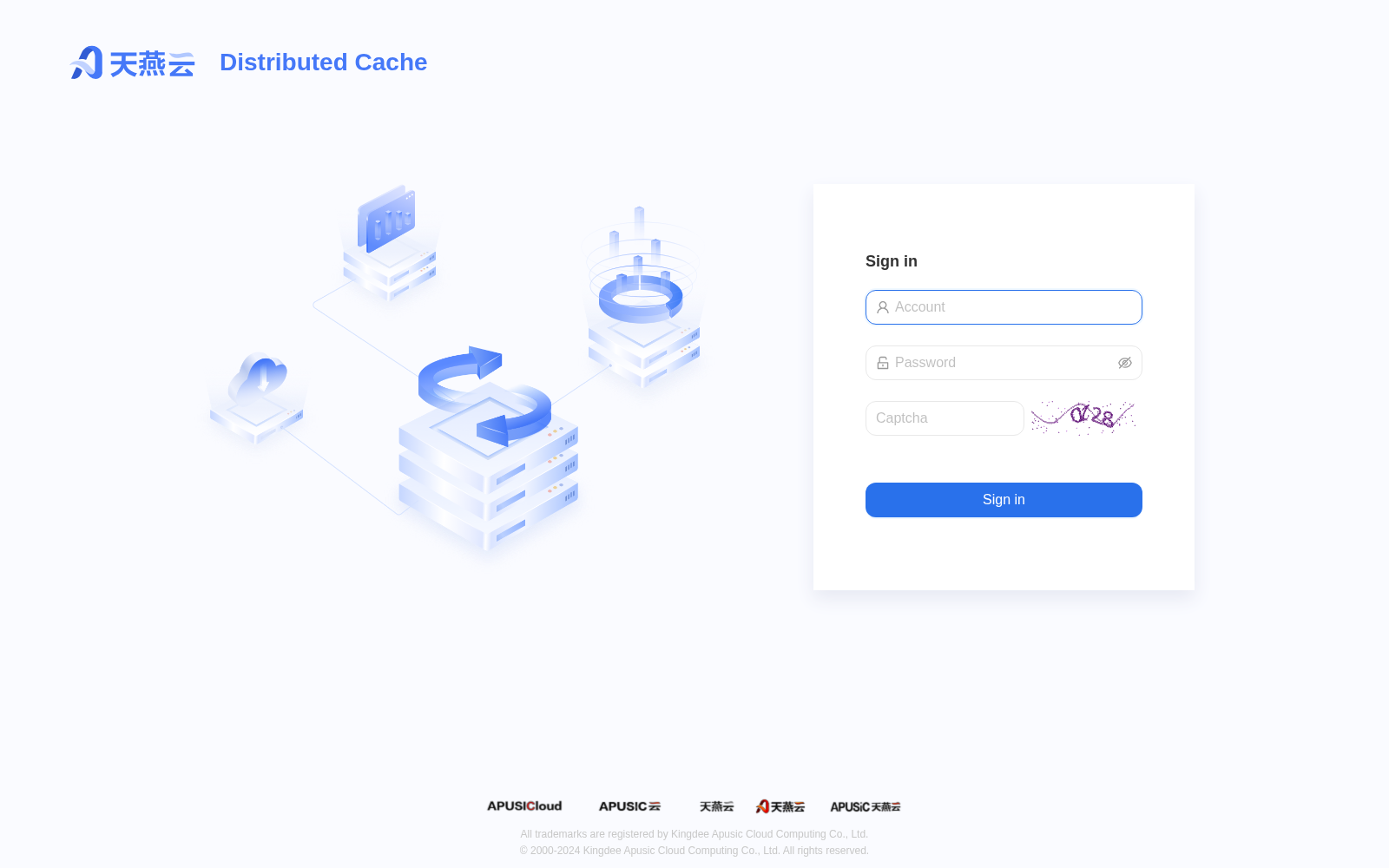
Note: All subsequent operations in this document are based on the AMDC administrator role. Other roles (system administrator, security administrator, audit administrator, tenant administrator) may have different menu scopes; please refer to the actual logged-in role.
Tip: The console supports three UI languages: Simplified Chinese / Traditional Chinese / English. Click the language switcher in the upper-right corner of the page to switch; it takes effect immediately without re-login. The language preference is saved for the current user (automatically applied on the next login) and does not affect other users. Users who have not set a personal preference use the global default language, which is controlled by the
system.languageitem in the configuration file (zh-CN/zh-TW/en, defaultzh-CN); changes to this item take effect after restarting the console.
# 1. Resource Preparation
Before deploying services, you must first prepare the installation package, License, machines, and configuration templates in [Resource Management].
# 1.1 Add and Upload the Installation Package
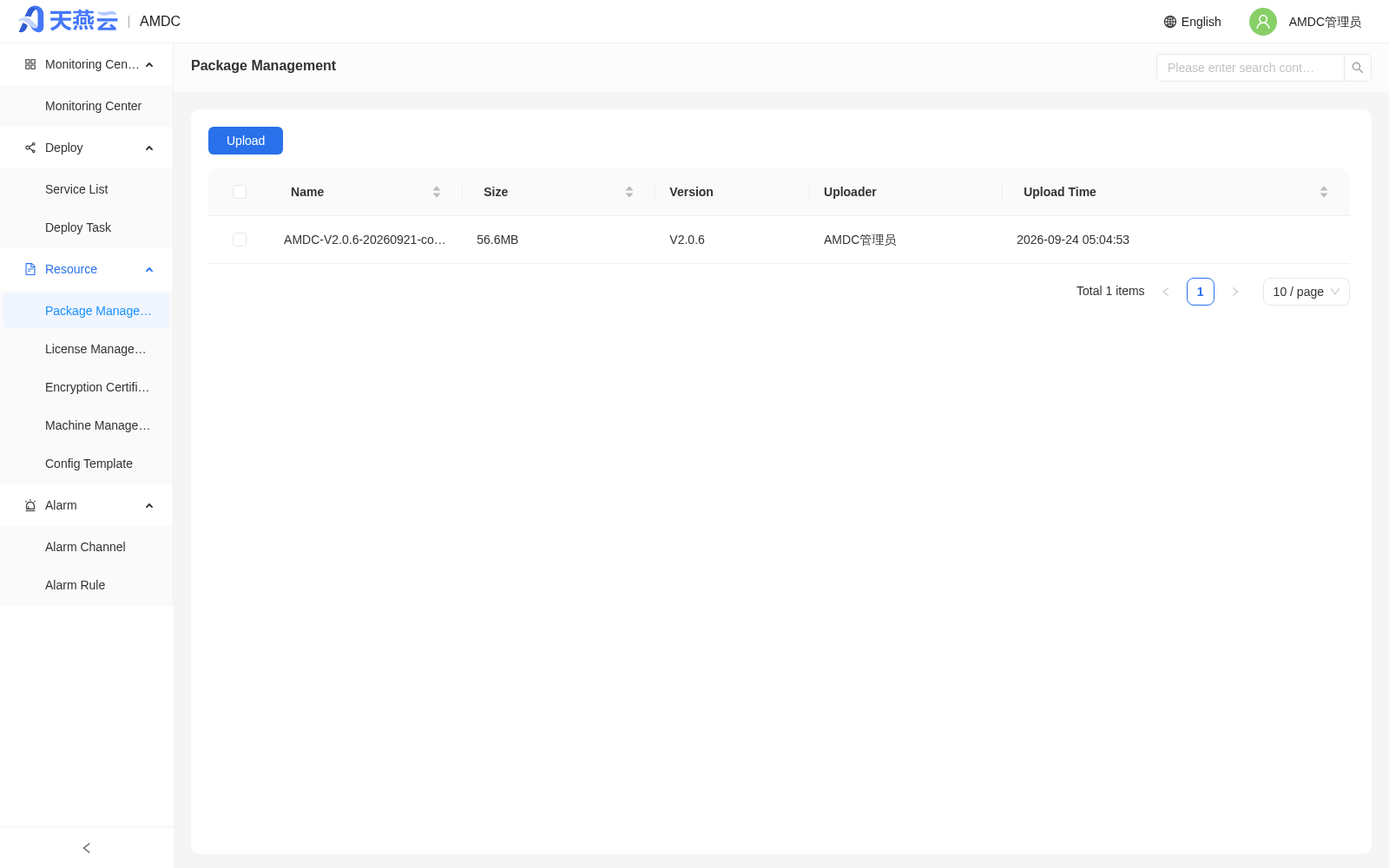
- Go to the left menu [Resource Management] > [Package Management].
- Click the [Upload] button in the upper right corner and select the AMDC installation package file of the target version (e.g.,
AMDC-V2.0.6-xxxx-amd64.tar.gz). - Click [OK] to complete the upload.
# 1.2 Upload the License
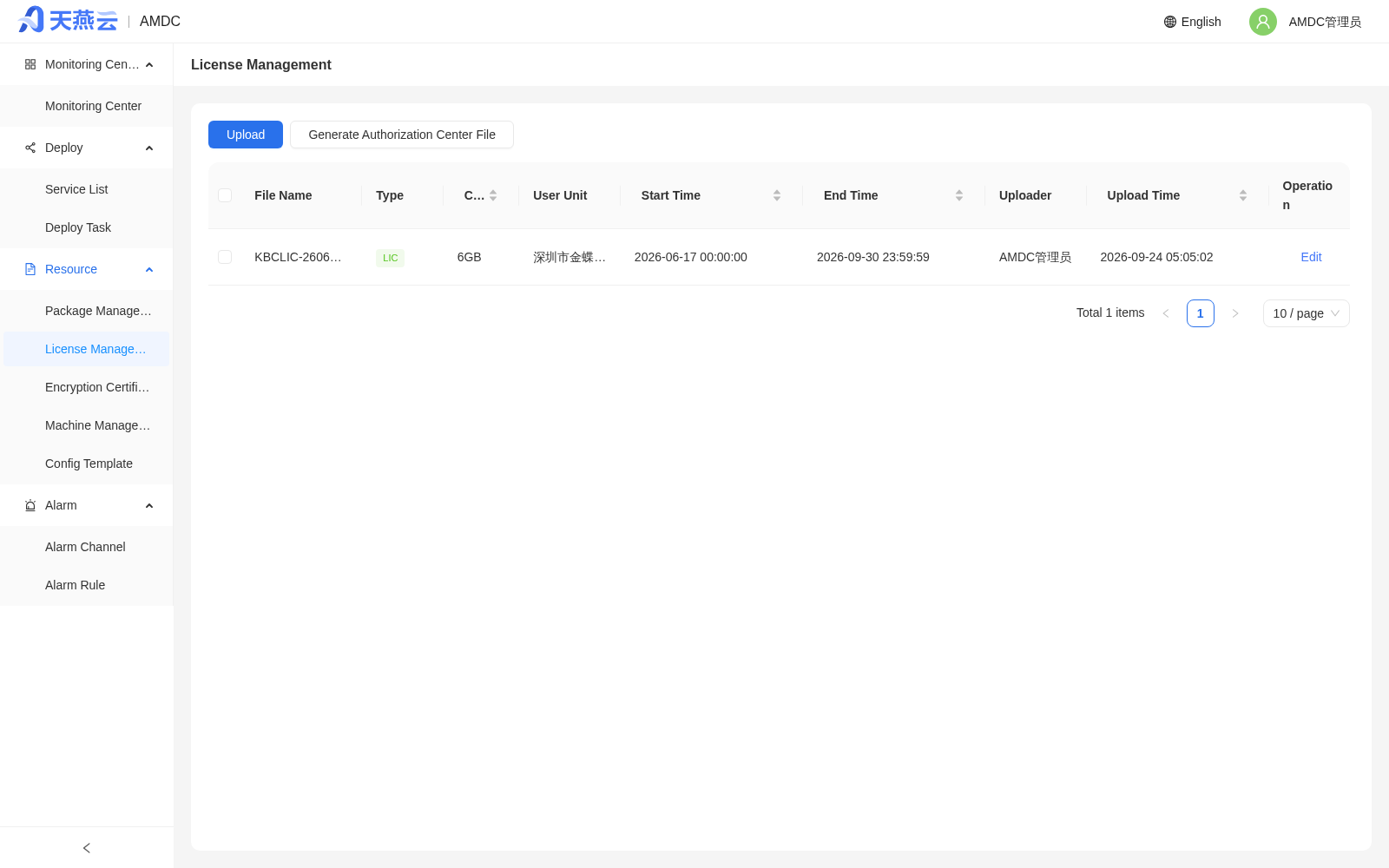
- Go to the left menu [Resource Management] > [Certificate Management].
- Click the [Upload] button and select valid License files; multiple files can be uploaded at the same time.
- After uploading, the system will automatically parse them; invalid Licenses cannot be saved.
# 1.3 Add Target Machines
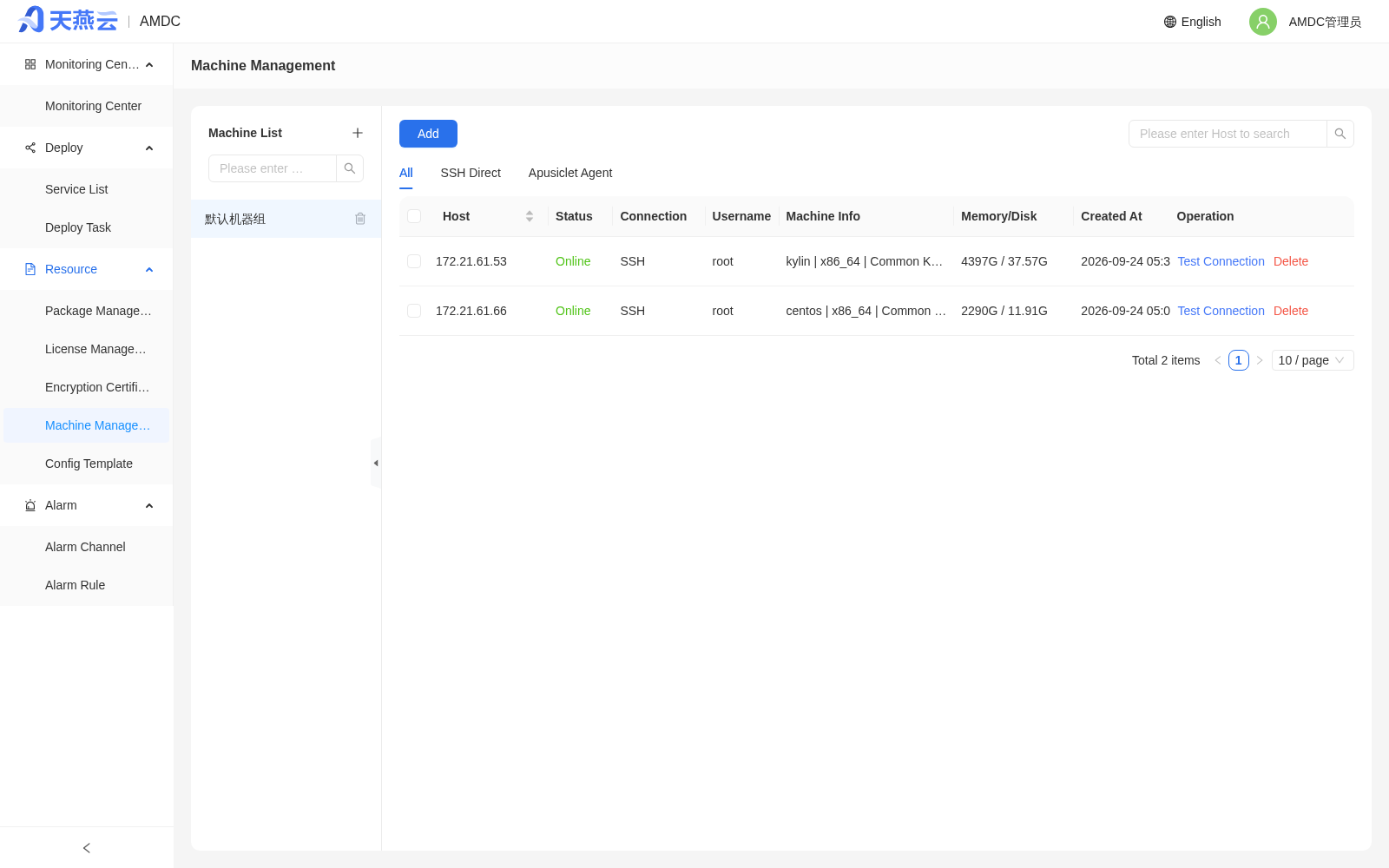
- Go to the left menu [Resource Management] > [Machine Management].
- Click the [+] button next to the machine group on the left to create a machine group first.
- Select the machine group, click the [Add] button in the upper left, and fill in the remote server information:
| Parameter | Example Value | Description |
|---|---|---|
| Username | root | Username for logging in to the remote machine |
| Password | - | Password for logging in to the remote machine |
| SSH Port | 22 | Remote SSH port |
| Host | 172.17.47.213 | Remote machine IP |
| Remarks | - | Optional |
- Confirm that the target machine connection status is normal before proceeding with subsequent deployment.
Note: The same machine group can only contain machines with the same chip architecture; automatic deployment requires the target machines to have the
tarandsscommands.
# 1.4 Confirm Configuration Templates
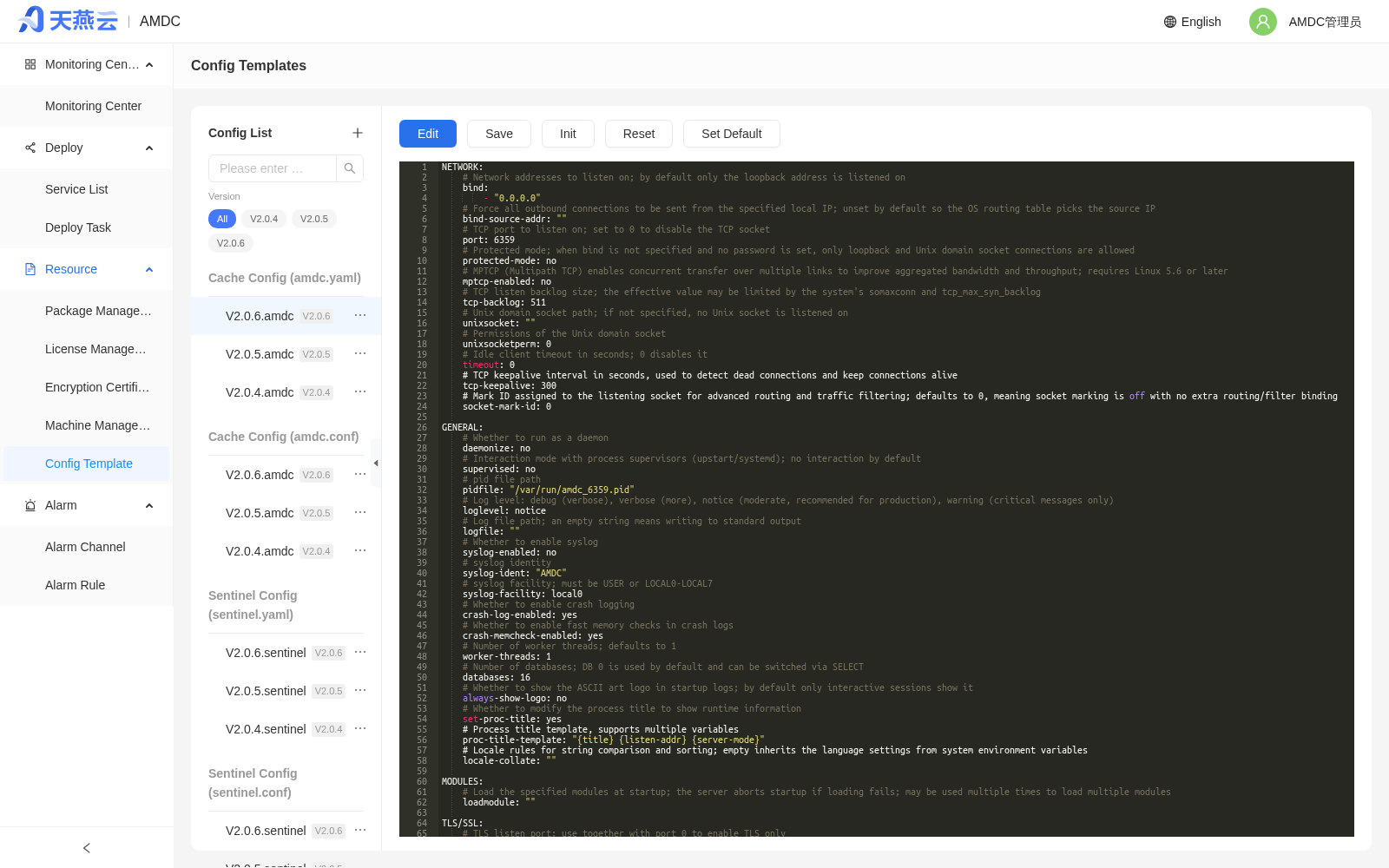
- Go to the left menu [Resource Management] > [Configuration Templates].
- Confirm that the cache core configuration template and the Sentinel configuration template (if using Sentinel mode) are available.
- If customization is needed, you can modify them here; non-public parameters related to IP and port will not take effect.
# 2. Automatically Deploy a New Service
After resource preparation is complete, go to [Deployment Management] > [Automatic Deployment] and complete the service deployment in a 4-step wizard.
# 2.1 Basic Configuration
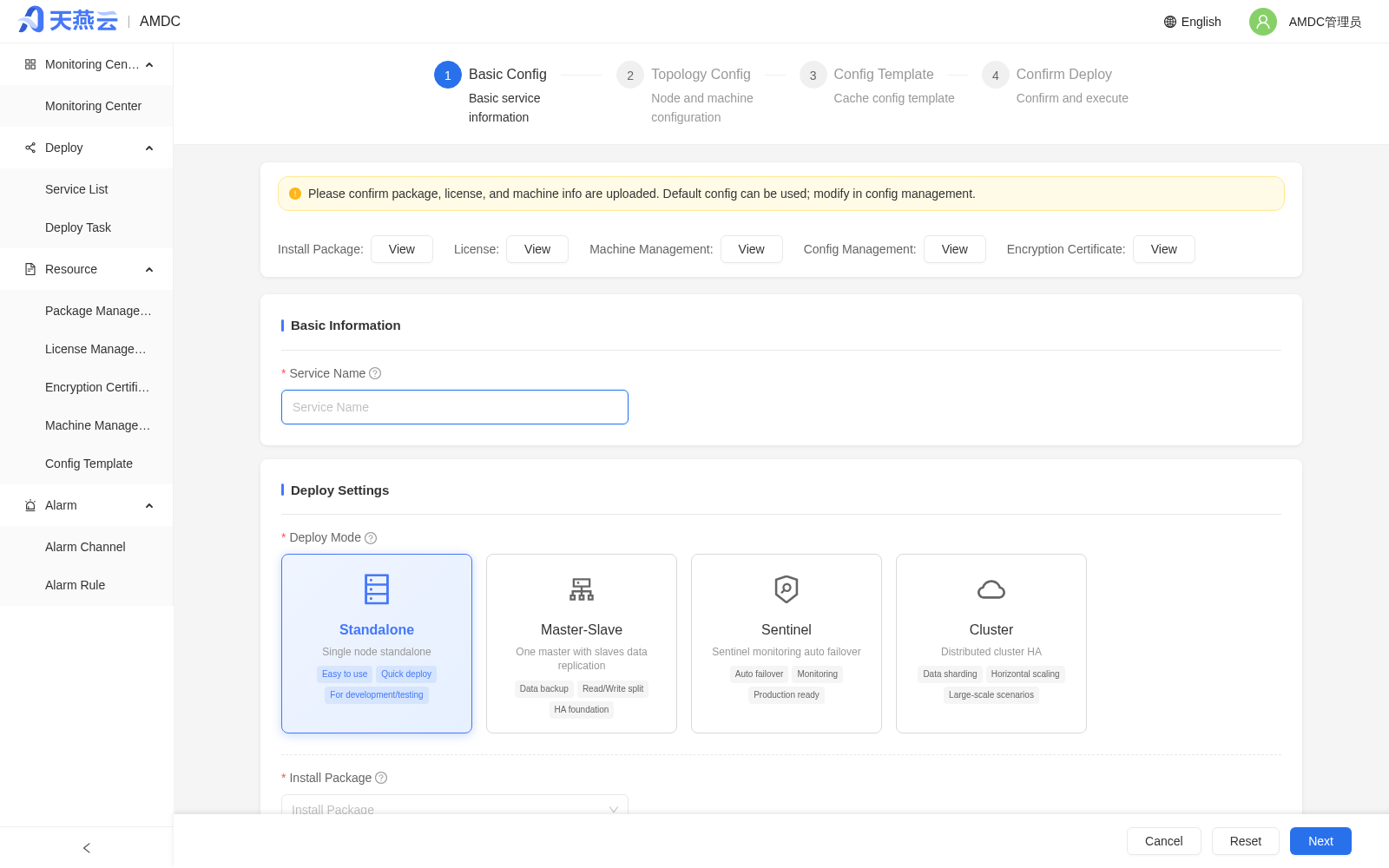
Fill in the following in the [Basic Configuration] step:
- Service Name: A unique identifier; only supports letters, digits, underscores, and hyphens, no more than 24 characters.
- Deployment Mode: Select standalone / master-slave / Sentinel / cluster / pre-generated nodes.
- Installation Package: Select an uploaded installation package.
- Installation Directory: e.g.,
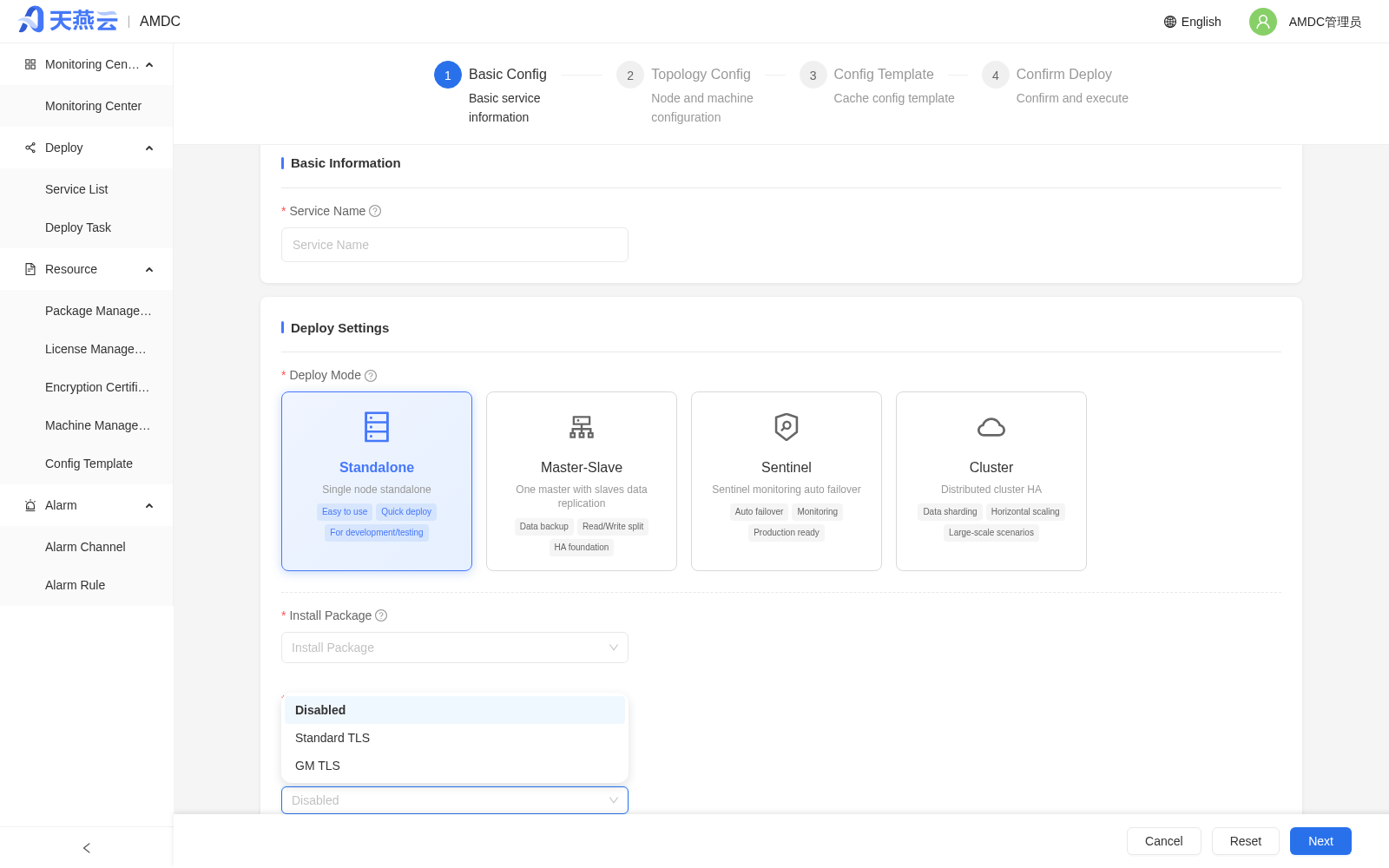
/data/looper; nodes are actually located at{seat}/{port}. - Encryption Mode: Off (default, TCP plaintext) / Standard TLS / GM TLS. When Standard TLS or GM TLS is selected, you must also select an uploaded certificate of the matching type in [TLS Certificate] (certificates are maintained under [Resource Management] > [Encryption Certificate Management]).
- AMDC Password: The cache core management password; you can click the settings button to configure complexity rules.
- Auto-start on Boot: Whether to run automatically when the system starts.
- sudo: Whether to use sudo privileges to execute installation commands.

When the encryption mode is set to [Standard TLS] or [GM TLS], the wizard requires selecting the corresponding TLS certificate:
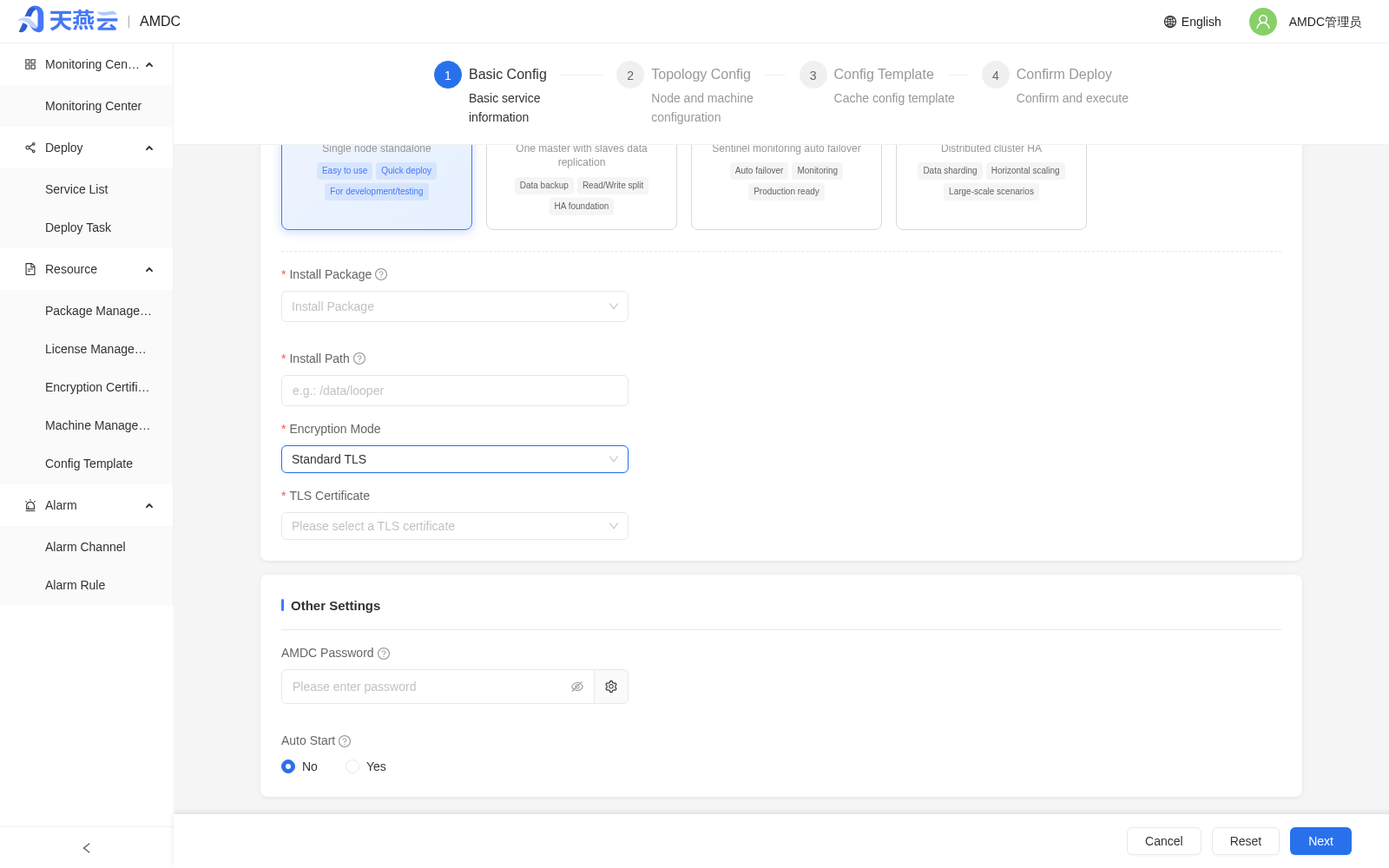
Note: TLS / GM TLS deployment requires an amdc-server installation package that supports the corresponding protocol; GM TLS uses the SM2/SM3/SM4 algorithm suite (TLCP protocol), and clients must support TLCP. Changing the encryption mode of an already deployed instance is not supported in the current version — redeploy if needed. The encryption mode can also be selected when scaling out new nodes.
# 2.2 Topology Configuration
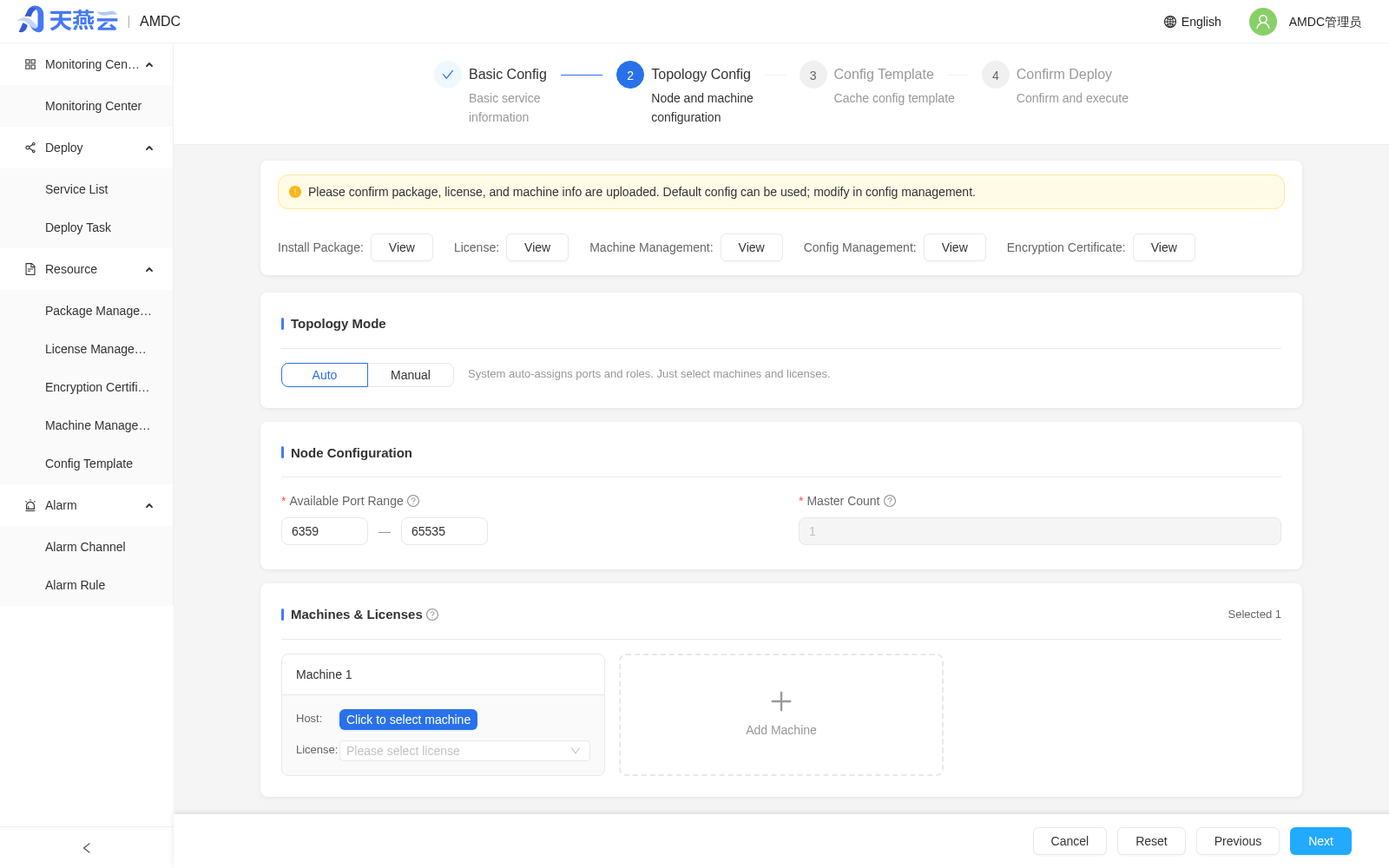
- Select [Automatic] or [Manual] topology mode:
- Automatic: The system automatically assigns ports and node roles; you only need to select machines and licenses.
- Manual: Configure the machine, port, role, and license for each node.
- Configure the port range (default 6359–65535) and the number of nodes.
- In the [Machines and Licenses] area, select the target machines and select a License for each machine.
Note: All machines must be in the same machine group; non-Sentinel nodes must have a license selected.
# 2.3 Configuration Templates
Select the cache core configuration template; if the deployment mode is Sentinel, you also need to select the Sentinel configuration template.
# 2.4 Confirm Deployment
- After confirming that the deployment information is correct, click [Execute Task] to deploy immediately, or click [Save Task] to save it for later execution.
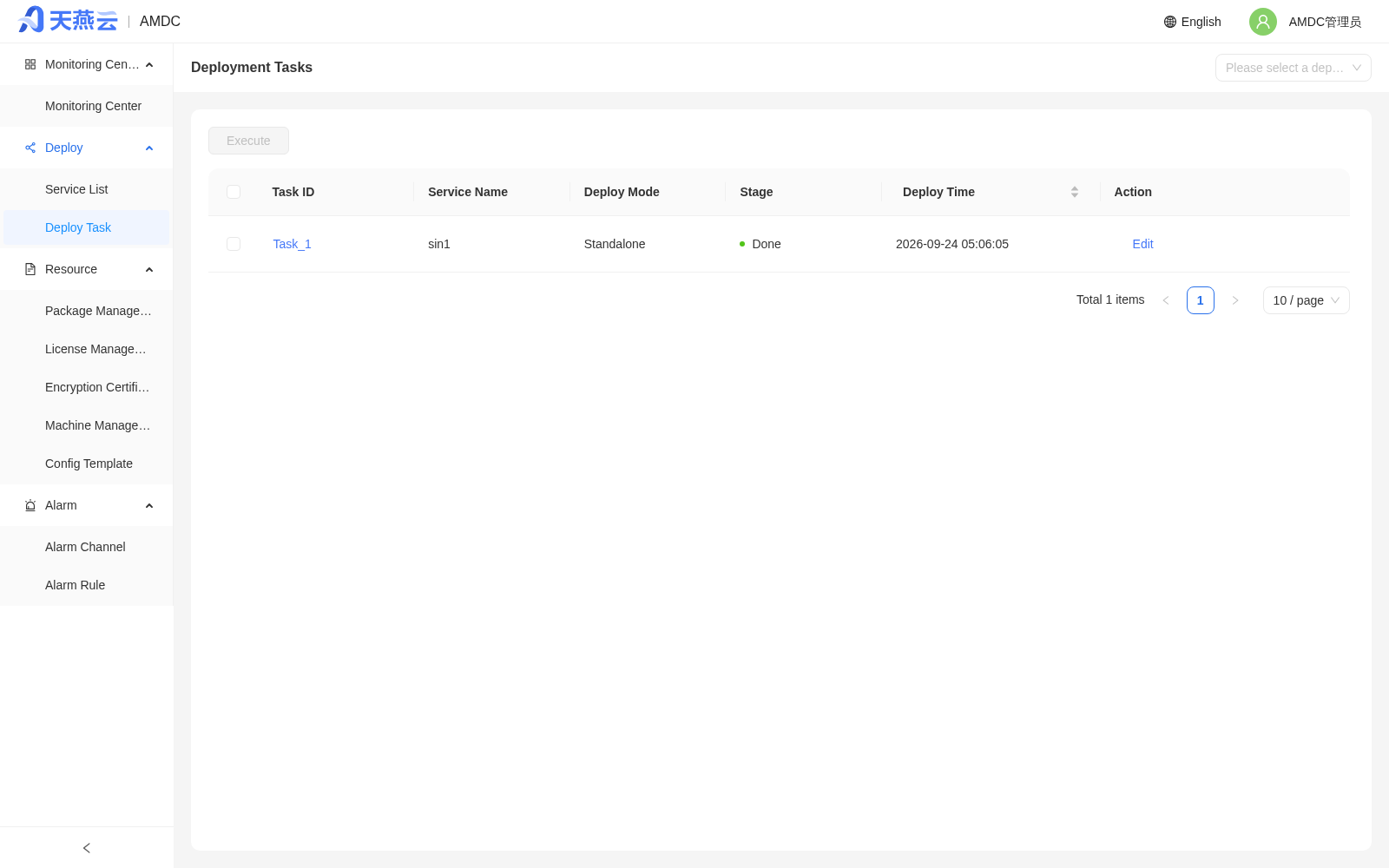
- During deployment, you can go to [Deployment Management] > [Deployment Tasks] to view the task status.
- Wait for the task status to change to "Completed".
# 3. Service Verification and Monitoring
After deployment is complete, go to [Deployment Management] > [Service List] to view the newly created service.
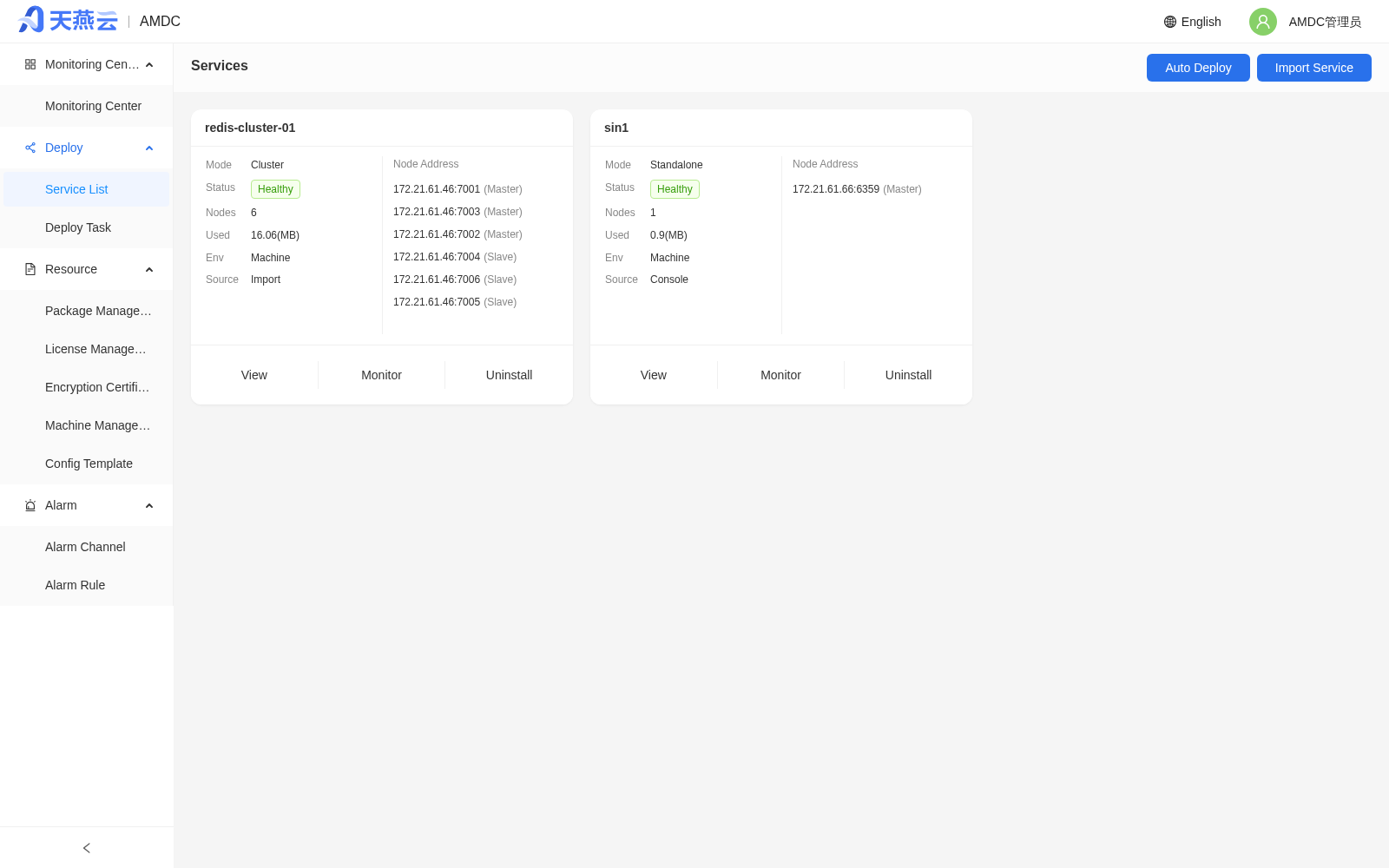
- Click the service name to enter the service details.
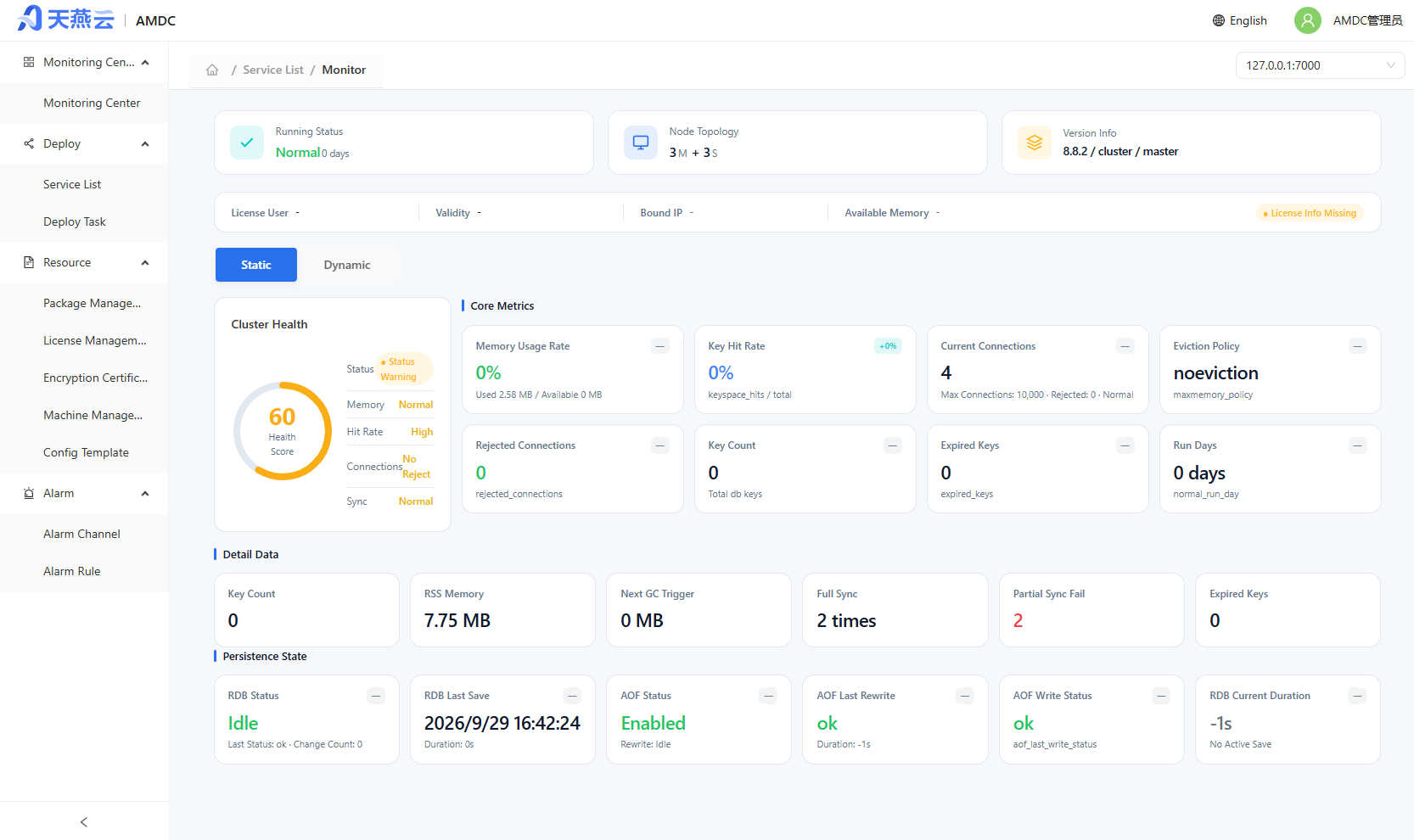
- Click [Monitoring] to view cluster running metrics (memory, QPS, connections, etc.).

- Click [Analysis] to perform data analysis such as big keys, hot keys, and slowlog.
- Click the [Command Line] button at the top to execute AMDC commands to verify data write/read.
# 4. Service Upgrade
When you need to upgrade to a new version:
- Upload the new version installation package in [Resource Management] > [Package Management].
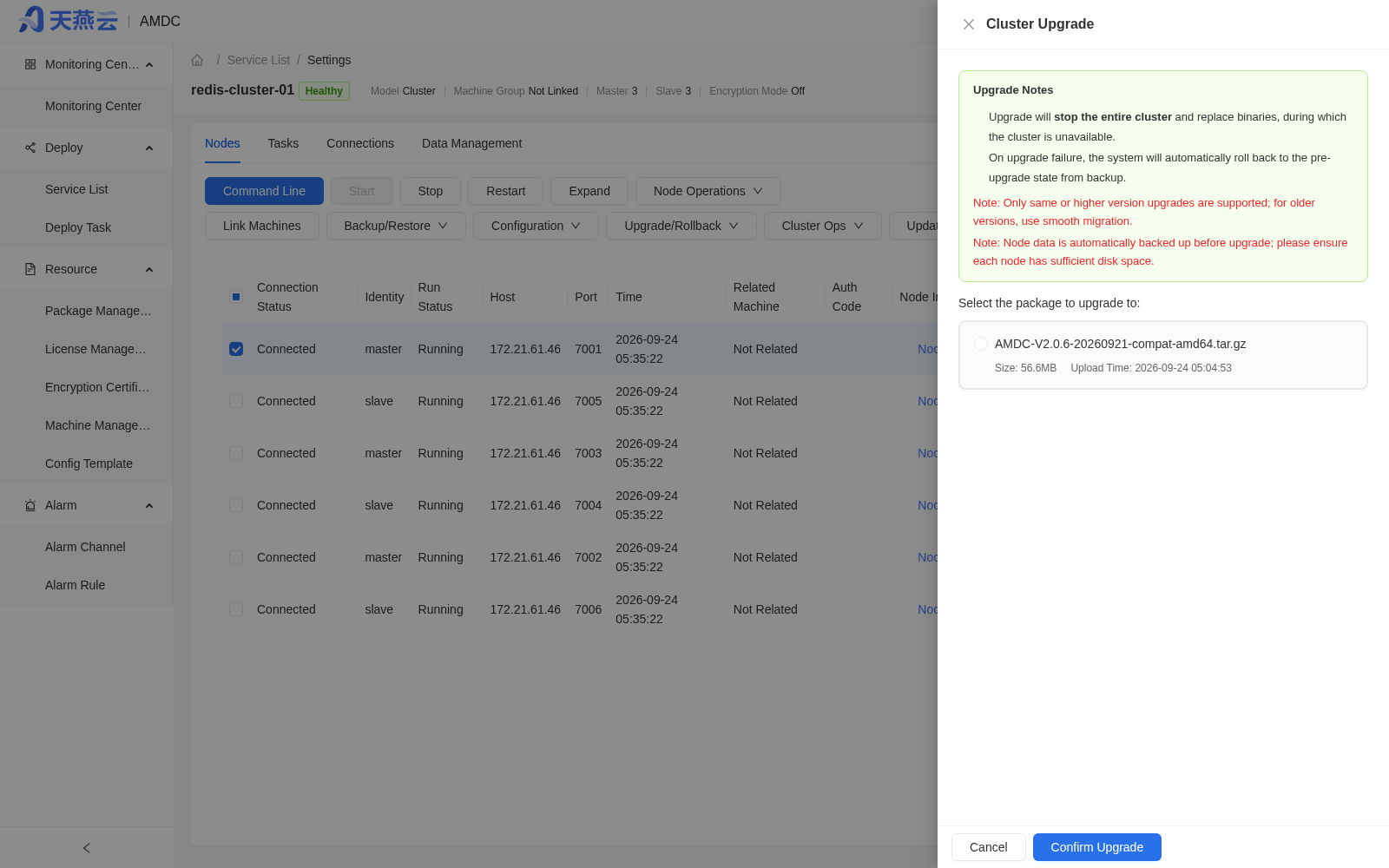
- Enter the target service details, click [Upgrade/Rollback] > [Upgrade] at the top to open the "Cluster Upgrade" drawer.
- Carefully read the upgrade notes:
- The upgrade will stop the entire cluster and replace the binaries; the cluster is unavailable during this period.
- If the upgrade fails, the system will automatically roll back from the backup to the pre-upgrade version.
- Only same-version or higher-version upgrades are supported.
- Node data is automatically backed up before the upgrade; please ensure that each node has sufficient disk space.
- Select the installation package to upgrade to in the list, and click [Confirm Upgrade].
- Wait for the upgrade task to complete; you can observe the status in [Deployment Management] > [Deployment Tasks] or the monitoring center.
# 5. Smooth Migration (Optional)
If you need to migrate the service to new hardware or a new cluster:
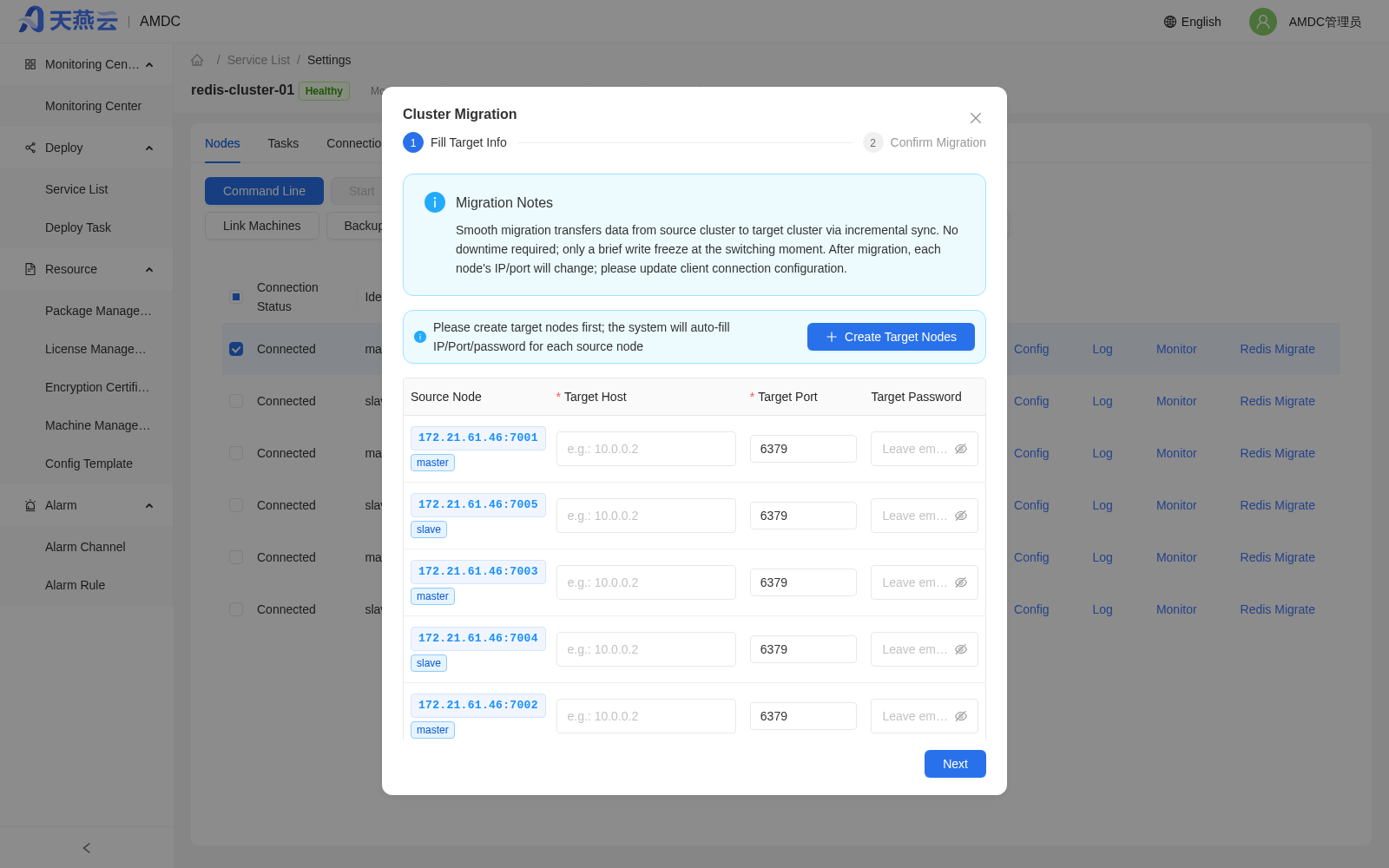
- Enter the target service details, click [Cluster Operations] > [Smooth Migration] at the top to open the "Cluster Migration" pop-up window.
- In the [Fill In Target Information] step, click [Create Target Node] to create target nodes through the automatic deployment wizard; after creation, the system will automatically fill in the target IP/Port/password.
- Click [Next] to enter [Confirm Migration] and read the migration risk notes:
- During migration, the source cluster will have a brief write freeze (about 30 seconds).
- After migration, the business access IP/port will change.
- In Sentinel mode, Sentinel nodes do not participate in migration; check the Sentinel configuration after migration.
- After confirming that the information is correct, click [Confirm Migration]; the system will automatically complete incremental synchronization and switchover.
- After the switchover is complete, update the client connection configuration in a timely manner.
# 6. Refresh Nodes
After an upgrade or migration, if the node information displayed on the console is inconsistent with the actual cluster:
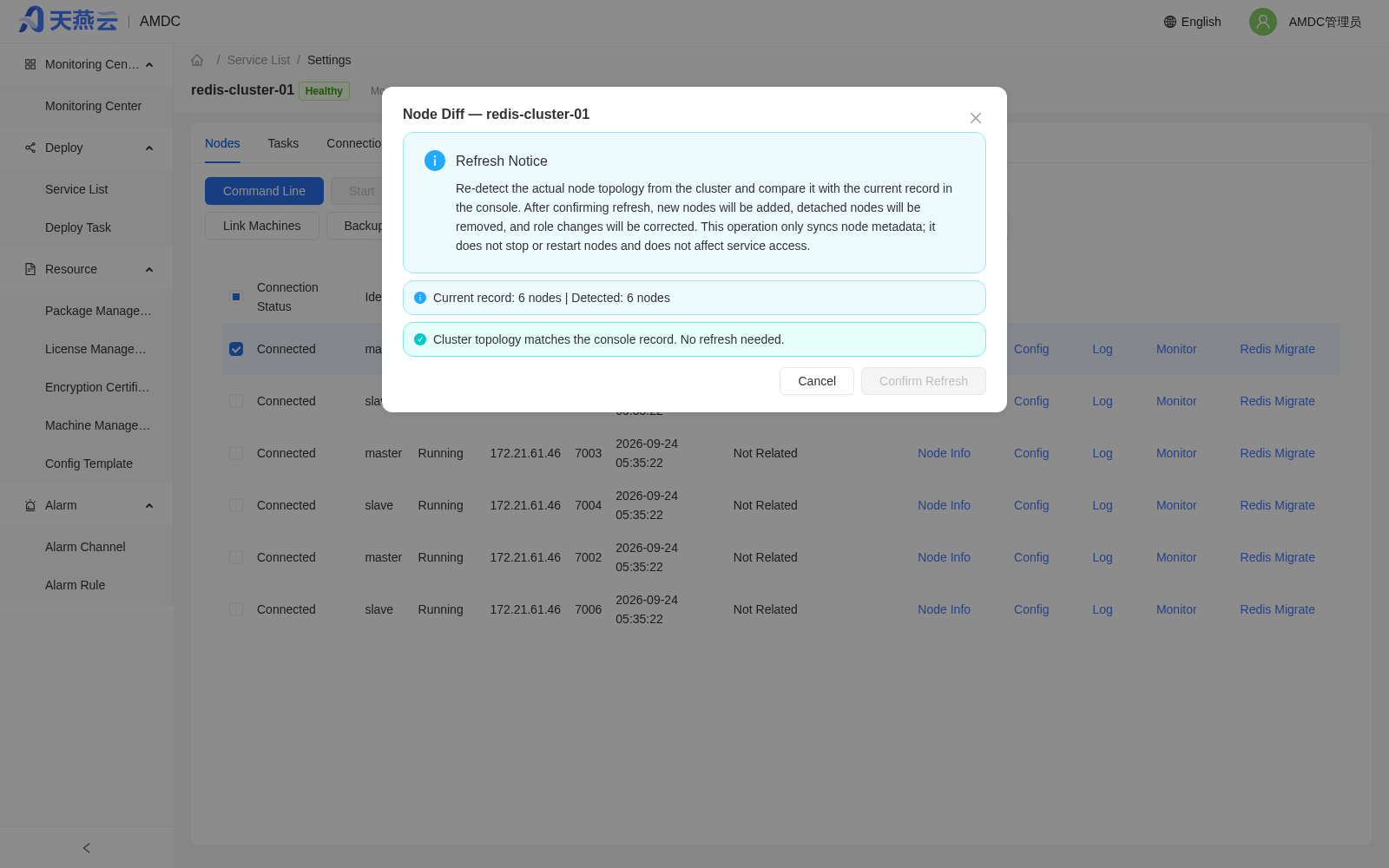
- Enter the target service details, click [Cluster Operations] > [Refresh Nodes] at the top.
- In the pop-up window, view the node change comparison result (current recorded node count, actual detected node count, change description).
- Click [Confirm Refresh] to synchronize node metadata.
# 7. Daily Operations
- Alerts: Configure notification methods and thresholds in [Alerts] > [Alarm Channels]/[Alarm Rules].
- Log rotation: Go to Service Details > [Cluster Operations] > [Log Rotation] to configure log retention days and single-file size limits.
- Backup and recovery: Go to the Service Details [Nodes] tab and use the [Backup/Restore] drop-down menu to perform data backups regularly and perform recovery when necessary.
- Connection management: Go to the Service Details [Connection Management] tab to view client connections in real time and disconnect abnormal connections.
- Data management: Go to the Service Details [Data Management] tab to browse keys, view value content and TTL, and execute query commands.
- Scale out/scale in: Enter the service details, click [Scale Out] to add nodes; select a node and reduce nodes via [Node Operations] > [Remove].
# Environment Preparation and Resource Management
Before creating or operating AMDC services, you need to prepare the following resources in [Resource Management].
# Machine Management
Go to [Resource Management] > [Machine Management]. The machine management page provides entries for adding, editing, and deleting machines. The machine information required for automatic deployment is created here.
# Add a Machine
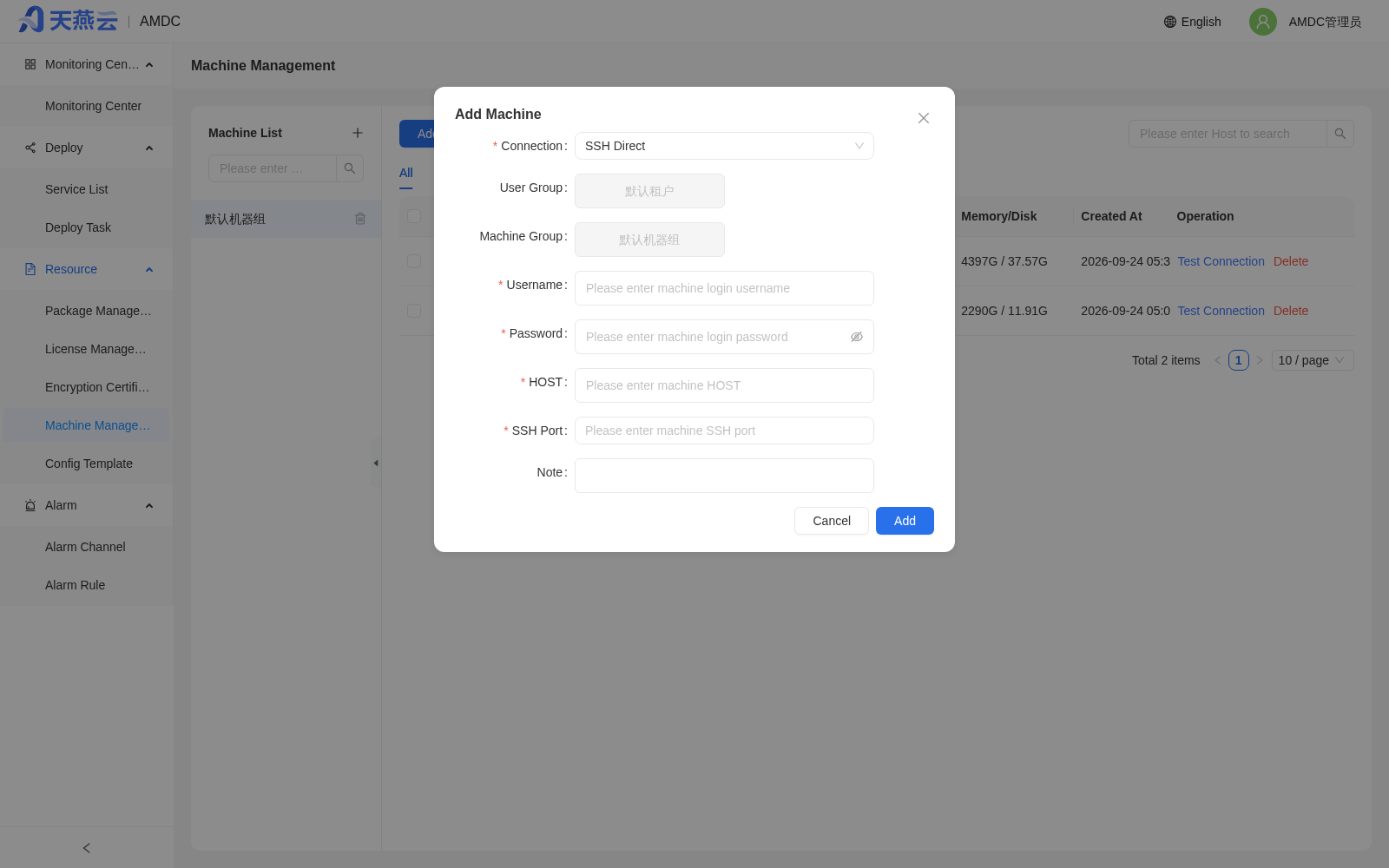
Go to [Resource Management] > [Machine Management]. A machine group must exist before you can add machines, and the same machine group can only contain machines with the same chip architecture. Click the [+] button next to the machine group on the left to add a machine group; after selecting the machine group, click the [Add] button in the upper left and fill in the machine information.
Note: Only servers with normal connections can be added, so please confirm the connection status of the target machine.
Two connection modes are supported when adding a machine:
- SSH Direct Connection (default): keeps the original behavior and manages the target host over SSH.
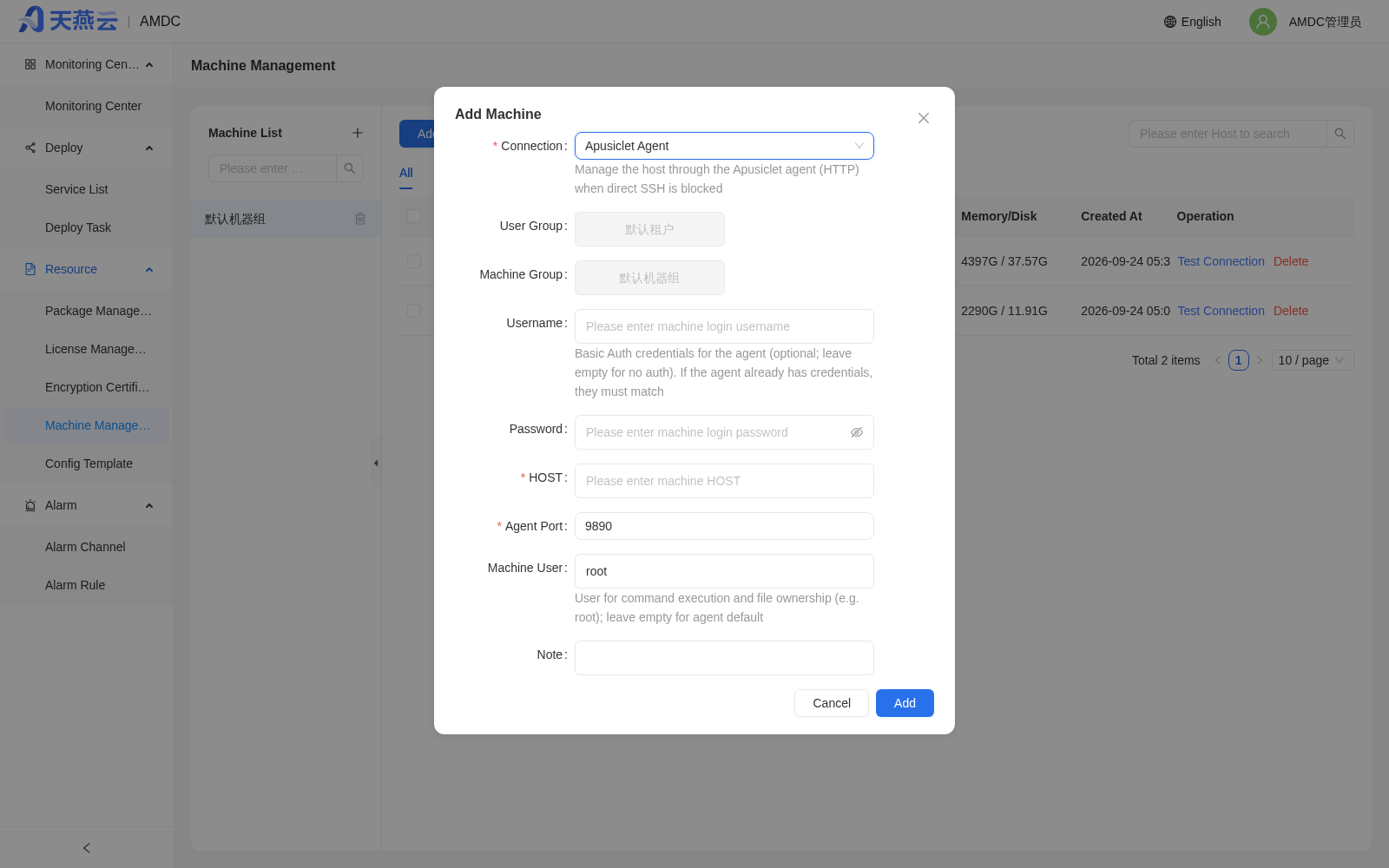
- Apusiclet Agent: when SSH direct connection to the target host is prohibited (e.g., in strictly controlled network environments such as finance and government), the host is managed through the Apusiclet service (HTTP) pre-deployed on the target host, providing the same capabilities as SSH direct connection: command execution, file upload/download, cluster deployment, instance start/stop, and log collection.
SSH direct connection parameters:
| Parameter | Meaning |
|---|---|
| Username | Username for logging in to the remote machine, e.g., root |
| Password | Password for logging in to the remote machine |
| SSH Port | Port for logging in to the remote machine, e.g., 22 |
| Host | Address of the remote machine, e.g., 192.168.x.x (example IP; replace with the actual IP) |
| Remarks | Can be empty |
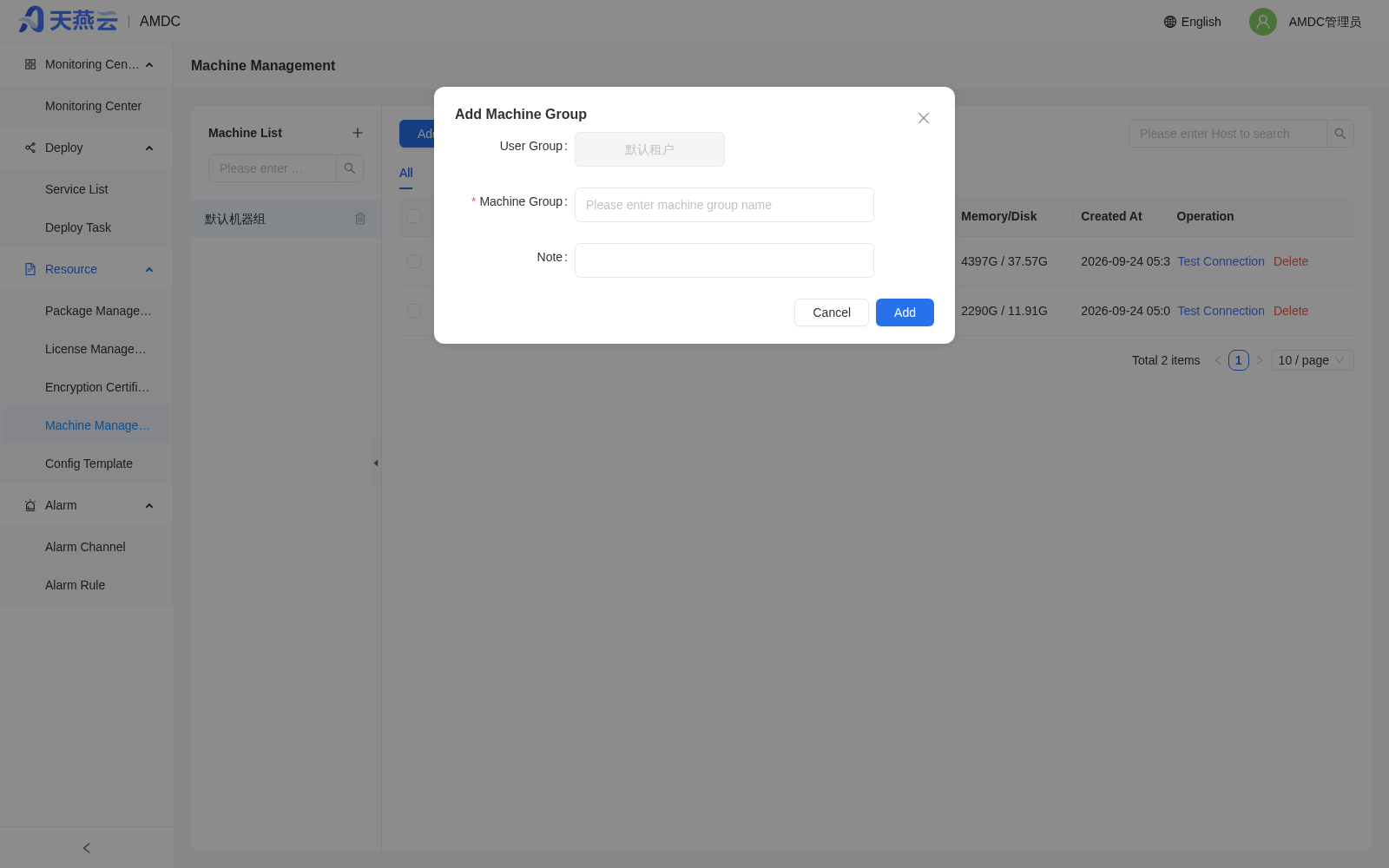
Apusiclet agent parameters:
| Parameter | Meaning |
|---|---|
| Username | Agent Basic Auth credential; can be left empty (authentication disabled); if the agent has credentials configured, enter the matching username |
| Password | Password of the agent Basic Auth credential; stored encrypted and never displayed in plaintext |
| Host | Address of the remote machine |
| Agent Port | Listening port of the Apusiclet service on the target host; default 9890 |
| Machine User | User that owns command execution and files (e.g., root); leave empty to use the agent default |
| Remarks | Can be empty |
Note:
- Before using the Apusiclet agent, deploy and start the Apusiclet service on the target host, and ensure the console can reach the Apusiclet service port; the Apusiclet version must match the console version.
- In the machine list, use [Test Connection] to verify machine connectivity and authentication information; when the Apusiclet channel is disconnected (heartbeat times out continuously), the machine status is set to offline, and operations depending on this channel are blocked with a prompt.
- The same host cannot be registered twice with both connection modes; the connection mode of a registered machine can be modified after passing the connection test.
# Delete Machines
Click [Resource Management] > [Machine Management] to enter the machine management page, check the machines to delete, and click the [Delete] button on the right side of the machine list to delete the machines in the current row; batch deletion is supported.
# Edit a Machine
Click [Resource Management] > [Machine Management] to enter the machine management page, check the machine to edit, and click the [Edit] button on the right side of the machine list to edit the machine information in the current row.
# Resource Management
Resource management is used to store AMDC installation packages and License files. Uploaded files undergo preliminary validation by the console to determine their availability, and are selected for use in automatic deployment.
Note: In the current AMDC administrator menu, installation packages, Licenses, machines, and configuration templates are uniformly placed under [Resource Management]. Version management is not directly displayed in the current menu; if the entry changes, please refer to the actual menu.
# Package Management
Go to [Resource Management] > [Package Management] to upload installation packages used for automatic deployment.
Upload an installation package
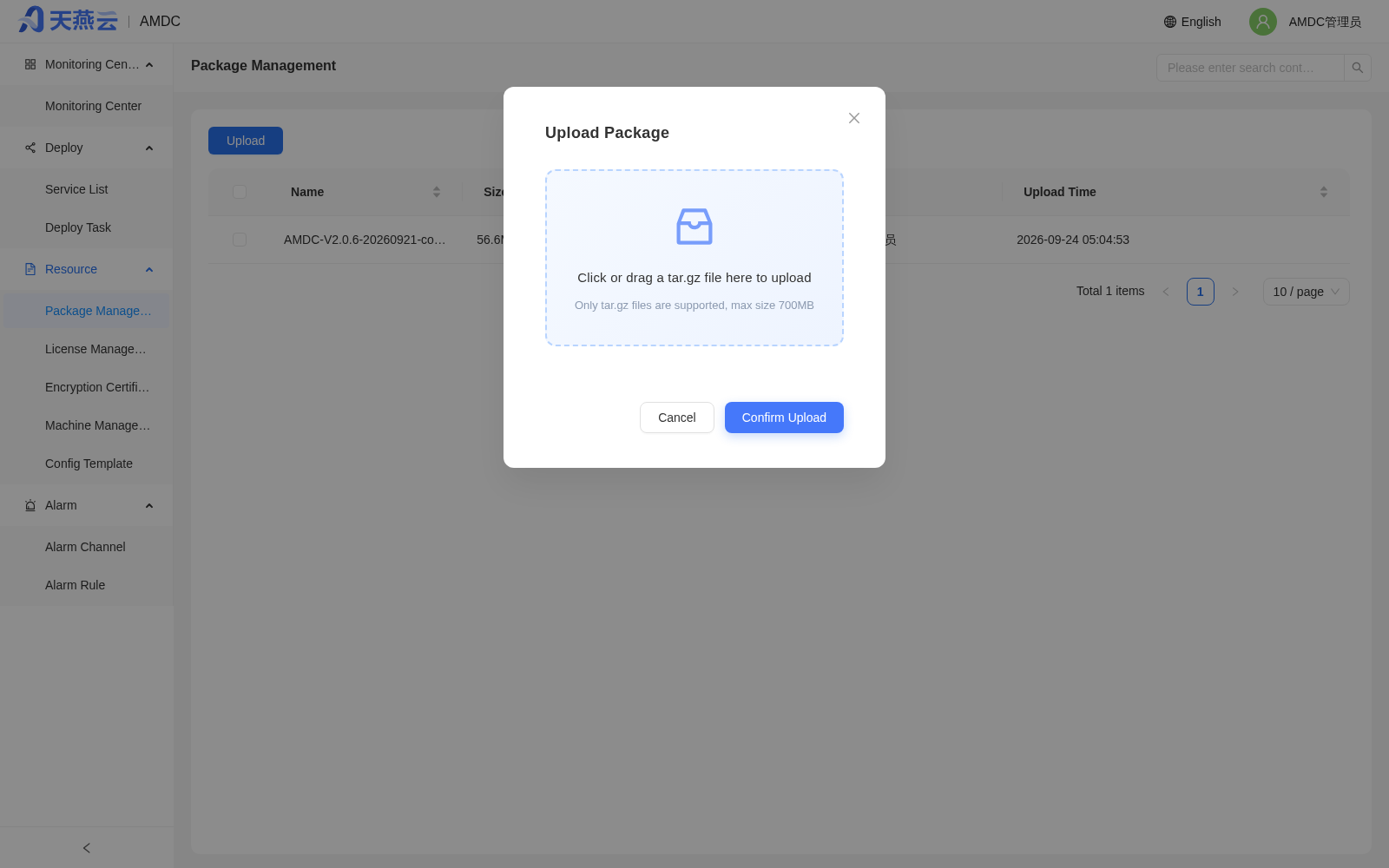
Click the [Upload] button to open the upload installation package pop-up window, click [Choose File] to select the installation package to upload, and then click OK.
Only one installation package can be uploaded at a time, and you can specify the package type (c or go).
Delete installation packages
Select the installation packages to delete and click the [Delete] button in the upper left corner; multiple packages can be deleted at the same time.
# License Management
Go to [Resource Management] > [Certificate Management] to upload Licenses used for automatic deployment. After uploading, the Licenses will be parsed, and invalid Licenses cannot be saved in the console.
Upload Licenses
Click the [Upload] button to open the upload License pop-up window, click [Choose File] to select the License files to upload, and then click OK; multiple files can be uploaded at the same time.
Delete Licenses
Select the Licenses to delete and click the [Delete] button in the upper left corner; multiple Licenses can be deleted at the same time.
# Generate Authorization Center File
On the License management page, click the [Generate Authorization Center File] button to generate the acls.properties authorization center configuration file, used for ACL authorization scenarios in clusters.
# Encryption Certificate Management
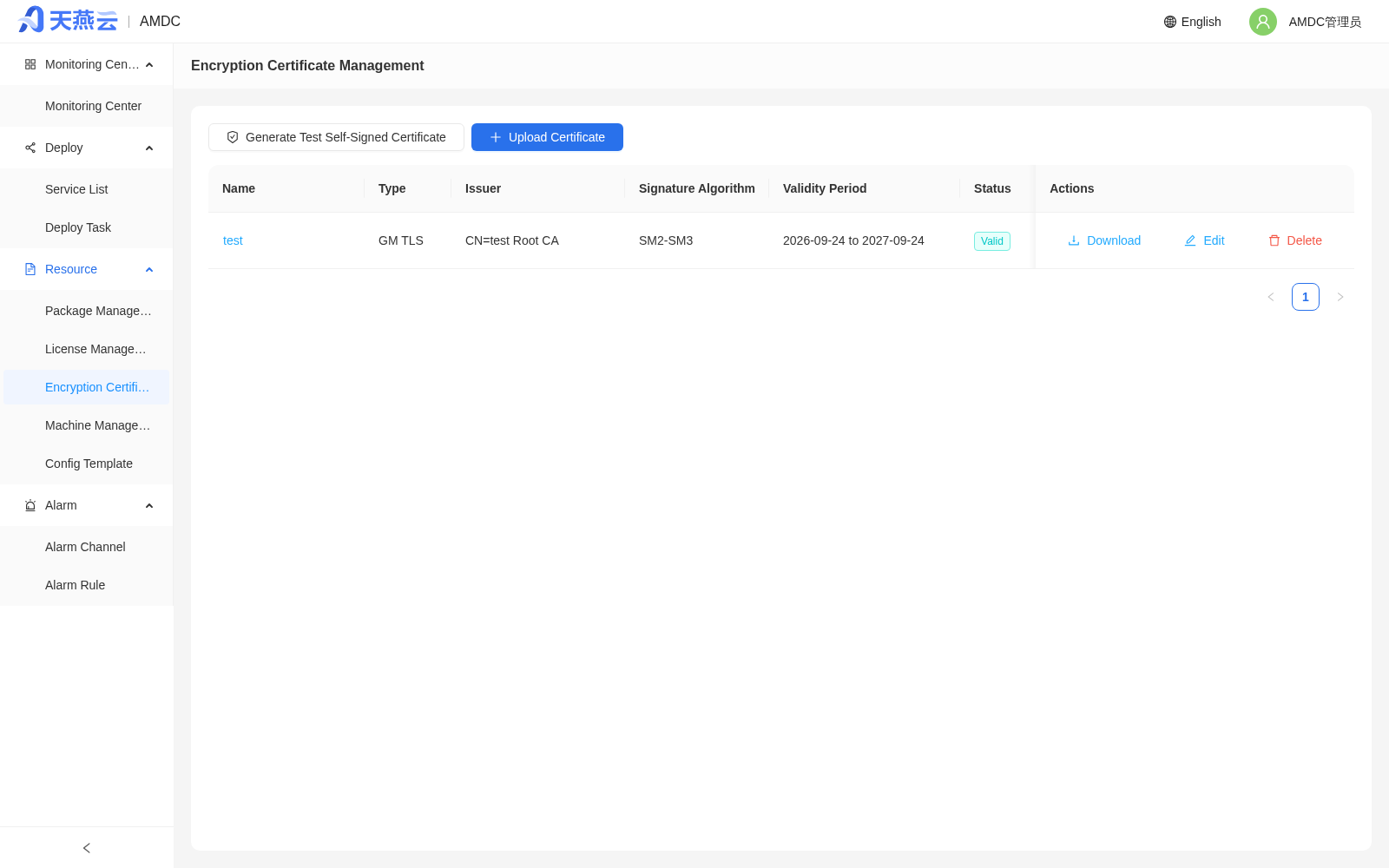
Go to [Resource Management] > [Encryption Certificate Management] to manage SSL/TLS certificates required for TLS-encrypted transmission. Certificates can be uploaded, generated, listed, downloaded, edited, and deleted. Certificate data is isolated by tenant; private keys are stored encrypted, never displayed in plaintext on the page, and cannot be exported.
Generate a test self-signed certificate
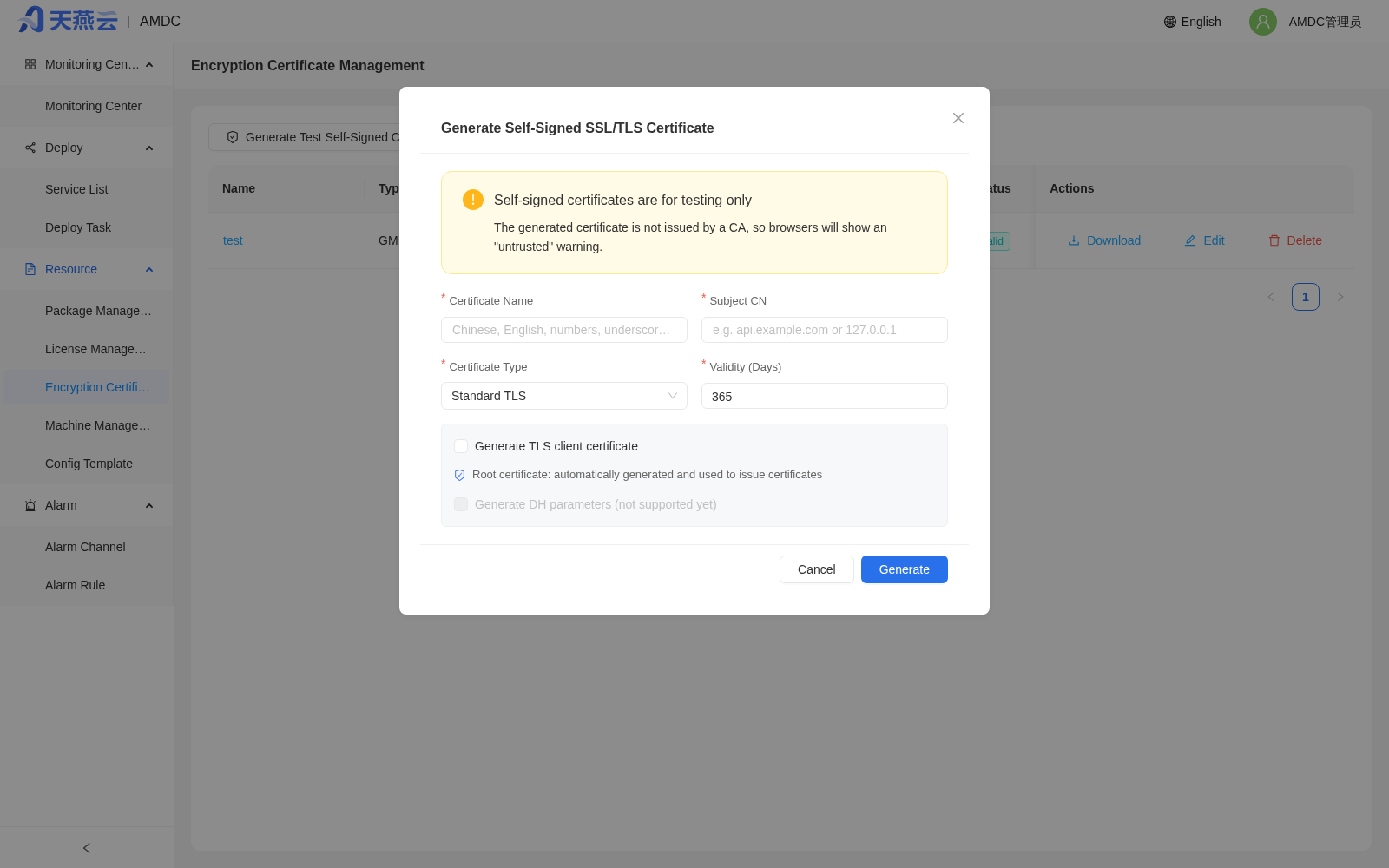
Click the [Generate Test Self-Signed Certificate] button, fill in the certificate name, subject CN, certificate type (Standard TLS), and validity period (days), and optionally choose whether to generate a TLS client certificate; the system automatically generates a CA certificate and uses it for signing.
Note: Self-signed certificates are for testing only. The generated certificate is not signed by a CA, and browsers will show an "untrusted" warning.
Upload a certificate
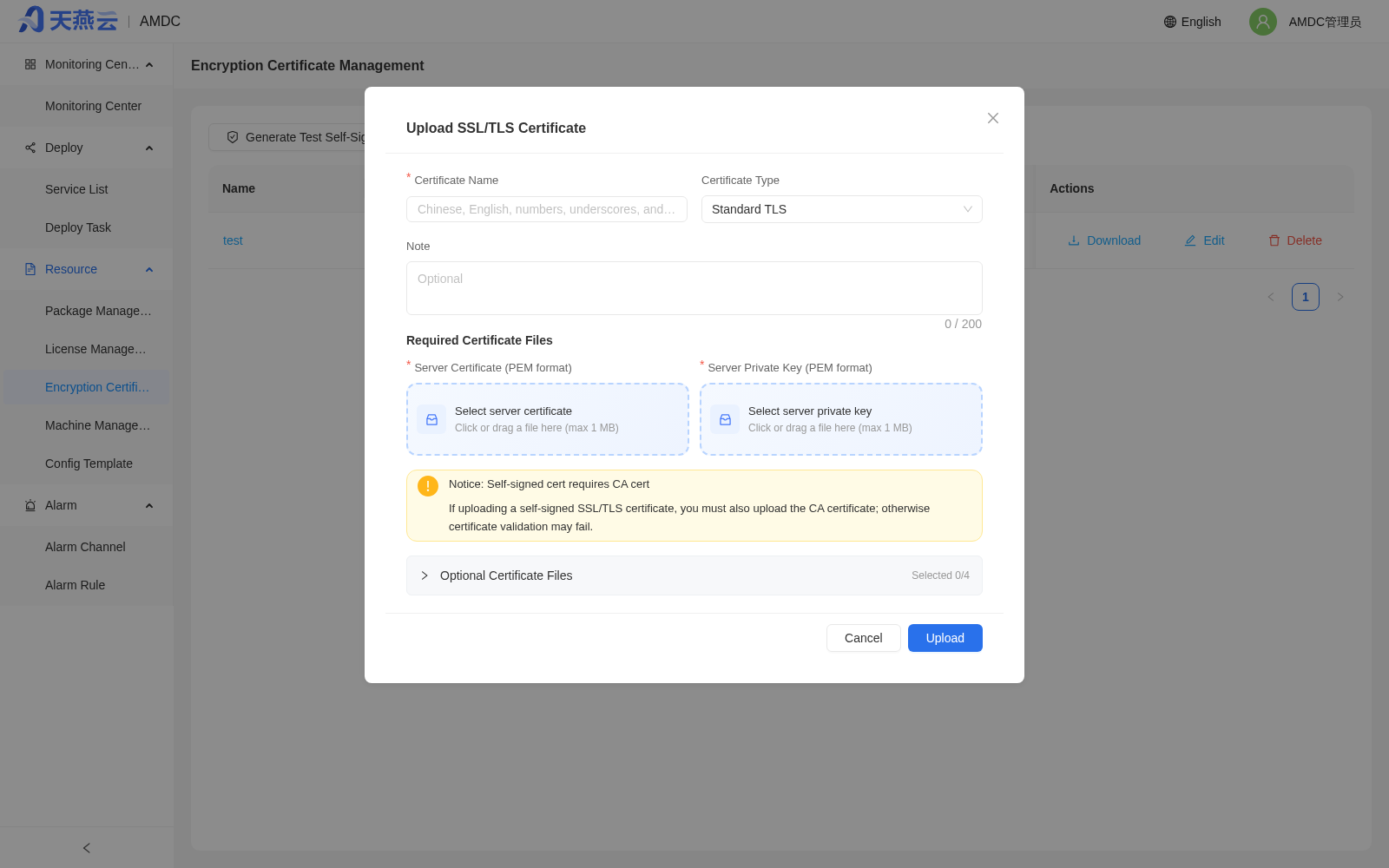
Click the [Upload Certificate] button, fill in the certificate name (only Chinese characters, letters, digits,
_, and-are supported), select the certificate type, and upload PEM-format certificate files (each file no larger than 1 MB):- Standard TLS: upload the server certificate and the server private key;
- GM TLS: upload the sign certificate, sign private key, encrypt certificate, and encrypt private key (four-file set).
During upload, the server validates the certificate format (PEM), the match between certificate and private key, and the validity period; if validation fails, the certificate is rejected with a specific reason. If you upload a self-signed SSL/TLS certificate, the CA certificate must be uploaded together, otherwise certificate verification may fail. After a successful upload, the list shows the name, type, issuer, signature algorithm, validity period, and status; when a certificate has less than 30 days before expiry, an expiring-soon reminder is shown in the certificate list and in the deployment selection UI; expired certificates cannot be used for new deployments.
Delete a certificate
Click the [Delete] button on the right side of the target row. A certificate in use by a cluster cannot be deleted; certificate upload and deletion are recorded in the operation log.
# Version Management
Version management is used to view and manage the version history of deployed AMDC instances, and supports version rollback operations on instances. Please refer to the actual deployment environment for the current menu entry.
# Configuration Templates
Click [Resource Management] > [Configuration Templates] to enter the configuration templates page, where you can define configuration templates for the cache core and Sentinel, and use the templates in [Automatic Deployment].
Note: Non-public parameters related to IP, port, etc. will not take effect in configuration templates, to ensure the normal operation of automatic deployment.
# Core Operation Flows
This section is organized by actual operations tasks and introduces how to complete the full lifecycle operations of services in the console.
# Automatically Deploy a New Service
AMDC administrator path: [Deployment Management] > [Automatic Deployment]
After entering the [Automatic Deployment] page, fill in the deployment information in a 4-step wizard:
- Basic Configuration: Service name, deployment mode, installation package, installation directory, AMDC password, sudo, auto-start on boot, etc.
- Topology Configuration: Select automatic/manual topology, configure the number of nodes, port range, machines, and License authorization.
- Configuration Templates: Select the cache core configuration template (Sentinel mode also requires selecting the Sentinel configuration template).
- Confirm Deployment: After confirming the information, save the task or execute it directly.
After filling in the information, you can click [Save Task] to save it only to [Deployment Management] > [Deployment Tasks], or click [Execute Task] to start deployment immediately. Deployment progress and status can be viewed in [Deployment Management] > [Deployment Tasks].
Prerequisites:
- The target server has been added in [Resource Management] > [Machine Management], and the SSH connection is normal.
- The installation package has been uploaded ([Resource Management] > [Package Management]).
- The License has been uploaded ([Resource Management] > [Certificate Management]).
- The target server has the
tarandsscommands.
Basic Configuration Parameters:
| Parameter | Meaning |
|---|---|
| Service Name | Unique identifier of the service; only supports letters, digits, underscores, and hyphens, no more than 24 characters |
| Deployment Mode | Standalone / master-slave / Sentinel / cluster / pre-generated nodes |
| Installation Package | Select an uploaded AMDC installation package version |
| Installation Directory | The root directory of the service installation (seat), e.g., /data/redis; nodes are actually located at {seat}/{port} |
| Encryption Mode | Off (default, TCP plaintext) / Standard TLS / GM TLS; when enabled, an uploaded TLS certificate of the matching type must be selected |
| AMDC Password | Cache core management password; click the settings button to configure complexity rules |
| sudo | Whether to use sudo privileges to execute installation commands |
| Auto-start on Boot | Whether the service runs automatically when the system starts |
You can use the auto-start on boot option to make the service start automatically after deployment is complete
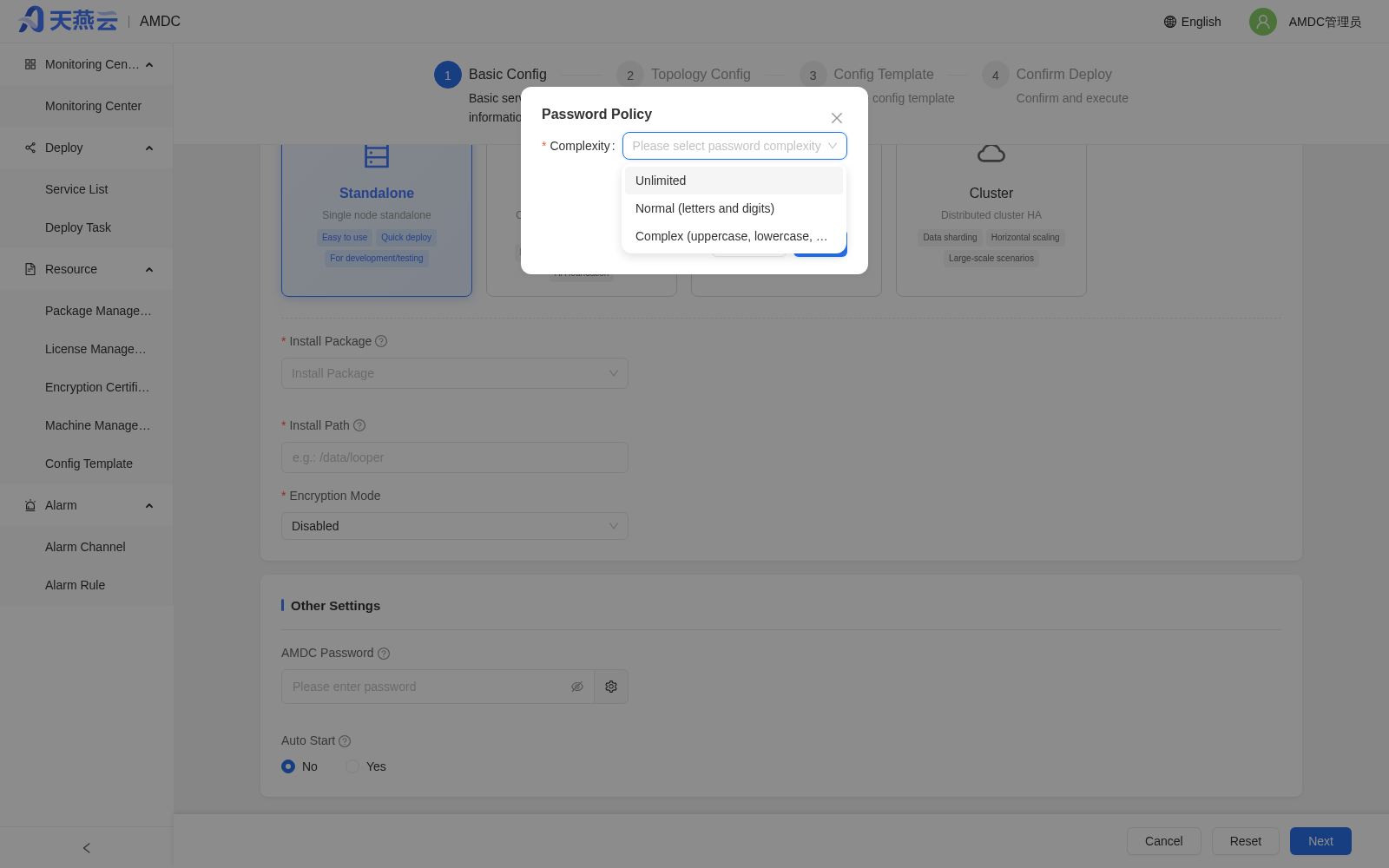
The settings behind the password lead to the password format requirements settings interface, where you can set password complexity and length
Topology Configuration Parameters:
| Parameter | Meaning |
|---|---|
| Topology Mode | Automatic: the system automatically assigns ports and roles; Manual: configure the machine, port, role, and license for each node |
| Available Port Range | The start and end ports for automatically assigned node service ports, default 6359–65535 |
| Number of Master Nodes | The number of master nodes; cluster mode requires at least 3 |
| Number of Slave Nodes | The number of slave nodes corresponding to each master node |
| Number of Sentinel Nodes | Dedicated to Sentinel mode; 3 or more recommended to ensure high availability |
| Machines and Licenses | Select the deployment machines and select License authorization for machines (non-Sentinel nodes); all machines must be in the same machine group |
# Automatically Deploy in Standalone Mode
Before automatic deployment in the console, ensure that the target server connection is normal, the target server has been added to the machine list (refer to Machine Management), and the target server has the tar and ss commands.
Operation steps:
- Select [Standalone] mode in the basic configuration; the default number of master nodes is 1 and slave nodes is 0.
- Select machines and assign Licenses in the topology configuration.
- After confirming the deployment information, click the [Install] button to perform one-click deployment.
Verify the automatic deployment result: click the [Deployment Management] > [Service List] menu to check whether the cluster has been generated and its status is healthy. You can use [Command Line] for further verification.
# Automatically Deploy in Master-Slave Mode
Before automatic deployment in master-slave mode in the console, ensure that the target server connection is normal and the target server has been added to the machine list (refer to Machine Management).
Operation steps:
- Select [Master-Slave] mode in the basic configuration, and select the AMDC core installation package and License according to the page content.
- Select machines, configure the number of master-slave nodes, and assign Licenses in the topology configuration.
- Click [Install] to automatically complete the master-slave deployment.
# Auto-deploying Sentinel Mode
Before auto-deploying Sentinel mode from the console, make sure the target servers are reachable and have been added to the machine list (see Machine Management).
Steps:
- Select the [Sentinel] mode in the basic configuration.
- In the topology configuration, select machines, configure the number of master/slave nodes and Sentinel nodes, and assign licenses.
- Select the Sentinel configuration template in the configuration template step.
- Click [Install] to automatically complete the Sentinel deployment.
# Auto-deploying Pre-generated Node Mode
Pre-generated nodes are used in scenarios such as smooth migration: cluster nodes are deployed in advance but do not join the cluster (no CLUSTER MEET is executed), so they can be switched over directly during migration.
Steps:
- Select the [Pre-generated Nodes] mode in the basic configuration.
- Configure the number of nodes, machines, and licenses as in Cluster mode.
- After deployment, the nodes remain in standby state and can later be selected in [Smooth Migration].
# Importing an Existing Cluster or Standalone Instance
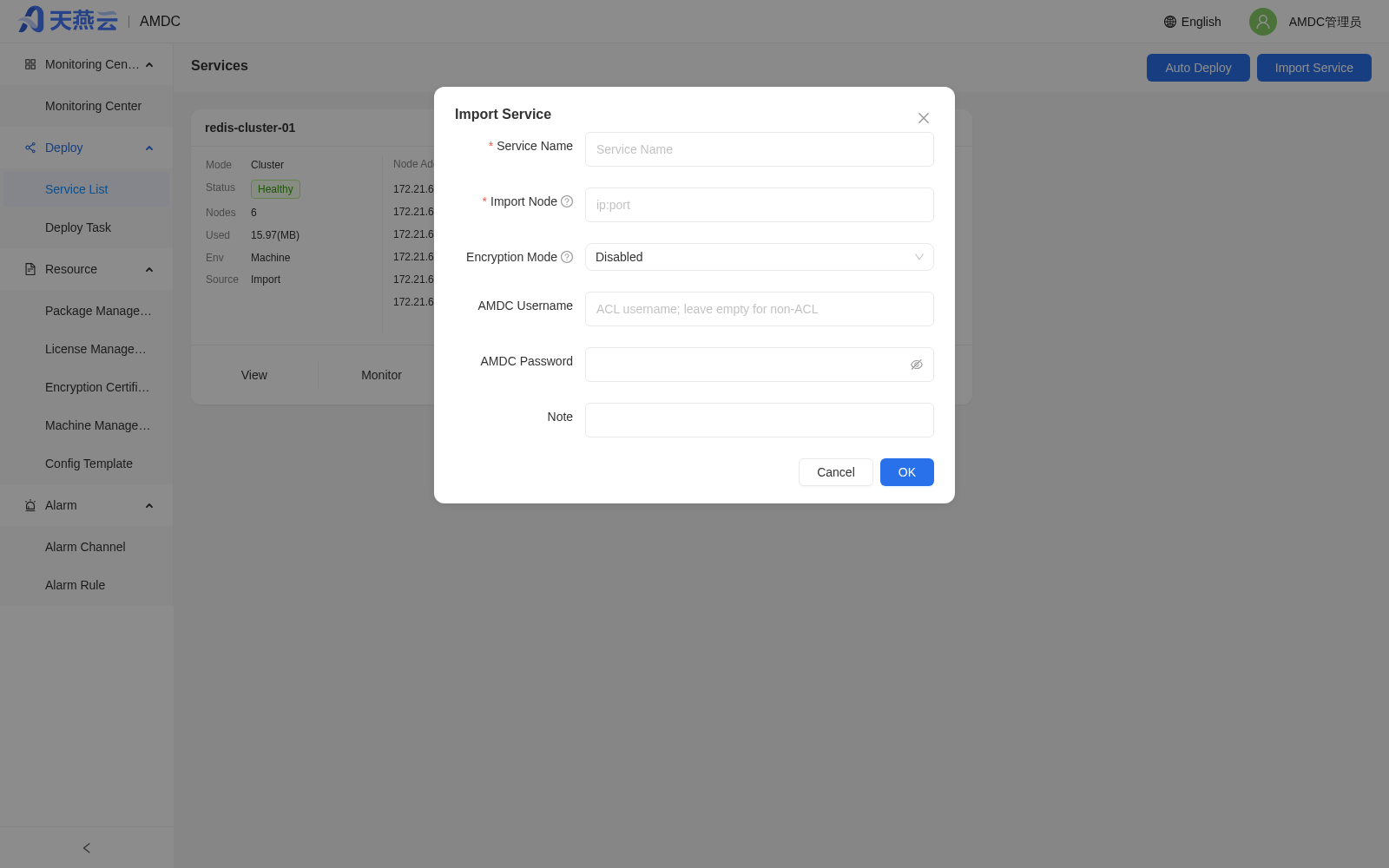
For AMDC cache cores that were not deployed by the console, you can import them into the console to perform monitoring, modification, command execution, and other operations. Go to the service list and click the [+] import button, then fill in the information of the cluster/standalone instance to be monitored as prompted on the page.
| Parameter | Description |
|---|---|
| Cluster Name | Custom cluster name |
| AMDC Password | Password of the AMDC cache core |
| AMDC Node | IP:port of the AMDC cache core |
# Scaling Out Nodes
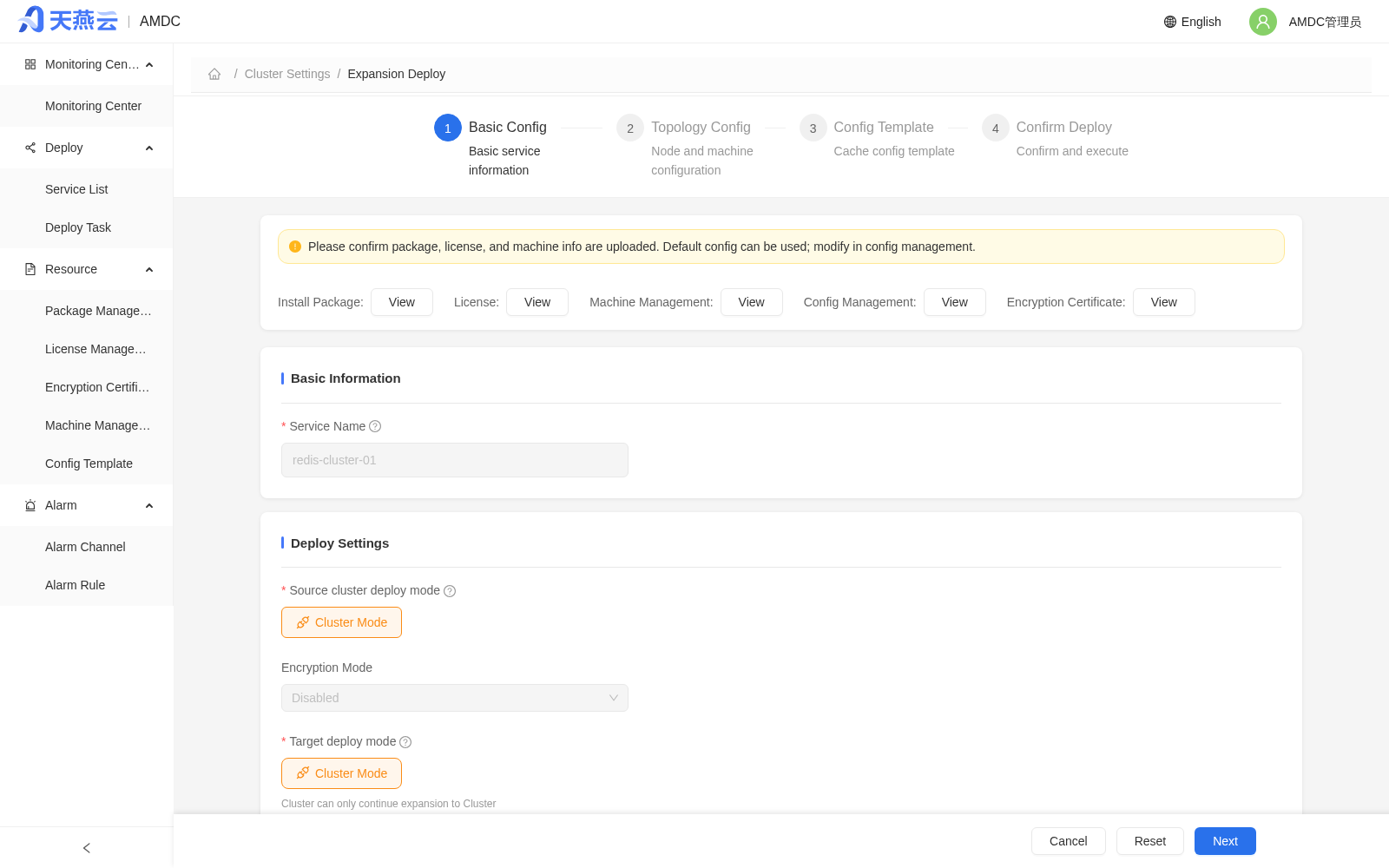
Click the [Scale Out] button to jump to the auto scale-out page, where you can add slave nodes in master-slave mode or add nodes in Cluster mode.
The original cluster service name is inherited during scale-out and cannot be modified; the selectable range of the target deployment mode is limited by the original mode:
- Standalone → can be scaled out to Master-Slave or Sentinel
- Master-Slave → can be scaled out to Master-Slave or Sentinel
- Sentinel → can only be scaled out to Sentinel
- Cluster → can only be scaled out to Cluster
The scale-out wizard is the same as auto deployment and consists of 4 steps: basic configuration, topology configuration, configuration template, and deployment confirmation. The topology configuration is pre-filled with the original cluster information; adjust the number of nodes, machines, and licenses as needed and then execute.
# Removing Nodes (Scale In)
Go to Service Details > [Settings], select the node to operate on, and click the [Node Operations] drop-down menu:
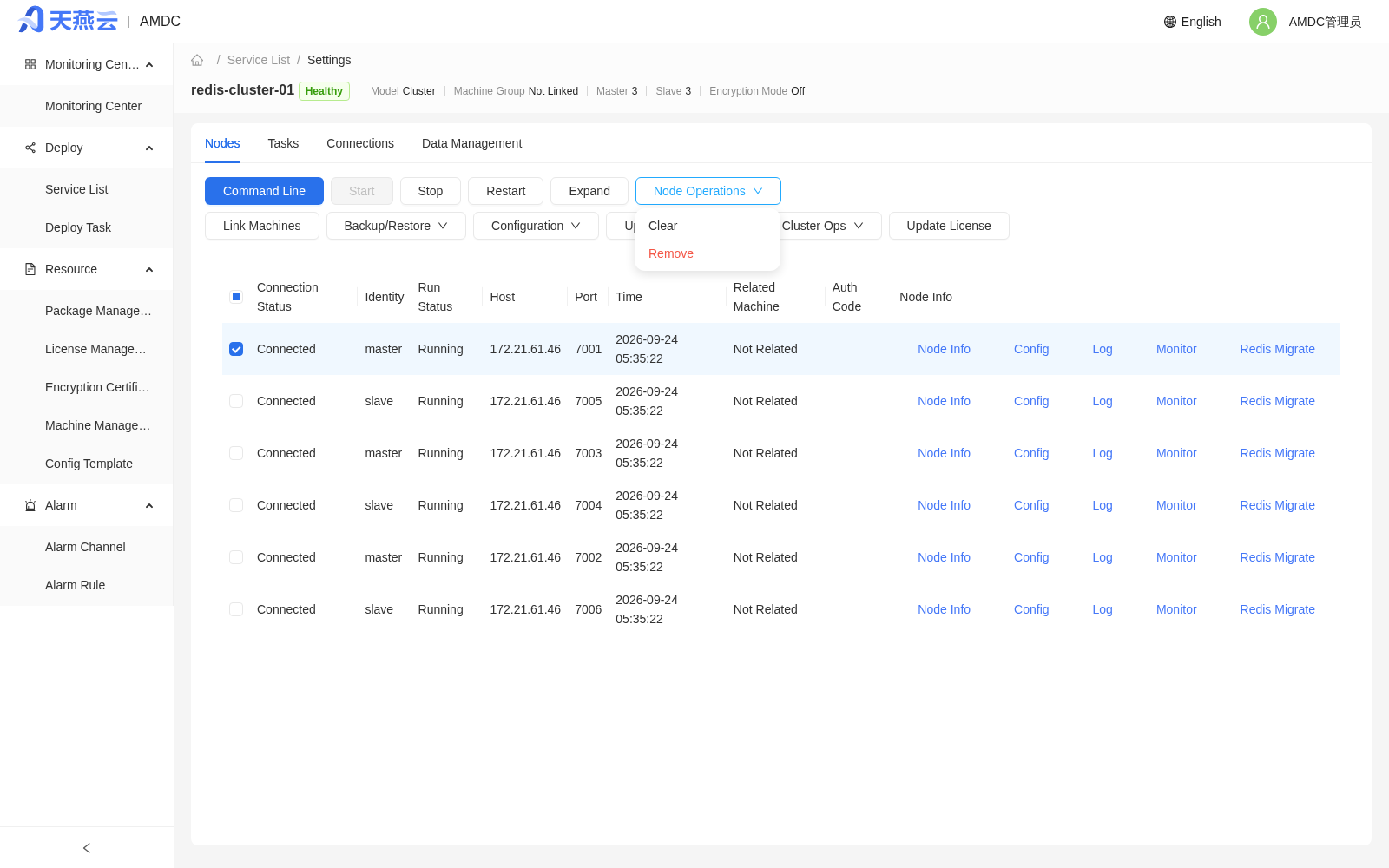
- Flush: clears the distributed cache data of the currently selected node. Executed after confirmation.
- Remove: removes the selected node from the cluster. Executed after confirmation; if the removed node is a master, the system automatically performs failover or data migration (the specific behavior depends on the deployment mode).
Note: Removing nodes changes the cluster topology. It is recommended to perform this operation during off-peak hours and back up data in advance.
# Cluster Upgrade
Click [Upgrade] in the [Upgrade/Rollback] drop-down menu at the top of the [Settings] page to open the "Cluster Upgrade" drawer.
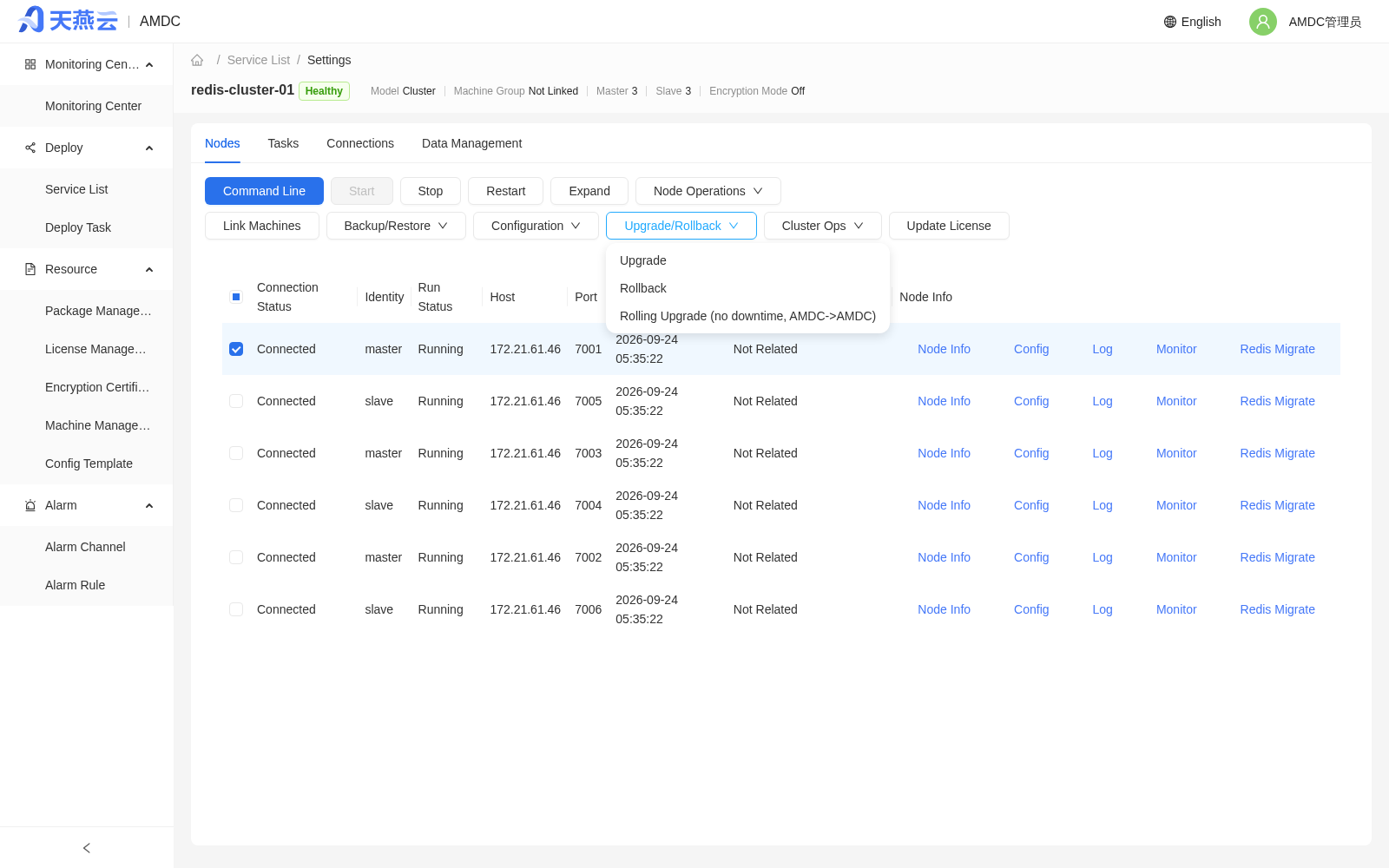
Upgrade notes:
- The upgrade stops the entire cluster and replaces the binaries; the cluster is unavailable during this period.
- If the upgrade fails, the system automatically rolls back to the pre-upgrade version from the backup.
- Only upgrades to the same or a higher version are supported; to return to an earlier version, use smooth migration.
- Node data is automatically backed up before the upgrade. Make sure each node has sufficient disk space.
Select the installation package to upgrade to in the list and click [Confirm Upgrade]. The system creates an upgrade task and executes it in the background. During the upgrade, you can observe the cluster status in the task list or the Monitoring Center.
# Version Rollback
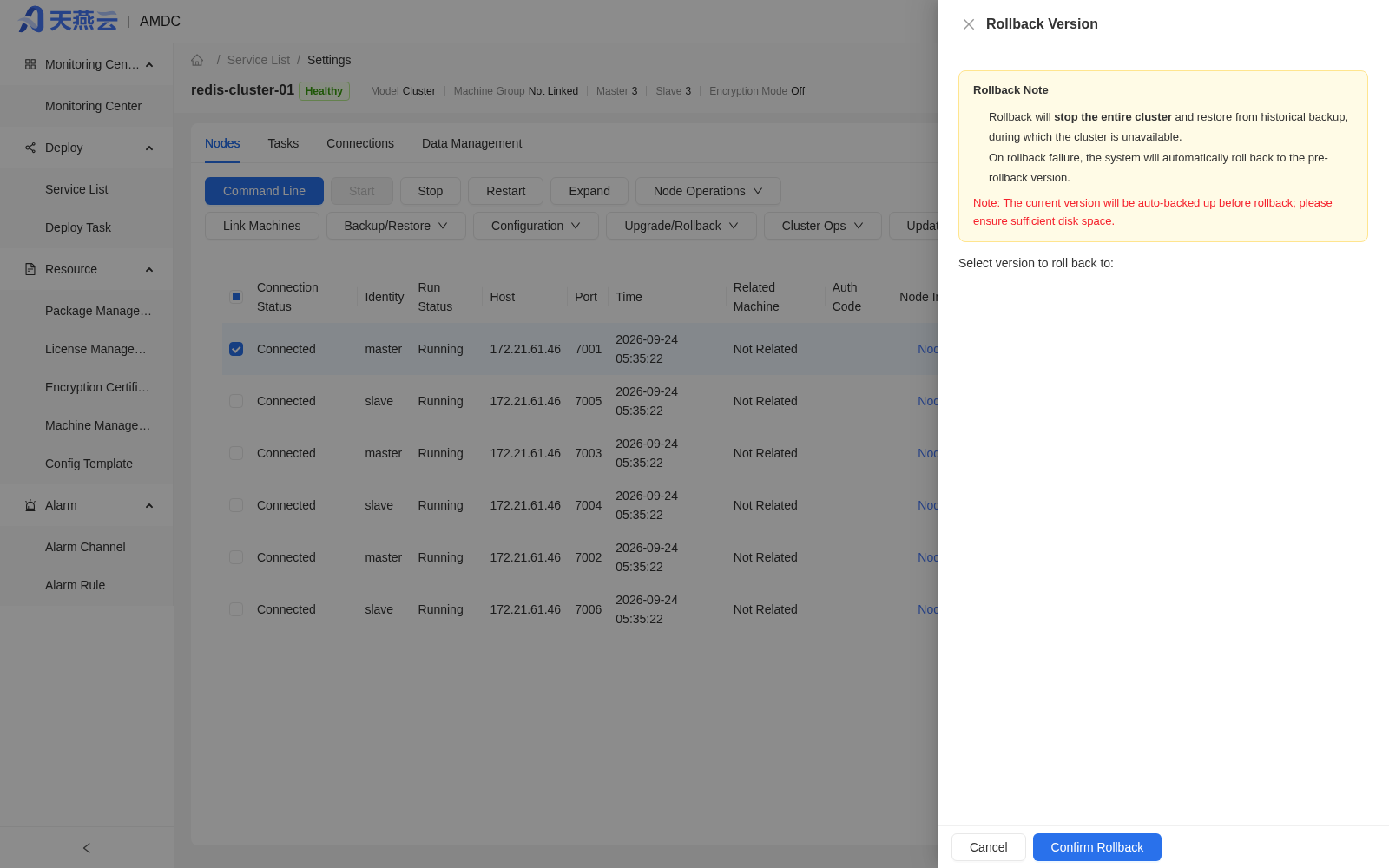
Click [Version Rollback] in the [Upgrade/Rollback] drop-down menu at the top of the [Settings] page to open the "Version Rollback" drawer.
Rollback notes:
- The rollback stops the entire cluster and restores a historical backup; the cluster is unavailable during this period.
- If the rollback fails, the system automatically rolls back to the pre-rollback version from this backup.
- The current version is automatically backed up before the rollback. Make sure each node has sufficient disk space.
Select the historical version to roll back to in the list (marked as "Upgrade Backup" or "Rollback Snapshot") and click [Confirm Rollback] to execute.
# Business-Non-Interrupting Rolling Upgrade (AMDC→AMDC)
Click [Business-Non-Interrupting Rolling Upgrade (AMDC→AMDC)] in the [Upgrade/Rollback] drop-down menu at the top of the [Settings] page to open the rolling upgrade drawer. Unlike full-stop upgrade, rolling upgrade executes node by node in phases of slave → master → failback (role restoration) → sentinel, minimizing business interruption: the cluster is unaffected while slave nodes are being upgraded; while a master node is being upgraded, automatic failover takes over with only a second-level switchover interruption; after all data nodes are upgraded, roles are automatically restored to the pre-upgrade IPs.
Steps:
- In the drawer, select the [Execution Mode]: Auto Execute (default) or Step-by-Step Confirmation (the task pauses before upgrading master nodes and before role restoration, showing the topology snapshot and replication status, and continues after confirmation).
- Select the target installation package in [Select the installation package to upgrade to] (the version must not be lower than the current cluster version).
- Confirm the default upgrade order generated by the system (nodes of the same role are ordered lexicographically by host:port; master nodes without a slave are highlighted in red), then click [Start Rolling Upgrade] to create a rolling upgrade task.
- Observe the execution status and logs of each phase and node in the task progress drawer.
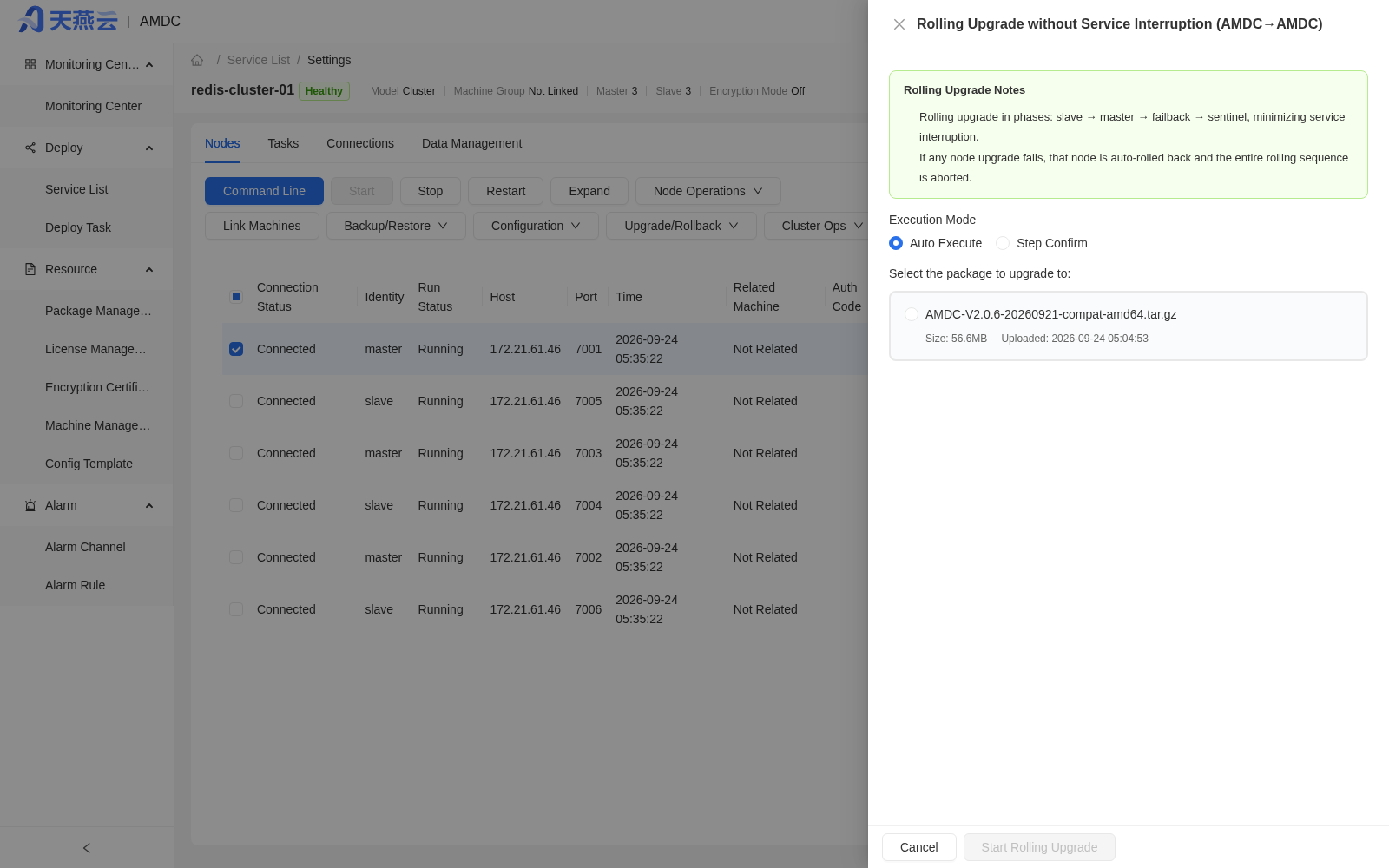
Notes and constraints:
- Supports AMDC clusters in master-slave, Sentinel, and cluster modes; after the upgrade, the service role on each IP remains consistent with that before the upgrade.
- If any node fails to upgrade, that node is automatically rolled back and the entire rolling sequence is aborted immediately, with the task marked as failed; nodes already upgraded keep the new version and are not rolled back; if role restoration fails, perform failback manually as prompted.
- Before upgrading master nodes, ensure each master has at least one available slave; otherwise the corresponding slots/write service are briefly unavailable during the upgrade.
- It is recommended to execute during off-peak business hours; after a service restart, the task supports resuming from the current phase breakpoint.
Note: Go-version services do not support this kind of upgrade or migration. The Go-version data service process does not support replacing binaries as a whole in a rolling manner; the drawer serves only as a reserved entry. Please use [Single-Node Upgrade] to replace nodes one by one (not available in cluster mode), use [Smooth Migration] with a newly created cluster, or deploy the new-version binaries directly and restart nodes in a rolling manner.
# Smooth Migration
Click [Smooth Migration] in the [Cluster Operations] drop-down menu at the top of the [Settings] page to migrate data from the current cluster to a target cluster.
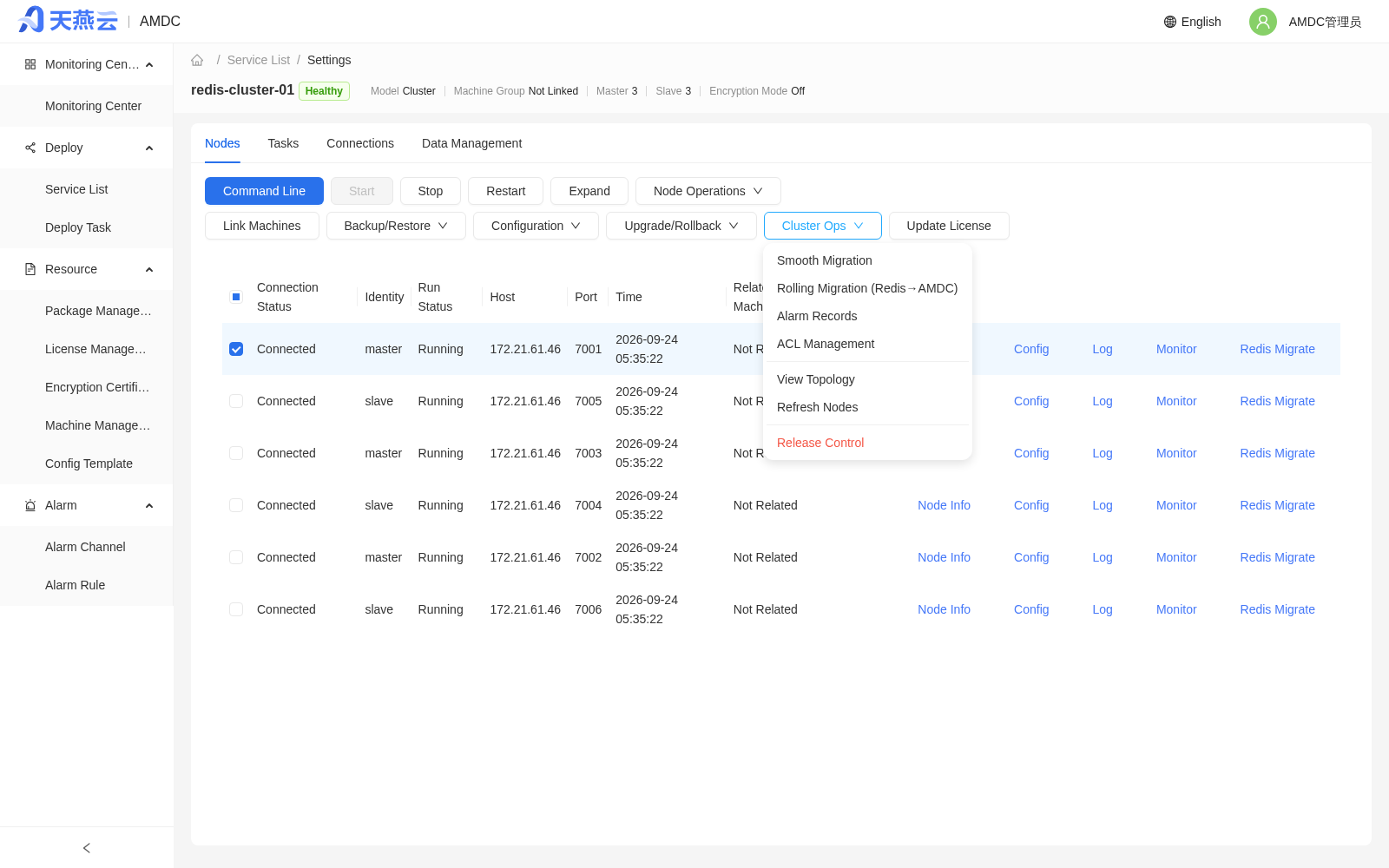
Migration notes:
- Smooth migration migrates data from the source cluster to the target cluster through incremental synchronization, with no downtime required during migration.
- There is only a brief write freeze at the moment of switchover.
- After the migration is complete, the business access IP/port will change. Update the client connection configuration in advance.
- In Sentinel mode, Sentinel nodes do not participate in the migration. After migration, check whether the Sentinel configuration points to the new master-slave nodes.
Steps:
- In the "Cluster Migration" window that pops up, view the migration instructions according to the current mode.
- Click [Create Target Nodes] and create the target nodes through the auto deployment wizard in the drawer; after creation, the system automatically fills in the target IP/port/password.
- In Cluster mode, a corresponding target node must be created for each source node.
- After confirming that the target information is correct, click [Next] to enter the migration confirmation page.
- Read the migration risk notice: during the migration, the source cluster will experience a brief write freeze (about 30 seconds). Make sure the business side can tolerate a short write interruption and prepare a connection configuration switchover plan in advance.
- After confirming the information, execute the migration. The system displays the migration progress.
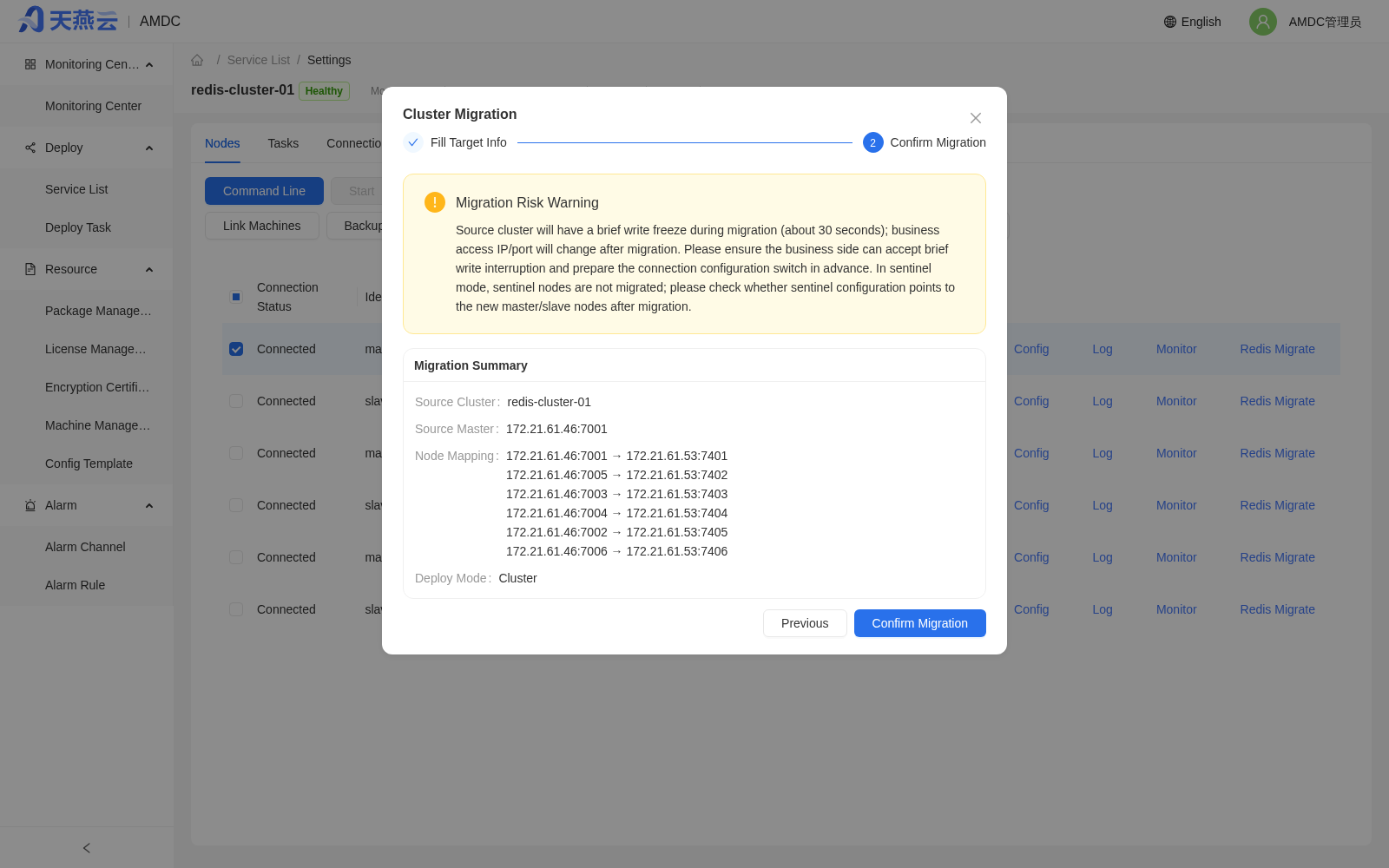
# Business-Non-Interrupting Rolling Migration (Redis→AMDC)
Click [Business-Non-Interrupting Rolling Migration (Redis→AMDC)] in the [Cluster Operations] drop-down menu at the top of the [Settings] page to replace a managed native Redis cluster (master-slave / Sentinel / cluster mode) with AMDC node by node in a rolling manner, with essentially no business interruption.
Migration notes:
- Redis nodes are migrated to AMDC in rolling phases of slave → master → failback; nodes that are already AMDC do not participate in this plan.
- Before each node is migrated, the system automatically backs up
redis.conf, the data files (rdb/aof), and the binaries; during migration, the original Redis configuration is converted to the target-version AMDC configuration (amdc.conf/sentinel.conf). - If any node fails to migrate, that node is automatically rolled back to its Redis form and the entire rolling sequence is aborted.
- After a successful migration, the node type is flipped to AMDC; after all data nodes are migrated, role restoration (failback) is executed so that the role on each IP is consistent with that before the migration.
Steps:
- In the drawer, select the [Execution Mode]: Auto Execute (default) or Step-by-Step Confirmation.
- Select the target AMDC installation package in [Select the installation package to migrate to].
- In migration mode, select a valid License for each data node (master/slave); sentinel nodes do not require a License.
- After confirming the migration plan, click [Start Rolling Migration] and observe the execution in the task progress drawer.
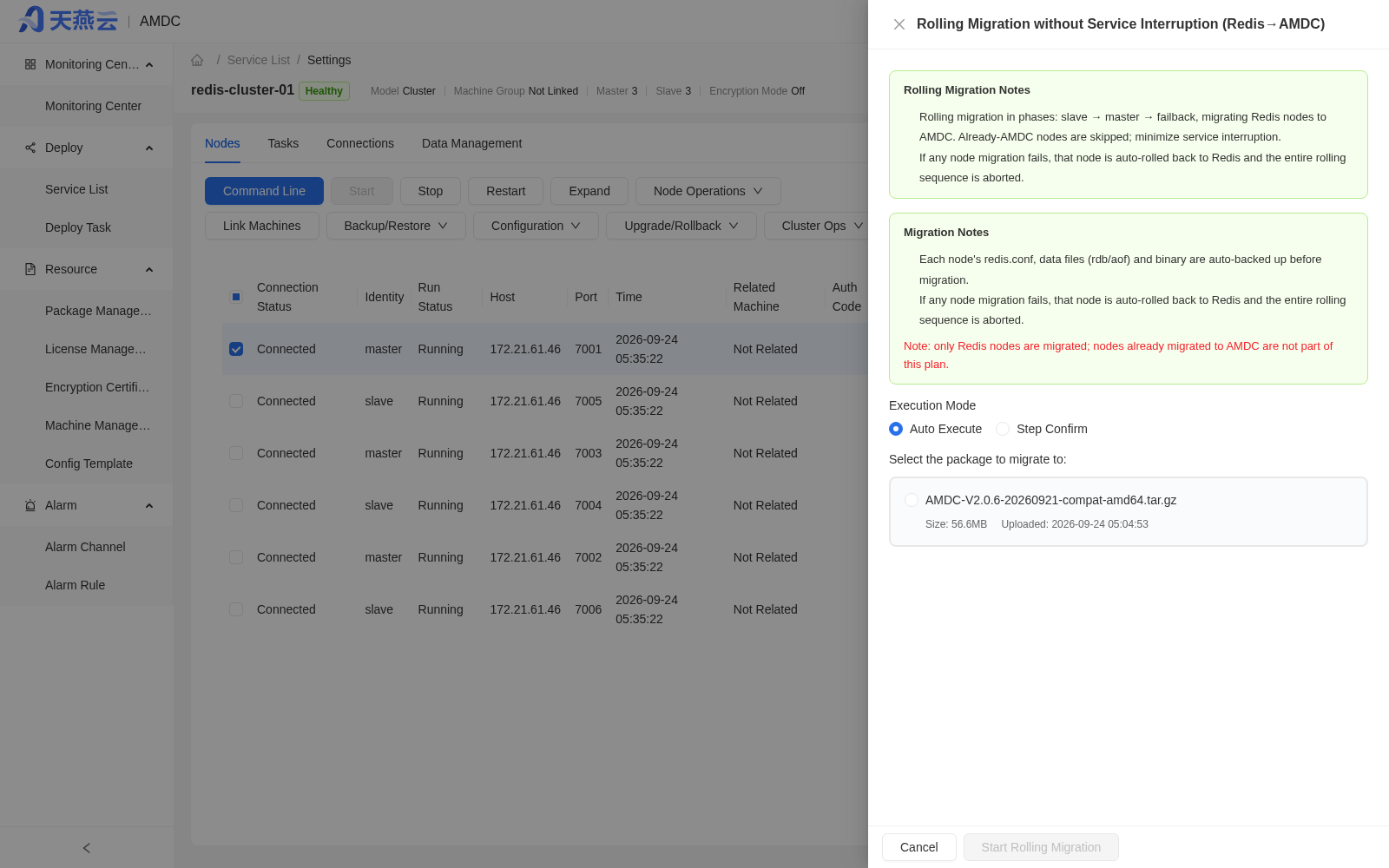
Note: Go-version services do not support this kind of upgrade or migration; in this scenario, use [Smooth Migration] with a newly created cluster instead.
# Refreshing Nodes and Associating Machines
# Refreshing Nodes
Click [Refresh Nodes] in the [Cluster Operations] drop-down menu at the top of the [Settings] page. The system re-probes the actual cluster node topology and compares it with the console's current records.
Refresh notes:
- After the refresh is confirmed, newly added nodes are brought under management, detached nodes are removed, and role changes are corrected.
- This operation only synchronizes node metadata; it does not stop or restart nodes and does not affect business access.
- When the number of nodes or roles displayed on the console is inconsistent with the actual cluster, it is recommended to perform a node refresh.
After the refresh is complete, a pop-up window displays the comparison result (the number of currently recorded nodes, the number of actually probed nodes, and a description of the changes).
# Associating Machines
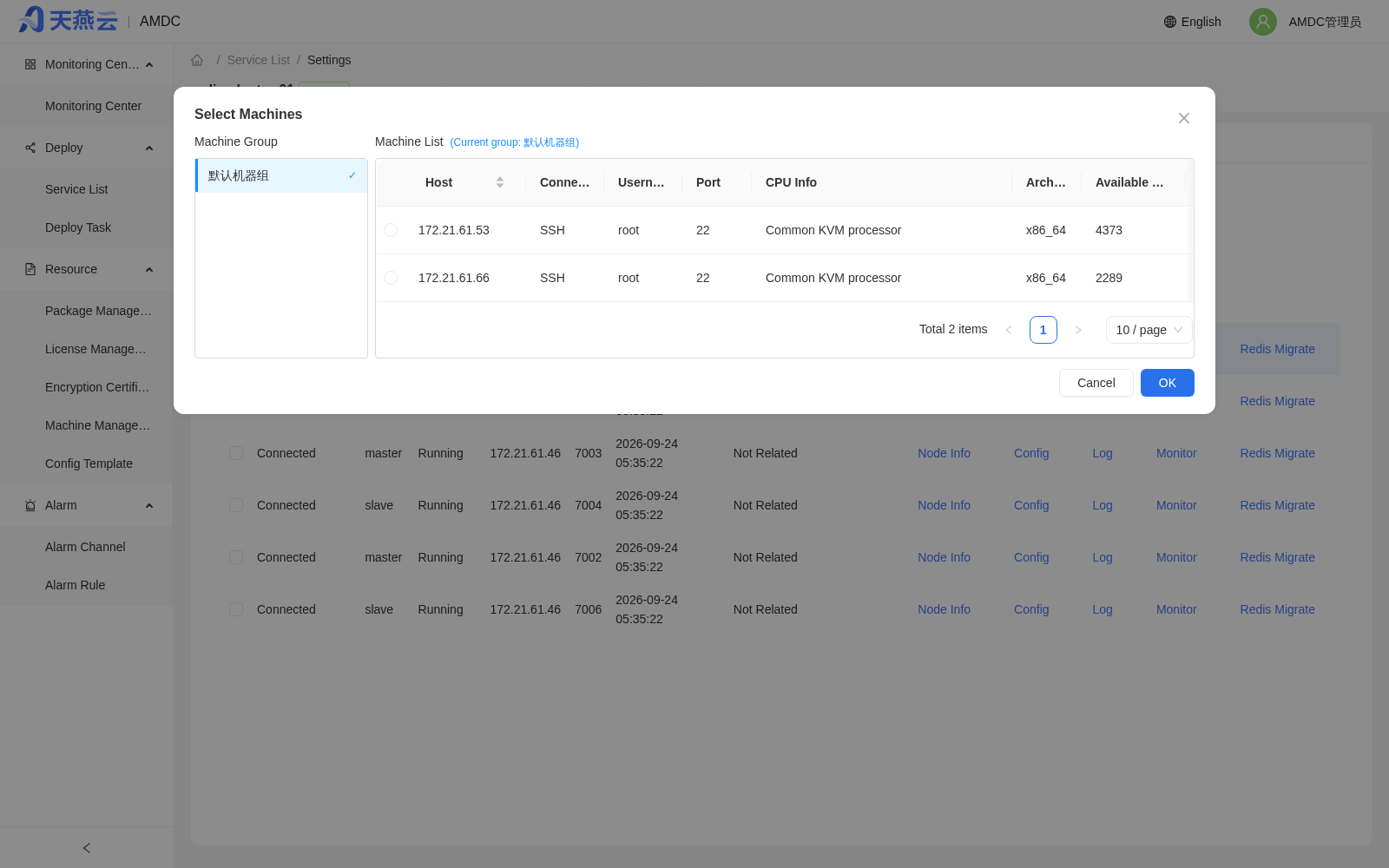
Go to [Deployment Management] > [Service List], click the service name to enter the service details, and then click [Settings] to enter the cluster settings page. Select the corresponding node and click the [Associate Machine] button to associate the imported node with the machine information, which provides the node with full management capabilities.
# Connection Management (Client Connection Visualization)
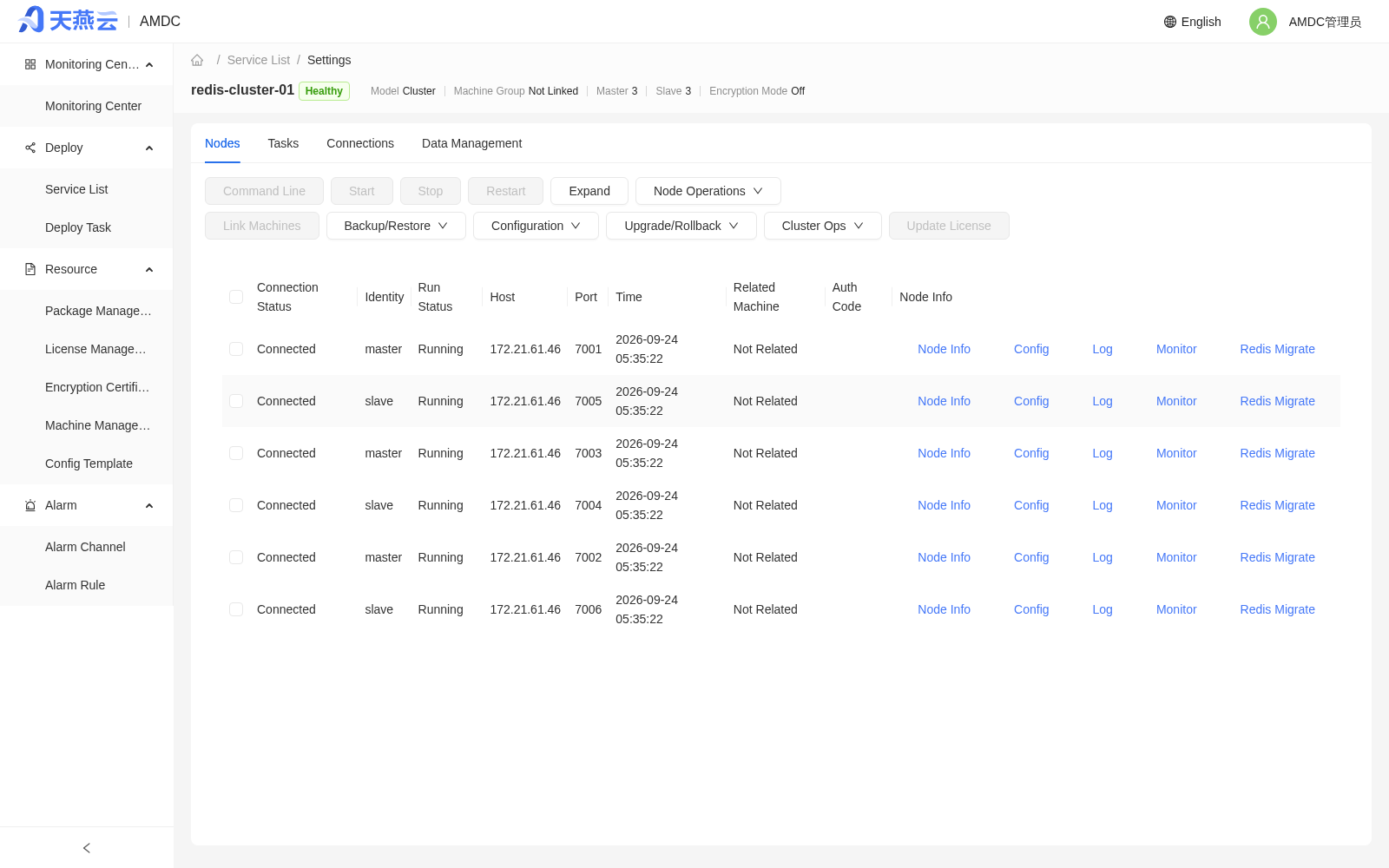
On the service details page ([Deployment Management] > [Service List] > click the service name > [Settings]), in addition to the [Nodes] and [Tasks] tabs, the [Connection Management] tab is provided to view the client connection list of a target node in real time and disconnect abnormal connections.
Page notes:
- Node selection: Use the drop-down box in the upper left of the page to select the node to view (the first master node with a normal connection is automatically selected by default); the list is queried in real time based on
CLIENT LISTand is not persisted. - Filtering and refresh: Supports fuzzy filtering by name and by address; click [Query] to apply the filter conditions; click [Refresh] to refresh manually; [Auto Refresh] supports four levels: Off / 5s / 10s / 30s.
- List fields: ID, address (one-click copy supported), name, DB, latest command, client.obuf, user, idle duration (sortable), connection duration (sortable), flags; pagination supports 20 / 50 / 100 / 200 items per page.
- Console connection protection: The connection named
consoleis the console's own management connection; do not disconnect it.
Disconnecting connections:
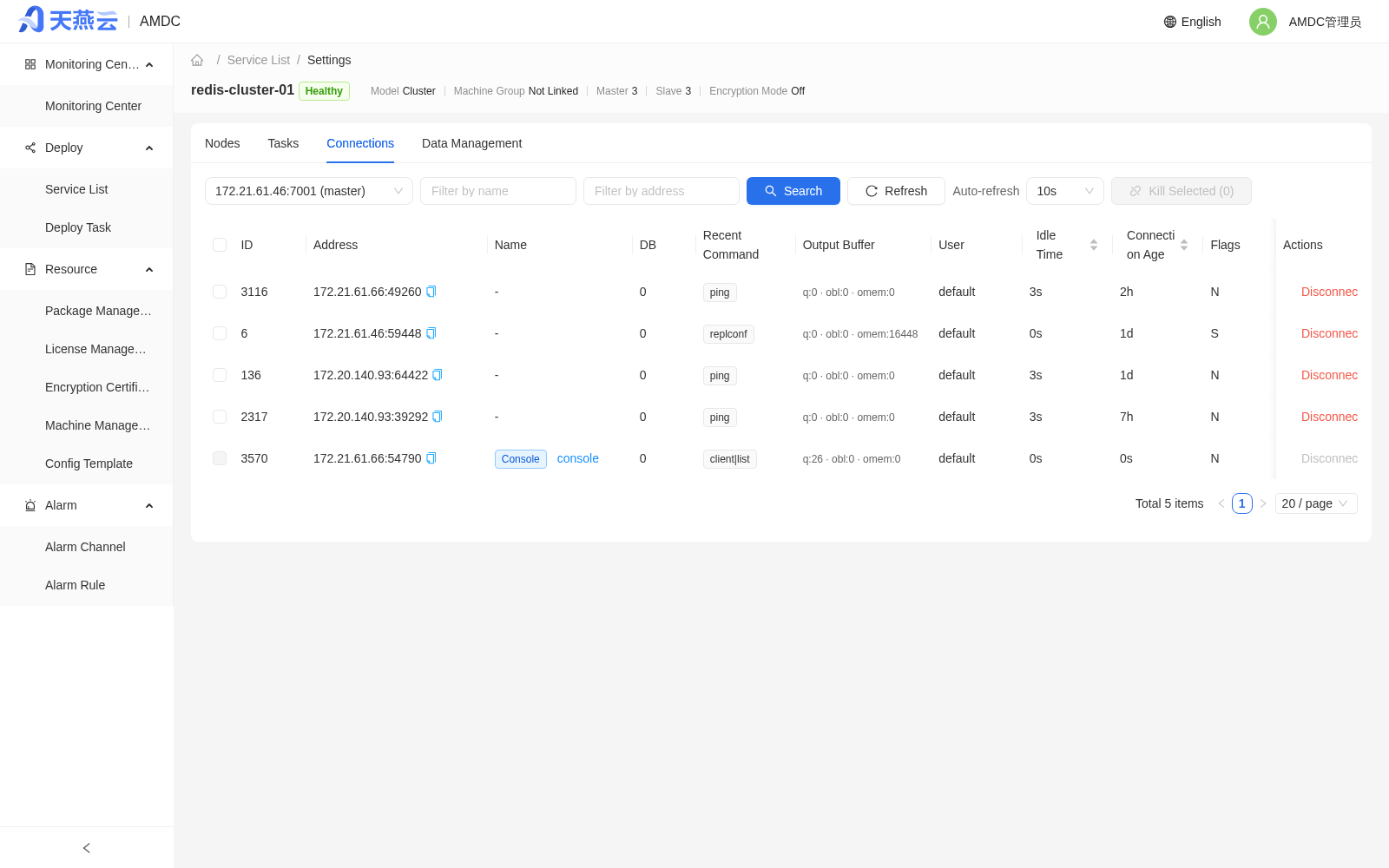
- Single disconnect: click [Disconnect] on the right side of the target row; batch disconnect: check multiple clients and click [Disconnect Selected] in the upper right.
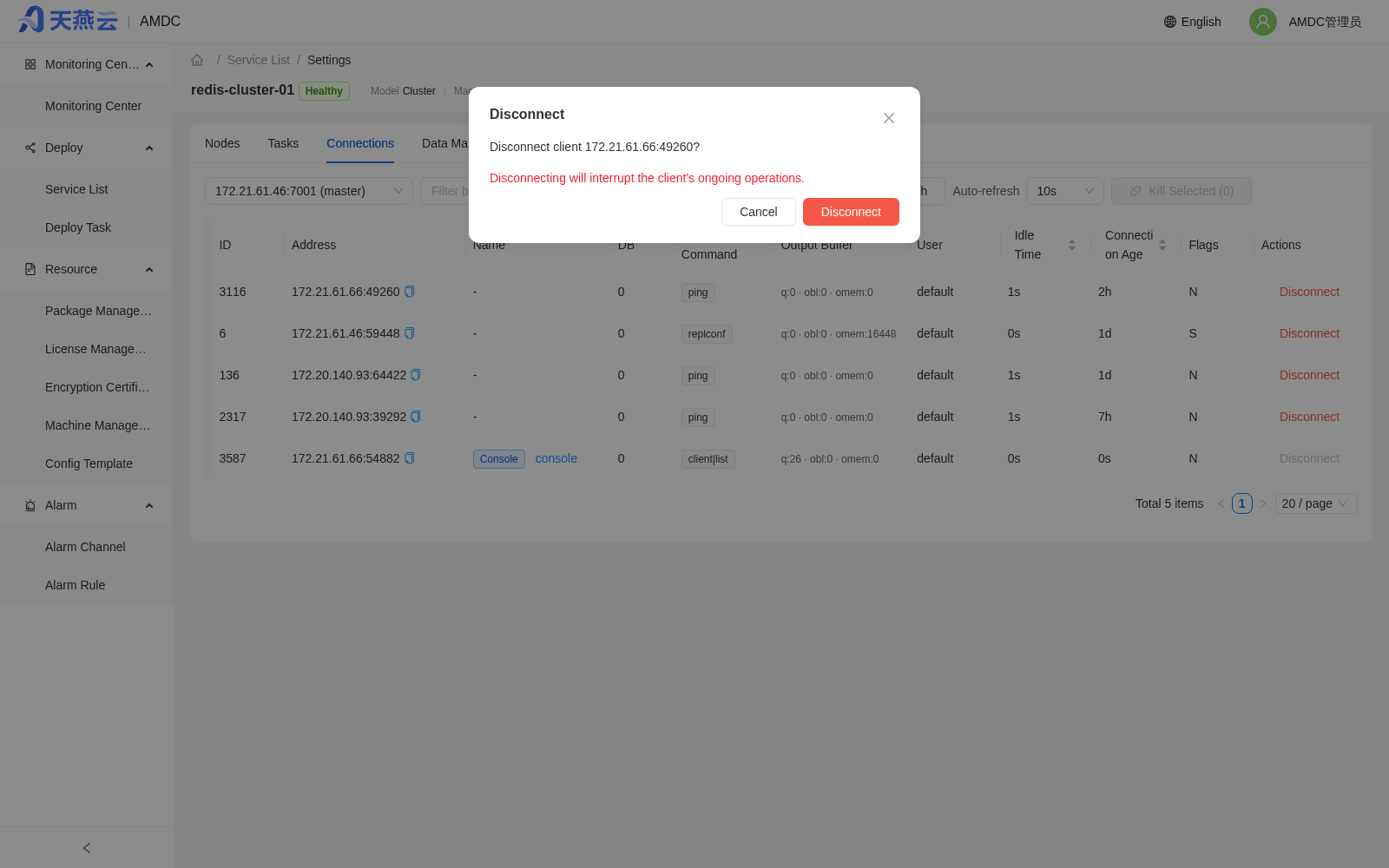
- The system pops up a secondary confirmation box with a red warning that "disconnecting a connection will interrupt the ongoing operations of the corresponding client"; after confirmation,
CLIENT KILLis executed one by one. - Successfully disconnected connections are removed from the list immediately; if a batch disconnect partially fails, the numbers of successes and failures are prompted. A disconnected connection may be automatically rebuilt by the client.
Note:
- The disconnect operation can only be performed by the AMDC administrator and tenant administrator roles; other roles can only view. Disconnect operations are recorded in the audit log.
- When the target node's connection status is abnormal, the page prompts "No available Redis node" and does not display incomplete data.
- In cluster mode, only the connections of a single node are queried each time without aggregating all shards; to view other shards, switch nodes manually.
# Data Management (Insight Data Viewing)
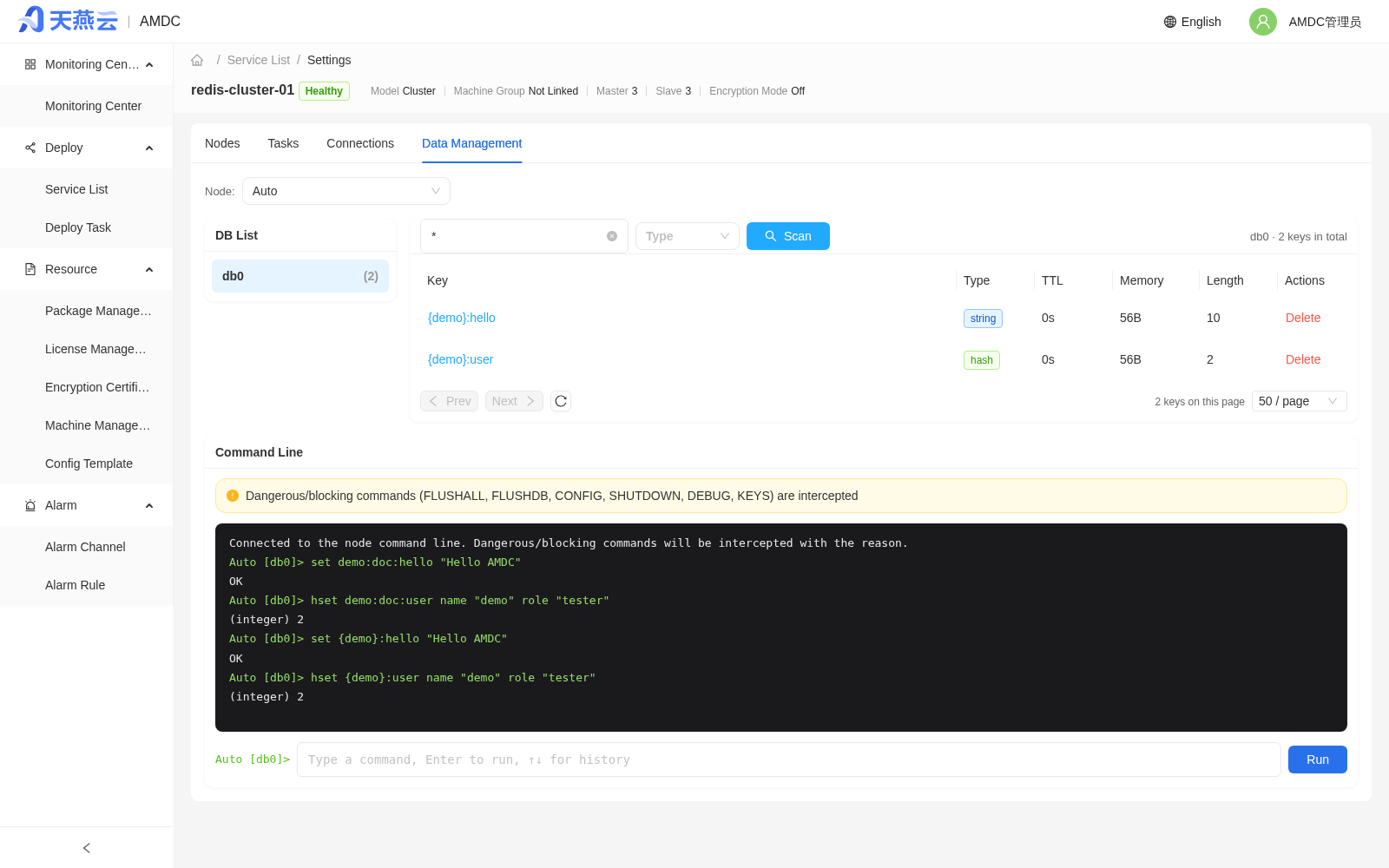
The [Data Management] tab on the service details page provides data viewing capabilities (similar to Redis Desktop Manager): confirm whether a key exists, view value content and TTL, and troubleshoot abnormal keys, without logging in to the instance to execute commands.
Page notes:
- Node selection: Use the drop-down box in the upper left to select a node; the default is [Auto] (automatically selects the first master node with a normal connection).
- DB list: The left side lists the databases available on the node and the number of keys in each DB; cluster mode only supports DB 0.
- Key scanning: Enter a match pattern (default
*), optionally select a data type (string / hash / list / set / zset), and click [Scan]; keys are returned in batches based onSCANwith key name, type, TTL, memory usage, and length. A single request returns at most 1000 entries, and the front end scans at most 10000 keys in total; when the limit is exceeded, scanning stops with a prompt to narrow the range with a more precise match pattern.
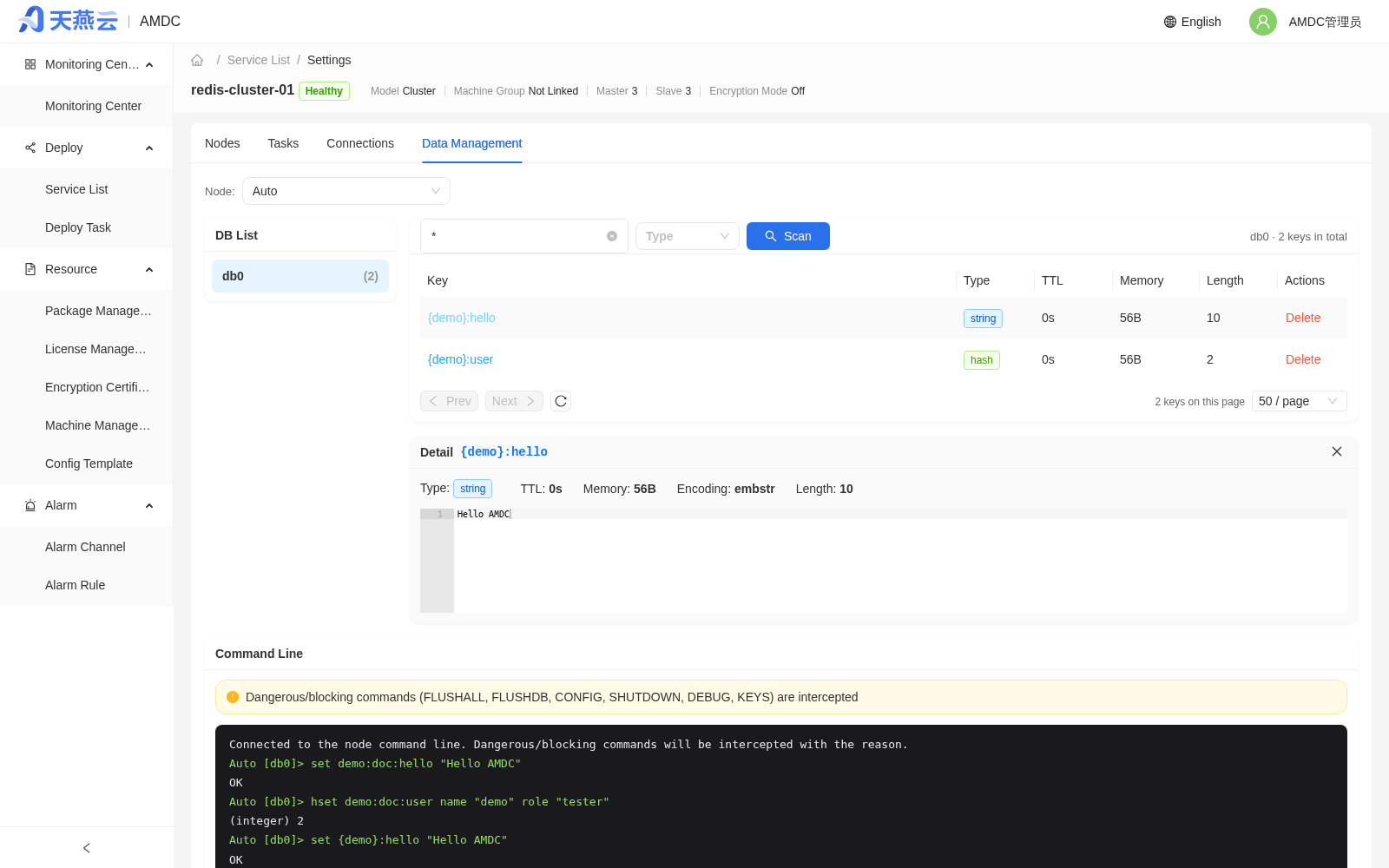
- Key details: Click a key name to open the detail panel, which shows the type, TTL, memory usage, encoding, length, and structured value content (string / hash / list / set / zset / stream are supported; string values support JSON formatting and highlighting); a single value larger than 1 MB is truncated with a prompt; if the key has expired or does not exist, a key-not-exist prompt is shown.
- Command line: A built-in command line panel at the bottom of the page executes query commands on the selected node (press Enter to execute, ↑↓ to switch history); dangerous/blocking commands such as
FLUSHALL,FLUSHDB,CONFIG,SHUTDOWN,DEBUG, andKEYSare blocked by the server-side blacklist, and the rejection reason is prompted when hit; command execution times out after 30 seconds by default, and large results are truncated. - Delete key: Click [Delete] on the right side of the target row;
DELis executed after secondary confirmation, and the list refreshes immediately after successful deletion.
Note:
- The delete operation can only be performed by the AMDC administrator role; other roles can only view.
- When the target node's connection status is abnormal, the page prompts "No available Redis node".
- Data queries are initiated to the target node in real time and are not persisted; each request creates a new short connection to the target node, which is closed as soon as execution completes.
# Log Rotation
Click the [Log Rotation] button under "More Operations" on the [Settings] page to configure the cluster's log rotation policy, including parameters such as log retention days and single-file size limit.
# Removing from Management
Click the [Remove from Management] button under "More Operations" on the [Cluster Settings] page to remove the cluster from the console's managed state. After removal, the console no longer manages or monitors the cluster, but the cluster itself continues to run.
# agent CLI User Guide
# Overview
agent is a binary program compiled from cli-http that interacts with the AMDC Console through HTTP APIs. Unlike amdc-cli, which connects directly to the cache core, agent targets management operations on the console such as resources, deployment, tasks, and monitoring. It is suitable for automation scripts, batch operations, CI/CD integration, and server environments without a graphical interface.
The main differences between the two are as follows:
| Tool | Connection Target | Main Capabilities |
|---|---|---|
amdc-cli | AMDC cache core | Executes Redis protocol commands and native cluster management |
agent | AMDC console | Performs management operations such as deployment, operations, tasks, and monitoring |
Applicable scenarios: automation scripts, batch operations, CI/CD integration, environments without a graphical interface.
# Obtaining agent
The agent binary is released together with the AMDC Console installation package. After extracting the installation package, you can find the agent executable for the corresponding platform in the amdc_console/agent/ directory (for example, on Linux amd64 it is the agent extracted from amdc_console/agent/agent_linux_amd64.tar.gz).
# Access and Authentication
Before using agent, configure the following two environment variables:
AMDC_SERVER: the access address of the AMDC console, for examplehttp://172.17.47.213:3001/.AMDC_CLI_TOKEN: an AI Token issued by the administrator, used for identity authentication.
Example environment variable configuration on Linux / macOS:
export AMDC_SERVER="http://<server-ip>:3001/"
export AMDC_CLI_TOKEN="<your-ai-token>"
2
Example environment variable configuration on Windows PowerShell:
$env:AMDC_SERVER = "http://<server-ip>:3001/"
$env:AMDC_CLI_TOKEN = "<your-ai-token>"
2
After configuration, you can verify that the connection works with the following command:
agent cluster list
Note:
AMDC_CLI_TOKENis generated and issued by the administrator in the console. Keep it safe and avoid disclosure.
# Global Parameters
agent supports the following global parameters, which can be used to override environment variables or adjust the output format:
| Parameter | Description | Example |
|---|---|---|
--server | Specifies the AMDC console address | --server http://<server-ip>:3001/ |
--cli-token | Specifies the AI Token | --cli-token <your-ai-token> |
--json | Outputs results in JSON format | --json |
-h / --help | Displays help information | agent --help |
# Typical Scenario Examples
# Viewing the Cluster List
# List all clusters
agent cluster list

# View details of a specified cluster
agent cluster get <cluster-id>
2
3
4
5
Use agent cluster list to quickly obtain an overview of all clusters under the current tenant; use agent cluster get <cluster-id> to view the nodes, status, and configuration details of a specified cluster.
# Adding Machines, Certificates, and Installation Packages
# Create a machine group
agent machine group-create --name <machine-group-name>

# Add a machine to the machine group
agent machine add --file machine.json
2
3
4
5
{
  "machine_group_name": "<machine-group-name>",
  "login_name": "root",
  "pwd": "<rsa-encrypted-base64-password>",
  "host": "<server-ip>",
  "sshport": 22,
  "note": "Production-machine-01",
  "user_id": 1
}
2
3
4
5
6
7
8
9
Note: the
pwdfield must first be encrypted with RSA and then Base64-encoded.
# Upload a License certificate
agent document upload-license --file <license-file-path>

# Upload an AMDC installation package
agent document upload-pkg --file <package-file-path>
2
3
4
5
The above commands complete the resource preparation before auto deployment: creating a machine group, adding target machines, and uploading the License and installation package.
# Executing Auto Deployment
agent autodeploy exec --file <deploy-config.json>
Describe the deployment parameters (service name, deployment mode, node topology, machines, licenses, etc.) in a JSON configuration file; agent automatically submits the deployment task to the console and returns the execution result. You can then check the task progress with agent task list.
# Scaling Out a Cluster
agent expand exec --file <expand-config.json>
The scale-out operation inherits the original cluster service name. Specify the scale-out configuration file with --file to add slave nodes in master-slave mode or add shard nodes in Cluster mode.
# Viewing the Monitoring Dashboard and Slow Logs
# View the global monitoring dashboard
agent monitor dashboard

# View slow logs of a specified node
agent monitor slow-log --node-host <node-host>
2
3
4
5
agent monitor dashboard provides an aggregated overview of all clusters; agent monitor slow-log queries the slow log records of a specified node, where --node-host is the target node address in the format host:port.
# Quick Reference of Common Commands
| Functional Area | Top-level Command | Core Subcommands |
|---|---|---|
| Cluster management | cluster | list, get, import |
| Cluster operations | cluster-manage / cm | node-info, config-get, config-update, backup, recover, flush, operate, etc. |
| Machine management | machine | list, add, group-create, group-list, etc. |
| Auto deployment | autodeploy | exec |
| Scale out/in | expand | exec, save, reduce |
| Deployment resources | document | pkg-list, upload-pkg, license-list, upload-license, etc. |
| Task center | task | list, get, exec |
| Upgrade tasks | upgrade-task | list, get, create, rollback |
| Cluster migration | migration | prepare, create, list, get |
| Monitoring and diagnostics | monitor | dashboard, dynamic, static, slow-log, keys-analyse |
| Configuration templates | conftemp | list, add, update, content |
| Operation history | history | list, export |
| ACL | acl | list, create, update, delete |
| Password policy | password-policy | get, update |
For more commands and parameter descriptions, use
agent <command> --help.
# AI Corpus Examples
In an environment where AMDC_SERVER and AMDC_CLI_TOKEN have been configured, you can directly give the following natural-language instructions to an AI, which will call agent to complete the corresponding operations.
# Viewing the Status of All Clusters
Use the agent CLI to list all AMDC clusters under the current tenant, and return the cluster ID, name, deployment mode, and status in a table.
# Auto-deploying a Cluster
Use the agent CLI to automatically deploy an AMDC Cluster-mode service with 3 masters and 3 slaves on the machine group "prod-group". The service name is "amdc-prod-01" and the installation directory is /data/amdc. Use the uploaded installation package and License, and return the deployment task ID.
# Scaling Out a Cluster
Use the agent CLI to scale out the service with cluster ID <cluster-id> by adding 2 master-slave node groups in the machine group "prod-group", and return the task status after the scale-out is complete.
# Viewing Node Slow Logs
Use the agent CLI to view the 50 most recent slow log entries on node <node-host>, sorted by elapsed time in descending order.
# Uploading Resources in Batch
Use the agent CLI to upload the installation package /data/packages/AMDC-V2.0.6.tar.gz and the License file /data/licenses/amdc.lic to the console, and return the resource IDs after the upload.
Note: before the AI executes the above tasks, make sure that
AMDC_SERVERandAMDC_CLI_TOKENhave been set in the current environment; otherwise authentication will fail.
# Service Monitoring and Alarms
# Monitoring Center
Path: [Monitoring Center]
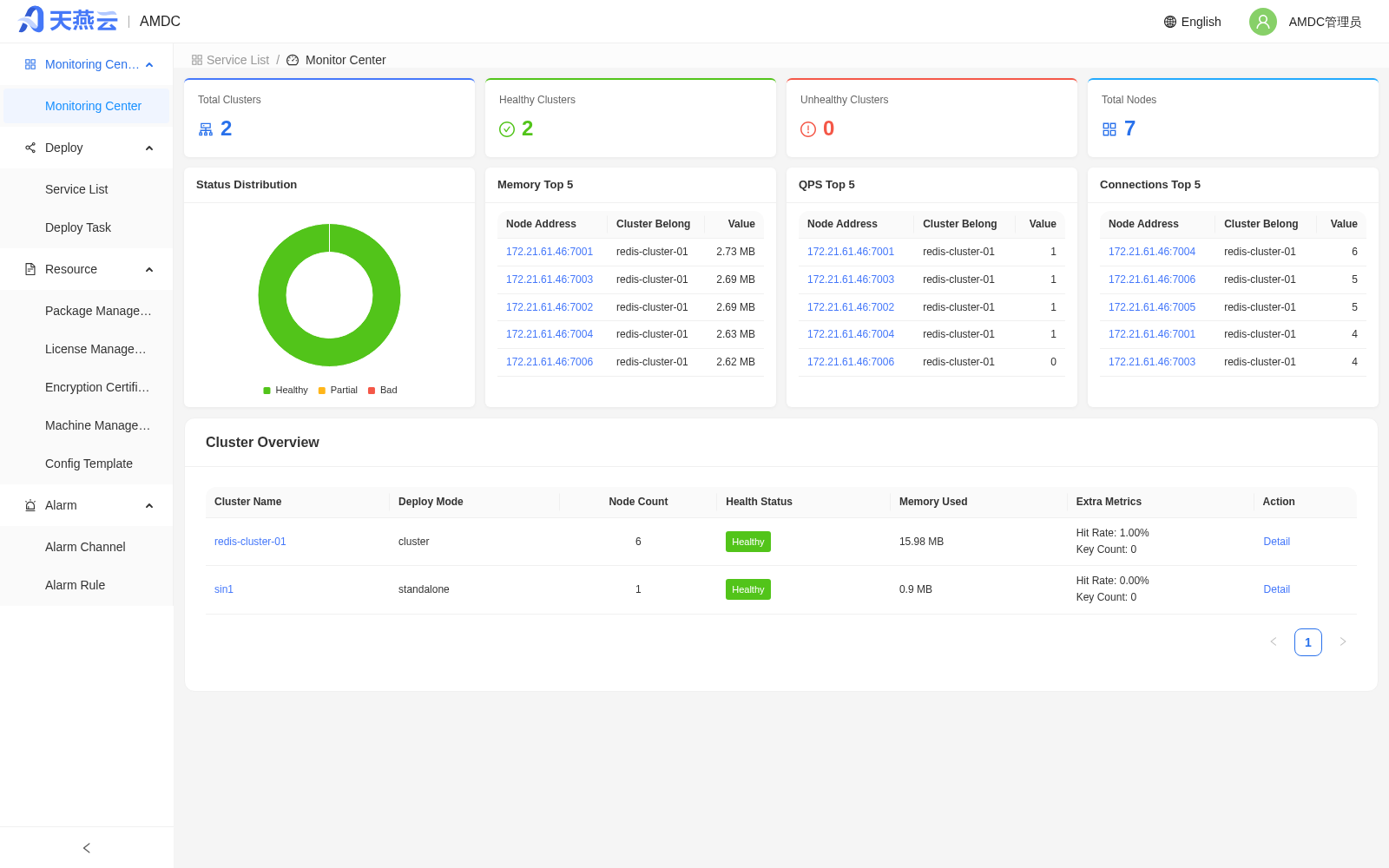
The Monitoring Center is a global monitoring dashboard that aggregates the running overview of all current clusters:
- Top metric cards: total number of clusters, healthy clusters, abnormal clusters, and total number of nodes.
- Status distribution: a donut chart showing the proportion of healthy, partially abnormal, and abnormal clusters.
- Top 5 key metrics: Top 5 node rankings by memory, QPS, and connections.
- Cluster overview: displays each cluster's name, deployment mode, number of nodes, health status, total memory usage, and operation entries.
# Service Monitoring
Click the [Monitor] button under the service column to enter the cluster monitoring page, which displays the detailed information and key metrics of the current cluster. The path to the service list differs slightly by role: AMDC administrators enter through [Deployment Management] > [Service List]; tenant administrators enter through [Service List].
# Analysis
Click the [Analysis] button above [Monitor] to enter the [Analysis] page, where you can query and analyze bigkeys, hotkeys, memkeys, monitor, and slowlog data of the cache core.
# Alarm Channels
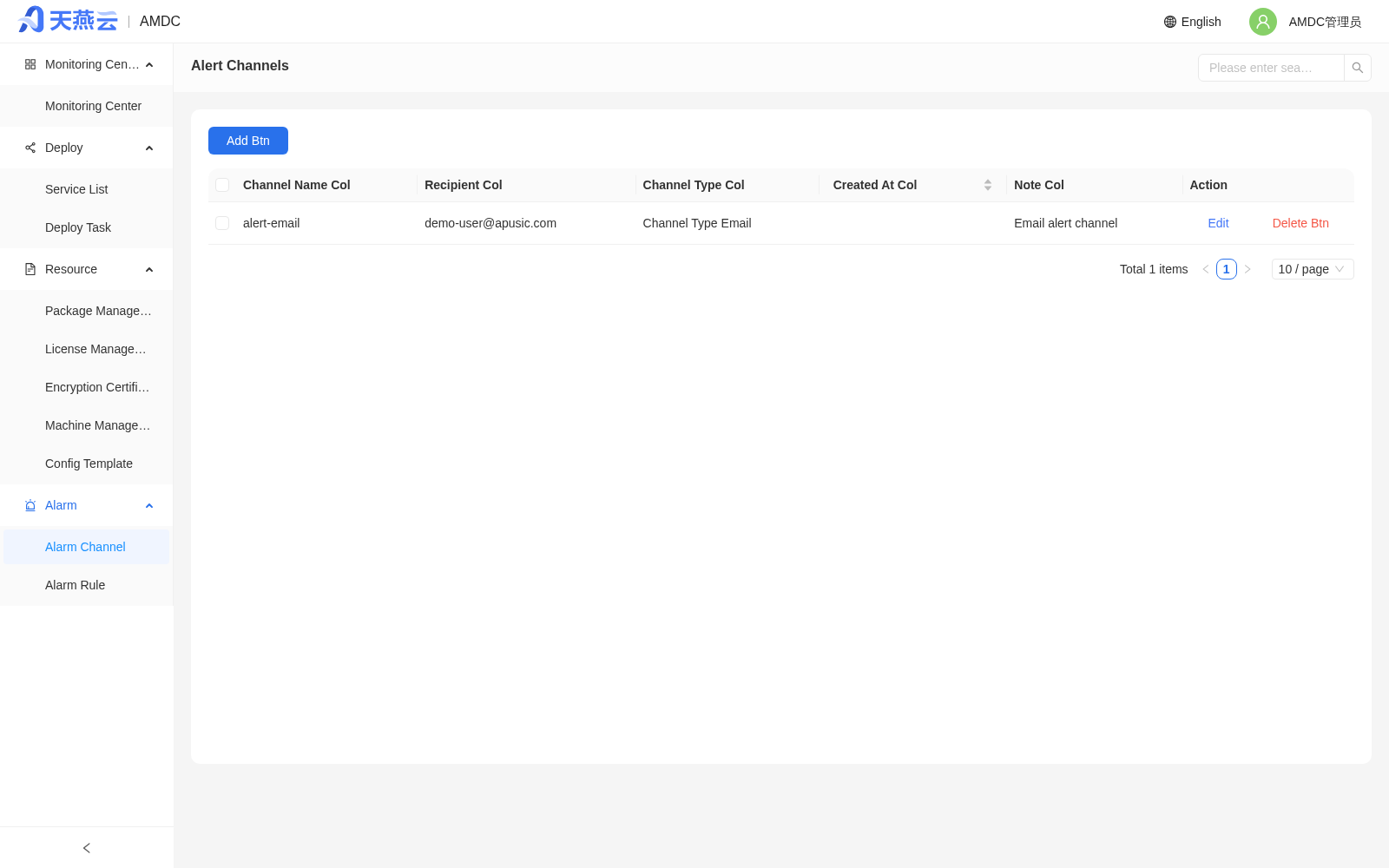
An alarm channel is the notification method used to notify recipients. The AMDC console provides alarm channels in the form of Email.
# Adding an Alarm Channel
Go to [Alarms] > [Alarm Channels] and click the [Add] button to add an alarm channel.
| Parameter | Description |
|---|---|
| Channel Name | Custom |
| Channel Type | |
| SMTP Address | Mail transfer protocol server |
| SMTP Port | Port used by the mail server |
| Sender Email | Username of the sending mailbox |
| Password | Password of the sender's mailbox |
| Recipients | Users under the current tenant; multiple selections are supported to notify multiple people at the same time |
| Remarks | Remark information |
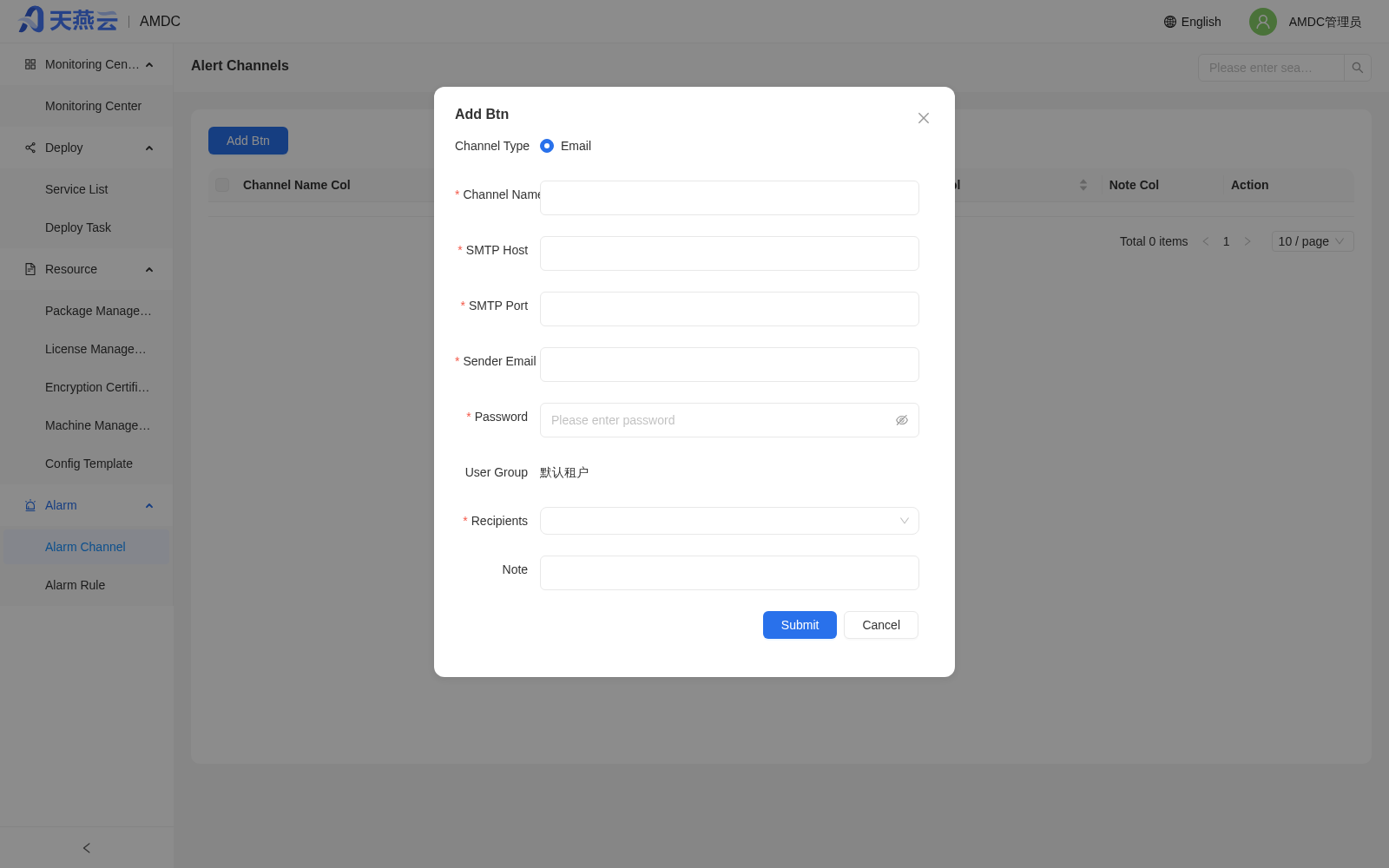
# Editing an Alarm Channel
Go to [Alarms] > [Alarm Channels], select the alarm channel to edit, and click the [Edit] button on the right side of the alarm channel list to edit the alarm channel.
# Deleting an Alarm Channel
Go to [Alarms] > [Alarm Channels], select the alarm channel to delete, click the [Delete] button on the right side of the alarm channel list, and click [Confirm] in the confirmation box to delete the alarm channel.
# Alarm Rules
Set alarm rules in the console. When the configured conditions are met, an alarm is triggered within the configured time and sent at the configured frequency!
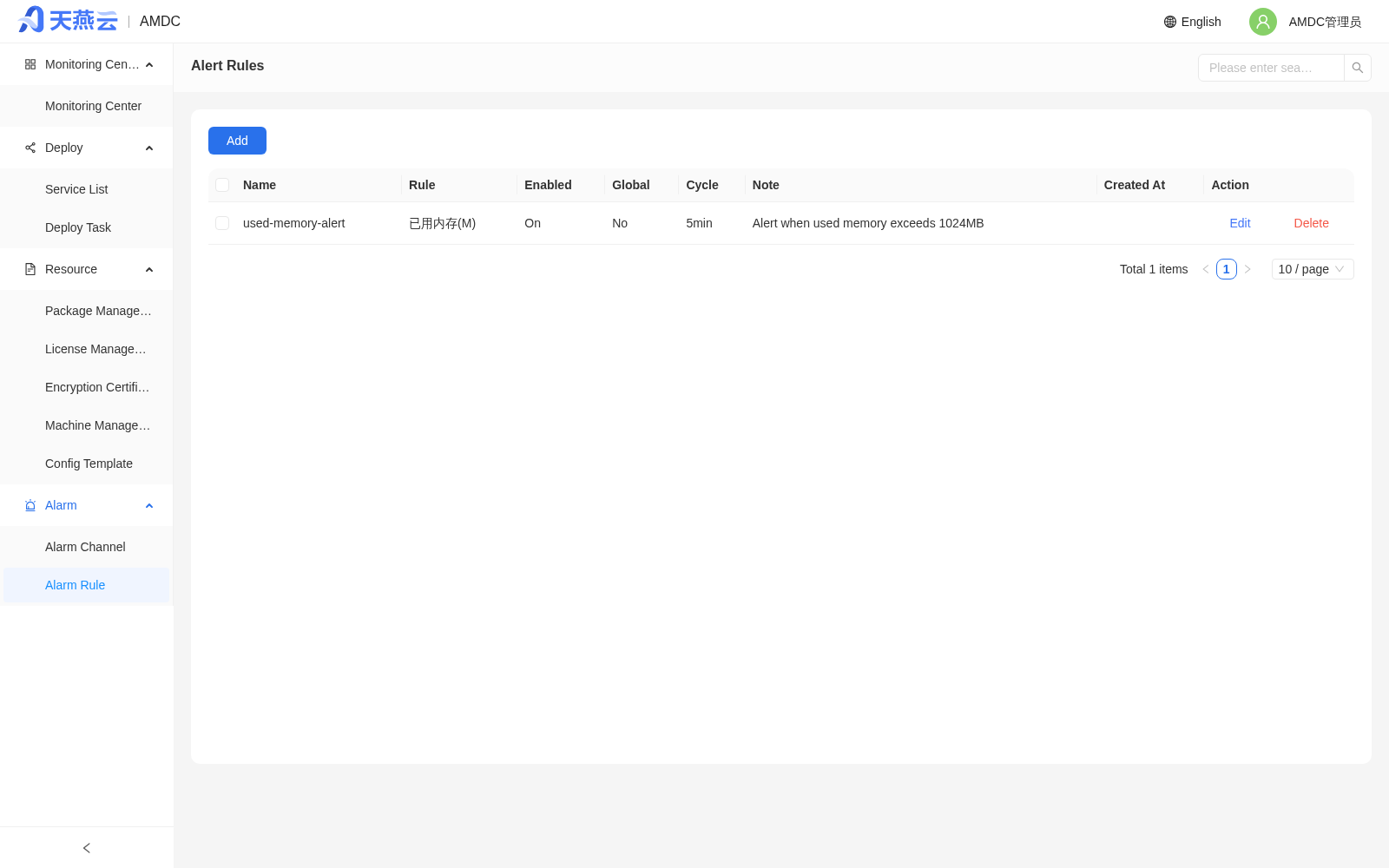
# Creating an Alarm Rule
Alarm rules are divided into global alarm rules that take effect for all clusters and local alarm rules that take effect for a single cluster. Turn on the global switch to apply the rule to all clusters. Go to [Alarms] > [Alarm Rules] and click the [Create] button in the upper right corner of the page to create an alarm rule.
- Node status alarm: the node alarm switch; when the switch is on, node alarms are enabled
- Rule name: a custom alarm rule name
- Rule: set the conditions that trigger the alarm
- Comparison operator: select the comparison operation
- Comparison value: enter the alarm comparison value; the alarm is triggered when this value is reached
- Period: the period at which the rule is checked: 5min, 10min, 20min, 30min, 45min, 1h, 2h
- Effective: when the switch is on, the alarm rule takes effect
- Global: defaults to No; when Global is selected, the rule applies to all clusters of the current tenant
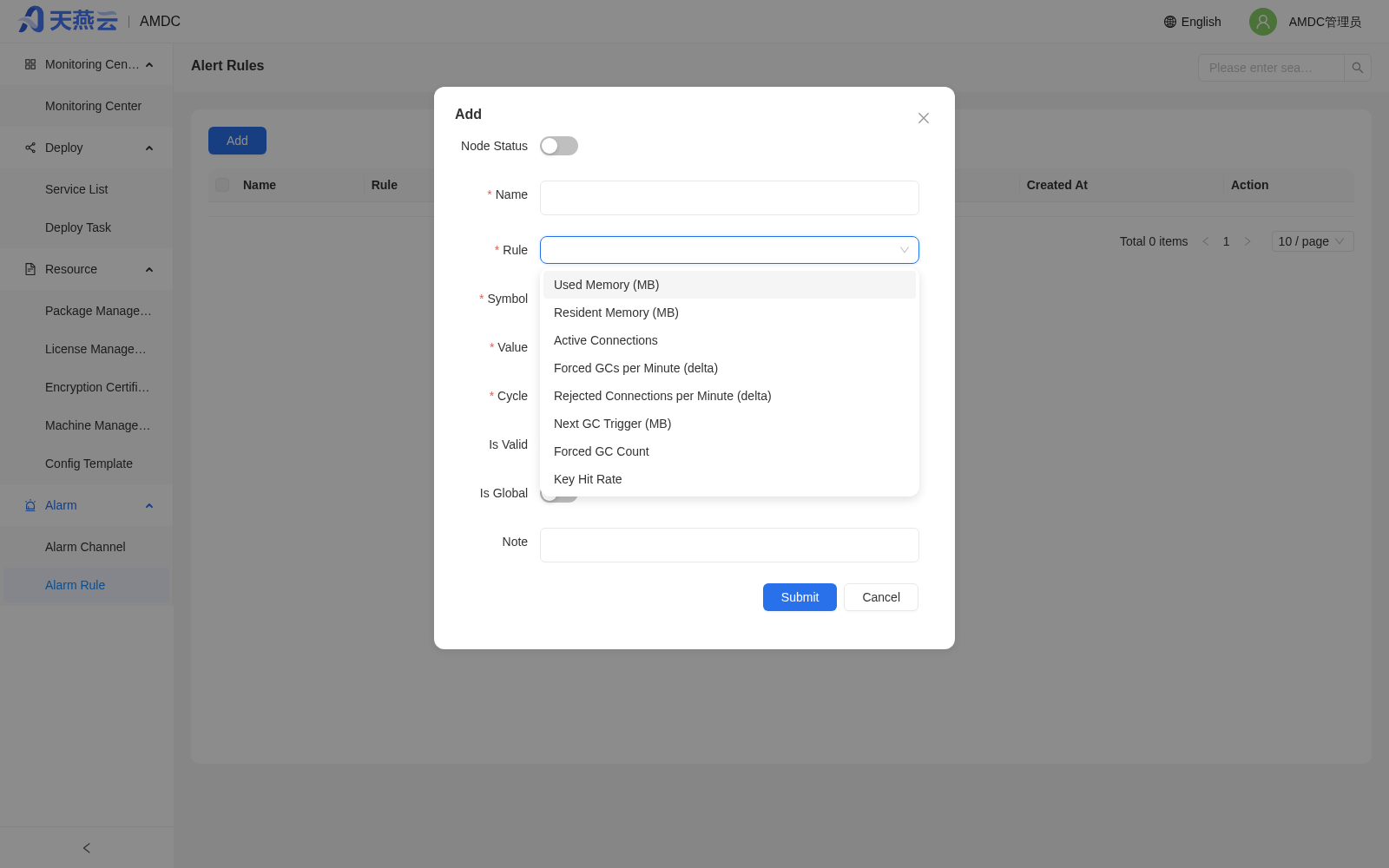
# Editing an Alarm Rule
Go to [Alarms] > [Alarm Rules], select the corresponding alarm rule, and click the [Edit] button on the right side of the list to edit the alarm rule.
# Deleting an Alarm Rule
Go to [Alarms] > [Alarm Rules], select the alarm rule to delete, and click the [Delete] button on the right side of the list to delete the alarm rule. You can also select multiple alarm rules and click the [Delete] button in the upper left corner to delete them in batch.
# Account Permissions and Security
This section describes the account system and three-role separation mechanism of the console based on MLPS 2.0. If anything here differs from what you see in your actual deployment, follow what is shown after login.
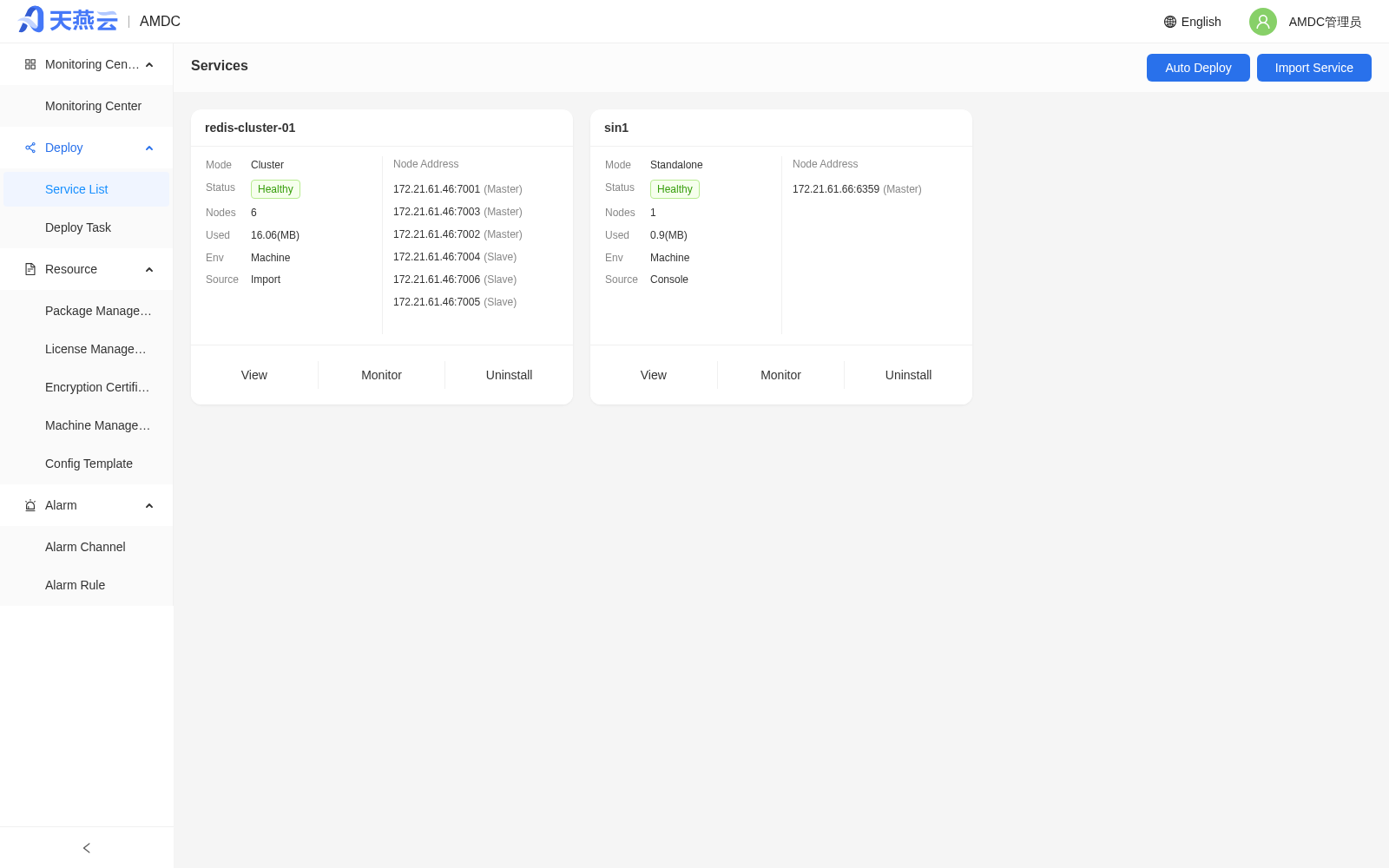
# Role System and Menu Visibility
Console V2.0.6 uses a five-role system. After logging in, each role can only see the menus within its scope of responsibility. This design complies with the "Separation of management user privileges" requirement in GB/T 22239-2019 (Information Security Technology — Baseline for Multi-Level Protection of Cybersecurity).
| Role | Account | Responsibility | Default Visible Menus |
|---|---|---|---|
| System Administrator | sys_admin | Tenant management and tenant administrator account management | [Tenant] > Tenant Management, Account Management |
| Security Administrator | sec_admin | Global security policy, user lock/unlock, password reset, access control policy | [Tenant] > Authorization Management, Password Policy |
| Audit Administrator | audit_admin | Audit policy, audit log viewing and analysis, audit report (read-only) | [Operation History] |
| Tenant Administrator | tenant_admin | Account and password policy within the current tenant | [Tenant] > Account Management, Password Policy, [Operation History] |
| AMDC Administrator | amdc_admin | Global management of AMDC instances | [Monitoring Center], [Deployment Management] (Service List, Auto Deployment, Deployment Tasks), [Resource Management] (Package Management, Certificate Management, Machine Management, Configuration Templates), [Alarms] |
The three roles (System / Security / Audit Administrator) are auto-generated when the system starts. There is exactly one account for each, and they cannot be deleted. Their menus are independent and the three roles cannot be assigned to the same user.
By nature, the actual users of console functions fall into two categories:
- Administrator accounts: hold tenant/user management permissions and decide how services and data resources are allocated.
- Tenant accounts: are data users within a tenant. They can use the services and perform some management operations. Data is isolated between different tenants. Tenant administrators have only usage rights, not ownership of services within their tenant (they cannot decide on deletion or modification of cache cores themselves).
The figure below shows the home menu differences across the five roles:
# Login and First-time Password Change
On first startup, the console auto-generates initial passwords (12 random characters each) for all preset administrator accounts, including the three-role administrators, the tenant administrator, and amdc_admin. These passwords are written to the ./resource/.initial_passwords file in the installation directory.
Open a browser and access the console URL (default http://<console IP>:9001/). The login page is shown below:
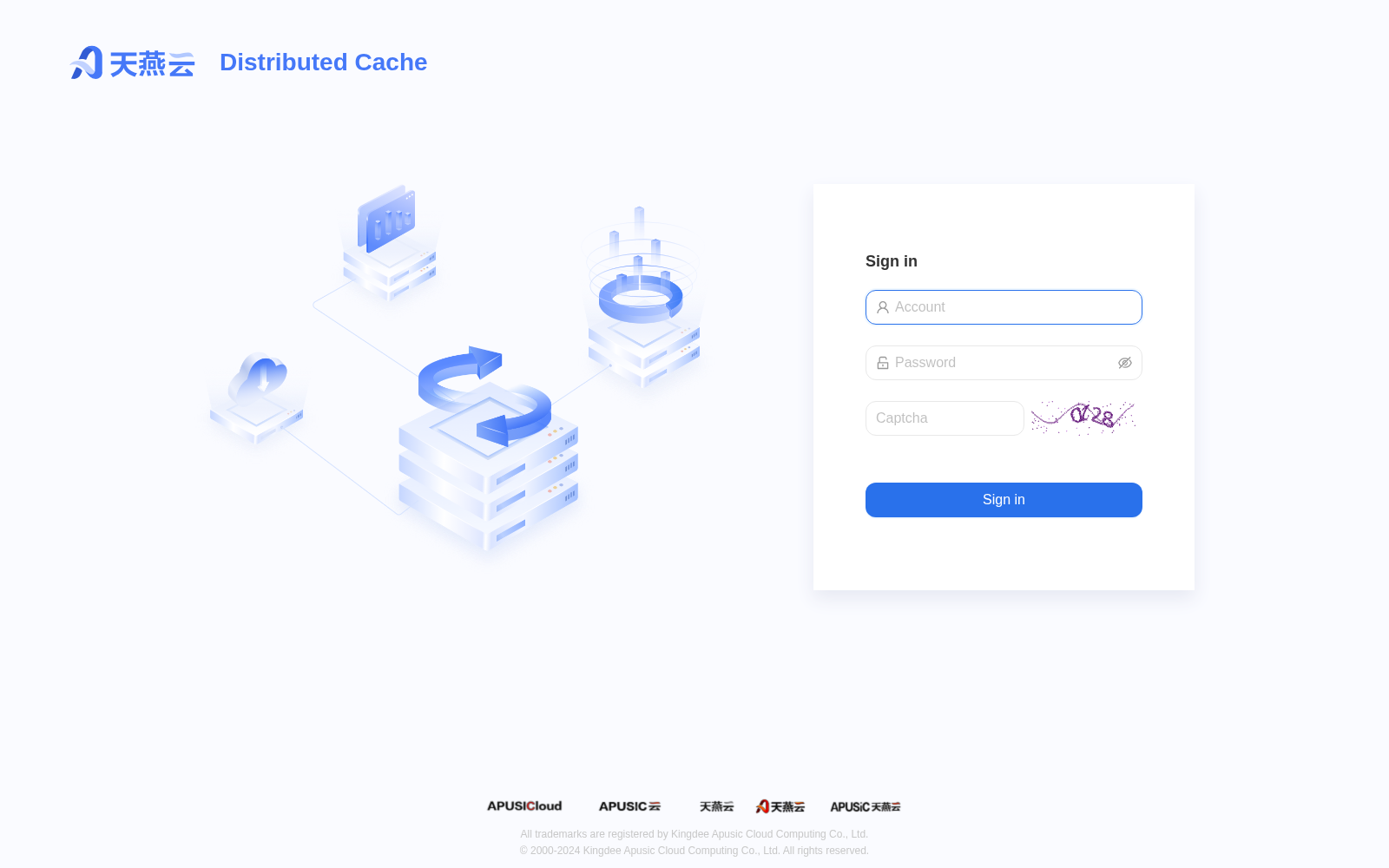
First-login steps:
- Enter the account (e.g.
sys_admin). - Enter the 12-character random password from the corresponding line in the
.initial_passwordsfile. - Enter the graphic verification code shown on the page (case-insensitive).
- Click [Login].
Tip: when the password field contains special characters (e.g.
#,$,*), prefer pasting directly into the browser to avoid being stripped by the shell or terminal.
After a successful first login, you are redirected to the mandatory password-change page. You must change your password according to the current password policy before you can enter the console:
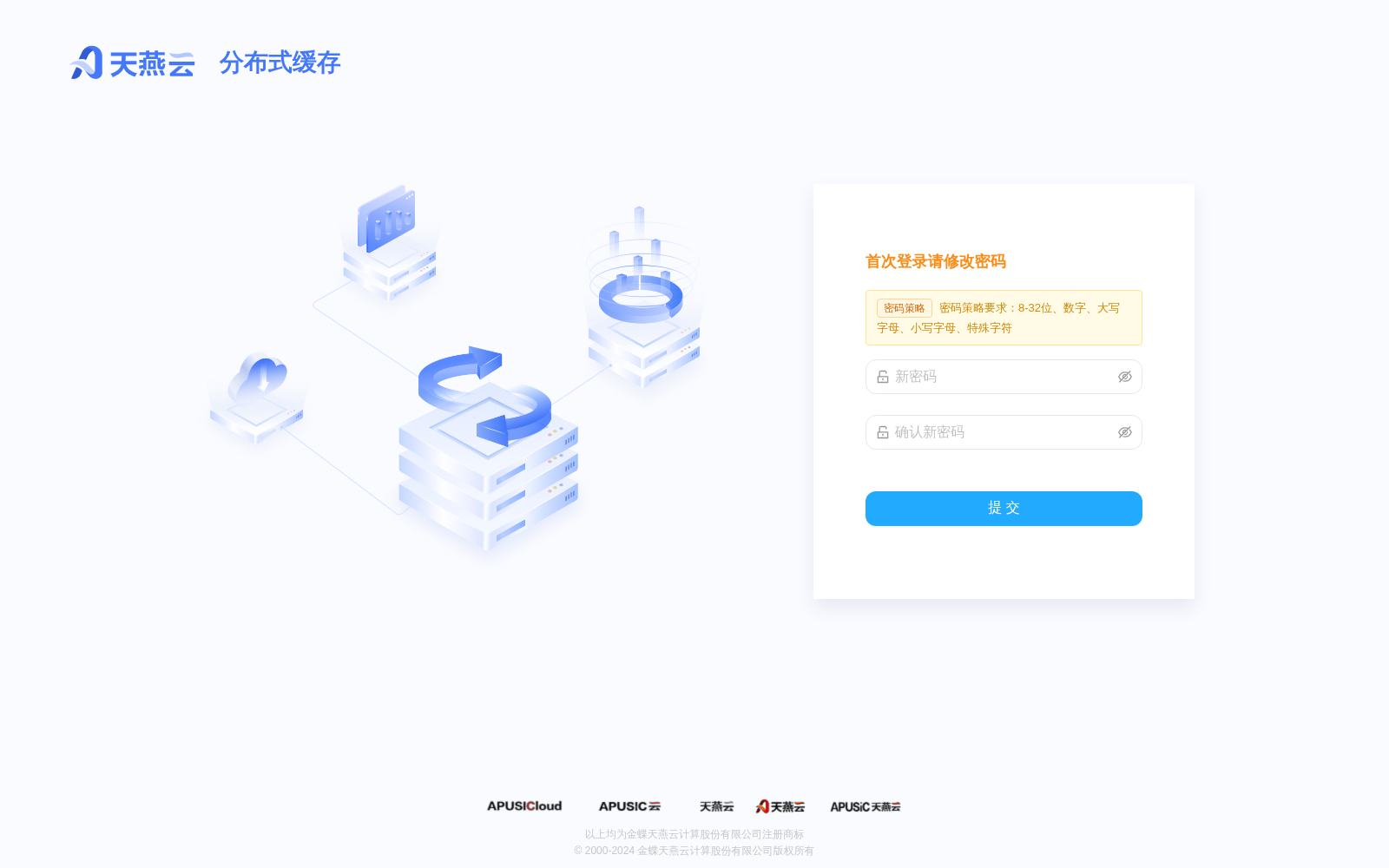
Note: if the new password does not meet the complexity policy, you stay on the password-change page and the next submission displays specific items that failed validation. Adjust accordingly and resubmit.
# Resetting a Preset Account Password When Forgotten
If the .initial_passwords file is lost, or a preset account is locked by too many failed login attempts (e.g. amdc_admin has used up its remaining attempts), you can use the console CLI in the installation directory to directly reset a preset account's password to a new 12-character random value. The account itself is not locked or deleted.
Steps:
SSH to the console server and switch to the directory that contains the
amdc-consoleexecutable (default/home/mofant/test-soft/amdc/amdc_console):cd /home/mofant/test-soft/amdc/amdc_console1Run the reset command and specify the preset account name (allowed values:
sys_admin/sec_admin/audit_admin/tenant_admin/amdc_admin):./amdc-console --reinit amdc_admin1On success, the console prints the new password, for example:
账户 amdc_admin 的密码已重置。
新密码: Yg!.U,f19wmE
请使用新密码登录,并按提示修改密码。
1
2
3Immediately log in with the new password in the browser and complete the first-time password change as prompted.
-reinit notes:
- It only works on the five preset accounts; it has no effect on business accounts created inside the console.
- After reset, the account is not disabled and the lockout counter is cleared, with no other side effects.
- The reset command must be executed in the directory that contains the
amdc-consoleexecutable (not the AMDC cache-core directory), with read/execute permission on that directory. - See
./amdc-console --helpfor supported flags (-c stringconfig file;-reinit stringpreset-account reset).
# Three-role Management
# System Administrator (sys_admin)
After login, the default landing page is [Tenant] > [Tenant Management]. The left sidebar contains only [Tenant Management] and [Account Management]:
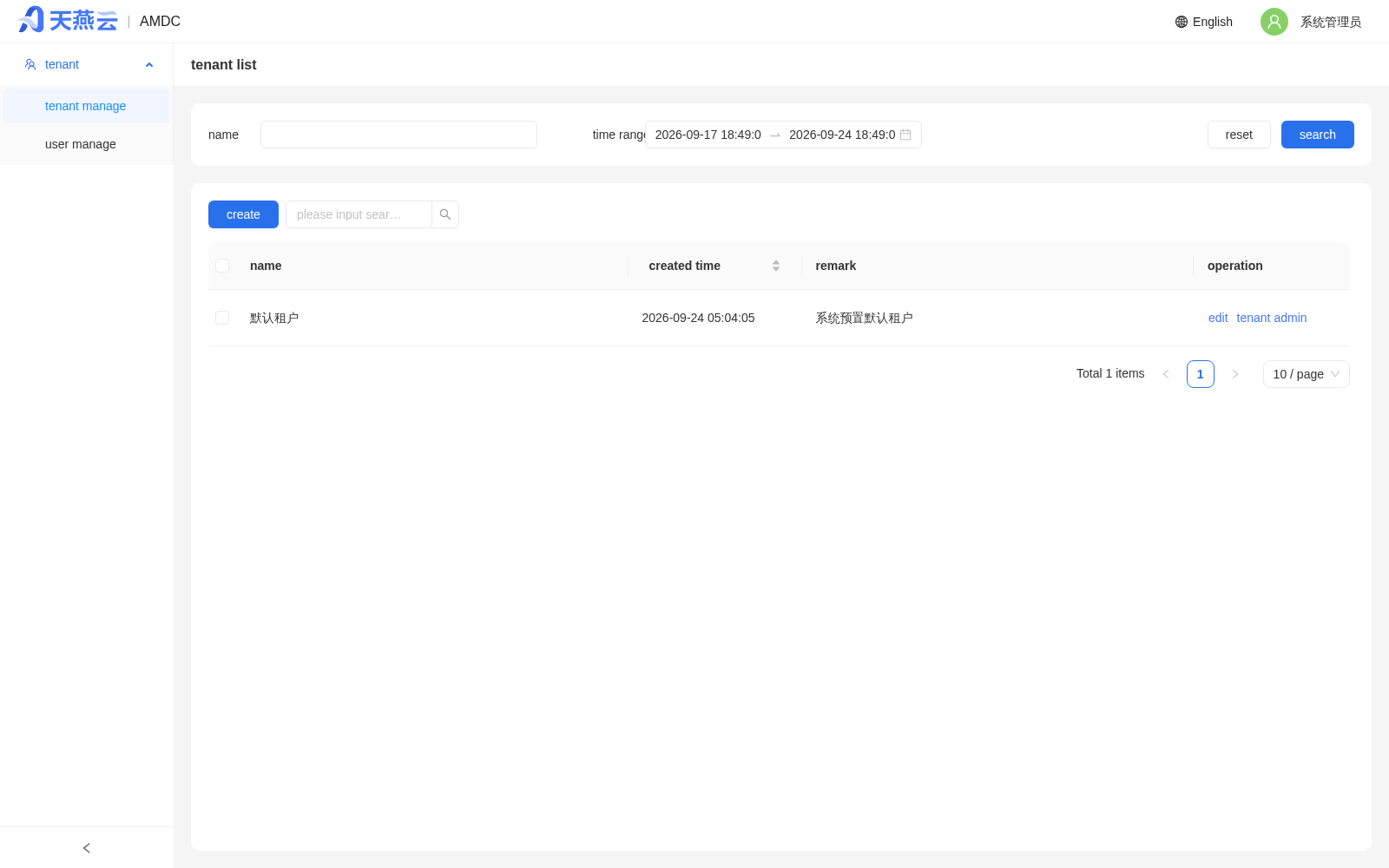
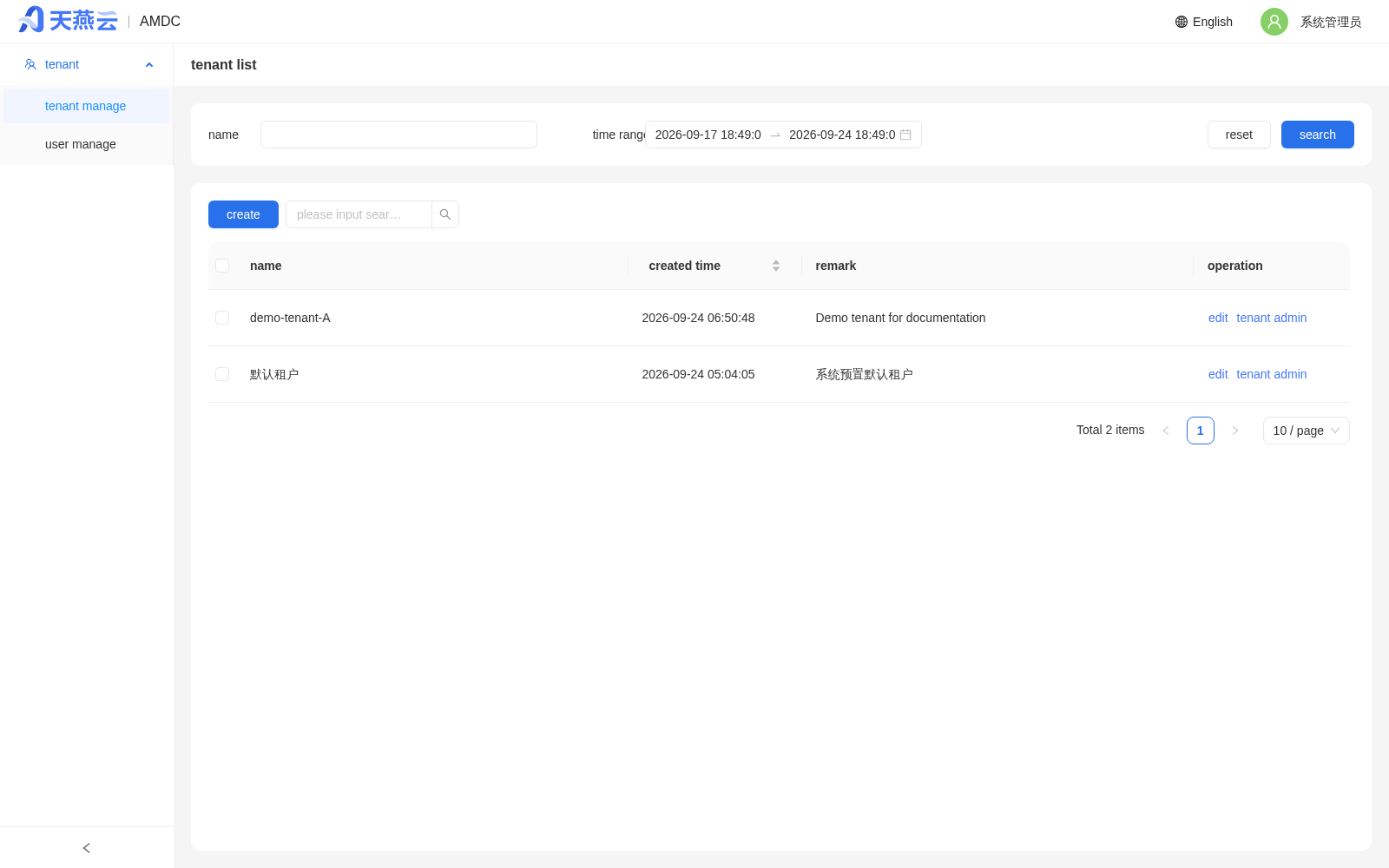
Tenant Management
Click the [Create] button in the upper right corner to open the Add Tenant dialog:
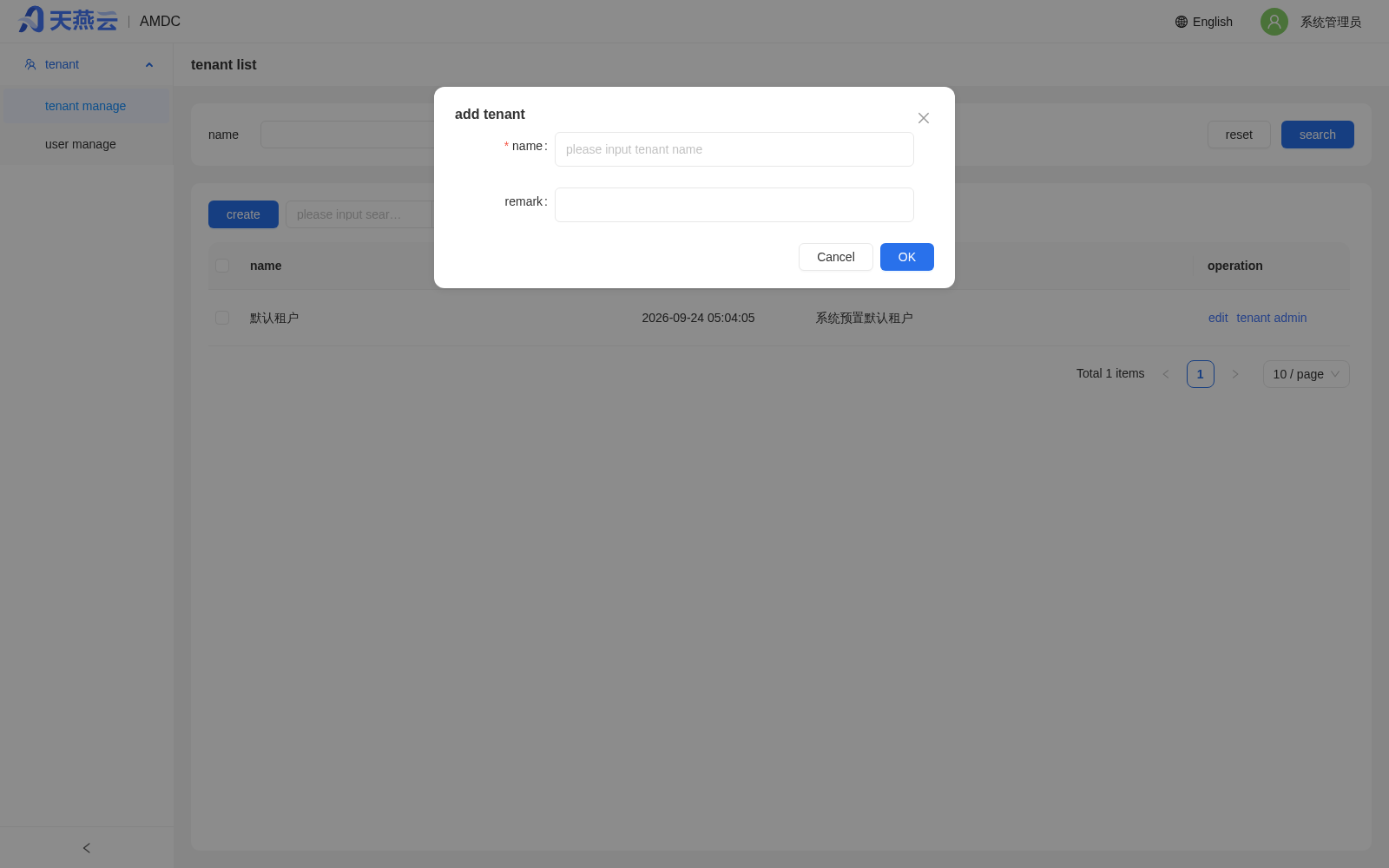
Fill in the tenant name (required, unique) and the remark (optional), then click [OK] to return to the list. The newly created tenant row appears in the list with its creation time:
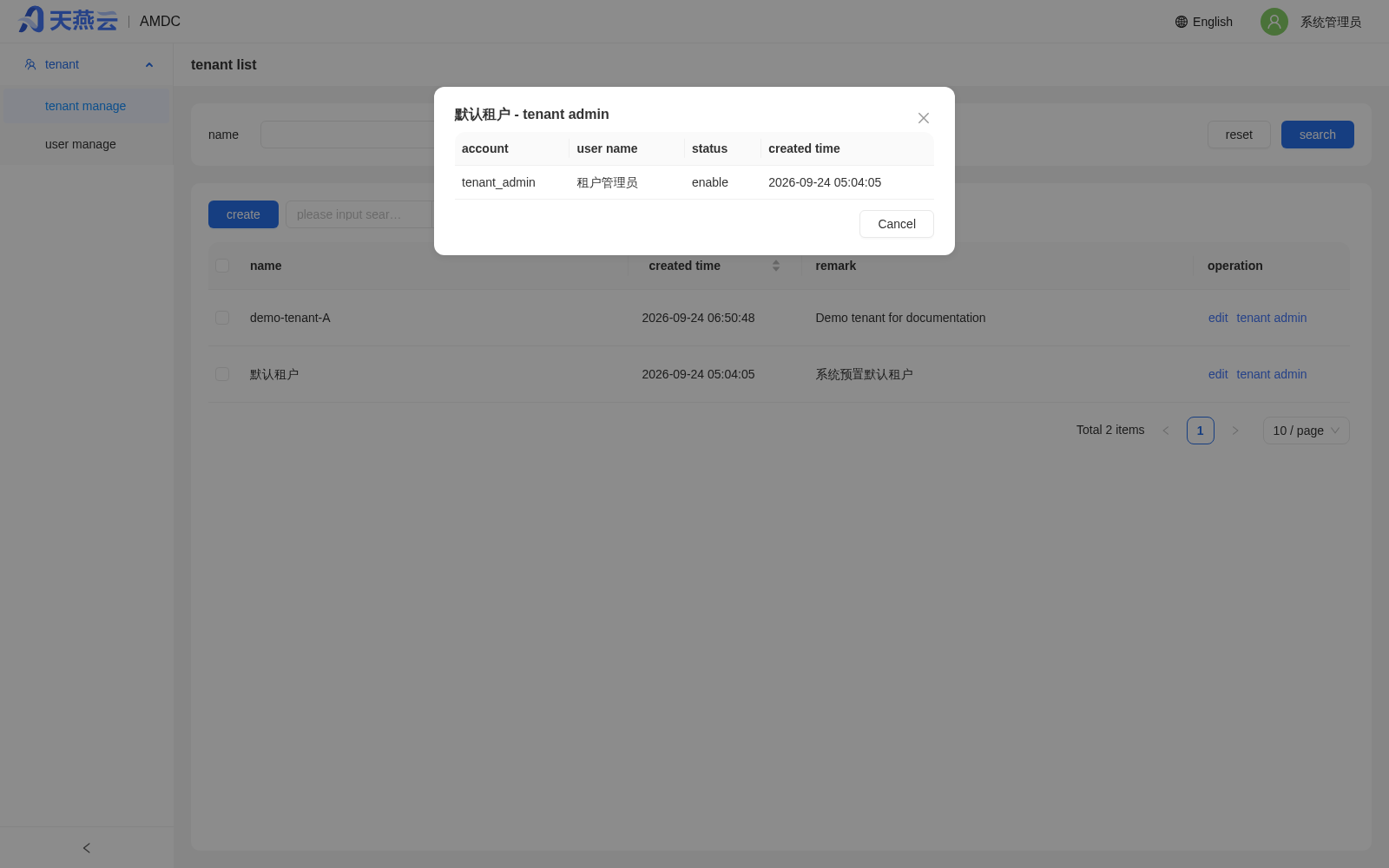
Click the [Tenant Administrator] button on a tenant row to open a dialog listing the tenant administrators under that tenant, used to maintain the binding between tenant administrators and tenants:
Account Management
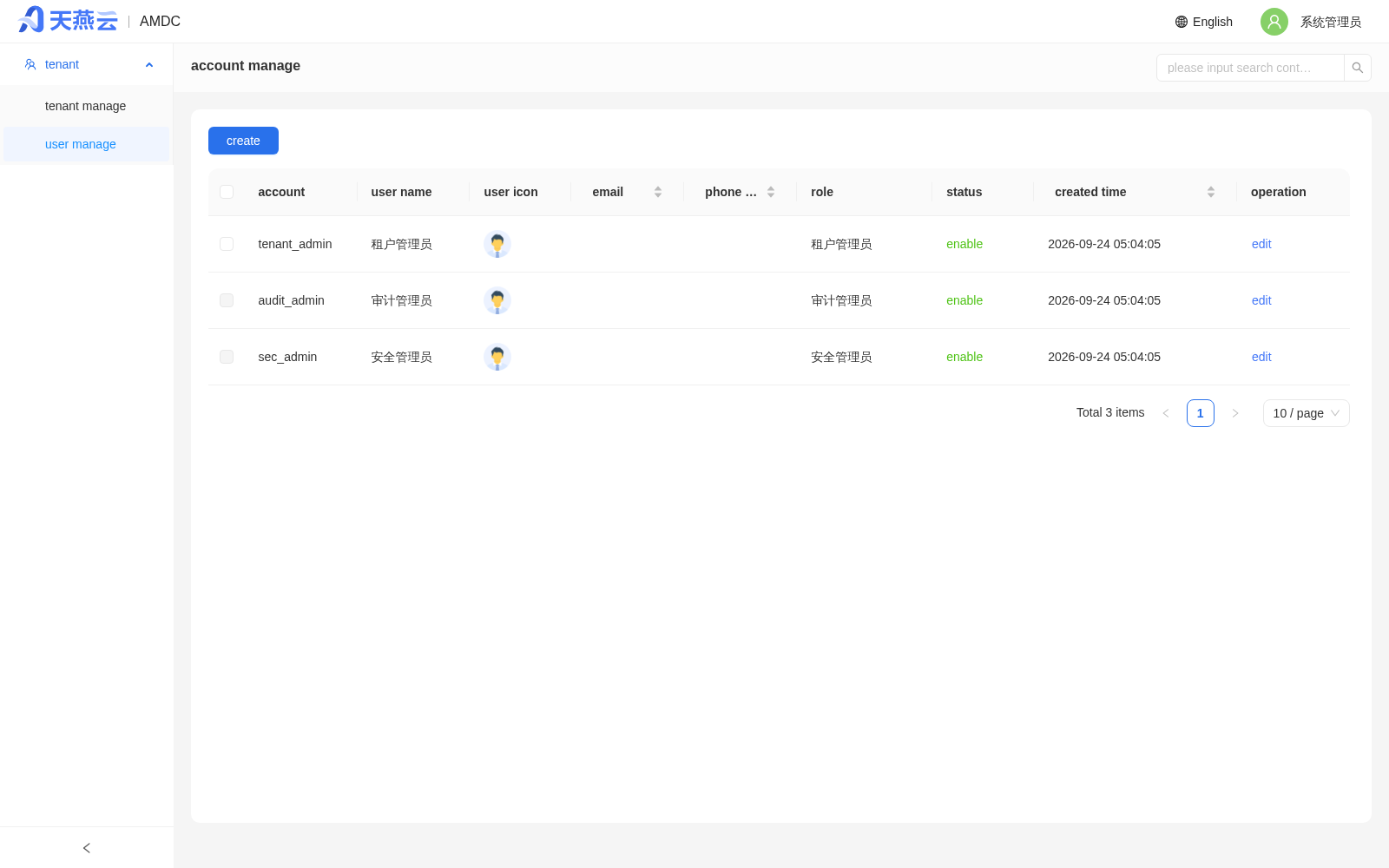
Switch to [Tenant] > [Account Management] to view all accounts in the console (including tenant administrators and tenant users), and edit them:
Click [Create] to open the Create Account dialog:
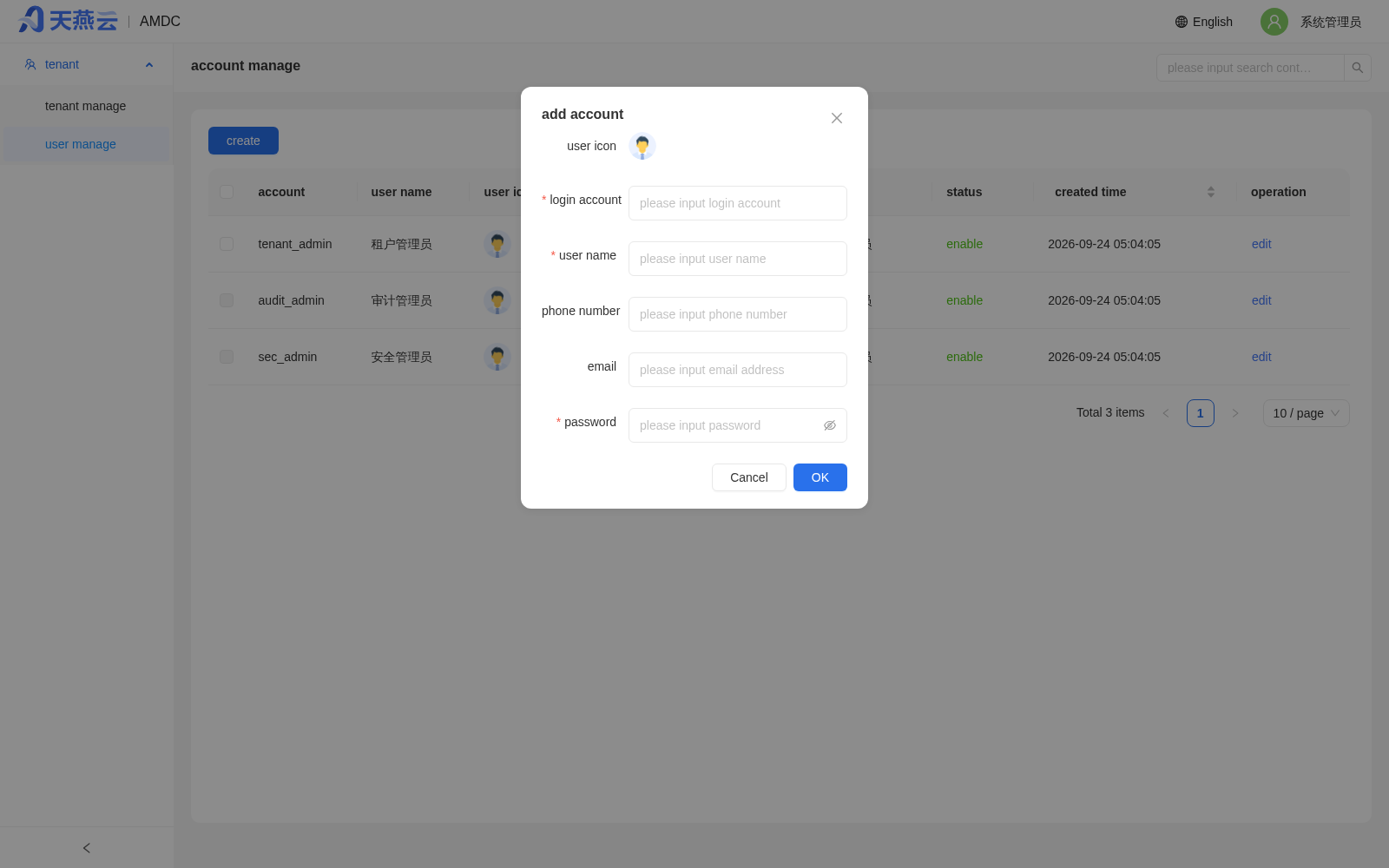
Tip: when creating an account you must enter the "Password" field and it must comply with the current password policy. The account is enabled by default after creation. You can click [Edit] in the list to modify it later.
# Security Administrator (sec_admin)
After login, the menu only contains [Tenant] > [Authorization Management] and [Tenant] > [Password Policy], used to configure access control and password policy:
Authorization Management
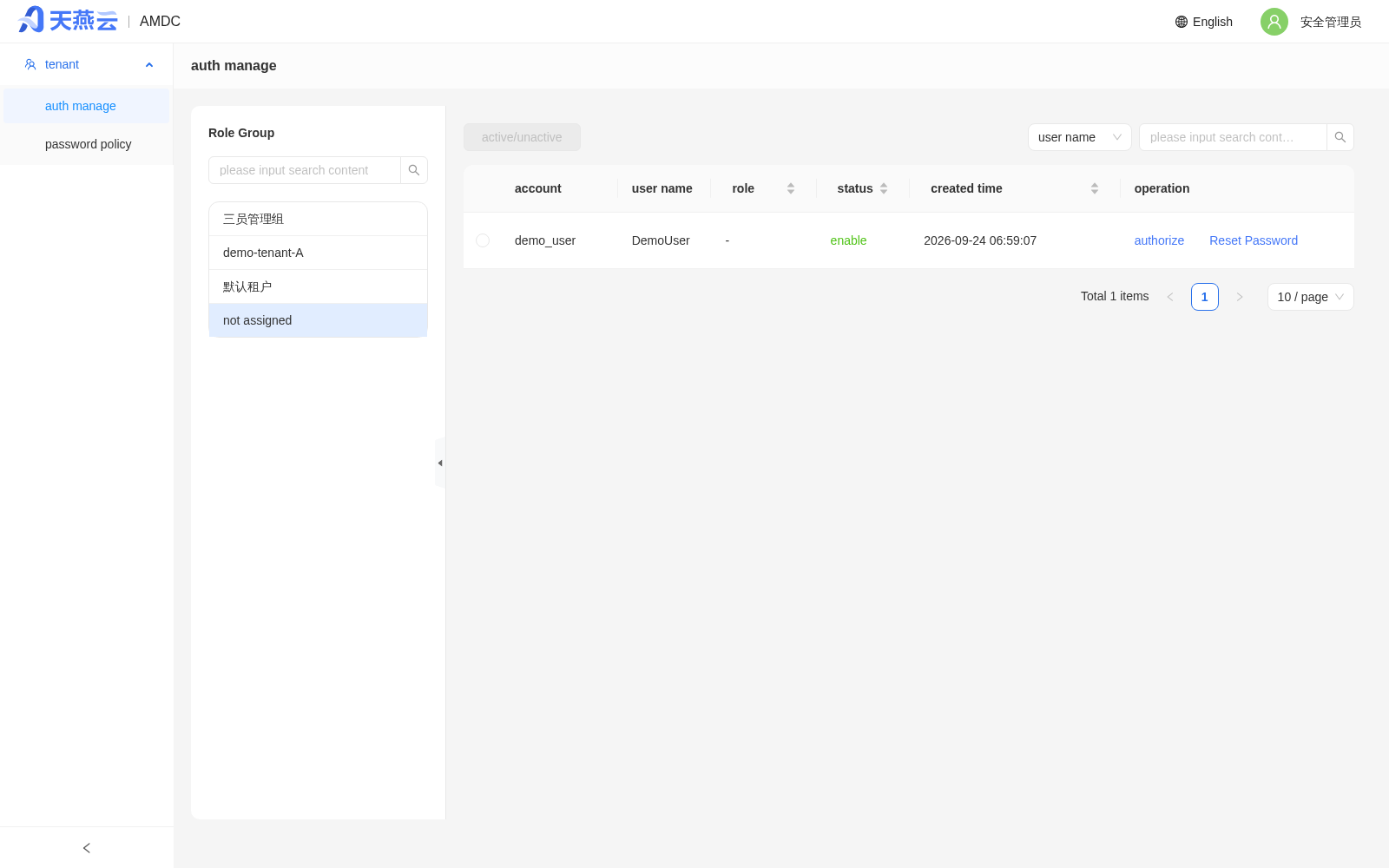
Users in the "Unassigned Group" (those not assigned to any tenant) must first be authorized to a tenant on this page before the account can log in.
Changing a User's Password
A newly created account has no initial password and must have a password set by the security administrator here before it can log in. Select the target user row and click the [Change Password] button at the top of the list.
Activation / Freezing
Click the [Activate/Freeze] button at the top of the list to toggle a user between "Enabled" and "Frozen". A frozen account cannot log in but the account record is preserved.
Password Policy
Go to [Tenant] > [Password Policy]. The password policy consists of two parts, the presets and a custom area, and applies to all accounts in all tenants after saving:
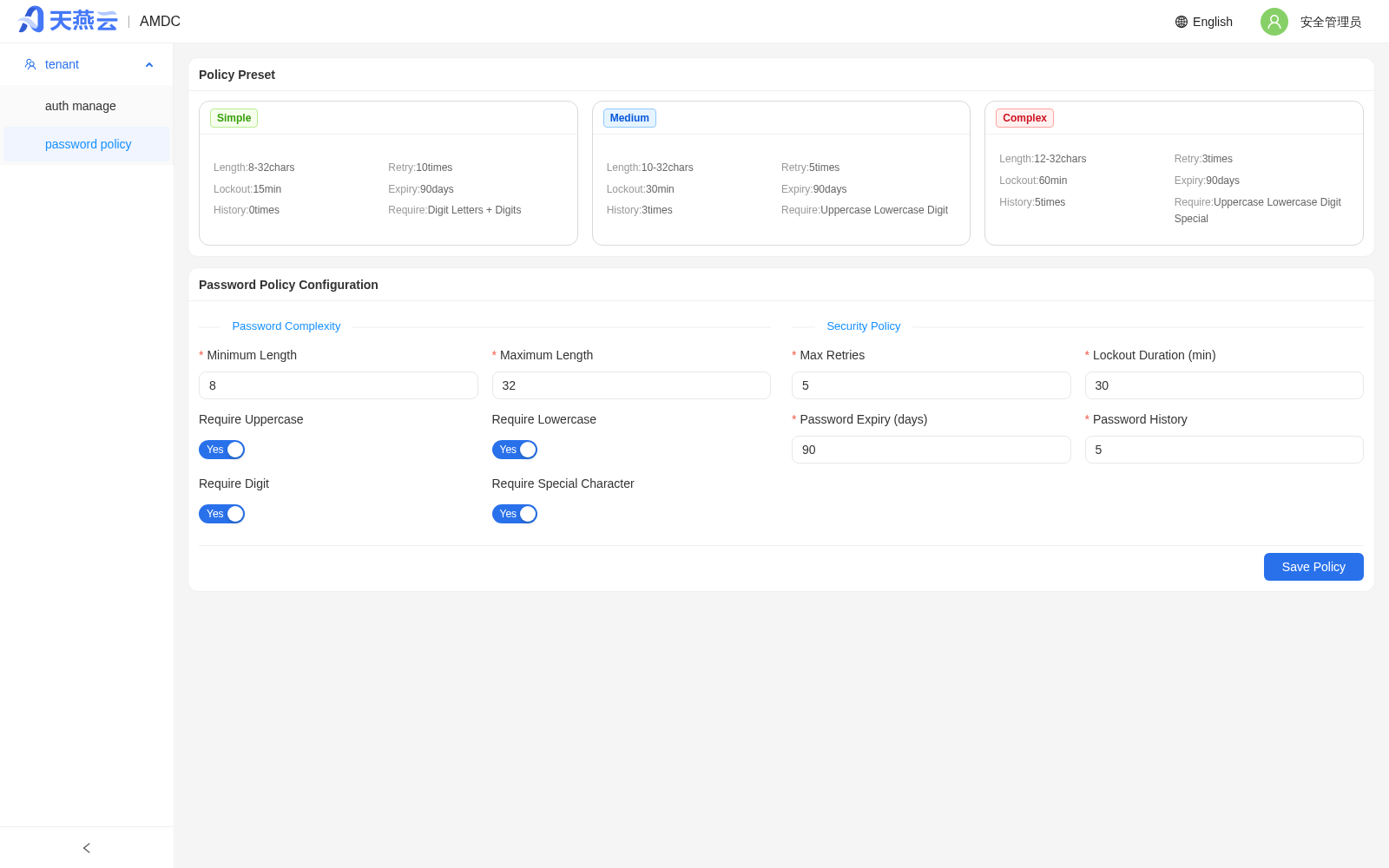
Presets (not editable, for quick selection):
| Preset | Length | Max Retries | Freeze | Expiration | History | Required Characters |
|---|---|---|---|---|---|---|
| Simple | 8-32 | 10 | 15 min | 90 days | 0 | digits, letters + digits |
| Medium | 10-32 | 5 | 30 min | 90 days | 3 | uppercase, lowercase, digits |
| Complex | 12-32 | 3 | 60 min | 90 days | 5 | uppercase, lowercase, digits, special characters |
Note: presets differ in length, history count, and lockout policy. Clicking a preset auto-fills the values in the custom area below. After saving, the policy takes effect for all tenant accounts.
Custom fields:
| Field | Default | Description |
|---|---|---|
| Minimum length | 8 | Cannot be lower than this |
| Maximum length | 32 | Upper bound |
| Require digits | On | Whether the password must include digits |
| Require uppercase letters | Off | Whether the password must include uppercase letters |
| Require lowercase letters | Off | Whether the password must include lowercase letters |
| Require special characters | Off | Whether the password must include special characters |
| Max retry attempts | 5 | Account is locked after this many consecutive login failures |
| Freeze duration (minutes) | 30 | Auto-unlock waiting time after lockout is triggered |
| Password expiration (days) | 90 | Password validity in days; forced change after expiration |
| Historical passwords (count) | 5 | The new password must not match any of the last N historical passwords |
# Audit Administrator (audit_admin)
The audit administrator's menu only contains [Operation History] after login, used to view full audit logs in read-only mode:
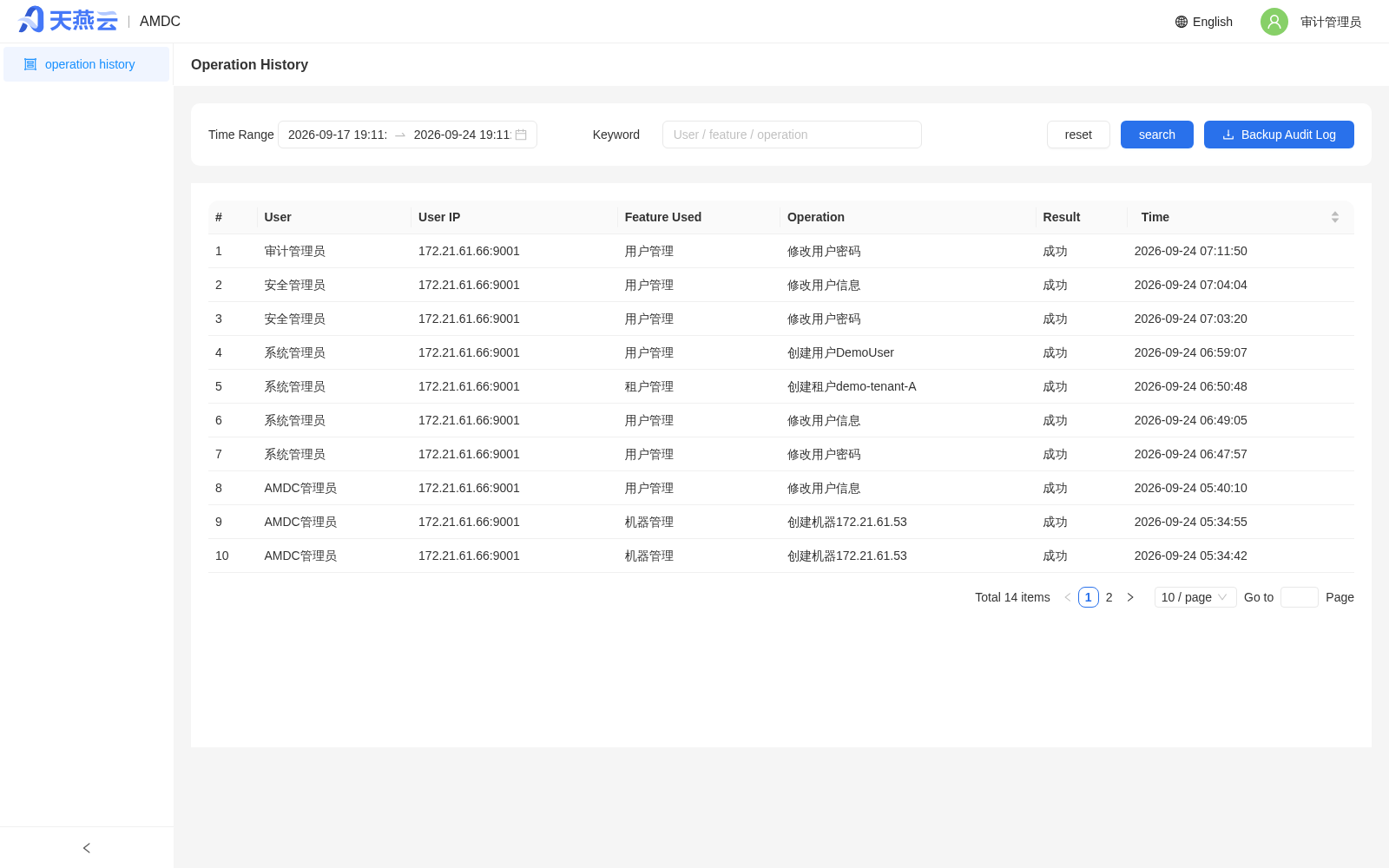
Operation History records all user actions on the console. The list fields include: serial number, user, user access IP, feature used, operation, event result (success / failure), and time. The page supports filtering by time range, keyword search (user / feature / operation), resetting conditions, and backing up audit logs.
# Tenant Administrator (tenant_admin)
The tenant administrator's menu only contains [Tenant] > [Account Management, [Tenant] > [Password Policy], and [Operation History], and can manage accounts within the current tenant:
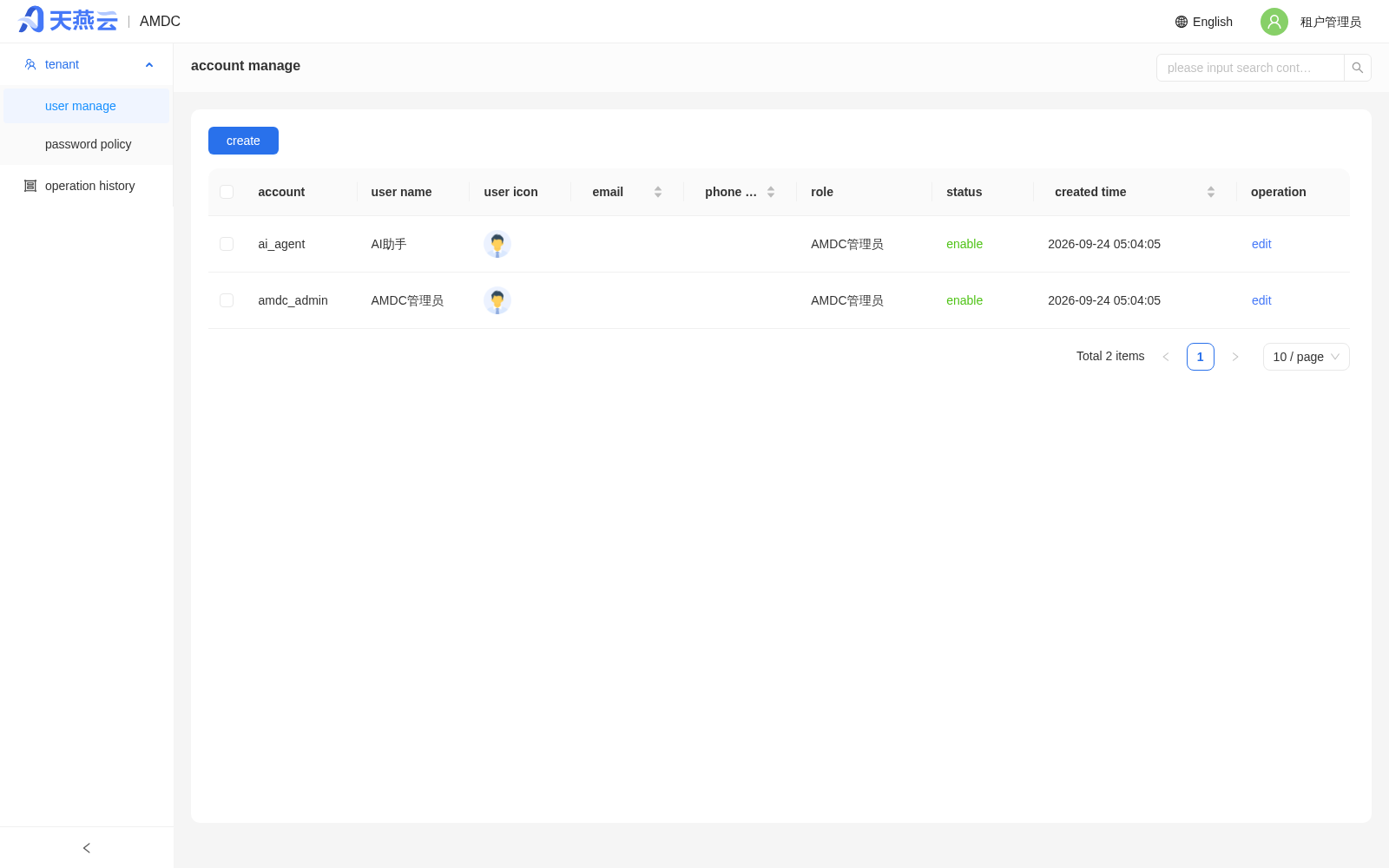
The tenant administrator cannot manage cross-tenant accounts, nor perform cross-tenant authorization.
# Passwords and Security
# Changing the Current User's Password
After logging in, click the user avatar in the upper right corner of the page and choose [Change Password] from the dropdown menu:
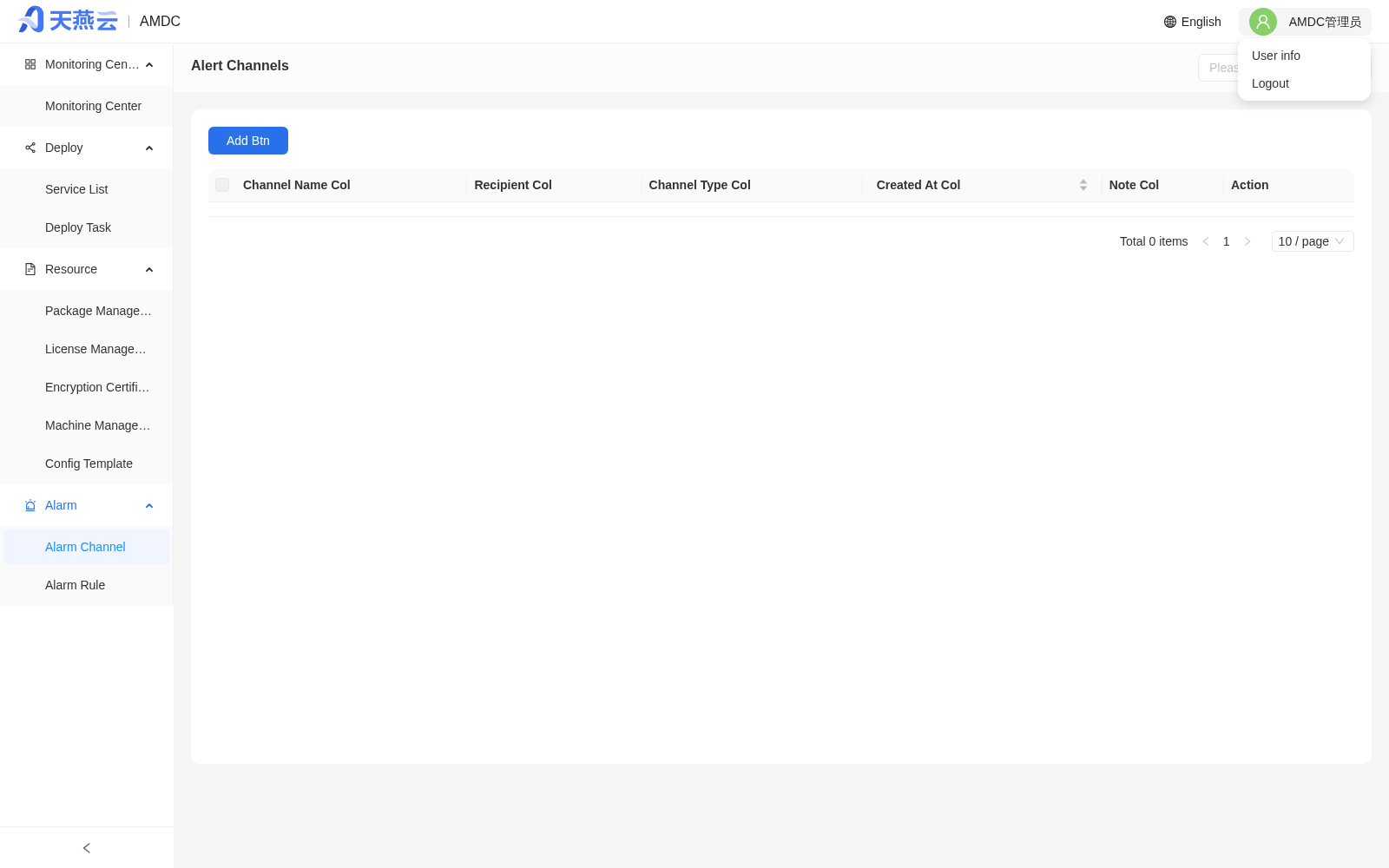
In the pop-up window enter the old password and the new password (twice), then submit for immediate effect. The new password must comply with the current console password policy.
# Logging Out
Choose [Logout] from the user menu. A confirmation dialog appears:
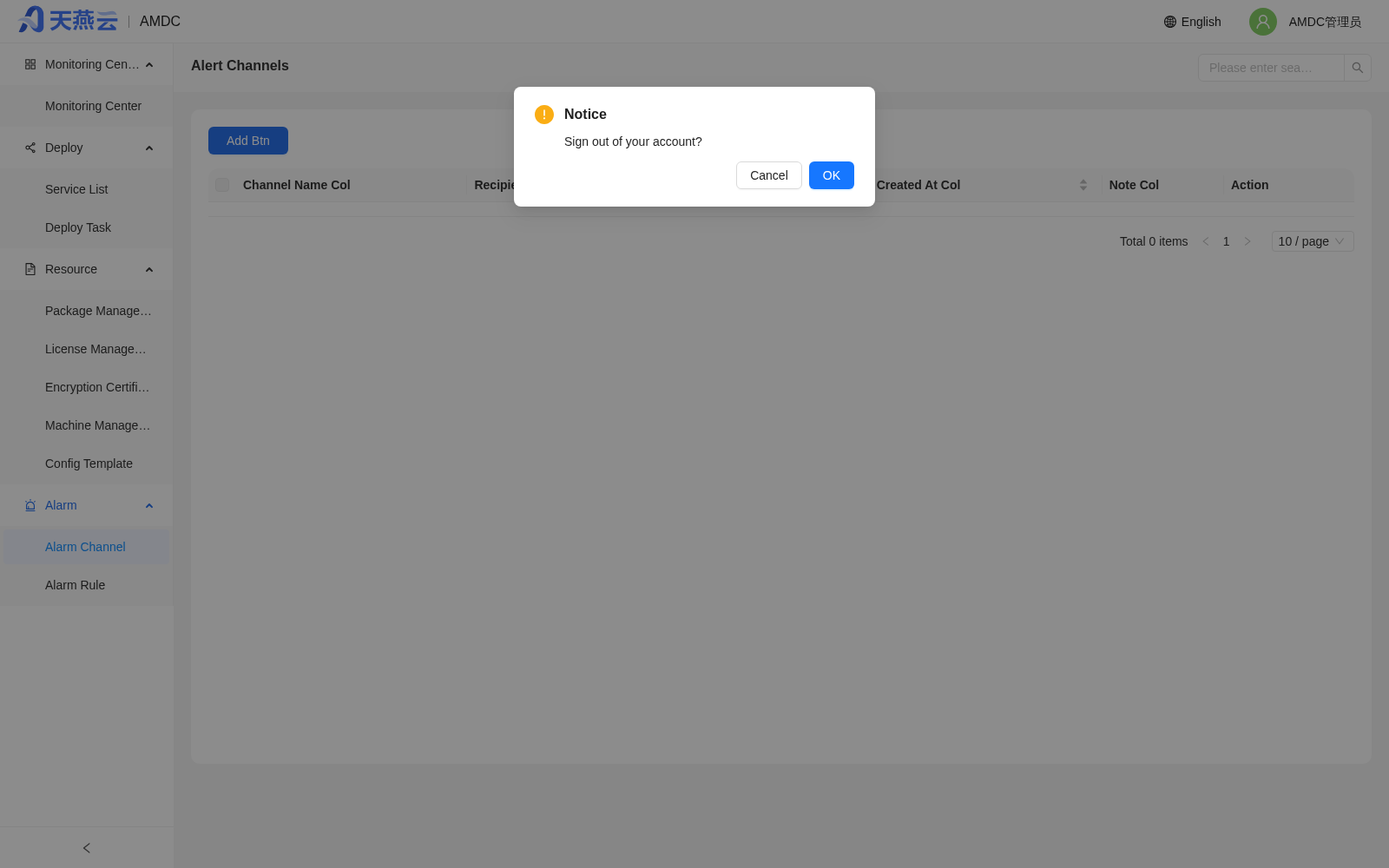
Click [OK] to clear the current session and return to the login page.
# Common Problems
Problem 1: Login shows "Login failed! Wrong password, N attempts remaining"
- Cause: the password does not match the console record and the threshold has not been reached.
- Solution: re-check capitalization and special characters and try again. If the maximum retry count (default 5) is exceeded, the account is temporarily locked. Wait for the freeze duration (default 30 minutes) for auto-unlock, or ask the security administrator to force-unlock it in [Authorization Management].
Problem 2: Login shows "Login failed! Wrong verification code"
- Cause: the graphic verification code is wrong or has expired (it is valid for a single session).
- Solution: click the verification code image to refresh and re-enter. After several failures, refresh the whole login page.
Problem 3: After submitting the first-time password change you stay on the change-password page
- Cause: the new password does not meet the current password policy (e.g. missing uppercase / digits / special characters, or length outside 8-32).
- Solution: follow the "Password policy requirement" hint at the top of the page, modify the new password accordingly, and submit again.