
Quick Start Guide

# Preface
This document is the quick start guide for Apusic In-Memory Data Cache (AMDC) V2.0.6, providing a product introduction, basic steps for installing and deploying the product, and verification methods.
# Target Audience
This document is intended for AMDC product operations engineers, IT system operations engineers, development engineers, software architects, R&D managers, and other personnel.
# Related Documentation
For more information about AMDC V2.0.6, please refer to the following AMDC V2.0.6 product manual documentation set:
| No. | Document | Description |
|---|---|---|
| 1 | Apusic In-Memory Data Cache V2.0.6 Quick Start Guide | A brief introduction on how to quickly get started with AMDC. |
| 2 | Apusic In-Memory Data Cache V2.0.6 Installation Guide | Detailed introduction on how to install AMDC on various operating systems, AMDC service start/stop operations, and the product registration process. |
| 3 | Apusic In-Memory Data Cache V2.0.6 Cache Core User Manual | Detailed introduction on how to use, configure, and manage AMDC features and supporting tools. |
| 4 | Apusic In-Memory Data Cache V2.0.6 Console User Manual | Detailed instructions on using and operating AMDC console features. |
| 5 | Apusic In-Memory Data Cache V2.0.6 Development Guide | Detailed instructions for developing AMDC client applications using various programming languages. |
| 6 | Apusic In-Memory Data Cache V2.0.6 Migration Guide | Detailed instructions for migrating AMDC from historical versions to V2.0.6, as well as migrating from Redis to AMDC. |
| 7 | Apusic In-Memory Data Cache V2.0.6 Operations Guide | Detailed instructions for AMDC monitoring, operations, security hardening, and other operational procedures. |
| 8 | Apusic In-Memory Data Cache V2.0.6 Performance Tuning Guide | Detailed instructions for AMDC performance tuning. |
# Technical Support
AMDC products provide comprehensive technical support services. You can obtain technical support through the following channels:
Website: https://www.apusic.com
Phone: 400-855-5800
Email: support@apusic.com
Kingdee Cloud Community: https://vip.kingdee.com/?productId=73&productLineId=14&lang=zh-CN
When requesting technical support, please provide the following information:
Your name
Company information and contact details
Operating system and version
Product version number
Detailed information including logs, screenshots, etc. of any exceptions or errors
# Cache Core Quick Start
This quick start guide will help you complete the following within a few minutes:
- Successfully deploy and start the AMDC service;
- Connect to an AMDC instance using the default configuration;
- Perform basic read/write operations to verify functionality;
- Connect to the AMDC service using a Java client.
After completing this guide, you will have a running AMDC instance and be able to perform basic interactions via the command line or a client.
# Prerequisites
Please ensure your system meets the following requirements:
- Operating system: Linux (Windows Subsystem for Linux (WSL) recommended)
- CPU architecture: x86_64, ARM64
- Java 17+ (if the AMDC client is written in Java) or the corresponding runtime environment (adjust according to your actual technology stack)
- Network port 6359 (AMDC default port) is not occupied
# Quick Start Steps
# Obtain the AMDC Product Package
- x86_64 CPU architecture:
AMDC-V2.0.6-20260604-amd64.tar.gz - ARM64 CPU architecture:
AMDC-V2.0.6-20260604-arm64.tar.gz
Please select the product package corresponding to the target server's CPU architecture.
Note: The date [20260604] in the product package name may vary; please refer to the actual package.
# Upload to the Target Server and Extract
The following uses the product package AMDC-V2.0.6-20260604-amd64.tar.gz as an example
- Upload
AMDC-V2.0.6-20260604-amd64.tar.gzto the/optdirectory on the target server - Enter the /opt directory:
cd /opt - Extract:
tar -zxvf AMDC-V2.0.6-20260604-amd64.tar.gz - Enter the AMDC directory:
cd amdc
# Import the License File
The AMDC product requires a license file to start properly. Please contact your AMDC sales representative/service support personnel to obtain the latest test license file.
The following uses the test license file archive 金蝶Apusic分布式缓存软件2.0.zip as an example
- Obtain the license file archive:
金蝶Apusic分布式缓存软件2.0.zip - Upload it to the
/opt/amdcdirectory on the target server - Extract the license file:
unzip 金蝶Apusic分布式缓存软件2.0.zip - Rename the license file starting with KBC to
license.lic:mv KBCLIC-251216-000155.lic license.lic
# Start the AMDC Service
- Start the AMDC service:
./amdc-server amdc.yaml
root@root:/opt/amdc$ ./amdc-server amdc.yaml
[2026-06-04 14:09:59.775 NOTICE] AMDC version=2.0.6, bits=64, commit=00000000, modified=1, pid=324619, just started
[2026-06-04 14:09:59.777 NOTICE] AMDC KBC authorization code: 'SZTY1952469739' for mac: AC-DC-CA-7B-2E-02
[2026-06-04 14:09:59.779 NOTICE] KBC: license used to test users
[2026-06-04 14:09:59.779 NOTICE] License file currently loaded by server: /opt/changzhi/AMDC/./src/license.lic
[2026-06-04 14:09:59.779 NOTICE] License restriction detected, overwrite maxmemory configuration from 0B to 5.59G due to license limitations
[2026-06-04 14:09:59.779 NOTICE] licensee=深圳市金蝶天燕云计算股份有限公司, duration=2026-05-06 00:00:00 to 2026-08-04 23:59:59, ip=0, maxclients=0, maxmemory=6G, CPUs=0
      ___                     _        Apusic In-Memory Data Cache
     /   |  ____  __  _______(_)____
    / /| | / __ \/ / / / ___/ / ___/   License start: 2026-05-06 00:00:00
   / ___ |/ /_/ / /_/ (__  ) / /__     License end: 2026-08-04 23:59:59
  /_/  |_/ .___/\__,_/____/_/\___/     IP granted: 0
        /_/                            Licensee: 深圳市金蝶天燕云计算股份有限公司

  Version: v2.0.6   Bind: 127.0.0.1 / -::1   Port: 6359   PID: 324619

[2026-06-04 14:09:59.779 NOTICE] Server initialized
[2026-06-04 14:09:59.779 NOTICE] Loading RDB produced by version 2.0.6
[2026-06-04 14:09:59.779 NOTICE] RDB age 53 seconds
[2026-06-04 14:09:59.779 NOTICE] RDB memory usage when created 0.78 Mb
[2026-06-04 14:09:59.779 NOTICE] Done loading RDB, keys loaded: 0, keys expired: 0.
[2026-06-04 14:09:59.779 NOTICE] DB loaded from disk: 0.000 seconds
[2026-06-04 14:09:59.780 NOTICE] Ready to accept connections tcp
2
3
4
5
6
7
8
9
10
11
12
13
14
15
16
17
18
19
20
21
22
23
As shown above, AMDC listens on port 6359, and the AMDC service has started successfully.
# Use the amdc-cli Tool for Data Read/Write
- Start the amdc-cli tool:
./amdc-cliroot@root:/opt/amdc$ ./amdc-cli 127.0.0.1:6359> info # Enter the info command to view AMDC service information # Server amdc_version:2.0.6 amdc_git_sha1:00000000 amdc_git_dirty:1 amdc_build_id:4d9754b8e1459059 amdc_build_date:2026-05-21 amdc_pid:324619 amdc_mode:standalone os:Linux 5.10.0-281.0.0.184.oe2203sp4.aarch64 aarch64 arch_bits:64 monotonic_clock:ARM CNTVCT @ 100 ticks/us # The following content is omitted1
2
3
4
5
6
7
8
9
10
11
12
13
14
15 - Create a key:
set test "hello world"127.0.0.1:6359> set test "hello world" OK1
2 - Get the value of a key:
get test127.0.0.1:6359> get test "hello world"1
2
# Use Java for Data Read/Write
- AMDC is compatible with the Redis SDK: Jedis
- Add the dependency
<dependency>
    <groupId>redis.clients</groupId>
    <artifactId>jedis</artifactId>
    <version>4.3.1</version>
</dependency>
1
2
3
4
5 - Establish a connection and write data
package com.robin.test;

import redis.clients.jedis.Jedis;

public class JedisDemo1 {


    private Jedis jedis;

    // Test connection
    void SetUp(){
        // 1. Establish connection
        jedis = new Jedis("127.0.0.1",6359);
    }

    // Test String
    void testString(){

        String res = jedis.set("name", "apusic");
        System.out.println("res"+res);

        String name = jedis.get("name");
        System.out.println("name="+name);

    }

    // Release resources
    void tearDown(){

        if(jedis!=null){
            jedis.close();
        }
    }

    public static void main(String[] args) {

        JedisDemo1 demo1 = new JedisDemo1();
        demo1.SetUp();
        demo1.testString();
        demo1.tearDown();
    }
}
1
2
3
4
5
6
7
8
9
10
11
12
13
14
15
16
17
18
19
20
21
22
23
24
25
26
27
28
29
30
31
32
33
34
35
36
37
38
39
40
41
42 - For other programming languages, refer to the Redis client SDK usage instructions
# Security Hardening (strongly recommended to configure immediately after first startup)
AMDC has no password by default and binds to all interfaces. It is strictly forbidden to expose it directly to the public network or untrusted networks.
Set an access password
- Edit
amdc.yaml(editrequirepass):SECURITY: # user: "<user> <acl rules...>" user: "" # Maximum number of ACL log entries acllog-max-len: 128 # Path to an external ACL user file; cannot be mixed with user configuration in the configuration file aclfile: "" # Password of the default user (equivalent to the default user password in ACL) requirepass: "PASSWORD" # Change the password on this line1
2
3
4
5
6
7
8
9 - Restart the AMDC service
- Test:
./amdc-cli -a PASSWORD
- Edit
Restrict listening addresses
- Edit
amdc.yaml(editbind):NETWORK: # The network address to listen on. By default, only the local loopback address is listened on. Comment out this line to listen on all interfaces (exposing to the public network poses security risks) bind: - "127.0.0.1" # Change the IP address on this line to the current machine's IP - "-::1"1
2
3
4
5 - Restart the AMDC service
- Test:
./amdc-cli -h IP
- Edit
# Web Console Quick Start
The following demonstrates the quick operation process of service onboarding and existing instance import from the perspective of an AMDC administrator. Following this process, an implementation engineer unfamiliar with the console can independently complete deployment and import verification.
# Log In to the Console
- Open a browser and visit
http://<serverIP>:3001/to enter the login page. - Enter the account
amdc_adminand the corresponding password:- When the console starts for the first time, it automatically generates initial passwords for all preset administrator accounts (including
amdc_admin, three-role administrators, and tenant administrators) and writes them to the./resource/.initial_passwordsfile under the installation directory. - Open this file and find the 12-digit random password after
amdc_admin:as the first login password. - After the first successful login, the system will force you to change the password according to the current password policy; you can only enter the console main interface after completing the change. Logging in again after the password expires will also trigger a forced change.
- When the console starts for the first time, it automatically generates initial passwords for all preset administrator accounts (including
- Click [Login] to enter the console homepage.
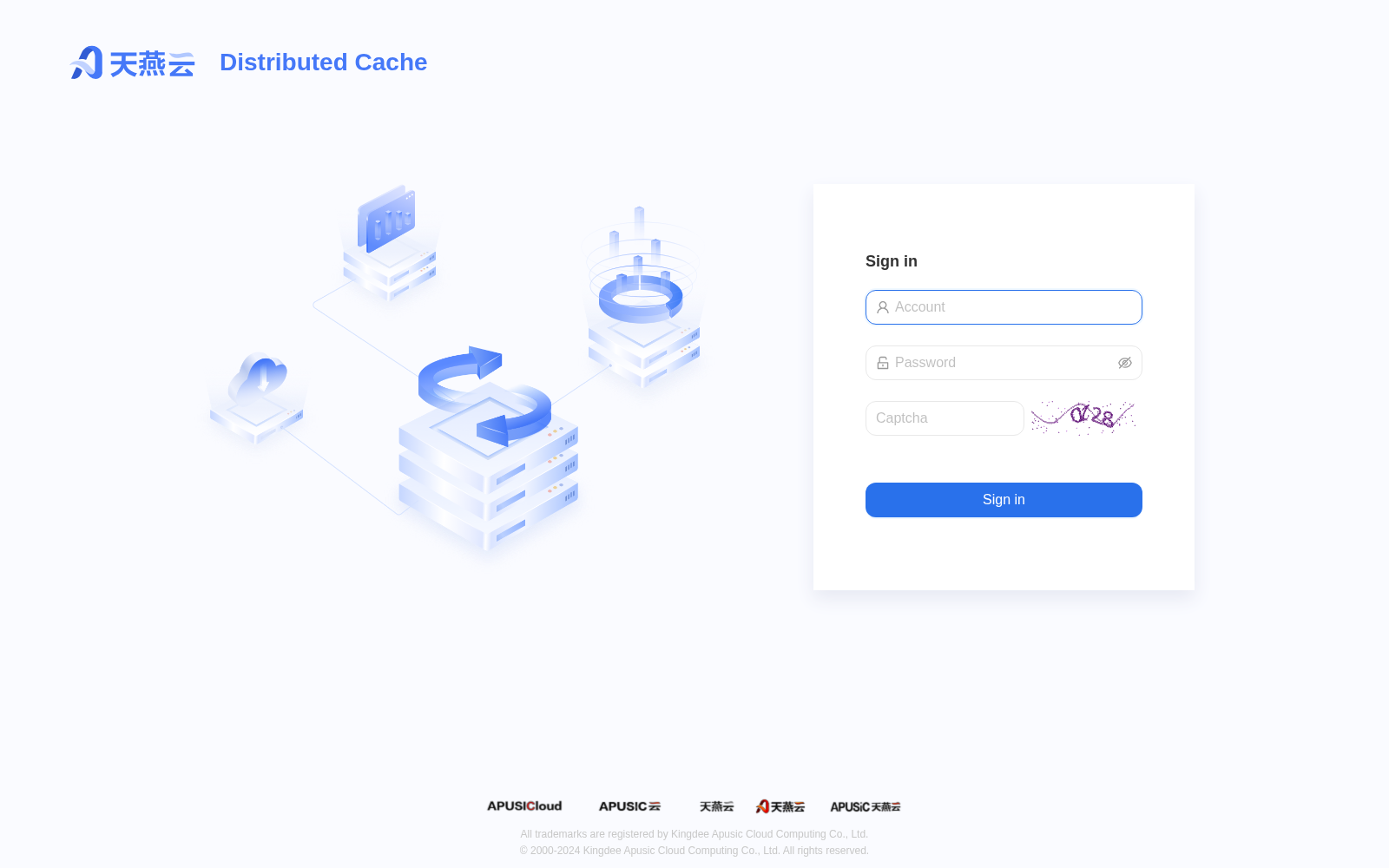
Note: All subsequent operations in this document are based on the AMDC administrator role. Other roles (system administrator, security administrator, audit administrator, tenant administrator) may have different menu scopes; please refer to the actual logged-in role.
# 1. Resource Preparation
Before deploying services, you need to prepare the installation package, License, machines, and configuration templates. In the automatic deployment process, you can directly click the corresponding [View] button at the top of the [Basic Configuration] page and complete the upload or addition in the pop-up drawer, without entering the [Resource Management] menu in advance.
# 1.1 Upload the Installation Package
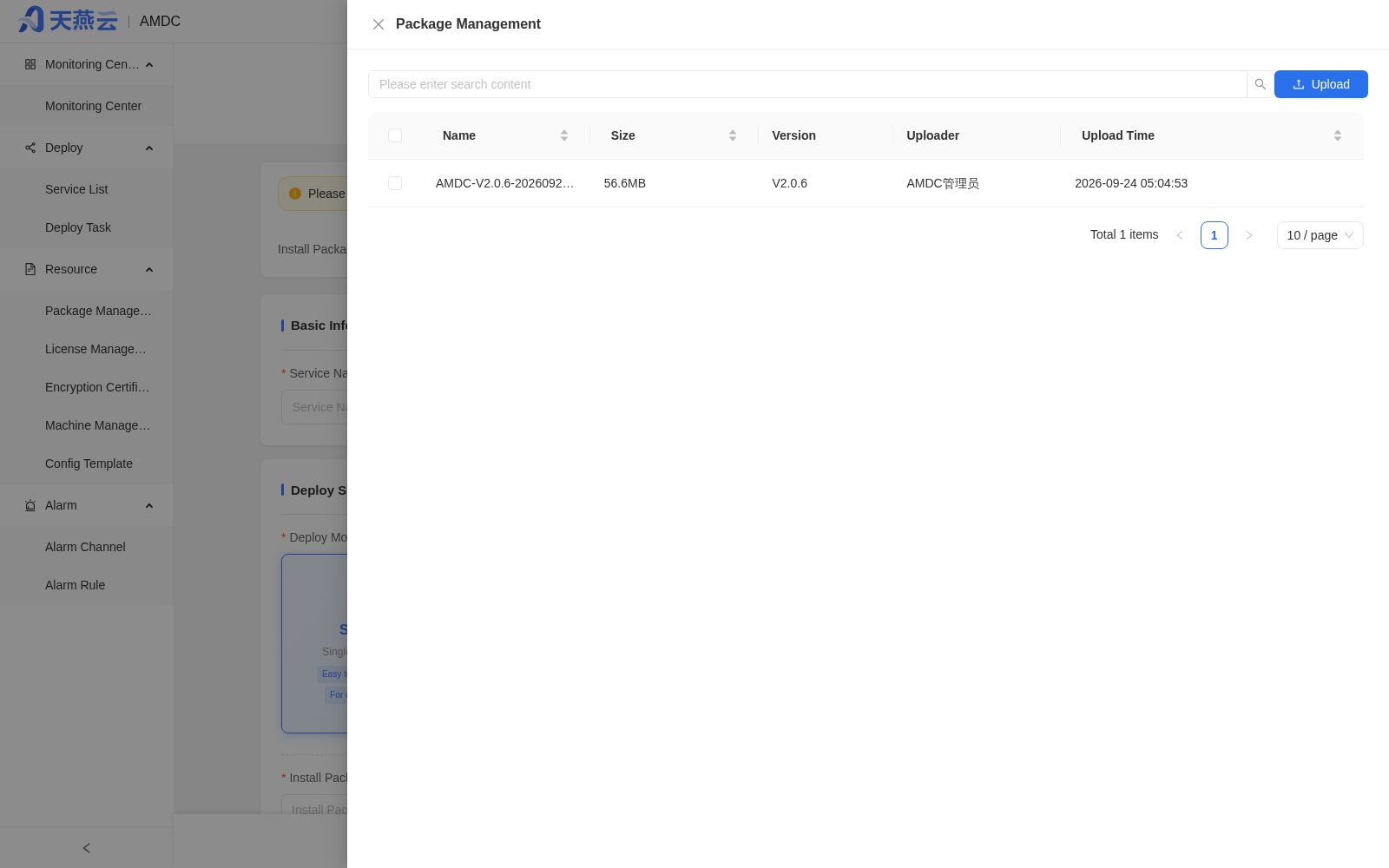
- Go to [Deployment Management] > [Automatic Deployment], and click the [View] button next to Installation Package at the top of the [Basic Configuration] step.
- In the pop-up "Package Management" drawer, click the [Upload] button and select the AMDC installation package file of the target version (e.g.,
AMDC-V2.0.6-xxxx-amd64.tar.gz). - Click [OK] to complete the upload.
# 1.2 Upload the License
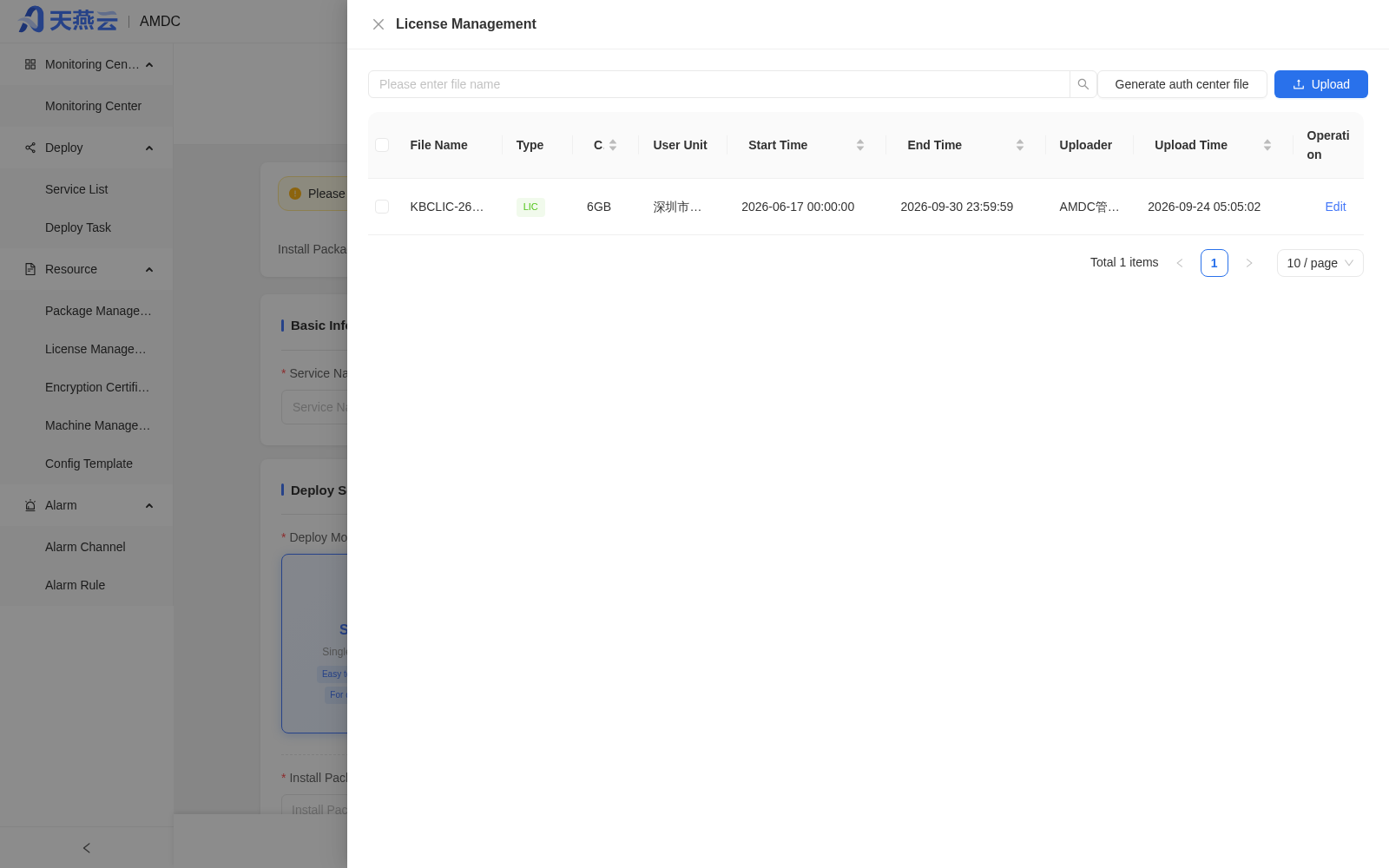
- On the [Basic Configuration] page of automatic deployment, click the [View] button next to Certificate at the top.
- In the pop-up "Certificate Management" drawer, click the [Upload] button and select valid License files; multiple files can be uploaded at the same time.
- After uploading, the system will automatically parse them; invalid Licenses cannot be saved.
# 1.3 Add Target Machines
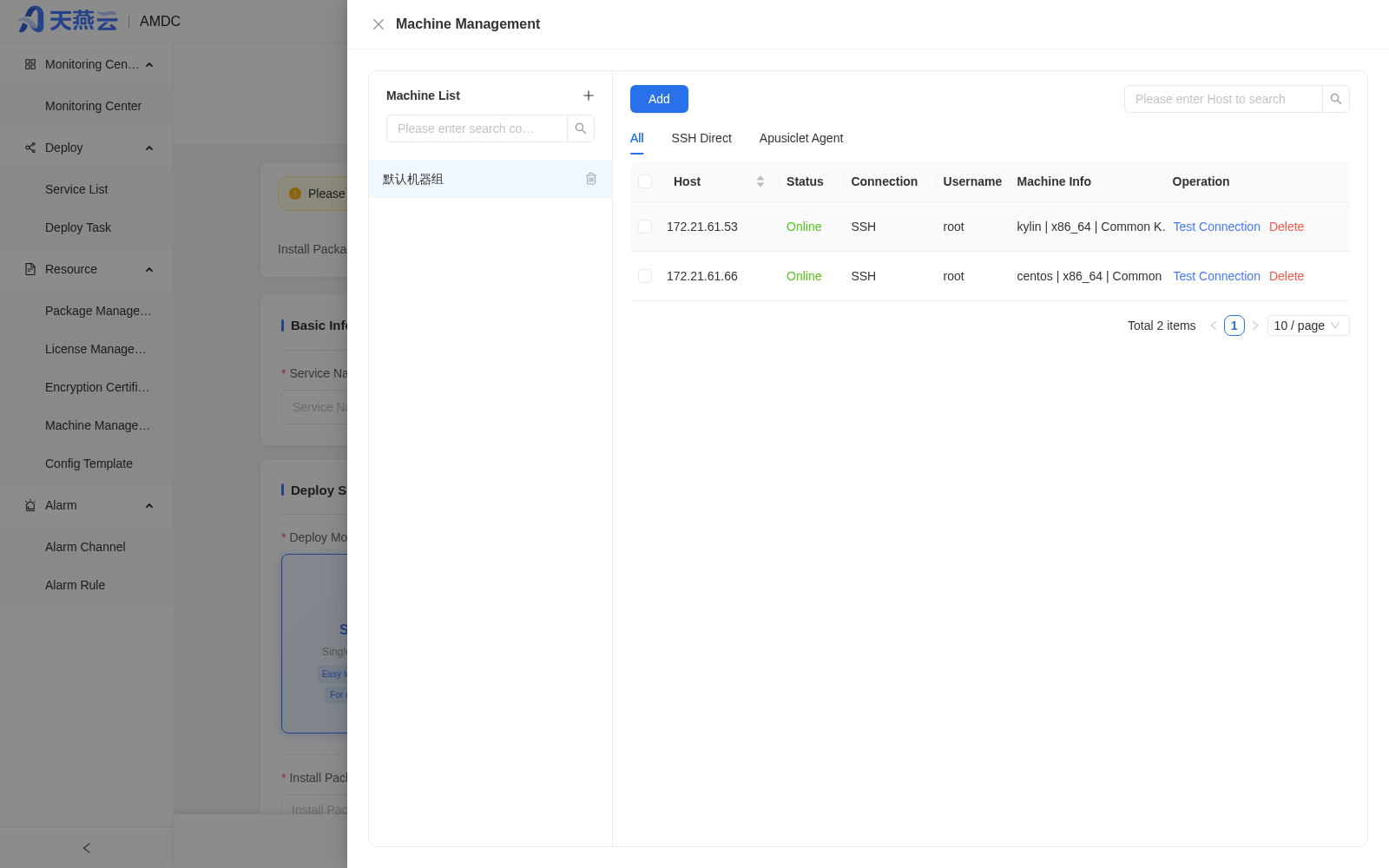
- On the [Basic Configuration] page of automatic deployment, click the [View] button next to Machine Management at the top.
- In the pop-up "Machine Management" drawer, first click the [+] button next to the machine group on the left to create a machine group.
- Select the machine group, click the [Add] button in the upper left, and fill in the remote server information:
| Parameter | Example Value | Description |
|---|---|---|
| Username | root | Username for logging in to the remote machine |
| Password | - | Password for logging in to the remote machine |
| SSH Port | 22 | Remote SSH port |
| Host | 172.17.47.213 | Remote machine IP |
| Remarks | - | Optional |
- Confirm that the target machine connection status is normal before proceeding with subsequent deployment.
Note: The same machine group can only contain machines with the same chip architecture; automatic deployment requires the target machines to have the
tarandsscommands.
# 1.4 Confirm Configuration Templates
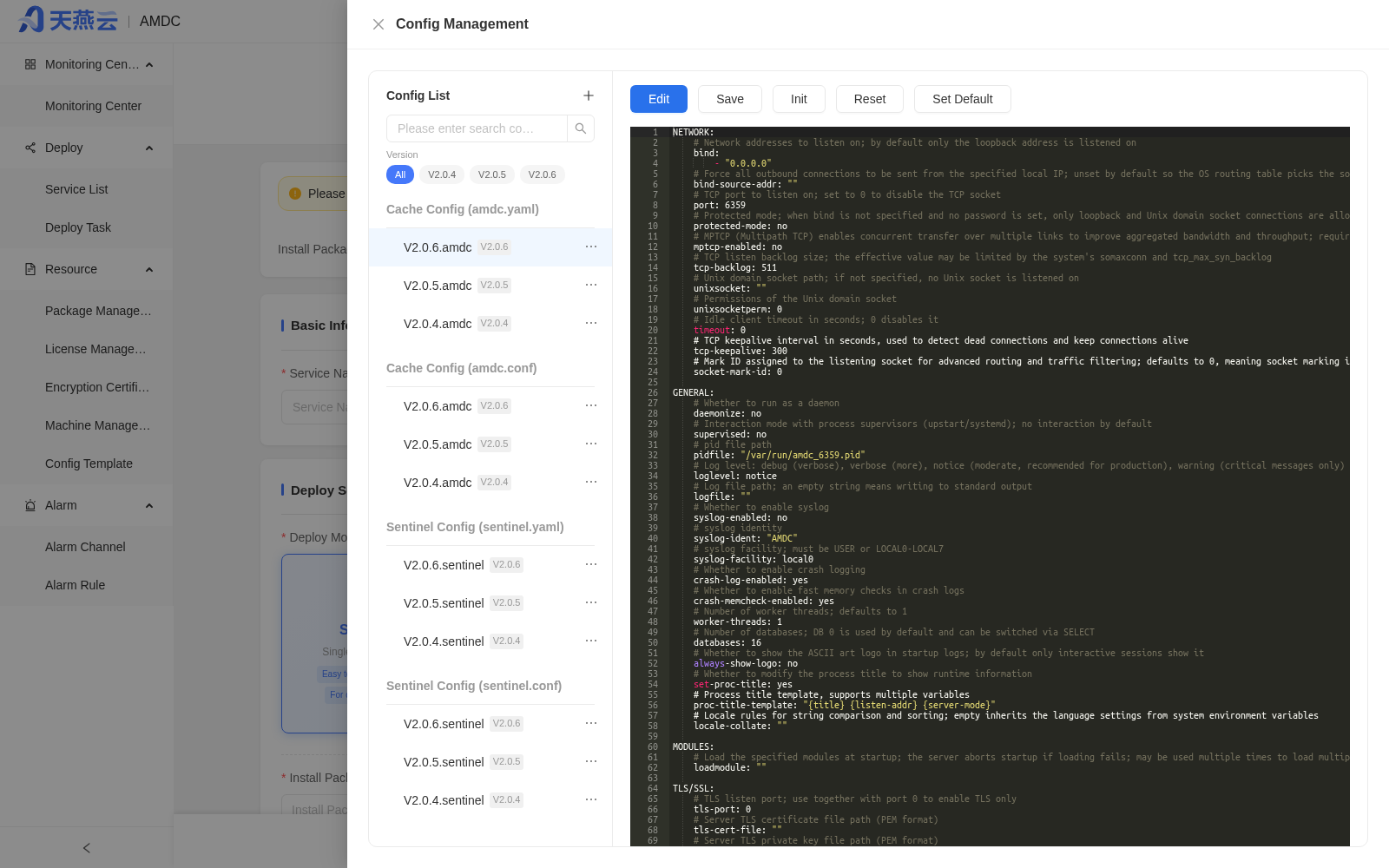
- On the [Basic Configuration] page of automatic deployment, click the [View] button next to Configuration Management at the top.
- In the pop-up "Configuration Management" drawer, confirm that the cache core configuration template and the Sentinel configuration template (if using Sentinel mode) are available.
- If customization is needed, you can modify them here; non-public parameters such as IP and port will not take effect.
# 2. Automatically Deploy a New Service
After resource preparation is complete, continue in the automatic deployment wizard to complete service deployment in a 4-step process.
# 2.1 Basic Configuration
Fill in the following in the [Basic Configuration] step:
- Service Name: A unique identifier; only supports letters, digits, underscores, and hyphens, no more than 24 characters.
- Deployment Mode: Select standalone / master-slave / Sentinel / cluster / pre-generated nodes.
- Installation Package: Select an uploaded installation package.
- Installation Directory: e.g.,
/data/looper; nodes are actually located at{seat}/{port}. - AMDC Password: The cache core management password; you can click the settings button to configure complexity rules.
- Auto-start on Boot: Whether to run automatically when the system starts.
- sudo: Whether to use sudo privileges to execute installation commands.

# 2.2 Topology Configuration
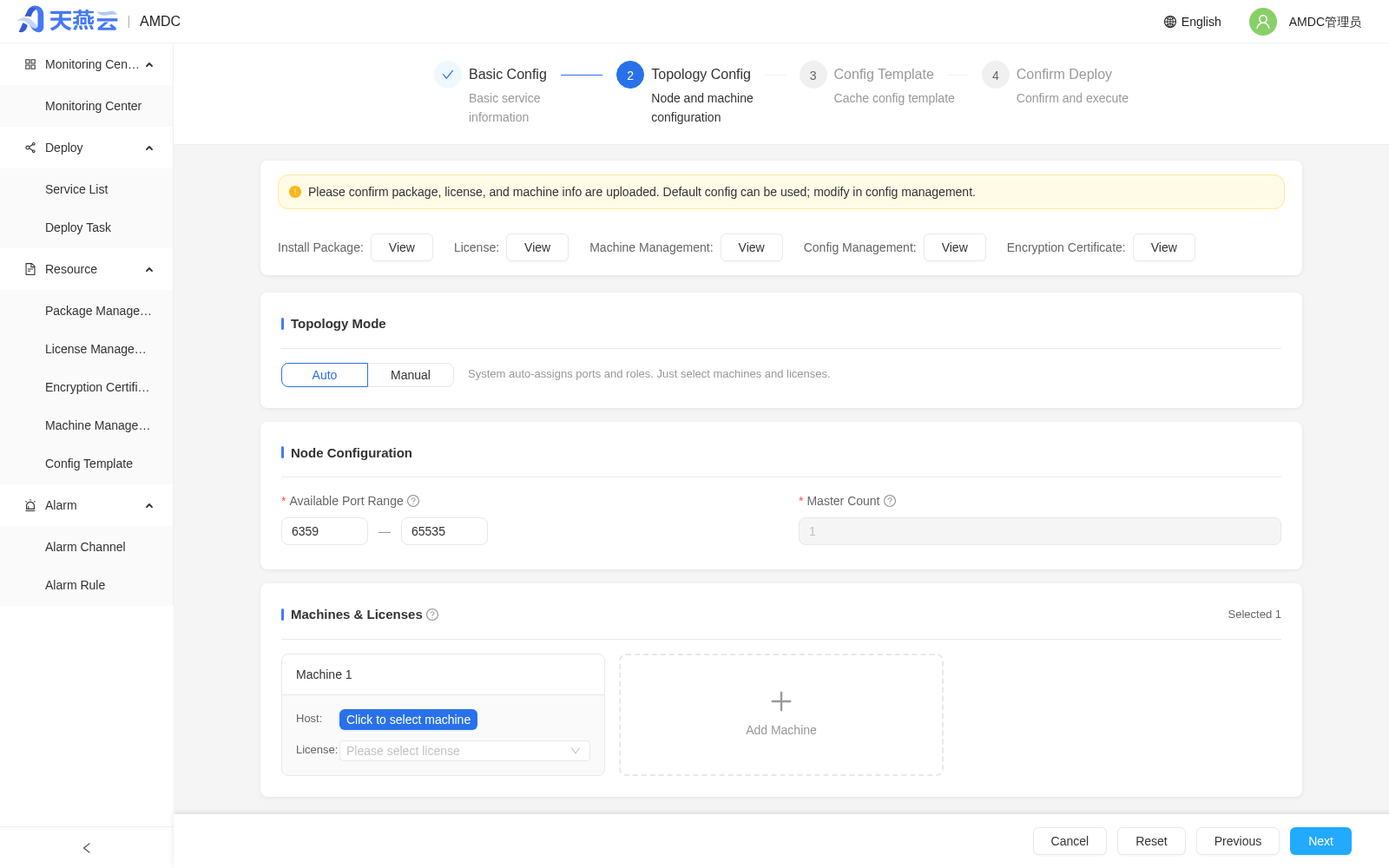
- Select [Automatic] or [Manual] topology mode:
- Automatic: The system automatically assigns ports and node roles; you only need to select machines and licenses.
- Manual: Configure the machine, port, role, and license for each node.
- Configure the port range (default 6359–65535) and the number of nodes.
- In the [Machines and Licenses] area, select the target machines and select a License for each machine.
Note: All machines must be in the same machine group; non-Sentinel nodes must have a license selected.
# 2.3 Configuration Templates
Select the cache core configuration template; if the deployment mode is Sentinel, you also need to select the Sentinel configuration template.
# 2.4 Confirm Deployment
- After confirming that the deployment information is correct, click [Execute Task] to deploy immediately, or click [Save Task] to save it for later execution.
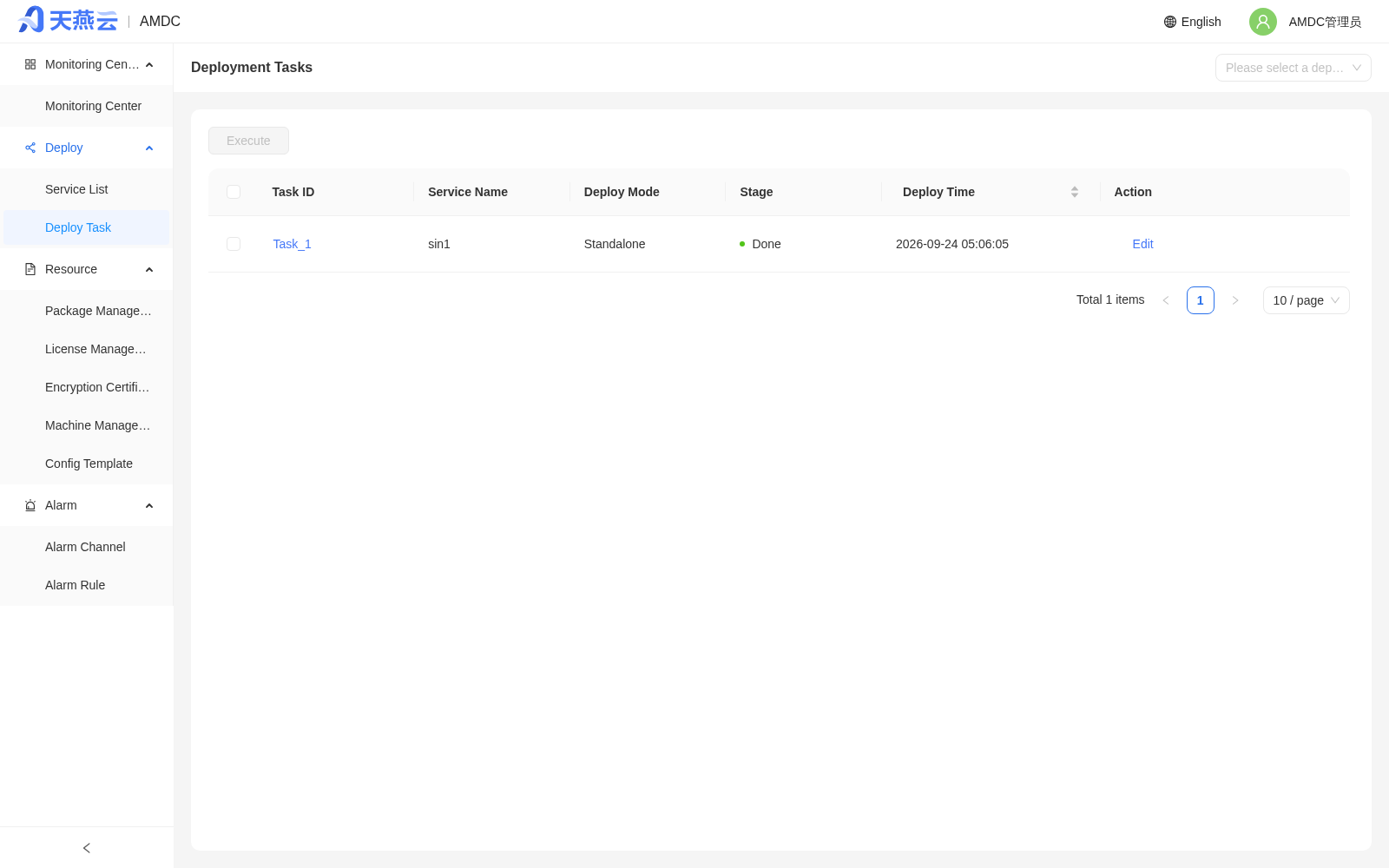
- During deployment, you can go to [Deployment Management] > [Deployment Tasks] to view the task status.
- Wait for the task status to change to "Completed".
# 3. Import Existing Instances
For AMDC cache cores already deployed by other means, you can quickly import them into the console for unified management.
# 3.1 Enter the Import Page
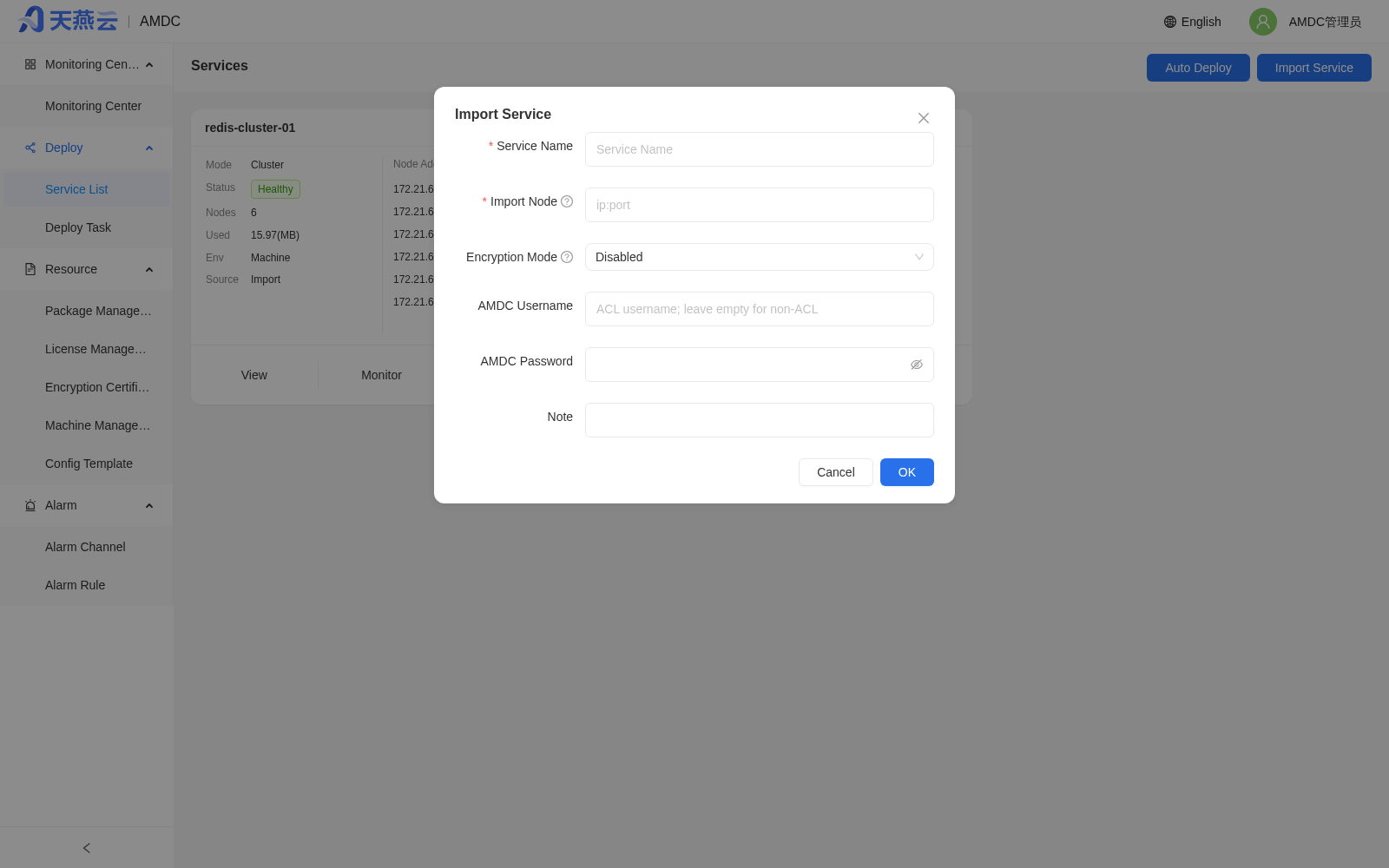
Go to [Deployment Management] > [Service List], and click the [Import] button in the upper left corner to open the "Service Import" pop-up window.
# 3.2 Fill In Import Information
Fill in the following information according to the actual instance mode:
| Parameter | Example Value | Description |
|---|---|---|
| Service Name | imported_cluster | Custom service name |
| Import Nodes | 172.17.47.213:6359 | IP:Port of instance nodes; for multiple nodes, click [Create Node] to add |
| Encryption Mode | Off | Keep [Off] if the instance has no encrypted transport; for TLS-enabled instances, select the corresponding mode (Standard TLS / GM TLS) |
| AMDC Username | - | ACL username; leave blank if ACL is not enabled |
| AMDC Password | - | Cache core access password |
| Remarks | - | Optional |
Note: Please import the corresponding nodes according to the instance mode:
- Standalone/Master-slave mode: Import the master node.
- Sentinel mode: Import Sentinel nodes.
- Cluster mode: Import cluster nodes.
After filling in the information, click [OK]. After a successful import, the instance will be displayed in the service list.
# 3.3 Associate Machines
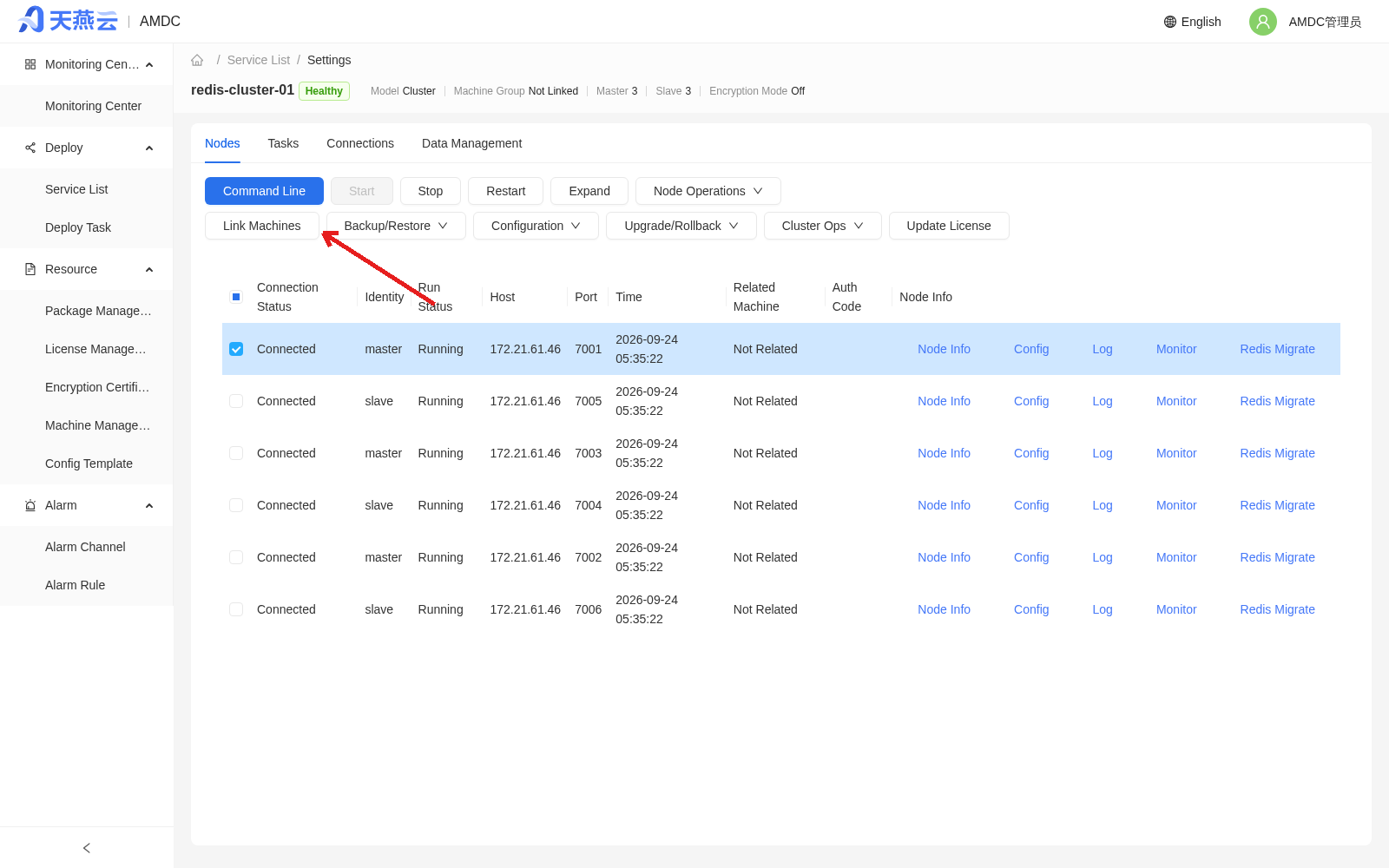
Imported nodes are not associated with machine information by default. To use the console's full management features such as installation package upgrade and configuration delivery, go to Service Details > [Settings], select the node, and click [Associate Machine] to bind the node to the target machine in machine management.
# 4. Service Verification
After completing automatic deployment or import, go to [Deployment Management] > [Service List], click the service name to enter the service details, where you can view node status, or click the [Command Line] button at the top to execute AMDC commands to verify data write/read.