
Console User Manual

# Preface
This document is the user manual for the Kingdee Apusic Distributed Message Queue for RabbitMQ (Apusic Distributed Message Queue,简称:ADMQ for RabbitMQ) console product, detailing the functional usage, configuration methods, and management operations of the ADMQ for RabbitMQ Web console.
# Target Audience
This document is intended for IT business leaders, R&D managers, software project managers, software architects, and operations engineers.
# Related Documents
For more information about ADMQ for RabbitMQ products, please refer to the following ADMQ for RabbitMQ product documentation set:
| No. | Document | Description |
|---|---|---|
| 1 | Kingdee Apusic Distributed Message Queue for RabbitMQ Quick Start Guide | A brief introduction on how to quickly get started with ADMQ for RabbitMQ. |
| 2 | Kingdee Apusic Distributed Message Queue for RabbitMQ Installation Guide | Detailed instructions on installing ADMQ for RabbitMQ on various operating systems, as well as starting and stopping ADMQ for RabbitMQ services. |
| 3 | Kingdee Apusic Distributed Message Queue for RabbitMQ Message Engine User Manual | Detailed description of the usage, configuration, management, and supporting tools of ADMQ for RabbitMQ message engine related features. |
| 4 | Kingdee Apusic Distributed Message Queue for RabbitMQ Console User Manual | Detailed description of the usage and operation instructions for ADMQ for RabbitMQ console related functions. |
| 5 | Kingdee Apusic Distributed Message Queue for RabbitMQ Developer Guide | Detailed instructions for developing ADMQ for RabbitMQ client applications in various programming languages. |
| 6 | Kingdee Apusic Distributed Message Queue for RabbitMQ Migration Guide | Detailed instructions on migrating from RabbitMQ to ADMQ for RabbitMQ. |
| 7 | Kingdee Apusic Distributed Message Queue for RabbitMQ Operations Manual | Detailed description of ADMQ for RabbitMQ monitoring, operations, security hardening, and other operational instructions. |
| 8 | Kingdee Apusic Distributed Message Queue for RabbitMQ Performance Optimization Guide | Detailed description of ADMQ for RabbitMQ performance tuning. |
# Technical Support
ADMQ for RabbitMQ provides comprehensive technical support services. You can obtain technical support through the following methods:
- Website: www.apusic.com
- Phone: 400-855-5800
- Email: support@apusic.com
- Kingdee Cloud Community: https://vip.kingdee.com/?productId=73&productLineId=14&lang=zh-CN
When seeking technical support, please provide the following information:
- Your name
- Company information and contact details
- Operating system and its version
- Product version number
- Detailed logs, screenshots, etc. of the anomalies and errors
# Version History
| Version | Release Date | Revision Description |
|---|---|---|
| V2.0.6 | 2026-06-23 | Initial version, introducing the login entry, interface layout, virtual host/exchange/queue/routing/MQ user management, monitoring and statistics, plugins and policies, and frequently asked questions of the ADMQ for RabbitMQ console. |
# Terminology
| Term | Description |
|---|---|
| Cluster | RabbitMQ cluster, a message service cluster composed of multiple nodes |
| Node | A single service node in a RabbitMQ cluster |
| Vhost | Virtual host, used to isolate resources of different business systems |
| User | RabbitMQ management user, used for client connection authentication |
| Exchange | Exchange, used to receive and route messages |
| Queue | Queue, used to store messages |
| Binding | Binding, used to define the routing relationship between Exchange and Queue |
| Routing Key | Routing key, used for message delivery matching |
| Permission | Access permissions of a user under a specified Vhost |
# Overview
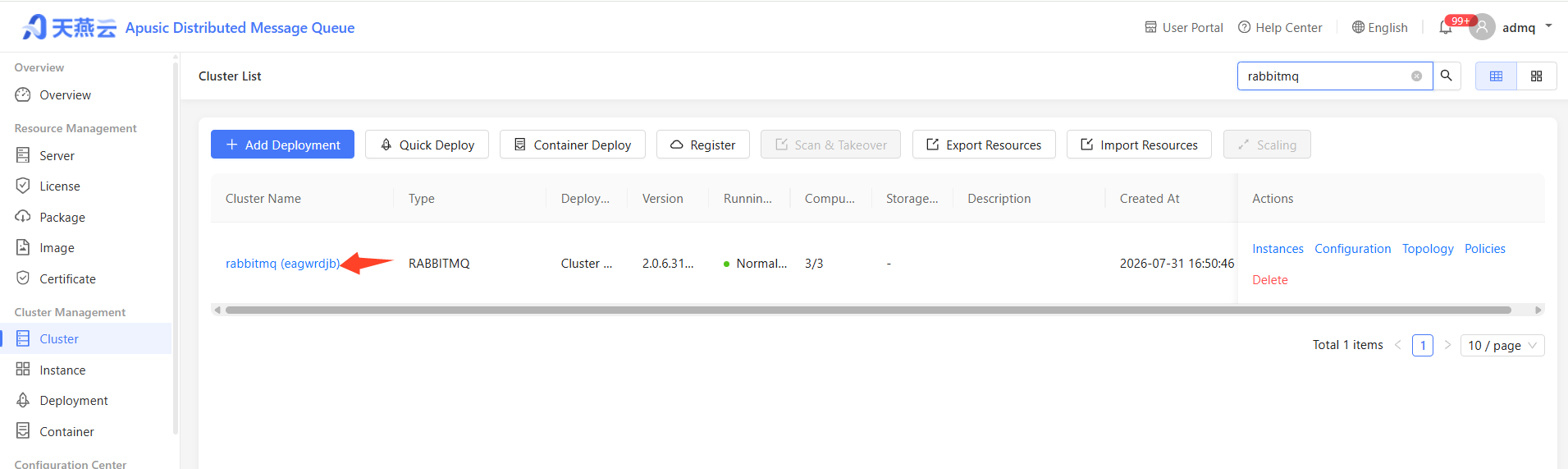
The ADMQ for RabbitMQ console is divided into system management and operations management. System management is primarily used for core engine connection. After connection, you can log in to the operations management side to view the engine status and perform management and maintenance.
Users must first enter the system management side to configure and connect clusters, then perform cluster management on the operations management side.
# Operating Environment
The ADMQ for RabbitMQ console is accessed via a web browser. Modern browsers such as Chrome, Firefox, and Edge are recommended. The console service is deployed together with the ADMQ for RabbitMQ product. For specific installation steps, service start/stop, and port configuration, please refer to the "Kingdee Apusic Distributed Message Queue for RabbitMQ Installation Guide".
- Server side: ADMQ for RabbitMQ message engine and console service are correctly installed and started.
- Client side: A computer that can access the console server IP and port, with a recommended resolution of 1920×1080 or higher.
# Management Plane Entry
# Access Address
Enter the following URL in the browser address bar to access the ADMQ for RabbitMQ console login page:
http://{console_ip}:12305
Where {console_ip} is the IP address or domain name of the server where the console service is located. The default port is 12305 (if a custom port was configured during installation, use the actual port).
# Login Procedure
- Open a browser and enter the above access address to go to the login page.
- Enter the default account
admqand the initial password (the default password after initial installation isadmq, subject to the actual deployment). - Click the "Login" button.
- On first login, the system will强制要求修改初始密码, please set a new password that complies with the security policy according to the page prompts and log in again.
Security Notes: Change the default password immediately after the first login. In daily use, follow the principle of least privilege, assign only the permissions needed for business needs to different roles, and regularly audit account and permission configurations.
# Default Account and Permissions
The ADMQ for RabbitMQ console comes with a pre-configured default administrator account admq for initial login on both the system management side and the operations management side. The default account has the following permissions:
| Account | Initial Password | Applicable Scenario | Permission Scope |
|---|---|---|---|
| admq | admq (must be changed on first login) | System administrator / Operations administrator | System management side: cluster connection, system configuration; Operations management side: all operational permissions for virtual hosts, exchanges, queues, routing, MQ users, monitoring, plugin policies, etc. |
It is recommended to create independent administrator accounts after initialization and disable or modify the default account to avoid using the default account for daily operations in production environments.
# Interface Layout Overview
After successful login, the corresponding management interface is displayed based on the current account permissions:
- System Management Side: Primarily used for core engine connection configuration. After connecting to a cluster, you can view the engine status and perform management and maintenance on the operations management side.
- Operations Management Side: Primarily used for daily resource management and operational monitoring, including virtual hosts, exchanges, queues, routing, MQ users, monitoring dashboard, plugins and policies, etc.
Users must first enter the system management side to complete cluster configuration and connection, then perform cluster management on the operations management side.
# Virtual Host Management
# Feature Entry
【Virtual Host】-【Virtual Host】
# Viewing Virtual Host List
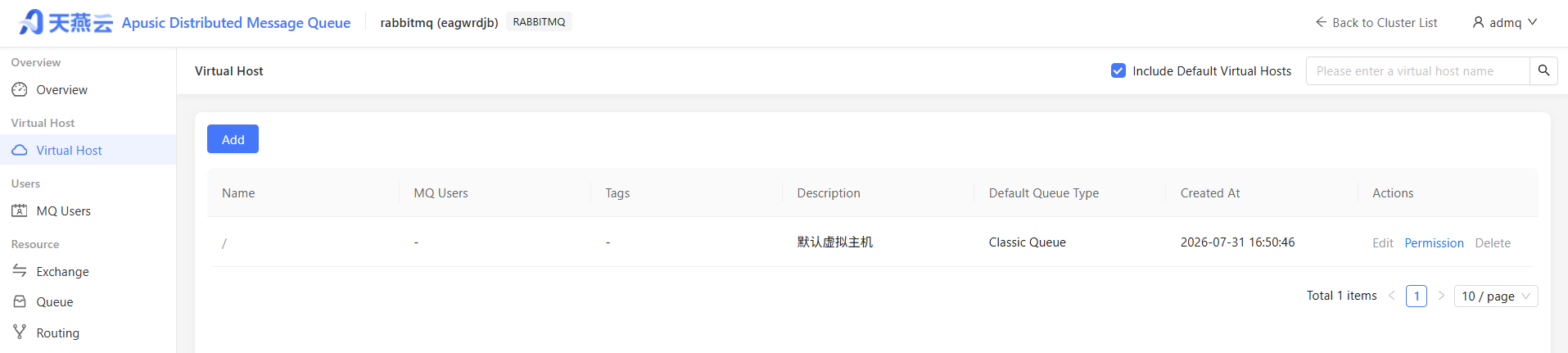
The list displays the following information:
| Field | Description |
|---|---|
| Name | Virtual host identifier, click to enter the details page |
| MQ Users | List of users with access permissions to this virtual host |
| Tags | Custom tags for classification and identification |
| Description | Description of the virtual host |
| Default Queue Type | Default queue type for new queues under this virtual host |
| Created Time | Creation time |
# Creating a Virtual Host
- Click the "New" button in the top-left corner of the list
- Fill in the form:
- Name (required): Can only contain English letters, numbers,
_,-,., and/, with a maximum length of 64 characters - Tags (optional): Press Enter to add multiple tags
- Default Queue Type: Select
Classic/Quorum/Stream - Description (optional): Maximum length of 128 characters
- Name (required): Can only contain English letters, numbers,
- Click "Confirm" to save
# Editing a Virtual Host
Click the "Edit" button at the end of the row to modify the description. The name and default queue type cannot be modified after creation.
The root virtual host
/cannot be edited or deleted.
# Deleting a Virtual Host
Click the "Delete" button at the end of the row, then confirm the deletion. Deleting a virtual host will cascade delete all exchanges, queues, and bindings under it. Proceed with caution.
# Permission Management
Click the "Permissions" button at the end of the row to enter the permission assignment page for the virtual host, where you can configure access permissions (configure, read, write) for different MQ users.
# Virtual Host Details
Click the virtual host name to enter the details page, where you can view the resource overview, exchange list, queue list, bindings, etc., under the virtual host.
# Exchange Management
# Feature Entry
【Resource Management】-【Exchange】
# Viewing Exchange List
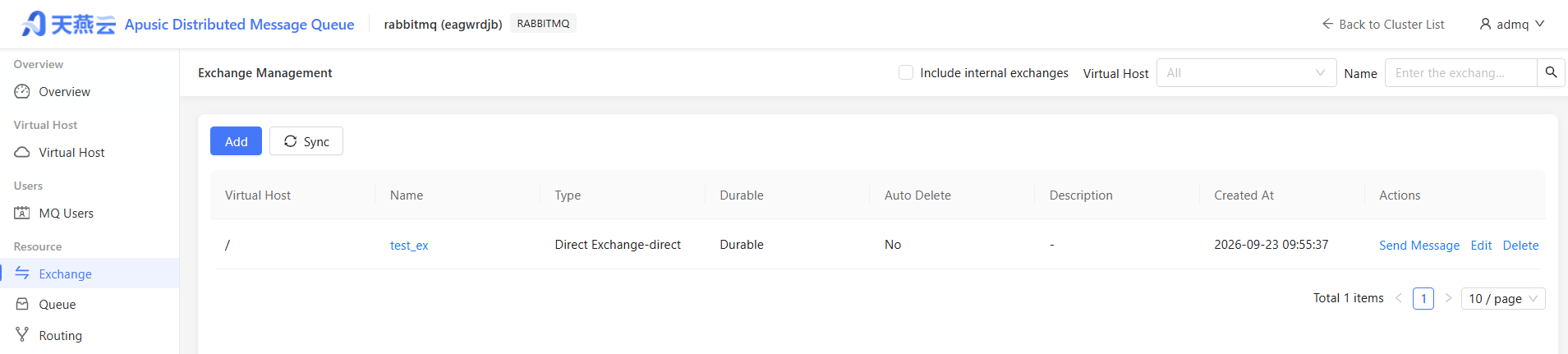
Supports filtering by the following criteria:
- Include Internal Exchanges: When checked, displays system internal exchanges (such as
amq.direct,amq.topic, etc.) - Virtual Host: Filter by virtual host
- Name: Fuzzy search by exchange name
List field description:
| Field | Description |
|---|---|
| Virtual Host | The virtual host it belongs to |
| Name | Exchange name, click to view details, supports one-click copy |
| Type | Direct / Topic / Fanout / Headers |
| Durability | Durable (retained after restart) / Transient (lost after restart) |
| Auto Delete | Yes (automatically deleted when no bindings exist) / No |
| Description | Description information |
| Created Time | Creation time |
# Creating an Exchange
- Click the "New" button
- Fill in the form:
- Virtual Host (required): Select the virtual host it belongs to
- Name (required): Unique exchange identifier, cannot be modified after creation
- Type (required): Select the exchange type
- Durable (required): Whether to persist
- Auto Delete (required): Whether to auto delete
- Internal (required): Whether it is an internal exchange (internal exchanges cannot have messages published directly by clients)
- Description (optional)
- Custom Parameters (optional): Supports adding Key-Value custom parameters, Value type can be String / Number / List / Boolean
- Click "Confirm" to save
# Sending a Message
Click the "Send Message" button at the end of the row to send a test message to the specified exchange:
- Routing Key: The routing key of the message
- Headers: Message headers
- Message Properties: Optional, such as persistence flag, expiration time, etc.
- Message Body: The message content
This feature is commonly used for debugging and verifying routing rules.
# Editing an Exchange
Only Description and Custom Parameters can be modified. Core attributes such as name, type, and durability cannot be modified after creation.
# Deleting an Exchange
Click the "Delete" button at the end of the row. Before deleting, ensure that the exchange has no active bindings, otherwise it may result in message loss.
System internal exchanges (
allowModify=false) cannot be deleted.
# Synchronizing Exchanges
Click the "Sync" button in the top-left corner to compare and synchronize the exchanges actually present in the RabbitMQ cluster with the platform database:
- Select the virtual host to synchronize
- The system will display a diff preview: Add (present in cluster but not in platform), Delete (present in platform but not in cluster), Update (differences exist between both)
- Check the items to synchronize and click "Confirm Sync"
It is recommended to perform synchronization after cluster changes (e.g., exchanges created through other tools) to ensure that the platform data is consistent with the cluster.
# Queue Management
# Feature Entry
【Resource Management】-【Queue】
# Viewing Queue List
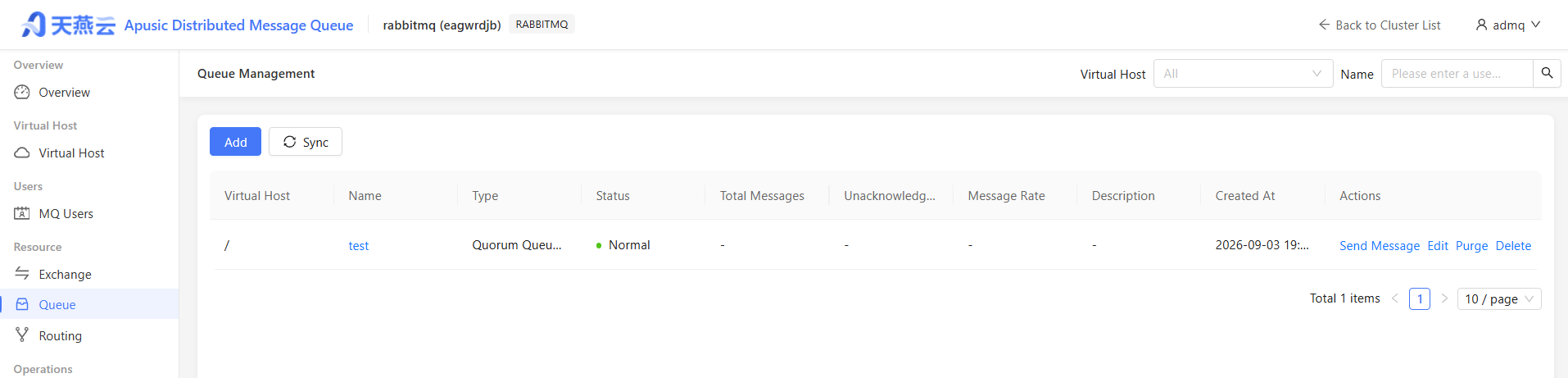
Supports filtering by virtual host and name. List field description:
| Field | Description |
|---|---|
| Virtual Host | The virtual host it belongs to |
| Name | Queue name, click to enter details, supports one-click copy |
| Type | Classic / Quorum / Stream |
| State | Normal / Abnormal |
| Total Messages | Current number of messages in the queue |
| Unacknowledged | Number of messages delivered but not yet acknowledged |
| Message Rate | Rate of message change per second |
| Description | Description information |
| Created Time | Creation time |
# Creating a Queue
- Click the "New" button
- Fill in the form:
- Virtual Host (required)
- Name (required): Unique queue identifier, cannot be modified after creation
- Queue Type:
Default: Use the default queue type of the virtual hostClassic: Classic queue, configurable persistence and auto-deleteQuorum: Quorum queue,强制持久化, cannot auto-deleteStream: Stream queue,强制持久化, cannot auto-delete
- Durable (optional for Classic / Default type)
- Auto Delete (only available for Classic type)
- Description (optional)
- Custom Parameters (optional)
- Click "Confirm" to save
# Sending a Message
Click the "Send Message" button at the end of the row to send a message directly to the specified queue (without going through exchange routing).
# Purging a Queue
Click the "Purge" button at the end of the row to delete all messages in the queue. This operation is irreversible, please use with caution.
# Editing a Queue
Only Description and Custom Parameters can be modified.
# Deleting a Queue
Click the "Delete" button at the end of the row. Deleting a queue will also delete all messages in the queue.
# Synchronizing Queues
Same synchronization logic as exchanges, used to align platform queue data with the actual cluster state.
# Routing Management
# Feature Entry
【Resource Management】-【Routing Management】
# Viewing Routing List
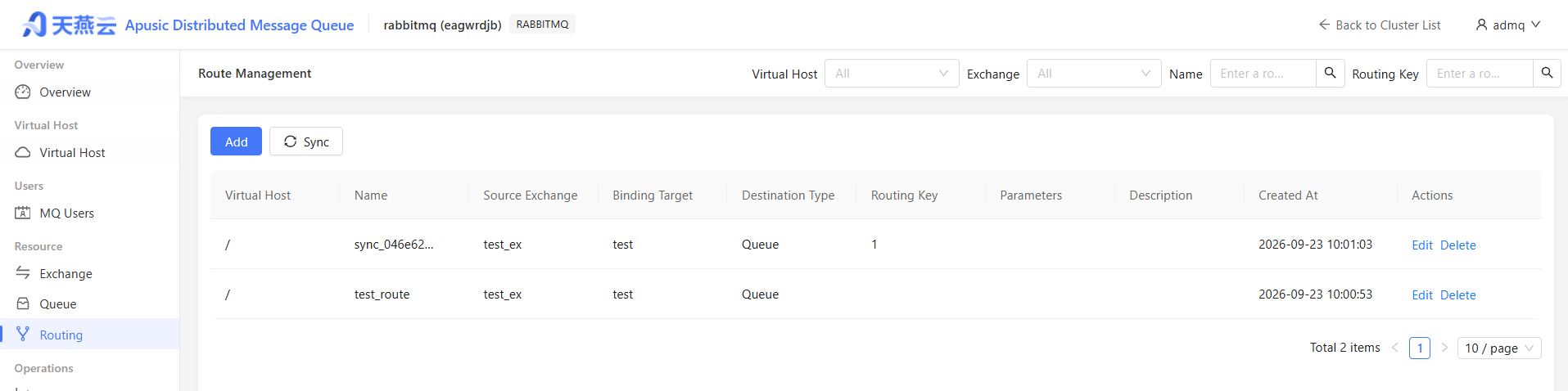
Supports multi-condition combined filtering:
- Virtual Host: Select the virtual host
- Exchange: Select the source exchange (virtual host must be selected first)
- Name: Fuzzy search by route name
- Routing Key: Fuzzy search by routing key
List field description:
| Field | Description |
|---|---|
| Virtual Host | The virtual host it belongs to |
| Name | Route binding name |
| Source Exchange | The source exchange of the message |
| Binding Target | The message target (queue or exchange) |
| Target Type | Exchange / Queue |
| Routing Key | Matching rule |
| Arguments | Additional matching arguments |
| Description | Description |
| Created Time | Creation time |
# Creating a Route Binding
- Click the "New" button
- Fill in the form:
- Virtual Host (required)
- Source Exchange (required): Select the source exchange of the message
- Target Type (required): Exchange or Queue
- Target (required): Select the specific target exchange or queue
- Routing Key (optional): Fill in according to the exchange type
- Direct type: Exact match value
- Topic type: Supports
*and#wildcards - Fanout type: Can be left blank (ignores routing key)
- Arguments (optional): Headers type exchanges need to fill in Header matching arguments
- Description (optional)
- Click "Confirm" to save
# Editing a Route Binding
The target, routing key, arguments, and description can be modified.
# Deleting a Route Binding
Click the "Delete" button at the end of the row. After deletion, messages matching this binding will no longer be routed to the corresponding target.
# Synchronizing Route Bindings
Same synchronization logic as exchanges/queues.
# MQ User Management
# Feature Entry
【Users】-【MQ Users】
# Viewing User List
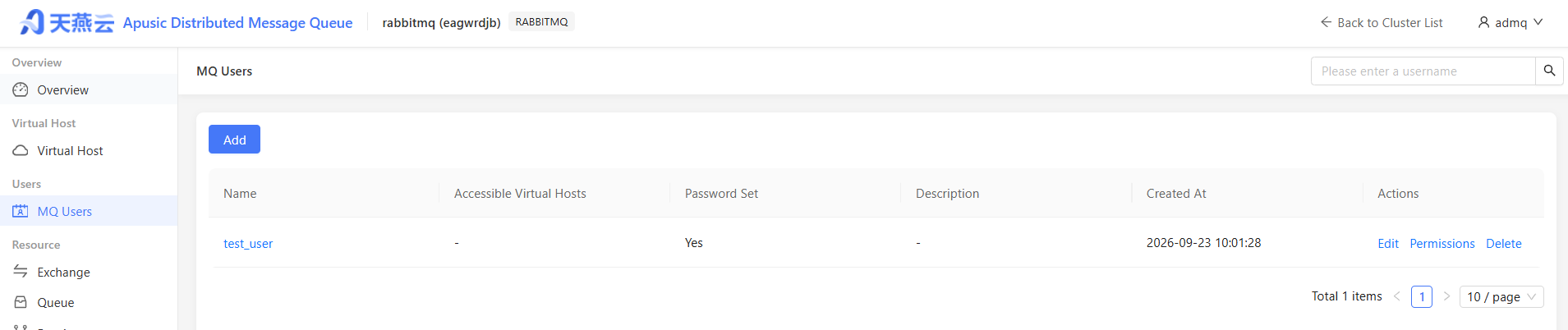
| Field | Description |
|---|---|
| Name | Username, click to enter details |
| Accessible Virtual Hosts | List of virtual hosts the user has permission to access |
| Password Set | Yes / No |
| Description | Description information |
# Creating a User
- Click the "New" button
- Fill in the form:
- Username (required): Cannot contain spaces or special characters such as
@#&*, cannot be modified after creation - Description (optional)
- Access Type:
Password Authentication: Requires setting a password (at least 6 characters)No Password Access: Can connect without a password
- Username (required): Cannot contain spaces or special characters such as
- Click "Confirm" to save
# Editing a User
The description, access type, and password can be modified.
The username cannot be modified after creation.
# Deleting a User
Click the "Delete" button at the end of the row. After deleting a user, all connections of that user will be disconnected.
# Permission Management
Click the "Permissions" button at the end of the row to enter the permission configuration page. Access permissions for different virtual hosts can be assigned to the user:
- Configure Permission (configure): Create/delete resources (exchanges, queues, bindings)
- Read Permission (read): Consume messages, view resource information
- Write Permission (write): Publish messages
The regex
.*represents matching all resources. More precise regular expressions can be used to restrict the access scope.
# Monitoring and Statistics
# Connection Monitoring
# Feature Entry
【Monitoring & Operations】-【Connection Monitoring】
# Viewing Connection List
Displays all current client connections in the cluster in real time:
| Field | Description |
|---|---|
| Virtual Host | The virtual host the connection belongs to |
| Name | Connection identifier (format: host:port) |
| MQ User | Username used for the connection |
| State | Running / Connecting / Flow-limited / Blocked / Closing, etc. |
| Protocol | Protocol version in use |
| Channels | Number of channels on this connection |
| Connected At | Time the connection was established |
Supports filtering by virtual host and connection name.
# Force Closing a Connection
Click the "Force Close" button at the end of the row to immediately disconnect the specified connection. Once closed, the connection cannot be recovered, and the client must re-establish the connection.
# Channel Monitoring
# Feature Entry
【Monitoring & Operations】-【Channel Monitoring】
# Viewing Channel List
A channel is a lightweight connection multiplexing unit. Multiple channels can be created on a single TCP connection.
| Field | Description |
|---|---|
| Virtual Host | The virtual host the channel belongs to |
| Channel Name | Channel identifier |
| MQ User | The user using this channel |
| State | Running / Idle / Blocked / Closing |
| Consumers | Number of consumers on this channel |
| Unacknowledged Messages | Number of unacknowledged messages on this channel |
Supports filtering by virtual host and channel name.
Connection monitoring and channel monitoring are mainly used for troubleshooting, such as locating abnormal connections and checking consumption delays.
# Monitoring Dashboard
# Feature Entry
【Monitoring & Operations】-【Monitoring Dashboard】
# Time Range Selection
A time range selector is provided at the top of the page, supporting quick options (last 1 hour, last 6 hours, last 1 day, etc.) and custom time ranges.
# Monitoring Dimensions
The monitoring dashboard is divided into five tabs:
# Overview
Displays the overall operational status of the cluster, including:
- Number of nodes, total queues, total connections
- Message throughput trend chart (publish/consume rates)
- Cluster health status
# Nodes
Displays resource usage of each node:
- CPU usage
- Memory usage
- Disk usage
- Erlang processes
- File descriptor usage
# Queues
Displays queue-related monitoring metrics:
- Message堆积趋势 for each queue
- Message consumption rate
- Consumer count changes
# Connections
Displays connection-related monitoring metrics:
- Connection count trend
- Connection distribution across virtual hosts
# Exchanges
Displays exchange-related monitoring metrics:
- Message inbound/outbound rates
- Message throughput of each exchange
Monitoring data comes from the RabbitMQ Management Plugin, with a data refresh frequency of approximately 5 seconds.
# Message Statistics Report
# Feature Entry
【Monitoring & Operations】-【Message Statistics Report】
# Viewing Statistics Results
Supports two statistical dimensions:
- Cluster Dimension: Aggregates message metrics for the entire cluster by date
- Queue Dimension: Aggregates message metrics by date + queue
Statistical metrics include:
| Metric | Description |
|---|---|
| Published Messages | Number of messages published to the cluster/queue by producers |
| Delivered Messages | Number of messages delivered to consumers |
| Acknowledged Messages | Number of messages acknowledged by consumers |
| Message Bytes | Total bytes occupied by messages |
| Inbound Bytes | Total bytes flowing into the cluster (cluster dimension) |
| Outbound Bytes | Total bytes flowing out of the cluster (cluster dimension) |
# Exporting Reports
Click the "Export" button to export the current query results as an Excel file.
# Scheduled Statistics Tasks
If you need to automatically collect message statistics at fixed intervals (e.g., hourly, daily), contact the administrator to configure scheduled statistics tasks.
# Plugins and Policies
# Plugin Management
# Feature Entry
【Settings】-【Plugin Management】
# Viewing Plugin Status
The plugin management page displays the running status of each plugin on each node in the cluster in a table format:
| Field | Description |
|---|---|
| Name | Plugin English identifier |
| Chinese Name | Plugin Chinese description |
| Description | Plugin功能说明 |
| Node Columns | One column per node, showing whether the plugin is loaded and running on that node |
The plugin management page only provides viewing functionality. Enabling/disabling plugins requires cluster operations.
# Policy Configuration
# Feature Entry
【Settings】-【Policy Configuration】
# What is a Policy
A policy is a mechanism in RabbitMQ for batch configuring queue/exchange parameters. Through policies, a set of parameters can be automatically applied to queues or exchanges matching a specific pattern, without needing to configure each one individually.
Common policy use cases:
- Setting a queue's Dead Letter Exchange (DLX)
- Setting a queue's Time To Live (TTL)
- Setting a queue's maximum length limit
- Setting Federation and Shovel related parameters
- Configuring Quorum queue replica count
# Viewing Policy List
Supports filtering by virtual host. List field description:
| Field | Description |
|---|---|
| Virtual Host | The virtual host where the policy applies |
| Policy Name | Policy identifier |
| Pattern | Matching regex, e.g., ^order.* matches all queues/exchanges starting with order |
| Apply To | queues / exchanges / all |
| Definition | Policy parameter definition (JSON format) |
| Priority | Higher values indicate higher priority; when multiple policies match the same resource, the policy with the highest priority takes effect |
# Creating a Policy
- Click the "New Policy" button
- Fill in the form:
- Virtual Host (required)
- Policy Name (required)
- Pattern (required): Regex for matching queue/exchange names
- Apply To (required): queues / exchanges / all
- Definition (required): Policy parameters, filled in Key-Value format
- Priority (required): Number, default 0
- Click "Confirm" to save
# Editing a Policy
Click the "Edit" button at the end of the row to modify all fields of the policy.
# Deleting a Policy
Click the "Delete" button at the end of the row. After deleting the policy, the queues/exchanges managed by that policy will revert to their default configuration.
# Frequently Asked Questions
# Q1: Why can't I see the exchange/queue I created in the list?
Possible reasons:
- Virtual Host Filter — Check if the correct virtual host is selected
- "Include Internal" Not Checked — System internal exchanges are hidden by default; check "Include Internal Exchanges"
- Data Not Synchronized — If created directly via the command-line tool (bin/admq rabbitmq admin), click the "Sync" button to synchronize the data to the platform
# Q2: How do I view the message content of a queue?
The message query feature is currently not available. To view messages, it is recommended to:
- Use the RabbitMQ native management interface
- Use a consumer client to pull messages (note that messages will be removed after consumption)
# Q3: What is the difference between Quorum queues and Classic queues?
| Feature | Classic | Quorum |
|---|---|---|
| Persistence | Optional | 强制持久化 |
| Auto Delete | Optional | Not supported |
| High Availability | Requires mirrored queue configuration | Native multi-replica based on Raft (consensus algorithm) |
| Use Case | General | Scenarios requiring high data safety |
# Q4: Getting "unroutable" error when sending messages?
Possible reasons:
- Exchange type does not match the routing key (e.g., Fanout exchanges should not have a routing key set)
- No binding relationship associates the exchange with the queue
- The routing key does not match the routing key used in the binding
# Q5: How do I restrict a user to only access a specific virtual host?
- Go to the MQ Users page
- Click the "Permissions" button for that user
- On the permission configuration page, only check the virtual hosts allowed for access, and set an appropriate regex to restrict the resource scope
# Q6: What should I do if a queue has a severe message backlog?
- Go to Monitoring Dashboard → Queues to view the堆积趋势
- Check the Channel Monitoring to see if the consumers for the corresponding queue are running normally
- Confirm that consumers are not failing to acknowledge messages due to slow processing or errors
- If necessary, scale up consumer instances or optimize consumption logic
# Q7: What is the purpose of the Sync button?
The sync function is used to resolve inconsistencies between platform data and the actual RabbitMQ cluster state. Scenarios include:
- Directly operating cluster resources via the command-line tool (bin/admq rabbitmq admin)
- Data inconsistency after cluster failure recovery
- First-time connection to a cluster with existing data
Synchronization compares the platform database with the actual cluster state, displays differences, and supports selective synchronization.
# Appendix
# Glossary
| Term | Description |
|---|---|
| Vhost | Virtual Host, used to isolate resources of different business systems |
| Exchange | Exchange, used to receive messages from producers and forward them according to routing rules |
| Queue | Queue, used to store messages waiting for consumers to consume |
| Binding | Binding, defines the routing rules between Exchange and Queue |
| Routing Key | Routing key, the keyword used for matching bindings during message delivery |
| DLX | Dead Letter Exchange, used to receive messages that cannot be delivered or processed normally |
| TTL | Time To Live, the maximum lifetime of a message or messages in a queue |
| Classic Queue | Classic queue, the traditional RabbitMQ queue type |
| Quorum Queue | Quorum queue, implements multi-replica high availability based on the Raft consensus algorithm |
| Stream Queue | Stream queue, suitable for high-throughput, persistent logging scenarios |
| Federation | RabbitMQ Federation plugin,用于跨集群交换机和队列的数据同步 |
| Shovel | RabbitMQ Shovel plugin,用于在集群或节点之间可靠地搬运消息 |
| Raft | Raft consensus algorithm, used internally by Quorum queues for replica consistency coordination |
| DLQ | Dead Letter Queue, often used in conjunction with DLX |
# Configuration Reference / Quick Parameter Reference
| Parameter / Configuration Item | Description | Default Value / Example |
|---|---|---|
| Console Access URL | Browser access address | http://{console_ip}:12305 |
| Default Admin Account | Initial login account for system management / operations management | admq |
| Default Admin Initial Password | Must be changed forcefully after first login | admq |
| Virtual Host Name Length | Name length limit when creating a virtual host | No more than 64 characters |
| Queue Name Length | Name length limit when creating a queue | No more than 255 characters |
| Policy Pattern | Regex for matching queue/exchange names | ^order.* |
| Policy Priority | Order of effect when multiple policies match the same resource | Higher value = higher priority, default 0 |
| Monitoring Data Refresh Frequency | Monitoring dashboard data refresh cycle | Approximately 5 seconds |
| Message Statistics Export Format | Export file format for message statistics reports | Excel |