
Console User Manual

# Preface
This document is the user manual for the Kingdee Apusic Distributed Message Queue (ADMQ) unified management console. It provides a detailed introduction to the console's functionality, configuration methods, and management operations.
# Target Audience
This document is intended for IT business leaders, R&D managers, software project managers, software architects, and operations engineers.
# Technical Support
ADMQ provides comprehensive technical support services. You can obtain technical support through the following channels:
- Website: www.apusic.com
- Phone: 400-855-5800
- Email: support@apusic.com
- Kingdee Cloud Community: https://vip.kingdee.com/?productId=73&productLineId=14&lang=zh-CN
When requesting technical support, please provide the following information:
Your name
Company information and contact details
Operating system and its version
Product version number
Detailed logs, screenshots, etc. of the anomaly or error
# Version History
| Version | Release Date | Revision Description | Author |
|---|---|---|---|
| V2.0.6 | 2026-06-23 | Initial release: unified management console deployment and operations manual, covering resource management, cluster management, configuration center, monitoring and alerting, notification center, system settings, and FAQs | - |
# Overview
# Introduction
ADMQ Manager is an enterprise-grade unified message middleware management platform that supports centralized management of multiple ADMQ message kernels. The platform provides full-link operations capabilities from resource onboarding, cluster deployment, configuration management, monitoring and alerting to notification push, helping enterprises achieve one-stop management of message middleware.
# Core Features
| Feature Area | Description |
|---|---|
| Resource Management | Manage servers, licenses, software packages and other basic resources |
| Cluster Management | Message middleware cluster deployment, onboarding, and instance operations |
| Configuration Center | Configuration file template management and online push |
| Operations Management | Audit log tracking, recording resource and API operations |
| Monitoring Center | Collection target management, alert rule configuration, system component health monitoring |
| Alert Center | Alert overview, routing policies, suppression rules, silence management |
| Notification Center | Notification templates, subscriptions, notification channels (Email/Webhook/In-site messages) |
| System Settings | User and role permission management |
# Management Console Deployment
# Prerequisites
- Obtain the installation package: Download the Kingdee Apusic Distributed Message Queue installation package from http://www.apusic.com/ or obtain it from the Kingdee Apusic Distributed Message Queue product CD.
- System requirements: Java environment (console JDK 17+, node JDK 1.8+), memory (16GB+), disk space (100GB+), browser (IE8+, Firefox, Chrome)
# Installation
# Obtaining and Uploading the Product Package
The ADMQ console installation package is a compressed archive starting with admq-manager, for example admq-manager-V2.0.6.20260602-x86_64.tar.gz.
After obtaining the installation package, upload it to any directory on the server.
# Installing the Management Console
Extract the installation package
mv admq-manager-V2.0.6.20260602-x86_64.tar.gz /opt/
cd /opt
tar -zxvf admq-manager-V2.0.6.20260602-x86_64.tar.gz
2
3
Change the database type (optional)
H2 database is used by default. For production deployment, you may need to switch to another database, such as MySQL.
Multiple database configurations are provided in the /opt/admq-manager-V2.0.6/config/application.properties file. You can enable the desired database configuration and comment out the unused ones.
Step 1: Comment out H2 database configuration and enable MySQL configuration

Step 2: Configure MySQL address, port, database name, username, and password in the path shown above: config/other-config/db-mysql.properties 
Step 3: The database initialization script will be loaded automatically when the console starts
Follow the same steps for other databases.
# Starting the Management Console Service
cd /opt/admq-manager-V2.0.6/
./bin/admq-service start
2
# Stopping the Management Console Service
cd /opt/admq-manager-V2.0.6/
./bin/admq-service stop
2
# Verification
Step 1: Enter the URL in a browser: http://ip:12305 or https://ip:12306
Step 2: Log in with the username (admq) and password (11111111). You must change the password on first login.
Username (admq) and password (11111111) are example default credentials. They must be changed after first login.
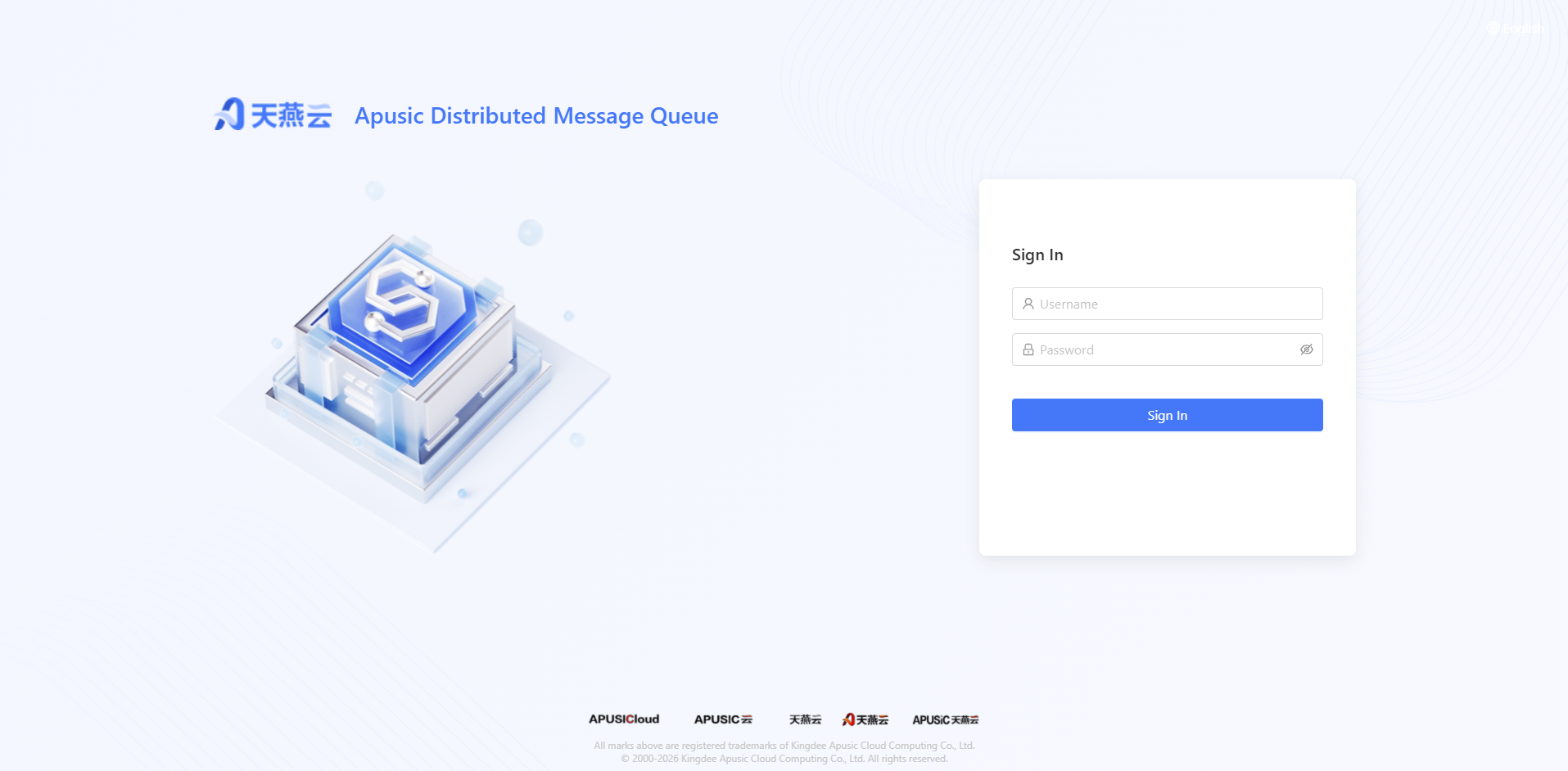
Step 3: If login is successful, you will be redirected to the ADMQ console home page, indicating successful installation.

# Security Considerations
To ensure the secure operation of the ADMQ console, please follow these recommendations:
- Change the default password: The default administrator password must be changed after first login. Avoid using weak passwords or keeping the initial password for extended periods.
- Principle of least privilege: When assigning roles to different users, grant only the minimum menu and operation permissions required to complete their work.
- Network security: In production environments, do not expose the console port directly to the public internet. It is recommended to access it via VPN, bastion host, or reverse proxy.
- SSH security: When adding servers, it is recommended to use a dedicated operations account with key-based authentication. The password field is optional and only required when connection probing or automatic agent installation is needed.
- Sensitive information protection: License files, authorization center addresses, SMTP passwords, Webhook Tokens, and other sensitive information should be properly secured and avoided in screenshots or logs.
- Regular auditing: Regularly review operation audit logs and user login logs. Address any anomalies promptly.
# Quick Start
The standard platform usage workflow follows the closed loop of "Resource Preparation → Cluster Deployment → Cluster Management":
┌─────────────┐    ┌─────────────┐    ┌─────────────┐    ┌─────────────┐
│  1. Upload  │ →  │  2. Add     │ →  │  3. Upload  │ →  │  4. Create  │
│   License   │    │   Server    │    │   Package   │    │   Cluster   │
└─────────────┘    └─────────────┘    └─────────────┘    └─────────────┘
       ↑                                                  ↓
       └──────────────────────────────────────────────────┘
                         **Step 5: Cluster Management**
2
3
4
5
6
7
# Deploying a Message Cluster via the Console
Step 1: Add a Server
Click Resource Management → Server Management to access the server management page. Click the "Add" button in the top-left corner to go to the add page.

Fill in the following information:
| Field | Required | Default Value | Description |
|---|---|---|---|
| Zone | Yes | First zone | Select from defined zones; cannot be modified after creation |
| Management IP | Yes | — | Server management network IP, used for SSH and platform communication |
| Data IP | No | Same as management IP | Data plane communication IP; fill separately if different from management IP |
| SSH Port | Yes | 22 | SSH service port, range 0-65535 |
| Account | Yes | root | SSH login account |
| Password | No | — | SSH login password |
| SSH | Yes | Enabled | Toggle to enable or disable SSH connection |
| Program Directory | Yes | /apusic/admq/program | Message middleware program installation path |
| Data Directory | Yes | /apusic/admq/data | Message middleware data storage path |
| Description | No | — | Server notes, up to 128 characters |
Recommended action before saving: Click the Connection Test button to verify SSH connectivity.
Step 2: Add a License
Click Resource Management → License Management to access the license management page. Three types of licenses are supported:
The following authorization content is for demonstration purposes only and is not real authorization information.
KBC License: Typically an official authorization file ending with
.lic, e.g.,KBCLIC-260316-000118.lic, with the following content:Example productId:
1739014596951278592, not real sensitive information.{ "license":"SbP4b7L4ptmvy+h5LJUcxu+QvTwG2wOMIUxIhNEErT+1H6el5CtE3E...", "productId":"1739014596951278592", "secretKey":"SK-FBSZJJ", "licenseEncodeType":"RAW", "sign":"QgmsGjcHeAEVkK4055okxSq8dDgZ5otFsVld++0YkMqc3..." }1
2
3
4
5
6
7Authorization Center License: Configuration for connecting to an authorization center, typically an
acls.propertiesfile with the following content:Example internal address:
172.20.140.218:6869, not a real address.apusic_acls_enable=true apusic_acls_authUrls=172.20.140.218:6869 apusic_acls_tenant=public apusic_acls_ns=KBCLIC-260528-0001871
2
3
4Traditional License: Typically a temporary authorization file ending with
.xml, e.g.,license.xml, with the following content:Example License, not real authorization.
<?xml version="1.0" encoding="UTF-8"?>
<license
    product="Apusic Distributed Message Queue"
    edition="Standard Edition"
    version="V2.0"
    licensee="临时授权"
    datefrom="2025-12-19"
    expiration="2026-03-31"
    CPUs="1"
    license_ver="58"
    signature="Yd1KqNVztF286tMp6zHFn65l6sBDo3ZQK1PC53kSmWRMR7t8oHmjlPd..."
/>
1
2
3
4
5
6
7
8
9
10
11
12
13
The following uses KBC License as an example to add a license:
Click Add; the add page slides in from the right
Select KBC License type
Enter the license name
Paste the license content or upload the license file
Click Parse; if parsing is successful, the correct product name, version, etc. will be displayed in the lower area
Click Confirm to complete the license addition

Step 3: Upload the Product Package
To ensure operational consistency, the product package must be uploaded in the software package management function. If no product package is uploaded, the corresponding version will not be available for selection during subsequent onboarding.

Step 4: Create a Cluster
Click Resource Management → Cluster List to access the cluster management page. Click the "Add Deployment" button in the top-left corner to go to the add page.
The following uses deploying ADMQ for Kafka as an example:
- Select the cluster type, e.g., ADMQ Kafka
- Fill in basic information, including cluster name, deployment mode, software package version, and description
- Configure cluster settings, select the server for each component deployment and the license to use
- Confirm the deployment information is correct, click "Start Deployment" to begin the background deployment task
- The cluster deployment is complete when all deployment tasks have been executed successfully
For subsequent usage, please refer to the corresponding message engine user manual

Step 5: Cluster Management
The console provides a rich set of management features for message cluster management and operations. Please refer to the following sections.
# Feature Usage
# Server Management
Purpose: Manage physical/virtual machine resources, maintain server agents, and provide node infrastructure for cluster deployment.
# Feature Entry
Left menu: Resource Management → Server Management

The page contains three tabs:
| Tab | Description |
|---|---|
| Server Management | View, add, edit, delete servers; manage agent lifecycle |
| Zone | Define logical areas (e.g., data centers, availability zones) for server assignment |
| Server Agent | Manage agent installation/uninstallation script templates |
# Server Management
# Server List
The server list displays all onboarded servers with the following key fields:
| Field | Description |
|---|---|
| Deployed Cluster | The cluster name deployed on this server |
| Zone | The zone to which the server belongs |
| Server Info | Hostname + SSH connection info (account@IP:port); click the hostname to access the details page |
| Agent Status | The running status of the server agent (BBX) |
| CPU Usage | Real-time CPU usage |
| Memory Usage | Real-time memory usage |
| Feature Code | License authorization feature code, used for license binding |
| Description | Server notes |
| Creation Time | Onboarding time |
Agent Status Descriptions:
| Status | Meaning |
|---|---|
| Not Installed | The agent has not been installed on the server |
| Installing | The agent is being installed |
| Not Running | Not started after initial installation |
| Running | The agent is running normally, remote operations are available |
| Abnormal | The agent is running abnormally, needs inspection or reinstallation |
# Adding a Server
Operation path: Click the Add button in the top-left corner of the list
Fill in the form:
| Field | Required | Default Value | Description |
|---|---|---|---|
| Zone | Yes | First zone | Select from defined zones; cannot be modified after creation |
| Management IP | Yes | — | Server management network IP, used for SSH and platform communication; cannot be modified after creation |
| Data IP | No | Same as management IP | Data plane communication IP; fill separately if different from management IP; cannot be modified after creation |
| SSH Port | Yes | 22 | SSH service port, range 0-65535 |
| Account | Yes | root | SSH login account, English letters, digits, -, _ only |
| Password | No | — | SSH login password, used for connection probing and agent installation |
| SSH | Yes | Enabled | Toggle to enable or disable SSH connection; when disabled, connection probing and automatic agent installation are unavailable |
| Program Directory | Yes | /apusic/admq/program | Message middleware program installation path |
| Data Directory | Yes | /apusic/admq/data | Message middleware data storage path |
| Description | No | — | Server notes, up to 128 characters |
Recommended action before saving: Click the Connection Test button to verify SSH connectivity, ensuring the IP, port, account, and password are correct.
# Editing a Server
Click the Edit button at the end of the server row. The following fields can be modified:
- Zone (not modifiable)
- Management IP (not modifiable)
- Data IP (not modifiable)
- Hostname (automatically collected by the system, not modifiable)
- SSH port, account, password
- SSH toggle status
- Program directory (not modifiable)
- Data directory (not modifiable)
- Description
Non-modifiable fields are displayed as disabled during editing.
# Deleting a Server
Click More → Delete at the end of the row, then confirm the deletion. Before deleting, ensure:
- There are no running cluster instances on this server
- Monitoring and log data for this server are no longer needed
# Batch Operations
The list supports batch selection (check the left checkboxes). The top toolbar provides the following batch functions:
| Button | Function | Description |
|---|---|---|
| Add | Add servers individually | Displays the add form |
| Import | Batch import servers | Import servers in bulk using the template format |
| Export | Export server list | Export the current list data to a file |
| Batch Install Command | Generate agent install commands | Generate batch installation scripts for selected servers |
| Sync Hosts | Sync hosts configuration | Sync server hosts information across nodes |
| Get Feature Code | Get License feature codes | Batch retrieve authorization feature codes from servers |
| Download Template | Download import template | Get the standard import template file |
# Agent Management
The agent (BBX) is a lightweight agent program deployed on servers. It is responsible for executing platform-issued commands, collecting server metrics, and providing remote terminal capabilities.
Agent-related operations (click "More" at the end of the row to expand):
| Operation | Applicable Scenario | Description |
|---|---|---|
| Deploy Agent | Agent not installed on server | Automatically install the agent on the target server via SSH |
| Manual Install | Automatic deployment failed | View manual installation instructions and execute the installation command on the server manually |
| Agent Details | View agent information | View agent version, status, resource usage, and other details |
| Initialize Agent | Agent configuration abnormal | Reset agent configuration to restore initial state |
| Remote Terminal | Need to log in to the server | Available when the agent status is "Running"; open a Web Terminal via browser |
# Import/Export
Batch import process:
- Step 1: Click Download Template to get the standard import template
- Step 2: Fill in server information (zone, IP, port, account, password, directories, etc.) according to the template format
- Step 3: Click the Import button and select the completed file to upload
- Step 4: After system validation, server records are created in bulk
Export: Click the Export button to export the current server list as a file saved locally.
# Zone Management
Zones are used to logically group servers, typically corresponding to physical data centers, computer rooms, or network areas.
# Adding a Zone
Click the Add button and fill in:
| Field | Required | Rules |
|---|---|---|
| Code | Yes | English letters, digits, -, _, ., up to 64 characters; cannot be modified after creation |
| Zone | Yes | Display name for the zone, up to 64 characters |
# Editing a Zone
Click Edit to modify the zone name; the code cannot be modified.
# Deleting a Zone
Click Delete to remove the zone. Before deleting, confirm:
- There are no servers associated with this zone
- This zone is not referenced by any cluster configuration
# Server Agent
This tab is used to manage agent installation and uninstallation script templates.
# Agent Installation Script
Displays the agent installation script template. Administrators can adjust the following based on the actual environment:
- Download source address
- Installation path
- Startup parameters
- Dependency check logic
# Agent Uninstallation Script
Displays the agent uninstallation script template, used to completely remove the agent program from the server.
Script changes take effect immediately upon saving. Subsequent installation/uninstallation operations triggered through the platform will use the latest script.
# License Management
Function Overview: Manage platform licenses, supporting three modes — KBC, Authorization Center, and Traditional Authorization — for license entry, parsing, distribution, and revocation.
# Access
Left menu: Resource Management → License Management

The page contains three tabs:
| Tab | Description |
|---|---|
| KBC | Key-Based Certificate license management |
| Authorization Center | Centralized authorization via a dedicated authorization center |
| Traditional Authorization | Classic authorization based on serial number and CDKey |
# License List
Each tab displays the list of imported licenses, with fields varying by authorization mode.
# KBC List
| Field | Description |
|---|---|
| Name | License identifier |
| Used Nodes | Number of server nodes to which the license has been distributed; click the number to view node details |
| Product Name | Product name covered by the license |
| Product Version | Product version covered by the license |
| Authorized Entity | Authorized organization/entity name |
| Start Time | License effective date |
| End Time | License expiration date |
# Authorization Center List
| Field | Description |
|---|---|
| Name | License identifier |
| Used Nodes | Number of server nodes to which the license has been distributed; click the number to view node details |
| Enabled | Whether the Authorization Center ACL is enabled |
| Connection Address | Authorization center authentication service URL |
| Namespace | Authorization center namespace |
| Tenant | Authorization center tenant ID |
# Traditional Authorization List
| Field | Description |
|---|---|
| Name | License identifier |
| Used Nodes | Number of server nodes to which the license has been distributed; click the number to view node details |
| Serial Number | License serial number |
| CDKey | License CDKey |
| Product | Licensed product name |
| Version | Licensed product version |
| Authorized Party | Authorized entity/individual |
| IP/MAC | Bound IP or MAC address |
| Effective Date | License effective date |
| Expiration Date | License expiration date |
# Authorization Mode Description
| Mode | Applicable Scenario | Authorization Content |
|---|---|---|
| KBC | Certificate-based authorization for Kingdee/Apusic product lines | Upload or paste license file content; the system automatically parses product name, version, authorized entity, validity period, etc. |
| Authorization Center | Integration with a centralized ACL authorization center | Configure acl.properties content, including authentication URL, tenant, namespace, etc. |
| Traditional Authorization | Classic serial number + CDKey authorization | Upload or paste traditional license file; the system automatically parses serial number, CDKey, product, version, authorized party, IP/MAC binding, etc. |
# Add License
Path: Click the Add button at the top-left of the list
Fill in the form:
| Field | Required | Description |
|---|---|---|
| Type | Yes | Select KBC / Authorization Center / Traditional Authorization; cannot be changed after creation |
| Name | Yes | License identifier; cannot be changed after creation, max 255 characters |
# KBC Authorization Content
Step 1: Paste the license file content into the Authorization Content text box, or click Upload License File to select a file Step 2: Click Parse; the system automatically extracts the following information:
| Field | Description |
|---|---|
| Product Name | Product name from the license file |
| Product Version | Product version from the license file |
| Authorized Entity | Authorized entity name |
| Start Time | License effective date |
| End Time | License expiration date |
Parsed fields are auto-filled and cannot be manually edited. If parsing fails, check whether the license file content is complete and correct.
# Authorization Center Content
Step 1: Paste the acl.properties file content into the Authorization Content text box, or click Upload File to select a file Step 2: Click Parse; the system automatically extracts the following information:
| Field | Description |
|---|---|
| apusic_acls_enable | Whether ACL is enabled |
| apusic_acls_authUrls | Authorization center authentication URL |
| apusic_acls_tenant | Tenant ID |
| apusic_acls_ns | Namespace |
# Traditional Authorization Content
Step 1: Paste the license file content into the Authorization Content text box, or click Upload License File to select a file Step 2: Click Parse; the system automatically extracts the following information:
| Field | Description |
|---|---|
| Serial Number | License serial number |
| CDKey | License CDKey |
| Product | Licensed product name |
| Version | Licensed product version |
| Version Number | Version number |
| Authorized Party | Authorized entity/individual |
| IP/MAC | Bound IP or MAC address |
| Effective Date | License effective date |
| Expiration Date | License expiration date |
# Edit License
Click the Edit button at the end of a license row to modify the authorization content.
- Type: Cannot be modified
- Name: Cannot be modified
- Authorization Content: Can re-paste or upload a file and re-parse; all auto-filled fields will be updated upon successful parsing
Non-editable fields are displayed in a disabled state during editing.
# Delete License
Click the Delete button at the end of a row, then confirm to delete. Before deleting, ensure:
- The license has not been distributed to any server node (used nodes count is 0)
- The license authorization information is no longer needed
Deletion cannot be undone. Proceed with caution.
# Distribute License
Distribute the license to cluster nodes so the authorization takes effect on the target servers.
Path: Click the Distribute button at the end of a license row
Steps:
Step 1: Select Cluster: Choose the target cluster from the dropdown Step 2: Select Nodes (optional):
- Check specific nodes to distribute only to the selected nodes
- Leave all nodes unchecked to distribute to all nodes in the cluster Step 3: Click Confirm to complete distribution
Node Information:
| Field | Description |
|---|---|
| Node Name | Node hostname or IP |
| Node IP | Server management IP |
| Node Type | Node role/component type in the cluster |
When distributing to multiple nodes, the system processes them one by one. If distribution to some nodes fails, the failure reasons will be displayed.
# View Used Nodes
Click the number in the Used Nodes column to view the list of nodes where the current license has been distributed.
The popup displays the following information:
| Field | Description |
|---|---|
| Cluster Name | Cluster to which the node belongs |
| Node Name | Node hostname |
| Node IP | Server management IP |
| Node Type | Node role/component type in the cluster |
# Package Management
Function Overview: Upload and manage message middleware installation packages, providing software package resources for cluster deployment and takeover.
# Access
Left menu: Resource Management → Package Management

# Package List
The package list displays all uploaded installation packages. The main fields are as follows:
| Field | Description |
|---|---|
| Software Type | Message middleware type, e.g., ADMQ, Kafka, RabbitMQ, etc. |
| Package Version | Software package version number |
| File Path | Storage path of the package on the server; click the copy icon to copy the full path |
| Chip Architecture | CPU architecture the package supports |
| File Size (MB) | Package file size |
| Status | Package enabled/disabled status |
| Created Time | Package upload time |
Status Description:
| Status | Meaning |
|---|---|
| Enabled | Package is available for cluster deployment |
| Disabled | Package is unavailable |
# Supported Software Types
The platform supports uploading installation packages for the following message middlewares:
| Software Type | Description |
|---|---|
| ADMQ | Kingdee Apusic Distributed Message Queue (based on Pulsar) |
| RocketMQ | Apache RocketMQ |
| ActiveMQ | Apache ActiveMQ |
| Kafka | Apache Kafka |
| RabbitMQ | RabbitMQ |
| EMQX | EMQX MQTT Messaging Server |
# Upload Package
Path: Click the Upload button at the top-left of the list
Two upload methods are supported: Local File Upload and HTTP Link Import.
# Select Software Type
In the upload drawer, first select the software type:
| Type | Value |
|---|---|
| ADMQ | admq |
| ActiveMQ | open-activemq |
| RocketMQ | open-rocket |
| Kafka | open-kafka |
| RabbitMQ | open-rabbitmq |
| EMQX | open-emqx |
# Local File Upload
Select Local File Upload, then drag and drop the file into the upload area or click to select a file.
Naming Conventions by Software Type:
| Software Type | Naming Format | Example |
|---|---|---|
| ADMQ | {type}-V{version}-{architecture}.tar.gz | admq-V1.0.0-x86.tar.gz |
| RocketMQ | rocketmq-V{version}-{architecture}.tar.gz | rocketmq-V1.0.0-x86.tar.gz |
| ActiveMQ | ADMQ-V{version}-ActiveMQ-{build date}.tar.gz | ADMQ-V1.0.0.0-ActiveMQ-20240101.tar.gz |
| Kafka | ADMQ-V{version}-Kafka-{build date}.tar.gz | ADMQ-V1.0.0.0-Kafka-20240101.tar.gz |
| RabbitMQ | ADMQ-V{version}-RabbitMQ-{build date}.tar.gz | ADMQ-V1.0.0.0-RabbitMQ-20240101.tar.gz |
| EMQX | emqx-{version}-{OS}-{architecture}.tar.gz | emqx-5.8.0-el8-amd64.tar.gz |
Supported Chip Architectures:
| Architecture | Description |
|---|---|
| all | Universal |
| x86 | x86 architecture |
| x86_64 | x86_64 architecture |
| arm | ARM architecture |
| arrch64 | ARM64 architecture |
| mips | MIPS architecture |
| risc-v | RISC-V architecture |
Note: EMQX only supports
all(universal) architecture.
Upload Rules:
- Only one package can be uploaded at a time
- File extension must be
.tar.gz - The package name must conform to the naming convention for the corresponding type, otherwise the upload will be rejected
A real-time progress bar and uploaded/total file size are displayed during upload.
# HTTP Link Import
Select HTTP Link Import, enter the package download URL, and click Start Download.
The system downloads the package in the background and polls to display the progress status:
| Status | Description |
|---|---|
| Waiting... | Download task submitted, waiting to start |
| Downloading... | Downloading file from the remote address |
| Processing... | Download complete, processing file |
| Download Complete | Package successfully imported |
| Download Failed | An error occurred during download |
The list is automatically refreshed after the download completes.
# Delete Package
Click the Delete button at the end of a package row, then confirm in the confirmation dialog.
Before deleting, ensure:
- The package is not referenced by any cluster deployment task
- The package is no longer needed for future deployments
Deletion cannot be undone. Proceed with caution.
# Cluster List
Function: View and manage all deployed/managed message middleware clusters, including five types: ADMQ, RocketMQ, ActiveMQ, Kafka, and RabbitMQ.
# Feature Entry
Left menu: Resource Management → Cluster List

# Cluster List
The cluster list displays all message middleware clusters managed by the platform, supporting both table view and card view, switchable via the toggle button in the top-right corner.
# List Field Description
| Field | Description |
|---|---|
| Cluster Name | Cluster alias + cluster name (e.g., Production Cluster (prod-cluster)), click to copy the full name |
| Type | Message middleware type, such as ADMQ, RocketMQ, ActiveMQ, Kafka, RabbitMQ; clusters managed via API will be marked with "(API Management)" |
| Deployment Mode | Cluster deployment architecture mode |
| Version | Running message middleware version number |
| Health Status | Overall cluster health status |
| Enabled Status | Whether the cluster has platform monitoring and other scheduled tasks enabled |
| Compute Nodes | Summary of compute/proxy node status |
| Storage Nodes | Summary of storage/coordination node status (displayed for ADMQ clusters) |
| Description | Cluster remarks |
| Created At | Time when the cluster was managed or deployed |
# Status Description
Health Status:
| Status | Meaning |
|---|---|
| Healthy | All cluster components are running normally |
| Unhealthy | Some cluster components are abnormal and require attention |
Enabled Status:
| Status | Meaning |
|---|---|
| Enabled | The platform is performing monitoring, collection, and other scheduled tasks on the cluster |
| Disabled | Cluster-related monitoring and other scheduled tasks have been paused |
Deployment Mode Description:
| Mode | Applicable Types | Description |
|---|---|---|
| Single Node | All | Single-node deployment, suitable for development and test environments |
| Cluster Deployment | ADMQ, Kafka, RabbitMQ | Multi-node distributed deployment for high availability |
| Load Deployment | ActiveMQ | Multi-node load-balanced deployment |
| Master-Slave Deployment | All | Master-slave architecture; the slave node can take over if the master fails |
# Cluster Operations
# Top Toolbar
The following shortcut buttons are available above the list:
| Button | Function | Description |
|---|---|---|
| New Deployment | Create a new cluster | Access the cluster deployment wizard to deploy a new cluster step by step |
| Quick Deployment | One-click quick deployment | Quickly create a standard cluster based on a preset template |
| API Management | Connect external clusters | Connect an already running external cluster to the platform for management |
| Scan & Manage | Auto-discover clusters | Scan the network for deployed clusters and add them to management |
# Row Actions
The following action buttons are available on the right side of each cluster record:
| Action | Required Permission | Description |
|---|---|---|
| Instances | cluster:node:query | View the cluster's node/instance list and navigate to the node management page |
| Configuration | cluster:cluster:config | View and modify cluster configuration parameters |
| Command Line | — | Open a Web Terminal to connect to the cluster (displayed only for ADMQ clusters) |
| Enter Business Functions | ADMIN role | Switch to the business function view with the current cluster as the operation target |
| More | — | Expand the more actions menu (see below) |
# More Actions Menu
Click the More (...) icon at the end of a row to expand the action menu, which is dynamically displayed based on cluster type:
ADMQ Cluster:
| Action | Required Permission | Description |
|---|---|---|
| Dependencies | cluster:cluster:dependency | Manage uploading, distributing, and updating of cluster dependency files |
| Plugins | cluster:cluster:plugin | Manage loading, unloading, and replacing of cluster plugins |
| Resource Isolation | cluster:cluster:isolate | Configure cluster resource isolation policies |
| Initialize / Update Metadata | cluster:cluster:init | Initialize or update cluster address metadata in the coordinator |
| Enable / Disable | cluster:cluster:enable/disable | Enable or pause cluster monitoring scheduled tasks |
| Delete | — | Delete the cluster record |
RocketMQ Cluster:
| Action | Required Permission | Description |
|---|---|---|
| Certificates | cluster:cluster:cert | Manage uploading, distributing, and updating of cluster TLS certificates |
| Delete | — | Delete the cluster record |
RabbitMQ Cluster:
| Action | Required Permission | Description |
|---|---|---|
| Policy | cluster:cluster:mirror | Configure mirrored queue policies |
| Delete | — | Delete the cluster record |
ActiveMQ / Kafka Cluster:
| Action | Description |
|---|---|
| Delete | Delete the cluster record |
# Delete Cluster
Click More → Delete, then confirm to delete the cluster record.
Deletion process:
- Step 1: First click Delete — the system attempts a normal deletion
- Step 2: If the cluster has errors preventing normal deletion, the error reason is displayed
- Step 3: You may then choose Force Delete, which only removes the cluster record from the platform without affecting the actual running cluster nodes
Before deleting, confirm:
- You no longer need the cluster's monitoring and configuration data
- For deployed clusters, deleting the record will not automatically clean up processes and data on the server
# View Toggle
The list supports two view modes:
| View | Features | Use Case |
|---|---|---|
| Table View | Complete fields, supports column sorting and hiding | When detailed field information is needed |
| Card View | Aggregated information display, intuitive and clear | For a quick overview of the overall cluster status |
The view mode is automatically saved locally; the previously selected view is restored on the next page visit.
# Search
A search box is provided in the top-right corner of the list, supporting fuzzy search by Cluster Name. Enter a keyword and press Enter or click the search button to filter the list.
# Instance List
Function: View and manage all instance nodes of deployed/managed clusters, supporting three types: Kafka, RabbitMQ, and ActiveMQ.
# Feature Entry
Left menu: Operations Management → Instance List

# Page Overview
The instance list displays all message middleware instance nodes managed by the platform. Use the top tabs to switch between Kafka, RabbitMQ, and ActiveMQ types.
# List Field Description
| Field | Description |
|---|---|
| Cluster/Instance | Cluster alias + instance name, identifying the cluster and node name of the instance |
| Instance Type | Component type of the instance, such as Broker, Proxy, Controller, etc. |
| Availability Zone | Logical availability zone where the instance is deployed |
| IP | IP address of the server hosting the instance |
| License | Bound license name, displays - if not bound |
| Instance Status | Running status of the instance process |
| Cluster Status | RabbitMQ-specific field, shows whether the instance has joined the RabbitMQ cluster |
| Start Time | Last start time of the instance process |
| Description | Instance remarks |
| Created At | Time when the instance was created or managed |
# Status Description
Instance Status:
| Status | Meaning |
|---|---|
| Running | Instance process is running normally |
| Stopped | Instance process has stopped |
Cluster Status (RabbitMQ):
| Status | Meaning |
|---|---|
| Master | This instance is the master node of the RabbitMQ cluster (brokerId = 0) |
| Joined | The slave node has successfully joined the RabbitMQ cluster |
| Not Joined | The slave node has not yet joined the RabbitMQ cluster |
# Top Toolbar
The following features are available above the list:
| Feature | Description |
|---|---|
| Cluster Filter | Dropdown selector in the top-right corner to filter the instance list by cluster alias |
| Auto Refresh | Select a refresh interval (5s / 30s / 1m / 5m); when enabled, instance status is polled automatically at the set interval |
| Manual Refresh | Click the refresh button to immediately get the latest instance status |
# Cluster Filter
- When switching tabs (Kafka / RabbitMQ / ActiveMQ), the cluster dropdown options are automatically updated to the corresponding cluster type list
- After selecting a cluster, only instances under that cluster are displayed
- Clearing the selection displays all instances of the current type
# Auto Refresh
- Disabled by default; does not auto-refresh on the first page visit
- After selecting a refresh interval, the system polls instance status at the set frequency
- Auto-refresh stops automatically when leaving the page or switching tabs
- Manual refresh resets the auto-refresh timer
# Batch Operations
The list supports batch selection (check the left checkbox). When instances are selected, batch action buttons appear in the top toolbar:
| Button | Required Permission | Description |
|---|---|---|
| Start | cluster:node:start | Batch start selected stopped instances |
| Stop | cluster:node:stop | Batch stop selected running instances |
Batch Operation Rules:
- The system automatically groups selected instances by cluster
- Operation commands are sent separately for instances in different clusters
- If an operation fails on any cluster, subsequent cluster operations are terminated
- After the operation completes, the list is automatically refreshed and the selection is cleared
# Row Actions
The following action buttons are available on the right side of each instance record:
| Action | Required Permission | Description |
|---|---|---|
| Start / Stop | cluster:node:start / cluster:node:stop | Start or stop the current instance process; button text changes dynamically based on the current instance state |
| Restart | cluster:node:restart | Restart the current instance process |
| Edit | — | Open the edit dialog to modify instance configuration |
| Join Cluster | cluster:node:deploy | RabbitMQ-specific; adds a slave node that has not joined the cluster to the RabbitMQ cluster |
| Logs | cluster:node:query | Navigate to the instance log view page |
| Terminal | — | Open a Web Terminal to connect to the server hosting the instance |
# Start / Stop Instance
- Step 1: Click the Start or Stop button at the end of the row
- Step 2: A dialog prompts you to confirm the target instance
- Step 3: After confirmation, the system sends a start/stop command to the instance
- Step 4: A success message is displayed after the command is sent
Note: Instances of the API management type (registerType = 1) do not support start/stop/restart operations; the corresponding buttons will be grayed out.
# Restart Instance
- Step 1: Click the Restart button at the end of the row
- Step 2: A dialog prompts you to confirm the target instance
- Step 3: After confirmation, the system sends a restart command to the instance
# Edit Instance
- Step 1: Click the Edit button at the end of the row
- Step 2: Modify the instance configuration in the dialog
- Step 3: Click Confirm to save changes
# Join Cluster (RabbitMQ)
Operation specific to RabbitMQ type instances:
- Only displayed for slave nodes (brokerId ≠ 0) that have not joined the cluster (cluster status is "Not Joined") and whose instance status is Running
- Clicking sends a command to join the instance to the RabbitMQ cluster
- After a successful operation, the list status is automatically refreshed
# View Logs
- Step 1: Click the Logs button at the end of the row
- Step 2: The page navigates to the instance log view page, displaying the instance's log file list and content
See the "Instance Log View" section below for details.
# Terminal
- Step 1: Click the Terminal button at the end of the row
- Step 2: A Web Terminal opens in a new window, connecting to the server hosting the instance
- Step 3: The initial terminal directory is the instance's program directory
# Instance Log View
Enter by clicking the Logs button on the instance list. The page is divided into two sections: the log file list on the left and the log content viewer on the right.
# Log File List
Displays all log files in the logs/ folder under the instance's program directory:
- Files are sorted by modification time in descending order (newest first)
- Displays file name, file size, and modification time
- Supports filtering by file name search
- Click the refresh button to reload the file list
- The first file is automatically selected on initial entry
# Log Content View
After selecting a log file, the content is displayed on the right:
Connection Status:
| Status | Description |
|---|---|
| Connecting... | Establishing an SSE connection with the server to receive the log stream |
| Streaming | Connection established, receiving log updates in real time |
| Disconnected | Connection closed, no longer receiving new logs |
Toolbar Functions:
| Button | Description |
|---|---|
| Search Log Content | Enter a keyword to highlight matching lines; shows match count, supports up/down navigation |
| Disconnect | Disconnect the SSE connection and stop real-time streaming |
| Connect | Re-establish the SSE connection and start real-time streaming |
| Clear | Clear all currently loaded log content |
| Scroll to Bottom | Quickly scroll to the end of the log |
Log Display Features:
- Real-time streaming, with a maximum of 10,000 lines retained
- Auto-scroll: automatically scrolls to the bottom when new logs arrive while connected
- Manual scrolling pauses auto-scroll; auto-scroll resumes after scrolling to the bottom
- Matched search lines are highlighted with a bright background; the currently focused match is highlighted in a darker shade
# Breadcrumb Navigation
A breadcrumb navigation bar at the top of the page allows quick return to the instance list:
Instance List > Instance Logs
# Deployment Tasks
Function: Create and manage automated deployment tasks for message middleware clusters, supporting six cluster types: ADMQ, Kafka, RocketMQ, RabbitMQ, ActiveMQ, and EMQX.
# Entry
Left menu: Cluster Management → Deployment Tasks

# Page Overview
# Statistics Cards
5 statistics cards are displayed at the top of the page. Click a card to quickly filter tasks by status:
| Card | Description |
|---|---|
| Total Tasks | Total number of all deployment tasks |
| Running | Number of tasks with status "Running" or "Rolling Back" |
| Succeeded | Number of successfully completed deployment tasks |
| Failed | Number of failed deployment tasks |
| Pending | Number of deployment tasks waiting to be executed |
# Task List
The deployment task list displays all created deployment tasks. The main fields are as follows:
| Field | Description |
|---|---|
| Cluster Name | Name of the target deployment cluster; click to enter the deployment details page |
| Cluster Type | Type of message middleware, e.g., ADMQ, Kafka, RocketMQ, etc. |
| Deployment Mode | Single-node deployment / Cluster deployment |
| Status | Execution status of the current deployment task |
| Failure Reason | Error message on deployment failure; hover to view full content |
| Retry Count | Number of times the task has been retried |
| Creation Time | Task creation time |
| Actions | Details, Retry, Delete |
# Deployment Status Description
| Status | Meaning |
|---|---|
| Pending | Task created, waiting to be scheduled |
| Running | Deployment process is being executed |
| Succeeded | All deployment steps have been completed |
| Failed | A step failed, deployment interrupted |
| Rolling Back | Rollback operation in progress after deployment failure |
| Canceled | Task has been canceled |
# Creating a Deployment Task
The platform provides two ways to create deployment tasks: Quick Deployment (simplified flow) and Create Deployment (wizard-based full flow).
# Method 1: Quick Deployment
Click the Quick Deployment button at the top right of the list, and fill in the following fields in the drawer:
| Field | Required | Description |
|---|---|---|
| Cluster Type | Yes | Select Kafka, RabbitMQ, RocketMQ, ActiveMQ, or EMQX |
| Cluster Name | Yes | Cluster name, up to 64 characters |
| Deployment Mode | Yes | Single-node deployment / Cluster deployment |
| Node Count | For cluster mode | Number of nodes per component (e.g., ZK node count, Broker node count) |
| Enable Exporter | No | Whether to enable the metric collection component (Kafka-specific) |
Quick deployment automatically assigns servers, selects default software packages and configuration templates, making it suitable for quickly creating standard environments.
# Method 2: Create Deployment (Wizard)
Click the Create Deployment button at the top right of the list to enter the 4-step wizard.
Step 1: Select Cluster Type
A popup displays 6 cluster type cards:
| Type | Feature |
|---|---|
| ADMQ | Multi-tenant |
| ADMQ Kafka | High throughput |
| ADMQ RocketMQ | Multi-functional |
| ADMQ RabbitMQ | Lightweight |
| ADMQ ActiveMQ | Traditional |
| ADMQ EMQX | IoT |
Click a card to enter the corresponding deployment wizard.
Step 2: Basic Information
| Field | Required | Description |
|---|---|---|
| Cluster Name | Yes | Cluster name, up to 64 characters |
| Deployment Mode | Yes | Single-node deployment / Cluster deployment |
| Software Package Version | Yes | Select from uploaded software packages; if none available, upload one in "System Configuration > Software Package Management" first |
| Description | No | Cluster notes, up to 128 characters |
Step 3: Cluster Configuration
| Area | Description |
|---|---|
| Default Config - Custom Config Items | Modify default ports, parameters, and other configurations for each component; supports adding custom configuration items |
| Global Environment Variables | Set global JVM parameters, log configuration, and other environment variables; all nodes inherit by default |
Default configuration items by cluster type:
| Cluster Type | Default Configuration Items |
|---|---|
| Kafka | Broker port, ZK client port, ZK communication port, ZK election port, Exporter port |
| RabbitMQ | AMQP port, Management port, Erlang distributed port, Prometheus metrics port |
| ActiveMQ | OpenWire port, Management port, Prometheus metrics port |
| EMQX | MQTT TCP port, MQTT SSL port, WebSocket port, WebSocket SSL port, Dashboard port |
| ADMQ / RocketMQ | No preset default configuration items; can be added via custom configuration |
Step 4: Node Configuration
Configure nodes grouped by component type:
| Field | Required | Description |
|---|---|---|
| Server | Yes | Select from managed servers |
| Component Type | Yes | The component role the node runs (e.g., Broker, ZooKeeper, etc.) |
| Configuration Template | Yes | Select configuration templates; multiple selection supported |
| License File | Some required | Compute nodes such as Broker usually require a license binding |
Click the Advanced Configuration button on the right side of a node to further configure:
| Field | Description |
|---|---|
| Deployment Directory | Optional; auto-generated by default |
| Data Directory | Optional; auto-generated by default (supported by some component types) |
| Environment Variables | Override global configuration; applies only to the current node |
| Port Override | Override cluster default port configuration (supported by some components) |
Component Description by Cluster Type:
| Cluster Type | Component Roles |
|---|---|
| ADMQ | ZooKeeper (coordinator), Storage (storage), Broker (compute), standalone program |
| Kafka | ZooKeeper (coordinator), Broker (compute), Exporter (collection) |
| RocketMQ | NameServer (coordinator), Broker (compute) |
| RabbitMQ | RabbitMQ node |
| ActiveMQ | Broker |
| EMQX | EMQX node |
ADMQ Cluster Mode Requirement: Must include at least one node each of ZooKeeper, BookKeeper (Storage), and Broker.
Step 5: Confirm Deployment
Displays a deployment summary including cluster name, type, deployment mode, software package version, node count, and node configuration details. Click Start Deployment after confirming.
Deployment cannot be canceled once started. Please ensure sufficient server resources.
# Task Operations
# Viewing Details
Click the Cluster Name in the list or the Details button at the end of the row to enter the deployment details page. The details page includes:
Deployment Overview
| Information | Description |
|---|---|
| Overall Status | Current deployment task status label |
| Current Step | Name of the step currently being executed |
| Failure Reason | Error message on failure |
| Progress Bar | Overall completion percentage |
| Step Statistics | Total steps / Completed / Pending / Failed |
Deployment Steps
Displays the execution status of each step in a step bar format. Click a step to view its detailed logs. Supports single-step retry (only available for failed steps).
Execution Timeline
Displays the execution time and status of the last 5 started steps, along with the total duration.
The page auto-refreshes every 10 seconds during deployment execution.
# Retrying Deployment
When a deployment task status is Failed, a Retry button is displayed at the end of the list row and on the details page. After clicking to confirm, the system will resume execution from the failed step.
Retrying a deployment preserves the results of successfully completed steps and only re-executes the failed step and subsequent steps.
# Deleting a Deployment Task
Click the Delete button at the end of the row and confirm. After deletion, the deployment task record cannot be recovered.
Deleting a deployment task does not affect the deployed cluster instances; it only removes the deployment task record.
# Configuration Templates
Function: Manage configuration file templates for message middleware, supporting multiple formats such as Properties, YAML, JSON, XML, INI, and CONF. Templates are used to automatically generate node configuration files during cluster deployment, and can also serve as configuration baselines for online configuration references.
# Entry
Left menu: Configuration Center → Configuration Templates

# Page Overview
The configuration template list displays all created configuration templates. The main fields are as follows:
| Field | Description |
|---|---|
| Template Name | Display name of the template; click to enter the detail page. If it is the default template, a "Default" label is shown next to the name |
| Cluster Type | The type of message middleware the template applies to (e.g., Kafka, RabbitMQ, etc.) |
| File Name | The actual configuration file name, e.g., server.properties, rabbitmq.conf |
| File Type | The format type of the configuration file, e.g., Properties, YAML, JSON, etc. |
| Description | Template notes; supports inline quick editing |
| Category | System template / User template; system templates cannot be modified or deleted |
| Creation Time | Template creation time |
| Update Time | Template last modification time |
Category Description:
| Category | Meaning |
|---|---|
| System | Built-in default templates, cannot be edited or deleted |
| User | Templates created by users, can be edited and deleted |
# Supported File Formats
The platform supports the following configuration file formats:
| Format | Description | Typical Scenario |
|---|---|---|
| Properties | Java Properties format, key-value pairs | Kafka server.properties |
| YAML | YAML format, supports hierarchical structure | YAML configuration for various middleware |
| JSON | JSON format | Structured configuration data |
| XML | XML markup format | ActiveMQ and other XML configuration files |
| INI | INI sectioned configuration format | Windows-style configuration files |
| CONF | Common configuration format | RabbitMQ rabbitmq.conf |
| Other | Formats not falling into the above categories | Custom scripts or configuration files |
# Operations
# Adding a Template
Path: Click the Add Template button at the top left of the list
Fill in the form:
| Field | Required | Default | Description |
|---|---|---|---|
| Template Name | Yes | — | Display name of the template |
| Cluster Type | Yes | — | Select the applicable message middleware type from the dropdown |
| File Name | Yes | — | Actual configuration file name, e.g., server.properties |
| File Type | Yes | — | Select the configuration file format type from the dropdown |
| Description | No | — | Template notes |
| Set as Default Template | No | Off | When enabled, new deployments under this cluster type will use this template by default |
| Template Content | Yes | — | Actual content of the configuration file; supports Jinja2 template syntax; the editor provides search/replace/newline switching functionality |
Template Content Editor Features:
| Feature | Description |
|---|---|
| Search | Enter keywords and press Enter to locate; supports toggling between matches |
| Replace | Replace current match or replace all |
| Newline Switching | Supports LF (Unix/macOS), CRLF (Windows), and CR (Classic Mac) newline styles |
Please verify the template content syntax is correct before saving. If using Jinja2 template variables, ensure the variable names are consistent with the deployment parameters.
# Editing a Template
Edit Basic Information:
Click the template name to enter the detail page. In the "Basic Information" card, click the Edit button to modify:
- Template Name
- File Name
- File Type
- Description
- Whether to set as default template
System templates do not support editing basic information.
Edit Template Content:
In the "Template Content" card, click the Edit button to enter content editing mode. After editing, click Save to apply changes.
System templates do not support editing template content.
# Copying a Template
Click More → Copy at the end of the row. The system will create a new template based on the current one:
- The template name is automatically appended with a
_copysuffix - The cluster type, file name, file type, description, and template content are all copied from the original
- The default template flag is not copied (the new template is non-default by default)
Modify and save as needed after copying.
# Deleting a Template
Click More → Delete at the end of the row and confirm.
System templates cannot be deleted. Before deleting, please confirm the template is not referenced by any deployment task or online configuration.
# Setting as Default Template
When adding or editing a template, toggle the "Set as Default Template" switch on. Only one default template is allowed per cluster type. When a new template is set as default, the default flag of other templates under that type is automatically removed.
Default template behavior:
- When creating a deployment task, the system automatically selects the default template for that cluster type
- A blue "Default" label is displayed next to the default template name
# Inline Description Editing
In the "Description" column of the list, click the Edit icon next to the description text to modify the description inline. Press Enter or click the Confirm icon to save, or click the Cancel icon to discard changes.
System template descriptions do not support inline editing.
# Previewing a Template
Click the Preview button at the end of the row. A preview window opens, displaying the template content with syntax highlighting. The preview window provides a Copy Content button to copy the full content to the clipboard.
# Importing Templates
Path: Click the Import Template button at the top left of the list
The import process consists of three steps:
Step 1: Upload ZIP File
- Click or drag and drop a ZIP file onto the upload area
- Only ZIP format is supported; file size must not exceed 50MB
- The ZIP must contain template folders, each folder corresponding to a configuration template
Step 2: Preview and Confirm
After parsing the ZIP file, the system displays an import preview list with the following information:
| Status | Meaning |
|---|---|
| New | The template is new and will be created as a new record |
| Overwrite | A template with the same name already exists; the existing record will be updated |
| Invalid | Template data failed validation; cannot be imported |
- All valid (non-invalid) entries are checked by default
- Entries can be manually checked/unchecked to select which to import
- Invalid entries cannot be checked and display the specific reason
Step 3: Import Results
After confirming the import, the system displays import result statistics:
| Result | Description |
|---|---|
| Success | Number of templates successfully imported |
| Failed | Number of templates that failed to import; specific reasons are displayed |
| Skipped | Number of templates that were unchecked or not processed |
# Exporting Templates
Single Export: Click More → Export at the end of the row to download the current template as a ZIP file.
Batch Export: Check multiple templates in the list (left checkboxes), then click the Batch Export button at the top to download the selected templates as a single ZIP file.
# System Templates vs User Templates
| Feature | System Template | User Template |
|---|---|---|
| Source | Built-in, shipped with the platform version | Created by users |
| Editing | Not supported | Supported |
| Deletion | Not supported | Supported |
| Inline Description Editing | Not supported | Supported |
| Set as Default | Supported | Supported |
| Label | Displays a red "System" label in the list | Displays a green "User" label in the list |
System templates serve as initial configuration references. It is recommended that users copy system templates and modify them as needed to build their own template library.
# Online Configuration
Function: Apply configuration templates to specific cluster nodes, enabling online editing and batch push of configuration files.
# Feature Entry
Left menu: Configuration Center → Online Configuration

# Page Overview
The online configuration list displays all created configuration items. The main fields are as follows:
| Field | Description |
|---|---|
| Configuration Name | Display name of the configuration; click to enter the detail page |
| File Name | Actual file name of the configuration file, e.g. server.properties |
| File Type | Format type of the configuration file, e.g. Properties, YAML, JSON, etc. |
| Cluster | Alias of the cluster the configuration belongs to (cluster name in parentheses) |
| Node IP | Target server IP to which the configuration will be pushed |
| Current Version | Current version number of the configuration content, format v{N} |
| Sync Status | Synchronization status between the configuration content and the server |
| Update Time | Last modification time of the configuration content |
Filter conditions are provided at the top of the list, supporting filtering by Cluster, Configuration Name, Node IP, and Sync Status.
# Sync Status Description
| Status | Color | Meaning |
|---|---|---|
| Not Synced | Gray | Configuration content has been edited but not pushed to the server |
| Syncing | Blue | Configuration is being pushed to the server |
| Synced | Green | Configuration content has been successfully pushed to the server |
| Sync Failed | Red | Configuration push failed; check server connection or configuration content |
When sync fails, the specific failure reason is displayed next to the status label for easy troubleshooting.
# Operations Detail
# Add Configuration
Operation Path: Click the Add Configuration button at the top-left of the list
Fill in the form:
| Field | Required | Description |
|---|---|---|
| Cluster Type | Yes | Select the message middleware type of the target cluster (ADMQ, Kafka, RocketMQ, etc.) |
| Target Cluster | Yes | Select the specific deployed cluster |
| Target Node | Yes | Select the target server node in the cluster |
| Configuration Name | Yes | Display name of the configuration |
| File Name | Yes | Actual file name of the configuration file, e.g. server.properties |
| File Type | Yes | Properties / YAML / JSON / XML / INI / Conf / Other |
| Configuration Path | Yes | Storage path of the file on the server; auto-filled after selecting a node |
| Configuration Content | Yes | Specific content of the configuration file |
After selecting a node, the configuration path is automatically filled with the
config/subdirectory under the node's program directory. It can be modified as needed.
# Preview Configuration
Click the Preview button at the end of a row to open the configuration content preview window.
- Supports syntax highlighting based on file type (Properties, YAML, JSON, XML, etc.)
- Displays line numbers for easy navigation
- Provides a Copy Content button to copy all configuration text to clipboard with one click
# Edit Configuration
Operation Path: Click the Edit button at the end of a row, or click the configuration name to enter the detail page and then click Edit
The edit page consists of two sections:
Basic Information: Displays read-only information such as configuration name, file name, file type, cluster, node IP, configuration path, and sync status.
Configuration Content: Provides an online editor with the following capabilities:
- Directly modify configuration text content
- Save: Save changes only, do not push to server
- Save & Sync: Save changes and immediately push to the target server
- Cancel: Discard current changes and restore original content
After saving edits, the version number increments automatically and the sync status resets to "Not Synced".
# Sync Configuration
Operation Path: Click More → Sync at the end of a row, or click Sync to Server on the detail page
The sync operation pushes the configuration content of the current version to the specified path on the target server:
- Step 1: The system displays a confirmation dialog showing the target file name and server IP
- Step 2: Click confirm to start syncing
- Step 3: After syncing completes, the list auto-refreshes to show the latest sync status
Sync success: Status changes to "Synced" Sync failure: Status changes to "Sync Failed" with the failure reason displayed
# View History
Click the History button at the end of a row to open the version history window.
The version history list displays all change records for this configuration:
| Field | Description |
|---|---|
| Version Number | Format v{N}, increments from 1 |
| Operation Type | Create / Update / Sync / Rollback |
| Operator | User who performed the operation |
| Operation Time | Specific time of the change |
| Change Summary | Brief description of the changes in this version |
Version History Operations:
| Operation | Description |
|---|---|
| View Details | Open the version comparison window to see differences between this version and the current version |
| Rollback | Roll back the configuration to this historical version; a new version record is created after rollback |
Version Comparison Window:
- Displays configuration content of two versions in left-right panels
- Difference rows are color-coded: red for deletions, green for additions
- Supports Previous Difference / Next Difference buttons for quick navigation
- Supports rolling back the left-side version to become the current version
# Delete Configuration
Operation Path: Click More → Delete at the end of a row
Before deleting, please confirm:
- This configuration no longer needs maintenance
- After deletion, the configuration file on the server will not be automatically removed; only the management record on the platform is deleted
# Collection Targets
Function: Configure Prometheus monitoring collection targets, manage metric scraping endpoints of each message middleware cluster, and realize unified collection of monitoring data.
# Feature Entry
Left menu: Monitoring Center → Collection Targets

# Page Overview
The collection target list displays all configured monitoring scrape endpoints. The main fields are as follows:
| Field | Description |
|---|---|
| Task Name | Identifier of the collection task; auto-generated if not filled in |
| Target Address | HTTP endpoint address for Prometheus scraping |
| Cluster Type | Corresponding message middleware type (e.g. ADMQ, Kafka, RabbitMQ, etc.) |
| Description | Remarks for the collection target |
| Authentication Info | Authentication method and brief configuration info; hover to view details |
| Added Time | Creation time of the collection target |
| Sync Status | Status of configuration sync to Prometheus |
| Scrape Status | Result of the most recent Prometheus scrape |
| Last Scrape Time | Time of the most recent Prometheus scrape |
| Scrape Duration | Duration of the most recent scrape, in seconds |
| Status | Enable/disable status of the collection target, togglable via switch |
# Sync Status Description
| Status | Meaning |
|---|---|
| Not Synced | Configuration has not been synced to Prometheus, or the sync has not taken effect |
| Success | Configuration has been successfully synced to Prometheus |
| Failed | Configuration sync failed; hover to view the failure reason |
# Scrape Status Description
| Status | Meaning |
|---|---|
| Normal | Prometheus scrape succeeded; target endpoint is accessible |
| Abnormal | Prometheus scrape failed; target endpoint is unreachable or returned an error |
| Unknown | No scrape has been performed yet, or the scrape status is unknown |
# Authentication Methods
Collection targets support the following four authentication methods. Choose based on the actual security policy of the target endpoint:
| Authentication Method | Applicable Scenario | Required Fields |
|---|---|---|
| No Auth | Target endpoint requires no authentication | No additional configuration needed |
| Basic Auth | Target endpoint uses HTTP Basic authentication | Username, Password |
| Bearer Token | Target endpoint uses Bearer Token authentication | Token string |
| TLS | Target endpoint uses mTLS mutual authentication | CA certificate, Client certificate, Client private key, Skip certificate verification |
TLS Authentication Notes: CA certificate, client certificate, and client private key must be provided in Base64-encoded form. If the target endpoint uses a self-signed certificate, you can enable the "Skip certificate verification" switch.
# Operations Detail
# Add Collection Target
Operation Path: Click the Add button at the top-left of the list
Fill in the form:
| Field | Required | Default Value | Description |
|---|---|---|---|
| Service Type | Yes | ADMQ (or first available type) | Select from defined cluster types, or enter manually |
| Task Name | No | — | Collection task identifier; can only contain letters, digits, underscores, and hyphens; auto-generated if not filled |
| Target Address | Yes | — | HTTP endpoint address for Prometheus scraping, e.g. http://192.168.1.1:8080/metrics (example address, not real data) |
| Description | No | — | Remarks for the collection target, max 512 characters |
| Labels | No | cluster, ip | Custom Key-Value labels for Prometheus alerting and query grouping; RabbitMQ type includes an additional node label by default |
| Auth Type | No | No Auth | Select based on the authentication policy of the target endpoint |
Label Preset Rules:
- Default labels:
cluster,ip - RabbitMQ type additionally includes:
node - Labels are filled in Key-Value format and serialized to JSON for storage
# Edit Collection Target
Click the Edit button at the end of a row to modify the following fields:
- Service Type
- Task Name
- Target Address
- Description
- Labels
- Auth Type and authentication configuration
After editing, the configuration is not immediately synced to Prometheus; you need to manually perform "Sync Now".
# Sync Now
Operation Path: Click the Sync Now button at the top-left of the list
Generates a Prometheus scrape configuration file from all current collection target configurations and syncs it to the Prometheus service. After syncing completes, the "Sync Status" field in the list is updated.
The sync operation may take some time. Please wait for the button loading state to finish before checking the results.
# Import Configuration
Operation Path: Click the Import Configuration button at the top-left of the list
Supports batch import of Prometheus scrape configurations from a ZIP file:
- Step 1: Click the upload area in the dialog and select a ZIP file
- Step 2: Choose whether to "Sync immediately after import" (enabled by default)
- Step 3: Click the Import button to execute the import
Import Result Description:
| Result | Meaning |
|---|---|
| Added | Collection targets that exist in the configuration file but not on the platform have been created |
| Updated | Collection targets that exist in both the configuration file and the platform have been updated |
| Skipped | Collection targets not processed due to validation failure or other reasons |
After import completes, detailed processing results (success/failure and reasons) for each record are displayed.
# Export Configuration
Operation Path: Click the Export Configuration button at the top-left of the list
Export the Prometheus scrape configuration file generated from all current collection targets:
- Configuration Preview: Left panel shows the list of all generated configuration files; right panel shows the content of the selected file (YAML format)
- Copy: Copy the content of the currently selected file to clipboard
- Download ZIP: Package all configuration files into a ZIP and download to local
# Delete Collection Target
Click the Delete button at the end of a row and confirm to delete. After deletion:
- The collection target no longer participates in Prometheus scraping
- Already collected historical monitoring data is not affected
- "Sync Now" must be executed after deletion for the configuration change to take effect
# Enable/Disable Collection Target
Click the switch in the Status column of the list to quickly enable or disable a collection target:
- Enabled: Prometheus will perform periodic scraping on this target
- Disabled: Prometheus will no longer scrape this target, but the configuration record is retained
After toggling the status, "Sync Now" must be executed for the configuration change to take effect.
# Alert Rules
Purpose: Define monitoring alert rules based on PromQL. An alert is triggered when a metric meets the threshold condition for a specified duration, and the rule is synchronized to Prometheus for alert evaluation.
# Navigation
Left menu: Monitoring Center → Alert Rules

# Page Overview
The alert rules list displays all created alert rules. The main columns are as follows:
| Column | Description |
|---|---|
| Rule Name | Name identifier of the alert rule |
| Metric Name | The monitoring metric name; empty when using a custom PromQL |
| PromQL | The PromQL expression used for alert evaluation |
| Threshold | Threshold type + threshold value, e.g. > 80; displays - when using custom PromQL |
| Duration | Minimum duration the metric must continuously meet the threshold condition, e.g. 5m for 5 minutes |
| Severity | P0-Critical / P1-Major / P2-Warning / P3-Info |
| Created At | Rule creation time |
| Synced At | Timestamp of the most recent sync to Prometheus |
| Sync Status | Status of rule synchronization to Prometheus |
| Status | Rule enabled/disabled toggle |
Sync Status Description:
| Status | Meaning |
|---|---|
| Not Synced | Rule has not yet been synced to Prometheus |
| Success | Rule has been successfully synced and is active |
| Failed | An error occurred during sync; hover to view the failure reason |
List Action Bar:
| Button | Function | Description |
|---|---|---|
| Add | Create an alert rule | Opens the creation form |
| Sync Now | Manually trigger sync | Syncs all enabled rules to Prometheus immediately |
| Import Rules | Batch import rules | Upload a JSON format rule configuration file |
| Export Rules | Export rules as YAML | Exports all current rules as a Prometheus rule YAML file |
The list supports searching by rule name, filtering by status, and pagination.
# Severity Levels
Alert rules are classified into four severity levels based on impact:
| Level | Label | Description |
|---|---|---|
| P0 | Critical | Core system functions are impaired, requiring immediate action, e.g. cluster completely unavailable |
| P1 | Major | Key functions are abnormal, affecting business operations, e.g. node failure, risk of data loss |
| P2 | Warning | Potential issues or performance degradation requiring attention and planned action, e.g. high resource usage |
| P3 | Info | General informational notices with no business impact, e.g. configuration suggestions, non-critical metric fluctuations |
The default severity for new rules is P2-Warning.
# Creating an Alert Rule
Action: Click the Add button at the top-left of the list
# Basic Configuration
| Column | Required | Default | Description |
|---|---|---|---|
| Rule Name | Yes | — | Alert rule name, up to 100 characters |
| Use Custom PromQL Expression | No | Off | Toggle to enable custom PromQL; when off, configure via metric name + threshold |
# Method 1: Metric Name + Threshold (Default)
Fill in these fields when the "Use Custom PromQL Expression" toggle is off:
| Column | Required | Default | Description |
|---|---|---|---|
| Metric Name | No | — | Monitoring metric name, e.g. admq_cluster_health |
| Threshold Type | No | > | Comparison operator: >, <, ==, !=, >=, <= |
| Threshold Value | No | — | The threshold value that triggers the alert |
# Method 2: Custom PromQL Expression
Fill in these fields when the "Use Custom PromQL Expression" toggle is on:
| Column | Required | Description |
|---|---|---|
| PromQL Expression | No | Enter a PromQL query expression with syntax highlighting and autocomplete support |
The PromQL editor provides the following capabilities:
- Syntax Highlighting: PromQL syntax coloring based on CodeMirror
- Autocomplete: Auto-suggestions for metric names, functions, and labels
- Dry Run: Click the "Dry Run" button to instantly validate the expression and view query results
# General Configuration
| Column | Required | Default | Description |
|---|---|---|---|
| Duration | No | 5m | Minimum time the metric must continuously meet the condition; format e.g. 5m, 1h |
| Severity | No | P2 | P0-Critical / P1-Major / P2-Warning / P3-Info |
| Description | No | — | Remarks for the alert rule |
# Advanced Configuration (Optional)
Click Advanced Configuration to expand the following fields:
| Column | Required | Description |
|---|---|---|
| Bound Cluster | No | Associate the rule with a specific cluster; select from registered clusters in the dropdown |
| Middleware Type | No | ADMQ / Kafka / RocketMQ / RabbitMQ / MQTT / AMQ |
| Priority | No | Lower values indicate higher priority; used for ordering when multiple rules conflict |
| Labels | No | Custom key-value pairs that are attached to alert events |
| Annotations | No | Custom key-value pairs used in alert notification templates |
Labels and annotations are configured as key-value pairs. Click "Add Label" / "Add Annotation" to add entries, and click the delete button at the end of a row to remove an entry.
# Operations Detail
# Sync Now
Click the Sync Now button. The platform immediately generates YAML rule files for all enabled alert rules, deploys them to Prometheus, and triggers a Prometheus configuration reload.
Sync results:
- Sync success: The sync status in the rules list changes to "Success" and the sync time is updated
- Sync failure: The sync status changes to "Failed"; hover over the status label to view the specific error message
The platform also automatically syncs on a default schedule (every 5 minutes), with no manual intervention required.
# Import Rules
Action: Click the Import Rules button
Import process:
Step 1: Upload File
In the dialog, click or drag to upload a JSON format rule configuration file (only .json format is supported)
Step 2: Preview Confirmation
Click the Preview button. The system parses the file and displays the import preview:
- New: The rule does not exist in the system and will be created as a new record
- Overwrite: The rule already exists and will update the existing record
Step 3: Confirm Import
After reviewing the preview results, click Confirm Import to complete the batch import.
Upon completion, a dialog shows the result summary: Total N imported, N succeeded, N failed.
# Export Rules
Click the Export Rules button. The platform packages all current alert rules into a Prometheus rules YAML file and downloads it to your local machine. The file is named admq-monitor-rules-YYYY-MM-DD.yml.
The exported YAML file can be used directly in Prometheus rule configuration.
# Edit Rule
Click the Edit button at the end of a rule row. A drawer form opens where you can modify the rule content.
The fields that can be modified are the same as when creating the rule, including:
- Rule name, description
- PromQL expression or metric name + threshold configuration
- Duration, severity
- Advanced configuration (bound cluster, middleware type, priority, labels, annotations)
- Status (enabled/disabled)
After saving, the rule is automatically marked as "Not Synced" and will take effect after the next sync.
# Delete Rule
Click the Delete button at the end of a rule row, then confirm to delete. Before deletion, ensure:
- The rule is no longer referenced by any alert policy
- The corresponding Prometheus rule will be automatically cleaned up on the next sync
# Enable/Disable Rule
Toggle the switch in the "Status" column to quickly enable or disable a single rule:
- Enabled: The rule participates in Prometheus alert evaluation
- Disabled: The rule does not participate in alert evaluation and will not be deployed to Prometheus during sync
# System Components
Purpose: Monitor the health status of the platform's own dependency components, including the management service nodes, database, Prometheus, Alertmanager, and more.
# Navigation
Left menu: Monitoring Center → System Components

# Page Overview
The System Components page displays the operational status of two categories of components in card format:
| Area | Description |
|---|---|
| Management Service | Operational status of platform management nodes |
| Dependency Components | Operational status of external components that the platform depends on (database, Prometheus, Alertmanager) |
The page auto-refreshes every 30 seconds. You can also click the Refresh button in the top-right corner to manually refresh.
# Management Service
The management service card displays status information for each platform management node.
# Display Fields
| Column | Description |
|---|---|
| Node Name | Name identifier of the management node |
| Status | Online/offline status of the node |
| Node Address | IP:Port of the node |
| Last Heartbeat | Timestamp of the node's most recent heartbeat |
# Status Description
| Status | Meaning | Description |
|---|---|---|
| Online | Node is running normally | Node has reported a heartbeat within the last 90 seconds |
| Offline | Node heartbeat timeout | Node has not reported a heartbeat for over 90 seconds, or has never reported one |
# Dependency Components
The dependency components card displays the status of external components required by the platform.
# Component List
| Component | Description | Check Method |
|---|---|---|
| Database | Database service used by the platform | Attempts to establish a database connection and verify connectivity |
| Prometheus | Metrics collection and storage service | Accesses the Prometheus health check endpoint (/-/healthy) |
| Alertmanager | Alert notification management service | Accesses the Alertmanager health check endpoint (/-/healthy) |
# Display Fields
| Column | Description |
|---|---|
| Component Name | Chinese name and English identifier of the component |
| Status | Online/offline status of the component |
| Type | Specific type of the component (e.g. MySQL, PostgreSQL, etc.) |
| Address | Connection address or URL of the component |
| Last Check | Timestamp of the most recent health check |
| Error Message | Specific failure reason displayed when the status is offline |
# Status Description
| Status | Meaning |
|---|---|
| Online | Component service is running normally; health check passed |
| Offline | Component service is abnormal; health check failed; hover to view the specific error message |
# Database Type Identification
The supported database types are displayed in component cards as follows:
| Type Identifier | Description |
|---|---|
| MySQL | MySQL Database |
| PostgreSQL | PostgreSQL Database |
| H2 | H2 In-Memory Database |
| DM | Dameng Database |
| KingBase | KingbaseES Database |
| OSCAR | ShenTong Database |
| HighGo | HighGo Database |
# Alert Overview
Purpose: Unified entry point for the alert center, providing a centralized view of current alert statistics, a 24-hour trend chart, and an alert group list to help operators quickly understand the overall alert situation.
# Navigation
Left menu: Alert Center → Alert Overview

# Page Overview
The Alert Overview page is organized from top to bottom into three sections: statistics cards, trend chart, and alert group list.
# Statistics Cards
Eight statistics cards are displayed at the top of the page, reflecting the current overall alert situation in real time:
| Card | Description |
|---|---|
| Active Alerts | Total number of alerts currently in the "Alerting" state, highlighted in red |
| Today's Alerts | Total number of alerts generated today (from 00:00 to now) |
| Suppressed | Number of alerts that have been merged or silenced by suppression rules |
| Silenced | Number of alerts currently in a silence period |
| P0-Critical | Number of P0 alerts |
| P1-Major | Number of P1 alerts |
| P2-Warning | Number of P2 alerts |
| P3-Info | Number of P3 alerts |
Statistics card data is fetched automatically when the page loads. You can also click the Refresh button in the top-right corner to manually update.
# 24-Hour Alert Trend Chart
A line chart below the statistics cards shows the number of alerts over the past 24 hours. The horizontal axis represents time (one data point per hour), and the vertical axis represents the number of alerts.
- Hover over a data point to view the exact alert count at that time
- The trend chart helps identify peak alert periods and detect potential periodic anomalies
# Alert Group List
An alert group card list is displayed below the trend chart, aggregated by alert grouping rules. Each card shows the following information:
| Column | Description |
|---|---|
| Severity Tag | Severity level of the alerts in the group (P0-P3), displayed as a colored tag |
| Alert Count | Number of alerts contained in the group |
| Summary | Alert summary information; hover to view the full content |
| Middleware | Message middleware type that generated the alerts |
| Last Triggered | Timestamp of the most recent alert trigger in the group |
Card Action: Click any group card to navigate to the alert details page for that group, where you can view the specific list of alerts within the group.
Pagination: Pagination controls are provided at the bottom of the list. The default is 12 cards per page, with support for changing the page size.
# Filtering
Multi-dimensional filter criteria are available above the alert group list to help quickly locate alerts of interest:
| Filter | Description | Operation |
|---|---|---|
| Status | Alerting / Resolved / Suppressed | Dropdown selection, default is "Alerting" |
| Severity | P0-Critical / P1-Major / P2-Warning / P3-Info | Dropdown selection, supports multi-select |
| Keyword | Fuzzy search by alert summary, labels, etc. | Input field; search is automatically triggered 400ms after input stops |
| Time Range | Start and end time range for alert triggers | Date-time picker with minute precision |
Filter Actions:
- Filtering is triggered automatically when any filter condition changes (keyword search has a 400ms debounce)
- Click the Query button to manually trigger a refresh
- Click the Clear icon next to a filter condition to clear it
# Alert Severity Description
Alerts are categorized into 4 severity levels to distinguish urgency and processing priority:
| Level | Tag Color | Description | Typical Scenarios |
|---|---|---|---|
| P0-Critical | Red | Core system functions are impaired, requiring immediate action | Cluster down, core service unavailable, risk of data loss |
| P1-Major | Orange-Red | Important functions are abnormal, affecting business operations | Node failure, severe performance degradation, critical resource exhaustion |
| P2-Warning | Yellow | Potential risks or minor anomalies requiring attention | High resource usage, configuration anomalies, non-critical function issues |
| P3-Info | Green | Informational notices for reference | Routine status changes, planned event reminders |
Alert severity is specified when configuring alert rules. Different severity levels can be assigned different notification policies and escalation mechanisms.
# Auto Refresh
The top-right corner of the page provides an auto-refresh frequency setting:
| Option | Description |
|---|---|
| Off | No auto-refresh; requires manual refresh by clicking the button |
| 30s | Auto-refresh every 30 seconds |
| 1m | Auto-refresh every 1 minute |
| 5m | Auto-refresh every 5 minutes |
| 15m | Auto-refresh every 15 minutes |
| 30m | Auto-refresh every 30 minutes |
| 1h | Auto-refresh every 1 hour |
For large-screen monitoring scenarios, a shorter refresh interval (e.g. 30s or 1m) is recommended. For daily operations, 5m or longer intervals are suitable to reduce request load.
# Route Policy
Function: Configure routing rules for alert notifications, determining who receives different alerts. When an alert is triggered, the system matches route policies in descending order of priority, and upon a match, sends the alert to the corresponding receiver.
# Entry
Left menu: Alert Center → Route Policy

# Page Overview
The page uses a left-right split layout:
- Left: Route policy card list, sorted by priority in ascending order
- Right: Detail and edit panel for the selected policy
# Left Card List
Each route card displays the following information:
| Field | Description |
|---|---|
| Policy Name | Unique identifier of the route policy |
| Priority | Lower value means higher priority, determines matching order |
| Match Condition Labels | The matching label conditions for this route (e.g. severity=critical) |
| Repeat Interval | Interval for resending notifications when an alert is not resolved |
Cards are sorted by priority from low to high. The default route with priority 0 is always at the bottom, highlighted with a green background.
# Right Detail Panel
After selecting a card on the left, the right panel shows the full configuration of the policy, divided into three sections:
| Section | Description |
|---|---|
| Policy Details | Policy name, priority, parent route, receiver, grouping fields, continue after match and other basic configuration |
| Match Conditions | Alert label matching rules, supports multiple conditions combined |
| Notification Strategy | Wait time, interval time, repeat interval and other notification aggregation parameters |
# Creating a Route Policy
Steps: Click the New Policy button above the left list
Fill in the form:
# Policy Details
| Field | Required | Default | Description |
|---|---|---|---|
| Policy Name | Yes | — | Unique identifier of the route policy, up to 100 characters |
| Priority | Yes | Current max priority + 1 | Lower value means higher priority, range 1-9999 |
| Parent Route | No | — | Select an existing route as parent; leave empty for top-level route |
| Receiver | Yes | admq-manager | Receiver name defined in Alertmanager, determines who receives the alert notification |
| Grouping Fields | No | — | Multiple fields separated by commas; must include cluster,alertname,severity if populated |
| Continue After Match | No | Off | When enabled, continues matching other routes after the current route matches |
# Match Conditions
Click Add Condition to add matching rules. Multiple conditions use AND logic (all must be satisfied). Each condition includes:
| Field | Description |
|---|---|
| Field Name | Alert label field name, e.g. severity, cluster, alertname |
| Operator | = (equals), != (not equals), =~ (regex match), !~ (regex not match) |
| Value | Target value to match |
Example:
| Field Name | Operator | Value | Meaning |
|---|---|---|---|
severity | = | critical | Critical severity alerts |
cluster | =~ | prod-.* | Cluster names starting with prod- |
alertname | != | NodeDown | Exclude node down alerts |
# Notification Strategy
| Field | Required | Default | Description |
|---|---|---|---|
| Wait Time (seconds) | No | 30 | Initial alert wait time, aggregates other alerts in the group before sending |
| Interval Time (seconds) | No | 300 | Minimum interval between sending old and new alerts in the same group |
| Repeat Interval (seconds) | No | 14400 | Interval for resending when an alert is not resolved |
After filling in the form, click the Save button at the bottom right to create.
# Editing a Route Policy
Click any non-default route card in the left list, the right panel loads the current configuration of the policy. Modify and click Save to apply.
The default route's policy name, priority, parent route, receiver, and match conditions cannot be edited. Only notification strategy parameters (wait time, interval time, repeat interval) are modifiable.
# Deleting a Route Policy
Click the Delete button in the right detail panel, confirm to delete the route policy.
The default route cannot be deleted.
Before deleting, confirm:
- The route policy is no longer referenced as a parent by other routes
- Deleting it will not leave alerts unreceived (it is recommended to ensure a fallback route exists)
# Route Matching Rules
When an alert is triggered, the system performs route matching according to the following rules:
- Step 1: Sort by priority: The lower the priority value, the earlier the matching order
- Step 2: Match one by one: Check each route's matching conditions from highest to lowest priority
- Step 3: AND logic: Multiple matching conditions within the same route must all be satisfied to match
- Step 4: Continue after match: If "Continue After Match" is enabled, continue matching other routes after a hit; otherwise stop on match
- Step 5: Default fallback: If no custom route matches, the alert goes to the default route (Default)
# Parent and Child Routes
- Supports configuring a parent route to form a hierarchical structure
- Child routes inherit the parent route's context, enabling finer-grained alert distribution
- Without a parent route, it is a top-level route directly participating in root-level matching
# Default Route
The system has a built-in Default route as the final fallback for all alerts:
- Cannot be deleted: Delete operations will be rejected
- Cannot modify basic configuration: Policy name is fixed to
Default, priority is fixed to0, receiver is fixed toadmq-manager - Can modify notification strategy: Wait time, interval time, repeat interval can be adjusted as needed
- No match conditions: The default route has no matching conditions, ensuring all unmatched alerts are received
It is recommended to keep the default route's receiver configured to a valid value to prevent alert loss.
# Inhibition Rules
Function: Configure inhibition relationships between alerts to prevent alert storms from similar or related alerts, reducing unnecessary notifications.
# Entry
Left menu: Alert Center → Inhibition Rules
# Inhibition Rules Principle
When multiple alerts exist in the system simultaneously, some alerts have causal or containment relationships. For example, a server downtime will cause all service instances on that server to generate alerts. Without handling this, users would receive many duplicate or related alert notifications.
Inhibition rules work as follows: when a "source alert" matching specific conditions exists, automatically inhibit (silence) the "target alerts" matching another set of conditions, preventing them from triggering notifications.
Inhibition Logic:
| Concept | Description |
|---|---|
| Source Alert (sourceMatch) | Prerequisite for triggering inhibition. When an alert matching this condition exists, inhibition of other alerts is considered |
| Target Alert (targetMatch) | The alert condition to be inhibited. Alerts matching this condition will be silenced |
| Equal Labels (equalLabels) | Labels that must have the same value between the source alert and target alert. Used to limit the inhibition scope to the "same object" |
Workflow:
- Step 1: The system receives a new alert
- Step 2: Check if there is an already triggered "source alert" that satisfies the
sourceMatchcondition - Step 3: Check if the new alert satisfies the
targetMatchcondition - Step 4: Check if the source alert and the new alert have the same values for the labels specified in
equalLabels - Step 5: When all conditions above are satisfied, the new alert is inhibited and no notification is sent
# Page Overview
The inhibition rules page uses a card layout, where each card displays the full information of one rule.
Card display fields:
| Field | Description |
|---|---|
| Rule Name | Name identifier of the inhibition rule |
| Status Toggle | Enable/disable, controls whether the rule is active |
| Source Alert Condition | When an alert matches the following conditions (label key-value pair matching) |
| Equal Labels | Label names that must have the same value between source and target alerts |
| Target Alert Condition | Then inhibit the following alerts (label key-value pair matching) |
| Description | Remarks for the rule (hover to view full content) |
Page operations:
| Action | Description |
|---|---|
| Search by Rule Name | Enter a rule name in the top search box, auto-triggers search after 500ms |
| Status Filter | Filter rules by "Enabled" or "Disabled" |
| New Inhibition Rule | Click the "New Inhibition Rule" button to create a new rule |
| Edit | Click the "Edit" button at the bottom of a card to modify the rule |
| Delete | Click the "Delete" button at the bottom of a card to delete the rule |
| Toggle Status | Click the switch at the top right of a card to quickly enable/disable a rule |
# Creating an Inhibition Rule
# Steps
Click the New Inhibition Rule button at the top left of the page to open a drawer form on the right.
# Fill in the Form
| Field | Required | Description |
|---|---|---|
| Rule Name | Yes | Name of the inhibition rule, up to 100 characters |
| Description | No | Remarks for the rule |
| Source Alert Match Conditions | No | Define the source alert conditions that trigger inhibition, supports adding multiple label key-value pair matches |
| Equal Labels | No | List of label names that must have the same value between source and target alerts; can be selected or manually entered |
| Target Alert Match Conditions | No | Define the target alert conditions to be inhibited, supports adding multiple label key-value pair matches |
| Status | Yes | Enable/disable, enabled by default |
# Source Alert Match Conditions / Target Alert Match Conditions
Each match condition consists of a label name and a label value:
- Label name: Supports dropdown selection of existing labels or manual entry. Must conform to Prometheus label naming conventions
- Label value: After selecting a label name, the system automatically loads historical values for selection, or you can enter manually
- Multiple conditions can be added, with AND logic between them (all must be satisfied)
- Leaving conditions empty means matching any alert
Example:
Source Alert Match Conditions: severity = critical, alertname = NodeDown
Equal Labels: cluster, instance
Target Alert Match Conditions: severity = warning
2
3
Meaning: When an alert with severity=critical and alertname=NodeDown exists, inhibit all severity=warning alerts under the same cluster and instance.
# Editing an Inhibition Rule
Click the Edit button at the bottom of a card to modify the rule in the right drawer. All fields are editable.
# Deleting an Inhibition Rule
Click the Delete button at the bottom of a card, confirm to delete. After deletion, the rule immediately becomes inactive, and previously inhibited alerts are no longer affected by this rule.
# Label Naming Conventions
All label names must conform to the Prometheus specification, with the format: [a-zA-Z_][a-zA-Z0-9_]*
Rules:
| Requirement | Description |
|---|---|
| First character | Must be an English letter (a-z, A-Z) or underscore (_) |
| Subsequent characters | Can be English letters, digits (0-9), or underscores |
| Not allowed | Starting with a digit, containing spaces, hyphens (-), or special symbols |
Valid examples:
clusterinstanceseverityjob_name_internal
Invalid examples:
| Label Name | Invalid Reason |
|---|---|
1cluster | Starts with a digit |
cluster-name | Contains a hyphen |
instance ip | Contains a space |
alert.name | Contains a period |
The system automatically validates the label name format when saving. Non-compliant label names will show an error.
# Silence Management
Function: Temporarily suppress alert notifications to avoid alert noise during planned maintenance, known incidents, etc. Supports one-time silence and periodic silence modes.
# Entry
Left menu: Alert Center → Silence Management
The page contains three tabs:
| Tab | Description |
|---|---|
| Active | View currently active or pending silence rules |
| Recurring Rules | View and manage daily recurring silence rules |
| Expired | View expired one-time silence rules |
# Active
# Page Overview
Displays one-time silence rules that are currently Active or Pending, presented as cards. Each card contains the following information:
| Field | Description |
|---|---|
| Status | Active (green) or Pending (orange) |
| Match Conditions | Alert labels matched by this rule, e.g. severity=critical |
| Effective Time | Start time and end time of the rule |
| Created By | The user who created the silence rule |
| Creation Time | The creation time of the rule |
| Silence Reason | Remarks filled in during creation |
# Search & Filter
The top of the list provides the following filter criteria:
| Filter | Description |
|---|---|
| Created By | Fuzzy search by creator account |
| Status | Filter by Pending / Active / Expired |
# Delete Rule
Click the Delete button at the bottom of a card, confirm to delete the silence rule. After deletion, alerts matching this rule will resume normal notifications.
# Recurring Rules
# Page Overview
Displays all daily recurring silence rules. Recurring rules automatically take effect during specified time periods each day, eliminating the need for manual re-creation.
Each card displays information similar to the "Active" tab, with the following additions:
| Field | Description |
|---|---|
| Daily Effective Time | e.g. Daily 09:00 ~ 18:00 |
| Effective Days | Which days of the week the rule is effective, e.g. Mon, Tue, Wed; leave empty for daily effectiveness |
| Rule End Date | The expiration date of the rule; leave empty for permanent effectiveness |
# Delete Rule
Click the Delete button at the bottom of a card, confirm to delete the recurring rule. After deletion, the rule will no longer automatically silence alerts from the current day onward.
# Expired
# Page Overview
Displays all expired one-time silence rules, for historical tracking and auditing purposes only. Expired rules cannot be recovered, only viewed and deleted.
# Creating a Silence Rule
# Steps
Click the New Silence Rule button at the top left of the list to open the creation drawer.
# Fill in the Form
Step 1: Select Rule Type
| Type | Description | Use Case |
|---|---|---|
| One-time | Takes effect within a specified start-end period; automatically expires | Temporary maintenance window, known incident handling |
| Daily Recurring | Takes effect repeatedly during a fixed time period each day | Fixed maintenance period, nighttime low-priority alert suppression |
Step 2: Configure Match Conditions
Match conditions specify which alerts the silence rule applies to. At least one match condition must be added.
Each match condition includes:
| Field | Required | Description |
|---|---|---|
| Label Name | Yes | Alert label name, e.g. severity, instance, job; supports selecting from existing labels or manual input |
| Label Value | Yes | The corresponding label value, e.g. critical, localhost:9090; supports selecting from existing values or manual input |
Matching logic: All labels of an alert must simultaneously satisfy the configured match conditions for it to be silenced. Conditions use AND logic.
For example: When configuring
severity=criticalandinstance=192.168.1.10(example IP), only alerts that satisfy both labels will be silenced.
Step 3: Configure Time Rules
One-time Silence:
| Field | Required | Description |
|---|---|---|
| Start Time | Yes | The date and time when the rule takes effect |
| End Time | Yes | The date and time when the rule expires; must be later than start time |
Daily Recurring Silence:
| Field | Required | Default | Description |
|---|---|---|---|
| Daily Start Time | Yes | — | Daily start time for silence, format HH:mm |
| Daily End Time | Yes | — | Daily end time for silence, format HH:mm; if end time is earlier than start time, it indicates cross-day (next day) |
| Effective Days | No | Daily | Select which days of the week the rule is effective; leave empty for daily effectiveness |
| Rule End Date | No | Permanent | The expiration date of the rule; leave empty for permanent effectiveness |
Cross-day note: If the daily start time is set to
22:00and end time to06:00, alerts are silenced from 22:00 to 06:00 the next day.
Step 4: Fill in Silence Reason
| Field | Required | Description |
|---|---|---|
| Silence Reason | Yes | Enter the reason for creating this silence rule for audit tracking, e.g. "Weekend database maintenance window" |
# Save
Click the Save button to submit. After successful creation, the rule will take effect immediately as configured.
# One-time Silence vs. Recurring Silence
| Comparison | One-time Silence | Recurring Silence |
|---|---|---|
| Effectiveness | Takes effect once within a specified start-end period | Automatically takes effect repeatedly during a fixed time period each day |
| After Expiration | Automatically moved to the "Expired" tab | Remains effective until the end date is reached or it is deleted |
| Use Case | Temporary maintenance, one-time incident handling | Fixed maintenance window, recurring low-priority alert suppression |
| Time Precision | Precise to minute (date + time) | Precise to minute (time only, repeats daily) |
| Day Restriction | Not supported | Supports specifying effective days of the week |
| End Date | Determined by end time | Can set a separate rule end date; leave empty for permanent |
# Notification Template Management
Function: Manage content templates for alerts and event notifications. Define notification titles and content formats for different event types, with support for dynamic variable substitution.
# Feature Entry
Left menu: Notification Center → Notification Templates

# Page Overview
The template list displays all configured notification templates. Main fields:
| Field | Description |
|---|---|
| Template Name | Display name of the template, used to identify and distinguish templates |
| Event Type | Event type bound to the template, e.g., "Alert Notification", "Cluster Deployment Success" |
| Title Template | Template content for the notification title, supports variable substitution |
| Content Template | Template content for the notification body, supports variable substitution |
| Status | Enabled (green) or Disabled (gray). Only enabled templates participate in notification matching |
| Created At | Template creation timestamp |
The list supports filtering by Event Type dropdown and keyword search by Template Name.
# Template Variable Reference
Notification templates support dynamic variable insertion using the ${variableName} syntax. The system automatically replaces variables with actual values when sending notifications.
# Common Variables
The following variables are available in most event types:
| Variable | Description | Example |
|---|---|---|
${clusterName} | Cluster name | kafka-prod |
${time} | Event occurrence time | 2025-06-08T14:30:00 |
${eventType} | Event type code | ALERT_FIRING |
# Alert Event Variables (ALERT_FIRING / ALERT_RESOLVED)
| Variable | Description | Example |
|---|---|---|
${alertId} | Alert record ID | 12345 |
${fingerprint} | Alert fingerprint | cpu_usage_high_xxx |
${alertStatus} | Alert status | Firing / Resolved |
${isRecover} | Whether recovered | false / true |
${severity} | Alert severity | CRITICAL |
${cluster} | Cluster the alert belongs to | kafka-prod |
${middleware} | Middleware type | KAFKA |
${resourceType} | Resource type | topic |
${resourceName} | Resource name | order-topic |
${summary} | Alert summary | CPU usage exceeds 80% |
${description} | Alert details | Node 192.168.1.10 CPU usage exceeded threshold for 5 minutes (example IP) |
${values} | Alert metric values (JSON) | {"cpu_usage": 85.2} |
${resolvedAt} | Resolution time (resolution events only) | 2025-06-08T15:00:00 |
# Resource Operation Event Variables (Kafka Topic/Group related)
| Variable | Description | Example |
|---|---|---|
${topicName} | Topic name | order-topic |
${namespace} | Namespace | default |
${clusterName} | Cluster name | kafka-prod |
# License Event Variables
| Variable | Description | Example |
|---|---|---|
${licenseName} | License name | ADMQ-Enterprise |
${licenseUnit} | License unit | CPU |
${productName} | Product name | ADMQ Manager |
${endTime} | Expiration time | 2025-12-31 |
${status} | Status description | Expiring soon |
${days} | Days remaining | 30 |
${time} | Current time | 2025-06-08T14:30:00 |
# Extension Variables
Events can carry arbitrary custom fields via extensions at publish time, which are also usable in templates. For example:
${originInfo.ip}— supports multi-level nested access${errorReason}— error reason${taskId}— task ID${serverIp}/${nodeIp}— server/node IP
Note: If a template references a variable that the event does not provide, the placeholder will remain as-is in the output (e.g.,
${clusterName}).
# Create / Edit Template
# Operation Path
Click the Add button at the top-left of the list to create a template, or click the Edit button at the end of a row to modify an existing template.
# Form Fields
| Field | Required | Default | Description |
|---|---|---|---|
| Template Name | Yes | — | Display name of the template |
| Event Type | Yes | — | Select the bound event type from the dropdown; each event type typically corresponds to only one template |
| Notification Channel | No | Site Message | Select the applicable notification channels, supports multiple selection (Site Message, Email, Webhook) |
| Title Template | Yes | — | Notification title template, supports ${variableName} syntax |
| Content Template | Yes | — | Notification body template, supports ${variableName} syntax |
| Status | No | Enabled | Toggle to control whether the template is active |
# Title Template Example
[${eventType}] Alert occurred on ${clusterName}
# Content Template Example
Cluster: ${clusterName}
Time: ${time}
Event: ${title}
Details: ${content}
2
3
4
# Delete Template
Click the Delete button at the end of a row and confirm to delete.
After deletion, the corresponding event type will no longer send notifications. To pause notifications, consider setting the template status to "Disabled" rather than deleting it directly.
# Import / Export
Notification data can be imported and exported in JSON format. The exported file contains three sections: Template Configurations, Subscription Configurations, and Channel Configurations.
# Export Data
Click the Export Data button. The system exports all current notification configurations as a JSON file named notification-data-YYYY-MM-DD.json.
# Import Data
Steps:
- Step 1: Click the Import Data button and select the JSON file to import
- Step 2: The system parses the file and shows a preview window with the list of templates to be imported and their processing status
- Step 3: Status descriptions for each data entry in the preview window:
| Status | Meaning |
|---|---|
| New (green) | No template exists for this event type; will be created |
| Overwrite (orange) | A template already exists for this event type; will be overwritten |
- Step 4: Confirm and click Confirm Import; the system executes the import and returns result statistics
# JSON File Structure
{
  "templates": [
    {
      "name": "Alert Notification Template",
      "eventType": "ALERT_FIRING",
      "channels": "[\"SITE_MESSAGE\", \"EMAIL\"]",
      "titleTemplate": "[Alert] ${clusterName} encountered an anomaly",
      "contentTemplate": "Time: ${time}\\nDetails: ${content}",
      "status": 1
    }
  ],
  "subscriptions": [
    {
      "type": 1,
      "targetId": "1",
      "eventType": "ALERT_FIRING",
      "channels": "[\"SITE_MESSAGE\"]",
      "status": 1
    }
  ],
  "channels": [
    {
      "name": "Email Notification",
      "code": "EMAIL_001",
      "channelType": "EMAIL",
      "config": "{\"smtpHost\":\"smtp.example.com\",...}",

> Example domain/email, not real data.
      "status": 1
    }
  ]
}
2
3
4
5
6
7
8
9
10
11
12
13
14
15
16
17
18
19
20
21
22
23
24
25
26
27
28
29
30
31
32
Note: Importing will overwrite notification templates, subscription configurations, and channel configurations. It is recommended to export a backup of the current configuration before importing.
# Notification Subscription Management
Function: Configure recipients for notification events. Define "who (user/resource/role) receives notifications through which channel when what event occurs".
# Feature Entry
Left menu: Notification Center → Notification Subscription Management

# Page Overview
The subscription list displays all configured notification subscriptions. Main fields:
| Field | Description |
|---|---|
| Subscription Type | Type of the subscription target: User / Resource / Role / System Default |
| Target ID | Identifier of the specific subscription target, e.g., username, cluster name, role name, or DEFAULT |
| Event Type | Specific event that triggers the notification, e.g., cluster alert, deployment completed |
| Notification Channel | Channel for sending notifications, e.g., Site Message, Email, Webhook; defaults to Site Message if not configured |
| Status | Enabled (green) or Disabled (gray). Disabled subscriptions no longer trigger notifications |
| Created At | Subscription creation timestamp |
The list top supports filtering by the following criteria:
| Filter | Description |
|---|---|
| Event Type | Select from predefined system event types |
| Subscription Type | User / Resource / Role / System Default |
| Status | Enabled / Disabled |
# Subscription Types
The platform supports four subscription types for specifying notification recipients:
| Type | Value | Description | Target Selection |
|---|---|---|---|
| User | 1 | Designate a specific user to receive notifications | Select from the system user list |
| Resource | 2 | Designate a cluster resource to receive notifications | Select from managed cluster list |
| Role | 3 | All users under a role receive notifications | Select from the system role list |
| System Default | 4 | System-level default subscription, not bound to any specific object | Fixed as DEFAULT |
Different subscription types can coexist for the same event type. For example, you can subscribe User A to the "Cluster Alert" event and also subscribe the "Operations" role to the same event.
# Create Subscription
Operation Path: Click the Add Subscription button at the top-left of the list
Fill in the form:
| Field | Required | Default | Description |
|---|---|---|---|
| Subscription Type | Yes | User | The "Target" dropdown below will dynamically load corresponding options based on selection |
| Target | Yes | — | Dynamically displayed based on subscription type: User List / Cluster List / Role List / DEFAULT |
| Event Type | Yes | — | Select from predefined system event types, supports search |
| Notification Channel | No | Site Message | Select from enabled channel configurations; defaults to Site Message if none selected |
| Status | Yes | Enabled | Toggle control; disabled subscriptions will no longer take effect |
Form filling notes:
- Step 1: After selecting the subscription type, the system automatically loads the corresponding target options. Wait for loading to complete before selecting a target
- Step 2: The target dropdown supports search; you can enter keywords to quickly locate
- Step 3: Notification channels must first be created and enabled in "Notification Channel Configuration"; otherwise, the dropdown will be empty
- Step 4: Click Save to complete creation
# Edit Subscription
Click the Edit button at the end of a row to modify the following fields:
- Subscription type (modifiable; the target will reset after change)
- Target
- Event type
- Notification channel
- Status
The subscription type can be changed during editing, but the target must be reselected afterward.
# Delete Subscription
Click the Delete button at the end of a row and confirm to delete. The subscription stops taking effect immediately after deletion; historical notifications are not affected.
# Notification Channel Management
Function: Configure notification delivery methods. Supports three channel types: Site Message, Email, and Webhook, used by notification templates and subscription rules.
# Feature Entry
Left menu: Notification Center → Notification Channel Management

# Page Overview
The channel list displays all configured notification channels. Main fields:
| Field | Description |
|---|---|
| Name | Display name of the channel instance, e.g., "Corporate Email Gateway" |
| Code | Unique channel identifier, cannot be modified after creation |
| Channel Type | Site Message / Email / Webhook |
| Status | Enabled (green) / Disabled (gray). Disabled channels will not be invoked |
| Created At | Channel creation timestamp |
# Channel Types
The platform supports the following three notification channel types:
| Type | Description | Use Case |
|---|---|---|
| Site Message | Delivers notifications to the platform's message center; users view them in their site message list after login | Instant reminders for internal platform users |
| Sends emails via SMTP server to the user's bound email address | Important alerts, daily reports, and scenarios requiring persistent records | |
| Webhook | Pushes notification content to external systems via HTTP requests | Integration with WeCom, DingTalk, Feishu, and other third-party collaboration platforms |
# Add Channel Configuration
Click the Add Channel Configuration button at the top-left of the list and follow the steps below:
# 1. Basic Information
| Field | Required | Description |
|---|---|---|
| Name | Yes | Channel display name, e.g., "Corporate Email Gateway", max 64 characters |
| Code | Yes | Unique identifier code, cannot be modified after creation. Only letters, numbers, -, _ allowed |
| Channel Type | Yes | Choose one: Site Message / Email / Webhook. Cannot be modified after creation |
| Status | Yes | Toggle control, enabled by default |
# 2. Email Channel Configuration
When selecting Email as the channel type, SMTP parameters are required:
| Field | Required | Default | Description |
|---|---|---|---|
| SMTP Server | Yes | — | SMTP server address, e.g., smtp.example.com (example domain) |
| SMTP Port | Yes | — | SMTP service port, common values: 25, 465, 587 |
| Username | Yes | — | SMTP authentication account, e.g., noreply@example.com (example email) |
| Password | Yes | — | SMTP authentication password |
| Sender Address | Yes | — | Email From field address |
| Use SSL | No | Off | Enable SSL encrypted connection (port is typically 465) |
# 3. Webhook Channel Configuration
When selecting Webhook as the channel type, the following parameters are required:
| Field | Required | Default | Description |
|---|---|---|---|
| Webhook URL | Yes | — | External endpoint URL to receive notifications, e.g., https://hooks.example.com/xxx (example URL) |
| Request Method | Yes | POST | POST or GET |
| Headers | No | — | Custom request headers in JSON format, e.g., {"Authorization": "Bearer xxx"} |
| Payload Format | Yes | Standard Format | See table below |
Payload Format Options:
| Format | Description |
|---|---|
| Standard Format | Generic JSON structure with a content field |
| DingTalk | DingTalk bot markdown message format |
| Feishu | Feishu bot interactive card format |
| WeCom | WeCom bot markdown message format |
| CloudHub | CloudHub message push format |
| Custom | Fully customizable Payload template with variable substitution support |
After selecting a built-in format (Standard/DingTalk/Feishu/WeCom/CloudHub), click View Template to preview the JSON structure, or click Create Custom Based on This to load the built-in template into the custom editor for modification.
When selecting the Custom format, write the Payload template in the text editor. The following variables are supported:
| Variable | Description |
|---|---|
${userId} | Recipient user ID |
${title} | Message title |
${content} | Message content |
${eventType} | Event type |
${clusterName} | Cluster name |
${topicName} | Topic name |
${fingerprint} | Alert fingerprint |
${alertStatus} | Alert status |
${isRecover} | Whether recovered |
${originInfo.xxx} | Any field from event.context, supports multi-level nesting |
After writing a custom template, it is recommended to click Test Render to preview the rendering result with mock data before saving.
# 4. Site Message Channel Configuration
When selecting Site Message as the channel type, no additional configuration parameters are needed. After saving, the system will automatically deliver notifications to the platform's message center.
# Edit Channel Configuration
Click the Edit button at the end of a channel row to modify the following fields:
- Name
- Status
- Type-specific configuration parameters (SMTP parameters, Webhook URL, Payload template, etc.)
Code and channel type cannot be modified during editing and are displayed in a disabled state.
# Delete Channel Configuration
Click the Delete button at the end of a row and confirm to delete.
Before deletion, verify that the channel is not referenced by any notification template or subscription rule; otherwise, notifications may fail to send.
# Test Function
After configuration, it is recommended to test and verify before enabling.
Operation Path: Click the Test button at the end of a channel row
Test Steps:
- Step 1: In the "Test Send" window that appears, select a test user
- Step 2: Click Confirm; the system sends a test notification to the user
- Step 3: Depending on the channel type, the test user can check at the following locations:
- Site Message: Message bell at the top-right of the platform → Site Message list
- Email: The user's bound email inbox
- Webhook: The HTTP request received by the external system
# User Management
Function: Manage platform user accounts, including creating users, assigning roles, managing tokens and passwords.
# Feature Entry
Left menu: System Settings → User Management

# Page Overview
The user list displays all user accounts created on the platform. Main fields:
| Field | Description |
|---|---|
| Username | User login account, cannot be modified after creation |
| User Type | Administrator / Regular User |
| Email address bound to the user | |
| Description | User remarks |
| Created At | User account creation timestamp |
The list supports search by username. Enter a username keyword in the search box at the top-right and press Enter or click the search button to filter.
# Add User
Operation Path: Click the Add button at the top-left of the list
Fill in the form:
| Field | Required | Default | Description |
|---|---|---|---|
| Username | Yes | — | 4-100 characters, only letters, numbers, -, _ |
| User Type | Yes | Regular User | Administrator / Regular User |
| Password | Yes | — | 8-16 characters, must include at least 2 of: letters, numbers, special symbols |
| Confirm Password | Yes | — | Must match the password above |
| Yes | — | Valid email address format | |
| Phone Number | No | — | Valid 11-digit phone number |
| Description | No | — | User remarks, max 128 characters |
Click Save after filling in to create the user.
# Operations
# Edit User
Click the Edit button at the end of a user row to modify the following fields:
- Username (not modifiable)
- External User (not modifiable)
- User Type (the currently logged-in user cannot modify their own type)
- Phone Number
- Description
Non-modifiable fields are displayed in a disabled state during editing.
# Assign Role
Click the Assign Role button at the end of a row to open the role assignment dialog:
- Left side shows the list of available roles, right side shows selected roles
- Check roles and use the middle arrows to add or remove
- Built-in roles (Super Administrator, System Administrator, Key Administrator, Security Auditor, MQ Administrator) cannot be assigned here
- The currently logged-in user cannot assign roles to their own account
Click Save to apply role bindings immediately.
# Change Password
Click More → Change Password at the end of a row to modify the user's login password:
| Field | Required | Description |
|---|---|---|
| Current Password | Yes | Enter the user's current password for verification |
| New Password | Yes | 8-16 characters, must include at least 2 of: letters, numbers, special symbols; must differ from the old password by at least 2 characters and must not be a substring of the old password |
| Confirm Password | Yes | Must match the new password |
# Reset Password
Click More → Reset Password at the end of a row. Administrators can reset the user's password to the system default.
The reset password operation does not require the current password and is only visible to administrator roles.
# Token Management
Click the Token button at the end of a row to enter the user's token management page.
Token List Fields:
| Field | Description |
|---|---|
| Cluster Name | Cluster the token belongs to |
| Token Name | Display name of the token |
| Token | Token secret string; click the copy button to copy |
| Created At | Token creation timestamp |
Token Operations:
| Operation | Description |
|---|---|
| Add Token | Select the cluster, fill in the token name and plaintext password (required for some cluster types), create a new access token |
| Permissions | View the token's message publish/consume permissions in each namespace, as well as topic permissions and subscription group permissions |
| Change Password | Modify the token's plaintext password (built-in role tokens cannot be modified) |
| Delete | Delete the token; cannot be recovered after deletion |
# Delete User
Click More → Delete at the end of a row and confirm to delete the user.
Note: The currently logged-in user cannot delete themselves.
# Role Management
Function: Manage platform roles and their menu permissions to control the functional scope accessible to different users.
# Feature Entry
Left menu: System Settings → Role Management

# Page Overview
The role list displays all roles on the platform. Main fields:
| Field | Description |
|---|---|
| Role Name | Display name of the role |
| User Count | Number of users bound to this role; click the number to view the specific user list |
| Description | Role remarks |
| Created At | Role creation timestamp |
The list supports search by role name and pagination.
# System Preset Roles
Preset roles cannot be deleted or renamed; their permissions are automatically assigned by the system.
| Role Name | Description |
|---|---|
| MQ Administrator | Has administrative permissions related to message middleware (clusters, topics, subscriptions, etc.) |
Permissions for system preset roles are automatically initialized when the application starts. To make adjustments, contact the MQ Administrator to modify them on the "Menu Permissions" page.
# Operations
# Add Role
Operation Path: Click the Add button at the top-left of the list
Fill in the form:
| Field | Required | Rules |
|---|---|---|
| Role Name | Yes | Composed of Chinese characters, letters, numbers, -, and _. Max 20 characters, must be unique |
| Description | No | Role remarks, max 128 characters |
Click Save after filling in to create. Newly added roles are of type "Custom" and can be freely edited and deleted.
# Edit Role
Click the Edit button at the end of a role row to modify the role's description. The role name cannot be modified after creation.
System preset roles cannot be edited.
# Assign Menu Permissions
Click the Menu Permissions button at the end of a role row to enter the permission assignment page.
Page Layout:
- Left side: Top-level menu list with checkboxes for select/deselect all permissions under that menu
- Right side: Sub-menu and specific functional permission list; each permission item is toggled on/off
Steps:
- Step 1: Select the top-level menus to authorize on the left
- Step 2: Toggle specific functional permissions on the right
- Step 3: Click Confirm at the bottom of the page to save
System preset roles can only view the menu permissions page; modifications are not allowed. The page shows a Back button at the bottom.
# View Users Under a Role
Click the number in the User Count column to open a drawer showing the list of users bound to this role.
User list fields:
| Field | Description |
|---|---|
| Username | User login name |
| User email address | |
| Description | User remarks |
| Created At | User creation timestamp |
Remove User: Click the Remove button at the end of a row to unbind the user from the current role. The currently logged-in user cannot remove themselves.
# Delete Role
Click the Delete button at the end of a row and confirm to delete. Before deletion, ensure:
- The role is not a system preset role
- No users are associated with this role (if there are users, unbind them first)
# Batch Delete
The list supports batch selection (check the left checkboxes). After selection, click the Delete button on the top toolbar to batch delete multiple custom roles.
Checkboxes for system preset roles are disabled and cannot be selected.
# FAQ
# Overview & Home Page
Q1: The home page "My Clusters" area shows "No clusters yet, please create a cluster first." What should I do?
Follow the steps in the "Business Process Guide" below the page:
- Upload a License to activate the platform authorization
- Upload the corresponding message middleware software package
- Add server resources
- Go to Deployment Management to create a cluster
Once created, the cluster card will automatically appear on the home page.
Q2: What should I do if the cluster status shows "Abnormal"?
Click the cluster card to enter the business function panel, check the node status on the cluster details page, locate the abnormal node and verify:
- Whether the server agent (BBX) is running normally
- Whether the server network is reachable
- Whether the cluster service process is alive
Q3: Does auto-refresh affect page operations?
No. Auto-refresh silently updates data in the background and will not interrupt your current interactions such as form filling or popup operations. If you need a stable data view, it is recommended to set auto-refresh to "No auto-refresh".
Q4: Why are some cluster cards grayed out?
Gray cards indicate that the cluster has been "disabled". Disabled clusters cannot receive new production traffic, but you can still enter to view historical data and configurations. To restore, go to the Cluster Management page and enable the cluster.
# Server Management
Q1: What should I do if the connection probe fails when adding a server?
Check the following in order:
- Whether the management IP is reachable and the network is connected
- Whether the SSH port is correct and the firewall allows access
- Whether the account credentials are correct and the account has login permissions
- Whether password login is enabled on the server (some environments disable it by default; enable
PasswordAuthentication yes)
Q2: The agent status keeps showing "Not Installed"?
- Verify that the server SSH information is filled in correctly and the SSH switch is set to "Supported"
- Try clicking Deploy Agent for automatic installation
- If automatic installation fails, click Manual Installation to view the manual installation guide
Q3: Can I modify the management IP of a server?
No. The management IP is the unique identifier of a server; once set at creation, it cannot be modified. To change the IP, delete the server and add it again.
Q4: What is the difference between Data IP and Management IP?
- Management IP: Used for management communication between the platform and the server (SSH, agent heartbeat)
- Data IP: Used for data communication between message middleware cluster nodes
In most scenarios, both are the same; if the management network and data network are separated, fill in accordingly.
Q5: Will deleting a server affect deployed clusters?
Yes. Deleting a server removes the platform's management of that node. If the server hosts cluster instances, it may cause cluster abnormalities. Before deletion, migrate or take the cluster instances offline.
# License Management
Q1: What should I do if parsing fails when adding a new License?
Check the following in order:
- Whether the authorization file content is complete and contains necessary fields (e.g., product version information)
- Whether the file format is correct; KBC and traditional authorization must be in text format
- For authorization center mode, ensure the content is in
acl.propertiesformat - Try re-uploading the file or manually pasting the content before parsing
Q2: Can I modify the name of a License?
No. The name is the unique identifier of a License; once set at creation, it cannot be modified. To change the name, delete the License and add it again.
Q3: What should I do if the node does not take effect after distributing the authorization?
- Confirm that the target node's agent status is "Running"
- Check network connectivity between the node and the platform
- Review node logs to identify the cause of the authorization application failure
- Try re-distributing the authorization
Q4: Can the three authorization modes be switched between each other?
No. The License type is determined at creation and cannot be modified afterward. To use a different authorization mode, add a corresponding new License record.
Q5: Will deleting a License affect nodes that have already been distributed to?
Yes. Deleting a License removes the platform's management of that authorization, and authorizations already distributed to nodes may be revoked or become invalid. Before deletion, revoke the authorization from all nodes or ensure it is no longer needed.
Q6: What is the difference between Authorization Center mode and KBC/Traditional authorization?
- Authorization Center: Uses centralized authentication; nodes connect to the authorization center service for online verification, suitable for large-scale deployments and dynamic authorization management
- KBC/Traditional authorization: Uses local certificate/file authorization; authorization information is distributed directly to nodes locally, suitable for offline environments or fixed authorization
# Software Package Management
Q1: What should I do if the upload prompt says "Software package name is invalid"?
Check whether the software package name conforms to the corresponding type naming convention:
- Verify the file extension is
.tar.gz - Verify the name format matches the selected software type (refer to the naming convention table above)
- Verify fields such as version number and chip architecture are filled in correctly
Q2: What if the upload is interrupted?
- Local file upload: Refresh the page and re-upload
- HTTP link import: If the download fails, check whether the link address is accessible, then resubmit
Q3: Can I upload multiple software packages of the same type?
Yes. The platform supports multiple software packages of the same type with different versions coexisting. You can select a specific version during deployment.
Q4: Will deleting a software package affect deployed clusters?
It will not directly affect running clusters. However, after deletion, new deployment tasks based on that software package cannot be executed. To redeploy, re-upload the corresponding version of the software package.
Q5: Is the naming convention for EMQX packages different from other types?
Yes. EMQX uses the official native naming format emqx-{version}-{os}-{arch}.tar.gz, which differs from other types using the ADMQ-V... prefix format. Fill in as prompted.
# Cluster List
Q1: What is the difference between Management Access and Scan Management?
- Management Access: Used for known external clusters; requires filling in cluster connection information (e.g., address, authentication) to connect to the platform
- Scan Management: Used for unknown clusters already deployed on the network; the platform automatically scans and discovers manageable clusters
Q2: What should I do if the cluster running status shows "Abnormal"?
- Click the Instances button to enter the node list and identify which node is abnormal
- Check whether the abnormal node's process is running normally
- Verify server network connectivity and resource usage
- If necessary, restart the abnormal node or contact the administrator for troubleshooting
Q3: Will disabling a cluster affect message sending and receiving?
No. Disabling a cluster only pauses the platform's monitoring, collection, and other scheduled tasks for that cluster. It does not stop the cluster itself or affect normal business message sending and receiving. This operation only takes effect when the cluster is abnormal, preventing excessive error reports from continuous data collection.
Q4: Why are some operation buttons grayed out?
Clusters of the Management Access type (marked "Management Access") do not support certain operations such as instance viewing, dependency management, plugin management, resource isolation, initialization, and enable/disable. These operations are disabled for Management Access clusters.
Q5: How can I quickly switch to the business functions of a specific cluster?
Users with the ADMIN role can click the Enter Business Functions button in the cluster list. The system will automatically switch to the business function panel, set that cluster as the current operation target, and navigate directly to the resource overview page.
Q6: Why can't I see "Storage Nodes" in card view?
The card view aggregates information. For detailed status of compute nodes and storage nodes, switch to table view or click the Instances button to enter the node management page.
# Instance List
Q1: Why are some operation buttons grayed out?
Instances of the Management Access type (registerType = 1) do not support operations such as start, stop, or restart; the corresponding buttons will be disabled. Only instances deployed by the platform support full lifecycle operations.
Q2: What should I do if the instance status shows "Stopped"?
- Check resource usage (CPU, memory, disk) on the server where the instance is located
- Check whether the server agent (BBX) is running normally
- Try clicking the Start button to start the instance
- If startup fails, check the instance log to identify the cause
- If necessary, contact the administrator for troubleshooting
Q3: When does the "Join Cluster" button appear for RabbitMQ instances?
It appears when all the following conditions are met:
- The instance is a replica node (brokerId ≠ 0)
- The instance has not yet joined a cluster (cluster status is "Not Joined")
- The instance status is Running
The primary node (brokerId = 0) does not need to join a cluster.
Q4: Can batch operations span across clusters?
Yes. You can select instances from different clusters for batch operations. The system will automatically group them by cluster and send instructions separately. However, note that if the operation on any cluster fails, subsequent cluster operations will be terminated.
Q5: Does auto-refresh affect performance?
Auto-refresh polls the server for instance status at set intervals. Recommendations:
- When there are many instances, avoid high-frequency refresh at 5s intervals
- When real-time monitoring is not needed, turn off auto-refresh
- Manual refresh is sufficient for most daily operations and maintenance scenarios
Q6: Why does the log viewer page show "No log files"?
Possible reasons:
- The instance's program directory is configured incorrectly, making it impossible to locate the logs directory
- The instance has not generated any log files yet
- The server agent (BBX) connection is abnormal and cannot read the file list
Check the instance's program path configuration and confirm that the agent status is normal.
Q7: What should I do if the Web Terminal connection fails?
- Confirm that the agent (BBX) status on the server where the instance is located is "Running"
- Check whether the server firewall has opened the ports required by the Terminal
- Try reopening the terminal page
- If the problem persists, contact the administrator to troubleshoot the agent and network connectivity
# Deployment Tasks
Q1: What should I do if the prompt says "No software packages available" when creating a deployment?
Go to System Configuration > Software Package Management to upload a software package of the corresponding cluster type, then return to create the deployment.
Q2: Cannot select a server during node configuration?
Please confirm:
- Servers have been managed in Resource Management > Server Management
- The server agent status is "Running"
- The server is not occupied by other cluster instances
Q3: How to troubleshoot a deployment failure?
- Go to the deployment details page and view the Failure Reason
- Click the failed step and check the ERROR-level records in the step log
- Expand the log details to view the complete error stack trace and context information
- After fixing the issue, click Retry to continue the deployment
Q4: What is the difference between Quick Deployment and Create Deployment?
| Item | Quick Deployment | Create Deployment |
|---|---|---|
| Operation flow | Simplified, fill in a few fields | Wizard-based 4-step complete flow |
| Server selection | Auto-assigned by system | Manual selection |
| Configuration adjustment | Uses default values | Supports detailed custom configuration |
| Applicable scenario | Quick setup of standard environments | Fine-grained production deployment |
Q5: Can a deployment task be cancelled?
Once a deployment task starts executing, it cannot be cancelled. If interruption is necessary, wait for the current step to complete, then manually intervene at the server level.
Q6: Why can some steps be retried individually while others cannot?
Only steps with a Failed status that are marked as retryable support individual retry. Some steps have strong dependencies (e.g., subsequent steps cannot execute if a prerequisite step fails) and do not support individual retry; use the overall Retry Deployment function instead.
# Configuration Templates
Q1: How to quickly create a new template based on an existing one?
Click More → Copy at the end of the target template row. The system will automatically create a copy with a _copy suffix appended to the name. Enter the details page, modify the content, and save.
Q2: What is the purpose of the default template?
The default template is automatically selected when creating a deployment task. Each cluster type can have only one default template. When a new default is set, the default mark on other templates of the same type is automatically removed.
Q3: Can system templates be modified?
No. System templates are built into the platform and cannot be edited or deleted. To make adjustments, first copy the system template to generate a user template, then modify the user template.
Q4: What are the format requirements for importing a ZIP file?
The ZIP file must contain template folders, each corresponding to a configuration template. Each folder should contain a template metadata file and configuration content files. Refer to the exported template ZIP file structure for the specific format.
Q5: What is the purpose of Jinja2 syntax in template content?
Jinja2 template syntax is used to dynamically replace variables during deployment. For example, will be replaced with the specific Broker ID based on actual parameters during deployment. Using template variables allows one template to adapt to different deployment scenarios.
Q6: Can I modify the cluster type of a template?
No. The cluster type is determined when the template is created and cannot be modified afterward. To change the cluster type, copy the template and select a new type.
Q7: Will deleting a template affect deployed clusters?
It will not directly affect the operation of deployed clusters. However, after deletion, online configurations based on that template may not sync or roll back properly. Before deleting, confirm that the template is no longer referenced.
# Online Configuration
Q1: What should I do if the "Target Cluster" dropdown is empty when adding a configuration?
Please confirm:
- A cluster type has been selected
- There are successfully deployed clusters under that cluster type
- The current user has view permissions for that cluster
Q2: Sync status shows "Sync Failed". How to troubleshoot?
Check the following in order:
- Whether the target server is online and the network is reachable
- Whether the server agent (BBX) is running normally
- Whether there is write permission on the configuration path
- Whether the configuration content contains illegal characters or format errors
Q3: Why does the sync status change to "Not Synced" after editing and saving?
This is normal behavior. Each time you edit and save, the configuration content in the platform is updated but has not yet been pushed to the server, so the status resets to "Not Synced". You need to manually execute the Sync operation to push the new content to the server.
Q4: Does rolling back a configuration automatically sync to the server?
The rollback operation by default only restores the configuration content in the platform and does not automatically sync to the server. After rollback, the status is "Not Synced", and you need to manually execute the sync operation. If you need immediate sync after rollback, select the auto-sync option during rollback.
Q5: Can I modify the target node of a configuration?
No. The binding relationship between a configuration and its target node is established at creation and cannot be modified. To apply the same configuration to other nodes, create a new online configuration record.
Q6: Can the configuration path be manually modified?
Yes. When adding a new configuration, the path is automatically filled based on the node's program directory, but you can manually modify it to another valid path. Ensure the path exists on the target server and you have write permissions.
# Collection Targets
Q1: Why does the scrape status show "Unknown" after adding a new collection target?
Prometheus scraping operates on a periodic cycle. After adding a new target, you need to wait for the next Prometheus scrape cycle before the scrape status is updated. You can also click "Sync Now" to accelerate the configuration update.
Q2: What should I do if the sync status shows "Failed"?
Check the following in order:
- Whether the Prometheus service is running normally
- Whether the network between the platform and Prometheus is reachable
- Hover over the sync status to view the specific failure reason
- Check write permissions on the Prometheus configuration directory
Q3: What should I do if the scrape status shows "Abnormal"?
Check the following in order:
- Whether the target address is reachable and the network is connected
- Whether the
/metricsendpoint of the target is working properly (verify using a browser or curl) - Whether the authentication information is filled in correctly (Basic Auth username/password, Bearer Token, TLS certificate, etc.)
- Whether the target endpoint has access restrictions enabled (e.g., IP whitelist, firewall)
Q4: What is the difference between Basic Auth and Bearer Token?
- Basic Auth: HTTP standard authentication method using username and password, suitable for most endpoints supporting HTTP Basic authentication
- Bearer Token: Authentication using a Token string, suitable for endpoints requiring API Token delivery
Choose the method based on the actual authentication requirements of the target endpoint.
Q5: What format is supported when importing configurations?
Only ZIP format files are supported. The ZIP package must contain YAML files conforming to the Prometheus scrape configuration specification. The system will automatically parse and convert them into platform collection target records.
Q6: Will historical data be lost after disabling a collection target?
No. Disabling only stops new scraping. Historical monitoring data already collected in Prometheus is still retained and can be queried normally in Grafana or the alerting module.
# Alert Rules
Q1: What should I do if the sync status keeps showing "Not Synced"?
- Confirm the rule status is "Enabled"; only enabled rules will be synced
- Click Sync Now to manually trigger synchronization
- Check whether the Prometheus service is running normally and the network is reachable
- Hover over the sync status label to view specific error information
Q2: How to verify a PromQL expression?
- Enter the expression in the PromQL editor when creating/editing a rule
- Click the Test Run button below the editor
- The system will execute the query immediately and return results, showing the matching series count and current value
- If the expression is incorrect, the test run will return an error message
Q3: What is the difference between using custom PromQL and metric name + threshold?
- Metric Name + Threshold: Suitable for simple threshold alert scenarios; the platform automatically assembles a complete PromQL expression
- Custom PromQL: Suitable for complex alert scenarios, such as multi-metric combinations, aggregation operations, regex matching, etc.; you need to write the complete expression yourself
Q4: The import prompt says "File content is not valid JSON format"?
- Verify the uploaded file is in standard JSON format
- Check if the file encoding is UTF-8
- Use a JSON formatting tool to validate the file content
Q5: What are the format requirements for duration?
- Use Prometheus standard time format, such as
5m(5 minutes),1h(1 hour),30s(30 seconds) - Represents the minimum duration the metric must continuously satisfy the threshold condition before triggering an alert
Q6: What is the purpose of labels and annotations?
- Labels: Metadata attached to alert events, used for alert routing, grouping, silencing, and other strategies
- Annotations: Additional description information for alerts, which can be referenced in alert notification templates, such as alert summary, detailed description, etc.
# System Components
Q1: The management node shows "Offline", but the service is still running?
The management node status relies on a heartbeat reporting mechanism. If a node shows offline, please check:
- Whether the system time of the server where the node resides is consistent with other nodes (time deviation can cause abnormal heartbeat timeout determination)
- Whether the network between nodes is reachable
- Whether the management service process is running normally
Q2: Prometheus or Alertmanager shows "Offline", how to troubleshoot?
- Check whether the corresponding service process is running normally
- Check whether the Prometheus/Alertmanager address configuration in the platform configuration is correct (
admq.monitor.prometheus-url,admq.alert.alertmanager.url) - If authentication is enabled, check whether the username and password configuration are correct
- Check whether the network firewall has allowed the corresponding ports
Q3: The database shows "Offline", but the platform page can still be accessed normally?
The database health check and the page access use the same data source from the connection pool. If the database shows offline:
- It may be a transient network glitch; wait 30 seconds for auto-refresh and observe again
- If it remains offline, check whether the database service is running normally
- Check whether the database connection configuration (
spring.datasource.url) is correct
Q4: The page data is empty, no components are displayed?
- Check whether there are node records in the management node table (
admq_manager_node) - Check whether the platform monitoring module is running normally
- Try clicking the Refresh button to manually fetch the latest status
Q5: Can the health check refresh frequency be adjusted?
The page refreshes automatically every 30 seconds. This frequency is controlled by the backend scheduled task and currently cannot be adjusted through the UI. To modify it, contact the administrator to adjust the backend configuration.
# Alert Overview
Q1: What is the difference between "Active Alerts" and "Today's Alerts"?
- Active Alerts: The total number of alerts that are currently in the "alerting" state, meaning the issue has not yet been resolved
- Today's Alerts: All alerts generated today (starting from 00:00), including those that have been resolved and suppressed
Q2: What is the difference between "Suppressed" and "Silenced"?
- Suppressed: The alert has been merged by an inhibition rule. For example, when a parent alert is triggered, child alerts are suppressed and no duplicate notifications are sent
- Silenced: The alert is within a silence period. During this period, matched alerts will not generate notifications, but the alerts themselves are still recorded
Q3: Why do some alert groups show "No Summary"?
The alert summary comes from the summary template configured in the alert rule. If the rule has no summary configured, or if the alert data lacks the corresponding labels, "No Summary" will be displayed. It is recommended to check whether the alert rule configuration is complete.
Q4: How to view the specific alerts within a group?
Click the group card to enter the group details page. The page displays all alerts under that group, including detailed information and status change history for each alert.
Q5: The filter criteria did not return the expected results?
Please check:
- Whether the time range covers the trigger time of the alerts
- Whether the status filter matches (e.g., resolved alerts will not appear in the "alerting" filter results)
- Whether the keywords are spelled correctly; keyword search covers alert summaries and label content
- Click the Query button to confirm the filter criteria have taken effect
Q6: Why do the statistics card numbers and trend chart not match?
The statistics cards display current real-time data (active alerts, today's alerts, etc.), while the trend chart shows the historical data distribution over the past 24 hours. The data points in the trend chart count the total number of alerts generated within that hour, which differs from the real-time counting method of "active alerts".
# Routing Policies
Q1: Alerts are not being routed to the specified receiver as expected?
Please check in order:
- Whether the matching conditions of the routing policy are correct, and whether the field names and values match the alert labels
- Whether the priority setting is reasonable, and whether a higher-priority route has intercepted the alert
- Whether "Continue after match" is enabled; when disabled, the first match stops and subsequent routes are not checked
- Whether the receiver name is correctly defined in Alertmanager
Q2: How to set priorities reasonably?
- It is recommended to set the most precise and specific matching rules to a higher priority (smaller number)
- Set general fallback rules to a lower priority (larger number)
- The default route has a priority of
0and is always matched last
Q3: Must the grouping fields include cluster, alertname, severity?
When grouping fields are empty, it is not mandatory; once grouping fields are filled, they must include the three basic fields cluster, alertname, and severity to ensure the uniqueness and consistency of alert grouping.
Q4: How many routing policies can be created?
The system does not impose a hard limit on the number of routing policies, but it is recommended to plan reasonably based on actual alert classification needs to avoid overly complex routing rules that are difficult to maintain.
Q5: How long after modifying a routing policy does it take effect?
It takes effect immediately after saving. Subsequent alerts will be matched and distributed according to the latest routing rules.
# Inhibition Rules
Q1: What happens if the source alert or target alert conditions are not filled?
When no matching conditions are filled, it means matching any alert. For example:
- Source alert with no conditions + target alert with conditions = as long as any alert exists in the system, alerts matching the target conditions will be suppressed
- It is recommended to use empty conditions with caution to avoid over-suppression leading to missed alerts
Q2: What is the purpose of equal labels (equalLabels)?
Equal labels are used to limit the suppression scope to the "same object". For example:
- When
equalLabels = ["cluster", "instance"]is set, suppression is triggered only when the source alert and target alert have the sameclustervalue and the sameinstancevalue - When equal labels are not set, as long as an alert matching sourceMatch exists, all alerts matching targetMatch will be suppressed (global suppression)
Q3: What is the relationship between multiple inhibition rules?
Multiple inhibition rules are independently effective. If an alert is suppressed by any one rule, no notification will be sent. Rules are evaluated in order of priority.
Q4: What is the purpose of the status toggle?
- Enabled: The rule is active and will execute suppression when conditions are met
- Disabled: The rule is inactive and does not affect any alerts
The status can be quickly toggled using the switch at the top right of the card, without editing the rule.
Q5: Why does it prompt "Label name does not conform to Prometheus specification" when saving?
Please check the label names in the source alert matching conditions, target alert matching conditions, and equal labels to ensure:
- They do not start with a digit
- They contain only English letters, digits, and underscores
- They do not contain special characters such as spaces, hyphens, or periods
Q6: Do inhibition rules affect alert history?
No. Inhibition rules only affect the sending of notifications. Suppressed alerts will still be displayed in the alert list, but will not trigger notification channels (such as email, SMS, Webhook, etc.).
# Silence Management
Q1: Will alerts still be recorded during a silence period?
Yes. Silence rules only suppress alert notifications (such as email, SMS, Webhook, etc.). The alerts themselves will still be recorded and counted by the system. After the silence ends, you can view the alerts generated during the silence period in the alert history.
Q2: What happens when multiple silence rules match the same alert?
As long as an alert matches any active silence rule, the notification for that alert will be suppressed. Multiple rules have an OR relationship.
Q3: What does it mean if the "Effective Days of Week" field is left blank in a recurring rule?
Leaving it blank means the rule takes effect every day of the week, i.e., the silence applies year-round according to the configured time period.
Q4: Can I edit a created silence rule?
The current version does not support editing. To adjust the rule content, please delete it and create a new one.
Q5: Will deleting a recurring rule affect the silence that has already taken effect today?
The deletion takes effect immediately. After deletion, alerts matching the rule during the remaining time of the day will resume normal notifications.
Q6: Why are there no recurring rules in the "Expired" tab?
Recurring rules will not appear in the "Expired" tab. They will only stop being effective and disappear from the "Recurring Rules" tab when they are manually deleted or have reached their configured rule end date.
Q7: How to interpret a time period that crosses midnight?
When the daily end time is earlier than the start time, it means the silence period spans across days. For example, start time 22:00 and end time 06:00 means alerts are silenced daily from 22:00 to 06:00 the next day.
# Notification Templates
Q1: Why have I not received any notifications after creating a template?
Please check in order:
- Whether the template status is "Enabled"
- Whether the template is bound to the correct event type
- Whether the notification channel has been configured and enabled (e.g., email SMTP, Webhook URL, etc.)
- Whether the current user has subscribed to the corresponding event type (configured on the "Notification Subscription" page)
Q2: Can multiple templates be configured for one event type?
It is not recommended. The system takes the first enabled template when matching templates by event type. If you need to adjust the notification content, it is recommended to edit the existing template rather than creating a new one.
Q3: What happens if a template variable is misspelled?
If a non-existent variable is used (e.g., ${wrongVar}), the placeholder will be output as-is in the notification content. It is recommended to verify the effect by triggering an actual event after creating the template.
Q4: What to do if the notification channel dropdown is empty?
The notification channel list comes from the enabled channel configurations in the "Notification Channel Management" page. If the dropdown is empty, go to Notification Center → Notification Channels to create and enable at least one channel.
Q5: What to do if the "File Parse Failed" error occurs when importing a JSON file?
Please check:
- Whether the file format is standard JSON
- Whether the file encoding is UTF-8
- Whether it contains the required
templatesfield - Whether special characters in strings are properly escaped
Q6: Can exported files be imported across different environments?
Yes. The exported JSON file is platform-independent configuration data and can be migrated between different environments. However, after importing, please check whether the channel configurations (such as SMTP server, Webhook URL) need to be adjusted according to the target environment.
# Notification Subscription
Q1: Why is the notification channel dropdown empty?
Please check:
- Whether a channel (such as email, Webhook) has been created in "Notification Channel Configuration"
- Whether the channel configuration status is "Enabled"
- Whether the channel configuration has been filled in and passed the test
Q2: The subscription status is "Enabled" but no notification was received?
Please check in order:
- Whether the corresponding event actually occurred (event records can be viewed in "Event Management")
- Whether the notification rule has been configured with that event type (both subscription and rules need to be configured to trigger notifications)
- Whether the notification template exists and is enabled
- If it is an email/Webhook channel, check whether the channel configuration is correct
Q3: Will the same user receive duplicate notifications if subscribed to the same event multiple times?
No. The platform deduplicates by the same event and the same recipient, ensuring the user receives only one notification.
Q4: What is the difference between "System Default" subscription and regular subscriptions?
- System Default: Acts as a fallback strategy. When an event does not match any specific user/resource/role subscription, notifications are sent according to the system default configuration
- User/Resource/Role: Precise subscriptions with higher priority than the system default. When an event occurs, precise subscriptions are matched first
Q5: Can subscriptions be created in bulk?
The current page does not support bulk creation; subscriptions need to be added one by one. To subscribe multiple users to the same event, it is recommended to use the "Role" type subscription and add the users to the corresponding role.
# Notification Channels
Q1: What to do if the email test send fails?
Please check in order:
- Whether the SMTP server address and port are correct
- Whether the username and password are correct, and whether the account has sending permissions
- Whether the sender address format is valid
- If using SSL, confirm that the server supports SSL and the port is correct (usually 465)
- Check whether the SMTP server has a whitelist restriction on the sender IP
Q2: What to do if the Webhook test send fails?
Please check in order:
- Whether the Webhook URL is reachable and the network is connected
- Whether the request method matches the receiver's requirements (usually POST)
- Whether the Headers contain the necessary authentication information
- Whether the Payload format conforms to the receiver's API specification
- Use the Test Render feature to verify the template rendering result
Q3: Can the channel code be modified?
No. The code is the unique identifier of the channel and cannot be modified after creation. If you need to change the code, delete the channel and recreate it.
Q4: How to reference fields in event.context in the Payload custom template variables?
Fields in event.context can be referenced directly using ${fieldName}, and multi-level nesting is supported. For example:
- First-level fields:
${clusterName},${topicName} - Multi-level nesting:
${originInfo.ip},${originInfo.port}
Q5: Will deleting a channel affect already configured notification templates?
Yes. If a notification template references the deleted channel, the sending for that channel will fail. It is recommended to first check the channel configuration of each template in "Notification Template Management" to confirm there are no references before deleting.
Q6: What is the retention period for in-site messages?
The default retention period is 30 days. Expired in-site messages will be automatically cleaned up. Administrators can adjust the retention days via the global configuration item notification.retention.days.
# User Management
Q1: Can the username be modified after creation?
No. The username is the unique identifier of the account and cannot be modified after creation. If you need to change it, delete the user and recreate it.
Q2: Why can't I delete a user?
Please confirm:
- The currently logged-in user cannot delete their own account
- The user does not have any resources or tokens in use (if there are any, it is recommended to clean up the related resources first)
Q3: What is the difference between an administrator and a regular user?
- Administrator: Has platform management permissions and can perform operations such as user management, role assignment, and password reset
- Regular User: Only has the operation permissions corresponding to the assigned role and cannot manage other users
Q4: Why can't I see built-in roles when assigning roles?
Built-in roles (Super Admin, System Admin, Key Admin, Security Auditor, MQ Admin) are managed uniformly by the system and are not within the scope of user-level role assignment. To adjust built-in role bindings, contact the Super Admin.
Q5: What is the difference between resetting password and changing password?
| Operation | Applicable Scenario | Current Password Required |
|---|---|---|
| Change Password | User actively changes their password | Yes, current password required for verification |
| Reset Password | Administrator helps recover a user's password | No, resets directly to the default password |
Q6: What is the purpose of a token?
Tokens are used for user resource access authentication under a specific cluster. Each token is associated with a cluster and can be used for operations such as message publishing/consuming. The token page allows viewing and managing the user's access tokens across all clusters.
# Role Management
Q1: Can the system preset roles be deleted?
No. The system preset roles (Super Admin, MQ Admin, System Admin, Security Officer, Security Auditor, Regular User) are fundamental roles required for platform operation and cannot be deleted or renamed.
Q2: Why do some roles not have "Edit" and "Delete" buttons?
Only "Custom" roles support editing and deletion. The action column for system preset roles only displays the "Menu Permissions" button, and upon entering, you can only view permissions, not modify them.
Q3: Can the role name be modified?
The name of a custom role cannot be modified after creation; only the description can be updated. If you need to change the name, it is recommended to delete the role and recreate it.
Q4: What to do if deleting a role shows "There are users under this role"?
You need to unbind all users under that role first (remove users or assign other roles to users), and then proceed with deletion.
Q5: What permissions does the Regular User role have?
The Regular User role is not bound to any menu permissions by default. Administrators can assign specific function access permissions to it through the "Menu Permissions" feature as needed.
Q6: When do menu permission changes take effect?
They take effect immediately after saving. Users who are already logged in need to re-login or refresh the page for the new permission configuration to take effect.
# Appendix
# A. Glossary
| Term | Description |
|---|---|
| ADMQ | Enterprise-grade message queue based on Apache Pulsar |
| PromQL | Prometheus Query Language, used for time-series data queries |
| Jinja2 | Python template engine syntax, used for template variable substitution |
| Alertmanager | Alert management component in the Prometheus ecosystem |
| Scrape | The action of Prometheus actively pulling monitoring metrics data |
| Payload | The message body content of a Webhook notification |
| RBAC | Role-Based Access Control |
| ACL | Access Control List |
| BBX | Server agent program responsible for executing platform commands, collecting metrics, and providing remote terminal access |
# B. Keyboard Shortcuts
| Shortcut | Function |
|---|---|
| Enter | Press Enter in the search box to trigger a search |
| Ctrl + Click | Multi-select table rows (supported on some pages) |
# C. Deployment Mode Quick Reference
| Mode | Applicable Types | Description |
|---|---|---|
| Standalone | All | Single-node deployment, suitable for development/testing environments |
| Cluster | ADMQ, Kafka, RabbitMQ | Multi-node distributed deployment, providing high availability |
| Load | ActiveMQ | Multi-node load-balanced deployment |
| Master-Slave | All | Master-slave architecture deployment; the slave can take over if the master fails |
# D. Alert Severity Quick Reference
| Level | Indicator | Description | Typical Scenarios |
|---|---|---|---|
| P0-Critical | Red | Core system functions impaired, immediate action required | Cluster down, core services unavailable, data loss risk |
| P1-Major | Orange-Red | Important functions abnormal, affecting business operations | Node failure, severe performance degradation, critical resource exhaustion |
| P2-Warning | Yellow | Potential risk or minor anomaly, needs attention | High resource usage, configuration anomalies, non-core function issues |
| P3-Info | Green | Informational notice, for reference | Routine status changes, planned event reminders |