
Quick Start

# Preface
This document is the quick start guide for Kingdee Apusic Application Server V10 Standard Edition. It covers system environment requirements, installation methods, basic usage, and more, and is intended for developers who develop applications with Kingdee Apusic Application Server, system administrators of production environments, and operations personnel.
# Intended Audience
This manual is primarily intended for developers who develop applications with Kingdee Apusic Application Server, system administrators of production environments, application release engineers, and technical operations personnel. The following skills will help you better understand and use the Kingdee Apusic Application Server manuals:
- Familiar with common Linux commands
- Basic system administration tasks
- Installing and managing software
# Related Documentation
For more information about the AAS V10 Standard Edition product, refer to the following AAS V10 product documentation set:
| No. | Documentation | Description |
| 1 | Kingdee Apusic Application Server V10 Standard Edition Installation Guide | Provides detailed instructions on how to install AAS on various operating systems, as well as AAS service start/stop operations and the product registration process |
| 2 | Kingdee Apusic Application Server V10 Standard Edition Quick Start Guide | Briefly introduces how to quickly get started with AAS |
| 3 | Kingdee Apusic Application Server V10 Standard Edition User Manual | Provides detailed instructions on the usage and operation of AAS-related features, guiding users through system installation and deployment, feature operations, parameter configuration, daily operations and maintenance, and troubleshooting |
| 4 | Kingdee Apusic Application Server V10 Standard Edition Administration Console User Manual | Provides detailed instructions on the usage and operation of AAS Administration Console features, guiding users to perform operations through the visual administration console |
| 5 | Kingdee Apusic Application Server V10 Standard Edition Command-Line Operation Guide | Provides detailed instructions on how to operate and use AAS through the command line |
| 6 | Kingdee Apusic Application Server V10 Standard Edition Monitoring Metrics Documentation | Provides detailed descriptions of various types of AAS monitoring metrics |
| 7 | Kingdee Apusic Application Server V10 Standard Edition API Documentation | Provides detailed information about AAS APIs |
# Technical Support
The Kingdee Apusic Application Server product provides comprehensive technical support services. You can obtain technical support in the following ways:
- Website: www.apusic.com
- Phone: 400-855-5800
- Email: support@apusic.com
- Kingdee Cloud Community: https://vip.kingdee.com/?productId=73&productLineId=14&lang=zh-CN
When seeking technical support, please provide the following information:
- Your name
- Company information and contact details
- Operating system and version
- Product version number
- Details of any exceptions and errors, such as logs and screenshots
# Product Introduction
Kingdee Apusic Application Server V10 Standard Edition is a JAVAEE-compliant web application server. As a lightweight application server, it is typically used in scenarios that require efficient application system development.
# Terms
AAS: Kingdee Apusic Application Server
AE: Product identifier of Kingdee Apusic Application Server Standard Edition
APUSIC_HOME: Installation directory of Kingdee Apusic Application Server
# Environment Preparation
Before installation, confirm the Java environment. JDK 1.8.0_201 or later is recommended. Run the following command to check the JDK version:
[user@test bin]# java -version
java version "1.8.0_212"
Java(TM) SE Runtime Environment (build 1.8.0_212-b10)
Java HotSpot(TM) 64-Bit Server VM (build 25.212-b10, mixed mode)
2
3
4
You can specify the Java runtime environment by adding JAVA_HOME at the beginning of apusic.sh or apusic.bat, for example in apusic.sh:
set JAVA_HOME="/opt/java/jdk1.8.0_271"
# Installation
Prepare the installation package AAMS-V10.0.8-SP12-AE-20260701.tar.gz or AAMS-V10.0.8-SP12-AE-20260701.zip, copy it to a directory with the required permissions, and extract it.
The installation is complete once the package is extracted.
Run tar -zxvf AAMS-V10.0.8-SP12-AE-20260701.tar.gz
or unzip AAMS-V10.0.8-SP12-AE-20260701.zip
2
# Uninstallation
Delete all files under the installation directory ${APUSIC_HOME}/ to uninstall the product. Uninstallation loses all configured files of the current AAS instance. Proceed with caution.
# License Authorization
AAS requires a valid license to work properly. Normally, Kingdee Apusic provides a matching license according to the product version purchased. If the license expires or becomes invalid during use, contact your Kingdee Apusic service representative first to apply for a new license.
The product provides two authorization modes: standard authorization and centralized authorization.
# Standard Authorization
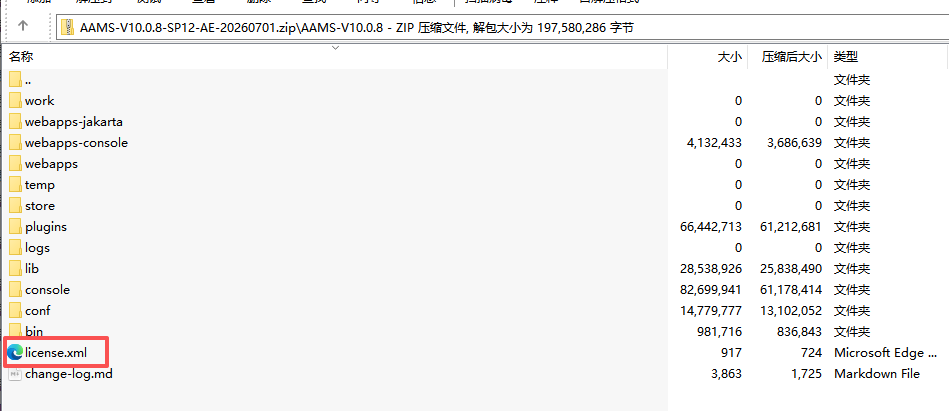
Standard authorization generates a license.xml file based on the IP address, domain name, or the like, and the license file is placed in the installation directory: ${APUSIC_HOME}/license.xml.
If the management console is installed, the system administrator admin logs in to the management console, clicks the license icon in the upper-right corner, clicks "Update License", uploads a valid license file, and saves it to complete the update. The new license file takes effect after AAS is restarted.
# Centralized Authorization
Centralized authorization connects to an authorization center for unified licensing. The Kingdee Apusic authorization center must be set up first. For details, refer to the Kingdee Apusic License Authorization Center User Manual, or contact Kingdee Apusic technical support.
Configure environment variables in the operating system, or create an acls.properties file in the root directory of the AAS installation directory and add the following parameters:
apusic_acls_enable=true
apusic_acls_authUrls=127.0.0.1:6886
apusic_acls_ns=apusic
apusic_acls_tenant=ApusicTest
2
3
4
Description of the connection parameters:
Table 5: Connection parameters of the Kingdee Apusic license authorization center
| Parameter | Description |
|---|---|
| apusic_acls_enable | Whether to enable authorization center authentication. Valid values: true or false; true enables authorization center authentication. If this parameter is absent or set to false, authorization center authentication is disabled; |
| apusic_acls_authUrls | Address of the authorization center. Multiple authorization addresses can be set in the format ip1:port1,ip2:port2; if one authorization address fails to connect, the others are polled in turn. Required if authorization center authentication is enabled; the port is the HTTPS port of the authorization center; |
| apusic_acls_ns | Namespace that the instance belongs to. Optional parameter; default value: public. You can view the available namespaces in the authorization center management console under System Management - Authorization Management. |
| apusic_acls_tenant | Tenant that the instance belongs to. Optional parameter. |
AAS automatically connects to the Apusic authorization center at startup.
# Obtaining the Auth Code
If the license expires or becomes invalid during use, contact your Kingdee Apusic service representative first to apply for a new license. When applying for a new license, provide the product auth code to the Kingdee Apusic representative.
In ${APUSIC_HOME}/bin, run apusic.sh -ac [ethname or ip], where [ethname or ip] is an IP address or a network interface name, for example:
apusic.sh -ac 127.0.0.1
The auth code is printed as follows, where Auth Code= is followed by the auth code:
Using APUSIC_BASE:   /opt/AAS/AAMS-V10.0.0
Using APUSIC_HOME:   /opt/AAS/AAMS-V10.0.0
Using APUSIC_TMPDIR: /opt/AAS/AAMS-V10.0.0/temp
Using JRE_HOME:        /usr/local/java/jdk1.8.0_231/jre
Using CLASSPATH:       /opt/AAS/AAMS-V10.0.0/bin/bootstrap.jar:/opt/AAS/AAMS-V10.0.0/bin/aas-juli.jar
Using APUSIC_OPTS:
Auth Code=SZTY829390371
2
3
4
5
6
7
After obtaining the auth code, provide it to apply for the license file.
# Obtaining the Auth Code (Embedded Deployment)
When AAS is integrated with Spring Boot, the apusic command for obtaining the auth code is unavailable, and the auth code must be obtained through your application.
If you have a temporary license file that allows the application to start, remove the license file first, then add the JVM parameter apusic-ac to the startup command. Its value is an IP address or a network interface name, for example (eth3 is the network interface name of the test machine; change it according to your actual network information):
java -jar -Dapusic-ac=eth3 boot-quickstart-1.0.jar
Because no license file is present, the application stops during startup. Before it stops, the auth code is printed as follows, where Auth Code= is followed by the auth code:
Auth Code=SZTY263537626
license is invalid.
2
# Starting the Server
# On Linux
After the installation is complete and the license file is updated, go to ${APUSIC_HOME}/bin and run apusic.sh run.
You can also run ./startapusic.sh to start the service.
# On Windows
After the installation is complete and the license file is updated, go to ${APUSIC_HOME}\bin and run apusic.bat run.
You can also run startapusic.bat to start the service.
# Stopping the Server
# On Linux
1. Ctrl + C
If the server was started in the foreground, press Ctrl + C to exit and stop AAS.
2. stopapusic.sh
Go to ${APUSIC_HOME}/bin and run stopapusic.sh.
3. Kill the process
The server can be stopped with kill [PID]
# On Windows
1. Ctrl + C
If the server was started in the foreground, press Ctrl + C to exit and stop AAS
2. stopapusic.bat
Go to ${APUSIC_HOME}\bin and run stopapusic.bat.
3. Stop the process
Open Task Manager, locate the process, and stop it.
# Accessing the Console
The management console starts by default when the server starts. Visit the system address in a browser: https://127.0.0.1:6848/aas-console.
Log in with the system administrator account:
- Username:
admin - Password:
Apusic@123
Note: The password must be changed on first login.

# Deploying Applications
# Auto Deployment
Kingdee Apusic Application Server supports automatic application deployment. Place the application package file, such as test1.war, in the ${APUSIC_HOME}/webapps/ directory and start the application server to complete the deployment.
# Console Deployment
Kingdee Apusic Application Server supports deploying applications through the console. The system administrator logs in to the management console, goes to [App Management] - [Applications], clicks "Deploy Application", uploads the application as instructed, and confirms the deployment to complete the operation.
# Command-Line Deployment
Kingdee Apusic Application Server supports deploying applications from the command line. Go to ${APUSIC_HOME}/bin, run ./aascli.sh, enter the username and password, and run app deploy --app-name=<name> --app-path=<app-path>
# Accessing Applications
On a client such as a browser, the URL format is usually http://[IP]:[port]/[application context path], for example http://127.0.0.1:6888/test1 .
Alternatively, in the management console, go to [App Management] - [Applications] and use the accessible link in the row of the application to open the application.
Note: If the application defines its own access URL, access the application according to the actual URL.
# Undeploying Applications
# Console Undeployment
Applications can be undeployed through the console. The system administrator logs in to the management console, goes to [App Management] - [Applications], clicks "Uninstall" in the row of the application to remove, and confirms the uninstallation to complete the operation.
Note: Undeploying an application makes it inaccessible. Proceed with caution.
# Command-Line Undeployment
Kingdee Apusic Application Server supports undeploying applications from the command line. Go to ${APUSIC_HOME}/bin, run ./aascli.sh, enter the username and password, and run app delete <name>
# Configuring Data Sources
# Prerequisites
Prepare the data source environment and the driver of the corresponding version.
# Console Configuration
Data sources can be configured through the console. The system administrator logs in to the management console, goes to [Resources] - [Data Sources], clicks "New", enters the data source information, follows the steps, and clicks "Save" to save the configuration.
Note: The name must be unique and must match the JNDI name defined in the application.
# Configuration File
You can also configure the data source by editing the configuration file. Edit ${APUSIC_HOME}/config/context.xml and add the data source configuration as follows:
<Resource name="jdbc/test" auth="Container" type="javax.sql.DataSource" driverClassName="com.mysql.jdbc.Driver"
    url="jdbc:mysql://127.0.0.1:3306/test_platform?useUnicode=true&characterEncoding=utf-8" username="[YOUR_USERNAME]"
    password="[YOUR_PASSWORD]" maxTotal="100" maxIdle="30" maxWaitMillis="10000" />
2
3
Also place the driver of the corresponding version in the ${APUSIC_HOME}/lib/ directory.
Note: To look up the JNDI name in code, add the
java:comp/envprefix, for examplejava:comp/env/jdbc/testfor the preceding data source.
# Log Configuration
Kingdee Apusic Application Server provides log configuration features. Log in to the management console and go to [Logs] - [Log Config] to configure logging.
# System Logs
Log in to the management console and go to [Logs] - [Log Config] - [System Log Config]. Alternatively, configure logging in ${APUSIC_HOME}/config/logging.properties.
By default, log files are stored in ${APUSIC_HOME}/logs/ .
# Access Logs
Log in to the management console and go to [Logs] - [Log Config] - [Access Log Config]. Alternatively, modify the configuration file; the valve can be configured in application or service. If it is configured in host, all application accesses under that host are logged.
<Valve className="com.apusic.ams.valves.AccessLogValve" directory="logs" prefix="access_log" suffix=".txt"
    pattern="common" />
2
By default, log files are stored in ${APUSIC_HOME}/logs/ .