
User Manual

# Preface
This document is the user manual for the Apusic Application Server Migration Tool. It describes in detail the basic installation and configuration of the Standard Edition and provides the basic operating procedures and detailed steps for each feature.
# Intended Audience
This manual is intended for technical personnel who use the Apusic Middleware Migration Tool (hereinafter referred to as the "Migration Tool") to implement application migration, including:
- Implementation/O&M Engineers: front-line implementation personnel responsible for migrating existing Java applications from the source middleware to the Apusic Application Server (AAS);
- Test/Assessment Personnel: personnel who need to assess application compatibility with AAS before migration and produce migration reports.
Readers of this manual are expected to have basic experience with middleware (Tomcat / TongWeb) and to understand common concepts such as application deployment and port configuration. Remote migration mode additionally requires basic knowledge of remote SSH access.
# Technical Support
The Apusic Application Server product provides comprehensive technical support. You can obtain technical support through the following channels:
- Website: www.apusic.com
- Telephone: 400-855-5800
- Email: support@apusic.com
- Kingdee Cloud Community: https://vip.kingdee.com/?productId=73&productLineId=14&lang=zh-CN
When requesting technical support, please provide the following information:
- Your name
- Company information and contact details
- Operating system and its version
- Product version number
- Detailed information about the exception or error, such as logs and screenshots
# Version Information
This document is the user manual for the Apusic Migration Tool. Its content is revised cumulatively as the tool version is updated.
| Date | Manual Version | Applicable Product | Revision Notes |
| September 2026 | V01E01F01 | Kingdee Apusic Application Server Migration Tool | Usage instructions |
# Overview
# Introduction
The Apusic Middleware Migration Tool is a GUI-based application server migration tool that helps users migrate Java applications deployed on middleware such as Apache Tomcat and TongWeb from TongTech to the Apusic Application Server (AAS) in a single, streamlined process. It covers the complete workflow of Assessment, Migration Execution, Verification, and Reporting:
- Assessment: Automatically identifies the type and version of the source middleware, collects key configurations, and converts them into the corresponding AAS configurations. Differences between the source and the target are presented as a "configuration comparison" and can be adjusted manually;
- Migration Execution: Automatically installs or detects the target AAS, merges configurations, and deploys applications, all without intruding on the source environment (the source middleware directory is accessed in read-only mode only);
- Verification: After migration completes, automatically performs AAS startup verification, application deployment verification, and health checks according to the verification rules;
- Reporting: A migration report is generated for each migration and can be exported to PDF / DOCX for archiving.
Currently supported migration paths:
| Source Middleware | Target Middleware |
|---|---|
| Apache Tomcat 9 | AAS v10.0.8 Standard Edition |
| Apache Tomcat 10 | AAS v10.0.10 Standard Edition |
| Apache Tomcat 11 | AAS v10.0.11 Standard Edition |
| TongWeb 7 | AAS v10.0.8 Standard Edition |
| TongWeb 8 | AAS v10.0.8 Standard Edition |
Two migration modes:
- Remote migration: The tool is deployed independently and reads source middleware information remotely over the SSH protocol. No agent needs to be installed on the source host. This mode suits scenarios where the source and the tool reside on different machines (for example, migration from an x86 environment to a Xinchuang environment);
- Local migration: The tool and the source middleware are deployed on the same machine and the local directory is read directly. This mode suits same-platform migration or test environments.
The tool also provides an "Embedded Container Migration" feature, which converts and adapts Spring Boot executable JAR packages into the AAS embedded runtime format (see Embedded Container Migration for details).
# Environment Requirements
Tool runtime environment (the machine hosting the tool):
| Item | Requirement |
|---|---|
| Operating System | Linux or Windows |
| Java Environment | JDK 17 (64-bit); the java command must be available in PATH, or JAVA_HOME must be set correctly |
| Disk Space | ≥ 10 GB recommended (the installation package contains AAS installation media for 3 versions, and the migration process also copies application replicas and the target AAS runtime directory) |
| Port | Port 6880 (the tool Web service port) must be free |
| Browser | Modern browsers such as Chrome / Edge |
Additional requirements for remote migration:
- The machine hosting the tool must be able to reach the host running the source middleware over SSH (default port 22);
- The SSH account must have permission to read the source middleware installation directory and the applications deployed on it.
Target requirements for migration:
- The target AAS deployment directory must be writable on the machine hosting the tool;
- The target AAS installation package and license are distributed with the tool (located under the tool directory
data/aas-install/) and require no separate preparation.
# Installation and Startup
# Installation
The Migration Tool is distributed as a zip archive with a name such as aas-migration-tool-v1.0-<build-date>.zip.
- Upload or copy the archive to the target machine;
- Extract it to the installation directory. It is recommended that the installation path contain no Chinese characters or spaces;
- After extraction, verify the integrity of the directory (see Tool Directory Structure for a description of the directory layout);
- Confirm that
java(JDK 17) is available: runjava -versionon the command line to check the version, or confirm thatJAVA_HOMEpoints to JDK 17.
No external dependencies such as a database need to be installed. The tool uses an embedded SQLite database, and the target AAS installation package and license are built into the installation directory.
# Running the Tool
Linux / macOS:
./start.sh1Windows: Double-click
start.bat, or runstart.batfrom the command line.
The startup script runs the tool in the background. The process ID is written to run.pid in the installation directory, and console output is redirected to logs/console.out.
Once started, access the tool in a browser at:
http://<IP of the machine hosting the tool>:6880/
The browser automatically redirects to the login page. Sign in with the default administrator account: admin / admin123.
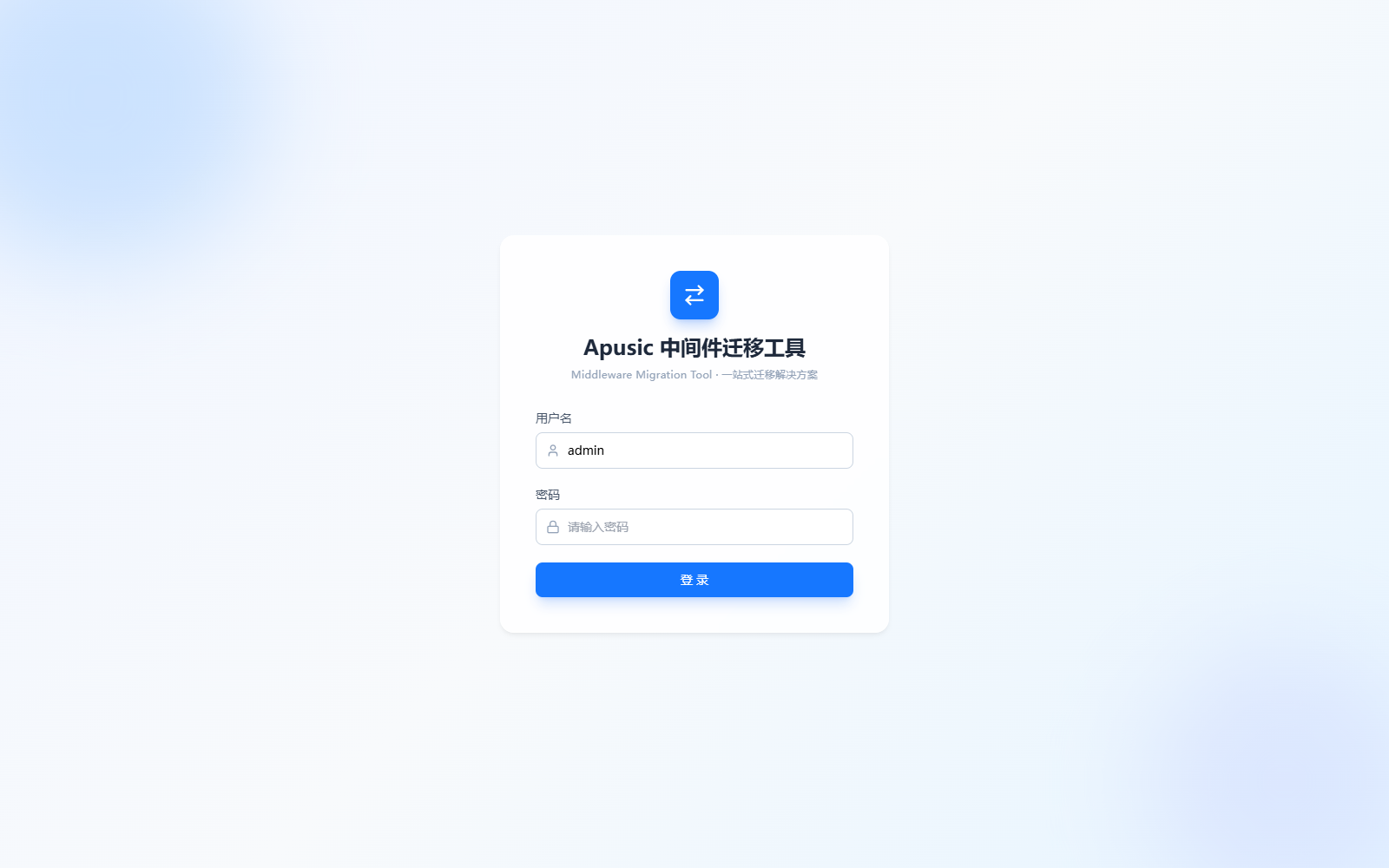
After a successful sign-in, you enter the Home Overview by default (see Home Overview for details of each module).
A login session expires automatically after 30 minutes of inactivity, after which you must sign in again.
Other common operations:
- Check the running status: run
./status.sh(status.baton Windows). The script displays the process ID and probes whether the Web service is reachable; - View runtime logs:
logs/migration-tool.log(rolled over at 10 MB, retained for 30 days by default).
Upgrade: Download the new zip, extract it to a new directory, stop the old service, copy data/migration.db and data/migration/ from the old directory to the corresponding locations in the new directory, and then start the service from the new directory. Do not overwrite data/migration.db while the service is running, as this may result in the loss of migration history.
# Stopping the Tool
Linux / macOS:
./stop.sh1Windows: Double-click
stop.bat, or runstop.batfrom the command line.
The stop script sends a normal termination signal to the process and waits up to 5 seconds before forcibly terminating it. A migration task that is currently running is interrupted by the process exit, and the project remains in an abnormal state; you can start the migration again from the page.
# Tool Architecture
# Tool Directory Structure
The directory structure after extracting the installation package is as follows:
aas-migration-tool-v1.0/
├── migration-tool-aas-1.0.0-SNAPSHOT.jar   # Main tool program
├── data/
│   ├── aas-install/                        # Target AAS installation packages (V10.0.8 / V10.0.10 / V10.0.11) and licenses
│   ├── migration/                          # Migration project runtime artifacts (one directory per project name)
│   └── migration.db                        # Tool embedded database (metadata such as projects, tasks, and accounts)
├── logs/                                   # Runtime log directory
├── docs/
│   └── 配置转换总览/                        # Documentation of configuration conversion rules for each migration path
├── start.sh / start.bat                    # Startup script
├── stop.sh  / stop.bat                     # Stop script
├── status.sh / status.bat                  # Status check script
└── README.md
2
3
4
5
6
7
8
9
10
11
12
13
Here, data/migration/<project-name>/ is the dedicated workspace for each migration project and is generated automatically during execution:
| Path | Description |
|---|---|
apps-work/ | Copies of each application copied from the source middleware during the scanning phase (the migration phase uses these copies and no longer accesses the source) |
aas-config/ | Target AAS configuration files generated by conversion during the scanning phase, together with configuration comparison snapshots |
copy-work/ | Configuration reference files pre-copied during the scanning phase (such as SSL certificates) |
tasks/<sequence>/ | Record directory for each migration execution, containing the source/target configuration snapshot taken before the task started (snapshot/) and the task-level execution log (execution.log) |
# Terminology
| Term | Description |
|---|---|
| Migration Project | The basic management unit of a migration effort, recording information such as the source environment, target environment, and migration mode. All scanning, migration, verification, and reporting are organized by project. |
| Migration Mode | A project creation attribute, divided into Remote Migration (accessing remote source middleware over SSH) and Local Migration (accessing source middleware on the local machine). |
| Source Middleware | The starting point of migration, that is, the middleware on which the application is currently deployed (Tomcat 9/10/11, TongWeb 7/8). |
| Target Middleware | The destination of migration, that is, the AAS application server. Currently, v10.0.8 / v10.0.10 / v10.0.11 Standard Edition are supported. |
| Scanning (Detection) | The collection process performed on the source middleware after a project is created: identifying the type and version, reading key configurations, converting them into AAS configurations according to rules, and copying applications to the tool working directory. Once scanning completes, the project enters the "Not Started" state. |
| Target AAS Deployment Directory | The root directory in which the tool installs and deploys the target AAS. During migration, the AAS installation package is extracted to this directory and configuration merging is completed. Note: Whether migration is local or remote, the target AAS is always installed on the machine hosting the tool. |
| Configuration Comparison | The item-by-item view of "source configuration ↔ target AAS configuration" generated after scanning, which also lists items not covered by rules and conversion warnings. Target configuration values can be modified manually on the edit page. |
| Verification Rules | The checks performed automatically after migration completes, including: verifying AAS startup, verifying application deployment, and verifying health checks. Configuration comparison verification is enabled by default and automatically flags differences for manual confirmation. |
| Health Check URL | The address used for health checks, in the form http://<IP>:<port>/. After migration completes, the tool uses this address to probe whether AAS is alive. |
| Migration Task | An execution record generated each time "Migrate" is clicked. It includes phase progress, elapsed time, failure cause, and a snapshot of the source/target information at that time, and can be reviewed in "Migration History". |
| Migration Report | The result report generated after a task completes, including the execution summary, migration path, application migration list, and configuration comparison. It can be exported to PDF / DOCX. |
| Embedded Container Migration | A standalone feature that converts and adapts Spring Boot executable JAR packages into the AAS embedded runtime format. The conversion artifact is {JAR-name}-aams.jar. |
# Execution Flow
A complete migration follows the main flow of "create project → scan → confirm/adjust → execute migration → verify → view report". The project state machine is as follows:
Pending Scan ──auto──► Scanning ──success──► Not Started ──click Migrate──► In Progress ──► Succeeded / Failed
   │                    │                                      │
   └──────────Scan error──► Failed            Click Stop ──► Terminated
2
3
Projects in the Failed / Terminated / Succeeded states can all be migrated again by clicking "Migrate".
① Create a project: Fill in the source and target environment information and save. The project enters the "Pending Scan" state. You can choose to scan immediately or start the scan later from the list page.
② Scanning phase (executed automatically):
- Connect to the source middleware (a local directory or a remote host over SSH) and automatically identify the middleware type and version;
- Read key configuration files (such as Tomcat's server.xml, context.xml, logging.properties, and so on) and convert them into the corresponding AAS target configuration using the built-in rule engine;
- Copy each application from the source to the tool working directory
apps-work/and process the application's internal configuration (for example, adapting and rewriting web.xml); - Generate configuration comparison snapshots and the application inventory.
Scanning and migration are decoupled from each other: once scanning completes, subsequent migration uses only the copies in the tool working directory. Even if the source middleware is modified, taken offline, or becomes unreachable, the migration can still be executed normally.
③ Confirm/adjust: After scanning completes, the project is in the "Not Started" state. On the project view page, the user confirms the application information and configuration comparison. To adjust the target AAS information, verification rules, or target configuration values, go to the edit page via "More → Edit" on the list page, make the changes, and save.
④ Migration execution (executed automatically after "Migrate" is clicked; the project enters the "In Progress" state), which proceeds through three phases:
| Phase | Main Activities |
|---|---|
| Phase 1: Prepare Deployment | Check the target AAS deployment directory; if AAS is not yet installed, automatically extract the installation package into the deployment directory and apply the license |
| Phase 2: Execute Migration | Merge the AAS configuration generated by scanning into the AAS instance configuration; deploy the applications in apps-work/ to AAS; copy files referenced by the configuration (such as SSL certificates) |
| Phase 3: Verification | Execute the selected verification rules: stop any legacy AAS instance and start a new one, check application deployment, and probe the health check URL for liveness |
If all three phases succeed, the task is marked "Succeeded"; if any phase fails, the task is marked "Failed" and the failure cause is recorded. During execution, you can click "Stop" to terminate the task (an already installed AAS will not be uninstalled).
⑤ View the report: Once the task completes, you can view execution information, the configuration comparison, and execution logs on the task details page, and view the basic report information, migration path, execution summary, and configuration information on the report page. Reports can be exported to PDF / DOCX for archiving.
# Migration Functionality
The Migration Tool web console is divided by the left navigation bar into four functional modules: Home Overview, Migration Projects, Embedded Container Migration, and Migration Reports. This chapter describes the entry point, operating steps, and field meanings of each feature module by module. The descriptions follow the actual wording used in the console UI.
# Home Overview
Home Overview is the default page after a successful sign-in. It provides a quick view of the migration capabilities supported by the tool, the current migration workload, and recent migration activity. The left side of the page is the navigation bar, which contains four menus: Home Overview, Migration Projects, Embedded Container Migration, and Migration Reports. The upper-right corner shows the currently signed-in user; click Log Out to sign out.
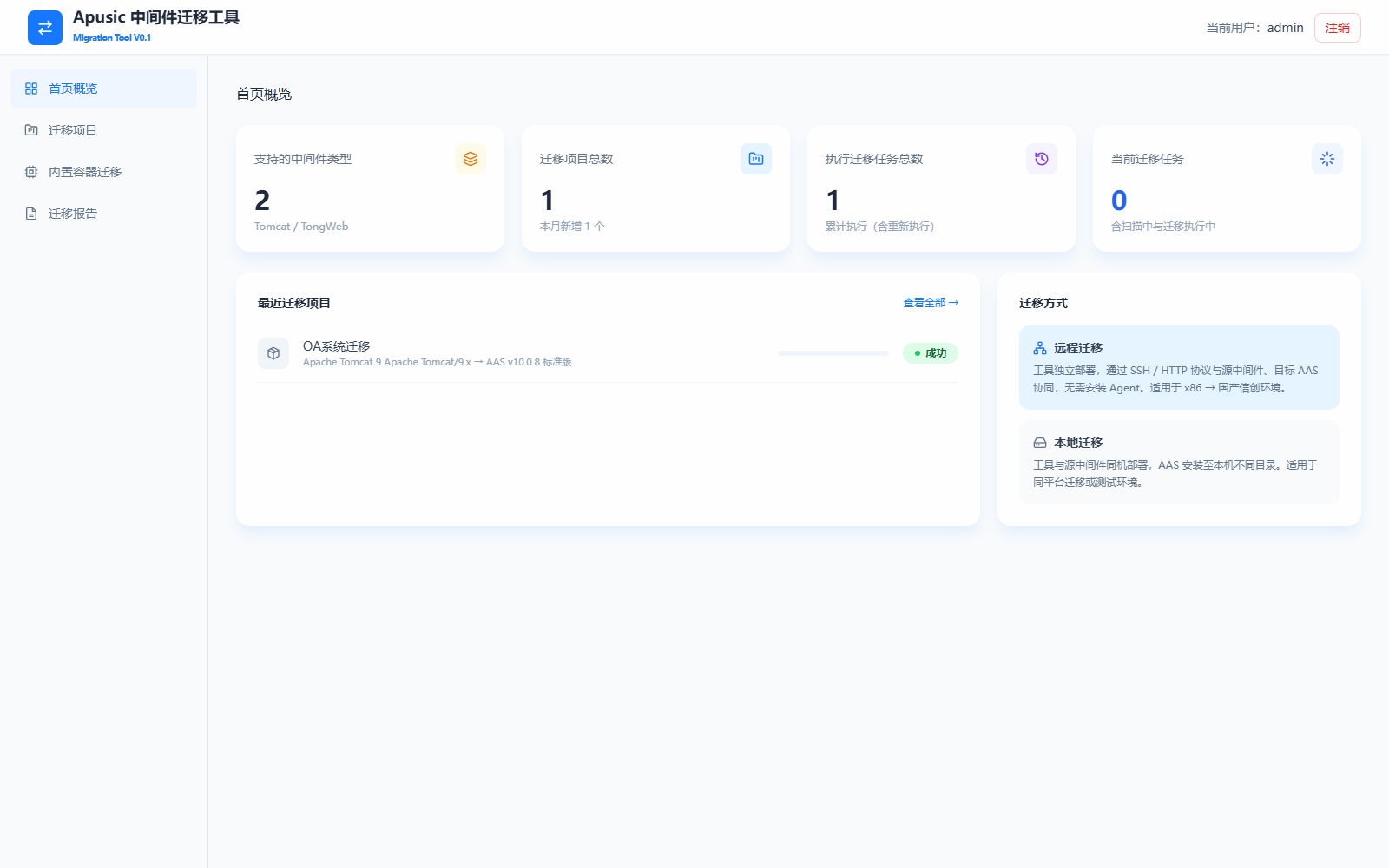
Page elements:
| Element Name | Parameter | Description |
|---|---|---|
| Statistic card | Supported middleware types | The number of source middleware types that the tool currently supports migrating, together with the list of types (Tomcat / TongWeb). |
| Statistic card | Total migration projects | The number of migration projects created, with the number added this month. |
| Statistic card | Total migration tasks executed | The cumulative number of migration tasks executed, including re-executions of the same project. |
| Statistic card | Current migration tasks | The number of tasks currently in progress, including scanning and migration execution. |
| Recent migration projects | Project entries | Shows the most recently created migration projects with their source middleware, target version, and current status. Click a project name to open the project view page; click "View All →" to go to the migration project list. |
| Migration mode | Remote migration | Description: The tool is deployed independently and works with the source middleware and target AAS over the SSH / HTTP protocols. No agent installation is required. Suited to migration from an x86 environment to a domestic Xinchuang environment. |
| Migration mode | Local migration | Description: The tool and the source middleware are deployed on the same machine, and AAS is installed to a different directory on that machine. Suited to same-platform migration or test environments. |
# Migration Projects
The Migration Projects module is the core feature of the tool. It targets scenarios in which the source middleware is already installed with Java applications deployed, and completes migration on a per-project basis. The overall operating flow is:
Sign in → Create a migration project (select the migration mode, enter source/target information, detect the source middleware)
     → Scan (automatic)
     → Review the configuration comparison (target configuration can be adjusted on the edit page)
     → Start migration (AAS is installed automatically; configurations and applications are migrated and verified)
     → View/export the migration report
2
3
4
5
# Project List
Click Migration Projects in the left navigation bar to open the migration project list page. The list shows the project name, source middleware, target version, migration mode, status, and creation time of all projects, with the status refreshed automatically every 3 seconds. Above the list, projects can be filtered by a combination of project name keyword, source middleware type, and migration mode. A legend on the right indicates the color code for each status (Pending Scan / Not Started, Scanning / In Progress, Succeeded, Failed, Terminated).
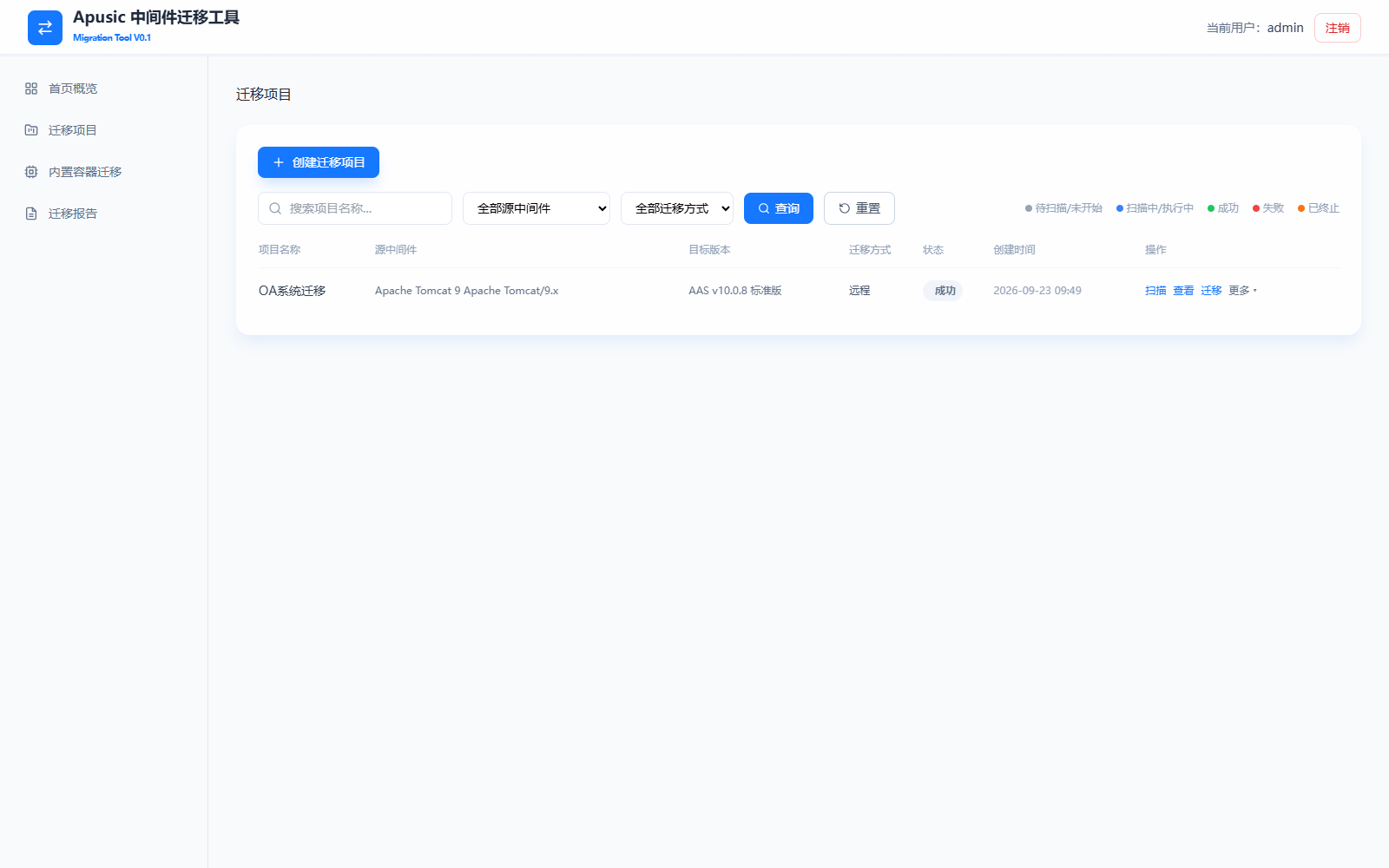
List fields and filter conditions:
| Element Name | Description |
|---|---|
| Project name | Fuzzy search by project name keyword. Click Search to apply; click Reset to clear all filter conditions. |
| Source middleware | Filter by source middleware type: All source middleware / Apache Tomcat 9 / Apache Tomcat 10 / Apache Tomcat 11 / TongWeb 7 / TongWeb 8. |
| Migration mode | Filter by migration mode: All migration modes / Remote / Local. |
| Project name | The name entered when the project was created. |
| Source middleware | The source middleware type and version identified by scanning, for example "Apache Tomcat 9 Apache Tomcat/9.x". |
| Target version | The target AAS version label, for example "AAS v10.0.8 Standard Edition". |
| Migration mode | The migration mode of the project: Remote / Local. |
| Status | The current project status: Pending Scan / Scanning / Not Started / In Progress / Succeeded / Failed / Terminated, with colors matching the legend on the right. |
| Creation time | The project creation time (YYYY-MM-DD HH:mm). |
The operations available for each project row are as follows:
| Operation | Description | Available States |
|---|---|---|
| Scan | Re-run the source configuration scan to refresh the application inventory and configuration comparison | Not Started, Succeeded, Failed, Terminated |
| View | Open the project view page to see application information, the configuration comparison, migration phases, and execution logs | All states |
| Migrate / Re-run | Start a migration execution; the project enters the "In Progress" state | Not Started (Migrate), Succeeded/Failed/Terminated (Re-run) |
| Stop | Terminate a scan or migration currently in progress (during execution, the "Migrate" button is replaced by a "Stop" button) | Scanning, In Progress |
| More → Edit | Open the edit page to modify the target AAS information, verification rules, and target configuration values | Not Started, Succeeded, Failed, Terminated |
| More → Migration History | View a record of all past tasks for this project, with filtering by result | All states |
| More → Delete | Delete the project and its runtime artifacts (database records and locally generated configuration files) | Not Started, Succeeded, Failed, Terminated |
The expanded "More" drop-down menu is shown below:
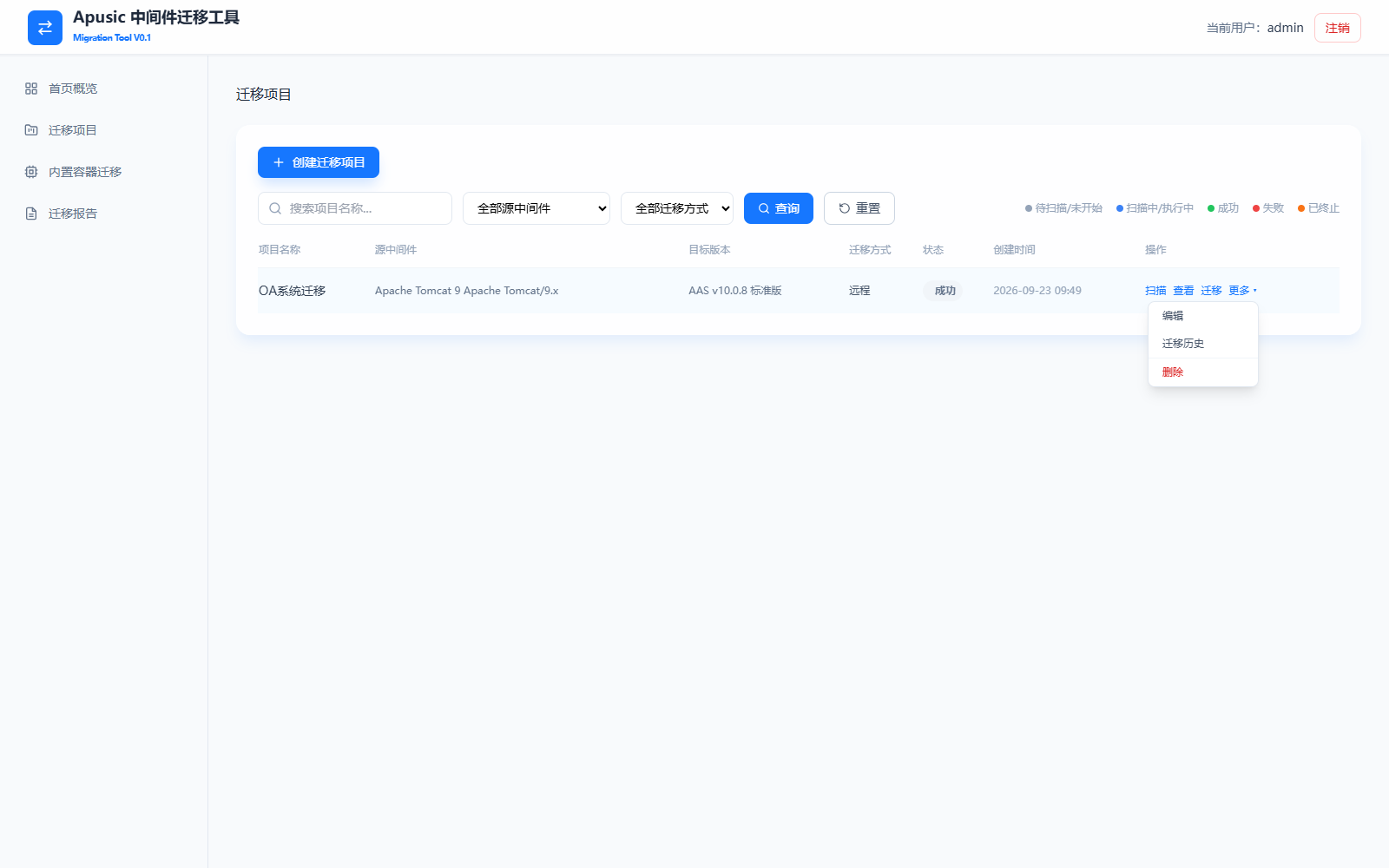
# Creating a Migration Project (Remote Mode)
Remote mode suits scenarios where the source middleware and the tool are on different machines: the tool reads source middleware information and copies applications remotely over the SSH protocol, with no component installation required on the source host. The target AAS is still installed on the machine hosting the tool.
Prerequisites:
- The machine hosting the tool must be able to reach the source host over SSH (default port 22);
- The SSH account must have permission to read the source middleware installation directory and the applications deployed on it;
- The target AAS deployment directory must be writable on the machine hosting the tool.
Steps:
- Sign in to the tool's web interface, go to the "Migration Projects" list, and click Create Migration Project;
- Enter the Project Name and select Remote Migration as the migration mode;
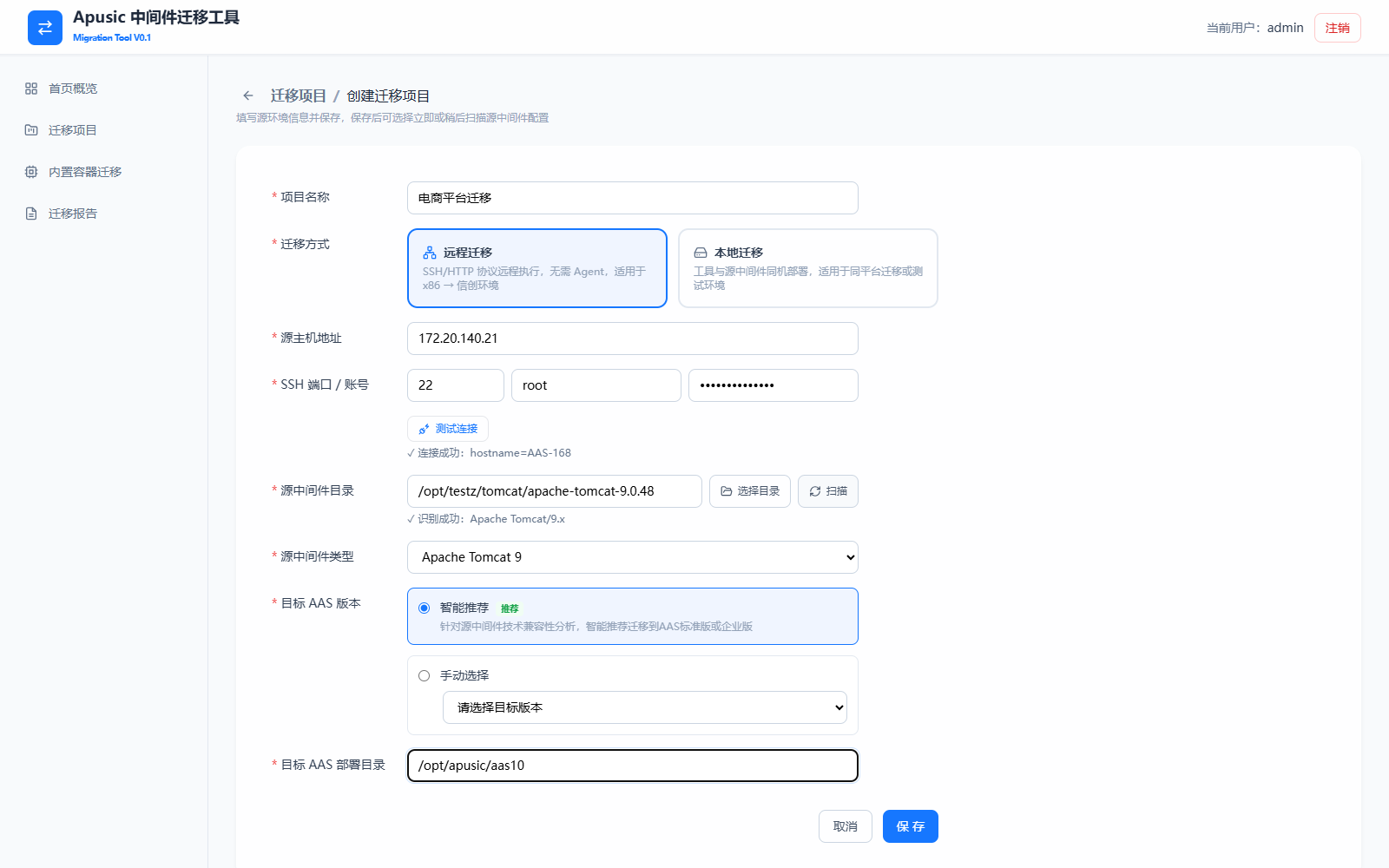
- Enter the Source Host Address, SSH Port / Account (account and password), and click Test Connection to confirm reachability. On success, the source host name is echoed back (for example,
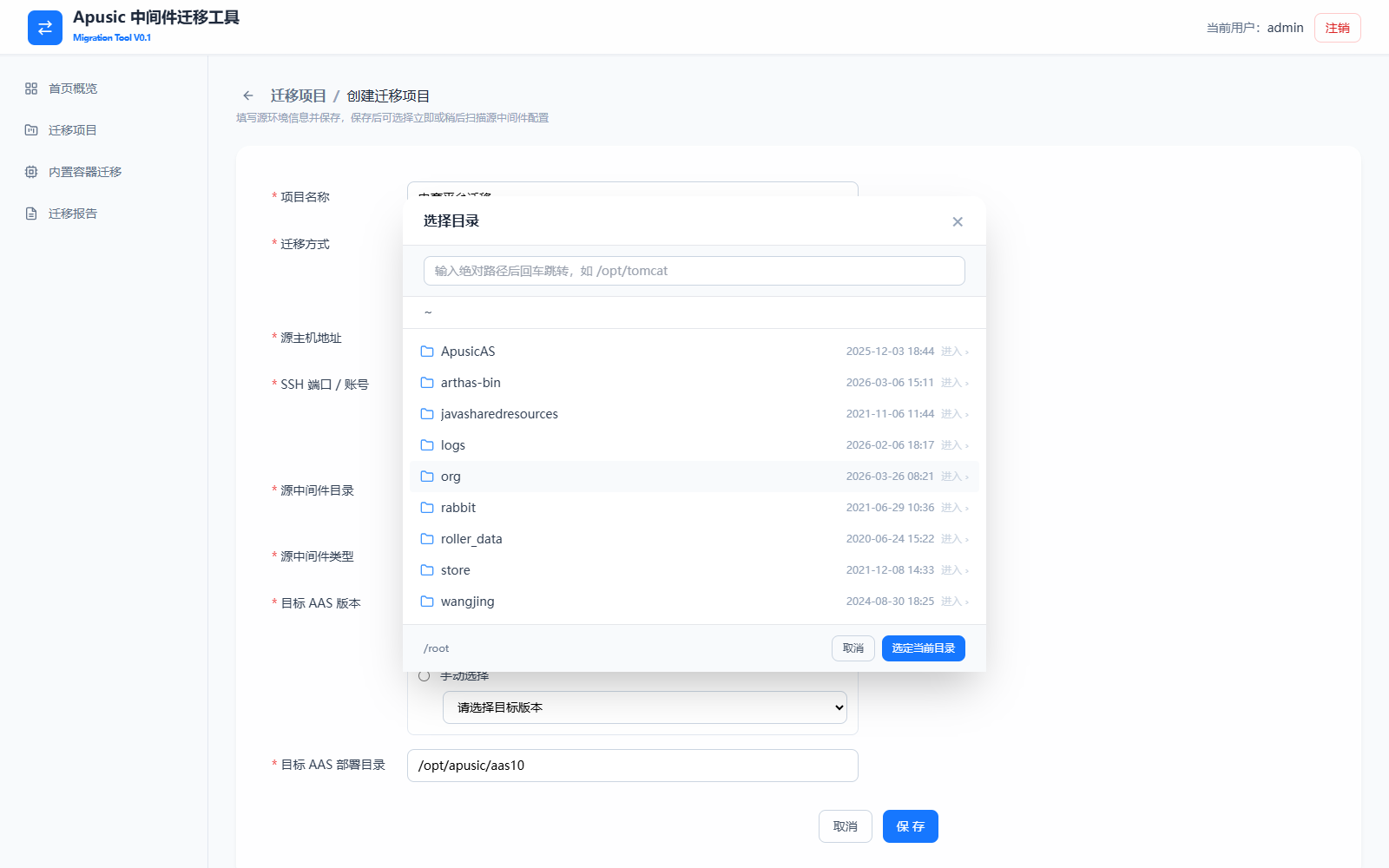
✓ Connection successful: hostname=AAS-168); - Enter the Source Middleware Directory: you can click Select Directory to browse the source host directory tree in a dialog and select a directory, or type an absolute path manually and click Scan. On success, the middleware type and version are echoed back (for example,
✓ Detection successful: Apache Tomcat/9.x) and the Source Middleware Type is filled in automatically; - Select the Target AAS Version (defaults to "Smart Recommendation"; you can also switch to "Manual Selection" to specify a version), and enter the Target AAS Deployment Directory;
- Click Save. In the prompt that appears, choose Scan Now (or choose "Scan Later" and start the scan manually later by clicking "Scan" on the list page);
- Wait for scanning to complete, then open the project view page to confirm the application information and configuration comparison (see Viewing and Confirming Migration Information for details);
- Click Migrate and wait for the three phases (Prepare Deployment → Execute Migration → Verification) to complete automatically;
- View the results on the task details/report page, and export the report if needed.
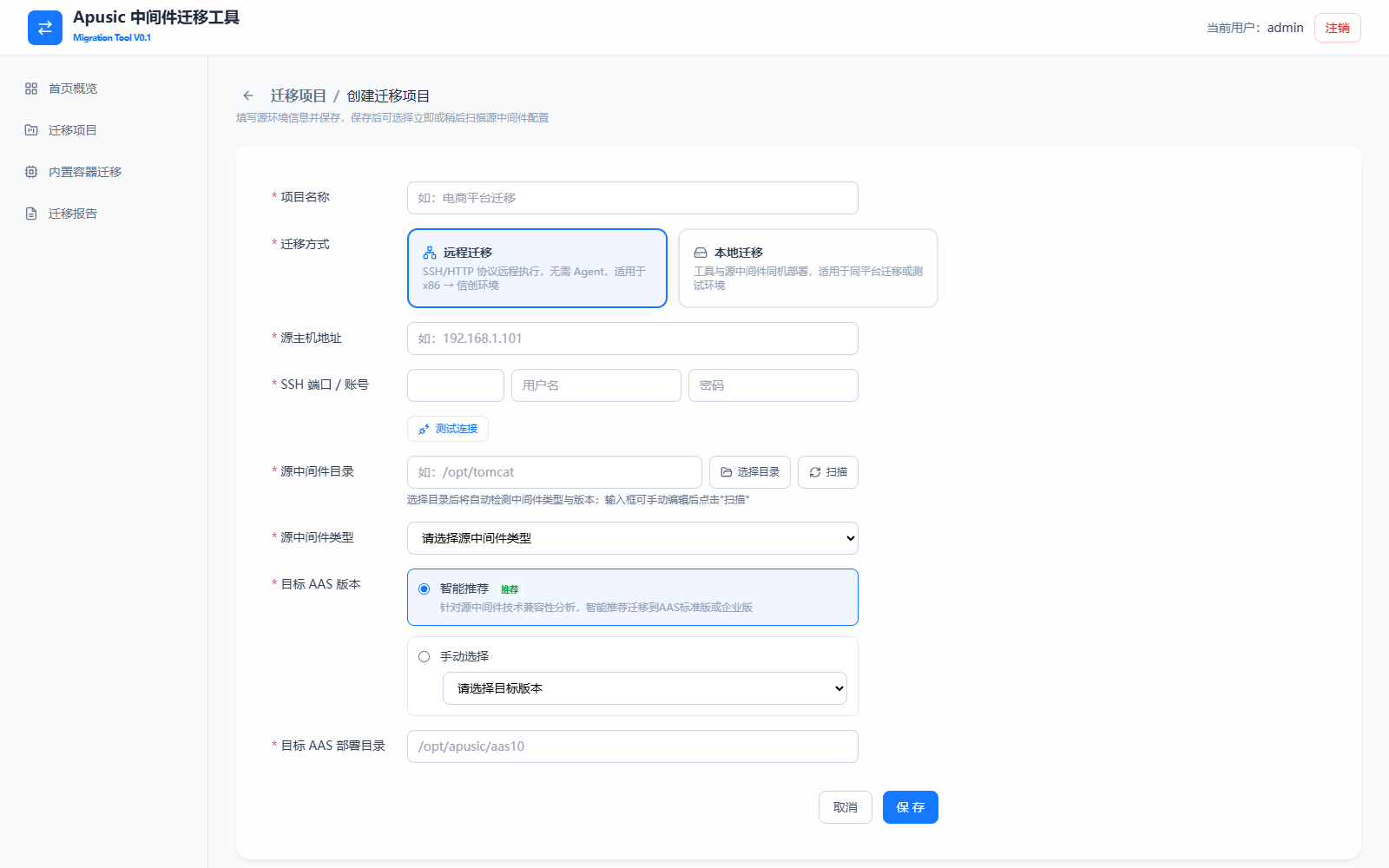
The empty form and the position of each field are shown below:
Example of a completed, successfully detected form (migrating Tomcat 9 on a remote host to AAS v10.0.8; the password is masked in the UI):
Clicking Select Directory opens a remote directory browser. You can type an absolute path in the input box and press Enter to jump directly to it, or browse the source host directory tree level by level using "Enter"; click "Select Current Directory" to fill the path back into the form. Once selected, source middleware detection is triggered automatically.
Detailed field descriptions (remote migration):
| Element Name | Description |
|---|---|
| Project Name | The display name of the migration project, for example "E-Commerce Platform Migration". Required and must be globally unique. |
| Migration Mode | Execution is performed remotely over the SSH/HTTP protocols, with no agent installed on the source host. Suited to migration from an x86 environment to a Xinchuang environment. Mutually exclusive with "Local Migration"; the form shows the corresponding source information fields based on the selection. |
| Source Host Address | The IP address or host name of the host running the source middleware, for example 192.168.1.101. Required; shown only for remote migration. |
| SSH Port | The SSH service port on the source host. Required; shown only for remote migration. The default is 22 and valid values are 1–65535. |
| SSH Account | The account used to sign in to the source host; it must have permission to read the source middleware directory. Required; shown only for remote migration. |
| SSH Password | The password for the SSH account, masked in the UI. Required; shown only for remote migration. The credentials are used only for read operations in this connection. |
| Test Connection | Clicking this validates SSH connectivity. On success, the source host name is echoed back (✓ Connection successful: hostname=xxx); on failure, the reason is displayed. It is recommended to test the connection before filling in the directory. |
| Source Middleware Directory | The absolute path of the source middleware installation directory on the source host, for example /opt/tomcat. Required. You can click "Select Directory" to browse the source host directory tree and select it (detection is triggered automatically after selection), or type it manually and click "Scan" to trigger detection. |
| Source Middleware Type | Automatically detected and filled in; if detection fails, it can be selected manually from the drop-down list. Available options: Apache Tomcat 9 / Apache Tomcat 10 / Apache Tomcat 11 / TongWeb 7 / TongWeb 8. Required. |
| Target AAS Version | Default and recommended. The tool performs a technical compatibility analysis of the source middleware and intelligently recommends the AAS version to migrate to (UI text: "Based on a technical compatibility analysis of the source middleware, intelligently recommends migrating to AAS Standard Edition or Enterprise Edition"; the recommendation currently always returns Standard Edition). |
| Target AAS Version | Specify a version manually from AAS v10.0.8 / v10.0.10 / v10.0.11 Standard Edition. Mutually exclusive with "Smart Recommendation". |
| Target AAS Deployment Directory | The deployment root directory of the target AAS on the machine hosting the tool, for example /opt/apusic/aas10. Required. During migration, the AAS installation package is extracted to this directory; if an AAS instance of the same version is already installed there, it is reused directly. |
When "Save" is clicked, the project enters the "Pending Scan" state. After "Scan Now" is selected, the tool automatically performs collection and conversion; during scanning, you can click "Stop" on the list page to interrupt it.
# Creating a Migration Project (Local Mode)
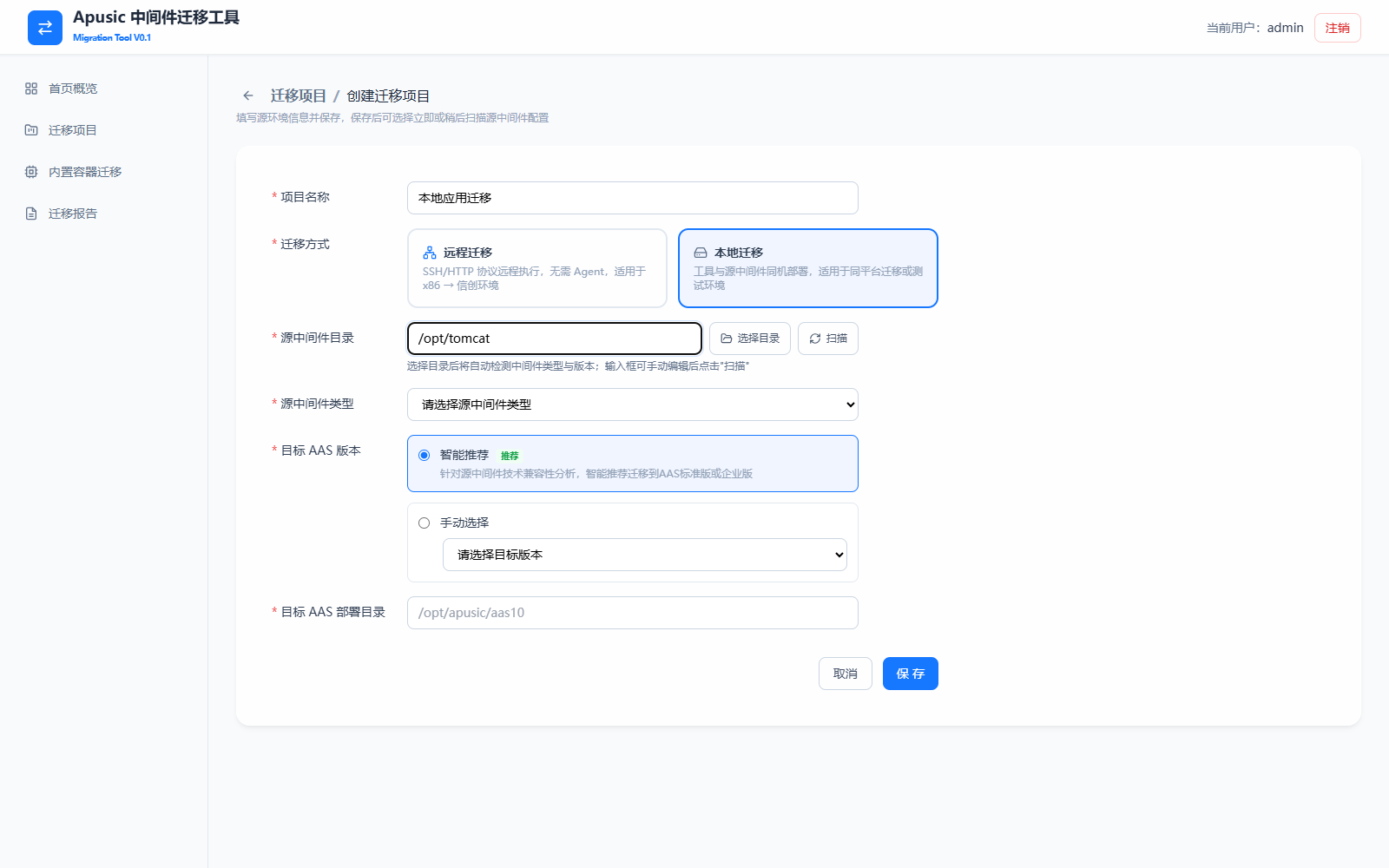
Local mode suits scenarios where the tool and the source middleware are deployed on the same machine (same-platform migration or test environments). The overall operating flow is identical to remote mode; the only differences are:
- When creating the project, select Local Migration as the migration mode. The form does not include the source host address, SSH port, account, password, or "Test Connection" fields;
- The Source Middleware Directory is a local path on the machine hosting the tool, and the "Select Directory" dialog browses the local file system;
- All other fields (source middleware type, target AAS version, target AAS deployment directory) as well as the scanning, migration, verification, and reporting flows are exactly the same as in remote mode.
# Scanning and Configuration Conversion
After the project is saved, you can choose Scan Now, or start the scan manually later by clicking Scan on the list page. During scanning, a Stop button is available on the list page to interrupt the scan. During the scanning phase, the tool automatically performs the following work:
- Connect to the source middleware (a local directory or a remote host over SSH) and automatically identify the middleware type and version;
- Read key configuration files and convert them, by migration path, into the corresponding AAS target configuration using the built-in rule engine;
- Copy each application from the source to the tool working directory
apps-work/and rewrite the application's internal configuration in place (for example, replacing package names of filters/servlets/listeners in web.xml); - Generate configuration comparison snapshots and the application inventory; the project then enters the "Not Started" state.
Scanning and migration are decoupled from each other: once scanning completes, subsequent migration uses only the copies in the tool working directory. Even if the source middleware is modified, taken offline, or becomes unreachable, the migration can still be executed normally. For a project in the "Not Started, Succeeded, Failed, or Terminated" state, clicking Scan again refreshes the application inventory and configuration comparison (for example, after the source applications or configurations have changed).
The source configuration files read and the target configurations generated by conversion for each migration path are as follows (for item-by-item descriptions of the conversion rules, see the corresponding document under docs/配置转换总览/ in the tool installation directory):
| Migration Path | Source Configuration Read | Target Configuration Generated |
|---|---|---|
| Tomcat 9 → AAS v10.0.8 Standard Edition | conf/server.xml, conf/context.xml, conf/logging.properties, application WEB-INF/web.xml, application META-INF/context.xml | apusic.conf, context.xml, logging.properties; application web.xml / context.xml rewritten in place (package name replacement) |
| Tomcat 10 → AAS v10.0.10 Standard Edition | Same as Tomcat 9 | Same as Tomcat 9 |
| Tomcat 11 → AAS v10.0.11 Standard Edition | Same as Tomcat 9 | Same as Tomcat 9 |
| TongWeb 7 → AAS v10.0.8 Standard Edition | conf/tongweb.xml, conf/default-web.xml, bin/external.vmoptions, application WEB-INF/tongweb-web.xml | apusic.conf, context.xml, vm.options; application-level configuration conversion generates META-INF/context.xml |
| TongWeb 8 → AAS v10.0.8 Standard Edition | domains/<domain>/conf/tongweb.xml (including <java-config> JVM parameters), application WEB-INF/tongweb-web.xml | apusic.conf, vm.options; application-level configuration conversion generates META-INF/context.xml |
Source configuration items not covered by rules are not discarded: they are listed as "items not covered by rules" in the configuration comparison view and the migration report, together with a conversion warning prompting manual confirmation.
# Viewing and Confirming Migration Information
After scanning completes (the project is in the "Not Started" state), click View on the list page to open the project view page. At the top of the page, a project summary bar shows the source middleware, target environment, migration mode, run number, current status, and overall progress. In the upper-right corner, three action entries are provided: View Migration Report, Migrate, and Migration History.
The main body of the page contains two read-only areas:
- Application Information: the application inventory produced by the source configuration scan, listing the application name, type (for example, WAR), component count, source context path, and target context path;
- Configuration Comparison: an item-by-item comparison of source configurations and target AAS configurations (grouped by configuration file, such as server.xml and logging.properties). For each node pair, the left column shows the source middleware configuration and the right column shows the converted target AAS configuration; the corresponding AAS configuration path is shown in the upper-right corner (for example,
/config/endpoints[1]/endpoint[1]).
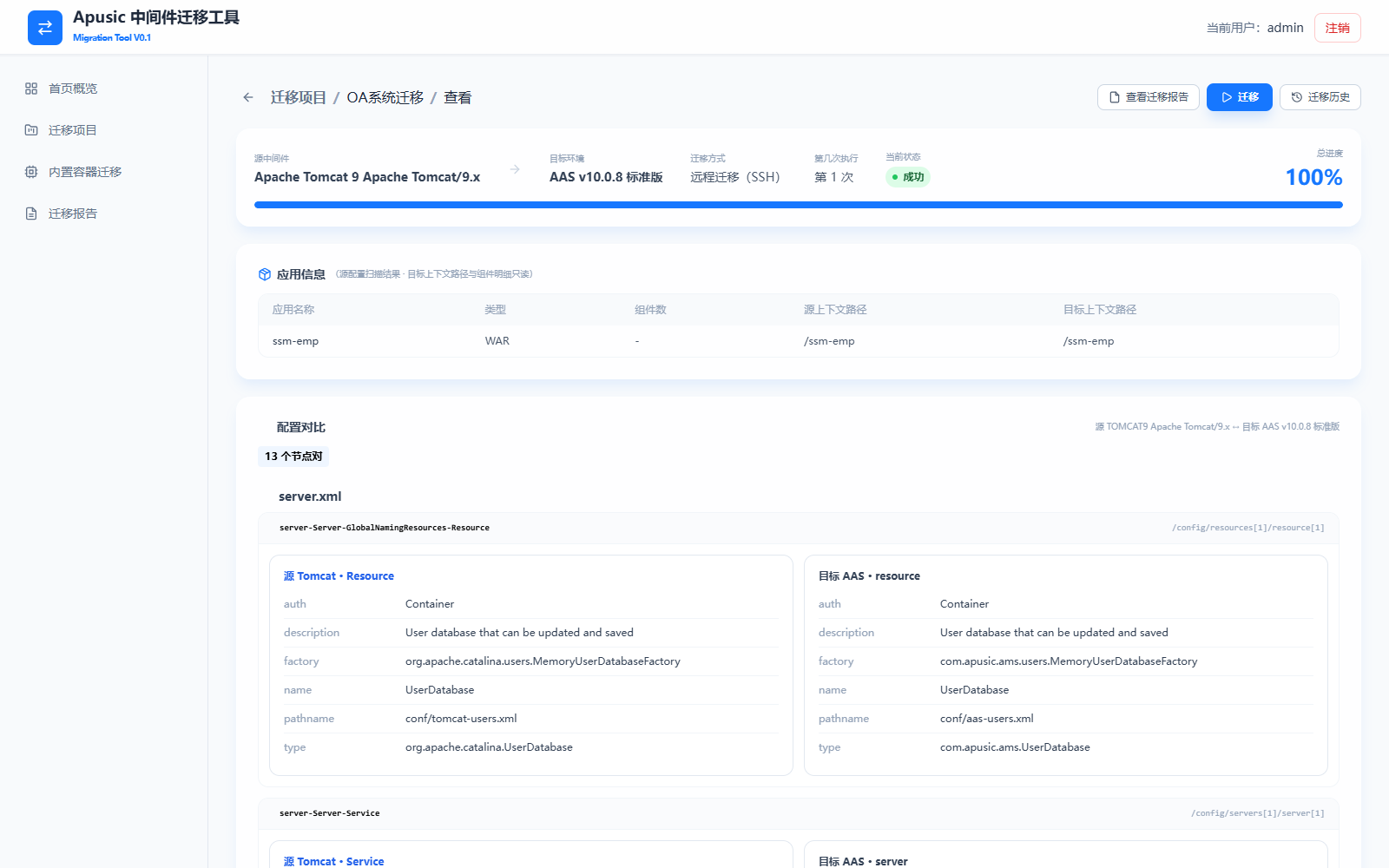
After migration has been executed, the lower part of the view page also displays:
- Migration Phases: the execution status of the three phases — Prepare Deployment, Execute Migration, and Verification;
- Execution Log: the complete migration log of the most recent task, with support for filtering by level (INFO / WARN / ERROR) and exporting.
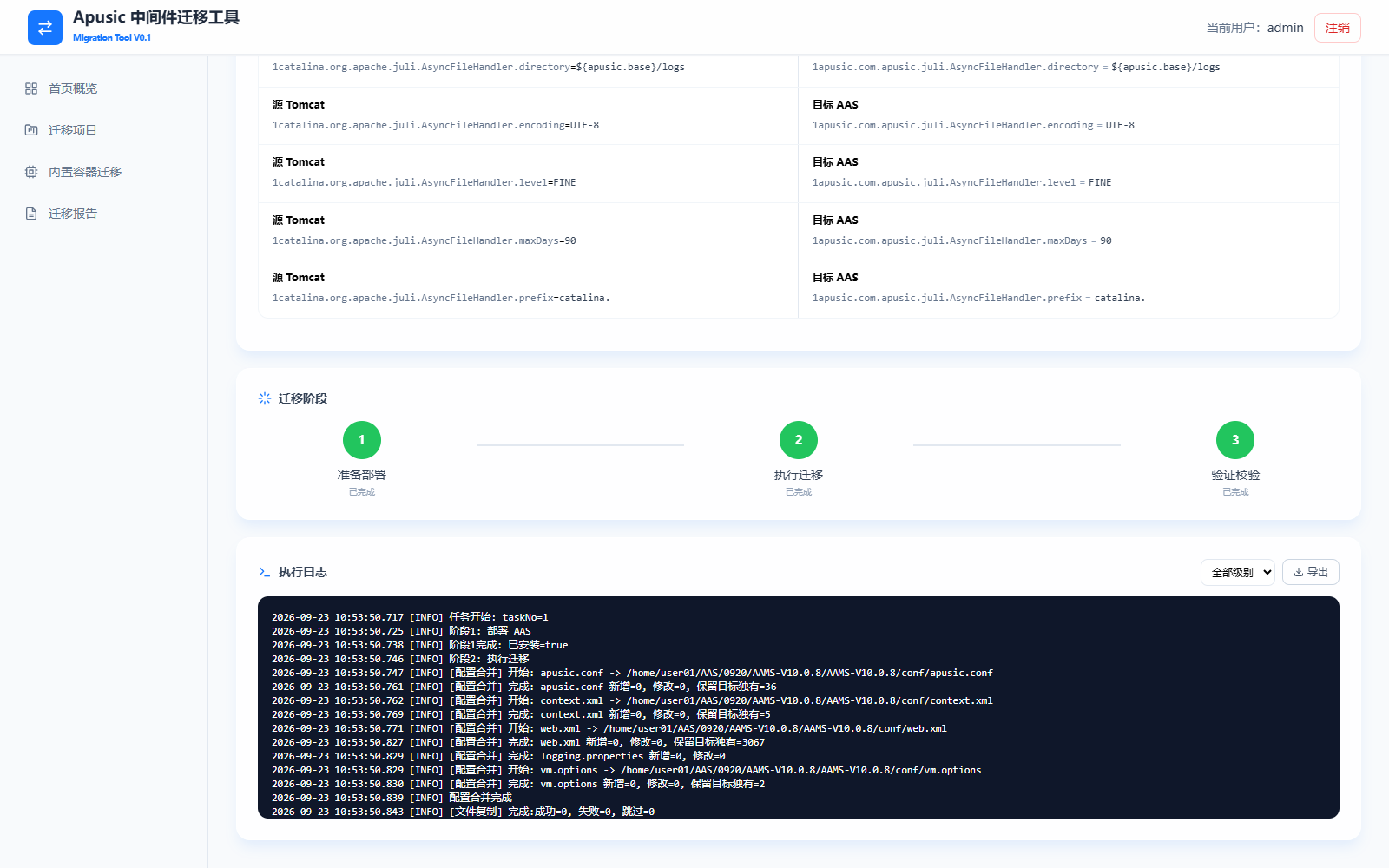
View page elements:
| Element Name | Parameter | Description |
|---|---|---|
| Summary bar | Source middleware | The source middleware type and version identified by scanning, for example "Apache Tomcat 9 Apache Tomcat/9.x". |
| Summary bar | Target environment | The target AAS version label, for example "AAS v10.0.8 Standard Edition". |
| Summary bar | Migration mode | The migration mode of the project (Remote Migration (SSH) / Local Migration). |
| Summary bar | Run number | The current migration run number, counted from 1. |
| Summary bar | Current status | The current project status (Not Started / In Progress / Succeeded / Failed / Terminated, etc.). |
| Summary bar | Overall progress | The overall progress percentage of the migration execution. |
| Application Information | Application name | The application name discovered by scanning; read-only. |
| Application Information | Type | The application package type, for example WAR; read-only. |
| Application Information | Source/Target context path | The context path of the application on the source middleware and on the target AAS; read-only and kept consistent by default. |
All information on the view page is read-only. To modify the target AAS information, verification rules, or target configuration values, go to the edit page via "More → Edit" on the list page.
# Editing a Project and Adjusting Configuration
Click "More → Edit" on the list page to open the edit page. The edit page allows you to adjust the target AAS information and verification rules and to modify target configuration values directly in the configuration comparison. Click Save Changes in the upper-right corner to apply the changes (changes to the target AAS information and verification rules are saved to the project immediately).
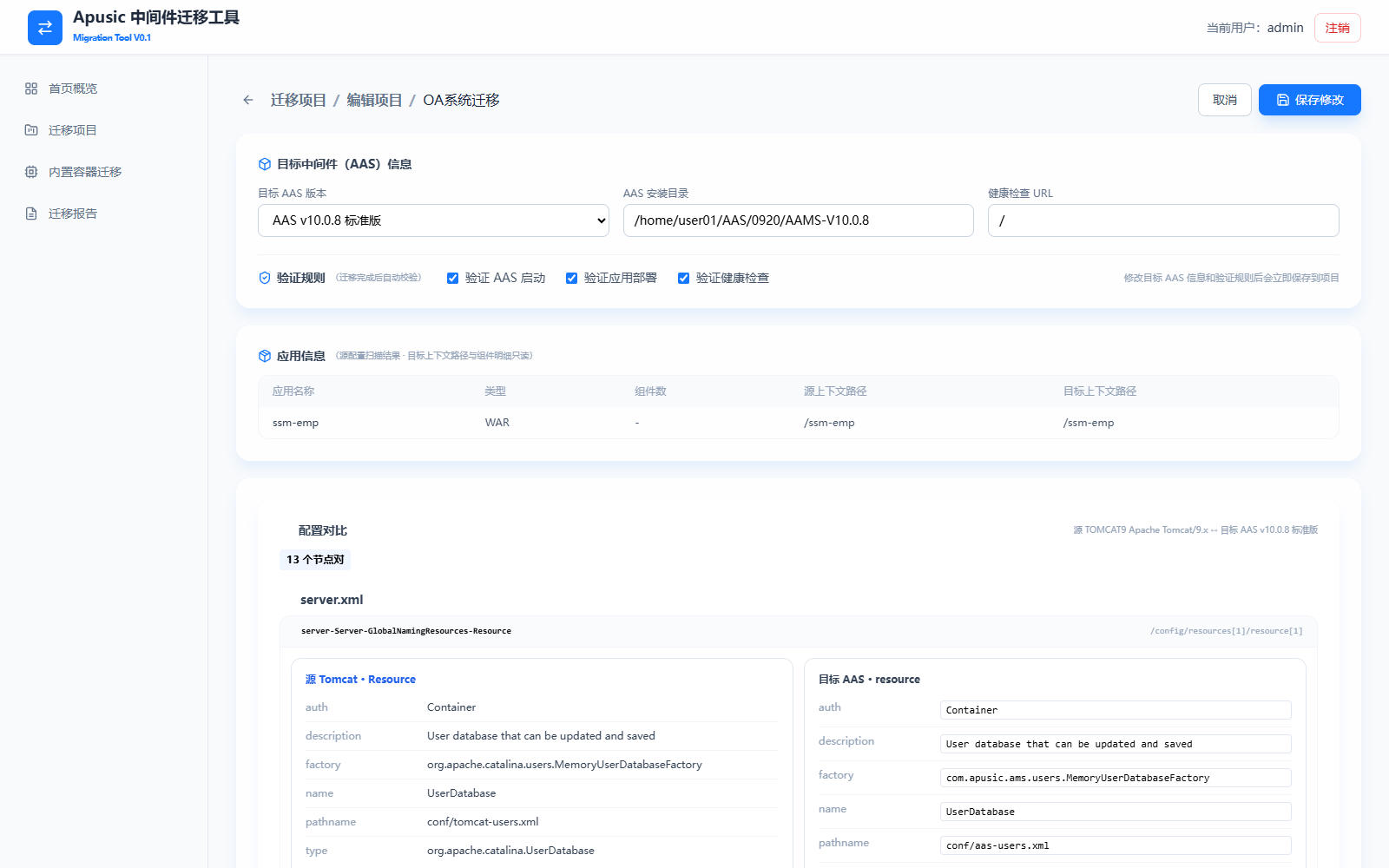
Edit page fields:
| Element Name | Parameter | Description |
|---|---|---|
| Target Middleware (AAS) Information | Target AAS version | A drop-down list for the target AAS version, allowing you to switch among AAS v10.0.8 / v10.0.10 / v10.0.11 Standard Edition. By default, it uses the version determined when the project was created (smart recommendation or manual selection). |
| Target Middleware (AAS) Information | AAS installation directory | The actual installation/deployment directory of the target AAS on the machine hosting the tool. By default, it uses the deployment directory entered at creation time and can be modified. |
| Target Middleware (AAS) Information | Health check URL | The health check probe address, which must be configured according to the actual environment, in the form http://<IP>:<port>/. The default is /health. This item has no effect when "Verify health check" is unchecked. |
| Verification Rules | Verify AAS startup | When selected, the migration verification phase starts the target AAS instance and validates the startup result. Selected by default. |
| Verification Rules | Verify application deployment | When selected, validates the deployment status of each application on the target AAS. Selected by default. |
| Verification Rules | Verify health check | When selected, probes whether AAS is alive through the health check URL. Selected by default. |
| Configuration Comparison | Target configuration values | Each property value in the right column of the configuration comparison (the target AAS side) is an editable input box; modifications are saved together with "Save Changes". The source configuration in the left column is read-only. |
Configuration comparison editing area (the target AAS side provides editable input boxes):
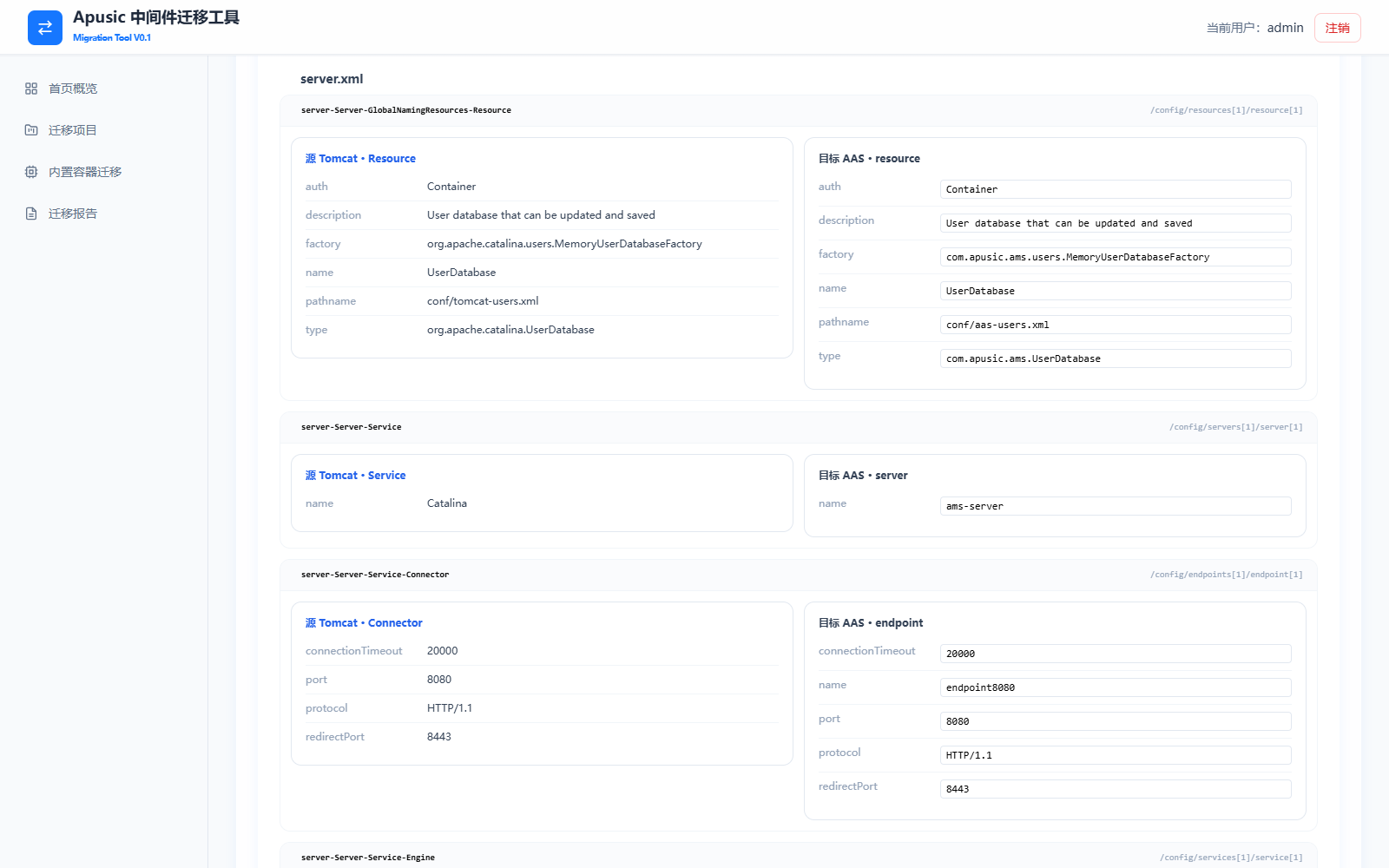
# Migration Execution and Task Details
After Migrate is clicked on the project view page or the list page, the task enters the "In Progress" state and proceeds through the three phases of Prepare Deployment, Execute Migration, and Verification in sequence. During execution, you can click Stop to terminate the task (an already installed AAS will not be uninstalled).
During and after execution, you can open the task details page via "Migration History → View Details". In the upper-right corner, Export Report and Stop buttons are provided according to the status. The main body contains:
- Execution Information: task number, migration mode, source middleware, target version, the results of the three verification items (AAS Installed / AAS Started / Health Check Passed), current phase, applications migrated, drivers migrated, configurations merged, start/end time, elapsed time, and a progress bar;
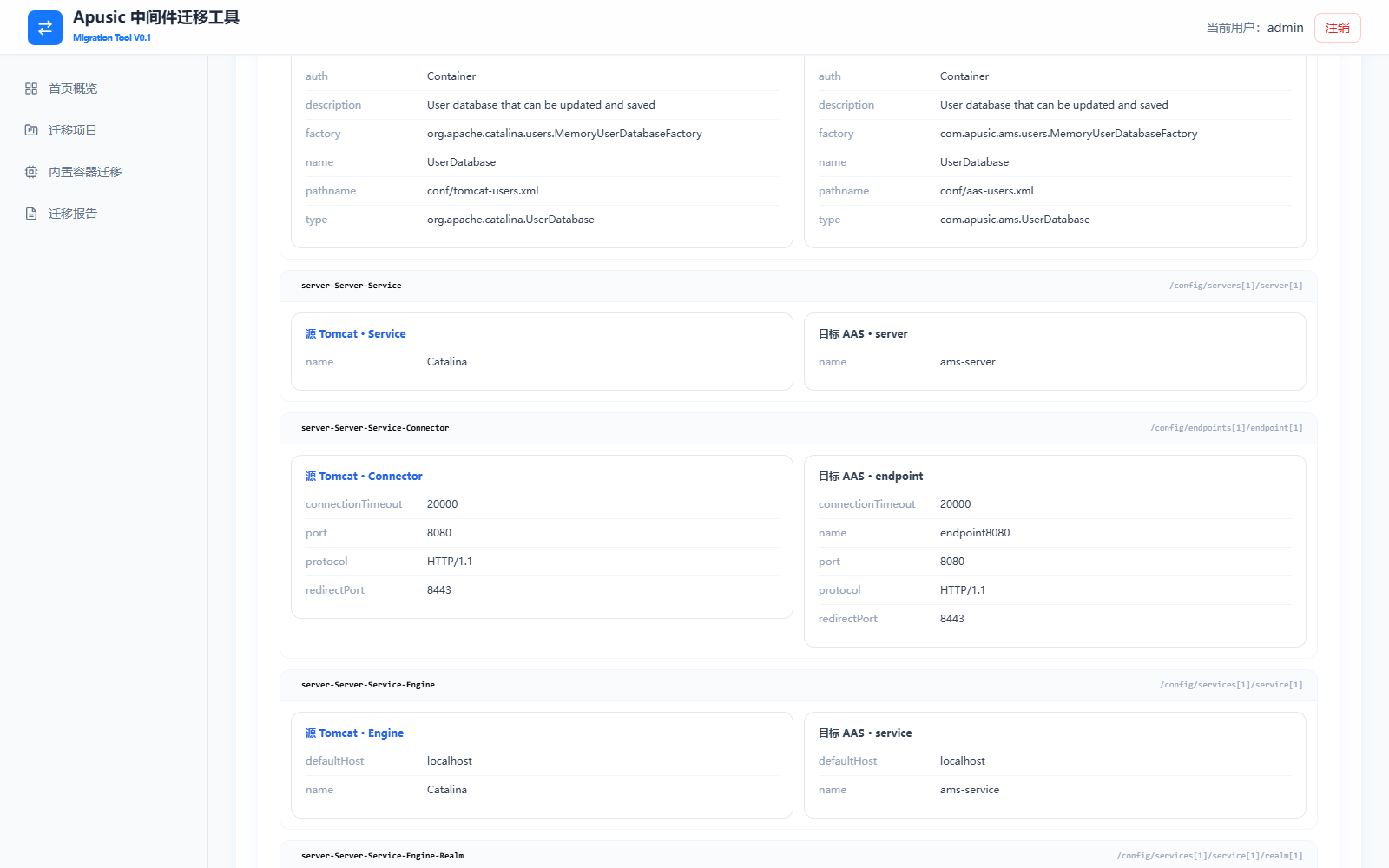
- Configuration Comparison: the source/target configuration snapshot comparison for this execution;
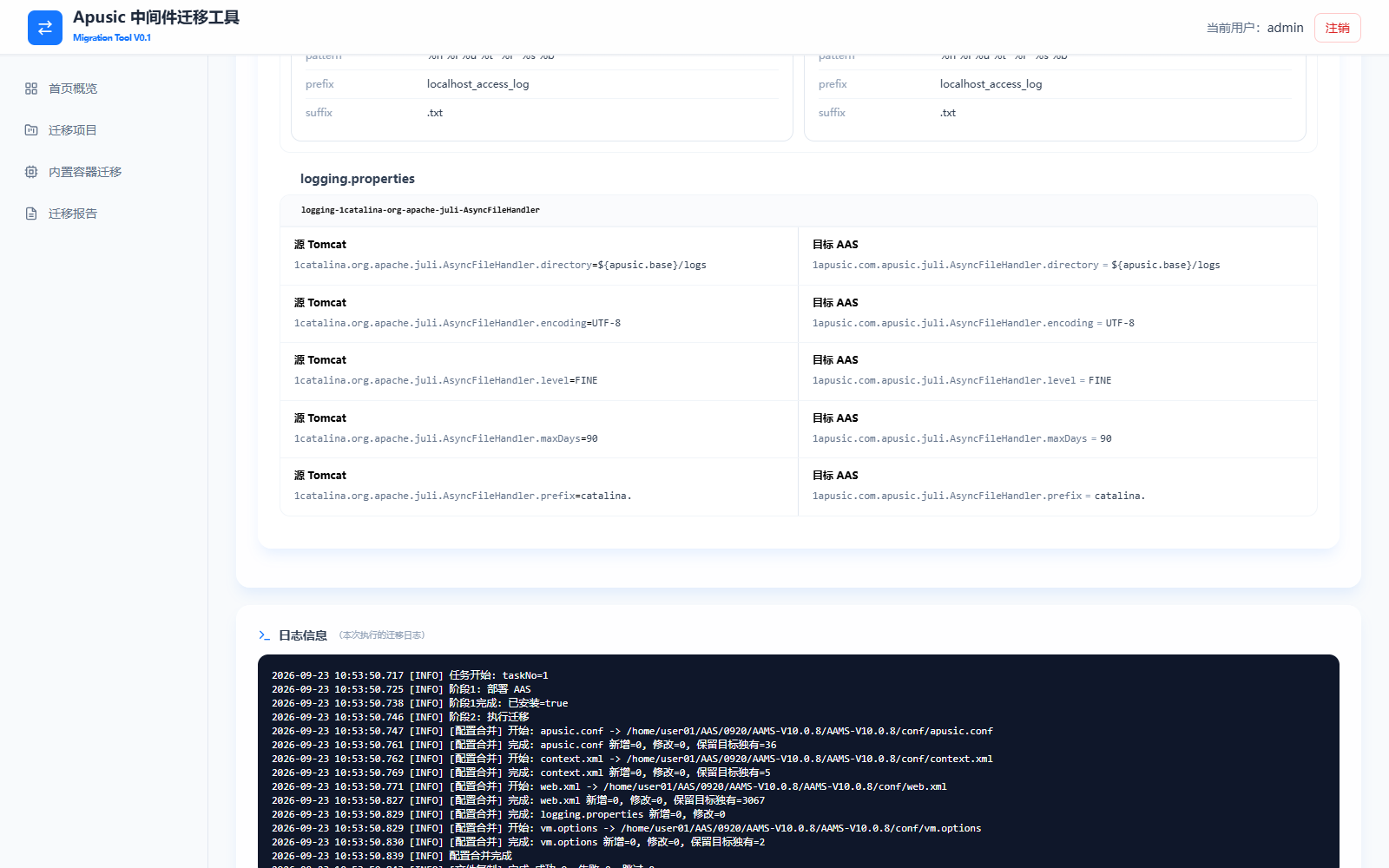
- Log Information: the complete migration log of this execution (in a black-background console style), recording the merge details for each phase and each configuration file (number of added/modified/retained target-only entries), file copy results, application migration results, and health check results.
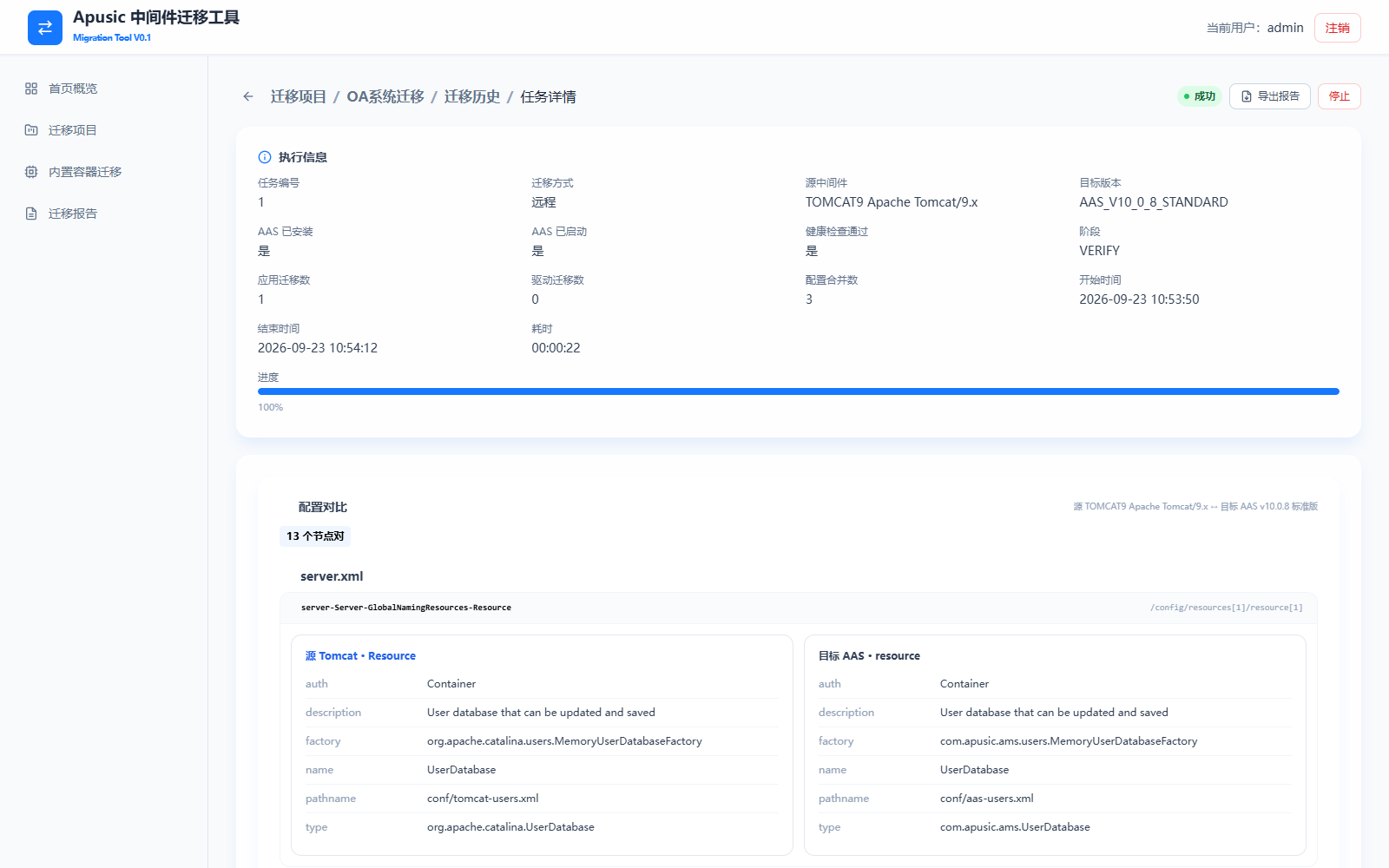
Execution information fields on the task details page:
| Element Name | Description |
|---|---|
| Task number | The sequence number of this migration task, incremented from 1 within the project. |
| Migration mode | The migration mode used by this execution (Remote/Local). |
| Source middleware | A snapshot of the source middleware type and version identified by this execution. |
| Target version | The target AAS version of this execution (internal code, for example AAS_V10_0_8_STANDARD corresponds to AAS v10.0.8 Standard Edition). |
| AAS Installed | Phase 1 result: whether the target AAS is ready (already installed or extraction and installation completed). |
| AAS Started | Phase 3 result: whether the target AAS instance started successfully. |
| Health Check Passed | Phase 3 result: whether the health check URL probe passed. |
| Phase | The phase the task is currently in or was terminated in (DEPLOY / MIGRATE / VERIFY). |
| Applications migrated | The number of applications successfully deployed to the target AAS in this execution. |
| Drivers migrated | The number of dependency packages such as JDBC drivers migrated in this execution (source: DRIVER_JAR entries in the copy manifest). |
| Configurations merged | The number of configuration files merged into the target AAS in this execution. |
| Elapsed time | The duration from the start to the end of the task (hh:mm:ss). |
Configuration comparison snapshot area:
Log information area (the merge result of each configuration file can be traced line by line):
# Migration History
Click "More → Migration History" on the list page, or click Migration History on the project view page, to open the execution records page for this project. The page shows the status, the phase in which the task failed or was terminated, the elapsed time, the start/end time, and the failure cause of each task, and supports filtering by result (In Progress / Succeeded / Failed / Terminated). Click View Details to open the task details page, or View Report to open the migration report page. The Start New Migration button in the upper-right corner starts the next migration execution directly.
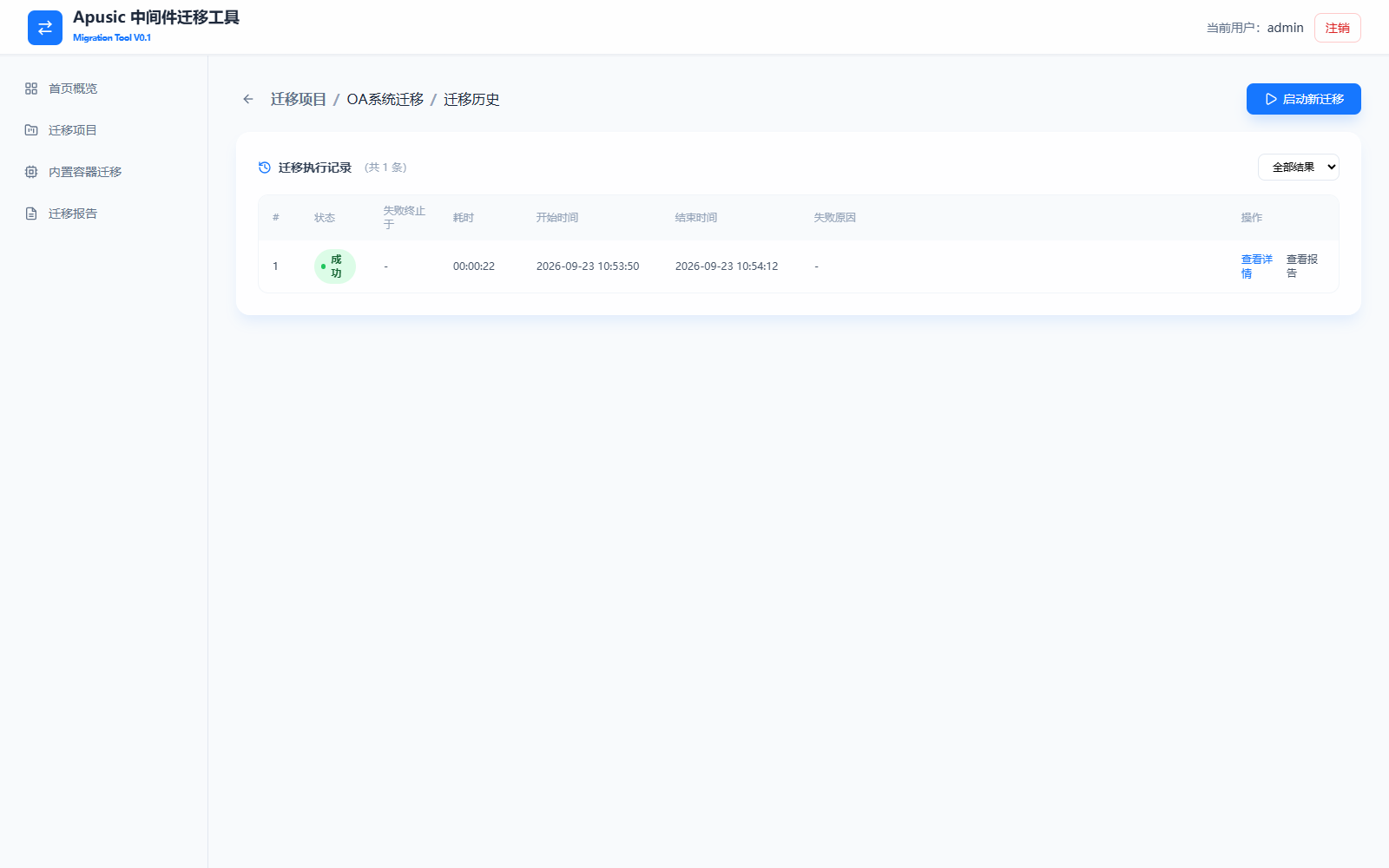
Migration history list fields:
| Element Name | Description |
|---|---|
| Task number | The task sequence number, incremented from 1 within the project. |
| Status | The task execution result: In Progress / Succeeded / Failed / Terminated. |
| Failed/Terminated At | The phase in which the task failed or was terminated; displays "-" on success. |
| Elapsed time | The task execution duration (hh:mm:ss). |
| Start time | The task start time (YYYY-MM-DD HH:mm:ss). |
| End time | The task end time (YYYY-MM-DD HH:mm:ss). |
| Failure cause | A summary of the cause when the task failed or was terminated; displays "-" on success. |
| Result | Filter by execution result: All results / In Progress / Succeeded / Failed / Terminated. |
# Deleting a Project
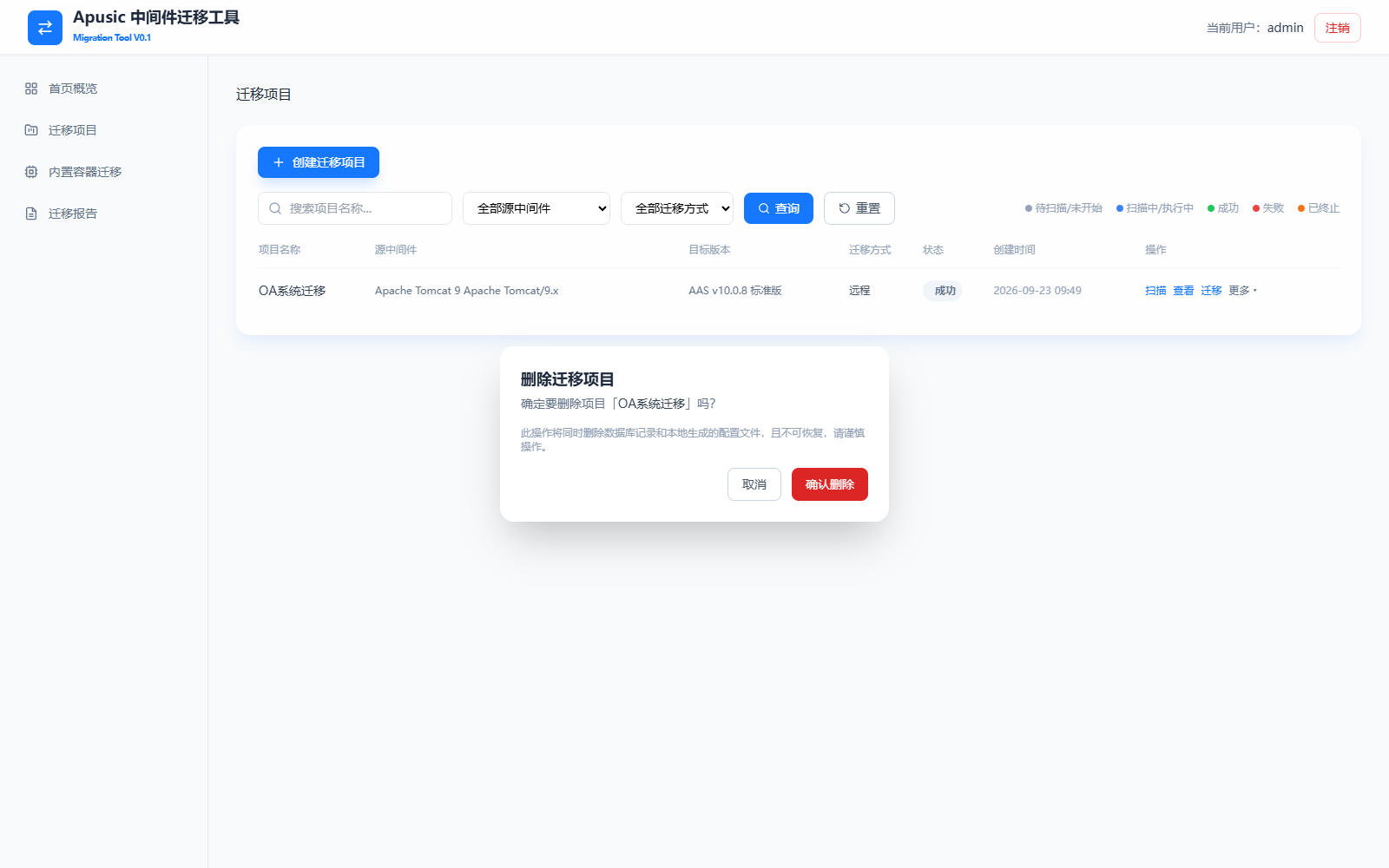
Click "More → Delete" on the list page to open the delete confirmation dialog, which states "This operation will also delete the database record and the locally generated configuration files, and cannot be undone." Click Confirm Delete to remove the project and its runtime artifacts, or Cancel to abandon the operation.
⚠️ Deleting a project cannot be undone, and it does not affect AAS instances already installed in the target deployment directory. Proceed with caution.
# Embedded Container Migration
Embedded Container Migration is used to convert and adapt Spring Boot executable JAR packages (with embedded containers such as Tomcat) into the AAS embedded runtime format. It requires no migration project and is completed independently on a per-task basis.
# Task List
Click Embedded Container Migration in the left navigation bar to open the task list page. The list shows the name, JAR package, Spring Boot version, embedded version, status, and creation time of each task, and supports filtering by task name keyword, status (In Progress/Completed/Failed), and creation time range. Click Create Migration Project to start a new conversion task. When there are no tasks yet, the list displays the empty-state message "No migration tasks. Click 'Create Migration Task' to start."
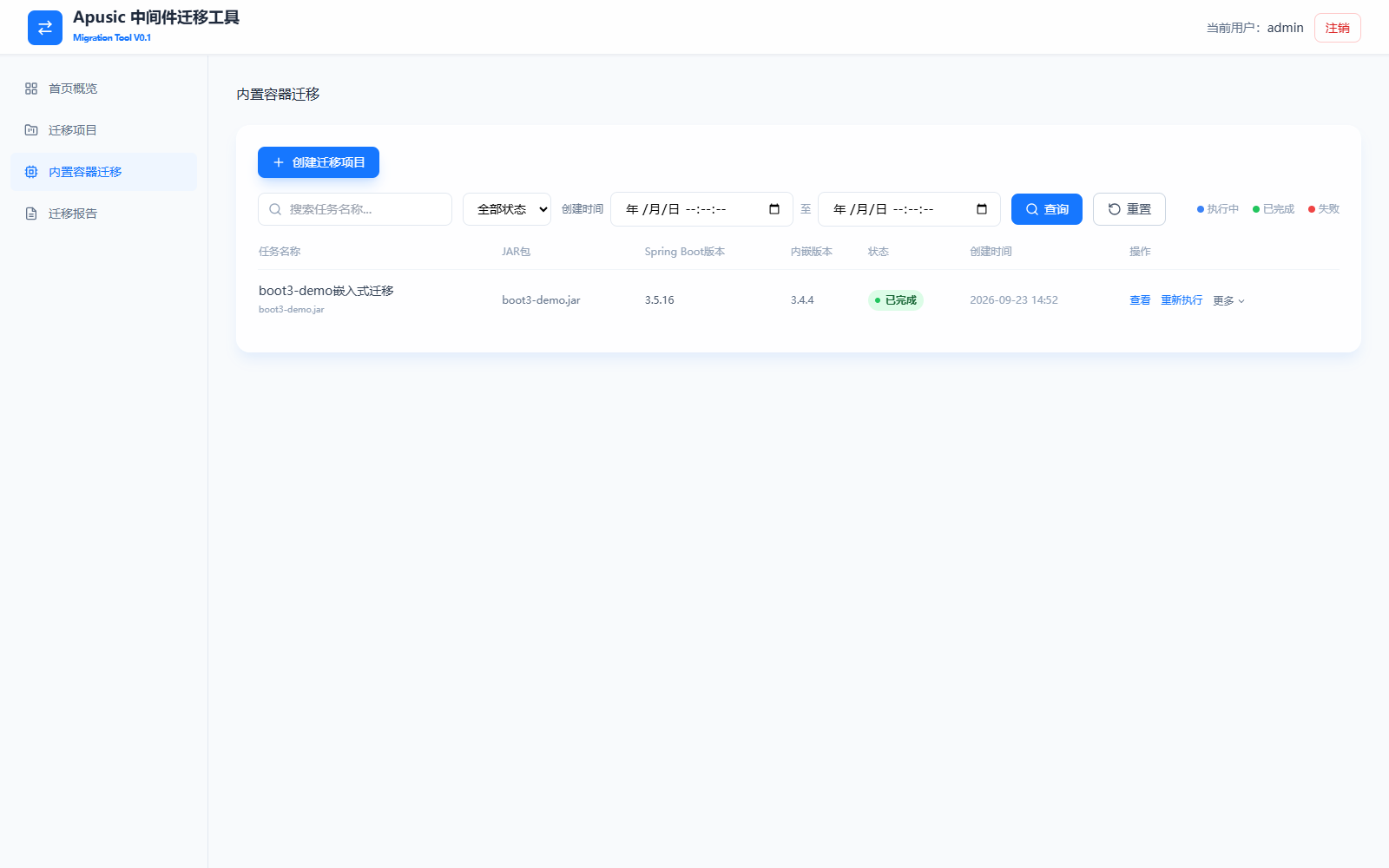
Task list fields and filter conditions:
| Parameter | Description |
|---|---|
| Task name | Fuzzy search by task name keyword. Click Search to apply; click Reset to clear all filter conditions. |
| Status | Filter by task status: All statuses / In Progress / Completed / Failed. |
| Creation time range | Filter by the start and end of the task creation time range (accurate to the second). |
| Status legend | The legend in the upper-right corner of the list, indicating the color code for each task status. Available statuses are In Progress / Completed / Failed. |
| Task name | The display name of the task, with the source JAR package file name shown below it. |
| JAR package | The file name of the Spring Boot executable JAR package to be converted. |
| Spring Boot version | The Spring Boot version of the source JAR package, detected or entered when the task was created. |
| Embedded version | The version of the AAS embedded starter after conversion (generated after the task runs). |
| Status | The current task status: In Progress / Completed / Failed. |
| Creation time | The creation time of the task (accurate to the minute). |
| Create Migration Project | Starts a new JAR package conversion task and opens the creation page (see Creating a Conversion Task). |
Task row operations:
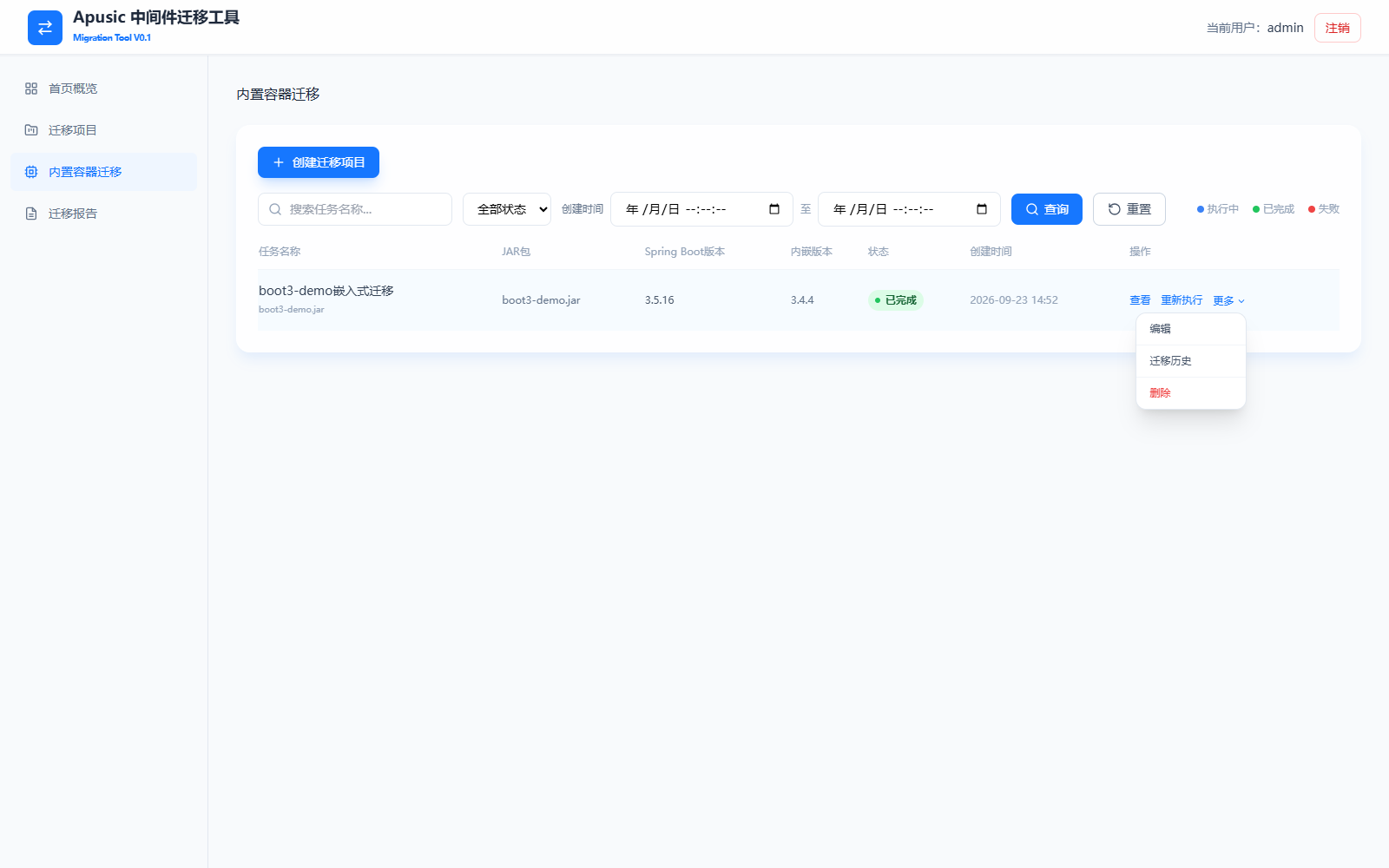
Each task row provides View, Re-run, and More operations. The More menu contains Edit, Migration History, and Delete:
| Operation | Description |
|---|---|
| View | Opens the task details page to view basic information and the execution log (see Task Details and Execution Log). |
| Re-run | Executes the conversion again with the current task parameters; the artifact is regenerated and overwrites the existing file in the output path. The execution record is added to the migration history. |
| More → Edit | Modifies parameters such as the task name, JAR package path, Spring Boot version, and output path. |
| More → Migration History | Views the past execution records of the task (see Migration History). |
| More → Delete | Deletes the task and its execution records. A confirmation prompt appears before deletion; the action cannot be undone after confirmation. |
# Creating a Conversion Task
Prerequisites:
- The Spring Boot executable JAR package to be converted has been uploaded to the machine hosting the tool;
- The output path (artifact output directory) is writable on the machine hosting the tool.
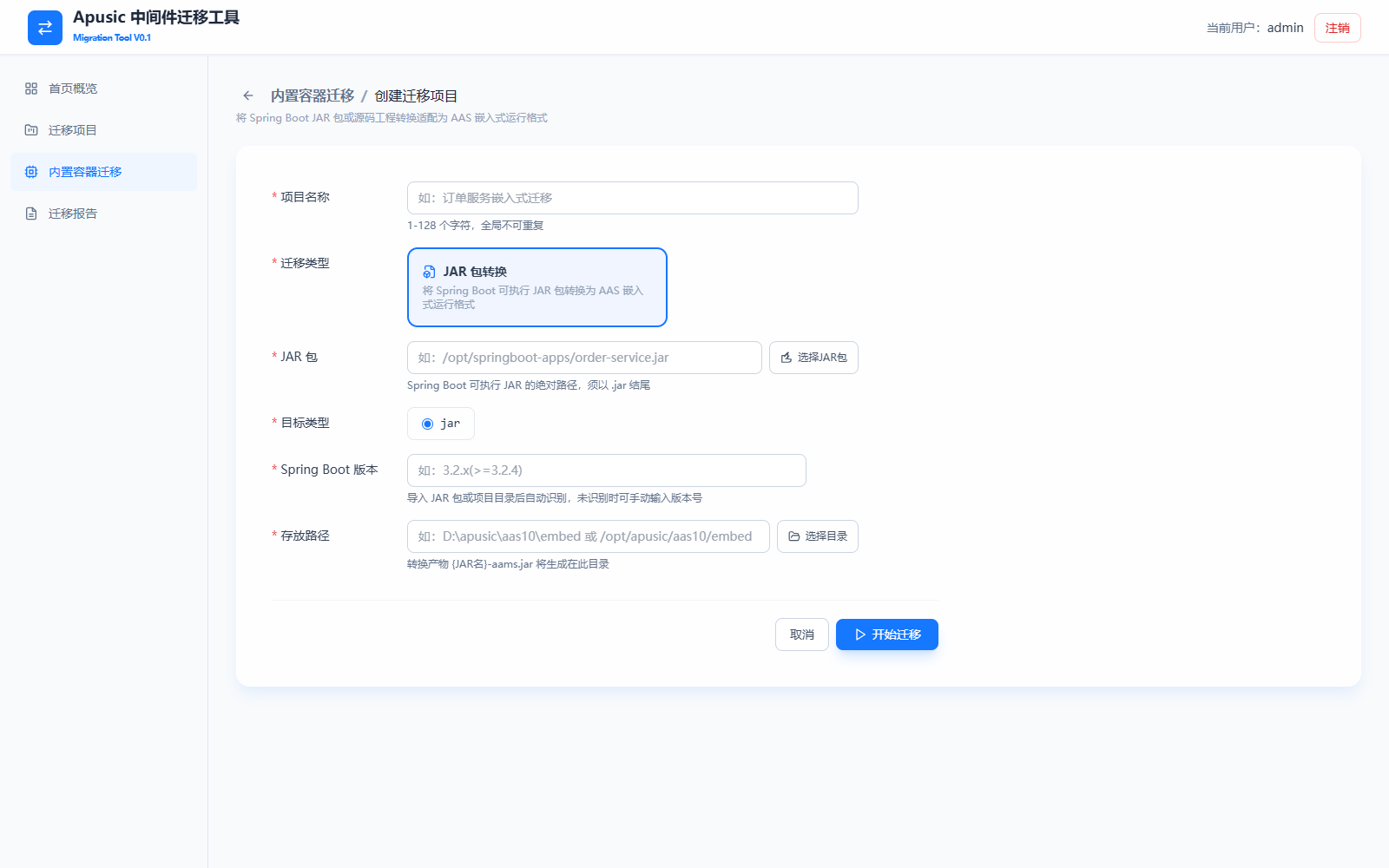
Steps:
- On the task list page, click Create Migration Project;
- Enter the Project Name;
- The migration type is fixed at JAR Package Conversion;
- Enter the absolute path of the JAR Package (you can click Select JAR Package to browse the file system of the machine hosting the tool in a dialog and select the file);
- The Target Type is fixed at
jar; - Select or enter the Spring Boot Version: it is detected automatically after the JAR package is selected; if it cannot be detected, enter the version number manually;
- Enter the Output Path (you can click Select Directory to browse and select one). The conversion artifact
{JAR-name}-aams.jaris generated in this directory; - Click Start Migration and wait for the task to complete; check the task status on the list page.
The "Select JAR Package" dialog browses the file system of the machine hosting the tool: you can type an absolute path in the input box and press Enter to jump to it, click "Enter" on a directory to browse level by level, click "Select" on a JAR file to select it directly, or click "Select" to use the current path.
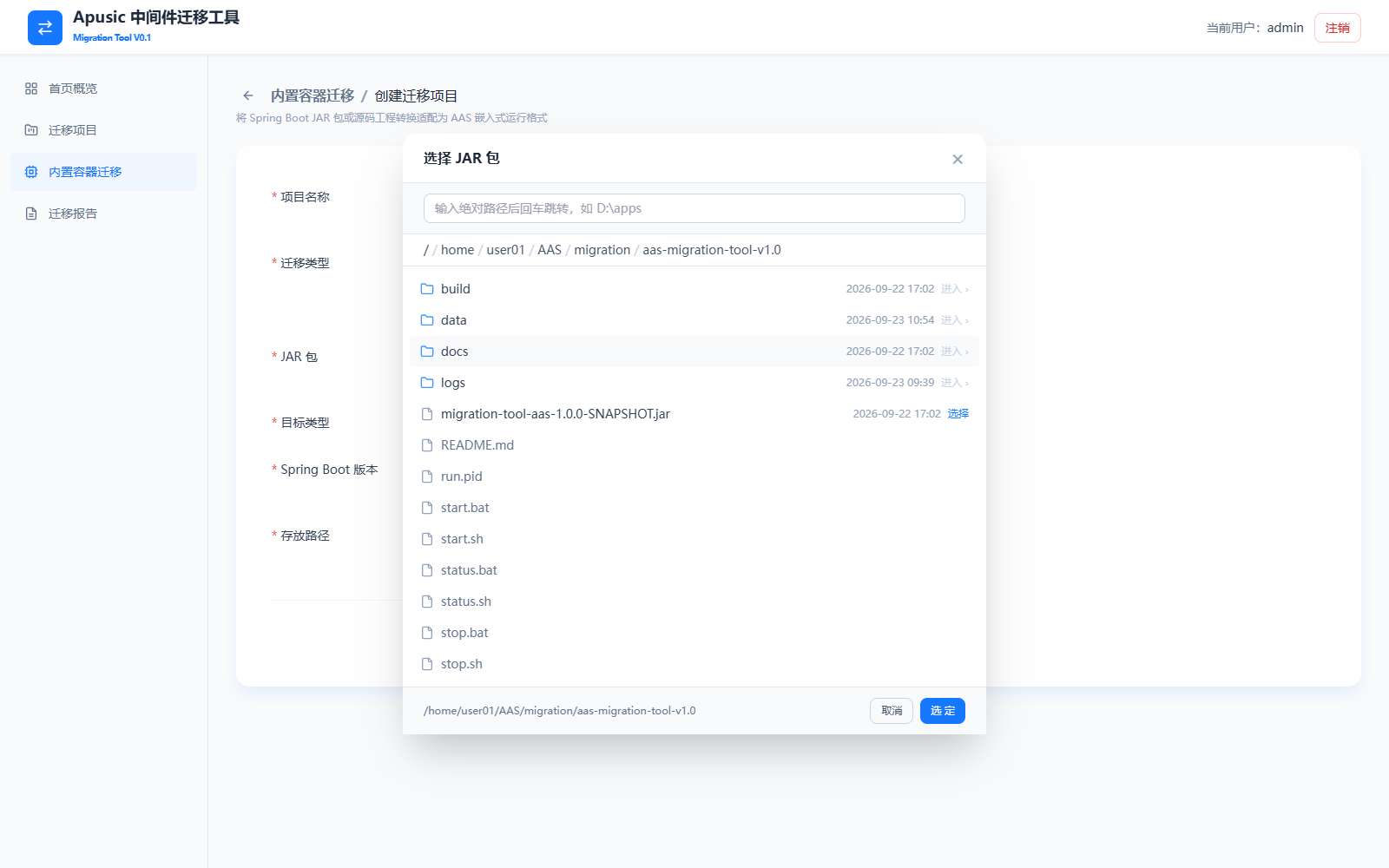
Detailed field descriptions:
| Element Name | Parameter | Description |
|---|---|---|
| Project Name | Project Name | The display name of the conversion task, for example "Order Service Embedded Migration". Required, 1–128 characters, and globally unique. |
| Migration Type | JAR Package Conversion | Converts a Spring Boot executable JAR package into the AAS embedded runtime format. Fixed to this type in the current version. |
| JAR Package | JAR package path | The absolute path of the Spring Boot executable JAR on the machine hosting the tool; it must end with .jar. Required. It can be entered manually or selected through the "Select JAR Package" dialog. |
| Target Type | jar | The target type of the conversion artifact. Fixed at jar in the current version. |
| Spring Boot Version | Spring Boot version | The Spring Boot version of the JAR package to be converted, for example 3.2.x(>=3.2.4). Required; it is detected automatically and filled in after the JAR package is selected, and if it cannot be detected you can select it from the drop-down list or enter the version number manually. The version number is used to match the adaptation rules of the AAS embedded runtime. |
| Output Path | Output path | The output directory for the conversion artifact {JAR-name}-aams.jar (an absolute path on the machine hosting the tool), for example D:\apusic\aas10\embed or /opt/apusic/aas10/embed. Required. It can be entered manually or selected through the "Select Directory" dialog. |
After conversion completes, deploy the artifact {JAR-name}-aams.jar to the target AAS environment to run it.
# Task Details and Execution Log
Click View on the task list to open the task details page. The upper part of the page shows Basic Information and the lower part shows the Execution Log. The task status indicator is displayed in the upper-right corner, along with a Re-run button.
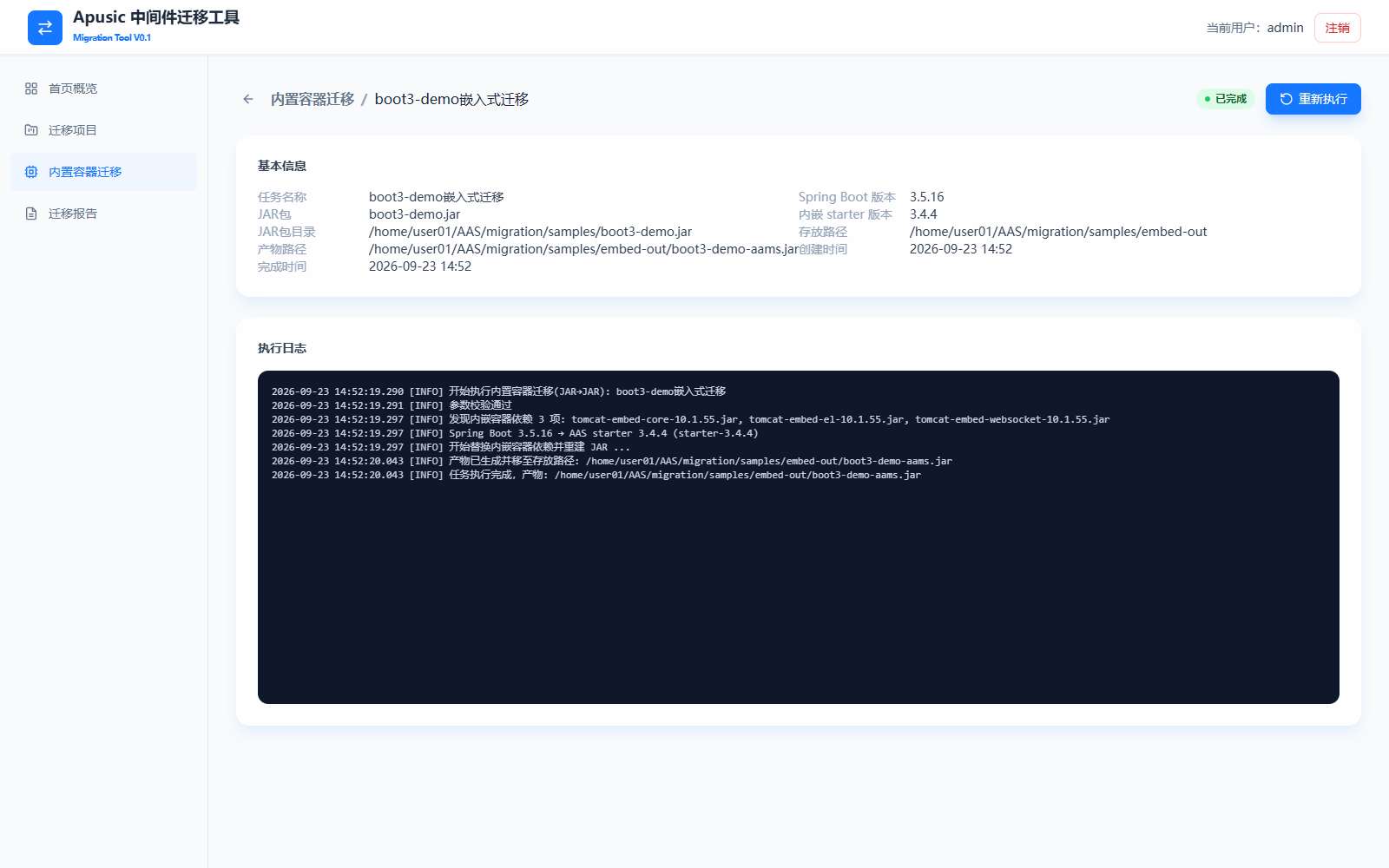
Basic information fields:
| Element Name | Parameter | Description |
|---|---|---|
| Task Name | Task Name | The display name of the task. |
| JAR Package | JAR Package | The file name of the Spring Boot executable JAR package to be converted. |
| JAR Package Directory | JAR package directory | The absolute path of the source JAR package on the machine hosting the tool. |
| Artifact Path | Artifact path | The full path of the conversion artifact, that is, {output-path}/{JAR-name}-aams.jar (for example boot3-demo-aams.jar), generated after the task completes. |
| Completion Time | Completion time | The time at which the most recent conversion execution completed. |
| Spring Boot Version | Spring Boot version | The Spring Boot version of the source JAR package. |
| Embedded Starter Version | Embedded starter version | The AAS embedded starter version used by the conversion artifact, matched automatically by the tool according to the Spring Boot version (for example, Spring Boot 3.5.16 matches AAS starter 3.4.4). |
| Output Path | Output path | The artifact output directory specified when the task was created. |
| Creation Time | Creation time | The creation time of the task. |
The Execution Log records the key steps of the entire conversion process in chronological order, including: execution start and parameter validation, discovered embedded container dependencies (such as tomcat-embed-core and tomcat-embed-websocket), the version matching relationship between the Spring Boot version and the AAS starter version, replacement of embedded container dependencies and JAR rebuilding, and generation of the artifact and its move to the output path. If execution fails, the failure cause is given in the log, based on which you can correct the task parameters and Re-run.
# Migration History
Click More → Migration History on the task list to open the execution history page for that task. The top of the page summarizes the task's source JAR package, embedded version, migration type (JAR Package Conversion), current status, and total run count. Below, the Migration Execution Records list the status, artifact path, elapsed time, and start/end time of each execution, with support for filtering by status. Click View Task Details in the upper-right corner to return to the task details page.
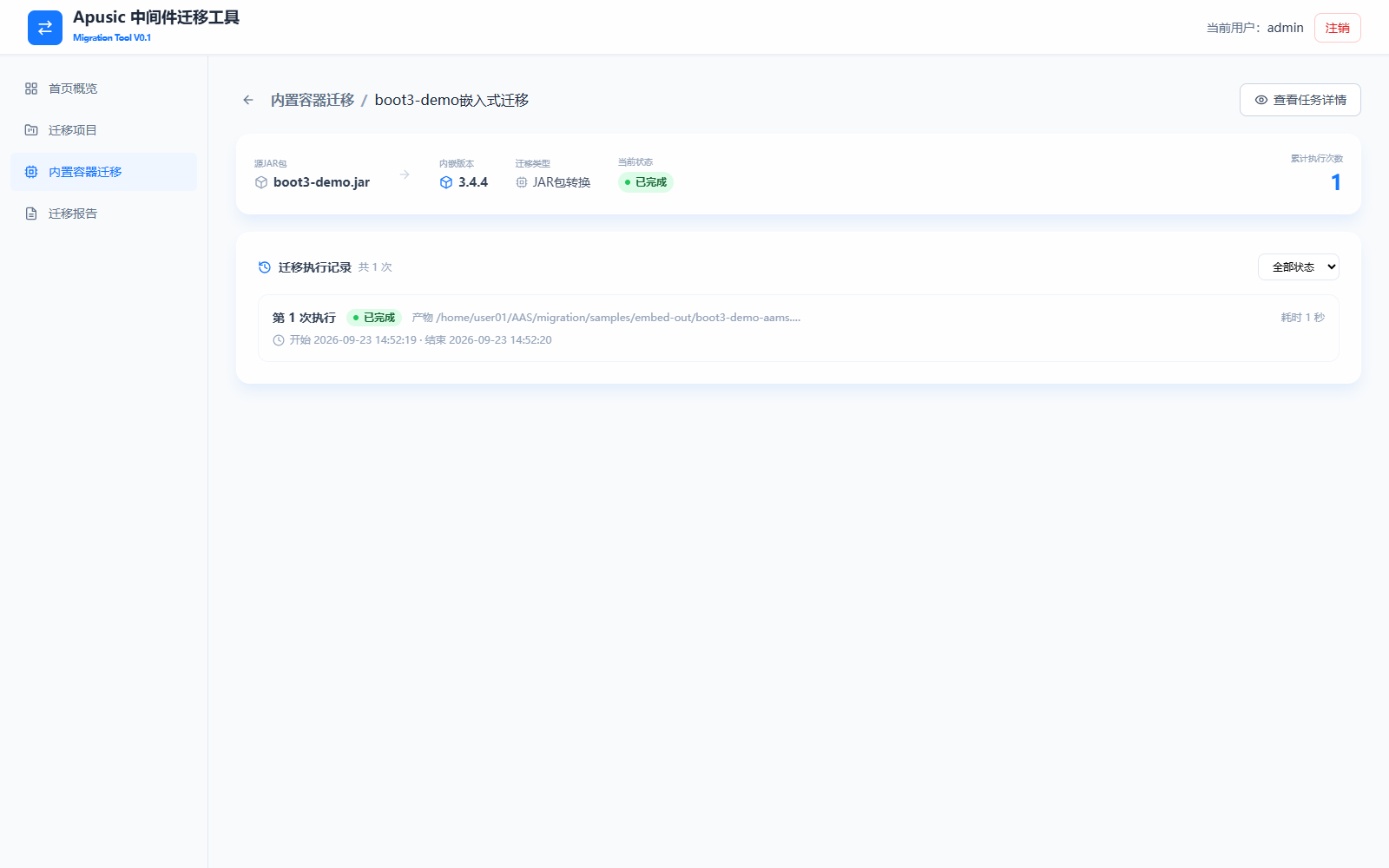
Migration execution record fields:
| Element Name | Parameter | Description |
|---|---|---|
| Summary | Source JAR package | The file name of the task's source JAR package. |
| Summary | Embedded version | The AAS embedded starter version generated by the most recent execution. |
| Summary | Migration type | Fixed at JAR Package Conversion. |
| Summary | Current status | The status of the task after its most recent execution. |
| Summary | Total runs | The total number of conversion executions since the task was created (including re-runs). |
| Execution record | Run N | Numbered in execution order; the higher the number, the later the execution. |
| Execution record | Status | The result of this execution: Completed / Failed. |
| Execution record | Artifact | The path of the artifact file generated by this execution. |
| Execution record | Elapsed time | The duration of this execution from start to finish. |
| Execution record | Start/End | The start time and end time of this execution. |
| Filter condition | All statuses | Filters execution records by execution result. |
# Migration Reports
The Migration Reports module consolidates the execution reports of all migration projects and supports online viewing as well as export for archiving. A report is generated per single migration task and its content is read-only.
# Report List
Click Migration Reports in the left navigation bar to open the report summary page. A report is generated automatically after each migration execution completes (whether successfully or not); executions that are actively terminated do not produce a report. The list shows the migration project (including the run number), source middleware, target middleware, result, elapsed time, executing user, and completion time for each execution, and supports filtering by project name keyword, execution result, and completion time range. Each row provides View Report and Export operations.
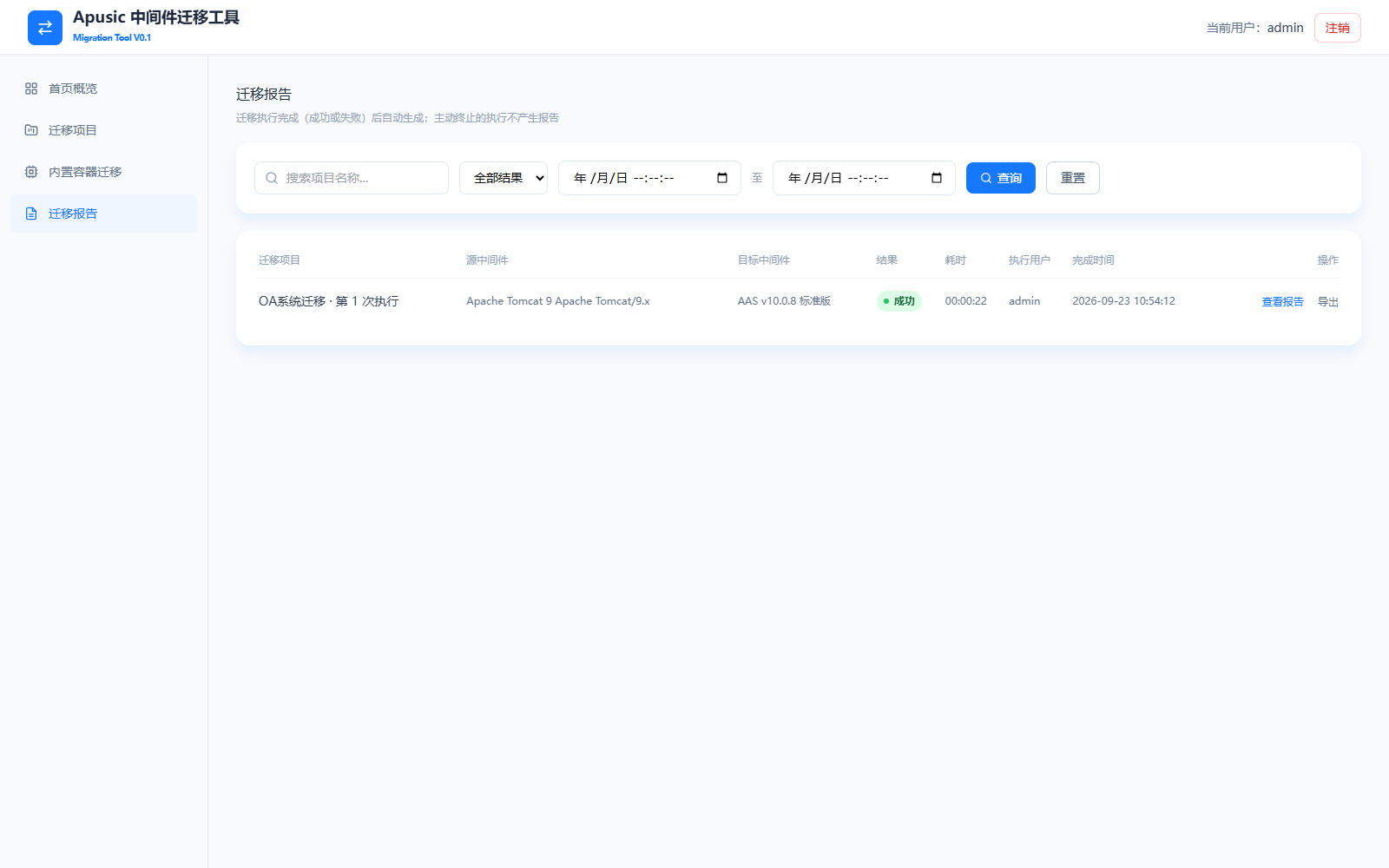
Report list fields:
| Element Name | Parameter | Description |
|---|---|---|
| Filter condition | Project name | Fuzzy match by project name keyword. |
| Filter condition | Result | Filter by execution result: All results / Succeeded / Failed / Terminated. |
| Filter condition | Completion time range | Filter by the start and end of the completion time range (accurate to the second). |
| Record list | Migration project | The project name and execution sequence number, for example "OA System Migration · Run 1". |
| Record list | Source/Target middleware | The source middleware type and version and the target AAS version of this migration. |
| Record list | Executing user | The login account that initiated this migration execution. |
| Operation | View Report / Export | Opens the online report page, or exports the report file directly. |
# Report Content and Export
The report page content is read-only and consists of the following four parts:
- Basic Report Information: executing user, total elapsed time, migration mode (remote migration includes the SSH target host), and completion time;
- Migration Path: the source middleware (type, version, host, and directory) and the target middleware (AAS version, deployment directory, and health check URL);
- Execution Summary: the item-by-item results of the phase steps (① Deploy AAS → ② Execute Migration → ③ Start and Verify AAS), as well as the application migration list (application name, package type, and migration result marker);
- Configuration Information: the complete configuration comparison (node pairs grouped by configuration file), as well as the list of configuration items not covered by rules.
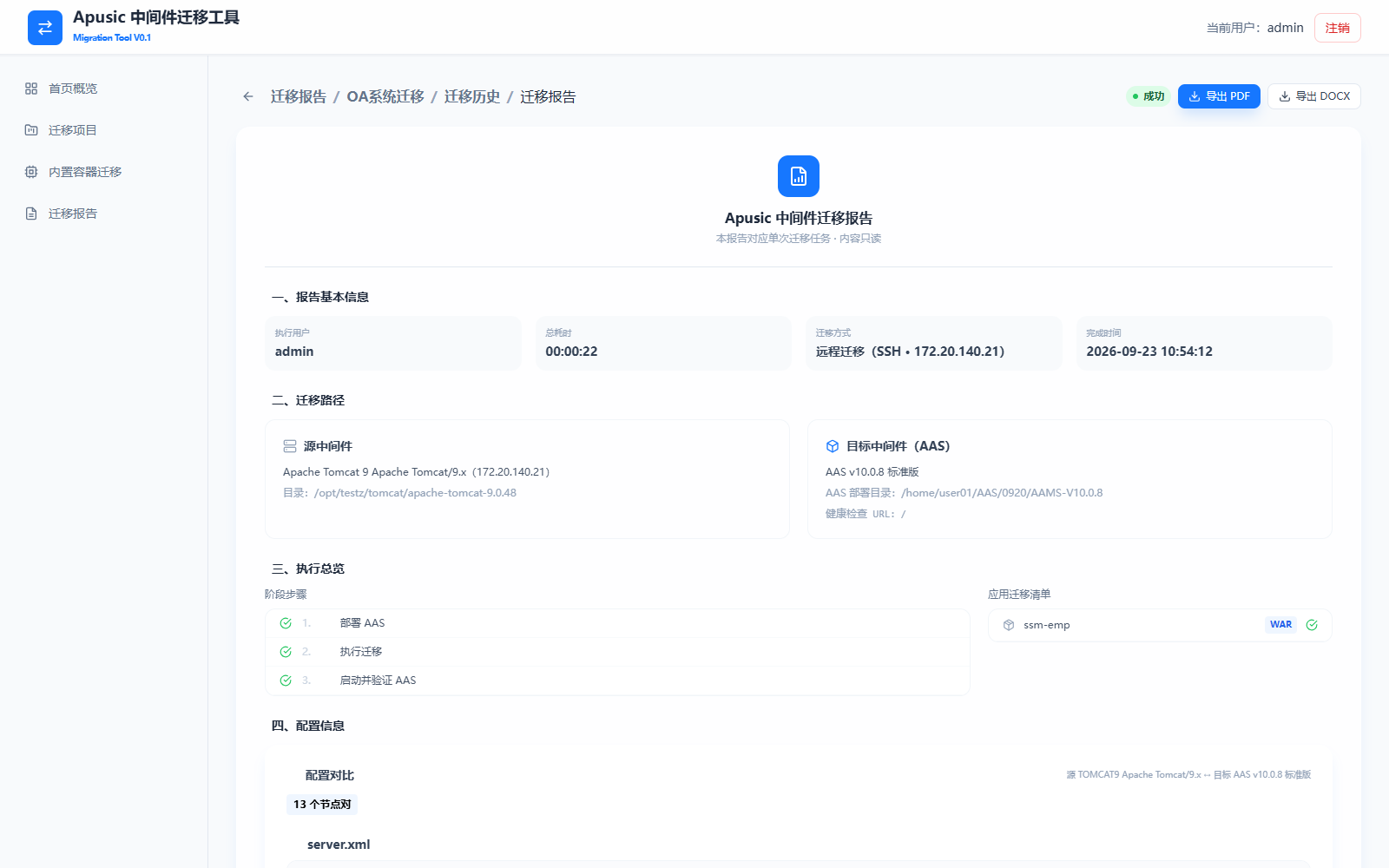
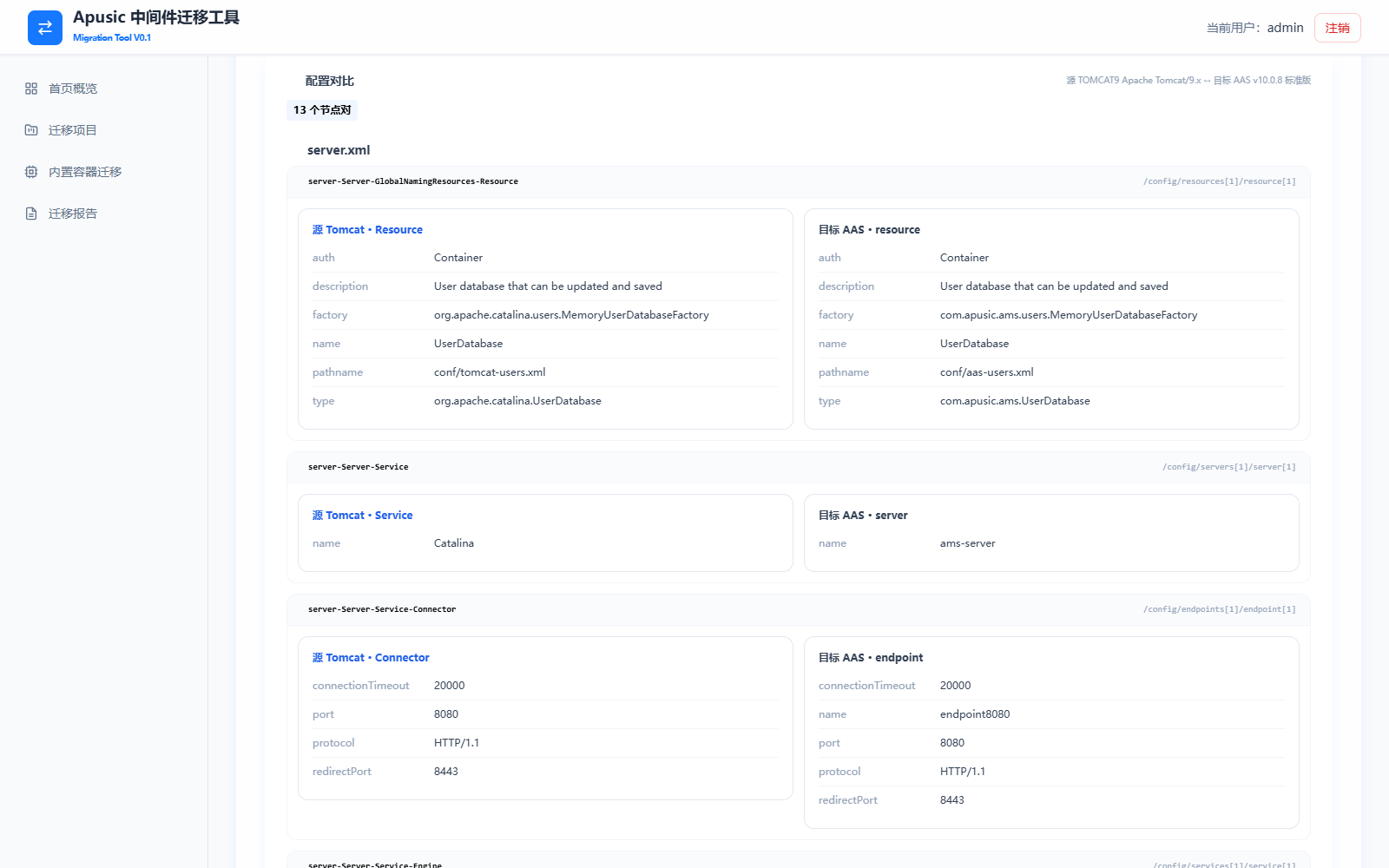
Click Export PDF or Export DOCX in the upper-right corner of the report page to download a report file with the same content as the online page, for archiving or delivery.