
Console User Manual

# Preface
This document is the user manual for the Kingdee Apusic Distributed Message Queue for Kafka (Apusic Distributed Message Queue, abbreviated as ADMQ for Kafka) console. It provides a detailed introduction to the functionality, configuration, and management operations of the ADMQ for Kafka web console.
# Target Audience
This document is intended for IT business leaders, R&D managers, software project managers, software architects, and operations engineers.
# Related Documents
For more information about ADMQ for Kafka, please refer to the following ADMQ for Kafka product documentation set:
| No. | Document | Description |
|---|---|---|
| 1 | Kingdee Apusic Distributed Message Queue for Kafka Quick Start Guide | A brief introduction on how to quickly get started with ADMQ for Kafka. |
| 2 | Kingdee Apusic Distributed Message Queue for Kafka Installation Guide | Detailed instructions on installing ADMQ for Kafka on various operating systems, as well as starting and stopping ADMQ for Kafka services. |
| 3 | Kingdee Apusic Distributed Message Queue for Kafka Message Engine User Guide | Detailed instructions on using, configuring, and managing ADMQ for Kafka message engine features and supporting tools. |
| 4 | Kingdee Apusic Distributed Message Queue for Kafka Console User Guide | Detailed instructions on using and operating ADMQ for Kafka console features. |
| 5 | Kingdee Apusic Distributed Message Queue for Kafka Developer Guide | Detailed instructions on developing ADMQ for Kafka client applications in various programming languages. |
| 6 | Kingdee Apusic Distributed Message Queue for Kafka Migration Guide | Detailed instructions on migrating from Kafka to ADMQ for Kafka. |
| 7 | Kingdee Apusic Distributed Message Queue for Kafka Operations Guide | Detailed instructions on monitoring, operations, and security hardening for ADMQ for Kafka. |
| 8 | Kingdee Apusic Distributed Message Queue for Kafka Performance Optimization Guide | Detailed instructions on performance tuning for ADMQ for Kafka. |
# Technical Support
ADMQ for Kafka provides comprehensive technical support services. You can obtain technical support through the following channels:
- Website: www.apusic.com
- Phone: 400-855-5800
- Email: support@apusic.com
- Kingdee Cloud Community: https://vip.kingdee.com/?productId=73&productLineId=14&lang=zh-CN
When contacting technical support, please provide the following information:
- Your name
- Company information and contact details
- Operating system and its version
- Product version number
- Detailed information such as error logs and screenshots
# Version History
| Version | Date | Change Description |
|---|---|---|
| V2.0.6 | 2026-06-23 | Initial release of ADMQ for Kafka Console User Guide, covering management interface, topic management, subscription group management, user and ACL management, message query, monitoring and statistics, FAQ, and appendix. |
# Overview
The Kingdee Apusic Distributed Message Queue for Kafka (Apusic Distributed Message Queue, abbreviated as ADMQ for Kafka) console is a web management interface for ADMQ for Kafka clusters. It is divided into two sides: System Management and Operations Management.
- System Management Side: Primarily used for core engine integration, cluster configuration, user management, and permission configuration. Administrators must first complete the integration and connection of Kafka Broker clusters on the system management side.
- Operations Management Side: Used for daily cluster operations, including topics, subscription groups, users, ACLs, message query, and monitoring statistics. After integration, operations personnel can log in to the operations management side to view engine status and perform management and maintenance.
Users must first access the system management side for cluster configuration and integration, then use the operations management side for cluster management.
# Installation and Operation
# Runtime Environment
The ADMQ for Kafka console is built on Java Web technology. Before running, ensure the following environment requirements are met:
| Item | Requirement |
|---|---|
| JDK | JDK 1.8 or higher |
| CPU | 2 cores or higher recommended |
| Memory | 4 GB or higher recommended |
| Disk | Reserve sufficient space based on message retention policy and cluster size |
| Browser | Latest versions of mainstream browsers such as Chrome, Firefox, Edge recommended |
| Network | The console server must be able to access the Kafka cluster's JMX port and management port |
For complete installation, startup, shutdown, and upgrade procedures for the ADMQ for Kafka console, please refer to the Kingdee Apusic Distributed Message Queue for Kafka Installation Guide.
# Management Interface Access
# Access URL
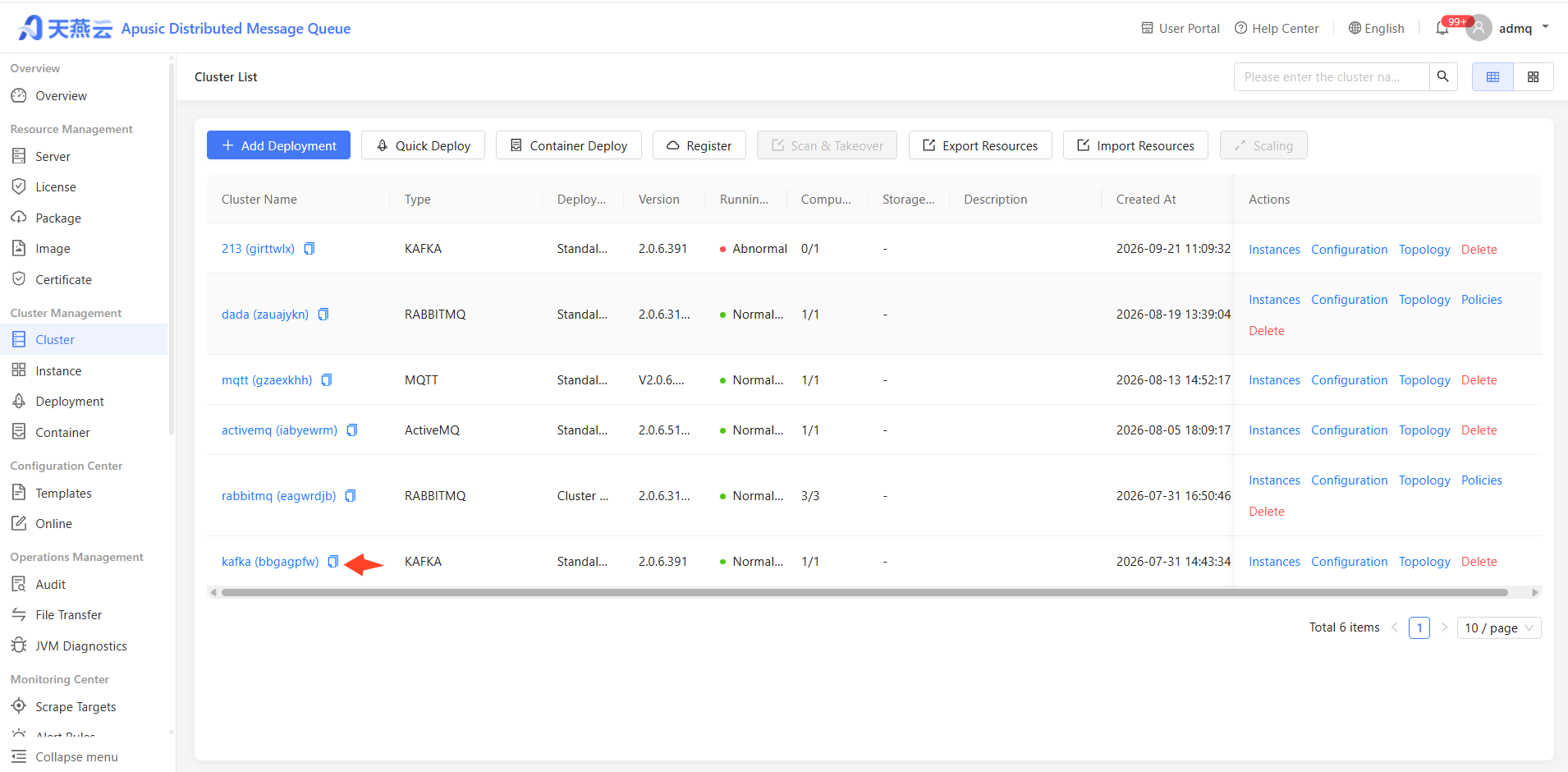
Enter the following URL in the browser address bar to access the ADMQ console login page:
http://{console_ip}:12305
Where {console_ip} is the IP address of the console server.
# Login Procedure
Step 1: Open a browser and enter the above access URL to navigate to the login page.
Step 2: Enter the default account and password. After initial system installation, the default administrator account is admq.
Step 3: On first login, the system will force a password change. Follow the on-screen instructions to set a new password that meets complexity requirements, and keep it safe.
Step 4: After successful login, you will be directed to the system management side or operations management side based on account permissions.
Security Note: Change the default password immediately after first login and avoid using weak passwords. In production environments, assign the minimum necessary permissions to different roles and regularly audit ACL rules and user permissions.
# Default Account and Permissions
| Account | Initial Password | Role | Permission Description |
|---|---|---|---|
| admq | admq (must change on first login) | System Administrator | Full permissions on both system management and operations management sides, including cluster integration, user management, ACL configuration, and all operations tasks |
Regular user accounts are created by administrators in User Management, with permissions controlled through ACL rules for fine-grained access control.
# Interface Layout Overview
After login, the console interface is divided into left and right sides:
- System Management Side: The left navigation includes Cluster Management, User Management, ACL Management, etc., for engine integration, cluster configuration, permissions, and security settings.
- Operations Management Side: The left navigation includes Resource Management (Topics, Subscription Groups), Message Query, Monitoring & Operations (Monitoring Dashboard, Message Statistics Reports), etc., for daily cluster operations and monitoring.
The top of the page typically includes common entries such as cluster selector, global search, and personal center.
# Topic Management
# Feature Entry
【Resource Management】-【Topics】
# View Topic List
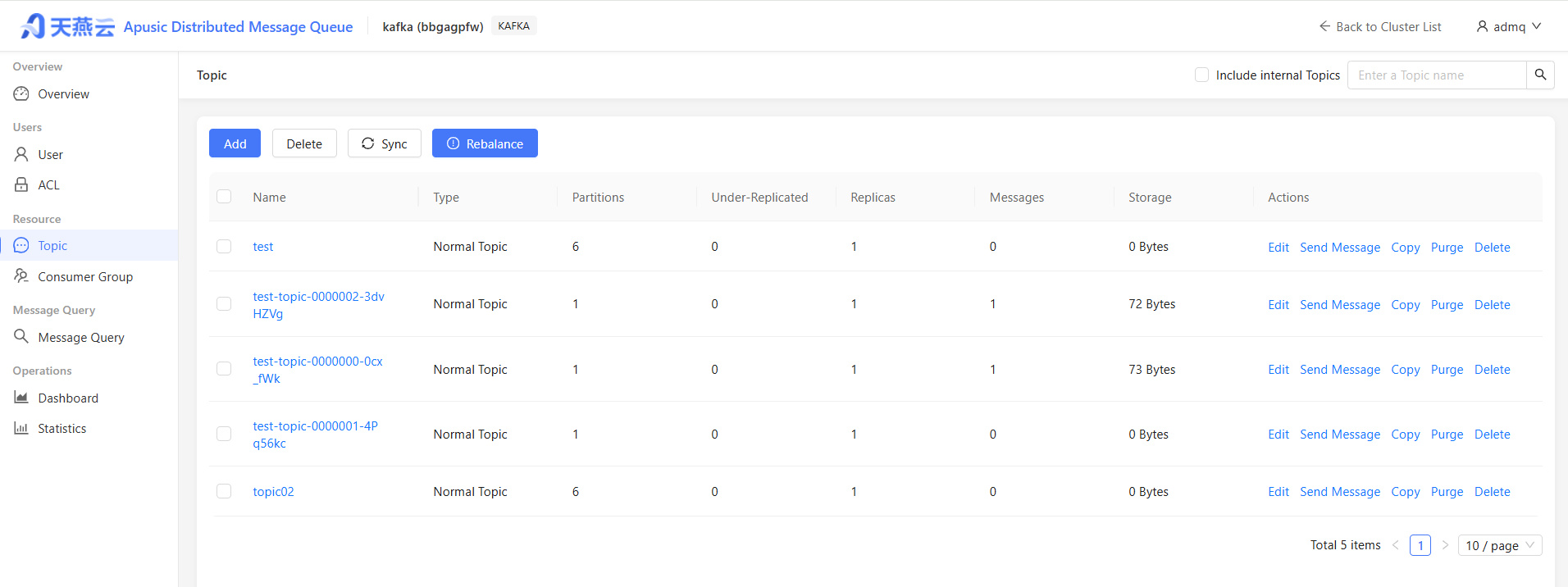
Supports filtering by the following conditions:
- Topic Type: Regular Topic / System Topic
- Name: Fuzzy search by topic name
List field descriptions:
| Field | Description |
|---|---|
| Name | Topic name, click to access the details page, supports one-click copy |
| Type | Regular Topic / System Topic |
| Partitions | Number of partitions for this topic |
| Under-replicated Partitions | Number of partitions whose replicas are not fully synchronized (greater than 0 indicates availability risk) |
| Replication Factor | Number of replicas per partition |
| Message Count | Total number of messages across all partitions of the topic |
| Storage Size | Disk space occupied by topic messages |
| Description | Description information |
# Create a Topic
Click the "New" button in the upper right corner of the list to open the topic creation page:
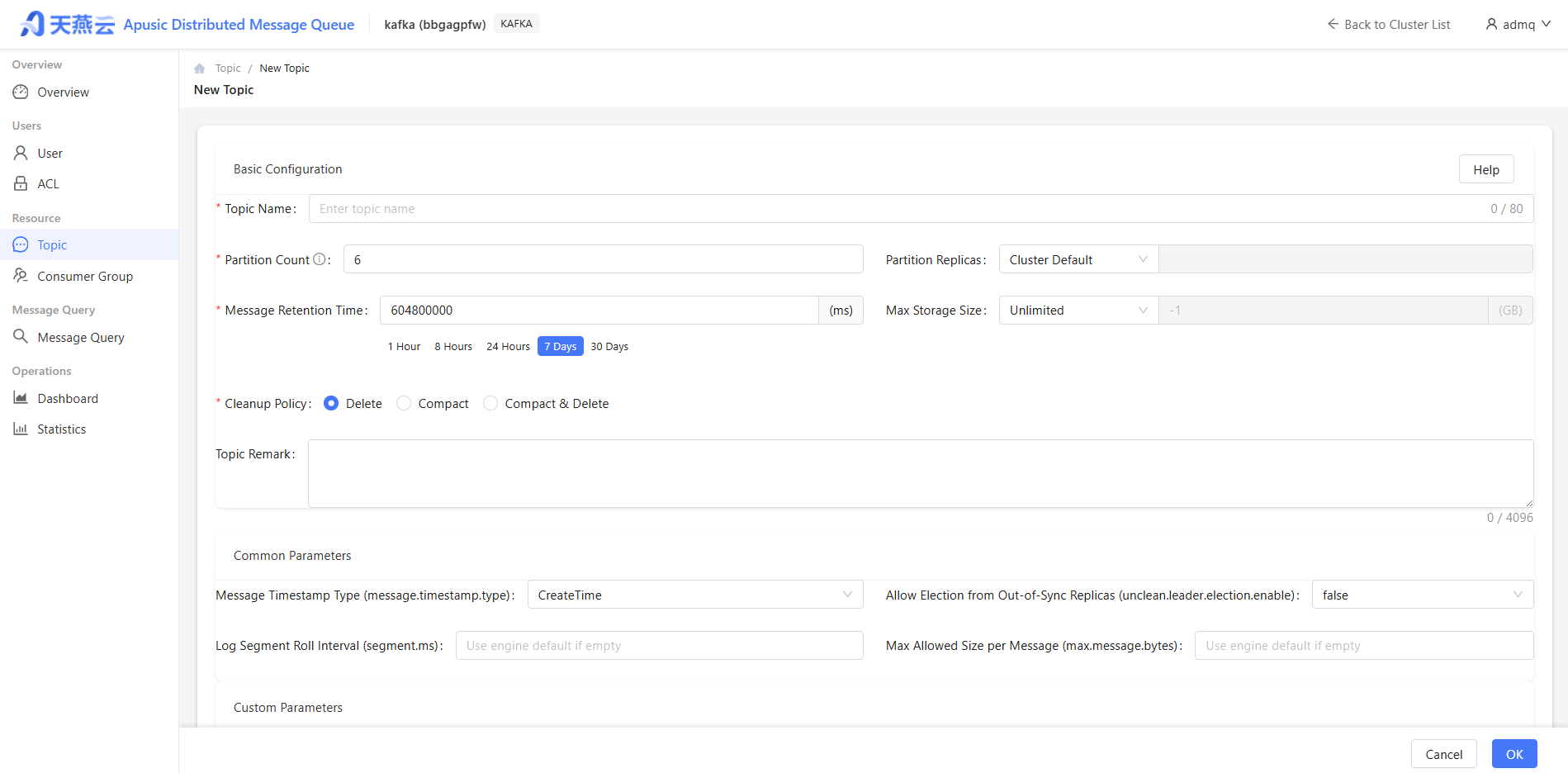
Fill in the Basic Configuration section:
Configuration Item Required Description Topic Name Yes Can only contain English letters, digits, _,-,., max 128 charactersNumber of Partitions Yes Positive integer, recommended to set based on concurrency, minimum 1. Default: 6 Replication Factor Yes Select cluster default or custom value (1 to number of Brokers, recommended ≥ 2) Message Retention Time Yes Retention duration of messages in the topic, in milliseconds. Quick options: 1 hour, 8 hours, 24 hours, 7 days (default), 30 days Maximum Storage Size Yes Maximum disk space limit for topic messages. Default: "Unlimited" (-1 GB) Cleanup Policy Yes Single selection: Delete (default) / Compact / Compact & Delete Topic Description No Description information, max 160 characters Optional configuration in the Common Parameters section:
Parameter Default Value Description Message Timestamp Type (message.timestamp.type) CreateTime How message timestamps are generated Allow Unclean Leader Election (unclean.leader.election.enable) false Whether to allow replicas not in the In-Sync Replicas (ISR) set to become the leader Log Segment Rolling Interval (segment.ms) Engine default Interval for time-based log segment rolling Maximum Single Message Size (max.message.bytes) Engine default Maximum bytes for a single message In the Custom Parameters section, experienced operations personnel can add and modify advanced parameters:
⚠️ Custom parameters should only be added and modified by experienced operations personnel. Default configuration parameters take precedence over custom parameters.
Click "OK" in the lower right corner to save, or click "Cancel" to discard.
Notes:
- The number of partitions can only be increased, not decreased, after creation.
- The replication factor cannot be modified after creation.
- System internal topics (e.g.,
__consumer_offsets) cannot be modified.
# Send Message
Click the "Send Message" button at the end of a row to send a test message to the specified topic:
- Key: Message key, used for partition routing (messages with the same key go to the same partition)
- Value: Message content
- Select Partition: Optional, specify which partition to send to; if not specified, routes by key hash
- Headers: Optional, for storing metadata unrelated to message content
This feature is commonly used for debugging and verifying that a topic is working properly.
# Copy Topic
Click the "Copy" button at the end of a row to quickly create a new topic based on an existing topic's configuration:
- The system will automatically populate the original topic's partition count, replication factor, and other configurations
- Simply modify the name to quickly create
# Edit Topic
Click the "Edit" button at the end of a row to modify the topic description.
Topic name, partition count (cannot be reduced), and replication factor cannot be modified after creation.
# Delete Topic
Click the "Delete" button at the end of a row, then confirm to delete. Deleting a topic will also delete all messages under that topic. Proceed with caution.
System internal topics cannot be deleted.
# Clear Topic
Click the "Clear" button at the end of a row to delete all messages in all partitions of the topic. This operation is irreversible, use with caution.
# Batch Operations
Select multiple topics using the checkboxes on the left side of the list to perform batch operations:
- Batch Delete: Delete multiple selected topics simultaneously
- Batch Rebalance: Perform rebalancing for multiple topics simultaneously
# Sync Topics
Click the "Sync" button to compare and synchronize topics that actually exist in the Kafka cluster with the platform database:
- The system will display a diff preview: New (exists in cluster but not in platform), Delete (exists in platform but not in cluster), Update (differences between both sides)
- Select the items to sync and click "Confirm Sync"
It is recommended to perform a sync after cluster changes (e.g., topics created through other tools) to ensure platform data is consistent with the cluster.
# Topic Details
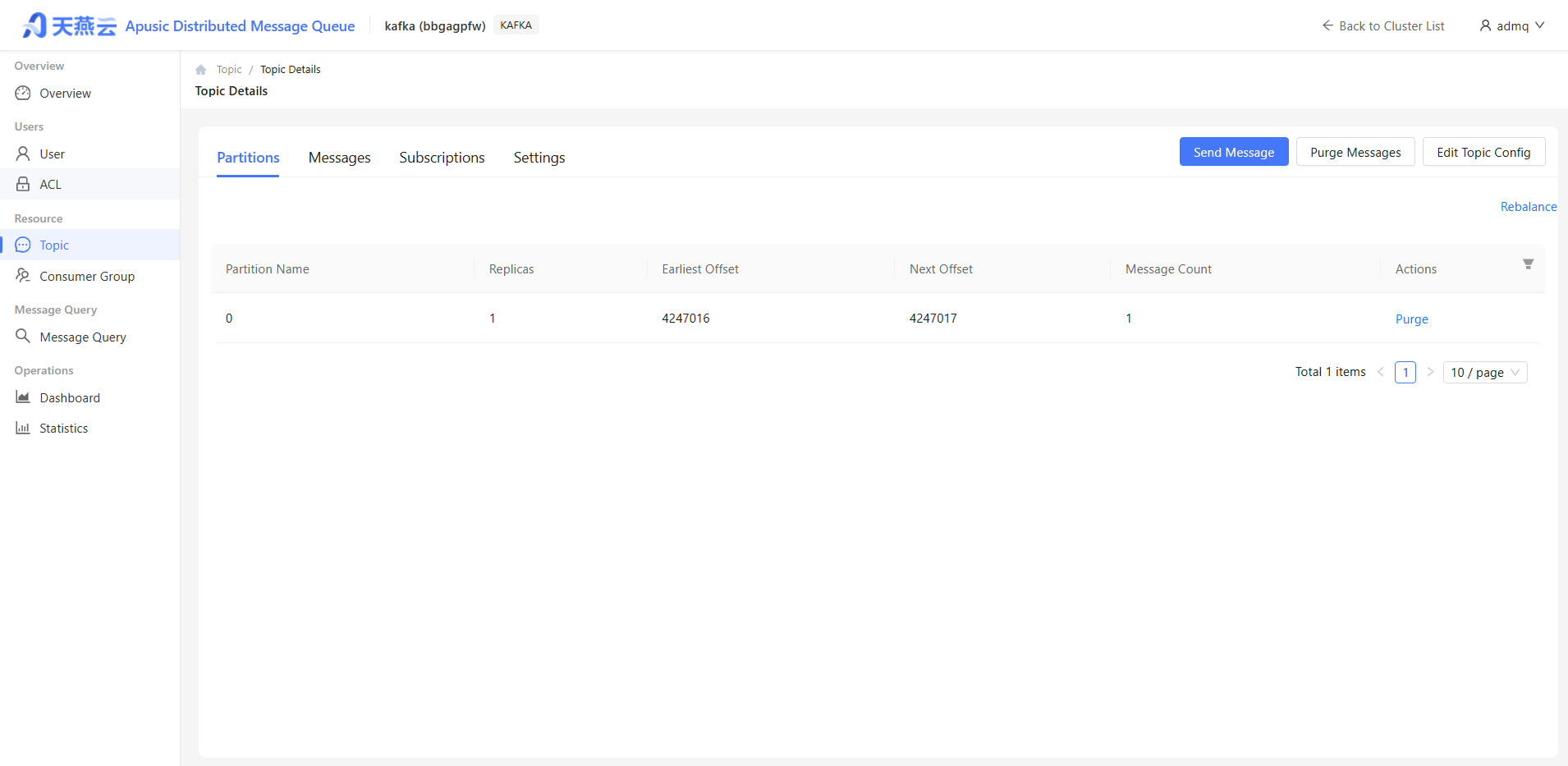
Click a topic name to enter the details page and view detailed information about the topic:
# Partition Information
Displays basic information for each partition:
- Partition ID
- Broker where the Leader replica resides
- ISR (In-Sync Replicas list)
- Start Offset / Latest Offset
- Message Count
# Message List
Displays messages in each partition of the topic, supports filtering by partition, and allows viewing the message Key, Value, offset, timestamp, and other information.
# Configuration Information
Displays detailed configuration parameters of the topic, such as cleanup policy (delete/compact), retention time, segment size, etc.
# Subscription Information
Displays the list of subscription groups consuming this topic and the consumption progress of each consumer group (current offset for each partition).
# Expand Partitions
When the message volume of a topic increases and parallel consumption capacity needs to be improved, the topic can be expanded:
- In the topic list, click the "Expand" button at the end of a row
- Enter the new number of partitions (must be greater than the current number)
- Click "Confirm"
After expansion, existing messages will not be redistributed to new partitions. Only new messages will be routed according to the new partition count.
# Subscription Group Management
# Feature Entry
【Resource Management】-【Subscription Groups】
# View Subscription Group List
Supports fuzzy search by name. List field descriptions:
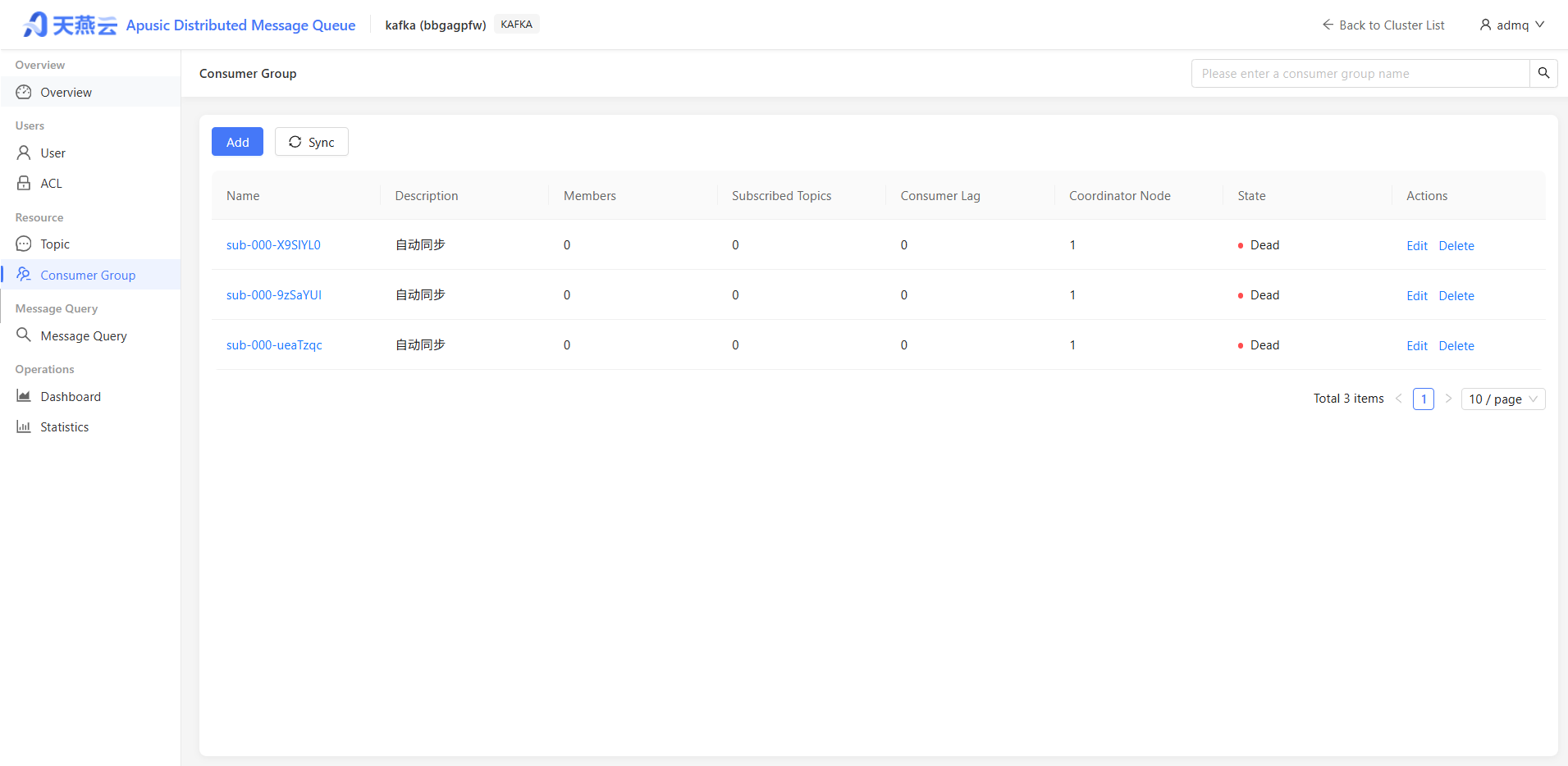
| Field | Description |
|---|---|
| Name | Subscription group name, click to access the details page, supports one-click copy |
| Description | Description information |
| Members | Number of currently online consumer instances |
| Subscribed Topics | Number of topics subscribed by this group |
| Consumer Lag | Total accumulated consumption lag (Lag) for this group, i.e., number of unconsumed messages |
| Coordinator Node | Broker node where the coordinator for this subscription group resides |
| State | Consuming / Preparing Rebalance / Completing Rebalance / Dead / Empty |
# State Descriptions
| State | Description |
|---|---|
| Stable | Consumers are consuming messages normally |
| PreparingRebalance | A consumer has joined or left, preparing to reassign partitions |
| CompletingRebalance | Partition assignment has been determined, completing the rebalance |
| Dead | Subscription group is no longer active, no active consumers |
| Empty | Subscription group exists but currently has no consumers |
# Create a Subscription Group
- Click the "New" button in the upper right corner of the list
- Fill in the form:
- Name (required): Unique identifier for the subscription group, cannot be modified after creation
- Description (optional)
- Click "Confirm" to save
The subscription group name cannot be modified after creation.
# Edit a Subscription Group
Click the "Edit" button at the end of a row to modify the subscription group description.
# Delete a Subscription Group
Click the "Delete" button at the end of a row, then confirm to delete. Deleting a subscription group will clear the offset records for that group. Proceed with caution.
# Sync Subscription Groups
Click the "Sync" button to compare and synchronize subscription groups that actually exist in the Kafka cluster with the platform database.
# Subscription Group Details
Click a subscription group name to enter the details page and view detailed information about the subscription group:
# Subscription Information
Displays all topics subscribed by this group and the consumption progress for each topic across all partitions.
# Consumer List
Displays currently online consumer instances:
- Partition Name
- Consumer Name
- Address
- Message Lag
- Current Offset
- Latest Offset
# Reset Offset
When there is a need to re-consume historical messages or skip some messages, the subscription group's consumption offset can be reset:
In the subscription group list, click the "Reset Offset" button at the end of a row.
Select a reset strategy:
- Reset to Earliest: Reset the consumption position to the earliest message in each partition
- Reset to Latest: Reset the consumption position to the latest message in each partition
- Reset to Specified Time: Reset the consumption position to the position corresponding to the specified timestamp
Select partitions
Click "Confirm"
Resetting the offset will affect all running consumers. Ensure that the business can tolerate duplicate consumption or message loss.
# User Management
# Feature Entry
【Users】-【User Management】
# View User List
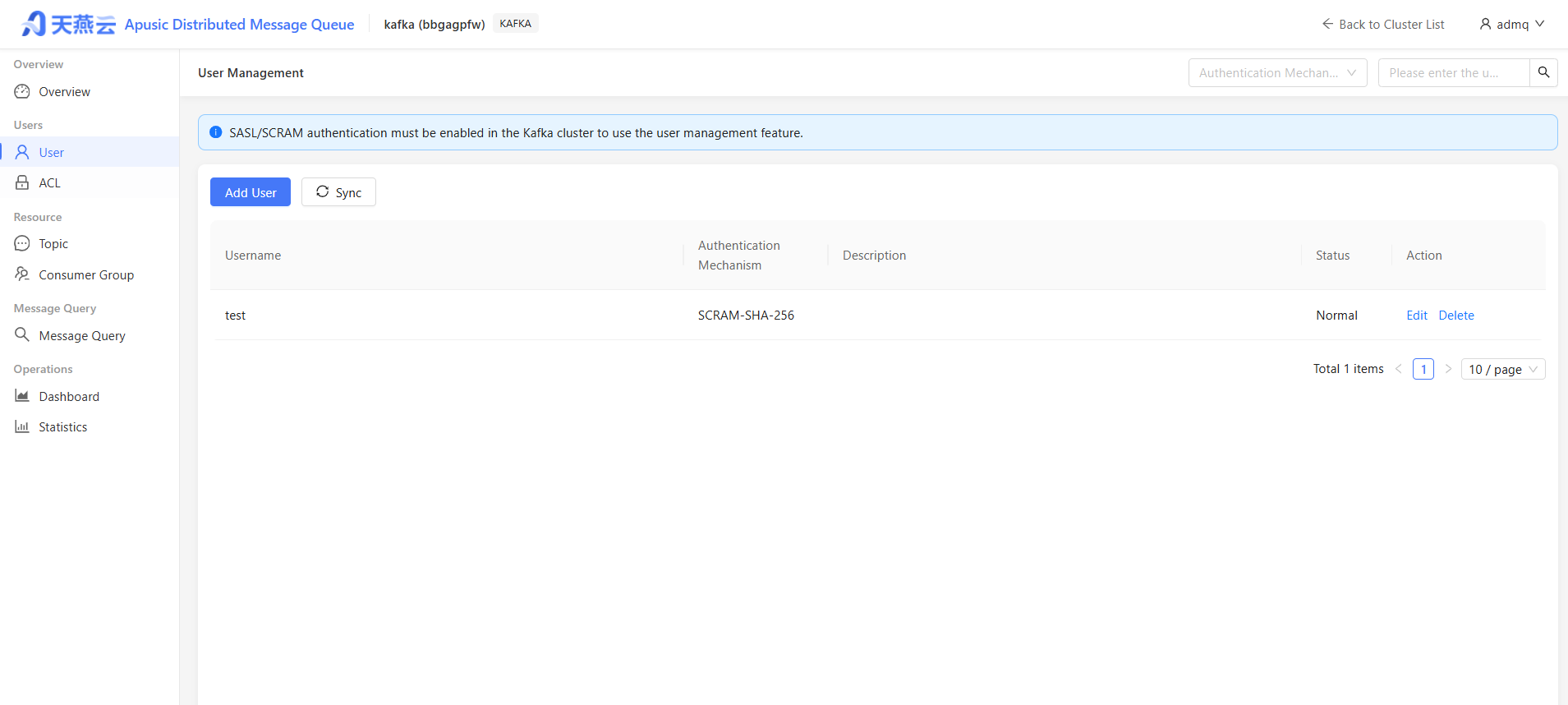
List field descriptions:
| Field | Description |
|---|---|
| Username | User identifier |
| Authentication Method | SCRAM-SHA-256 / SCRAM-SHA-512, etc. |
| Description | Description information |
| Status | Normal / Deleted |
# Create a User
Click the "New" button in the upper right corner of the list
Fill in the form:
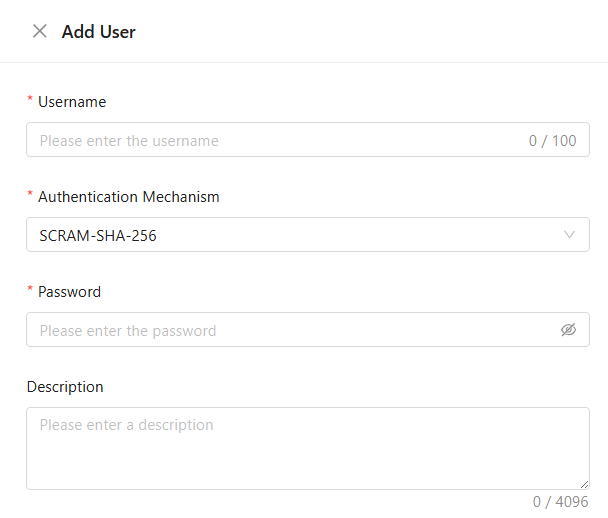
- Username (required): Unique identifier for the user, cannot be modified after creation
- Password (required): At least 6 characters
- Description (optional)
Click "Confirm" to save
# Edit a User
Click the "Edit" button at the end of a row to modify the user password and description.
The username cannot be modified after creation.
# Delete a User
Click the "Delete" button at the end of a row, then confirm to delete. After deleting a user, client connections using that user's credentials will be disconnected.
# Sync Users
Click the "Sync" button to compare and synchronize users that actually exist in the Kafka cluster with the platform database.
The sync logic is the same as for topics/subscription groups, used to resolve inconsistencies between platform data and the actual cluster state.
# ACL Management
# Feature Entry
【Users】-【ACL Management】
# View ACL List
List field descriptions:
| Field | Description |
|---|---|
| Resource Type | Topic / Group / Cluster / TransactionalId / DelegationToken |
| Resource Name | Specific resource identifier |
| Pattern Type | LITERAL (exact match) / PREFIXED (prefix match) |
| Principal | Authorized user, format: User:username |
| Operation | Read / Write / Create / Delete / Alter / Describe / All |
| Permission Type | ALLOW / DENY |
| Host | Source host allowed to access, * represents all hosts |
# Create an ACL
- Click the "New" button in the upper right corner of the list
- Fill in the form:
- Resource Type (required): Select the resource type to control
- Resource Name (required): Specific name of the resource
- Pattern Type (required): LITERAL or PREFIXED
- Principal (required): Format:
User:username - Operation (required): Select the allowed operations
- Host (required):
*for all hosts, or specify a specific IP - Effect (required): ALLOW or DENY
- Click "Confirm" to save
ACL Rule Examples:
- Allow user
app-producerto write messages to topicapp-logs: Resource Type=Topic, Resource Name=app-logs, Principal=User:app-producer, Operation=Write, Effect=ALLOW- Deny user
test-useraccess to all topics: Resource Type=Topic, Resource Name=*, Pattern Type=PREFIXED, Principal=User:test-user, Operation=All, Effect=DENY
Security Note: Follow the principle of least privilege. Only assign the minimum set of permissions necessary for users to complete their tasks, and prefer exact matching (LITERAL) over prefix matching (PREFIXED) to reduce the risk of improper authorization.
# Edit an ACL
Click the "Edit" button at the end of a row to modify all fields of an ACL rule.
# Delete an ACL
Click the "Delete" button at the end of a row, then confirm to delete the ACL rule.
# Sync ACLs
Click the "Sync" button to compare and synchronize ACL rules that actually exist in the Kafka cluster with the platform database.
It is recommended to perform a sync when making permission changes or troubleshooting permission issues.
# Message Query
# Feature Entry
【Message Query】-【Message Query】
# Query Messages
- Select the topic to query
- (Optional) Select a specific partition; if not selected, query all partitions of the topic
- Set query conditions:
- Offset Range: Filter by start offset and end offset
- Time Range: Filter by message timestamp
- Key Filter: Fuzzy match by message Key
- Click the "Query" button
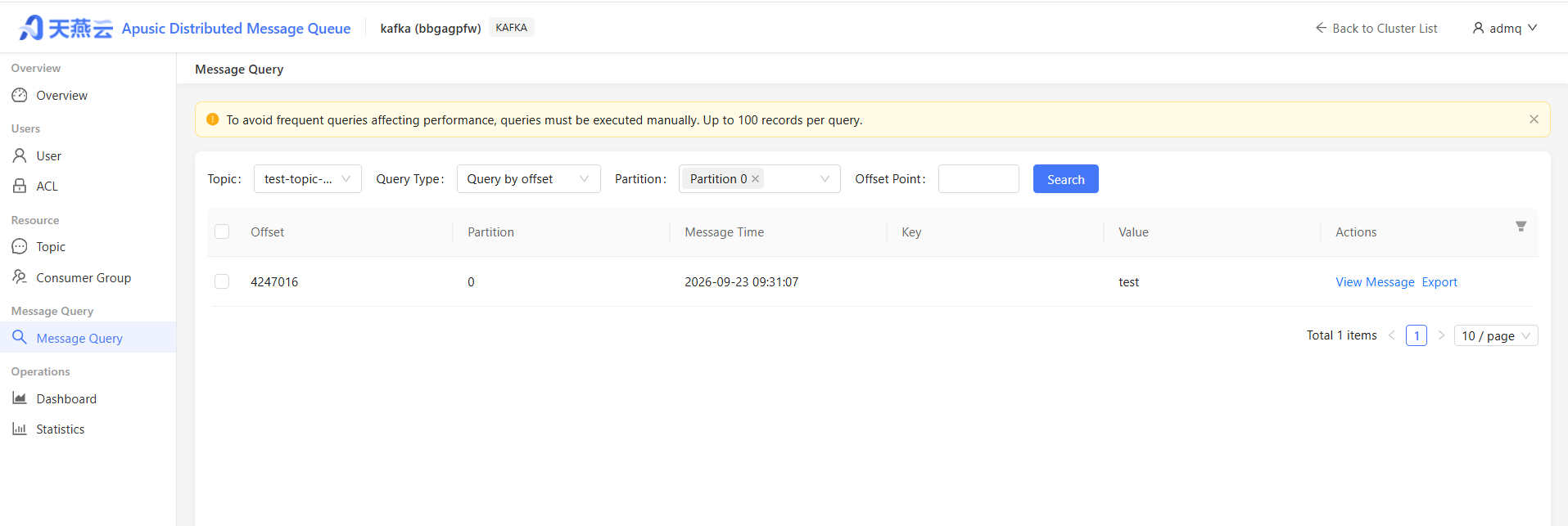
Query result list field descriptions:
| Field | Description |
|---|---|
| Offset | Message offset within the partition |
| Partition | Partition ID where the message resides |
| Message Time | Message timestamp |
| Key | Message key |
| Value | Message content (displayed with length limitation) |
# View Message Details
Click the "View Message" button at the end of a row to view the complete content of a message, including:
- Topic, message size, timestamp
- Complete Key and Value content
- Header information
# Export Messages
Click the "Export" button at the end of a row to export a single message as a file.
Batch export functionality is available through the message statistics report module.
# Usage Recommendations
- The message query feature is primarily used for troubleshooting and verifying message content. It is not recommended as a regular data consumption method.
- When querying large volumes of messages, it is recommended to narrow the time range or specify a specific partition to improve query efficiency.
- The message Value may be serialized (e.g., JSON, Avro, Protobuf). Pay attention to format conversion when viewing.
# Monitoring and Statistics
# Monitoring Dashboard
# Feature Entry
【Monitoring & Operations】-【Monitoring Dashboard】
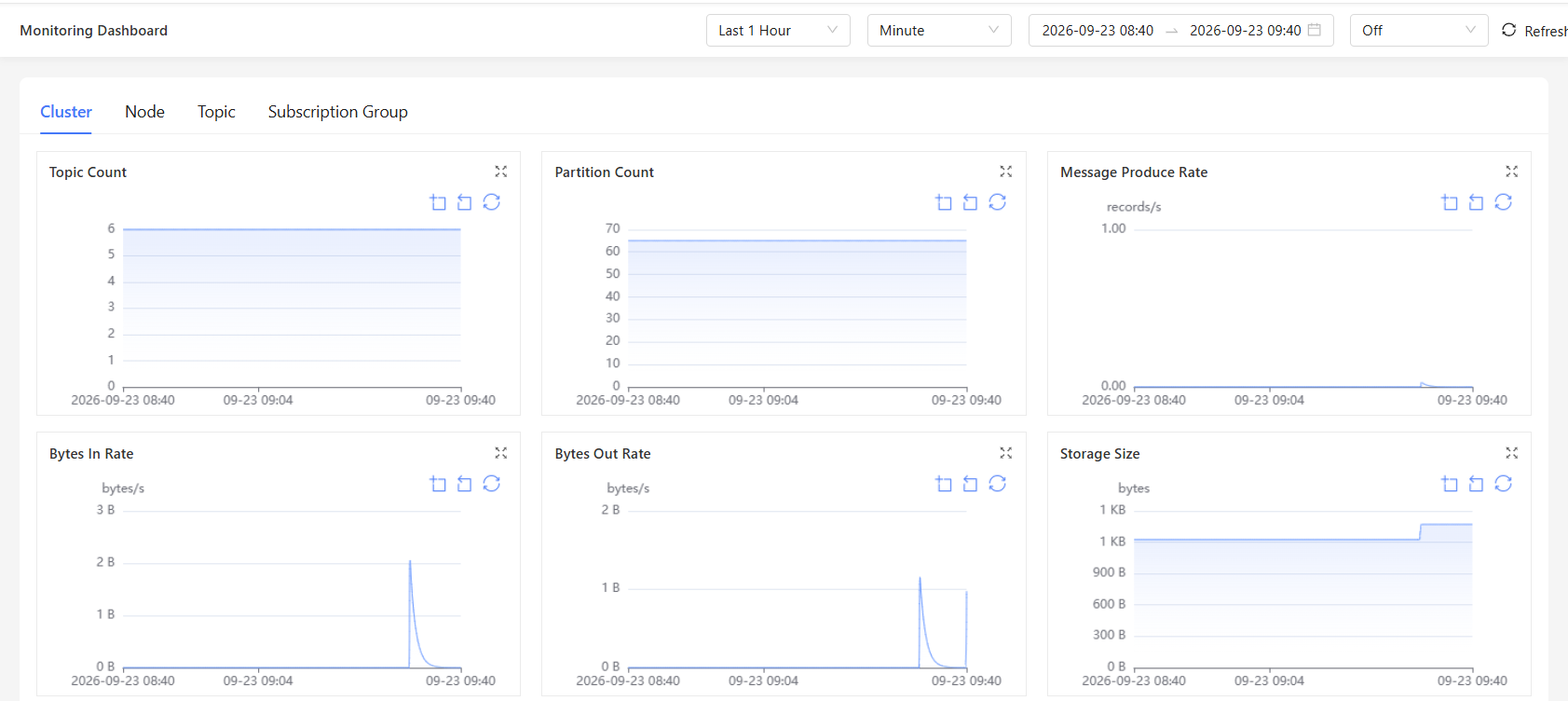
# Time Range Selection
The top of the page provides a time range selector, supporting quick options (Last 1 Hour, Last 6 Hours, Last 1 Day, etc.) and custom time ranges.
# Monitoring Dimensions
The monitoring dashboard is divided into four tabs:
# Cluster
Displays overall cluster health, including:
- Brokers (Online/Total): Number of currently online Brokers and total number of Brokers
- Topic Count: Total number of topics in the cluster
- Partition Count: Total number of partitions in the cluster
- Message Incoming Rate: Overall cluster message production rate (messages/second)
- Message Throughput Trend: Production/consumption rate curve over time
# Node
Displays resource usage of each node:
- Node list: Partition count, Leader count, log directory size, JVM memory usage/limit, CPU usage, connection count
- After selecting a node, displays trend charts: message rate, bytes in/out rate, request rate, etc.
# Topic
Displays topic-related monitoring metrics (requires selecting a specific topic):
- Message Production Rate (messages/second)
- Bytes In Rate (bytes/second)
- Bytes Out Rate (bytes/second)
- Storage Size (bytes)
- Total Messages
- Partition Count
- Under-replicated Partition Count
# Subscription Group
Displays subscription group-related monitoring metrics (requires selecting a specific subscription group):
- Message Consumption Rate (messages/second)
- Message Backlog
- Backlog by Topic
- Consumer Member Count
Monitoring data is sourced from Kafka Java Management Extensions (JMX) metrics, with a data refresh frequency of approximately 5 seconds.
# Message Statistics Report
# Feature Entry
【Monitoring & Operations】-【Message Statistics Report】
# View Statistics
Supports two statistical dimensions:
- Cluster Dimension: Aggregates message metrics for the entire cluster by date
- Topic Dimension: Aggregates message metrics by date + topic
Statistical metrics include:
| Metric | Description |
|---|---|
| Messages Produced | Number of messages published by producers to the cluster/topic |
| Messages Consumed | Number of messages consumed by consumers from the cluster/topic |
| Bytes In | Total bytes flowing into the cluster |
| Bytes Out | Total bytes flowing out of the cluster |
# Export Report
Click the "Export" button to export the current query results as an Excel file.
# Scheduled Statistics
For automatic message data statistics on a fixed schedule (e.g., hourly, daily), contact the administrator to configure scheduled statistics tasks.
# Frequently Asked Questions
# Q1: Why can't I see the topic I created in the list?
Possible causes:
- Cluster Selector — Check whether the correct Kafka cluster is selected
- Data Not Synced — If the topic was created directly through other tools, click the "Sync" button to synchronize data to the platform
- Filter Conditions — Check whether filter conditions such as topic type are set
# Q2: What should I do if consumers are slow and messages are heavily backlogged?
- Go to Monitoring Dashboard → Subscription Group to view the Lag trend for that consumer group
- Check whether the number of consumer instances is sufficient, consider adding more consumer instances
- If the number of consumers has reached the partition count limit, consider expanding the topic (increasing partition count)
- Check whether the consumer code has performance bottlenecks (e.g., excessive single message processing time)
# Q3: How do I check the consumption progress of a subscription group?
- Go to the Subscription Groups page
- Click the subscription group name to enter the details page
- In the "Subscription Information" tab, compare the current offset with the latest offset for each partition
# Q4: How do I select a partition when sending messages?
- No partition specified + With Key: Routes to the corresponding partition based on the hash value of the key (messages with the same key go to the same partition)
- No partition specified + No Key: Distributes partitions using a round-robin strategy
- Partition specified: Messages go directly to the specified partition
# Q5: What is the purpose of the Sync button?
The sync function is used to resolve inconsistencies between platform data and the actual Kafka cluster state. Scenarios include:
- Direct operations on cluster resources via Kafka command-line tools or other management interfaces
- Data inconsistency after cluster failure recovery
- First-time integration with an existing cluster
The sync compares the platform database with the actual cluster state, displays differences, and supports selective synchronization.
# Q6: Can the number of partitions for a topic be reduced?
No. Kafka partition count can only be increased, not decreased. This is a design limitation of Kafka, as reducing partitions would cause confusion in the归属 of existing messages.
If the partition count is set too high, it is recommended to create a new topic and migrate data.
# Q7: What is the priority of ACL rules?
The matching priority of Kafka ACLs is as follows:
- Exact match takes precedence over prefix match (LITERAL > PREFIXED)
- DENY takes precedence over ALLOW
It is recommended to follow the principle of least privilege and only assign necessary permissions to users.
# Appendix
# Glossary
| Term | Description |
|---|---|
| Topic | A logical category for messages in Kafka. Producers send messages to specific topics, and consumers subscribe to topics to receive messages. |
| Partition | A physical shard of a topic. A topic can contain multiple partitions, which are the basic unit of parallel processing in Kafka. |
| Broker | An individual server node in a Kafka cluster, responsible for receiving, storing, and forwarding messages. |
| ISR (In-Sync Replicas) | The set of replicas that are synchronized with the leader replica. Only replicas in the ISR set are eligible to be elected as the leader. |
| Leader | The primary replica of a partition, responsible for handling all read and write requests for that partition. |
| Consumer Group | A group of consumer instances that collectively consume one or more topics. Consumers within a group coordinate to assign partitions. |
| Offset | A unique identifier for a message within a partition. Consumers use offsets to record their consumption position. |
| JMX (Java Management Extensions) | The standard monitoring and management interface for the Java platform. ADMQ for Kafka exposes runtime metrics through JMX. |
| ACL (Access Control List) | Kafka's permission control mechanism, used to restrict user or client operations on resources. |
| Rebalance | The process of reassigning partitions when consumer group membership changes. |
| Lag | The difference between the consumer's current offset and the latest offset in a partition, representing the number of unconsumed messages. |
# Configuration Reference Table
| Parameter/Configuration Item | Default Value | Description |
|---|---|---|
num.partitions | 6 | Default number of partitions for a topic |
default.replication.factor | 1 | Default replication factor for a topic |
retention.ms | 604800000 (7 days) | Message retention duration, in milliseconds |
log.retention.bytes | -1 | Maximum bytes for log retention, -1 means unlimited |
cleanup.policy | delete | Log cleanup policy, options: delete / compact / compact&delete |
max.message.bytes | 1000012 | Maximum allowed bytes for a single message |
message.timestamp.type | CreateTime | Message timestamp type, options: CreateTime / LogAppendTime |
unclean.leader.election.enable | false | Whether to allow non-ISR replicas to be elected as leader |
segment.ms | 604800000 (7 days) | Time interval for log segment rolling |
min.insync.replicas | 1 | Minimum number of ISR replicas required for a producer request to succeed |